1
Modelled Application Archive 17
|
Creating and Accessing MAAs
This section describes how MAAs are created and used.
Creating an MAA
To create a Modelled Application Archive (MAA), do one of the following:
•
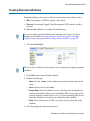
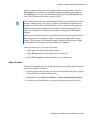
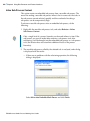
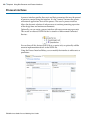
When you first launch Studio for Analysts, a dialog offering to create a new
project, or open an existing project is displayed. Click the Create a new
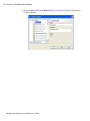
project link and enter the name of the new project in the New Project dialog.
•
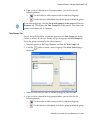
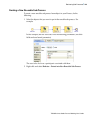
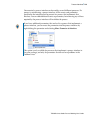
Select the New icon
from the ribbon and enter the name of the new project
in the New Project dialog.
•
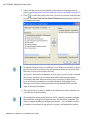
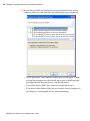
For an existing BPM project, open the project in TIBCO Business Studio and
export using the Export > Export as MAA file wizard. See Exporting Projects
to Modelled Application Archive (MAA), page 68 for details.
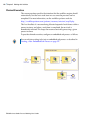
The derived artifacts such as generated WSDLs, business objects, forms, etc are
not included in the generated MAA file and may need to be regenerated when
you import the generated MAA file to a different workspace.
In all the above cases, the project is saved as an MAA file.
Accessing an MAA
To access the .maa file, do one of the following:
•
Double-click the MAA file to open the project in Studio for Analysts.
•
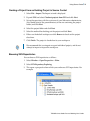
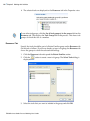
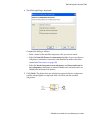
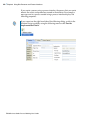
Click the Open icon
•
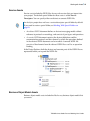
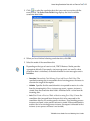
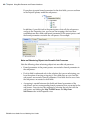
You can open the MAA file in TIBCO Business Studio by using the Import >
General >Existing MAA files into Workspace wizard. See Importing Existing
MAA Files into Workspace, page 65 for details.
on the ribbon to look for an existing MAA file.
TIBCO Business Studio Process Modeling User’s Guide