1
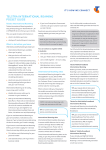
BigPond Elite™ W I R E LE S S B R OAD BAN D N E T W O R K G AT E WAY I M P O RTANT R E AD TH I S FI R S T: Before connecting any cables, please ensure that you have the ‘Wireless Broadband Installation USB Key’ (below). You will find this inside the box that your BigPond Elite™ Network Gateway came with. Q U I C K START GUI D E 1 G etting starte d The Installation USB Key will guide you through everything you need, from setting up your hardware and connecting the cables to your Gateway, through to installing the software and registering your BigPond account. Simply insert the Installation USB Key into your USB port on your computer. Insert this into any USB port on your computer for a step-by-step guide to connecting and configuring your Gateway. PLEASE PAY PARTICULAR ATTENTION TO THE USB CONTENT DURING THE INSTALLATION PROCESS. FAILURE TO DO SO MAY RESULT IN AN UNSUCCESSFUL INSTALLATION. 1 2 W E LC O M E TO B I G P O ND W IR ELE S S BROAD BAND 3 4 6 5 - THANK YOU FOR CHOOSING US! This guide is to help you get the most out of your BigPond Wireless Broadband experience. We’re sure you’re keen to get started and with our quick start guide you will be connected to the internet in no time! YOUR BIGPON D ELITE™ NETWO RK GATEWAY As a BigPond Wireless Broadband Member you can now enjoy a huge range of benefits, including flexible plans, a world of ‘unmetered’ content, state-of-the-art security options, great account management tools, extra email features, special shopping deals and lots more. 2 Wired Ethernet Connections So let’s get started. 6 USB (Mass Storage or Print Server) Make a note of your BigPond details here... PACKAGE CONTENTS EMAIL ADDRESS BigPond Elite ™ Wireless Broadband Network Gateway 1. Next G™ SIM Card slot 3Reset button 4 Power 5 External antenna port (antenna not included) FOR MICROSOFT OPERATING SYSTEMS: FOR MAC OPERATING SYSTEMS: The installation should load automatically. If it doesn’t, open ‘My Computer’ and double-click on the ‘BigPond Wireless Broadband’ icon. Then, follow the step-by-step instructions to set up your BigPond Elite™ Network Gateway. Double-click on the “BigPond Wireless Broadband” icon on your desktop and follow the simple step-by-step instructions to set up your BigPond Elite™ Network Gateway 2 INSTALLING THE C onnection client Softwar e The installation USB Key will guide you through setting up your BigPond Elite™ Network Gateway. During the step up process you will be asked to choose whether you want to set up a ‘Wired’ or ‘Wireless’ (Wi-Fi) connection*. If you select the ‘Wireless’ (Wi-Fi) connection, please make sure that you enable the wireless network connection function on your computer. * If your computer has a Wi-Fi adaptor turned on. Quick Start Guide PASSWORD (If you like, protect your security by writing down an unmistakable clue rather than your actual password) 1 x Network Gateway User Manual (on the USB key) Wireless Broadband Installation USB Key Wireless Security Card Ethernet Cable Power Supply NET3G21_271009 (Remember, your email address is your [email protected]) 3 SIGN U P / R E G I S TER YO UR D E V I C E This is when you will need your BigPond username and password, OR your billing details if you haven’t signed up yet. Click on the ‘Register now’ button (shown right) to begin. Depending on your circumstance, you will encounter one of the following screens. 4 YOU’ RE CONNECTE D Now that you have set up your BigPond Elite™ Network Gateway, here is a quick guide to what it all means. Once your device is powered up and running you will notice a series of lights. These will light up, flash or turn off depending on the activity of your BigPond Elite™ Network Gateway. FRONT PANEL LIGHTS 1. High Strength 2. Medium Strength NO USERNAME EXISTING USERNAME 3. Low Strength If you have bought your device from the shop/dealer, you will need to register your billing details and set up a username and password. The following screen will appear prompting you for this information. If you have ordered your device online, or over the phone, you would have already provided your credentials during the sign up process, as well as set up your username and password. You will need to use these details to log in when prompted with the below screen. 4. 2G* 1 2 3 4 5 6 7 8 9 10 11 12 Next G™ Signal 5. 3G 6. LAN 4 7. LAN 3 Wired Ethernet Connections 8. LAN 2 9. LAN 1 10. Internet 11. Wi-Fi - Local Wireless Network 12. Power 13 13. Power button # * # 2G does not function on this device This product features a soft power button. Your BigPond Elite™ Network Gateway will need to be powered on manually in the event that a power outage occurs. NOW THAT YOU’ RE CONNECTE D, LET’S SHARE YOUR CONNECTION WITH FAMILY AN D FRIENDS SET UP YOUR EMAIL Installation complete You can connect multiple devices to your BigPond Elite™ Network Gateway, including Laptops, Desktop PC’s and Wi-Fi enabled handsets and PDA’s. To get your family and friends connected to the BigPond Elite™ Network Gateway, follow these steps: Once you have completed the registration process you will be provided with the option to set up your BigPond email. If you have followed all the previous steps, the following page will be displayed. Please read this page carefully. 1. Using your WiFi enabled device, scan for Wireless networks. (Refer to the User Manual of your Laptop, Desktop PC or PDA for instructions on how to scan for Wireless Networks) 2. 4. Wireless Network Name (SSID): BigPond#### Wireless Security Key (WPA): ########## 2. Locate the Wireless Network Name (SSID) shown on the Wireless Security Card (this information is also available on the bottom of your BigPond Elite™ Network Gateway) 3. Click to connect to your Wireless Network 4. When prompted for your wireless security settings, enter the Wireless Security Key (WPA) found on the Wireless Security Card 5. Now you and your family and friends can surf the internet! WIRELESS SECURITY CARD LOCATED IN YOUR BIGPOND ELITE™ NETWORK GATEWAY PACK ™ and ® - trade mark and registered trade mark of Telstra Corporation Limited, ABN 33 051 775 556 # NOTE: This product features a soft power button. Your BigPond Elite™ Network Gateway will need to be powered on manually in the event that a power outage occurs.