1
Perfect Effects 79
Presets
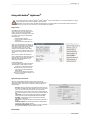
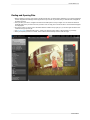
Presets store the Effect Stack and all of the settings you can adjust in the the control panels on the right. Presets are a fast and easy way to get consistent
results. You can save your own presets for batch processing or for simply reproducing your look when retouching.
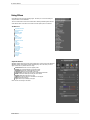
Using a Preset
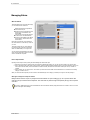
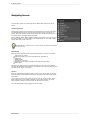
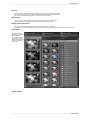
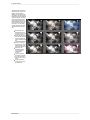
Using a preset is simple, just click on it in the Preset Browser.
Saving a Preset
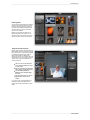
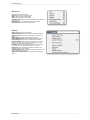
Saving a preset is simple. Once you have your settings that you wish to
save, go to the Preset menu and select Save Preset.
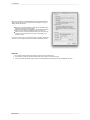
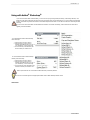
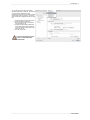
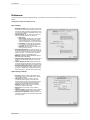
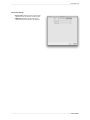
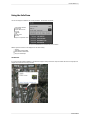
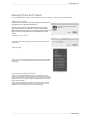
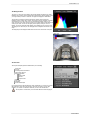
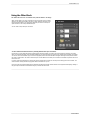
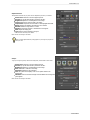
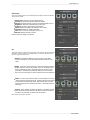
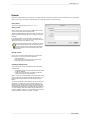
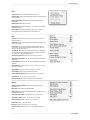
The New Preset dialog will appear (shown to the right). There are several
fields to complete including the preset name, the category, creator and
description.
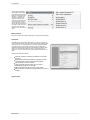
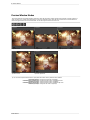
In the category pull-down you can select which existing category the
preset should saved into. You can also create a new category this way by
selecting new category from the bottom of the list.
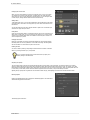
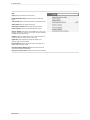
You can edit a preset's name, creator or description by selecting
it and then selecting Edit Preset Info from the Preset menu. If
you want to edit the settings in a preset, load it into, make your
adjustments and then re-save the preset with the same name
and location.
Deleting a Preset
You can remove a preset from Perfect Effects if you no longer want to
have access to it. To remove a preset, follow these steps:
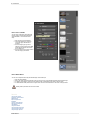
1. Open Perfect Effects.
2. Select the preset you wish to remove in the preset browser.
3. Select Delete Preset from the Preset menu.
Importing & Sharing Presets
You can import presets you have downloaded from the onOne website
using these steps.
1. Download the preset pack from the onOne website. It should have
a .ONPreset extension.
2. Double-click on the preset pack, it will install the presets into a
category named the same as the preset pack.
That's it, next time you use Perfect Effects the new presets will be located
in the My Presets tab, in a category named after the preset pack. You can
delete the files you downloaded, they have been copied into Perfect
Effects.
You can share presets like you would share any other file, such as email or
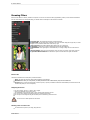
posting them to a website. First you need to find the preset files. The
easiest way it to open Perfect Portrait, then from the Preset menu select
Show Presets Folder. A Finder (Mac) or Explorer (Win) window will open
and will display the presets folder. In the presets folder are sub-folders for
your preset categories. Inside each sub-folder are the individual preset
files, with a .ONEffects extension. You can copy these presets to another
computer, attach them to an email or post them on a website.
Perfect Effects