1
Quick Start: Add Gateways and Locks (cont'd)
the factory with Alarm Lock firmware pre-installed, for
use within the Alarm Lock Networx system. Therefore
this column displays "3.51" to reflect this Alarm Lock
Gateway firmware. When the Gateway firmware is
compatible with Continental CardAccess 3000 (in the
steps below), the Firmware Version will read "4.1B".
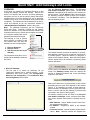
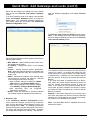
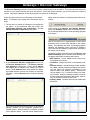
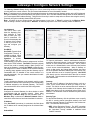
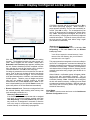
● Gateway Status - Condition at the time the module
was discovered.
Make note of the new Gateway's unique MAC address
located on a square sticker inside the Gateway enclosure
(or use the blue GATEWAY ID CARD). It has 12 digits,
grouped in 6 pairs separated by dashes. Compare the
MAC Address listed on the screen to the MAC Address
on the sticker to ensure the Gateway you wish to add to
the CA3000 system was in fact discovered by the software.
When the Gateway you wish to add is found in the list,
click the Gateway to highlight it. Notice the Com Port #
field at the upper right. Each Gateway added to CA3000
is automatically assigned a COM port, with the first Gateway added to the system assigned to COM port #1 by
default. Therefore, the Com Port # field displays #1 or
the next available COM port. Click to highlight the Gateway and verify the COM port number displayed in the
Com Port # field. Click the Add Gateway button (or just
double-click the Gateway).
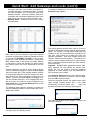
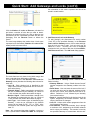
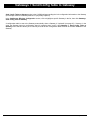
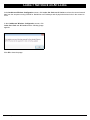
The following popup appears, requesting to change the
selected Gateway firmware to new firmware that is compatible with CA3000:
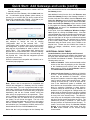
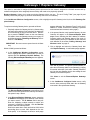
If installing a Gateway for the first time, the Gateway
Password popup appears:
This popup appears because there must be a way for
CA3000 to differentiate between separate wireless installations. For example, if a large office building has one
company on the 15th floor and another company on the
16th floor, radio signals can overlap from these two
separate installations. How does CA3000 prevent this
confusion between wireless signals? The answer is to
require a unique "Gateway Password" for each Gateway,
and to embed that password within the radio transmissions to the locks.
Important: Do NOT share passwords between Gateways, otherwise the radio signals can become intermixed! Be sure you record--in writing--all installation
passwords in a safe location; once set, passwords are
NOT retrievable from CA3000!
In the Gateway Password popup, type a Gateway password exactly 6 characters (no more--no less) in length,
then click OK to close this popup.
During the download process, the splash screen briefly
reads "Adding Gateway...please wait...", then reads
"Downloading Firmware...please wait...".
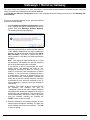
When the
download is finished, the following popup appears:
Click OK and another popup appears, indicating the
process is complete.
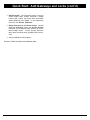
Re-verify the MAC Address of the Gateway displayed in
the popup, then click Yes to proceed.
14
Wireless Lock Integration Guide