1
3.8 Resetting to the factory default settings
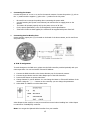
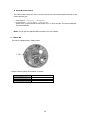
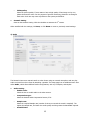
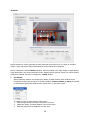
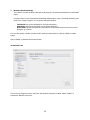
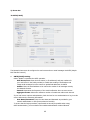
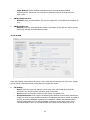
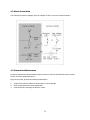
To reset the Network Camera to the original factory settings, go to the Setup>System> Maintenance
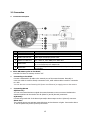
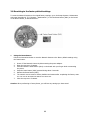
web page (described in “3.5.5 System > Maintenance”) or use the Reset button (SW1) on the board
of the dome camera, as described below:
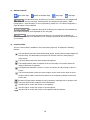
•
Using the Reset Button
Follow the instructions below to reset the Network Camera to the factory default settings using
the Reset button.
1.
2.
3.
4.
5.
6.
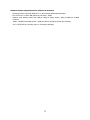
Power off the Network Camera by disconnecting the power adapter.
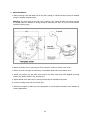
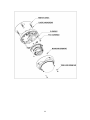
Open the top cover of camera.
Press and hold the Reset button (SW1) on the board with your finger while reconnecting
the power.
Keep the Reset button (SW1) pressed during about 2 seconds.
Release the Reset button (SW1).
The network camera resets to factory defaults and restarts after completing the factory reset.
The unit now has the default IP address 192.168.30.220.
7.
Close the top cover of camera.
Caution: When performing a Factory Reset, you will lose any settings you have saved.
69