1
HOW TO USE THE WIRELESS NETWORK MODE
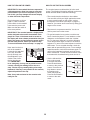
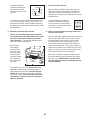
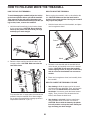
An information box will ask if you want to connect
to the wireless network. Touch the Connect button
to connect to the network or touch the Cancel button to return to the list of networks. If the network
has a password, touch the password entry box. A
keyboard will appear on the screen. To view the
password as you type it, touch the Show Password
checkbox.
The console features a wireless network mode that
allows you to set up a wireless network connection.
1. Select the settings main menu.
See step 1 on page 26.
2. Select the wireless network mode.
To use the keyboard, see HOW TO USE THE
TOUCH SCREEN on page 19.
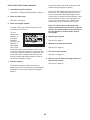
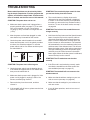
In the settings main menu, touch the Wireless
Network button to enter the wireless network mode.
When the console is connected to your wireless
network, the WiFi menu option at the top of the
screen will display the word CONNECTED. Then,
press the back button on the console to return to
the wireless network mode.
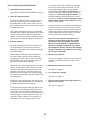
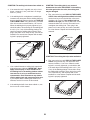
3. Enable Wi-Fi.
Make sure that the Wi-Fi checkbox is marked with
a green checkmark. If it is not, touch the Wi-Fi
menu option once and wait for a few seconds. The
console will search for available wireless networks.
To disconnect from a wireless network, select the
wireless network and then touch the Forget button.
4.Set up and manage a wireless network
connection.
If you are having problems connecting to an
encrypted network, make sure that your password
is correct. Note: Passwords are case-sensitive.
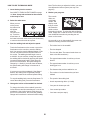
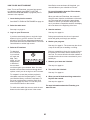
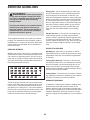
When Wi-Fi is enabled, the screen will show a list
of available networks. Note: It may take several
seconds for the list of wireless networks to appear.
Note: The iFit mode supports unsecured and
secured (WEP, WPA, and WPA2) encryption. A
broadband connection is recommended; performance depends on connection speed.
Make sure that the checkbox on the Network
notification menu option is marked with a green
checkmark to have the console notify you when a
wireless network is within range and available.
Note: If you have questions after following
these instructions, go to support.iFit.com for
assistance.
Note: You must have your own wireless network
and an 802.11b/g/n router with SSID broadcast
enabled (hidden networks are not supported).
5. Exit the wireless network mode.
To exit the wireless network mode, press the back
button on the console.
When a list of networks appears, touch the desired
network. Note: You will need to know your network
name (SSID). If your network has a password, you
will also need to know the password.
28