1
WEBSTAT W7350A1000
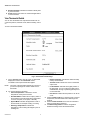
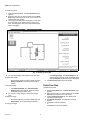
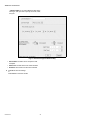
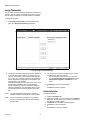
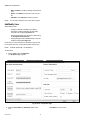
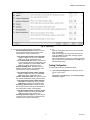
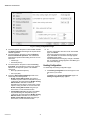
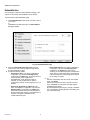
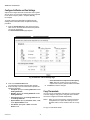
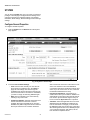
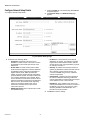
• WebStat is Network Time Master: Check this box
to enable periodic time synchronization between
WebStat and T7350s on the network. Time
synchronization happens every 24 Hours, when the
system clock is changed, DST starts or ends or
when the Sync Now button is pressed.
3.
Choose US English or Metric as the standard for setting the Engineering Units. All the thermostat point values in the WebStat UI are shown in the selected unit.
4. You can select the required thermostat for Outdoor Air
Temperature Display.
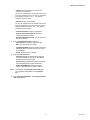
Select a thermostat that will provide the Out Door Air
Temperature information to WebStat. Once configured,
OAT info is shown on the top right hand corner of your
screen.
5. Enter local weather URL: Enter the URL which can
provide information on the local weather conditions.
6. Enter External Link Title: Enter the title for the external
link that provides information on local weather conditions.
7. After configuring all the tabs in System click Save to
save the settings.
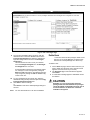
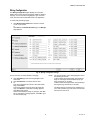
Software Update Package
The file have ".dist" as the file extension. You can upload files
up-to 5MB.
3.
4.
5.
6.
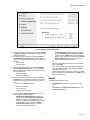
A pop-up appears. Click Upload.
WebStat verifies the file and automatically logs out
before starting to restore.
Once restoring is complete, WebStat automatically
reboots.
This may take about 5 minutes.
Logon to WebStat again, after 5 minutes.
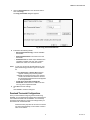
To backup the configurations of the T7350 thermostats:
1.
2.
3.
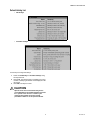
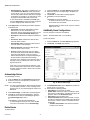
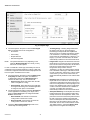
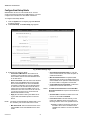
Click Backup Configuration to backup the configuration settings.
A pop-up appears prompting you to Save or Open the
backup file.
Click Open to open the file. You are prompted to save
the file first.
or
Click Save to save the backup file and specify the location for the file.
or
Click Cancel to close the pop-up.
NOTE: When saving the file, the default File Type option is
.zip. You must change the File Type option to All
files to save the backup file.
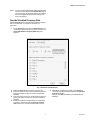
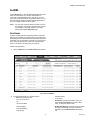
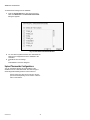
To install new package:
1.
2.
3.
Click Browse to browse to the location where the distribution file is stored.
Select the file click Open.
Click Upload to upload the selected file.
Backup/Restore Configuration
The backup file has ".dist" as the file extension. You can
upload files up to 5MB.
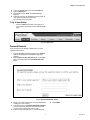
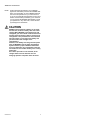
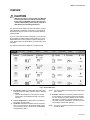
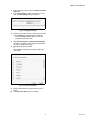
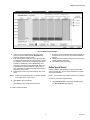
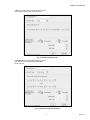
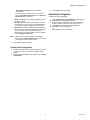
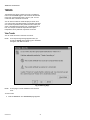
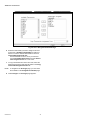
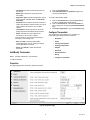
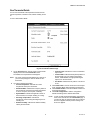
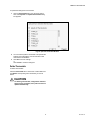
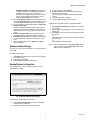
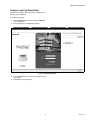
Fig. 44. Restore Backup Warning Box.
To restore the configurations of the T7350:
1.
2.
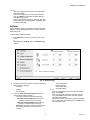
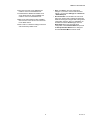
Click Restore Configuration to restore configuration
settings from the backup file.
Select the backup file that has to be restored.
51
63-2658—03