1
WWW.CFSREPORTING.COM
The information in this manual is for training purposes only.
The data used in this manual is fictitious.
Powered by CCC Service Corp ©
Version 2.1 – August 15, 2006
WWW.CFSREPORTING.COM
The CFS Subsidy Reporting System was designed by CCC Service Corporation to
streamline and automate the process of application for CFS subsidy. The system is
web-based and can be accessed by authorized users through the internet. The
users must install a piece of Java code, JInitiator, on their computer and have an ISP
with high-speed internet access.
The user module provides an input screen to report the subsidized activities that
took place over a period of one month. The reporting for the month will be closed by
the Administrator, CCC Service Corporation, on the 10th of the following month, or
the next business day. The user has access to various reports, including a listing of
their regional activities.
The administrator module contains administrative tools that allows the system to
function in a secured environment and update activities and labor intensity as
needed. The administrator will assist the users with the installation of the JInitiator
and with logon privileges to the system.
The management module contains audit and management functions.
CFS Reporting System - User Manual
2
WWW.CFSREPORTING.COM
Initial setup – The Administrator will assist the user with the initial setup. This
includes: (1) submit logon application to CCCSC Administrator. (2) download and
install JInitiator on a user’s PC.
The JInitiator can be downloaded from
http://www.cccscweb.net in the Tech tools section. To download, you need a highspeed internet connection and administrator rights. The Administrator will assign the
user a logon and the initial password. After the first logon the user should change
their password following this security convention:
The password must be a minimum of 6 and a maximum of 9 characters.
Contains any combination of letters and numbers.
The first character must be a letter.
Users should not share their password with co-workers. The logon and password are
unique and identifies the user activities in the system. It is a good practice to change
the password periodically.
For any questions regarding logon or using the system, contact the Administrator at
(732) 404-3016
CFS Reporting System - User Manual
3
WWW.CFSREPORTING.COM
Below is the user logon screen. At every logon the user can click Continue and
enter the system or Change password and then enter the system. Please note that
passwords are not registered in the system. If you forgot your password, call the
CCCSC Helpdesk @ (732) 404-3125 for a reset.
CFS Reporting System - User Manual
4
WWW.CFSREPORTING.COM
After logging on to the system, the main menu will display. Some buttons on the
main menu are grayed out, meaning the user does not have access to this feature.
To start using the system, click on the top button, Add/Update Activity Reports. It will
take you to your individual station.
CFS Reporting System - User Manual
5
WWW.CFSREPORTING.COM
The first input screen gives you two options: Add Report or Update Report. Select
Add Report to start a new monthly report. Enter the month/year and click the Add
Report button. If you want to update an existing open report enter the month/year
and then click Update Report.
CFS Reporting System - User Manual
6
WWW.CFSREPORTING.COM
By clicking Add Report or Update Report, you will enter the main input screen. Note
the Status is Report Open which allows you to enter activities. Start by selecting an
activity from a dropdown menu that is unique to your station.
CFS Reporting System - User Manual
7
WWW.CFSREPORTING.COM
Click on the Activity down arrow to open a dropdown menu. Select an activity and
click OK. The subsidy rate associated with this activity will appear in the Subsidy
Rate box (see next slide).
CFS Reporting System - User Manual
8
WWW.CFSREPORTING.COM
Start inputting the units that are associated with this activity, the Unit counter will add
the number of units and the Subsidy will be calculated by multiplying the number of
units by the subsidy rate. When you have entered all the units, Save your work and
either Return to the previous screen or Add Next Activity.
CFS Reporting System - User Manual
9
WWW.CFSREPORTING.COM
You have input three more activities for the month, saved all your input and returned
to the first input screen. The monthly subsidy shows four activities for a total subsidy
of $3,200. At this point you can Print Report or Select Activity to make
adjustments since your report is still open.
CFS Reporting System - User Manual
10
WWW.CFSREPORTING.COM
Click Print Report to print your activities up to date. You can continue to add new
activities or adjust existing activities until the 10th or the next business day of the
following month. The Administrator will close the report. A sample of this report in
PDF appears on the next slide
CFS Reporting System - User Manual
11
WWW.CFSREPORTING.COM
CFS Reporting System - User Manual
12
WWW.CFSREPORTING.COM
To review the monthly payment and to print the monthly invoice go to the main
menu, click the button Reports and then click Print Invoices. You will see the
following screen which summarizes your monthly subsidy. Click on Print Invoice to
print a monthly invoice.
CFS Reporting System - User Manual
13
WWW.CFSREPORTING.COM
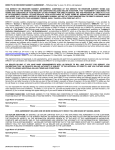
When you click the Print Invoice button you have printed a monthly invoice which
serves as an application for subsidy. The application must be signed by an
authorized representative and submitted to the Administrator at CCC Service
Corporation. The CFS Operator Certification is displayed on the next slide.
CFS Reporting System - User Manual
14
WWW.CFSREPORTING.COM
CFS Reporting System - User Manual
15
WWW.CFSREPORTING.COM
Every CFS within each Region has unrestricted visibility to all subsidized activities
that been authorized for your region. Click Print Preview to open the list of activities.
CFS Reporting System - User Manual
16
WWW.CFSREPORTING.COM
This is the list of all activities that are authorized for the entire South-Atlantic Region.
CFS Reporting System - User Manual
17
WWW.CFSREPORTING.COM
On the 10th or the next business day of each month the Administrator will close the
report. The user can not adjust a closed report. If adjustments need to be performed
after the current month report has been closed, follow these steps:
1. Go to the Main Menu and click on Add/Update Activity Reports. Then
2. Enter the month/year to be adjusted and click Add Report
3. A message will appear, advising you that this report already exists and asks if
you would like to create adjustments. Click OK
4. Go to the dropdown activity and select the activity to be adjusted
5. Click the radio button Add these Units or Remove these Units
6. Assuming you wish to remove a unit, enter the unit to be removed (see sample
on the next slide)
7. Click Save. This will complete the removal of the unit and will create an
adjustment report (second report) for the month
CFS Reporting System - User Manual
18
WWW.CFSREPORTING.COM
The screen below shows an adjustment for May and the removal of one unit.
CFS Reporting System - User Manual
19
WWW.CFSREPORTING.COM
The Payment screen verifies a debit of one unit ($100). Click on Print Invoice to print
another (new) invoice for the closed month.
CFS Reporting System - User Manual
20
WWW.CFSREPORTING.COM
This is the second invoice for the month of May 2006. It was created in June since
May was closed on June 10.
CFS Reporting System - User Manual
21
This screen is similar to the one found on page 7 of this manual with one significant difference. The original input
screen has you entering the activity and units (i.e. container numbers ) on the same screen.
For activity on or after October 1, 2013 you will use this screen to select an activity.
CFS Reporting System – User Manual
22
You would than select the Add/Update Units button located at the bottom of the screen.
This will take you to the next screen where you will enter the units along with additional
information now required. (see next page in manual).
CFS Reporting System – User Manual
23
The major difference for post October 1, 2013 activity is additional Information is required.
The first additional information you will now need to enter is the Carrier that the cargo is being loaded or
discharged for transport. This can be found by selecting the drop down arrow and choosing from the list
of subscribers to the master contract. If the carrier you are seeking to enter is not on the list, they are not
a subscriber and the activity is not reimbursable.
CFS Reporting System – User Manual
24
After selecting the carrier you enter the container number in the same fashion as shown on page 9
of this manual. Simply type the container number in the space provided under the heading Units.
CFS Reporting System – User Manual
25
The second piece of additional information is the weight of FCL
(Full Container Load) cargo in the container. This will be input in Long Tons
(L/T’s) and is calculated to one decimal place.
CFS Reporting System – User Manual
26
When you have completed entering all carriers, containers, and long tons for this
particular activity select the return button located at the lower left portion of the
screen. This will take you back to the screen where you first selected the activity
prior to entering the necessary details.
CFS Reporting System – User Manual
27
One thing you should notice is now this screen reflects the total number of
units you entered, the subsidy rate, and the calculable amount.
CFS Reporting System – User Manual
28
Your next step is to save this activity before selecting the next action you
would like to take.
CFS Reporting System – User Manual
29
After saving your data your options are to choose Add Next Activity and repeat the above
listed process, choose Add/Update Units if you feel you made an error you need to correct,
or return to the first screen you encountered with your CFS ID, Report Month/Year, along
with a summary recap of all activity you entered to this point. The rest of the process has
not changed and you can refer to the beginning of this user manual starting on page 11.
CFS Reporting System – User Manual
30
WWW.CFSREPORTING.COM
For questions or training call:
• Administrator at CCCSC(732) 404-3106
• If the Administrator is unavailable to accept your call, please call: Joseph Marino
at CCCSC (732) 404-3112
• Phone support is available from 8:30AM through 4:30PM Monday through Friday
• For the yearly list of holidays please logon to: www.cccscweb.net and open the
Holiday schedule section
• This manual is published on www.cccscweb.net under Training Link
Powered by CCC Service Corp ©