1
KF5.5i
USER MANUAL - ENGLISH
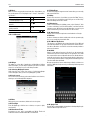
To delete a character
3.35 To Do
Add todo,can write schedule notice and set deadline data. Review
schedule and finish schedule more Convenient.
3.36 Backup and Reset
Backup personal data and applications to sdcard,can restore at
anytime if want.
3.37 Film Workspace
<Film Workspace> is a perfect video edit software, let you can put
together your stored music, photo and short video from a film,
enjoy your life.
3.38 Play store
Follow the steps below,you can download and install the application:
• First,enter the list of mobile phone application and open the Play
Store.
• Second, you will find the recommendation,latest and necessary
options when you enter the store. You also can find a search button on the lower right corner. You can get the class of all application when you click on the category options, and get it if you click
on the button of ranking. You also can get everything about the
application which you want.
• Third, you can knew the brief introduction and user rating after
you found the application which you want. It good for you to make
a evaluation on the program.
• Last, click on the button of install which at the bottom of the
screen after you have found the application which you want to
install. The Play Store will download it. And next, you can install it.
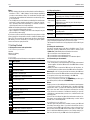
Tap
To enter an upper-case letter Tap
, and then tap that letter.
To enter a digit
Tap
, and then tap that digit.
To enter a symbol
Tap , and then tap that
symbol.
Quickly enter a space
Press the space key twice
successively.
To toggle input methods
Hold down
keyboard.
to bring up the
5. SD Card Introduction
As one of storages for your phone, SD card has been set as the
default storage at factory. You can directly use it without making
any settings.
Use as flash disk: If “Phone — Data Wire — PC” is well connected,
the PC will prompt “New hardware is found”, and “MT65xx Android
Phone requires to be installed” will appear in the dialog box.
After checking and confirmation, reconnect “Phone — Data Wire — PC”,
and pull down notification menu in the standby interface:
4. Text Input
Enter text via the keypad. Examples of text include contact details,
emails, short messages, and websites. The keypad provides the
functions of spelling prediction, spelling correction and learning
while using.
The smart keypad may give you prompts of correct spelling, depending on which application you are using.
Enter text:
1) Tap the text box (memo, or new contact) to call the keypad.
2) Tap the keys on keypad.
At the initial stage, you can tap keys using either of your index fingers. Once you get familiar with the keypad, you can try tapping
keys using both of your thumbs.
While tapping a key, the corresponding letter will appear above your
thumb or another finger. If
you are tapping a wrong
key, you may slide to the
correct one. Only when
your tapping finger leaves
a key, can the corresponding letter be entered in the
text box.
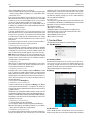
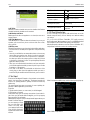
Select “connected as USB Storage, and the following screen pops up.
Select “USB storage device”.
9