1
Basic Operation and Navigation
Basic Navigation
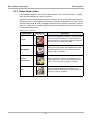
3.3.4 Common Toolbar Control Icons
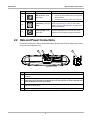
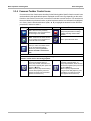
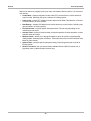
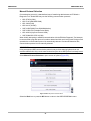
Common control icon functions are described in the following table. Specific function control icons
are described in their applicable chapters. Displayed control icons vary depending on the active
function or test. Select a control icon on a screen to activate a control function. You can also use
the control buttons to activate a function, a yellow border around the icon indicates it is highlighted,
or in focus. Use the Directional buttons (e, c, b, d) to highlight the desired function and then
press the Y/a button to select it.
Icon
Function
Icon
Function
Back - Returns to the previously
viewed screen. Icon is located on the
left-hand edge of the toolbar.
Record - Indicates the data being
displayed is paused and not being
updated. Selecting resumes data
collection.
Home - Returns to the Home screen.
Icon is located next to the Back icon
on the left side of the toolbar.
Tools - Opens the tools menu.
Save - Writes data from buffer
memory to a file. The saved “movie”
file can be accessed for future
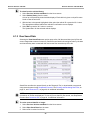
reference by selecting Previous
Vehicles and Data > View Saved
Data.
The control icons below are used to navigate through
paused or saved “movie” files during playback.
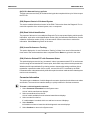
Step Forward - allows forward
movement in singular steps. To
quickly step forward, select this icon
(yellow frame appears) then press and
hold the Y/a button.
(Note: To quickly step forward during
Scanner data playback, press and
hold the icon down until a red frame
appears around the icon.)
14
Step Back - allows backward
movement in singular steps. To
quickly step backward, select this icon
(yellow frame appears) then press and
hold the Y/a button.
(Note: To quickly step backward
during Scanner data playback, press
and hold the icon down until a red
frame appears around the icon.)