1
134
MH Pro! User Guide
2.1.5 Report Screen
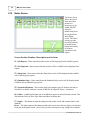
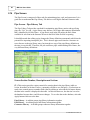
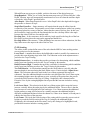
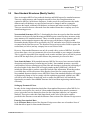
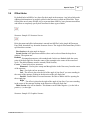
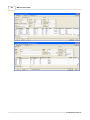
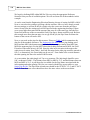
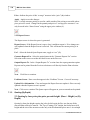
The Report screen is where the quote is generated.
Reports - If the Report Screen is open, close it and then reopen it. Price changes are only
updated when the Report Screen is selected and opened. This will insure the current pricing is
in place.
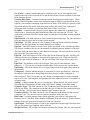
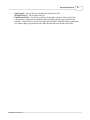
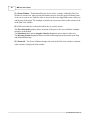
Use? - Select the desired Quote Report name, toggle to “use” (2.).
Generate Reports For - Select the option button in the “Generate Reports For” (3.) section.
Choices include “Current Structure in Flow Tree”, “All checked Structures in Flow Tree”,
“Current Job in Flow Tree” or “All Structures in Flow Tree”. Selection on this screen
overrides the check boxes on the flow tree.
Output Reports To - In the “Output Reports To” section chose the report option. Reports can
be printed from the Preview selection as well directly from the Print selection.
Next - Click Next to continue.
2.1.6 Reports – Problems with these reports
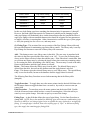
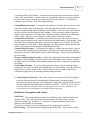
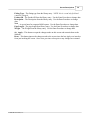
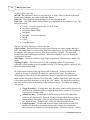
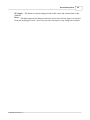
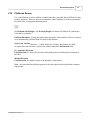
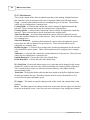
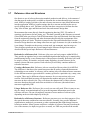
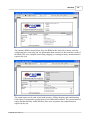
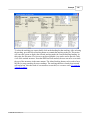
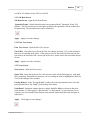
Note errors (6.) that appear in the “Problems” Screen. Correct if necessary.
Not Priced - Go to the Pricing Screen to correct pricing questions and to the Stack Editor
Screen to correct most other errors if they need to be corrected. After the corrections have
been made close the Report Screen then re-open it again. Up dates to the Report Screen are
only made at the time of Report Screen selection.
Next - Click next to continue.
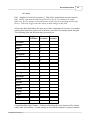
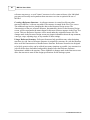
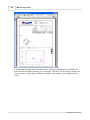
The Quote report will appear on your screen and can be printed
7.1.2
Quoting (Per Structure)
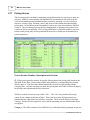
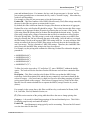
2.2 Quoting by the average price of a structure. (Per Structure)
© 2008 FBE Associates, Inc.