1
Dell™ Latitude™ D630/D630c
User’s Guide
Model PP24L
w w w. d e l l . c o m | s u p p o r t . d e l l . c o m
Notes, Notices, and Cautions
NOTE: A NOTE indicates important information that helps you make better use of your computer.
NOTICE: A NOTICE indicates either potential damage to hardware or loss of data and tells you how to avoid the
problem.
CAUTION: A CAUTION indicates a potential for property damage, personal injury, or death.
If you purchased a Dell™ n Series computer, any references in this document to Microsoft® Windows®
operating systems are not applicable.
____________________
Information in this document is subject to change without notice.
© 2007-2008 Dell Inc. All rights reserved.
Trademarks used in this text: Dell, the DELL logo, Latitude, ExpressCharge, TravelLite, Strike Zone, Wi-Fi Catcher, and Client Manager are
trademarks of Dell Inc.; Core, Active Management Technology, Centrino, and Intel are registered trademarks of Intel Corporation; Microsoft,
Outlook, Windows, Windows Vista are either registered trademarks or trademarks of Microsoft Corporation in the United States and/or other
countries; Bluetooth is a registered trademark owned by Bluetooth SIG, Inc. and is used by Dell under license; TouchStrip is a trademark of
UPEK, Inc.; EMC is a registered trademark of EMC Corporation; ENERGY STAR is a registered trademark of the U.S. Environmental Protection
Agency. As an ENERGY STAR partner, Dell Inc. has determined that this product meets the ENERGY STAR guidelines for energy efficiency.
Other trademarks and trade names may be used in this document to refer to either the entities claiming the marks and names or their products.
Dell Inc. disclaims any proprietary interest in trademarks and trade names other than its own.
Model PP24L
March 2008
P/N HN566
Rev. A02
Contents
1
Finding Information
2
About Your Computer .
Front View
15
. . . . . . . . . . . . . . . . . . . . . . . . . . . . . . . . . . . .
15
. . . . . . . . . . . . . . . . . . . . . . . . . . . . . . . . . .
Right Side View
20
. . . . . . . . . . . . . . . . . . . . . . . . . . . . . . . . . . . .
21
. . . . . . . . . . . . . . . . . . . . . . . . . . . . . . . . . . .
Transferring Information to a New Computer
Microsoft® Windows® XP .
Microsoft Windows Vista™
27
. . . . . . . . . . . . . . . . . . . . . . . . . . .
27
. . . . . . .
27
. . . . . . .
28
. . . . . . . . . . . . . . . . . . . . . . . . . . .
29
Easy Transfer Cable for Windows Vista
. . . . . . . . . . . . . . . . . .
29
. . . . . . . . . . . . . . . . . . . . . . . . . . . . .
33
. . . . . . . . . . . . . . . . . . . . . . . . . . . . . .
33
PUsing a Battery .
Battery Performance .
24
. . . . . . . . . .
Running the Files and Settings Transfer Wizard With the
Operating System Media . . . . . . . . . . . . . . . . . . .
Running the Files and Settings Transfer Wizard Without the
Operating System Media . . . . . . . . . . . . . . . . . . .
4
18
. . . . . . . . . . . . . . . . . . . . . . . . . . . . . . . . .
Bottom View
3
11
. . . . . . . . . . . . . . . . . . . . . . . . . .
Left Side View
Back View
. . . . . . . . . . . . . . . . . . . . . . . . . . . .
Checking the Battery Charge
. . . . . . . . . . . . . . . . . . . . . . . . . .
Dell™ QuickSet Battery Meter . . . .
Microsoft® Windows® Power Meter
Charge Gauge . . . . . . . . . . . . .
Low-Battery Warning . . . . . . . . .
Conserving Battery Power .
34
. . . . . . . . . . . . . . . . . . .
34
34
34
35
. . . . . . . . . . . . . . . . . . . . . . . . . . .
35
Power Management Modes .
. . . . . . . . . . . . . . . . . . .
. . . . . . . . . . . . . . . . . . .
. . . . . . . . . . . . . . . . . . .
. . . . . . . . . . . . . . . . . . . . . . . . . .
Standby and Sleep Mode .
. . . . . . . . . . . . . . . . . . . . . . . . .
36
36
Contents
3
Hibernate Mode .
. . . . . . . . . . . . . . . . . . .
37
Accessing Power Options Properties
. . . . . . . . . . . . . . . . . . .
37
Charging the Battery .
. . . . . . . . . . . . . . . . . . . . . . . . . . . . . .
37
Replacing the Battery
. . . . . . . . . . . . . . . . . . . . . . . . . . . . . .
38
. . . . . . . . . . . . . . . . . . . . . . . . . . . . . . . .
38
. . . . . . . . . . . . . . . . . . . . . . . . . . . . . . . . . .
39
Battery Errors.
Using the Keyboard .
Numeric Keypad
. . . . . . . . . . . . . . . . . . . . . . . . . . .
41
. . . . . . . . . . . . . . . . . . . . . . . . . . . . . . . . .
41
Key Combinations
. . . . . . . . . . . . . . . . . . . . . . . . . . . . . . . .
System Functions . . . . . . . . . . . . . . .
Battery . . . . . . . . . . . . . . . . . . . .
Display Functions . . . . . . . . . . . . . . .
Power Management . . . . . . . . . . . . .
Microsoft® Windows® Logo Key Functions .
Touch Pad
. . . . . . . . . . . . . . .
. . . . . . . . . . . . . . . . . . . . . . . . . . . . . . . . . . . .
43
. . . . . . . . . . . . . . .
. . . . . . . . . . . . . . .
. . . . . . . . . . . . . . . . . . . . . . . . .
44
. . . . . . . . . . . . . . . . . . . . . . . . . . . . .
45
. . . . . . . . . . . . . . . . . . . . . . . . . . . . . .
45
Using the Ambient Light Sensor .
Switching the Video Image
. . . . . . . . . . . . . . . . . . . . . . . .
45
. . . . . . . . . . . . . . . . . . . . . . . . . . .
46
. . . . . . . . . . . . . . . . .
46
. . . . . . . . . . . . . . . . . . . . . . . .
47
Setting Display Resolution and Refresh Rate .
Dual Independent Display Mode
Swapping Primary and Secondary Displays
Contents
. . . . . . . . . . . . . . .
44
Using the Display.
Adjusting Brightness .
. . . . . . . . . . . . . . .
. . . . . . . . . . . . . . . .
Changing the Track Stick Cap .
4
41
41
41
42
42
42
Customizing the Touch Pad and Track Stick
6
36
Configuring Power Management Settings
Storing a Battery .
5
. . . . . . . . . . . . . . . . . . . . . . . . . . . . . .
. . . . . . . . . . . . . . . . . .
48
7
Setting Up and Using Networks
. . . . . . . . . . . . . . . . . . .
Connecting a Network or Broadband Modem Cable
®
. . . . . . . . . . . . . .
®
Setting Up a Network in the Microsoft Windows XP Operating System
. .
Setting Up a Network in the Microsoft Windows Vista™ Operating System
Wireless Local Area Network .
49
49
.
50
. . . . . . . . . . . . . . . . . . . . . . . . .
50
What You Need to Establish a WLAN Connection .
Checking Your Wireless Network Card . . . . . . .
Setting Up a New WLAN Using a Wireless Router
and a Broadband Modem . . . . . . . . . . . . . .
Connecting to a WLAN . . . . . . . . . . . . . . .
Mobile Broadband (or Wireless Wide Area Network)
. . . . . . . . . . . .
. . . . . . . . . . . .
Dell Wi-Fi Catcher™ Network Locator
50
50
. . . . . . . . . . . .
51
52
. . . . . . . . . . . . .
54
. . . . . . . . . . . .
What You Need to Establish a Mobile Broadband Network Connection
Checking Your Dell Mobile Broadband Card . . . . . . . . . . . . . . .
Connecting to a Mobile Broadband Network . . . . . . . . . . . . . .
Enabling/Disabling the Dell™ Mobile Broadband Card . . . . . . . . .
Managing Your Network Settings Through the Dell QuickSet
Location Profiler . . . . . . . . . . . . . . . . . . . . . . . . . . . . .
8
49
.
54
54
55
55
.
55
.
.
.
. . . . . . . . . . . . . . . . . . . . .
56
Microsoft® Windows® Firewall . . . . . . . . . . . . . . . . . . . . . . . .
56
Using Multimedia
. . . . . . . . . . . . . . . . . . . . . . . . . . . . .
57
. . . . . . . . . . . . . . . . . . . . . . . . . . . . . . . . . .
57
Playing Media
Copying Media .
. . . . . . . . . . . . . . . . . . . . . . . . . . . . . . . . .
How to Copy Media .
Using Blank Media .
Helpful Tips . . . . .
58
. . . . . . . . . . . . . . . . . . . . . . . . . . . .
59
59
60
Adjusting the Volume
. . . . . . . . . . . . . . . . . . . . . . . . . . . . . .
61
Adjusting the Picture
. . . . . . . . . . . . . . . . . . . . . . . . . . . . . .
61
. . . . . . . . . . . . . . . . . . . . . . . . . . . .
. . . . . . . . . . . . . . . . . . . . . . . . . . . .
Microsoft® Windows® XP Operating System .
Microsoft Windows Vista™ Operating System .
. . . . . . . . . . . . . .
. . . . . . . . . . . . . .
61
62
Contents
5
9
Using Cards
Card Types
. . . . . . . . . . . . . . . . . . . . . . . . . . . . . . . . .
63
. . . . . . . . . . . . . . . . . . . . . . . . . . . . . . . . . . . .
63
PC Cards . . . .
ExpressCards . .
Smart Cards . . .
Card Blanks . . .
Extended Cards .
. . . . . . . . . . . . . . . . . . . . . . . . . . . . . .
. . . . . . . . . . . . . . . . . . . . . . . . . . . . . .
. . . . . . . . . . . . . . . . . . . . . . . . . . . . . .
. . . . . . . . . . . . . . . . . . . . . . . . . . . . . .
. . . . . . . . . . . . . . . . . . . . . . . . . . . . . .
. . . . . . . . . . . . . . . . . . . . . .
64
. . . . . . . . . . . . . . . . . . . . . . . . . . . . . . . .
64
64
Installing a PC Card or ExpressCard .
PC Card . . .
ExpressCards
. . . . . . . . . . . . . . . . . . . . . . . . . . . . . . . .
Removing a Card or Blank .
. . . . . . . . . . . . . . . . . . . . . . . . . . .
10 Securing Your Computer.
67
. . . . . . . . . . . . . . . . . . . . . . . . . . . . . . .
67
. . . . . . . . . . . . . . . . . . . . . . . . . . . . . . . . . . . .
67
About Smart Cards . .
Installing a Smart Card
Passwords
. . . . . . . . . . . . . . . . . . . . . . . . . . .
67
68
. . . . . . . . . . . . . . . . . . . . . . . . . . . . . . . . . . . .
69
. . . . . . . . . . . . . . . . . . . . . . . . . . .
About Passwords . . . . . . . . . . . .
Using a Primary (or System) Password .
Using an Administrator Password . . .
Using a Hard Drive Password . . . . .
Trusted Platform Module (TPM)
Enabling the TPM Feature
. . . . . . . . . . . . . . . . . .
69
70
71
71
. . . . . . . . . . . . . . . . . . . . . . . . .
72
. . . . . . . . . . . . . . . . . . . . . . . . .
72
Security Management Software .
. . . . . . . . . . . . . . . . . .
. . . . . . . . . . . . . . . . . .
. . . . . . . . . . . . . . . . . .
. . . . . . . . . . . . . . . . . . . . . . . .
Activating the Security Management Software
Using the Security Management Software . . .
Computer Tracking Software
Cleaning Your Computer .
73
73
. . . . . . . . . . . . . . . . . . . . . . . . . .
73
. . . . . . . . . . . . . .
. . . . . . . . . . . . . . . . . . . . . . .
73
. . . . . . . . . . . . . . . . . . . . . . . . . . . .
75
Computer, Keyboard, and Display
Touch Pad . . . . . . . . . . . . .
Mouse . . . . . . . . . . . . . . .
Contents
72
. . . . . . . . . . . . . .
If Your Computer Is Lost or Stolen .
6
65
. . . . . . . . . . . . . . . . . . . . . . . .
Security Cable Lock
Smart Card
63
63
63
63
63
. . . . . . . . . . . . . . . . . . . . .
. . . . . . . . . . . . . . . . . . . . .
. . . . . . . . . . . . . . . . . . . . .
75
75
75
Floppy Drive . .
CDs and DVDs .
. . . . . . . . . . . . . . . . . . . . . . . . . . . . . . .
. . . . . . . . . . . . . . . . . . . . . . . . . . . . . . .
11 Troubleshooting
. . . . . . . . . . . . . . . . . . . . . . . . . . . . . .
Dell™ Technical Update Service
Dell Diagnostics
77
. . . . . . . . . . . . . . . . . . . . . . . . . . . . . . . . .
77
Dell Support Utility .
. . . .
77
77
78
79
. . . . . . . . . . . . . . . . . . . . . . . . . . . . . . .
80
Accessing the Dell Support Utility . .
Clicking the Dell Support Icon . . . .
Double-Clicking the Dell Support Icon
. . . .
. . . .
. . . .
. . . . . . . . . . . . . . . . . . .
80
80
81
. . . . . . . . . . . . . . . . . . . . . . . . . . . . . . . . .
81
. . . . . . . . . . . . . . . . . . .
. . . . . . . . . . . . . . . . . . .
Media drive problems . . . . . . . . . . . . . . . . . . . . . . .
If you cannot eject the CD, CD-RW, DVD, or DVD+RW drive tray
If you hear an unfamiliar scraping or grinding sound . . . . . .
Hard drive problems . . . . . . . . . . . . . . . . . . . . . . .
. . . . .
81
82
82
82
. . . . . . . . . . . . . . . . . . . .
82
. . . . . . . . . . . . . . . . . . . . . . . . . . . . . . . . .
84
E-Mail, Modem, and Internet Problems .
Error Messages
77
. . . . . . . . . . . . . . . . . . . . . . . .
When to Use the Dell Diagnostics . . . . . . . . . . . . . . . . .
Starting the Dell Diagnostics From Your Hard Drive . . . . . . . .
Starting the Dell Diagnostics from the Drivers and Utilities Media
Dell Diagnostics Main Menu . . . . . . . . . . . . . . . . . . . .
Drive Problems .
76
76
IEEE 1394 Device Problems
Keyboard Problems
. . . . .
. . . . .
. . . . .
. . . . . . . . . . . . . . . . . . . . . . . . . . .
87
. . . . . . . . . . . . . . . . . . . . . . . . . . . . . . .
88
External Keyboard problems
Unexpected characters . . .
. . . . . . . . . . . . . . . . . . . . . . . .
. . . . . . . . . . . . . . . . . . . . . . . .
88
89
Lockups and Software Problems
. . . . . . . . . . . . . . . . . . . . . . . .
89
The computer does not start up . . . . . . . . . . . . . . .
The computer stops responding . . . . . . . . . . . . . . .
A program stops responding or crashes repeatedly . . . . .
A program is designed for an earlier Microsoft® Windows®
operating system . . . . . . . . . . . . . . . . . . . . . . .
A solid blue screen appears . . . . . . . . . . . . . . . . .
Other software problems . . . . . . . . . . . . . . . . . . .
Memory Problems
. . . . . . .
. . . . . . .
. . . . . . .
89
89
89
. . . . . . .
89
90
90
. . . . . . . . . . . . . . . . . . . . . . . . . . . . . . . .
90
. . . . . . .
. . . . . . .
Contents
7
Network Problems .
. . . . . . . . . . . . . . . . . . . . . . . . . . . . . . .
General . . . . . . . . . . . . . . . . . . . . . . .
Wireless Local Area Network (WLAN) . . . . . . .
Mobile Broadband (Wireless Wide Area Network)
. . . . . . . . . . . .
. . . . . . . . . . . . . . . . . . . . . . . . . . . . . . . .
92
. . . . . . . . . . . . . . . . . . . . . . . . . . . . . . . . .
93
PC Card Problems
Power Problems
Ensuring Sufficient Power for Your Computer
Docking Power Considerations . . . . . . . .
. . . . . . . . . . . .
. . . . . . . . . . . . . . .
94
94
Printer Problems .
. . . . . . . . . . . . . . . . . . . . . . . . . . . . . . . .
94
Scanner Problems
. . . . . . . . . . . . . . . . . . . . . . . . . . . . . . . .
95
Sound and Speaker Problems .
. . . . . . . . . . . . . . . . . . . .
. . . . . . . . . . . . . . . . . . . . . . . . .
96
. . . . . . . . . . . . . . . . . . . . . . . . . .
97
. . . . . . . . . . . . . . . . . . . .
. . . . . . . . . . . . . . . . . . . .
If the display is blank . . . . . . . . .
If the display is difficult to read . . . .
If only part of the display is readable .
. . . . . . . . . . . . . . . . . . .
. . . . . . . . . . . . . . . . . . .
. . . . . . . . . . . . . . . . . . .
12 Intel® Active Management Technology .
13
97
97
98
. . . . . . . . . . . . .
99
. . . . . . . . . . . . . . . . . . . . . . . . . . . . . . . . . . . . . . . . . .
99
14 System Setup Program .
Overview .
. . . . . . . . . . . . . . . . . . . . . . . .
103
. . . . . . . . . . . . . . . . . . . . . . . . . . . . . . . . . . .
103
Viewing the System Setup Screens
System Setup Screens
. . . . . . . . . . . . . . . . . . . . . .
103
. . . . . . . . . . . . . . . . . . . . . . . . . . . . .
103
Commonly Used Options .
. . . . . . . . . . . . . . . . . . . . . . . . . . .
Changing the Boot Sequence.
Changing Printer Modes . . .
Changing COM Ports . . . . .
Contents
95
95
96
96
Touch Pad or Mouse Problems
Video and Display Problems .
. . . . . . . . . . . . . . .
. . . . . . . . . . . . . . . . . . . . . . . . .
No sound from integrated speakers
No sound from external speakers .
No sound from headphones . . . .
8
91
91
91
91
. . . . . . . . . . . .
. . . . . . . . . . . . . . . . . . . . . .
. . . . . . . . . . . . . . . . . . . . . .
. . . . . . . . . . . . . . . . . . . . . .
104
104
105
105
15 Reinstalling Software .
Drivers
. . . . . . . . . . . . . . . . . . . . . . . . .
107
. . . . . . . . . . . . . . . . . . . . . . . . . . . . . . . . . . . . .
107
What Is a Driver? . . . . . . . .
Identifying Drivers . . . . . . .
Reinstalling Drivers and Utilities
. . . . . . . . . . . . . . . . . . . . .
. . . . . . . . . . . . . . . . . . . . .
. . . . . . . . . . . . . . . . . . . . .
Using the Hardware Troubleshooter Tool .
Microsoft Windows XP . .
Microsoft Windows Vista .
. . . . . . . . . . . . . . . . . .
110
. . . . . . . . . . . . . . . . . . . . . . . .
110
111
. . . . . . . . . . . . . . . . . . . . . . . .
Restoring Your Operating System
. . . . . . . . . . . . . . . . . . . . . . .
Using Microsoft® Windows® System Restore
Using the Operating System Media . . . . . .
. . . . . . . . . . . . . .
. . . . . . . . . . . . . . . . . . . .
115
. . . . . . . . . . . . . . . . . . . . . . . . . . . . . . .
115
Recommended Tools . . . . . . . . .
Turning Off Your Computer . . . . . .
Before Working Inside Your Computer
. . . . . . . . . . . . . .
. . . . . . . . . . . . . . . . . .
115
115
115
. . . . . . . . . . . . . . . . . . . . . . . . . . . . . . . . . .
117
. . . . . . . . . . . . . . . . . . . . . . . . . . . . . . . . . . . .
117
Hinge Cover
Keyboard
. . . . . . . . . . . . . . . . . .
. . . . . . . . . . . . . . . . . .
Internal Card With Bluetooth® Wireless Technology.
. . . . . . . . . . . .
119
. . . . . . . . . . . . . . . . . . . . . . . . . . . . . . .
120
. . . . . . . . . . . . . . . . . . . . . . . . . . . . . . . . . . . .
121
Coin-Cell Battery .
Memory .
111
111
112
16 Adding and Replacing Parts .
Before You Begin .
107
107
108
Wireless Local Area Network (WLAN) Card
Mobile Broadband Card
. . . . . . . . . . . . . . . . .
126
. . . . . . . . . . . . . . . . . . . . . . . . . . . .
128
. . . . . . . . . . . . . . . . . . .
131
Hard Drive
. . . . . . . . . . . . . . . . . . . . . . . . . . . . . . . . . . .
132
Media Bay
. . . . . . . . . . . . . . . . . . . . . . . . . . . . . . . . . . .
134
Subscriber Identity Module (SIM) Card .
Removing Media Bay Devices
FCM (Flash Cache Module)
. . . . . . . . . . . . . . . . . . . . . .
134
. . . . . . . . . . . . . . . . . . . . . . . . . .
134
Contents
9
17 Dell™ QuickSet
. . . . . . . . . . . . . . . . . . . . . . . . . . . . .
18 Traveling With Your Computer .
. . . . . . . . . . . . . . . . . . .
139
. . . . . . . . . . . . . . . . . . . . . . . . . .
139
. . . . . . . . . . . . . . . . . . . . . . . . . . . . .
139
. . . . . . . . . . . . . . . . . . . . . . . . . . . . . . . . . . .
139
Identifying Your Computer .
Packing the Computer
Travel Tips
Traveling by Air
. . . . . . . . . . . . . . . . . . . . . . . . . . . . . .
140
19 Specifications .
. . . . . . . . . . . . . . . . . . . . . . . . . . . . . .
141
. . . . . . . . . . . . . . . . . . . . . . . . . . . . . . . .
149
20 Getting Help
Obtaining Assistance
. . . . . . . . . . . . . . . . . . . . . . . . . . . . .
Technical Support and Customer Service
DellConnect . . . . . . . . . . . . . . . .
Online Services . . . . . . . . . . . . . .
AutoTech Service . . . . . . . . . . . . .
Automated Order-Status Service . . . . .
Product Information
149
. . . . . . . . . . . . . . . .
149
150
150
151
151
. . . . . . . . . . . . . . . . . . . . . . . . . .
151
. . . . . . . . . . . . . . . . . . . . . . . . . . . . . .
151
Problems With Your Order .
Returning Items for Warranty Repair or Credit
. . . . . . . . . . . . . . . .
. . . . . . . . . . . . . . . .
. . . . . . . . . . . . . . . .
. . . . . . . . . . . . . . . .
. . . . . . . . . . . . . . . .
152
Before You Call .
. . . . . . . . . . . . . . . . . . . . . . . . . . . . . . . .
152
Contacting Dell .
. . . . . . . . . . . . . . . . . . . . . . . . . . . . . . . .
154
. . . . . . . . . . . . . . . . . . . . . . . . . . . . . . . . . .
157
21 Appendix
FCC Notice (U.S. Only)
FCC Class B
. . . . . . . . . . . . . . . . . . . . . . . . . . . . .
157
. . . . . . . . . . . . . . . . . . . . . . . . . . . . . . . .
157
Macrovision Product Notice .
Glossary
10
137
Contents
. . . . . . . . . . . . . . . . . . . . . . . . .
158
. . . . . . . . . . . . . . . . . . . . . . . . . . . . . . . . . . . . .
159
Finding Information
NOTE: Some features or media may be optional and may not ship with your computer. Some features or media may
not be available in certain countries.
NOTE: Additional information may ship with your computer.
What Are You Looking For?
Find It Here
•
•
•
•
Drivers and Utilities Media
NOTE: The Drivers and Utilities media may be optional and
may not ship with your computer.
A diagnostic program for my computer
Drivers for my computer
My device documentation
Notebook System Software (NSS)
Documentation and drivers are already installed on your
computer. You can use the media to reinstall drivers (see
"Reinstalling Drivers and Utilities" on page 108) or to run
the Dell Diagnostics (see "Dell Diagnostics" on page 77).
Readme files may be
included on your media to
provide last-minute
updates about technical
changes to your computer
or advanced technicalreference material for
technicians or experienced
users.
NOTE: Drivers and documentation updates can be found at
support.dell.com.
•
•
•
•
How to set up my computer
Basic troubleshooting information
How to run the Dell Diagnostics
How to open my computer
Quick Reference Guide
NOTE: This document may be optional and may not ship with
your computer.
NOTE: This document is available as a PDF at
support.dell.com.
Finding Information
11
What Are You Looking For?
Find It Here
•
•
•
•
•
•
Dell™ Product Information Guide
Warranty information
Terms and Conditions (U.S. only)
Safety instructions
Regulatory information
Ergonomics information
End User License Agreement
• Service Tag and Express Service Code
• Microsoft Windows License Label
Service Tag and Microsoft® Windows® License
These labels are located on your computer:
• Use the Service Tag to identify your computer when you
use support.dell.com or contact support.
• Enter the Express Service Code to direct your call when
contacting support.
12
Finding Information
What Are You Looking For?
Find It Here
• Solutions — Troubleshooting hints and tips, articles
from technicians, and online courses, frequently asked
questions
• Community — Online discussion with other Dell
customers
• Upgrades — Upgrade information for components, such
as memory, the hard drive, and the operating system
• Customer Care — Contact information, service call and
order status, warranty, and repair information
• Service and support — Service call status and support
history, service contract, online discussions with
technical support
• Dell Technical Update Service — Proactive e-mail
notification of software and hardware updates for your
computer
• Reference — Computer documentation, details on my
computer configuration, product specifications, and
white papers
• Downloads — Certified drivers, patches, and software
updates
• Notebook System Software (NSS)— If you reinstall the
operating system for your computer, you should also
reinstall the NSS utility. NSS provides critical updates
for your operating system and support for processors,
optical drives, USB devices, and so on. NSS is necessary
for correct operation of your Dell computer. The
software automatically detects your computer and
operating system and installs the updates appropriate
for your configuration.
Dell Support Website — support.dell.com
NOTE: Select your region or business segment to view the
appropriate support site.
• Software upgrades and troubleshooting hints —
Frequently asked questions, hot topics, and general
health of your computing environment
Dell Support Utility
• How to use Windows XP
• How to work with programs and files
• How to personalize my desktop
Windows Help and Support Center
1 Click Start→ Help and Support.
2 Type a word or phrase that describes your problem and
click the arrow icon.
3 Click the topic that describes your problem.
4 Follow the instructions on the screen.
To download Notebook System Software:
1 Go to support.dell.com, select your region or business
segment, and enter your Service Tag.
2 Select Drivers & Downloads and click Go.
3 Click your operating system and search for the keyword
Notebook System Software.
NOTE: The support.dell.com user interface may vary
depending on your selections.
The Dell Support Utility is an automated upgrade and
notification system installed on your computer. This
support provides real-time health scans of your computing
environment, software updates, and relevant self-support
information. Access the Dell Support Utility from the
icon in the taskbar.
Finding Information
13
What Are You Looking For?
Find It Here
• Information on network activity, the Power Management Dell QuickSet Help
Wizard, hotkeys, and other items controlled by Dell
To view Dell QuickSet Help, right-click the QuickSet
QuickSet.
®
®
icon in the Microsoft Windows taskbar.
For more information on Dell QuickSet, see "Dell™
QuickSet" on page 137.
• How to reinstall my operating system
Operating System Media
NOTE: The Operating System media may be optional and may
not ship with your computer.
The operating system is already installed on your computer.
To reinstall your operating system, use the Operating
System media (see "Reinstalling Windows" on page 113).
After you reinstall your
operating system, use the
optional Drivers and
Utilities media to reinstall
drivers for the devices that
came with your computer.
Your operating system
product key label is located
on your computer.
NOTE: The color of your
media varies based on the operating system you ordered.
• Intel® Active Management Technology (iAMT) features Systems Management Administrator’s Guide
and management
NOTE: iAMT is available for Dell™ Latitude™ D630c
computers with iAMT capability only.
To view the Systems Management Administrator’s Guide,
go to support.dell.com.
14
Finding Information
About Your Computer
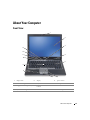
Front View
1
2
3
13
12
4
11
10
5
9
8
7
6
1
display latch
2
display
3
power button
4
device status lights
5
keyboard
6
touch pad
7
fingerprint reader (optional)
8
touch pad buttons/track stick
buttons
9
track stick
11
volume control buttons
12
ambient light sensor
10 keyboard status lights
13 mute button
About Your Computer
15
DEVICE STATUS LIGHTS
Turns on when you turn on the computer and blinks when the computer is
in a power management mode.
Turns on when the computer reads or writes data.
NOTICE: To avoid loss of data, never turn off the computer while the
light is flashing.
Turns on steadily or blinks to indicate battery charge status.
Turns on when wireless devices are enabled.
Turns on when Bluetooth® wireless technology is enabled. To enable or
disable Bluetooth wireless technology, move the wireless switch to the "on"
position. See "wireless switch" on page 19 for more information.
NOTE: Bluetooth wireless technology is an optional feature on your
computer, so the
icon turns on only if you ordered Bluetooth wireless
technology with your computer. For more information, see the documentation
that came with your Bluetooth wireless technology.
If the computer is connected to an electrical outlet, the
light operates as follows:
– Solid green: The battery is charging.
– Flashing green: The battery is almost fully charged.
– Off: The battery is adequately charged (or external power is not available to charge the battery).
If the computer is running on a battery, the
16
About Your Computer
light operates as follows:
– Off: The battery is adequately charged (or the computer is turned off).
– Flashing orange: The battery charge is low.
– Solid orange: The battery charge is critically low.
DISPLAY
— For more information about your display, see "Using the Display" on page 45.
DISPLAY LATCH
— Keeps the display closed.
DISPLAY LATCH BUTTON
— Press this button to release the display latch and open the display.
— The keyboard includes a numeric keypad as well as the Microsoft® Windows® logo key. For
information on supported keyboard shortcuts, see "Using the Keyboard" on page 41.
KEYBOARD
KEYBOARD STATUS LIGHTS
The green lights located above the keyboard indicate the following:
9
Turns on when the numeric keypad is enabled.
A
Turns on when the uppercase letter function is enabled.
Turns on when the scroll lock function is enabled.
POWER BUTTON
— Press the power button to turn on the computer or to enter or exit a power management mode.
NOTICE: To avoid losing data, shut down your computer instead of pressing the power button.
F I N G E R P R I N T R E A D E R ( O P T I O N A L ) — Helps to keep your Dell™ computer secure. When you slide your finger over
the reader, it uses your unique fingerprint to authenticate your user identity. For information on how to activate and
use the security management software that controls the fingerprint reader, see "Security Management Software" on
page 72.
About Your Computer
17
A M B I E N T L I G H T S E N S O R — Detects available environmental light and automatically increases or decreases the
display backlighting to compensate for low-light and high-light environments. Press the <Fn> and left-arrow keys to
enable or disable the sensor ("Using the Ambient Light Sensor" on page 45).
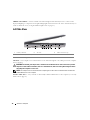
Left Side View
1
2
3 4 5
6
7
8
9
1
security cable slot
2
air vents
3
audio connectors (2)
4
smart card slot (with blank)
5
1394 connector
6
wireless switch
7
Wi-Fi Catcher™ light
8
PC Card slot
9
hard drive
— The computer uses an internal fan to create airflow through the vents, which prevents the computer
from overheating.
AIR VENTS
CAUTION: Do not block, push objects into, or allow dust to accumulate in the air vents. Do not store your Dell
computer in a low-airflow environment, such as a closed briefcase, while it is running. Restricting the airflow
can damage the computer or cause a fire.
NOTE: The computer turns on the fan when the computer gets hot. Fan noise is normal and does not indicate a
problem with the fan or the computer.
— Lets you attach a commercially available antitheft device to the computer (see "Security
Cable Lock" on page 67).
SECURITY CABLE SLOT
18
About Your Computer
AUDIO CONNECTORS
Attach headphones or speakers to the
Attach a microphone to the
connector.
connector.
S M A R T C A R D S L O T ( W I T H B L A N K ) — Supports one smart card. Smart cards provide a variety of functions,
including security features and data storage. The blank prevents foreign matter from entering the interior of the
computer when a smart card is not installed in the smart card slot. For more information and instructions on
removing the blank, see "Smart Cards" on page 63.
W I R E L E S S S W I T C H — When enabled through Dell QuickSet, this switch can scan for a wireless LAN (WLAN) in
your vicinity. You can also use it to rapidly turn off or on any wireless devices such as WLAN cards and internal cards
with Bluetooth wireless technology (see "Dell Wi-Fi Catcher™ Network Locator" on page 56).
1
2
3
4
About Your Computer
19
1
"off" position
Disables wireless devices
2
"on" position
Enables wireless devices
3
"momentary" position
Scans for WLAN networks (see
"Dell Wi-Fi Catcher™ Network
Locator" on page 56)
4
Wi-Fi Catcher light
W I - F I C A T C H E R ™ L I G H T — The light operates as follows:
– Flashing green: Searching for networks
– Solid green: Strong network found
– Solid yellow: Weak network found
– Flashing yellow: Error
– Off: No signal found
PC C A R D S L O T — Supports one PC Card, such as a modem or network adapter. The computer ships with a blank
installed in the slot to prevent foreign matter from entering the computer interior when a card is not installed (see
"Card Types" on page 63).
HARD DRIVE
— Stores software and data.
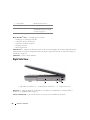
Right Side View
1
1
optical drive in media bay
2
media-bay device latch release
2
3
3
USB connectors (2)
— Supports a floppy or an optical drive, second battery, second hard drive, or a Dell TravelLite™
module (see "Using Multimedia" on page 57).
MEDIA BAY
DEVICE LATCH RELEASE
20
— Press the latch release to eject any device installed in the media bay.
About Your Computer
US B C O N N E C T O R S
Connect USB devices, such as a mouse, keyboard, or printer.
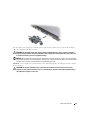
Back View
1
2
3
4
5
6
7
1
network connector (RJ-45)
2
modem connector (RJ-11)
3
USB connectors (2)
4
serial connector
5
video connector
6
AC adapter connector
7
air vents
CAUTION: Do not block, push objects into, or allow dust to accumulate in the air vents. Do not store your
computer in a low-airflow environment, such as a closed briefcase, while it is running. Restricting the airflow
can damage the computer or cause a fire.
NETWORK CONNECTOR
(RJ-45 )
NOTICE: The network connector is slightly larger than the modem connector. To avoid damaging the computer, do
not plug a telephone line into the network connector.
Connects the computer to a network. The two lights next to
the connector indicate status and activity for wired network
connections.
For information on using the network adapter, see the device
user’s guide supplied with your computer.
About Your Computer
21
MODEM CONNECTOR
( R J - 1 1)
Connect the telephone line to the modem connector.
For information on using the modem, see the online modem
documentation supplied with your computer (see "Finding
Information" on page 11).
US B C O N N E C T O R S
Connects USB devices, such as a mouse, keyboard, or
printer.
SERIAL CONNECTOR
Connects serial devices, such as a mouse or handheld device.
VIDEO CONNECTOR
Connects video devices, such as a monitor.
AC A D A P T E R C O N N E C T O R
Connects an AC adapter to the computer.
22
About Your Computer
1
The AC adapter converts AC power to the DC power required by the computer. You can connect the AC adapter
with your computer turned either on or off.
CAUTION: The AC adapter works with electrical outlets worldwide. However, power connectors and power
strips vary among countries. Using an incompatible cable or improperly connecting the cable to the power strip
or electrical outlet may cause fire or equipment damage.
NOTICE: When you disconnect the AC adapter cable from the computer, grasp the connector, not the cable itself,
and pull firmly but gently to avoid damaging the cable. When you wrap the AC adapter cable, ensure that you follow
the angle of the connector on the AC adapter to avoid damaging the cable.
— The computer uses an internal fan to create airflow through the vents, which prevents the computer
from overheating.
AIR VENTS
CAUTION: Do not block, push objects into, or allow dust to accumulate in the air vents. Do not store your
computer in a low-airflow environment, such as a closed briefcase, while it is running. Restricting the airflow
can damage the computer or cause a fire.
About Your Computer
23
Bottom View
9
1
2
8
3
7
4
6
5
1
battery charge gauge/health
gauge
2
battery
3
battery-bay latch releases (2)
4
device locking screw (if
present)
5
memory module cover
6
docking-device connector
7
air vents
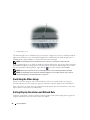
8
hard drive
9
device locking screw
BATTERY CHARGE GAUGE/HEALTH GAUGE
Battery Charge" on page 34).
— Provides information on the battery charge (see "Checking the
B A T T E R Y — When a battery is installed, you can use the computer without connecting the computer to an
electrical outlet (see "PUsing a Battery" on page 33).
BATTERY-BAY LATCH RELEASES
DEVICE LOCKING SCREW
— Releases the battery (see "Replacing the Battery" on page 38 for instructions).
— If present, locks devices, such as an optical drive, in place.
DOCKING-DEVICE CONNECTOR
— Lets you attach your computer to a docking device. See the Dell documentation
that came with your docking device for more information.
M E M O R Y M O D U L E C O V E R — Covers the compartment that contains the second memory module connector
(DIMM B) (see "Memory" on page 121).
24
About Your Computer
— The computer uses an internal fan to create airflow through the fan air vents, which prevents the
computer from overheating.
AIR VENTS
About Your Computer
25
26
About Your Computer
Transferring Information to a New Computer
You can use your operating system wizards to help you transfer files and other data from one computer
another. For instructions, see the following section that corresponds to the operating system your
computer is running.
Microsoft® Windows® XP
The Microsoft Windows XP operating system provides the Files and Settings Transfer wizard to move
data from a source computer to a new computer. You can transfer data such as:
•
E-mail messages
•
Toolbar settings
•
Window sizes
•
Internet bookmarks
You can transfer the data to the new computer over a network, serial connection, or on removable media
such as a writable CD.
NOTE: You can transfer information from the old computer to the new computer by directly connecting a serial
cable to the input/output (I/O) ports of the two computers. To transfer data over a serial connection, you must
access the Network Connections utility from the Control Panel and perform additional configuration steps, such as
setting up an advanced connection and designating the host computer and the guest computer.
For instructions on setting up a direct cable connection between two computers, see Microsoft Knowledge Base
87uArticle #305621, titled How to Set Up a Direct Cable Connection Between Two Computers in Windows XP. This
information may not be available in some countries.
For transferring information to a new computer, you must run the Files and Settings Transfer Wizard.
You can use the optional Operating System media for this process or you can create a wizard disk with the
Files and Settings Transfer Wizard.
Running the Files and Settings Transfer Wizard With the Operating System Media
NOTE: This procedure requires the Operating System media. This media is optional and may not be included with
all computers.
To prepare the new computer for the file transfer:
1 Start the Files and Settings Transfer Wizard.
2 When the Files and Settings Transfer Wizard welcome screen appears, click Next.
3 On the Which computer is this? screen, click New Computer and click Next.
4 On the Do you have a Windows XP CD? screen, click I will use the wizard from the Windows XP CD
and click Next.
Transferring Information to a New Computer
27
5 When the Now go to your old computer screen appears, go to your old or source computer. Do not
click Next at this time.
To copy data from the old computer:
1 On the old computer, insert the Windows XP Operating System media.
2 On the Welcome to Microsoft Windows XP screen, click Perform additional tasks.
3 Under What do you want to do?, click Transfer files and settings.
4 On the Files and Settings Transfer Wizard welcome screen, click Next.
5 On the Which computer is this? screen, click Old Computer and click Next.
6 On the Select a transfer method screen, click the transfer method you prefer.
7 On the What do you want to transfer? screen, select the items you want to transfer and click Next.
After the information has been copied, the Completing the Collection Phase screen appears.
8 Click Finish.
To transfer data to the new computer:
1 On the Now go to your old computer screen on the new computer, click Next.
2 On the Where are the files and settings? screen, select the method you chose for transferring your
settings and files and click Next.
The wizard reads the collected files and settings and applies them to your new computer.
When all of the settings and files have been applied, the Finished screen appears.
3 Click Finished and restart the new computer.
Running the Files and Settings Transfer Wizard Without the Operating System Media
To run the Files and Settings Transfer Wizard without the Operating System media, you must create a
wizard disk that will allow you to create a backup image file to removable media.
To create a wizard disk, use your new computer with Windows XP and perform the following steps:
1 Click Start→ Files and Settings Transfer Wizard.
2 When the Files and Settings Transfer Wizard welcome screen appears, click Next.
3 On the Which computer is this? screen, click New Computer→ Next.
4 On the Do you have a Windows XP CD? screen, click I want to create a Wizard Disk in the following
drive→ Next.
5 Insert the removable media, such as a writable CD, and click OK.
6 When the disk creation completes and the Now go to your old computer message appears,
do not click Next.
7 Go to the old computer.
To copy data from the old computer:
28
Transferring Information to a New Computer
1 On the old computer, insert the wizard disk.
2 Click the Start→ Run.
3 In the Open field on the Run window, browse to the path for fastwiz (on the appropriate removable
media) and click OK.
4 On the Files and Settings Transfer Wizard welcome screen, click Next.
5 On the Which computer is this? screen, click Old Computer→ Next.
6 On the Select a transfer method screen, click the transfer method you prefer.
7 On the What do you want to transfer? screen, select the items you want to transfer and click Next.
After the information has been copied, the Completing the Collection Phase screen appears.
8 Click Finish.
To transfer data to the new computer:
1 On the Now go to your old computer screen on the new computer, click Next.
2 On the Where are the files and settings? screen, select the method you chose for transferring your
settings and files and click Next. Follow the instructions on the screen.
The wizard reads the collected files and settings and applies them to your new computer.
When all of the settings and files have been applied, the Finished screen appears.
3 Click Finished and restart the new computer.
NOTE: For more information about this procedure, search support.dell.com for document #PA1089586 (How Do I
Transfer Files From My Old Computer to My New Dell Computer Using the Microsoft® Windows® XP Operating
System?).
NOTE: Access to the Dell™ Knowledge Base document may not be available in some countries.
Microsoft Windows Vista™
Easy Transfer Cable for Windows Vista
1 Insert the Easy Transfer Cable for Windows Vista Application Software media into the computer you
are transferring data from.
2 Follow the on-screen instructions until you are prompted to connect the Transfer Cable.
3 Connect the Easy Transfer Cable to the source computer.
You are prompted to select a device option.
4 Continue until you are prompted to plug the other end of the Easy Transfer Cable into the destination
computer.
The screen indicates that a connection has been made.
Transferring Information to a New Computer
29
5 At the computer you are transferring data from, follow the on-screen instructions to select the settings
and files you want to transfer.
6 You will come to a screen that indicates you are ready to transfer files.
7 From the destination computer, view the transfer and wait for the indication that the transfer is
complete.
8 Select Close.
You are prompted to restart the computer.
30
Transferring Information to a New Computer
9 Select Yes.
The computer reboots and the transfer is complete.
Transferring Information to a New Computer
31
32
Transferring Information to a New Computer
PUsing a Battery
Battery Performance
NOTE: For information about the Dell warranty for your computer, see the Product Information Guide or separate
paper warranty document that shipped with your computer.
For optimal computer performance and to help preserve BIOS settings, operate your Dell™ portable
computer with the main battery installed at all times. One battery is supplied as standard equipment in
the battery bay.
NOTE: Because the battery may not be fully charged, use the AC adapter to connect your new computer to an
electrical outlet the first time you use the computer. For best results, operate the computer with the AC adapter
until the battery is fully charged. To view battery charge status, check the Power Meter in Power Options (see
"Accessing Power Options Properties" on page 37).
Battery operating time varies depending on operating conditions. You can install an optional second
battery in the media bay to significantly increase operating time.
NOTE: Battery operating time (the time the battery can hold a charge) decreases over time. Depending on how
often the battery is used and the conditions under which it is used, you may need to purchase a new battery during
the life of your computer.
NOTE: It is recommended that you connect your computer to an electrical outlet when writing to a CD or DVD.
Operating time is significantly reduced when you perform operations including, but not limited to, the
following:
•
Using optical drives.
•
Using wireless communications devices, PC Cards, media memory cards, or USB devices.
•
Using high-brightness display settings, 3D screen savers, or other power-intensive programs such as
complex 3D graphics applications.
•
Running the computer in maximum performance mode. See "Configuring Power Management
Settings" on page 37 for information about accessing Windows Power Options Properties or Dell
QuickSet, which you can use to configure power management settings.
You can check the battery charge before you insert the battery into the computer. You can also set power
management options to alert you when the battery charge is low.
CAUTION: Using an incompatible battery may increase the risk of fire or explosion. Replace the battery only
with a compatible battery purchased from Dell. The battery is designed to work with your Dell computer. Do not
use a battery from other computers with your computer.
CAUTION: Do not dispose of batteries with household waste. When your battery no longer holds a charge, call
your local waste disposal or environmental agency for advice on disposing of a lithium-ion battery. See "Battery
Disposal" in the Product Information Guide.
PUsing a Battery
33
CAUTION: Misuse of the battery may increase the risk of fire or chemical burn. Do not puncture, incinerate,
disassemble, or expose the battery to temperatures above 65°C (149°F). Keep the battery away from children.
Handle damaged or leaking batteries with extreme care. Damaged batteries may leak and cause personal injury
or equipment damage.
Checking the Battery Charge
The Dell QuickSet Battery Meter, the Microsoft Windows Power Meter window and
icon, the
battery charge gauge and health gauge, and the low-battery warning provide information on the battery
charge.
Dell™ QuickSet Battery Meter
If Dell QuickSet is installed, press <Fn><F3> to display the QuickSet Battery Meter. The Battery
Meter displays status, battery health, charge level, and charge completion time for the battery in your
computer.
For more information about QuickSet, right-click the QuickSet icon in the taskbar, and click Help.
Microsoft® Windows® Power Meter
The Windows Power Meter indicates the remaining battery charge. To check the Power Meter, doubleclick the
icon on the taskbar.
If the computer is connected to an electrical outlet, a
icon appears.
Charge Gauge
By either pressing once or pressing and holding the status button on the charge gauge on the battery, you
can check:
•
Battery charge (check by pressing and releasing the status button)
•
Battery health (check by pressing and holding the status button)
The battery operating time is largely determined by the number of times it is charged. After hundreds of
charge and discharge cycles, batteries lose some charge capacity—or battery health. That is, a battery can
show a status of "charged" but maintain a reduced charge capacity (health).
Check the Battery Charge
To check the battery charge, press and release the status button on the battery charge gauge to illuminate
the charge-level lights. Each light represents approximately 20 percent of the total battery charge. For
example, if the battery has 80 percent of its charge remaining, four of the lights are on. If no lights
appear, the battery has no charge.
34
PUsing a Battery
Check the Battery Health
NOTE: You can check battery health in one of two ways: by using the charge gauge on the battery as described
below and by using the Battery Meter in Dell QuickSet. For information about QuickSet, right-click the icon in the
taskbar, and click Help.
To check the battery health using the charge gauge, press and hold the status button on the battery
charge gauge for at least 3 seconds. If no lights appear, the battery is in good condition, and more than 80
percent of its original charge capacity remains. Each light represents incremental degradation. If five
lights appear, less than 60 percent of the charge capacity remains, and you should consider replacing the
battery. See "Charge Gauge" on page 34 for more information about the battery operating time.
Low-Battery Warning
NOTICE: To avoid losing or corrupting data, save your work immediately after a low-battery warning. Then
connect the computer to an electrical outlet, or install a second battery in the media bay. If the battery runs
completely out of power, hibernate mode begins automatically.
A pop-up window warns you when the battery charge is approximately 90 percent depleted. If two
batteries are installed, the low-battery warning means that the combined charge of both batteries is
approximately 90 percent depleted. The computer enters hibernate mode when the battery charge is at a
critically low level.
You can change the settings for the battery alarms in QuickSet or the Power Options Properties window.
See "Configuring Power Management Settings" on page 37 for information about accessing QuickSet or
the Power Options Properties window.
Conserving Battery Power
Perform the following actions to conserve battery power:
•
Connect the computer to an electrical outlet when possible because battery life is largely determined
by the number of times the battery is used and recharged.
•
Place the computer in standby mode or hibernate mode when you leave the computer unattended for
long periods of time. See "Power Management Modes" on page 36.
•
Use the Power Management Wizard or the Power Options Properties window to select options to
optimize your computer’s power usage. These options can also be set to change when you press the
power button, close the display, or press <Fn><Esc>.
NOTE: See "Configuring Power Management Settings" on page 37 for information on conserving battery power.
PUsing a Battery
35
Power Management Modes
Standby and Sleep Mode
Standby mode (sleep mode in Microsoft Windows Vista™) conserves power by turning off the display
and the hard drive after a predetermined period of inactivity (a time-out). When the computer exits
standby or sleep mode, it returns to the same operating state it was in before entering standby or sleep
mode.
NOTICE: If your computer loses AC and battery power while in standby or sleep mode, it may lose data.
To enter standby mode in Windows XP, click the Start button, click Turn off computer, and then click
Stand by.
To enter sleep mode in Windows Vista, click the Windows Vista Start button,
, and then click Sleep.
Depending on how you set the power management options in the Power Options Properties window or
the QuickSet Power Management Wizard, you may also use one of the following methods:
•
Press the power button.
•
Close the display.
•
Press <Fn><Esc>.
To exit standby or sleep mode, press the power button or open the display, depending on how you set the
power management options. You cannot make the computer exit standby or sleep mode by pressing a key
or touching the touch pad or track stick.
Hibernate Mode
Hibernate mode conserves power by copying system data to a reserved area on the hard drive and then
completely turning off the computer. When the computer exits hibernate mode, it returns to the same
operating state it was in before entering hibernate mode.
NOTICE: You cannot remove devices or undock your computer while your computer is in hibernate mode.
Your computer enters hibernate mode if the battery charge level becomes critically low.
To manually enter hibernate mode in Windows XP, click Start→ Turn off computer, press and hold
<Shift>, and click Hibernate.
For information about the hibernate mode in Windows Vista, search for the keyword hibernate in
Windows Help and Support (click Start→ Help and Support).
Depending on how you set the power management options in the Power Options Properties window or
the QuickSet Power Management Wizard, you may also use one of the following methods to enter
hibernate mode:
36
•
Press the power button.
•
Close the display.
•
Press <Fn><F1>.
PUsing a Battery
NOTE: Some PC Cards may not operate correctly after the computer exits hibernate mode. Remove and reinsert
the card (see "Removing a Card or Blank" on page 65), or simply restart (reboot) your computer.
To exit hibernate mode, press the power button. The computer may take a short time to exit hibernate
mode. You cannot make the computer exit hibernate mode by pressing a key or touching the touch pad
or track stick. For more information on hibernate mode, see the documentation that came with your
operating system.
Configuring Power Management Settings
You can use the QuickSet Power Management Wizard or Windows Power Options Properties to
configure the power management settings on your computer. For more information about QuickSet,
right-click the QuickSet icon in the taskbar and click Help.
Accessing Power Options Properties
Windows XP
Click Start→ Control Panel→ Performance and Maintenance→ Power Options.
Windows Vista
Click Start→ Control Panel→ System and Maintenance→ Power Options.
Charging the Battery
When you connect the computer to an electrical outlet or install a battery while the computer is
connected to an electrical outlet, the computer checks the battery charge and temperature. If necessary,
the AC adapter then charges the battery and maintains the battery charge.
NOTE: With Dell™ ExpressCharge™, when the computer is turned off, the AC adapter charges a completely
discharged battery to 80 percent in about 1 hour and to 100 percent in approximately 2 hours. Charge time is longer
with the computer turned on. You can leave the battery in the computer for as long as you like. The battery’s internal
circuitry prevents the battery from overcharging.
If the battery is hot from being used in your computer or being in a hot environment, the battery may
not charge when you connect the computer to an electrical outlet.
The battery is too hot to start charging if the
light flashes alternately green and orange. Disconnect
the computer from the electrical outlet and allow the computer and the battery to cool to room
temperature. Then connect the computer to an electrical outlet to continue charging the battery.
For information about resolving problems with a battery, see "Power Problems" on page 93.
PUsing a Battery
37
Replacing the Battery
CAUTION: Using an incompatible battery may increase the risk of fire or explosion. Replace the battery only
with a compatible battery purchased from Dell. The battery is designed to work with your Dell™ computer. Do not
use a battery from other computers with your computer.
CAUTION: Before performing these procedures, turn off the computer, disconnect the AC adapter from the
electrical outlet and the computer, disconnect the modem from the wall connector and computer, and remove any
other external cables from the computer.
NOTICE: You must remove all external cables from the computer to avoid possible connector damage.
To remove the battery:
1 If the computer is connected to a docking device (docked), undock it. See the documentation that
came with your docking device for instructions.
2 Ensure that the computer is turned off.
3 Slide the two latch releases on the bottom of the computer, and then remove the battery from the bay.
To replace the battery, follow the removal procedure in reverse order.
Storing a Battery
Remove the battery when you store your computer for an extended period of time. A battery discharges
during prolonged storage. After a long storage period, recharge the battery fully (see "Charging the
Battery" on page 37) before you use it.
38
PUsing a Battery
Battery Errors
To address error codes generated by the battery, refer to "Error Messages" on page 84.
PUsing a Battery
39
40
PUsing a Battery
Using the Keyboard
Numeric Keypad
numeric keypad
The numeric keypad functions like the numeric keypad on an external keyboard. Each key on the keypad
has multiple functions. The keypad numbers and symbols are marked in blue on the right of the keypad
keys. To type a number or symbol, hold down <Fn> and press the desired key.
•
To enable the keypad, press <Num Lk>. The
•
To disable the keypad, press <Num Lk> again.
9
light indicates that the keypad is active.
Key Combinations
System Functions
<Ctrl><Shift><Esc>
Opens the Task Manager window.
Battery
<Fn><F3>
Displays the Dell™ QuickSet Battery Meter (see "Dell™
QuickSet Battery Meter" on page 34).
Using the Keyboard
41
Display Functions
<Fn><F8>
Switches the video image to the next display option. The
options include the integrated display, an external
monitor, and both displays simultaneously.
<Fn><F7>
Scales between wide-screen and standard aspect ratio
video resolutions.
<Fn> and left-arrow key
Activates the ambient light sensor, which controls
brightness of the display based on light level in the
current environment.
<Fn> and up-arrow key
Increases brightness on the integrated display only (not
on an external monitor).
<Fn> and down-arrow key
Decreases brightness on the integrated display only (not
on an external monitor).
Power Management
<Fn><Esc>
Activates a power management mode. You can
reprogram this keyboard shortcut to activate a different
power management mode using the Advanced tab in the
Power Options Properties window (see "Accessing Power
Options Properties" on page 37).
<Fn><F1>
Puts the computer into hibernate mode. Dell QuickSet is
required (see "Dell™ QuickSet" on page 137).
Microsoft® Windows® Logo Key Functions
42
Windows logo key and <m>
Minimizes all open windows.
Windows logo key and <Shift><m>
Restores all minimized windows. This key
combination functions as a toggle to restore
minimized windows following the use of the
Windows logo key and <m> key combination.
Windows logo key and <e>
Runs Windows Explorer.
Windows logo key and <r>
Opens the Run dialog box.
Windows logo key and <f>
Opens the Search Results dialog box.
Windows logo key and <Ctrl><f>
Opens the Search Results-Computer dialog box (if
the computer is connected to a network).
Windows logo key and <Pause>
Opens the System Properties dialog box.
Using the Keyboard
To adjust keyboard operation, such as the character repeat rate, open the Control Panel, click Printers
and Other Hardware, and click Keyboard. For information about the Control Panel, access the Help and
Support Center (click Start→ Help and Support).
Touch Pad
The touch pad detects the pressure and movement of your finger to allow you to move the cursor on the
display. Use the touch pad and touch pad buttons as you would use a mouse.
•
To move the cursor, lightly slide your finger over the touch pad.
•
To select an object, lightly tap once on the surface of the touch pad or use your thumb to press the left
touch-pad button.
•
To select and move (or drag) an object, position the cursor on the object and tap twice on the touch
pad. On the second tap, leave your finger on the touch pad and move the selected object by sliding
your finger over the surface.
•
To double-click an object, position the cursor on the object and tap twice on the touch pad or use your
thumb to press the left touch-pad button twice.
You can also use the track stick to move the cursor. Press the track stick left, right, up, or down to change
the direction of the cursor on the display. Use the track stick and track stick buttons as you would use a
mouse.
Using the Keyboard
43
Customizing the Touch Pad and Track Stick
You can use the Mouse Properties window to disable the touch pad and track stick or adjust their
settings.
1 Open the Control Panel, and then click Mouse. For information about the Control Panel, access the
Help and Support Center (click Start→ Help and Support).
2 In the Mouse Properties window:
•
Click the Device Select tab to disable the touch pad and track stick.
•
Click the Touch Pad tab to adjust touch pad and track stick settings.
3 Click OK to save the settings and close the window.
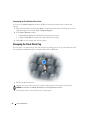
Changing the Track Stick Cap
You can replace your track stick cap if it wears down from prolonged use or if you prefer a different color.
You can purchase additional caps by visiting the Dell website at dell.com.
1 Pull the cap off the track stick.
2 Align the new cap over the square track stick post and gently press the cap down onto the post.
NOTICE: The track stick can damage the display if it is not properly seated on the post.
3 Test the track stick to ensure that the cap is seated properly.
44
Using the Keyboard
Using the Display
Adjusting Brightness
When a Dell™ computer is running on battery power, you can conserve power by setting the brightness
to the lowest comfortable setting by pressing <Fn> and the up- or down-arrow key on the keyboard.
NOTE: Brightness key combinations only affect the display on your portable computer, not monitors or projectors
that you attach to your portable computer or docking device. If your computer is connected to an external monitor
and you try to change the brightness level, the Brightness Meter may appear, but the brightness level on the
external device does not change.
You can press the following keys to adjust display brightness:
•
Press <Fn> and the up-arrow key to increase brightness on the integrated display only (not on an
external monitor).
•
Press <Fn> and the down-arrow key to decrease brightness on the integrated display only (not on an
external monitor).
Using the Ambient Light Sensor
The ambient light sensor is located on the bottom of the computer display panel. The ambient light
sensor detects available environmental light and automatically increases or decreases the display
backlighting to compensate for low-light and high-light environments.
You can enable or disable the ambient light sensor by pressing the <Fn> and left-arrow key
combination.
NOTE: Do not cover the ambient light sensor with any adhesive labels. If covered up, the ambient light sensor
automatically sets the display brightness to the minimum level.
Using the Display
45
1
1
ambient light sensor
The ambient light sensor is disabled when your computer is shipped to you. If you enable the ambient
light sensor and then use any of the display brightness key combinations, the ambient light sensor is
disabled and the display brightness is increased or decreased accordingly.
NOTE: The ambient light sensor is disabled when your computer is connected to an electrical outlet.
Dell™ QuickSet allows you to enable or disable the ambient light sensor. You can also adjust maximum
and minimum brightness settings that are activated when you enable the ambient light sensor feature.
For more information about QuickSet, right-click the
icon in the taskbar, and click Help.
NOTE: Rebooting the computer returns the ambient light sensor to the last setting of enabled or disabled.
NOTE: The ambient light sensor adjusts the display backlighting on your portable computer only. It does not
control the brightness on any external monitors or projectors.
Switching the Video Image
When you start the computer with an external device (such as an external monitor or projector)
attached and turned on, the image may appear on either the computer display or the external device.
Press <Fn><F8> to switch the video image between the display only, the external device only, or the
display and the external device simultaneously.
Setting Display Resolution and Refresh Rate
To display a program at a specific resolution, both the graphics card and the display must support the
program, and the necessary video drivers must be installed.
46
Using the Display
Before you change any of the default display settings, make a note of the default settings for future
reference.
NOTE: Use only the Dell-installed video drivers, which are designed to offer the best performance with your Dellinstalled operating system.
If you choose a resolution or color palette that is higher than the display supports, the settings adjust
automatically to the closest supported values.
1 Click the Start button and click Control Panel.
2 Under Pick a category, click Appearance and Themes.
3 Under Pick a task..., click the area you want to change, or under or pick a Control Panel icon, click
Display.
4 In the Display Properties window, click the Settings tab.
5 Try different settings for Color quality and Screen resolution.
NOTE: As the resolution increases, icons and text appear smaller on the screen.
If the video resolution setting is higher than that supported by the display, the computer enters pan
mode. In pan mode, the entire screen cannot be displayed at one time. For example, the taskbar that
usually appears at the bottom of the desktop may no longer be visible. To view the rest of the screen, use
the touch pad or track stick to pan up, down, left, and right.
NOTICE: You can damage an external monitor by using an unsupported refresh rate. Before adjusting the refresh
rate on an external monitor, see the user’s guide for the monitor.
Dual Independent Display Mode
You can attach an external monitor or projector to your computer and use it as an extension of your
display (known as "dual independent display" or "extended desktop" mode). This mode allows you to use
both screens independently and drag objects from one screen to the other, effectively doubling the
amount of viewable work space.
1 Connect the external monitor, TV, or projector to the computer.
2 Under Pick a category, click Appearance and Themes.
3 Under Pick a task..., click the area you want to change, or under or pick a Control Panel icon, click
Display.
4 In the Display Properties window, click the Settings tab.
NOTE: If you choose a resolution or color palette that is higher than the display supports, the settings adjust
automatically to the closest supported values. For more information, see your operating system documentation.
5 Click the monitor 2 icon, click the Extend my Windows desktop onto this monitor check box, and
then click Apply.
6 Change Screen resolution to the appropriate sizes for both displays and click Apply.
Using the Display
47
7 If prompted to restart the computer, click Apply the new color setting without restarting and click
OK.
8 If prompted, click OK to resize your desktop.
9 If prompted, click Yes to keep the settings.
10 Click OK to close the Display Properties window.
To disable dual independent display mode:
1 Click the Settings tab in the Display Properties window.
2 Click the monitor 2 icon, uncheck the Extend my Windows desktop onto this monitor option, and
then click Apply.
If necessary, press <Fn><F8> to bring the screen image back to the computer display.
Swapping Primary and Secondary Displays
To swap your primary and secondary display designations (for example, to use your external monitor as
your primary display after docking):
1 Click the Start button and click Control Panel.
2 Under Pick a category, click Appearance and Themes.
3 Under Pick a task..., click the area you want to change, or under or pick a Control Panel icon, click
Display.
4 Click the Settings tab→ Advanced→ Displays tab.
See the documentation that came with your video card for additional information.
48
Using the Display
Setting Up and Using Networks
Setting up a computer network provides connectivity between your computer and the Internet, another
computer, or a network. For example, with a network set up in a home or small office you can print to a
shared printer, access drives and files on another computer, browse other networks, or access the Internet.
You can set up a local area network (LAN) using a network or broadband modem cable, or set up a
wireless LAN (WLAN).
The Windows XP and Windows Vista operating systems provide wizards to help guide you through the
process of networking computers. For more information about Networking, access the Help and Support
Center (click Start→ Help and Support).
Connecting a Network or Broadband Modem Cable
Before you connect your computer to a network, the computer must have a network adapter installed
and a network cable connected to it.
1 Connect the network cable to the network adapter connector on the back of your computer.
NOTE: Insert the cable connector until it clicks into place, and then gently pull the cable to ensure that it is
securely attached.
2 Connect the other end of the network cable to a network connection device or a network wall
connector.
NOTE: Do not use a network cable with a telephone wall connector.
Setting Up a Network in the Microsoft® Windows® XP Operating
System
1 Click Start→ All Programs→ Accessories→ Communications→ Network Setup Wizard→ Next→
Checklist for creating a network.
Setting Up and Using Networks
49
NOTE: Selecting the connection method labeled This computer connects directly to the Internet enables the
integrated firewall provided with Windows XP Service Pack 2 (SP2).
2 Complete the checklist.
3 Return to the Network Setup Wizard and follow the instructions in the wizard.
Setting Up a Network in the Microsoft Windows Vista™ Operating
System
1 Click the Windows Vista Start button,
, and click Connect To→ Set up a connection or network.
2 Select an option under Choose a connection option.
3 Click Next, and then follow the instructions in the wizard.
Wireless Local Area Network
A wireless local area network (WLAN) is a series of interconnected computers that communicate with
each other over the air waves rather than through a network cable connected to each computer. In a
WLAN, a radio communications device called an access point or wireless router connects network
computers and provides Internet, or network, access. The access point or wireless router and the wireless
network card in the computer communicate by broadcasting data from their antennas over the air waves.
What You Need to Establish a WLAN Connection
Before you can set up a WLAN, you need:
•
High-speed (broadband) Internet access (such as cable or DSL)
•
A broadband modem that is connected and working
•
A wireless router or access point
•
A wireless network card for each computer that you want to connect to your WLAN
•
A network cable with a network (RJ-45) connector
Checking Your Wireless Network Card
Depending on what you selected when you purchased your computer, the computer has a variety of
configurations. To confirm that your computer has a wireless network card and to determine the type of
card, use one of the following:
•
The Start button and the Connect To option
•
The order confirmation for your computer
Start Button and Connect To Option
In Microsoft Windows XP, click Start→ Connect To→ Show all connections.
In Microsoft Windows Vista, click Start→ Connect To→ View network computers and devices.
50
Setting Up and Using Networks
If Wireless Network Connection does not appear under LAN or High-Speed Internet, you may not have
a wireless network card.
If Wireless Network Connection appears, you have a wireless network card. To view detailed information
about the wireless network card:
1 Right-click Wireless Network Connection.
2 Click Properties.
The Wireless Network Connection Properties window appears. The wireless network card’s name and
model number are listed on the General tab.
NOTE: If your computer is set to the Classic Start menu option, you can view network connections by clicking
the Start→ Settings→ Network Connections. If Wireless Network Connection does not appear, you may not
have a wireless network card.
The Order Confirmation for Your Computer
The order confirmation that you received when you ordered your computer lists the hardware and
software that shipped with your computer.
Setting Up a New WLAN Using a Wireless Router and a Broadband Modem
1 Contact your Internet service provider (ISP) to obtain specific information about the connection
requirements for your broadband modem.
2 Ensure that you have wired Internet access through your broadband modem before you attempt to set
up a wireless Internet connection (see "Connecting a Network or Broadband Modem Cable" on
page 49).
3 Install any software required for your wireless router. Your wireless router may have been shipped with
an installation media. Installation media usually contain installation and troubleshooting information.
Install the required software according to the instructions provided by the router manufacturer.
4 Shut down your computer and any other wireless-enabled computers in the vicinity through the Start
or
menu.
5 Disconnect your broadband modem power cable from the electrical outlet.
6 Disconnect the network cable from the computer and the modem.
7 Disconnect the AC adapter cable from your wireless router to ensure that there is no power connected
to the router.
NOTE: Wait for a minimum of 5 minutes after disconnecting your broadband modem before you continue with the
network setup.
8 Insert a network cable into the network (RJ-45) connector on the unpowered broadband modem.
9 Connect the other end of the network cable into the Internet network (RJ-45) connector on the
unpowered wireless router.
10 Ensure that no network or USB cables, other than the network cable connecting the modem and the
wireless router, are connected to the broadband modem.
Setting Up and Using Networks
51
NOTE: Restart your wireless equipment in the order described below to prevent a potential connection failure.
11 Turn on only your broadband modem and wait for at least 2 minutes for the broadband modem to
stabilize. After 2 minutes, proceed to step 12.
12 Turn on your wireless router and wait for at least 2 minutes for the wireless router to stabilize. After 2
minutes, proceed to the step 13.
13 Start your computer and wait until the boot process completes.
14 See the documentation that came with your wireless router to do the following in order to set up the
wireless router:
•
Establish communication between your computer and your wireless router.
•
Configure your wireless router to communicate with your broadband router.
•
Find out your wireless router’s broadcast name. The technical term for the name of your router’s
broadcast name is Service Set Identifier (SSID) or network name.
15 If necessary, configure your wireless network card to connect to the wireless network (see "Connecting
to a WLAN" on page 52).
Connecting to a WLAN
NOTE: Before you connect to a WLAN, ensure that you have followed the instructions in "Wireless Local Area
Network" on page 50.
NOTE: The following networking instructions do not apply to internal cards with Bluetooth® wireless technology
or cellular products.
This section provides general procedures for connecting to a network using wireless technology. Specific
network names and configuration details vary. See "Wireless Local Area Network" on page 50 for more
information about how to prepare for connecting your computer to a WLAN.
Your wireless network card requires specific software and drivers for connecting to a network. The
software is already installed.
NOTE: If the software is removed or corrupted, follow the instructions in the user documentation for your wireless
network card. Verify the type of wireless network card installed in your computer and then search for that name on
the Dell™ Support website at support.dell.com. For information on the type of wireless network card that is
installed in your computer, see "Checking Your Wireless Network Card" on page 50.
Determining the Wireless Network Device Manager
Depending on the software installed on your computer, different wireless configuration utilities may
manage your network devices:
•
Your wireless network card’s client utility
•
The Windows XP or Windows Vista operating system
To determine which wireless configuration utility is managing your wireless network card in Windows
XP:
52
Setting Up and Using Networks
1 Click Start→ Settings→ Control Panel→ Network Connections.
2 Right-click the Wireless Network Connection icon, and then click View Available Wireless Networks.
If the Choose a wireless network window states Windows cannot configure this connection, the wireless
network card’s client utility is managing the wireless network card.
If the Choose a wireless network window states Click an item in the list below to connect to a wireless
network in range or to get more information, the Windows XP operating system is managing the
wireless network card.
To determine which wireless configuration utility is managing your wireless network card in Windows
Vista:
1 Click Start→ Connect To→ Manage wireless networks.
2 Double-click a profile to open the wireless network properties screen.
For specific information about the wireless configuration utility installed on your computer, see your
wireless network documentation in the Windows Help and Support Center (click Start→ Help and
Support).
Completing the Connection to the WLAN
When you turn on your computer and a network (for which your computer is not configured) is detected
in the area, a pop-up appears near the network icon in the notification area (in the lower-right corner of
the Windows desktop).
Follow the instructions provided in any utility prompts that appear on your screen.
Once you have configured your computer for the wireless network that you selected, another pop-up
notifies you that your computer is connected to that network.
Thereafter, whenever you log on to your computer within the range of the wireless network that you
selected, the same pop-up notifies you of the wireless network connection.
NOTE: If you select a secure network, you must enter a WEP or WPA key when prompted. Network security
settings are unique to your network. Dell cannot provide this information.
NOTE: Your computer can take up to 1 minute to connect to the network.
Monitoring the Status of the Wireless Network Card Through Dell QuickSet
The wireless activity indicator provides you with an easy way to monitor the status of your computer’s
wireless devices. To turn the wireless activity indicator on or off, click the QuickSet icon in the taskbar
and select Hotkey Popups. If Wireless Activity Indicator Off is not checked, the indicator is on. If
Wireless Activity Indicator Off is checked, the indicator is off.
The wireless activity indicator displays whether your computer’s integrated wireless devices are enabled
or disabled. When you turn the wireless networking function on or off, the wireless activity indicator
changes to display the status.
For more information about the Dell QuickSet wireless activity indicator, right-click the QuickSet icon in
the taskbar and select Help.
Setting Up and Using Networks
53
Mobile Broadband (or Wireless Wide Area Network)
A Mobile Broadband network, also known as a Wireless Wide Area Network (WWAN), is a high-speed
digital cellular network that provides Internet access over a much wider geographical area than a WLAN,
which typically covers only from 100 to 1000 feet. Your computer can maintain Mobile Broadband
network access as long as the computer is within a cellular-data coverage zone. Contact your service
provider for coverage of a high-speed digital cellular network.
NOTE: Even if you are able to make a call from your cellular phone in a specific geographical location, that
location may not necessarily be within a cellular-data coverage zone.
What You Need to Establish a Mobile Broadband Network Connection
NOTE: Depending on your computer, you can use a Mini Card to establish a Mobile Broadband network
connection.
To set up a Mobile Broadband network connection, you need:
•
A Mini Card
•
An activated Subscriber Identity Module (SIM) for your service provider
NOTE: Only Cingular and Vodafone need a SIM card. Verizon, Sprint, and Telus do not use a SIM.
•
The Dell Mobile Broadband Card Utility (already installed on your computer if you purchased the card
when you purchased your computer, or on the media that accompanied your card if purchased
separately from your computer)
If the utility is corrupted or deleted from your computer, see the Dell Mobile Broadband Card Utility
user’s guide for instructions. The user’s guide is available through the Windows Help and Support
Center (click Start→ Help and Support) or on the media that accompanied your card if you
purchased it separately from your computer.
Checking Your Dell Mobile Broadband Card
Depending on what you selected when you purchased your computer, the computer has a variety of
configurations. To determine your computer configuration, see one of the following:
•
Your order confirmation
•
Microsoft Windows Help and Support Center
To check your Mobile Broadband card in the Windows Help and Support Center:
1 Click Start→ Help and Support→ Use Tools to view your computer information and diagnose
problems.
2 Under Tools, click My Computer Information→ Find information about the hardware installed on
this computer.
On the My Computer Information - Hardware screen, you can view the type of Mobile Broadband card
installed in your computer as well as other hardware components.
NOTE: The Mobile Broadband card is listed under Modems.
54
Setting Up and Using Networks
Connecting to a Mobile Broadband Network
NOTE: These instructions only apply to Mini-Cards. They do not apply to internal cards with wireless technology.
NOTE: Before you connect to the Internet, you must activate Mobile Broadband service through your cellular
service provider. For instructions and for additional information about using the Dell Mobile Broadband Card Utility,
see the user's guide available through the Windows Help and Support Center (click Start→ Help and Support). The
user's guide is also available on the Dell Support website at support.dell.com and on the media included with your
Mobile Broadband card if you purchased the card separately from your computer.
Use the Dell Mobile Broadband Card Utility to establish and manage a Mobile Broadband network
connection to the Internet:
1 Click the Dell Mobile Broadband Card Utility icon
on the Windows desktop, to run the utility.
2 Click Connect.
NOTE: The Connect button changes to the Disconnect button.
3 Follow the instructions on the screen to manage the network connection with the utility.
Or
1 Click Start→ All Programs→ Dell Wireless.
2 Click Dell Wireless Broadband and follow the instructions on the screen.
Enabling/Disabling the Dell™ Mobile Broadband Card
NOTE: If you are unable to connect to a Mobile Broadband network, ensure that you have all the components for
establishing a Mobile Broadband connection (see "What You Need to Establish a Mobile Broadband Network
Connection" on page 54), and then verify that your Mobile Broadband card is enabled by verifying the setting of the
wireless switch.
You can turn your Mobile Broadband card on and off using the wireless switch on your computer.
You can turn your computer’s wireless devices on and off with the wireless switch on the left side of the
computer (see "Left Side View" on page 18).
If the switch is in the "on" position, move the switch to the "off" position to disable the switch and the
Mobile Broadband card. If the switch is in the "off" position, move the switch to the "on" position to
enable the switch and the Dell Mobile Broadband card. For information about the wireless switch
positions, see "wireless switch" on page 19.
To monitor the status of your wireless device, see "Monitoring the Status of the Wireless Network Card
Through Dell QuickSet" on page 53.
Managing Your Network Settings Through the Dell QuickSet Location Profiler
The Dell QuickSet Location Profiler helps you manage network settings that correspond to your
computer’s physical location. It includes two categories of profile settings:
•
Location Profile Settings
•
General Mobility Settings
Setting Up and Using Networks
55
You can use Location Profile Settings to create profiles for accessing the Internet with your computer in
your office, home, or other public places with Internet services. General Mobility Settings allows you to
change the way network connections are handled. The profiles consist of different network settings and
equipment that you need when using your computer in different locations.
For more information about Dell QuickSet, right-click the QuickSet icon in the taskbar and select Help.
Dell Wi-Fi Catcher™ Network Locator
The wireless switch on your Dell computer uses the Dell Wi-Fi Catcher Network Locator to scan
specifically for WiFi WLAN in your vicinity. For more information about the wireless switch, see
"wireless switch" on page 19.
To scan for WiFi WLAN, slide and hold the switch in the "momentary" position for a few seconds. The
Wi-Fi Catcher Network Locator functions regardless of whether your computer is turned on or off, in
hibernate mode, or in standby mode, as long as the switch is configured through Dell QuickSet or the
BIOS (system setup program) to control WiFi network connections.
Because the Wi-Fi Catcher Network Locator is disabled and not configured for use when your computer
is shipped to you, you must first use Dell QuickSet to enable and configure the switch to control WiFi
network connections.
For more information on the Wi-Fi Catcher Network Locator and to enable the feature through Dell
QuickSet, right-click the QuickSet icon in the taskbar and select Help.
Microsoft® Windows® Firewall
Windows Firewall provides basic protection from unauthorized access to your computer while it is
connected to the Internet. Windows Firewall is automatically enabled when you run the Network Setup
Wizard.
When Windows Firewall is enabled for a network connection, the firewall icon appears with a red
background in the Network Connections section of the Control Panel.
NOTE: Enabling Windows Firewall does not reduce the need for virus-checking software.
For more information, click Start→ Control Panel→ Security→ Windows Firewall, or access the Help and
Support Center (click Start→ Help and Support).
56
Setting Up and Using Networks
Using Multimedia
Playing Media
NOTICE: Do not press down on the media tray when you open or close it. Keep the tray closed when you are not
using the drive.
NOTICE: Do not move the computer while playing media.
1 Press the eject button on the front of the drive.
2 Pull out the tray.
3 Place the disc, label side up, in the center of the tray and snap the disc onto the spindle.
NOTE: If you use a module that shipped with another computer, you need to install the drivers and software
necessary to play DVDs or write data. For more information, see the Drivers and Utilities media (the Drivers and
Utilities media is optional and may not be available for your computer or in certain countries).
4 Push the tray back into the drive.
To format media for storing data, to create music media, or to copy media, see the media software that
came with your computer.
NOTE: Ensure that you follow all copyright laws when you create media.
Using Multimedia
57
A CD player includes the following basic buttons:
Play.
Move backward within the current track.
Pause.
Move forward within the current track.
Stop.
Go to the previous track.
Eject.
Go to the next track.
A DVD player includes the following basic buttons:
Stop.
Restart the current chapter.
Play.
Fast forward.
Pause.
Fast reverse.
Advance a single frame while in pause mode.
Go to the next title or chapter.
Continuously play the current title or chapter.
Go to the previous title or chapter.
Eject.
For more information on playing media, click Help on the CD or DVD player (if available).
Copying Media
NOTE: Ensure that you observe all copyright laws when creating media.
This section applies only to computers that have a CD-RW, DVD+/-RW, or CD-RW/DVD (combo)
drive.
NOTE: The types of media drives offered by Dell may vary by country.
58
Using Multimedia
The following instructions explain how to make a copy using Roxio Creator Plus - Dell Edition. You can
also use Roxio Creator Plus for other purposes, such as creating music CDs from audio files stored on
your computer or backing up important data. For help, open Roxio Creator Plus, and then click the
question mark icon in the upper-right corner of the window.
How to Copy Media
NOTE: CD-RW/DVD combo drives cannot write to DVD media. If you have a CD-RW/DVD combo drive and you
experience recording problems, check for available software patches on the Sonic support website at sonic.com.
The DVD-writable drives installed in Dell™ computers can write to and read DVD+/-R, DVD+/-RW
and DVD+R DL (dual layer) media, but cannot write to and may not read DVD-RAM or DVD-R DL
media.
NOTE: Most commercial DVDs have copyright protection and cannot be copied using Roxio Creator Plus.
1 Open Roxio Creator Plus.
2 Under the Copy tab, click Disc Copy.
3 To copy media:
•
If you have one media drive, ensure that the settings are correct, and then click Disc Copy. The
computer reads your source media and copies the data to a temporary folder on your computer
hard drive.
When prompted, insert a blank media into the drive and click OK.
•
If you have two media drives, select the drive into which you have inserted your source media, and
then click Disc Copy. The computer copies the data from the source media to the blank one.
Once you have finished copying the source media, the media that you have created automatically
ejects.
Using Blank Media
CD-RW drives can write to CD recording media only (including high-speed CD-RW media) while
DVD-writable drives can write to both CD and DVD recording media.
Use blank CD-Rs to record music or permanently store data files. After the maximum storage capacity of
a CD-R is reached, you cannot write to that CD-R again (see the Sonic documentation for more
information). Use blank CD-RWs if you plan to erase, rewrite, or update information on the CD later.
Blank DVD+/-Rs can be used to permanently store large amounts of data. After you create a DVD+/-R
disc, you may not be able to write to that disc again if the disc is finalized or closed during the final stage
of the disc creation process. Use blank DVD+/-RWs if you plan to erase, rewrite, or update information
on the disc later.
Using Multimedia
59
CD-Writable Drives
Media Type
Read
Write
Rewritable
CD-R
Yes
Yes
No
CD-RW
Yes
Yes
Yes
Read
Write
Rewritable
DVD-Writable Drives
Media Type
CD-R
Yes
Yes
No
CD-RW
Yes
Yes
Yes
DVD+R
Yes
Yes
No
DVD-R
Yes
Yes
No
DVD+RW
Yes
Yes
Yes
DVD-RW
Yes
Yes
Yes
DVD+R DL
Yes
Yes
No
DVD-R DL
Maybe
No
No
DVD-RAM
Maybe
No
No
Helpful Tips
60
•
Use Microsoft® Windows® Explorer to drag and drop files to a CD-R or CD-RW only after you start
Roxio Creator Plus and open a Creator project.
•
Use CD-Rs to burn music CDs that you want to play in regular stereos. CD-RWs may not play in
many home or car stereos.
•
You cannot create audio DVDs with Roxio Creator Plus.
•
Music MP3 files can be played only on MP3 players or on computers that have MP3 software installed.
•
Commercially available DVD players used in home theater systems may not support all available DVD
formats. For a list of formats supported by your DVD player, see the documentation provided with your
DVD player or contact the manufacturer.
•
Do not burn a blank CD-R or CD-RW to its maximum capacity; for example, do not copy a 650-MB
file to a blank 650-MB CD. The CD-RW drive needs 1–2 MB of blank space to finalize the recording.
•
Use a blank CD-RW to practice CD recording until you are familiar with CD recording techniques. If
you make a mistake, you can erase the data on the CD-RW and try again. You can also use blank CDRWs to test music file projects before you record the project permanently to a blank CD-R.
•
See the Sonic website at sonic.com for additional information.
Using Multimedia
Adjusting the Volume
NOTE: When the speakers are muted, you do not hear the media playing.
1 Open the Volume Control window.
2 Click and drag the bar in the Volume Control column and slide it up or down to increase or decrease
the volume.
For more information on volume control options, click Help in the Volume Control window.
The Volume Meter displays the current volume level, including mute, on your computer. Either click the
QuickSet icon in the taskbar and select or deselect Disable On Screen Volume Meter, or press the
volume control buttons to enable or disable the Volume Meter on the screen.
1
2
3
1
volume icon
2 Volume Meter
3
mute icon
When the meter is enabled, adjust the volume with the volume control buttons.
For more information about QuickSet, right-click the icon in the taskbar and click Help.
Adjusting the Picture
If an error message notifies you that the current resolution and color depth are using too much memory
and preventing DVD playback, adjust the display properties.
Microsoft® Windows® XP Operating System
1 Click Start→ Control Panel→ Appearance and Themes.
2 Under Pick a task..., click Change the screen resolution.
3 Under Screen resolution, click and drag the bar to reduce the resolution setting.
4 In the drop-down menu under Color quality, click Medium (16 bit).
5 Click OK.
Using Multimedia
61
Microsoft Windows Vista™ Operating System
1 Click the Windows Vista Start button,
Personalization.
, and click Control Panel→ Appearance and
2 Under Personalization, click Adjust Screen Resolution.
3 Under Resolution: click and drag the bar to reduce the resolution setting.
4 In the drop-down menu under Colors, click Medium (16 bit) and click OK.
62
Using Multimedia
Using Cards
NOTE: Electrical and electronic devices are sensitive to electrostatic discharge (ESD). If a substantial ESD occurs,
the device may reset and the device software may attempt to reinitialize a connection. If the software is not
operational after an ESD occurrence, restart the modem software program.
Card Types
PC Cards
See "PC Card" on page 141 for information on supported PC Cards.
NOTE: A PC Card is not a bootable device.
The PC Card slot has one connector that supports a single Type I or Type II card. The PC Card slot
supports CardBus technology and extended PC Cards. "Type" of card refers to its thickness, not its
functionality.
ExpressCards
See "PC Card" on page 141 for information on supported ExpressCards.
NOTE: An ExpressCard is not a bootable device.
ExpressCards leverage PC Card technology to provide a fast and convenient way to add memory,
wired and wireless network communications (including Mobile Broadband network [also known as
WWAN] communications), multimedia, and security features to your computer. To use an
ExpressCard in the PC Card slot, you must use an adapter (optional).
Smart Cards
Smart cards provide valuable tools for security, data storage, and special programs (see "Smart Card" on
page 67).
Card Blanks
Your computer shipped with a plastic blank installed in the card slots. Blanks protect unused slots from
dust and other particles. Save the blank for use when no card is installed in the slots; blanks from other
computers may not fit your computer.
To remove a blank, see "Removing a Card or Blank" on page 65.
Extended Cards
An extended PC Card (for example, a wireless network adapter) is longer than a standard PC Card and
extends outside the computer. Follow these precautions when using extended PC Cards:
•
Protect the exposed end of an installed card. Striking the end of the card can damage the system board.
Using Cards
63
•
Always remove an extended PC Card before you pack the computer in its carrying case.
Installing a PC Card or ExpressCard
You can install a PC Card or ExpressCard in the computer while the computer is running. The computer
automatically detects the card.
PC Cards and ExpressCards are generally marked with a symbol (such as a triangle or an arrow) to
indicate which end to insert into the slot. The cards are keyed to prevent incorrect insertion. If card
orientation is not clear, see the documentation that came with the card.
CAUTION: Before you begin any of the procedures in this section, follow the safety instructions in the Product
Information Guide.
PC Card
1 Hold the card with its orientation symbol pointing into the slot and the top side of the card facing up.
The latch may need to be in the "in" position before you insert the card.
2 Slide the card into the slot until the card is completely seated in its connector.
If you encounter too much resistance, do not force the card. Check the card orientation and try again.
The computer recognizes most PC Cards and automatically loads the appropriate device driver. If the
configuration program tells you to load the manufacturer's drivers, use the floppy disk or CD that came
with the PC Card.
ExpressCards
1 Place the ExpressCard in the adapter (the adapter is included with the ExpressCard).
2 Install the ExpressCard with the adapter the same way as a PC Card. (See "PC Cards" on page 63)
64
Using Cards
Removing a Card or Blank
CAUTION: Before you begin any of the procedures in this section, follow the safety instructions in the Product
Information Guide.
NOTICE: Click the
icon in the taskbar to select a card and stop it from functioning before you remove it from
the computer. If you do not stop the card in the configuration utility, you could lose data. Do not attempt to eject a
card by pulling its cable, if one is attached.
Press the latch and remove the card or blank. For some latches, you must press the latch twice: once to
pop the latch out, and then a second time to pop the card out.
Using Cards
65
66
Using Cards
Securing Your Computer
Security Cable Lock
NOTE: Your computer does not ship with a security cable lock.
A security cable lock is a commercially available antitheft device. To use the lock, attach it to the security
cable slot on your Dell™ computer. For more information, see the instructions included with the device.
NOTICE: Before you buy an antitheft device, ensure that it will work with the security cable slot on your computer.
Smart Card
NOTE: For information on how to secure your computer while traveling, see "Traveling With Your Computer" on
page 139.
NOTE: The smart card feature may not be available on your computer.
About Smart Cards
Smart cards are portable credit-card shaped devices with internal integrated circuits. The top surface of
the smart card usually contains an embedded processor under the gold contact pad. The combination of
the small size and integrated circuits make smart cards valuable tools for security, data storage, and
special programs. Using smart cards can improve system security by combining something a user has (the
smart card) with something only the user should know (a PIN) to provide more secure userauthentication than passwords alone.
Securing Your Computer
67
Installing a Smart Card
You can install a smart card in the computer while the computer is running. The computer automatically
detects the card.
To install a smart card:
1 Hold the card so that the gold contact pad is facing upward and pointing toward the smart card slot.
1
2
1
gold contact pad
2 smart card (top)
2 Slide the smart card into the smart card slot until the card is completely seated in its connector. The
smart card will protrude approximately 1/2 inch from the slot. The smart card slot is located below the
PC Card slot.
If you encounter too much resistance, do not force the card. Check the card orientation and try again.
68
Securing Your Computer
Passwords
Passwords prevent unauthorized access to your computer. When using passwords, observe the following
guidelines:
•
Choose a password that you can remember, but not one that is easy to guess. For example, do not use
the names of family members or pets for passwords.
•
It is recommended that you do not write down your password. If you do write it down, however, ensure
that the password is stored in a secure place.
•
Do not share your password with other people.
•
Ensure that people are not watching you when you type your password.
NOTICE: Passwords provide a high level of security for data in your computer or hard drive. However, they are not
foolproof. If you require more security, obtain and use additional forms of protection, such as smart cards, data
encryption programs, or PC Cards with encryption features.
Use the User Accounts option in the Control Panel in the Microsoft® Windows® operating system to
create user accounts or to change passwords. Once you create a user password, you must enter it each
time you turn on or unlock your computer. If you do not enter a password within 2 minutes, the
computer returns to its previous operating state.
For more information, see your Windows documentation.
About Passwords
NOTE: Passwords are disabled when you receive your computer.
A primary (or system) password, an administrator password, and a hard drive password all prevent
unauthorized access to your computer in different ways. The following table identifies types and features
of passwords available on your computer.
Type of Password
Features
Primary (or system)
• Protects the computer from unauthorized access
Administrator
• Gives system administrators or service technicians
access to computers for repair or reconfiguration
• Allows you to restrict access to system setup in the same
way a primary password restricts access to the computer
• Can be used instead of the primary password
Hard drive
• Helps protect the data on your hard drive from
unauthorized access
NOTE: Some hard drives do not support hard drive passwords.
NOTE: Passwords provide a high level of security for data in your computer or hard drive. However, they are not
foolproof. For security, the Dell Latitude™ D630/630c ships with a smart card reader.
When using passwords, observe the following guidelines:
Securing Your Computer
69
•
Choose passwords that you can remember, but not ones that are easy to guess. For example, do not use
the names of family members or pets for passwords.
•
It is recommended that you do not write down passwords. If you do write it down, however, ensure that
the password is stored in a secure place.
•
Do not share passwords with other people.
•
Ensure that people are not watching you when you type your password(s).
NOTICE: Passwords provide a high level of security for data in your computer or hard drive. However, they are not
foolproof. If you require more security, obtain and use additional forms of protection, such as smart cards, data
encryption programs, or PC Cards with encryption features.
If you forget any of your passwords, contact Dell (see "Contacting Dell" on page 154). For your
protection, Dell technical support staff will ask you for proof of your identity to ensure that only an
authorized person can use the computer.
Using a Primary (or System) Password
The primary password allows you to protect the computer from unauthorized access.
When you first start your computer, you must assign a primary password at the prompt.
If you do not enter a password within 2 minutes, the computer returns to its previous operating state.
NOTICE: If you disable the administrator password, the primary password is also disabled.
To add or change passwords, access User Accounts from the Control Panel.
If you have assigned an administrator password, you can use it instead of the primary password. The
computer does not specifically prompt you for the administrator password.
Using an Administrator Password
The administrator password is designed to give system administrators or service technicians access to
computers for repair or reconfiguration. The administrators or technicians can assign identical
administrator passwords to groups of computers, allowing you to assign a unique primary password.
To set or change administrator passwords, access User Accounts from the Control Panel.
When you set an administrator password, the Configure Setup option becomes available in system
setup. The Configure Setup option allows you to restrict access to system setup in the same way that a
primary password restricts access to the computer.
The administrator password can be used instead of the primary password. Whenever you are prompted
to enter the primary password, you can enter the administrator password.
NOTICE: If you disable the administrator password, the primary password is also disabled.
NOTE: The administrator password provides access to the computer, but it does not provide access to the hard
drive when a hard drive password is assigned.
70
Securing Your Computer
If you forget the primary password and do not have an administrator password assigned, or if you have
both a primary and an administrator password assigned but forget them both, contact your system
administrator or contact Dell (see "Obtaining Assistance" on page 149).
Using a Hard Drive Password
The hard drive password helps protect the data on your hard drive from unauthorized access.
To assign or change a hard drive password, enter system setup (see "System Setup Program" on page 103).
After assigning a hard drive password, you must enter it each time you turn on the computer and each
time you restore the computer to normal operation from standby mode.
If the hard drive password is enabled, you must enter it each time you turn on the computer: A message
appears asking for the hard drive password.
To continue, enter your password (with no more than eight characters) and press <Enter>.
If you do not enter a password within two minutes, the computer returns to its previous operating state.
If you enter the wrong password, a message tells you that the password is invalid. Press <Enter> to try
again.
If you do not enter the correct password in three attempts, the computer tries to start from another
bootable device if the Boot First Device option in system setup is set to allow start-up from another
device. If the Boot First Device option is not set to allow the computer to start from another device, the
computer returns to the operating state it was in when you turned it on.
If the hard drive password, the external hard-drive password, and the primary password are the same, the
computer prompts you only for the primary password. If the hard drive password is different from the
primary password, the computer prompts you for both. Two different passwords provide greater security.
NOTE: The administrator password provides access to the computer, but it does not provide access to the hard
drive when a hard drive password is assigned.
Trusted Platform Module (TPM)
NOTE: Computers shipping into China are not equipped with the TPM feature.
NOTE: The TPM feature may not be supported in all countries.
NOTE: The TPM feature supports encryption only if the operating system supports TPM. For more information, see
the TPM software documentation and the help files that came with the software.
TPM is a hardware-based security feature that can be used to create and manage computer-generated
encryption keys. When combined with security software, the TPM enhances existing network and
computer security by enabling features such as file protection capabilities and protected e-mail. The
TPM feature is enabled through a system setup option.
NOTICE: To secure your TPM data and encryption keys, follow the backup procedures documented in the
Broadcom Secure Foundation Getting Started Guide. In the event of these backups being incomplete, lost, or
damaged, Dell will be unable to assist in the recovery of encrypted data.
Securing Your Computer
71
Enabling the TPM Feature
1 Enable the TPM software:
a
Restart the computer and press <F2> during the Power On Self Test to enter the system setup
program.
b
Select Security→ TPM Security and press <Enter>.
c
Under TPM Security, select On.
d
Press <Esc> to exit the setup program.
e
If prompted, click Save/Exit.
2 Activate the TPM setup program:
a
Restart the computer and press <F2> during the Power On Self Test to enter the system setup
program.
b
Select Security→ TPM Activation and press <Enter>.
c
Under TPM Activation, select Activate and press <Enter>.
NOTE: You only need to activate the program once.
d
Once the process is complete, the computer either restarts automatically or prompts you to restart
your computer.
Security Management Software
The security management software is designed to utilize four different features to help you secure your
computer:
•
Log-in management
•
Pre-boot authentication (using a fingerprint reader, smart card, or password)
•
Encryption
•
Private information management
Activating the Security Management Software
NOTE: You must first enable the TPM in order for the security management software to have full functionality.
1 Enable the TPM feature (see "Enabling the TPM Feature" on page 72).
2 Load the security management software:
72
a
Turn on (or restart) your computer.
b
When the DELL™ logo appears, press <F2> immediately. If you wait too long and the Windows
logo appears, continue to wait until you see the Windows desktop. Then shut down your computer
and try again.
c
In the drop-down menu, select Wave EMBASSY Trust Suite and press <Enter> to create the
icons for the software components on the computer desktop.
Securing Your Computer
d
Press <Esc> to exit the setup program.
e
If prompted, click Save/Exit.
Using the Security Management Software
For information about how to use the software and the different security features, see the Getting Started
Guide for the software:
Click Start→ All Programs→ Wave EMBASSY Trust Suite→ Getting Started Guide.
Computer Tracking Software
Computer tracking software may enable you to locate your computer if it is lost or stolen. The software is
optional and may be purchased when you order your Dell™ computer, or you can contact your Dell sales
representative for information about this security feature.
NOTE: Computer tracking software may not be available in certain countries.
NOTE: If you have computer tracking software and your computer is lost or stolen, you must contact the company
that provides the tracking service to report the missing computer.
If Your Computer Is Lost or Stolen
•
Call a law enforcement agency to report the lost or stolen computer. Include the Service Tag in your
description of the computer. Ask that a case number be assigned and write down the number, along
with the name, address, and phone number of the law enforcement agency. If possible, obtain the
name of the investigating officer.
NOTE: If you know where the computer was lost or stolen, call a law enforcement agency in that area. If you do not
know, call a law enforcement agency where you live.
•
If the computer belongs to a company, notify the security office of the company.
•
Contact Dell customer service to report the missing computer. Provide the computer Service Tag, the
case number, and the name, address, and phone number of the law enforcement agency to which you
reported the missing computer. If possible, give the name of the investigating officer.
The Dell customer service representative will log your report under the computer Service Tag and record
the computer as missing or stolen. If someone calls Dell for technical assistance and gives your Service
Tag, the computer is identified automatically as missing or stolen. The representative will attempt to get
the phone number and address of the caller. Dell will then contact the law enforcement agency to which
you reported of the missing computer.
Securing Your Computer
73
74
Securing Your Computer
Cleaning Your Computer
CAUTION: Before you begin any of the procedures in this section, follow the safety instructions in the Product
Information Guide.
Computer, Keyboard, and Display
CAUTION: Before you clean your computer, disconnect the computer from the electrical outlet and remove any
installed batteries. Clean your computer with a soft cloth dampened with water. Do not use liquid or aerosol
cleaners, which may contain flammable substances.
•
Use a can of compressed air to remove dust from between the keys on the keyboard.
NOTICE: To avoid damaging the computer or display, do not spray cleaning solution directly onto the display. Only
use products specifically designed for cleaning displays, and follow the instructions that are included with the
product.
•
Moisten a soft, lint-free cloth with either water or a display cleaner, and wipe the display until it is
clean.
NOTICE: To prevent damage to the antiglare coating, do not wipe the display with soap or alcohol.
•
Moisten a soft, lint-free cloth with water and wipe the computer and keyboard. Do not allow water
from the cloth to seep between the touch pad and the surrounding palm rest.
•
To clean your monitor screen, lightly dampen a soft, clean cloth with water. You can also use a special
screen-cleaning tissue or solution suitable for the monitor’s antistatic coating.
•
Wipe the keyboard, computer, and monitor plastics with a soft cleaning cloth moistened with a
solution of three parts water and one part dishwashing detergent.
Do not soak the cloth or let water drip inside your computer or keyboard.
Touch Pad
1 Shut down and turn off your computer.
2 Disconnect any attached devices from the computer and from their electrical outlets.
3 Remove any installed batteries (see "Replacing the Battery" on page 38).
4 Moisten a soft, lint-free cloth with water, and wipe it gently across the surface of the touch pad. Do not
allow water from the cloth to seep between the touch pad and the surrounding palm rest.
Mouse
NOTICE: Disconnect the mouse from the computer before cleaning the mouse
If your screen cursor skips or moves abnormally, clean the mouse.
Cleaning a Non-Optical Mouse
1 Clean the outside casing of the mouse with a cloth moistened with a mild cleaning solution.
75
2 Turn the retainer ring on the underside of your mouse counterclockwise, and then remove the ball.
3 Wipe the ball with a clean, lint-free cloth.
4 Blow carefully into the ball cage or use a can of compressed air to dislodge dust and lint.
5 If the rollers inside the ball cage are dirty, clean the rollers with a cotton swab moistened lightly with
isopropyl alcohol.
6 Recenter the rollers in their channels if they are misaligned. Ensure that fluff from the swab is not left
on the rollers.
7 Replace the ball and retainer ring, and turn the retainer ring clockwise until it clicks into place.
Cleaning an Optical Mouse
Clean the outside casing of the mouse with a cloth moistened with a mild cleaning solution.
Floppy Drive
NOTICE: Do not attempt to clean drive heads with a swab. You might accidentally misalign the heads which
prevents the drive from operating.
Clean your floppy drive using a commercially available cleaning kit. These kits contain pretreated floppy
disks to remove contaminants that accumulate during normal operation.
CDs and DVDs
NOTICE: Always use compressed air to clean the lens in the CD/DVD drive, and follow the instructions that come
with the compressed-air product. Never touch the lens in the drive.
If you notice problems, such as skipping, with the playback quality of your CDs or DVDs, try cleaning
the discs.
1 Hold the disc by its outer edge. You can also touch the inside edge of the center hole.
NOTICE: To avoid damaging the surface, do not wipe in a circular motion around the disc.
2 With a soft, lint-free cloth, gently wipe the bottom of the disc (the unlabeled side) in a straight line
from the center to the outer edge of the disc.
For stubborn dirt, try using water or a diluted solution of water and mild soap. You can also purchase
commercial products that clean discs and provide some protection from dust, fingerprints, and
scratches. Cleaning products for CDs are also safe to use on DVDs.
76
Troubleshooting
Dell™ Technical Update Service
The Dell Technical Update service provides proactive e-mail notification of software and hardware
updates for your computer. The service is free and can be customized for content, format, and how
frequently you receive notifications.
To enroll for the Dell Technical Update service, go to http://support.dell.com/technicalupdate.
Dell Diagnostics
Fill out the Diagnostics Checklist (see "Diagnostics Checklist" on page 153) as you complete these
checks.
CAUTION: Before you begin any of the procedures in this section, follow the safety instructions in the Product
Information Guide.
When to Use the Dell Diagnostics
If you experience a problem with your computer, perform the checks in "Lockups and Software
Problems" on page 89 and run the Dell Diagnostics before you contact Dell for technical assistance.
It is recommended that you print these procedures before you begin.
NOTICE: The Dell Diagnostics works only on Dell™ computers.
NOTE: The Drivers and Utilities media is optional and may not ship with your computer.
Enter the System Setup Program (see "System Setup Program" on page 103), review your computer’s
configuration information, and ensure that the device you want to test displays in system setup and is
active.
Start the Dell Diagnostics from your hard drive or from the Drivers and Utilities media.
Starting the Dell Diagnostics From Your Hard Drive
The Dell Diagnostics is located on a hidden diagnostic utility partition on your hard drive.
NOTE: If your computer cannot display a screen image, contact Dell (see "Contacting Dell" on page 154).
1 If the computer is connected to a docking device (docked), undock it. See the documentation that
came with your docking device for instructions. Ensure the computer is connected to a known good
electrical outlet.
2 Turn on (or restart) your computer.
3 Diagnostics can be invoked one of two ways:
a
When the DELL™ logo appears, press <F12> immediately. Select Diagnostics from the boot
menu and press <Enter>.
Troubleshooting
77
NOTE: If you wait too long and the operating system logo appears, continue to wait until you see the
Microsoft® Windows® desktop; then, shut down your computer and try again.
NOTE: Before attempting option B, the computer must be powered down completely.
b
Press and hold the <Fn> key while powering the computer on.
NOTE: If you see a message stating that no diagnostics utility partition has been found, run the Dell
Diagnostics from the Drivers and Utilities media.
The computer runs the Pre-boot System Assessment, a series of initial tests of your system board,
keyboard, display, memory, hard drive, etc.
•
During the assessment, answer any questions that appear.
•
If a failure is detected, the computer stops and beeps. To stop the assessment and restart the
computer, press <N>; to continue to the next test, press <Y>; to retest the component that
failed, press <R>.
•
If failures are detected during the Pre-boot System Assessment, write down the error code(s) and
contact Dell.
If the Pre-boot System Assessment completes successfully, you will receive the following message:
Booting Dell Diagnostic Utility Partition. Press any key to continue.
4 Press any key to start the Dell Diagnostics from the diagnostics utility partition on your hard drive.
Starting the Dell Diagnostics from the Drivers and Utilities Media
1 Insert the Drivers and Utilities media.
2 Shut down and restart the computer.
When the DELL logo appears, press <F12> immediately.
NOTE: If you wait too long and the operating system logo appears, continue to wait until you see the
Microsoft® Windows® desktop; then, shut down your computer and try again.
NOTE: The next steps change the boot sequence for one time only. On the next start-up, the computer boots
according to the devices specified in the system setup program.
3 When the boot device list appears, highlight IDE CD-ROM DeviceCD/DVD/CD-RW Drive and
press <Enter>.
4 Select the Boot from CD-ROM option from the menu that appears and press <Enter>.
5 Type 1 to start the media menu and press <Enter> to proceed.
6 Select Run the 32 Bit Dell Diagnostics from the numbered list. If multiple versions are listed, select
the version appropriate for your computer.
7 When the Dell Diagnostics Main Menu appears, select the test you want to run.
78
Troubleshooting
Dell Diagnostics Main Menu
1 After the Dell Diagnostics loads and the Main Menu screen appears, click the button for the option
you want.
Option
Function
Express Test
Performs a quick test of devices. This test typically takes
10 to 20 minutes and requires no interaction on your
part. Run Express Test first to increase the possibility of
tracing the problem quickly.
Extended Test
Performs a thorough check of devices. This test typically
takes 1 hour or more and requires you to answer
questions periodically.
Custom Test
Tests a specific device. You can customize the tests you
want to run.
Symptom Tree
Lists the most common symptoms encountered and
allows you to select a test based on the symptom of the
problem you are having.
2 If a problem is encountered during a test, a message appears with an error code and a description of the
problem. Write down the error code and problem description and follow the instructions on the
screen.
If you cannot resolve the error condition, contact Dell (see "Obtaining Assistance" on page 149).
NOTE: The Service Tag for your computer is located at the top of each test screen. If you contact Dell,
technical support will ask for your Service Tag.
3 If you run a test from the Custom Test or Symptom Tree option, click the applicable tab described in
the following table for more information.
Tab
Function
Results
Displays the results of the test and any error conditions
encountered.
Errors
Displays error conditions encountered, error codes, and
the problem description.
Help
Describes the test and may indicate requirements for
running the test.
Troubleshooting
79
Tab
Function (continued)
Configuration
Displays your hardware configuration for the selected
device.
The Dell Diagnostics obtains configuration information
for all devices from system setup, memory, and various
internal tests, and it displays the information in the
device list in the left pane of the screen. The device list
may not display the names of all the components
installed on your computer or all devices attached to your
computer.
Parameters
Allows you to customize the test by changing the test
settings.
4 When the tests are completed, if you are running the Dell Diagnostics from the Drivers and Utilities
media, remove the media.
5 When the tests are complete, close the test screen to return to the Main Menu screen. To exit the Dell
Diagnostics and restart the computer, close the Main Menu screen.
Dell Support Utility
The Dell Support Utility is installed on your computer and available from the Dell Support icon on the
taskbar or from the Start button. Use this support utility for self-support information, software updates,
and health scans of your computing environment.
Accessing the Dell Support Utility
Access the Dell Support Utility from the Dell Support icon on the taskbar or from the Start menu.
If the Dell Support icon does not appear in your taskbar:
1 Click the Start button and point to Programs.
2 Click Dell Support and point to Dell Support Settings.
3 Ensure that the Show icon on the taskbar option is checked.
NOTE: If the Dell Support Utility is not available from the Start menu, go to support.dell.com and download the
software.
The Dell Support Utility is customized for your computing environment.
The Dell Support icon in the taskbar functions differently when you click, double-click, or right-click the
icon.
Clicking the Dell Support Icon
Click or right-click the
•
80
icon to perform the following tasks:
Check your computing environment
Troubleshooting
•
View the Dell Support Utility settings
•
Access the help file for the Dell Support Utility
•
View frequently asked questions
•
Learn more about the Dell Support Utility
•
Turn the Dell Support Utility off
Double-Clicking the Dell Support Icon
Double-click the
icon to manually check your computing environment, view frequently asked
questions, access the help file for the Dell Support Utility, and view Dell Support settings.
For more information about the Dell Support Utility, click the question mark (?) at the top of the Dell
Support screen.
Drive Problems
Fill out the Diagnostics Checklist (see "Diagnostics Checklist" on page 153) as you complete these
checks.
CAUTION: Before you begin any of the procedures in this section, follow the safety instructions in the Product
Information Guide.
E N S U R E T H A T M I C R O S O F T ® W I N D O W S ® R E C O G N I Z E S T H E D R I V E — Click the Start button and click My
Computer. If the floppy, CD, or DVD drive is not listed, perform a full scan with your antivirus software
to check for and remove viruses. Viruses can sometimes prevent Windows from recognizing the drive.
TE S T T H E D R I V E —
•
Insert another floppy disk, CD, or DVD to eliminate the possibility that the original one is defective.
•
Insert a bootable floppy disk and restart the computer.
CLEAN THE DRIVE OR DISK.
E N S U R E T H A T T H E CD I S S N A P P E D O N T O T H E S P I N D L E .
CHECK THE CABLE CONNECTIONS.
CHECK FOR HARDWARE INCOMPATIBILITIES.
R U N T H E D E L L D I A G N O S T I C S — See "Dell Diagnostics" on page 77.
Media drive problems
NOTE: High-speed media drive vibration is normal and may cause noise, which does not indicate a defect in the
drive or the media.
NOTE: Because of different regions worldwide and different disc formats, not all DVD titles work in all DVD drives.
Troubleshooting
81
Problems writing to a CD/DVD-RW drive
C L O S E O T H E R P R O G R A M S — The CD/DVD-RW drive must receive a steady stream of data when writing.
If the stream is interrupted, an error occurs. Try closing all programs before you write to the CD/DVDRW.
TU R N O F F S T A N D B Y M O D E I N W I N D O W S B E F O R E W R I T I N G T O A CD/DVD-R W D I S C — Search for the
keyword standby in the Windows Help and Support Center for information on power management
modes. To access the Help and Support Center, click Start→ Help and Support.
C H A N G E T H E W R I T E S P E E D T O A S L O W E R R A T E — See the help files for your media creation software.
If you cannot eject the CD, CD-RW, DVD, or DVD+RW drive tray
1 Ensure that the computer is shut down.
2 Straighten a paper clip and insert one end into the eject hole at the front of the drive; push firmly until
the tray is partially ejected.
3 Gently pull out the tray until it stops.
If you hear an unfamiliar scraping or grinding sound
•
Ensure that the sound is not caused by the program that is running.
•
Ensure that the disk or disc is inserted properly.
Hard drive problems
A L L O W T H E C O M P U T E R T O C O O L B E F O R E T U R N I N G I T O N — A hot hard drive may prevent the operating
system from starting. Try allowing the computer to return to room temperature before turning it on.
RUN CHECK DISK —
1 Click the Start button and click My Computer.
2 Right-click Local Disk C:.
3 Click Properties.
4 Click the Tools tab.
5 Under Error-checking, click Check Now.
6 Click Scan for and attempt recovery of bad sectors.
7 Click Start.
E-Mail, Modem, and Internet Problems
Fill out the Diagnostics Checklist (see "Diagnostics Checklist" on page 153) as you complete these
checks.
CAUTION: Before you begin any of the procedures in this section, follow the safety instructions in the Product
Information Guide.
82
Troubleshooting
NOTE: Connect the modem to an analog telephone jack only. The modem does not operate while it is connected to
a digital telephone network.
C H E C K T H E M I C R O S O F T O U T L O O K ® E X P R E S S S E C U R I T Y S E T T I N G S — If you cannot open your e-mail
attachments:
1 In Outlook Express, click Tools, click Options, and then click Security.
2 Click Do not allow attachments to remove the checkmark.
CHECK THE TELEPHONE LINE CONNECTION.
CHECK THE TELEPHONE JACK.
CONNECT THE MODEM DIRECTLY TO THE TELEPHONE WALL JACK.
U S E A D I F F E R E N T T E L E P H O N E L I N E — •Verify that the telephone line is connected to the jack on the
modem. (The jack has either a green label or a connector-shaped icon next to it.)
•
Ensure that you hear a click when you insert the telephone line connector into the modem.
•
Disconnect the telephone line from the modem and connect it to a telephone. Listen for a dial tone.
•
If you have other telephone devices sharing the line, such as an answering machine, fax machine, surge
protector, or line splitter, then bypass them and connect the modem directly to the telephone wall jack.
If you are using a line that is 3 m (10 ft) or more in length, try a shorter one.
R U N T H E M O D E M D I A G N O S T I C TO O L — Click the Start button, point to All Programs and then click
Modem Diagnostic Tool. Follow the instructions on the screen to identify and resolve modem problems.
VE R I F Y T H A T T H E M O D E M I S C O M M U N I C A T I N G W I T H W I N D O W S —
1 Click the Start button and click Control Panel.
2 Click Printers and Other Hardware.
3 Click Phone and Modem Options.
4 Click the Modems tab.
5 Click the COM port for your modem.
6 Click Properties, click the Diagnostics tab, and then click Query Modem to verify that the modem is
communicating with Windows.
If all commands receive responses, the modem is operating properly.
E N S U R E T H A T Y O U A R E C O N N E C T E D T O T H E I N T E R N E T — Ensure that you have subscribed to an Internet
provider. With the Outlook Express e-mail program open, click File. If Work Offline has a checkmark
next to it, click the checkmark to remove it and connect to the Internet. For help, contact your Internet
service provider.
S C A N T H E C O M P U T E R F O R S P Y W A R E — If you are experiencing slow computer performance, you
frequently receive pop-up advertisements, or you are having problems connecting to the Internet, your
computer might be infected with spyware. Use an anti-virus program that includes anti-spyware
protection (your program may require an upgrade) to scan the computer and remove spyware. For more
information, go to support.dell.com and search for the keyword spyware.
Troubleshooting
83
Error Messages
Fill out the Diagnostics Checklist (see "Diagnostics Checklist" on page 153) as you complete these
checks.
CAUTION: Before you begin any of the procedures in this section, follow the safety instructions in the Product
Information Guide.
If the message is not listed, see the documentation for the operating system or the program that was
running when the message appeared.
A U X I L I A R Y D E V I C E F A I L U R E — The touch pad, track stick, or external mouse may be faulty. For an external
mouse, check the cable connection. Enable the Pointing Device option in the system setup program. If
the problem persists, contact Dell (see "Obtaining Assistance" on page 149).
B A D C O M M A N D O R F I L E N A M E — Ensure that you have spelled the command correctly, put spaces in the
proper place, and used the correct pathname.
C A C H E D I S A B L E D D U E T O F A I L U R E — The primary cache internal to the microprocessor has failed. Contact
Dell (see "Obtaining Assistance" on page 149).
CD D R I V E C O N T R O L L E R F A I L U R E — The CD drive does not respond to commands from the computer (see
"Dell Support Utility" on page 80).
D A T A E R R O R — The hard drive cannot read the data (see "Dell Support Utility" on page 80).
D E C R E A S I N G A V A I L A B L E M E M O R Y — One or more memory modules may be faulty or improperly seated.
Reinstall the memory modules and, if necessary, replace them (see "Memory Problems" on page 90).
D I S K C: F A I L E D I N I T I A L I Z A T I O N — The hard drive failed initialization. Run the hard drive tests in the Dell
Diagnostics (see "Dell Diagnostics" on page 77).
D R I V E N O T R E A D Y — The operation requires a hard drive in the bay before it can continue. Install a hard
drive in the hard drive bay (see "Drive Problems" on page 81).
E R R O R R E A D I N G PCMCIA C A R D — The computer cannot identify the PC Card. Reinsert the card or try
another PC Card (see "Installing a PC Card or ExpressCard" on page 64).
E X T E N D E D M E M O R Y S I Z E H A S C H A N G E D — The amount of memory recorded in NVRAM does not match
the memory installed in the computer. Restart the computer. If the error appears again, contact Dell (see
"Obtaining Assistance" on page 149).
T H E F I L E B E I N G C O P I E D I S T O O L A R G E F O R T H E D E S T I N A T I O N D R I V E — The file that you are trying to copy is
too large to fit on the disk, or the disk is too full. Try copying the file to a different disk or use a larger
capacity disk.
A F I L E N A M E C A N N O T C O N T A I N A N Y O F T H E F O L L O W I N G C H A R A C T E R S : \ / : * ? “ < > | — Do not use these
characters in filenames.
G A T E A2 0 F A I L U R E — A memory module may be loose. Reinstall the memory modules and, if necessary,
replace them (see "Memory Problems" on page 90).
G E N E R A L F A I L U R E — The operating system is unable to carry out the command. The message is usually
followed by specific information—for example, Printer out of paper. Take the appropriate
action.
84
Troubleshooting
H A R D - D I S K D R I V E C O N F I G U R A T I O N E R R O R — The computer cannot identify the drive type. Shut down the
computer, remove the hard drive (see "Hard drive problems" on page 82), and boot the computer from
media. Then shut down the computer, reinstall the hard drive, and restart the computer. Run the HardDisk Drive tests in the Dell Diagnostics (see "Dell Diagnostics" on page 77).
H A R D - D I S K D R I V E C O N T R O L L E R F A I L U R E 0 — The hard drive does not respond to commands from the
computer. Shut down the computer, remove the hard drive (see "Hard drive problems" on page 82), and
boot the computer from media. Then shut down the computer, reinstall the hard drive, and restart the
computer. If the problem persists, try another drive. Run the Hard-Disk Drive tests in the Dell
Diagnostics (see "Dell Diagnostics" on page 77).
H A R D - D I S K D R I V E F A I L U R E — The hard drive does not respond to commands from the computer. Shut
down the computer, remove the hard drive (see "Hard drive problems" on page 82), and boot the
computer from media. Then shut down the computer, reinstall the hard drive, and restart the computer.
If the problem persists, try another drive. Run the Hard-Disk Drive tests in the Dell Diagnostics (see
"Dell Diagnostics" on page 77).
H A R D - D I S K D R I V E R E A D F A I L U R E — The hard drive may be defective. Shut down the computer, remove
the hard drive (see "Hard drive problems" on page 82), and boot the computer from media. Then shut
down the computer, reinstall the hard drive, and restart the computer. If the problem persists, try another
drive. Run the Hard-Disk Drive tests in the Dell Diagnostics (see "Dell Diagnostics" on page 77).
I N S E R T B O O T A B L E M E D I A — The operating system is trying to boot to nonbootable media. Insert bootable
media.
I N V A L I D C O N F I G U R A T I O N I N F O R M A T I O N - P L E A S E R U N S YS T E M S E T U P P R O G R A M — The system configuration
information does not match the hardware configuration. The message is most likely to occur after a
memory module is installed. Correct the appropriate options in the system setup program (see "System
Setup Program" on page 103).
K E Y B O A R D C L O C K L I N E F A I L U R E — For external keyboards, check the cable connection. Run the Keyboard
Controller test in the Dell Diagnostics (see "Dell Diagnostics" on page 77).
K E Y B O A R D C O N T R O L L E R F A I L U R E — For external keyboards, check the cable connection. Restart the
computer, and avoid touching the keyboard or the mouse during the boot routine. Run the Keyboard
Controller test in the Dell Diagnostics (see "Dell Diagnostics" on page 77).
K E Y B O A R D D A T A L I N E F A I L U R E — For external keyboards, check the cable connection. Run the Keyboard
Controller test in the Dell Diagnostics (see "Dell Diagnostics" on page 77).
K E Y B O A R D S T U C K K E Y F A I L U R E — For external keyboards or keypads, check the cable connection. Restart
the computer, and avoid touching the keyboard or keys during the boot routine. Run the Stuck Key test
in the Dell Diagnostics (see "Dell Diagnostics" on page 77).
M E M O R Y A D D R E S S L I N E F A I L U R E A T A D D R E S S , R E A D V A L U E E X P E C T I N G V A L U E — A memory module may be
faulty or improperly seated. Reinstall the memory modules and, if necessary, replace them (see "Memory
Problems" on page 90.
M E M O R Y A L L O C A T I O N E R R O R — The software you are attempting to run is conflicting with the operating
system, another program, or a utility. Shut down the computer, wait 30 seconds, and then restart it. Try
to run the program again. If the error message still appears, see the software documentation.
Troubleshooting
85
M E M O R Y D A T A L I N E F A I L U R E A T A D D R E S S , R E A D V A L U E E X P E C T I N G V A L U E — A memory module may be
faulty or improperly seated. Reinstall the memory modules (see "Memory Problems" on page 90) and, if
necessary, replace them.
M E M O R Y D O U B L E W O R D L O G I C F A I L U R E A T A D D R E S S , R E A D V A L U E E X P E C T I N G V A L U E — A memory module
may be faulty or improperly seated. Reinstall the memory modules (see "Memory Problems" on page 90)
and, if necessary, replace them.
M E M O R Y O D D / E V E N L O G I C F A I L U R E A T A D D R E S S , R E A D V A L U E E X P E C T I N G V A L U E — A memory module may
be faulty or improperly seated. Reinstall the memory modules (see "Memory Problems" on page 90) and,
if necessary, replace them.
M E M O R Y W R I T E / R E A D F A I L U R E A T A D D R E S S , R E A D V A L U E E X P E C T I N G V A L U E — A memory module may be
faulty or improperly seated. Reinstall the memory modules (see "Memory Problems" on page 90) and, if
necessary, replace them.
N O B O O T D E V I C E A V A I L A B L E — The computer cannot find the hard drive. If the hard drive is your boot
device, ensure that the drive is installed, properly seated, and partitioned as a boot device.
N O B O O T S E C T O R O N H A R D D R I V E — The operating system may be corrupted. Contact Dell (see
"Obtaining Assistance" on page 149).
N O T I M E R T I C K I N T E R R U P T — A chip on the system board may be malfunctioning. Run the System Set
tests in the Dell Diagnostics (see "Dell Diagnostics" on page 77).
N O T E N O U G H M E M O R Y O R R E S O U R C E S . E X I T S O M E P R O G R A M S A N D T R Y A G A I N — You have too many
programs open. Close all windows and open the program that you want to use.
O P E R A T I N G S YS T E M N O T F O U N D — Reinstall the hard drive (see "Drive Problems" on page 81). If the
problem persists, contact Dell (see "Obtaining Assistance" on page 149).
O P T I O N A L ROM B A D C H E C K S U M — The optional ROM apparently failed. Contact Dell (see "Obtaining
Assistance" on page 149).
A R E Q U I R E D .DLL F I L E W A S N O T F O U N D — The program that you are trying to open is missing an essential
file. Remove and then reinstall the program.
1 Click the Start button and click Control Panel.
2 Click Add or Remove Programs.
3 Select the program you want to remove.
4 Click Remove or Change/Remove and follow the prompts on the screen.
5 See the program documentation for installation instructions.
S E C T O R N O T F O U N D — The operating system cannot locate a sector on the hard drive. You may have a
defective sector or corrupted FAT on the hard drive. Run the Windows error-checking utility to check the
file structure on the hard drive. For instructions, access the Help and Support Center (click Start→ Help
and Support). If a large number of sectors are defective, back up the data (if possible), and then reformat
the hard drive.
S E E K E R R O R — The operating system cannot find a specific track on the hard drive.
86
Troubleshooting
S H U T D O W N F A I L U R E — A chip on the system board may be malfunctioning. Run the System Set tests in
the Dell Diagnostics (see "Dell Diagnostics" on page 77).
T I M E - O F - D A Y C L O C K L O S T P O W E R — System configuration settings are corrupted. Connect your computer
to an electrical outlet to charge the battery. If the problem persists, try to restore the data by entering the
system setup program. Then immediately exit the program. If the message reappears, contact Dell (see
"Obtaining Assistance" on page 149).
T I M E - O F - D A Y C L O C K S T O P P E D — The reserve battery that supports the system configuration settings may
require replacement (see "Coin-Cell Battery" on page 120).
T I M E - O F - D A Y N O T S E T - P L E A S E R U N T H E S YS T E M S E T U P P R O G R A M — The time or date stored in the system
setup program does not match the system clock. Correct the settings for the Date and Time options (see
"System Setup Program" on page 103).
T I M E R C H I P C O U N T E R 2 F A I L E D — A chip on the system board may be malfunctioning. Run the System
Set tests in the Dell Diagnostics (see "Dell Diagnostics" on page 77).
U N E X P E C T E D I N T E R R U P T I N P R O T E C T E D M O D E — The keyboard controller may be malfunctioning, or a
memory module may be loose. Run the System Memory tests and the Keyboard Controller test in the
Dell Diagnostics (see "Dell Diagnostics" on page 77).
X:\ IS NOT ACCESSIBLE.
T H E D E V I C E I S N O T R E A D Y — Insert a disk into the drive and try again.
W A R N I N G : B A T T E R Y I S C R I T I C A L L Y L O W — The battery is running out of charge. Replace the battery, or
connect the computer to an electrical outlet. Otherwise, activate hibernate mode or shut down the
computer.
IEEE 1394 Device Problems
Fill out the Diagnostics Checklist (see "Diagnostics Checklist" on page 153) as you complete these
checks.
CAUTION: Before you begin any of the procedures in this section, follow the safety instructions in the Product
Information Guide.
E N S U R E T H A T T H E I EEE 13 94 D E V I C E I S R E C O G N I Z E D B Y W I N D O W S —
1 Click the Start button and click Control Panel.
2 Click Printers and Other Hardware.
If your IEEE 1394 device is listed, Windows recognizes the device.
I F Y O U H A V E P R O B L E M S W I T H A D E L L - P R O V I D E D IEEE 1394 D E V I C E —
I F Y O U H A V E P R O B L E M S W I T H A N IEEE 1394 D E V I C E N O T P R O V I D E D B Y D E L L —
Contact Dell (see "Obtaining Assistance" on page 149) or the IEEE 1394 device manufacturer.
E N S U R E T H A T T H E I EEE 13 94 D E V I C E I S P R O P E R L Y I N S E R T E D I N T O T H E C O N N E C T O R .
Troubleshooting
87
Keyboard Problems
Fill out the Diagnostics Checklist (see "Diagnostics Checklist" on page 153) as you complete these
checks.
CAUTION: Before you begin any of the procedures in this section, follow the safety instructions in the Product
Information Guide.
NOTE: Use the integrated keyboard when running the Dell Diagnostics or the system setup program. When you
attach an external keyboard, the integrated keyboard remains fully functional.
External Keyboard problems
NOTE: When you attach an external keyboard, the integrated keyboard remains fully functional.
C H E C K T H E K E Y B O A R D C A B L E — Shut down the computer. Disconnect the keyboard cable and check it for
damage, and firmly reconnect the cable.
If you are using a keyboard extension cable, disconnect it and connect the keyboard directly to the
computer.
CHECK THE EXTERNAL KEYBOARD —
1 Shut down the computer, wait 1 minute, and turn it on again.
2 Verify that the numbers, capitals, and scroll lock lights on the keyboard blink during the boot routine.
3 From the Windows desktop, click the Start button, point to Programs, point to Accessories, and click
Notepad.
4 Type some characters on the external keyboard and verify that they appear on the display.
If you cannot verify these steps, you may have a defective external keyboard.
TO V E R I F Y T H A T T H E P R O B L E M I S W I T H T H E E X T E R N A L K E Y B O A R D , C H E C K T H E I N T E G R A T E D K E Y B O A R D —
1 Shut down the computer.
2 Disconnect the external keyboard.
3 Turn on the computer.
4 From the Windows desktop, click the Start button, point to Programs, point to Accessories, and click
Notepad.
5 Type some characters on the internal keyboard and verify that they appear on the display.
If the characters appear now but did not with the external keyboard, you may have a defective external
keyboard. Contact Dell (see "Obtaining Assistance" on page 149).
R U N T H E K E Y B O A R D D I A G N O S T I C S T E S T S — Run the PC-AT Compatible Keyboards tests in the Dell
Diagnostics (see "Dell Diagnostics" on page 77). If the tests indicate a defective external keyboard,
contact Dell (see "Obtaining Assistance" on page 149).
88
Troubleshooting
Unexpected characters
D I S A B L E T H E N U M E R I C K E Y P A D — Press <Num Lk> to disable the numeric keypad if numbers are
displayed instead of letters. Verify that the numbers lock light is not lit.
Lockups and Software Problems
Fill out the Diagnostics Checklist (see "Diagnostics Checklist" on page 153) as you complete these
checks.
CAUTION: Before you begin any of the procedures in this section, follow the safety instructions in the Product
Information Guide.
The computer does not start up
E N S U R E T H A T T H E AC A D A P T E R I S F I R M L Y C O N N E C T E D T O T H E C O M P U T E R A N D T O T H E E L E C T R I C A L O U T L E T .
The computer stops responding
NOTICE: You might lose data if you are unable to perform an operating system shutdown.
TU R N T H E C O M P U T E R O F F — If you are unable to get a response by pressing a key on your keyboard or
moving your mouse, press and hold the power button for at least 8 to 10 seconds until the computer
turns off. Then restart your computer.
A program stops responding or crashes repeatedly
NOTE: Software usually includes installation instructions in its documentation or on a floppy disk or CD.
END THE PROGRAM —
1 Press <Ctrl><Shift><Esc> simultaneously.
2 Click Task Manager.
3 Click the program that is no longer responding.
4 Click End Task.
C H E C K T H E S O F T W A R E D O C U M E N T A T I O N — If necessary, uninstall and then reinstall the program.
A program is designed for an earlier Microsoft® Windows® operating system
R U N T H E P R O G R A M C O M P A T I B I L I T Y W I Z A R D — The Program Compatibility Wizard configures a program
so it runs in an environment similar to non-Windows operating system environments.
1 Click Start→ All Programs→ Accessories→ Program Compatibility Wizard→ Next.
2 Follow the instructions on the screen.
Troubleshooting
89
A solid blue screen appears
TU R N T H E C O M P U T E R O F F — If you are unable to get a response by pressing a key on your keyboard or
moving your mouse, press and hold the power button for at least 8 to 10 seconds until the computer
turns off. Then restart your computer.
Other software problems
CHECK THE SOFTWARE DOCUMENTATION OR CONTACT THE SOFTWARE MANUFACTURER FOR TROUBLESHOOTING
INFORMATION —
•
Ensure that the program is compatible with the operating system installed on your computer.
•
Ensure that your computer meets the minimum hardware requirements needed to run the software.
See the software documentation for information.
•
Ensure that the program is installed and configured properly.
•
Verify that the device drivers do not conflict with the program.
•
If necessary, uninstall and then reinstall the program.
B A C K U P Y O U R F I L E S I M M E D I A T E L Y.
U S E A V I R U S - S C A N N I N G P R O G R A M T O C H E C K T H E H A R D D R I V E , F L O P P Y D I S K S , O R CD S .
S A V E A N D C L O S E A N Y O P E N F I L E S O R P R O G R A M S A N D S H U T D O W N Y O U R C O M P U T E R T H R O U G H T H E Start M E N U .
S C A N T H E C O M P U T E R F O R S P Y W A R E — If you are experiencing slow computer performance, you
frequently receive pop-up advertisements, or you are having problems connecting to the Internet, your
computer might be infected with spyware. Use an anti-virus program that includes anti-spyware
protection (your program may require an upgrade) to scan the computer and remove spyware. For more
information, go to support.dell.com and search for the keyword spyware.
R U N T H E D E L L D I A G N O S T I C S — See "Dell Diagnostics" on page 77. If all tests run successfully, the error
condition is related to a software problem.
Memory Problems
Fill out the Diagnostics Checklist (see "Diagnostics Checklist" on page 153) as you complete these
checks.
CAUTION: Before you begin any of the procedures in this section, follow the safety instructions in the Product
Information Guide.
IF YOU RECEIVE AN INSUFFICIENT MEMORY MESSAGE —
90
•
Save and close any open files and exit any open programs you are not using to see if that resolves the
problem.
•
See the software documentation for minimum memory requirements. If necessary, install additional
memory (see "Memory Problems" on page 90).
•
Reseat the memory modules to ensure that your computer is successfully communicating with the
memory (see "Memory Problems" on page 90).
Troubleshooting
•
Run the Dell Diagnostics (see "Dell Diagnostics" on page 77).
IF YOU EXPERIENCE OTHER MEMORY PROBLEMS —
•
Reseat the memory modules (see "Memory Problems" on page 90) to ensure that your computer is
successfully communicating with the memory.
•
Ensure that you are following the memory installation guidelines (see "Memory Problems" on page 90).
•
Run the Dell Diagnostics (see "Dell Diagnostics" on page 77).
Network Problems
Fill out the Diagnostics Checklist (see "Diagnostics Checklist" on page 153) as you complete these
checks.
CAUTION: Before you begin any of the procedures in this section, follow the safety instructions in the Product
Information Guide.
General
C H E C K T H E N E T W O R K C A B L E C O N N E C T O R — Ensure that the network cable is firmly inserted into both the
network connector on the back of the computer and the network connector.
C H E C K T H E N E T W O R K L I G H T S O N T H E N E T W O R K C O N N E C T O R — No light indicates that no network
communication exists. Replace the network cable.
RESTART THE COMPUTER AND LOG ON TO THE NETWORK AGAIN.
C H E C K Y O U R N E T W O R K S E T T I N G S — Contact your network administrator or the person who set up your
network to verify that your network settings are correct and that the network is functioning.
Wireless Local Area Network (WLAN)
For information about troubleshooting wireless local area networks, see "Wireless Local Area Network"
on page 50.
Mobile Broadband (Wireless Wide Area Network)
NOTE: The Dell Mobile Broadband Card Utility user’s guide is available through the Windows Help and Support
Center. To access the Help and Support Center, click Start→ Help and Support. You can also download the Dell
Mobile Broadband Card Utility user’s guide from support.dell.com.
NOTE: Remove any network cables from the computer and disable the WLAN card. To disable the WLAN card,
click Start→ Connect To→ Wireless Network Connection→ Disable.
NOTE: The
icon appears on the Windows desktop if the computer has a Dell Mobile Broadband card
installed. Double-click the icon to launch the utility. Once the utility has launched, the icon appears in the
notification area.
Troubleshooting
91
C A N N O T C O N N E C T — The Dell Mobile Broadband Card must be activated on the network in order to
connect. Once the Dell Mobile Broadband Card Utility has been launched, position the mouse over the
icon in the taskbar to read the status of the connection. If the status indicates the mobile broadband
card is not activated, see "Activate your Mobile Broadband card" on page 92 for more information. If
problems persist, contact your Mobile Broadband service carrier for details on your plan.
C H E C K Y O U R M O B I L E B R O A D B A N D N E T W O R K S E R V I C E — Contact your Mobile Broadband service carrier to
verify coverage plan and supported services.
C H E C K T H E S T A T U S I N T H E D E L L M O B I L E B R O A D B A N D C A R D U T I L I T Y — Click the
desktop to launch the utility. Check the status in the main window:
icon on the Windows
•
No card detected – Restart the computer and launch the utility again.
•
Radio Off – Ensure the Mobile Broadband card is enabled by viewing the status in the Dell Mobile
Broadband Card Utility. If the card is disabled, enable the Mobile Broadband card by clicking the Turn
Radio On button in the main screen of the Dell Mobile Broadband Card Utility.
•
Searching – The Dell Mobile Broadband Card Utility has not yet located a Mobile Broadband
network. If the searching state persists, ensure that the signal strength is adequate.
•
No service – The Dell Mobile Broadband Card Utility did not locate a Mobile Broadband network.
Ensure that the signal strength is adequate. Restart the Dell wireless utility or contact your Mobile
Broadband network provider.
•
Check your Mobile Broadband Network Service – Contact your Mobile Broadband
network service provider to verify coverage plan and supported services.
A C T I V A T E Y O U R M O B I L E B R O A D B A N D C A R D — Before you connect to the Internet, you must activate the
Mobile Broadband service through your cellular service provider. For instructions and for additional
information about using the Dell Mobile Broadband Card Utility, see the user's guide available through
the Windows Help and Support Center (click Start→ Help and Support). The user's guide is also
available on the Dell Support website at support.dell.com and on the media included with your Mobile
Broadband card if you purchased the card separately from your computer.
PC Card Problems
Fill out the Diagnostics Checklist (see "Diagnostics Checklist" on page 153) as you complete these
checks.
CAUTION: Before you begin any of the procedures in this section, follow the safety instructions in the Product
Information Guide.
C H E C K T H E C A R D — Ensure that the card is properly inserted into the connector.
E N S U R E T H A T T H E C A R D I S R E C O G N I Z E D B Y W I N D O W S — Double-click the Safely Remove Hardware icon
in the Windows taskbar. Ensure that the card is listed.
I F Y O U H A V E P R O B L E M S W I T H A D E L L - P R O V I D E D C A R D — Contact Dell (see "Obtaining Assistance" on
page 149).
I F Y O U H A V E P R O B L E M S W I T H A C A R D N O T P R O V I D E D B Y D E L L — Contact the card manufacturer.
92
Troubleshooting
Power Problems
Fill out the Diagnostics Checklist (see "Diagnostics Checklist" on page 153) as you complete these
checks.
CAUTION: Before you begin any of the procedures in this section, follow the safety instructions in the Product
Information Guide.
C H E C K T H E P O W E R L I G H T — When the power light is lit or blinking, the computer has power. If the power
light is blinking, the computer is in standby mode—press the power button to exit standby mode. If the
light is off, press the power button to turn on the computer.
C H A R G E T H E B A T T E R Y — The battery charge may be depleted.
1 Reinstall the battery.
2 Use the AC adapter to connect the computer to an electrical outlet.
3 Turn on the computer.
NOTE: Battery operating time (the time the battery can hold a charge) decreases over time. Depending on how
often the battery is used and the conditions under which it is used, you may need to purchase a new battery during
the life of your computer.
C H E C K T H E B A T T E R Y S T A T U S L I G H T — If the battery status light flashes orange or is a steady orange the
battery charge is low or depleted. Connect the computer to an electrical outlet.
If the battery status light flashes green and orange, the battery is too hot to charge. Shut down the
computer, disconnect the computer from the electrical outlet, and then let the battery and computer
cool to room temperature.
If the battery status light rapidly flashes orange, the battery may be defective. Contact Dell (see
"Obtaining Assistance" on page 149).
C H E C K T H E B A T T E R Y T E M P E R A T U R E — If the battery temperature is below 0° C (32° F), the computer will
not start up.
TE S T T H E E L E C T R I C A L O U T L E T — Ensure that the electrical outlet is working by testing it with another
device, such as a lamp.
C H E C K T H E AC A D A P T E R — Check the AC adapter cable connections. If the AC adapter has a light,
ensure that the light is on.
C O N N E C T T H E C O M P U T E R D I R E C T L Y T O A N E L E C T R I C A L O U T L E T — Bypass power protection devices, power
strips, and the extension cable to verify that the computer turns on.
E L I M I N A T E P O S S I B L E I N T E R F E R E N C E — Turn off nearby fans, fluorescent lights, halogen lamps, or other
appliances.
A D J U S T T H E P O W E R P R O P E R T I E S — See "Configuring Power Management Settings" on page 37.
R E S E A T T H E M E M O R Y M O D U L E S — If the computer power light turns on but the display remains blank,
reinstall the memory modules (see "Memory Problems" on page 90).
Troubleshooting
93
Ensuring Sufficient Power for Your Computer
Your computer is designed to use a 65-W or higher AC adapter.
Using AC adapters that are less-powerful than 65 W will cause you to receive a WARNING message.
Docking Power Considerations
Due to the extra power consumption when a computer is docked to the Dell D/Dock, normal computer
operation is not possible on battery power alone. Ensure that the AC adapter is connected to your
computer when the computer is docked to the Dell D/Dock.
Docking While the Computer Is Running
If a computer is connected to the Dell D/Dock or Dell D/Port while the computer is running, presence of
the docking device is ignored until the AC adapter is connected to the computer.
AC Power Loss While the Computer Is Docked
If a computer loses AC power while docked to the Dell D/Dock or Dell D/Port, the computer
immediately goes into low-performance mode.
Printer Problems
Fill out the Diagnostics Checklist (see "Diagnostics Checklist" on page 153) as you complete these
checks.
CAUTION: Before you begin any of the procedures in this section, follow the safety instructions in the Product
Information Guide.
NOTE: If you need technical assistance for your printer, contact the printer’s manufacturer.
ENSURE THAT THE PRINTER IS TURNED ON.
CHECK THE PRINTER CABLE CONNECTIONS —
•
See the printer documentation for cable connection information.
•
Ensure that the printer cables are securely connected to the printer and the computer.
TE S T T H E E L E C T R I C A L O U T L E T — Ensure that the electrical outlet is working by testing it with another
device, such as a lamp.
VE R I F Y T H A T T H E P R I N T E R I S R E C O G N I Z E D B Y W I N D O W S —
1 Click the Start button, click Control Panel, and then click Printers and Other Hardware.
2 Click View installed printers or fax printers.
If the printer is listed, right-click the printer icon.
3 Click Properties and click the Ports tab. For a parallel printer, ensure that the Print to the following
port(s): setting is LPT1 (Printer Port). For a USB printer, ensure that the Print to the following
port(s): setting is USB.
94
Troubleshooting
R E I N S T A L L T H E P R I N T E R D R I V E R — See the printer documentation for instructions.
Scanner Problems
Fill out the Diagnostics Checklist (see "Diagnostics Checklist" on page 153) as you complete these
checks.
CAUTION: Before you begin any of the procedures in this section, follow the safety instructions in the Product
Information Guide.
NOTE: If you need technical assistance for your scanner, contact the scanner’s manufacturer.
C H E C K T H E S C A N N E R D O C U M E N T A T I O N — See the scanner documentation for setup and troubleshooting
information.
U N L O C K T H E S C A N N E R — Ensure that your scanner is unlocked if it has a locking tab or button.
RESTART THE COMPUTER AND TRY THE SCANNER AGAIN.
CHECK THE CABLE CONNECTIONS —
•
See the scanner documentation for cable connection information.
•
Ensure that the scanner cables are securely connected to the scanner and the computer.
VE R I F Y T H A T T H E S C A N N E R I S R E C O G N I Z E D B Y M I C R O S O F T W I N D O W S —
1 Click Start→ Control Panel→ Printers and Other Hardware.
2 Click Scanners and Cameras.
If your scanner is listed, Windows recognizes the scanner.
R E I N S T A L L T H E S C A N N E R D R I V E R — See the scanner documentation for instructions.
Sound and Speaker Problems
Fill out the Diagnostics Checklist (see "Diagnostics Checklist" on page 153) as you complete these
checks.
CAUTION: Before you begin any of the procedures in this section, follow the safety instructions in the Product
Information Guide.
No sound from integrated speakers
A D J U S T T H E W I N D O W S V O L U M E C O N T R O L — Double-click the speaker icon in the lower-right corner of
your screen. Ensure that the volume is turned up and that the sound is not muted. Adjust the volume,
bass, or treble controls to eliminate distortion.
A D J U S T T H E V O L U M E U S I N G K E Y B O A R D S H O R T C U T S — Press <Fn><End> to disable (mute) or reenable
the integrated speakers.
R E I N S T A L L T H E S O U N D ( A U D I O ) D R I V E R — See "Reinstalling Drivers and Utilities" on page 108.
Troubleshooting
95
No sound from external speakers
E N S U R E T H A T T H E S U B W O O F E R A N D T H E S P E A K E R S A R E T U R N E D O N — See the setup diagram supplied with
the speakers. If your speakers have volume controls, adjust the volume, bass, or treble to eliminate
distortion.
A D J U S T T H E W I N D O W S V O L U M E C O N T R O L — Click or double-click the speaker icon in the lower-right
corner of your screen. Ensure that the volume is turned up and that the sound is not muted.
D I S C O N N E C T H E A D P H O N E S F R O M T H E H E A D P H O N E C O N N E C T O R — Sound from the speakers is automatically
disabled when headphones are connected to the computer’s front-panel headphone connector.
TE S T T H E E L E C T R I C A L O U T L E T — Ensure that the electrical outlet is working by testing it with another
device, such as a lamp.
E L I M I N A T E P O S S I B L E I N T E R F E R E N C E — Turn off nearby fans, fluorescent lights, or halogen lamps to check
for interference.
R E I N S T A L L T H E A U D I O D R I V E R — See "Reinstalling Drivers and Utilities" on page 108.
R U N T H E D E L L D I A G N O S T I C S — See "Dell Diagnostics" on page 77.
NOTE: The volume control in some MP3 players overrides the Windows volume setting. If you have been listening
to MP3 songs, ensure that you did not turn the player volume down or off.
No sound from headphones
C H E C K T H E H E A D P H O N E C A B L E C O N N E C T I O N — Ensure that the headphone cable is securely inserted into
the headphone connector.
A D J U S T T H E W I N D O W S V O L U M E C O N T R O L — Click or double-click the speaker icon in the lower-right
corner of your screen. Ensure that the volume is turned up and that the sound is not muted.
Touch Pad or Mouse Problems
CHECK THE TOUCH PAD SETTINGS —
1 Click the Start button, click Control Panel, and then click Printers and Other Hardware.
2 Click Mouse.
3 Try adjusting the settings.
C H E C K T H E M O U S E C A B L E — Shut down the computer. Disconnect the mouse cable, check it for damage,
and firmly reconnect the cable.
If you are using a mouse extension cable, disconnect it and connect the mouse directly to the computer.
TO V E R I F Y T H A T T H E P R O B L E M I S W I T H T H E M O U S E , C H E C K T H E T O U C H P A D —
1 Shut down the computer.
2 Disconnect the mouse.
3 Turn on the computer.
4 At the Windows desktop, use the touch pad to move the cursor around, select an icon, and open it.
96
Troubleshooting
If the touch pad operates correctly, the mouse may be defective.
C H E C K T H E S YS T E M S E T U P P R O G R A M S E T T I N G S — Verify that the system setup program lists the correct
device for the pointing device option. (The computer automatically recognizes a USB mouse without
making any setting adjustments.)
TE S T T H E M O U S E C O N T R O L L E R — To test the mouse controller (which affects pointer movement) and the
operation of the touch pad or mouse buttons, run the Mouse test in the Pointing Devices test group in
the Dell Diagnostics (see "Dell Diagnostics" on page 77).
R E I N S T A L L T H E T O U C H P A D D R I V E R — See "Reinstalling Drivers and Utilities" on page 108.
Video and Display Problems
Fill out the Diagnostics Checklist (see "Diagnostics Checklist" on page 153) as you complete these
checks.
CAUTION: Before you begin any of the procedures in this section, follow the safety instructions in the Product
Information Guide.
If the display is blank
NOTE: If you are using a program that requires a higher resolution than your computer supports, it is
recommended that you attach an external monitor to your computer.
C H E C K T H E B A T T E R Y — If you are using a battery to power your computer, the battery charge may be
depleted. Connect the computer to an electrical outlet using the AC adapter, and turn on the computer.
TE S T T H E E L E C T R I C A L O U T L E T — Ensure that the electrical outlet is working by testing it with another
device, such as a lamp.
C H E C K T H E AC A D A P T E R — Check the AC adapter cable connections. If the AC adapter has a light,
ensure that the light is on.
C O N N E C T T H E C O M P U T E R D I R E C T L Y T O A N E L E C T R I C A L O U T L E T — Bypass power protection devices, power
strips, and the extension cable to verify that the computer turns on.
A D J U S T T H E P O W E R P R O P E R T I E S — Search for the keyword standby in the Windows Help and Support
Center (click Start→ Help and Support).
S W I T C H T H E V I D E O I M A G E — If your computer is attached to an external monitor, press <Fn><F8> to
switch the video image to the display.
If the display is difficult to read
A D J U S T T H E B R I G H T N E S S — Press <Fn> and the up- or down-arrow key
M O V E T H E E X T E R N A L S U B W O O F E R A W A Y F R O M T H E C O M P U T E R O R M O N I T O R — If your external speaker
system includes a subwoofer, ensure that the subwoofer is at least 60 cm (2 ft) away from the computer
or external monitor.
E L I M I N A T E P O S S I B L E I N T E R F E R E N C E — Turn off nearby fans, fluorescent lights, halogen lamps, or other
appliances.
Troubleshooting
97
R O T A T E T H E C O M P U T E R T O F A C E A D I F F E R E N T D I R E C T I O N — Eliminate sunlight glare, which can cause poor
picture quality.
ADJUST THE WINDOWS DISPLAY SETTINGS —
1 Click the Start button and then click Control Panel.
2 Click Appearance and Themes.
3 Click the area you want to change or click the Display icon.
4 Try different settings for Color quality and Screen resolution.
R U N T H E V I D E O D I A G N O S T I C S T E S T S — If no error message appears and you still have a display problem,
but the display is not completely blank, run the Video device group in the Dell Diagnostics. If the
problem persists, contact Dell (see "Obtaining Assistance" on page 149).
S E E "E R R O R M E S S A G E S " — If an error message appears, see "Error Messages" on page 84.
If only part of the display is readable
CONNECT AN EXTERNAL MONITOR —
1 Shut down your computer and connect an external monitor to the computer.
2 Turn on the computer and the monitor and adjust the monitor brightness and contrast controls.
If the external monitor works, the computer display or video controller may be defective. Contact Dell
(see "Obtaining Assistance" on page 149).
98
Troubleshooting
Intel® Active Management Technology
NOTE: iAMT is available for Dell™ Latitude™ D630c computers with iAMT capability only.
Intel Active Management Technology (iAMT), part of Intel Centrino® Pro Technology, is intended to
deliver more secure systems management capabilities that reduce IT costs, and allows better discovery,
healing, and protection of networked computing assets. With iAMT, PCs can be managed whether the
computer is turned on or off, or the operating system is not responding.
NOTE: iAMT can be configured using Dell Client Manager (DCM) 2.1. For complete information about how to
configure iAMT, see the Dell Client Manager 2.1 documentation at dell.com\openmanage. For more information
about Dell's iAMT implementation, see the Systems Management Administrator's Guide at support.dell.com.
Key benefits of iAMT are:
•
Reduced desk-side visits
•
Automation of more management functionality through enablement of systems management console
software
•
Improved security
iAMT Features
Basic Functionality
•
Ability to discover, track, and inventory assets in the presence or absence of the operating systems. The
computer must be connected to the network and to an electrical outlet.
•
Ability to turn on and off the computer remotely regardless of the state of the operating system.
Advanced Functionality
NOTE: Additional management software is required for the following features.
•
Ability to do remote issues remediation (1-to-1) through text-based console redirection (serial-overLAN) and IDE redirection
•
Hardened security through agent presence (enables detection of removed agents) and network access
control (circuit breaker) and software version control
Your computer aids in troubleshooting iAMT by providing the following iAMT-related error messages:
Error Message
Description
AMT mode: Set manageability
mode to AMT or none
Alert Standard Format (ASF) mode is enabled instead of
iAMT. Set manageability mode to AMT or None in the
Management Engine BIOS Extension (MEBx) setup.
MFG_MODE jumper: The security Do not populate the MFG_MODE jumper. iAMT will
override jumper is installed not function properly. Only Manufacturing uses this
jumper.
Error Message
Description
MEMORY: Unsupported memory
configuration. Populate
DIMM1.
Unable to launch Management Engine (ME). iAMT
functionality is broken when DIMM1 is not populated.
Out-of-Band Management
Out-of-Band term refers to the ability to manage the computer in the absence of an operating system or
with the operating system in an unusable state, or with the computer turned off. The only requirement
for managing such a computer is the iAMT capability as well as computer being connected to the
network and to an electrical outlet.
NOTE: Power is supplied to the DIMMs even when the computer is turned off.
Accessing iAMT setup
Intel's MEBx interface controls the Latitude D630c iAMT features and setup options. MEBx is used to:
•
Turn on or off iAMT
•
Set iAMT modes
•
Set iAMT configuration modes
To view the MEBx setup screen, press <Ctrl-P> during system post or system boot. Your default MEBx
password is admin.
NOTE: To make configuration setting changes, the default MEBx password must be changed.
Turning off iAMT
iAMT is enabled in the ME firmware by default. However, you may choose to turn off the iAMT feature:
1 Press <Ctrl-P> to enter the MEBx setup and enter your password.
2 Select Intel® ME Configuration→ Intel ME Features Control→ Manageability Feature Selection
3 Select None.
4 Select Return to Previous Menu twice.
The changes are applied and the computer reboots.
USB Provisioning
iAMT can be provisioned using a USB key and Dell Client Manager. The USB key must:
•
Be formatted using the FAT16 file system with no system files
•
Contain only the setup.bin file
NOTE: The USB key should not be bootable.
To provision iAMT using a USB key, insert the USB key into a USB port prior to boot. During POST, the
BIOS displays a message, stating that the computer is being provisioned.
100
Intel® Active Management Technology
Unsupported AMT Features
Your computer does not support all Intel iAMT chipset features, such as:
•
Remote Firmware Update
•
ASF
•
Wake from ME
NOTE: You must always set Idle Timeout to 0x0.
NOTE: You can select the Remote Firmware Update option and the Enable ASF option; however, these options are
not functional.
You can update your ME firmware using the updates available at support.dell.com.
Intel® Active Management Technology
101
102
Intel® Active Management Technology
System Setup Program
Overview
NOTE: Your operating system may automatically configure most of the options available in the system setup
program, thus overriding options that you set through the system setup program. (An exception is the External Hot
Key option, which you can disable or enable only through the system setup program.) For more information on
configuring features for your operating system, access the Help and Support Center (click Start→ Help and
Support).
You can use the system setup program as follows:
•
To set or change user-selectable features—for example, your computer password
•
To verify information about the computer's current configuration, such as the amount of system
memory
After you set up the computer, run the system setup program to familiarize yourself with your system
configuration information and optional settings. You may want to write down the information for future
reference.
The system setup screens display the current setup information and settings for your computer, such as:
•
System configuration
•
Boot order
•
Boot (start-up) configuration and docking-device configuration settings
•
Basic device-configuration settings
•
System security and hard-drive password settings
NOTE: Unless you are an expert computer user or are directed to do so by Dell technical support, do not change
the system setup settings. Certain changes might make your computer work incorrectly.
Viewing the System Setup Screens
1 Turn on (or restart) your computer.
2 When the DELL™ logo appears, press <F2> immediately. If you wait too long and the Microsoft®
Windows® logo appears, continue to wait until you see the Windows desktop. Then shut down your
computer and try again.
System Setup Screens
NOTE: For information about a specific item on a system setup screen, highlight the item and see the Help area on
the screen.
System Setup Program
103
On each screen, the system setup options are listed at the left. To the right of each option is the setting
or value for that option. You can change settings that appear as white type on the screen. Options or
values that you cannot change (because they are determined by the computer) appear less bright.
The upper-right corner of the screen displays help information for the currently highlighted option; the
lower-right corner displays information about the computer. System-setup key functions are listed across
the bottom of the screen.
Commonly Used Options
Certain options require that you reboot the computer for new settings to take effect.
Changing the Boot Sequence
The boot sequence, or boot order, tells the computer where to look to find the software needed to start the
operating system. You can control the boot sequence and enable/disable devices using the Boot Order
page of the system setup program.
NOTE: To change the boot sequence on a one-time-only basis, see "Performing a One-Time Boot" on page 104.
The Boot Order page displays a general list of the bootable devices that may be installed in your
computer, including but not limited to the following:
•
Diskette Drive
•
Modular bay HDD
•
Internal HDD
•
Optical Drive
During the boot routine, the computer starts at the top of the list and scans each enabled device for the
operating system start-up files. When the computer finds the files, it stops searching and starts the
operating system.
To control the boot devices, select (highlight) a device by pressing the down-arrow or up-arrow key, and
then enable or disable the device or change its order in the list.
•
To enable or disable a device, highlight the item and press the space bar. Enabled items appear as white
and display a small triangle to the left; disabled items appear blue or dimmed without a triangle.
•
To reorder a device in the list, highlight the device and then press <u> or <d> (not case-sensitive) to
move the highlighted device up or down.
Boot sequence changes take effect as soon as you save the changes and exit the system setup program.
Performing a One-Time Boot
You can set a one-time-only boot sequence without entering the system setup program. (You can also use
this procedure to boot the Dell Diagnostics on the diagnostics utility partition on your hard drive.)
1 Shut down the computer through the Start menu.
104
System Setup Program
2 If the computer is connected to a docking device (docked), undock it. See the documentation that
came with your docking device for instructions.
3 Connect the computer to an electrical outlet.
4 Turn on the computer. When the DELL logo appears, press <F12> immediately.
If you wait too long and the Windows logo appears, continue to wait until you see the Windows
desktop. Then shut down your computer and try again.
5 When the boot device list appears, highlight the device from which you want to boot and press
<Enter>.
The computer boots to the selected device.
The next time you reboot the computer, the previous boot order is restored.
Changing Printer Modes
Set the Parallel Mode option according to the type of printer or device connected to the parallel
connector. To determine the correct mode to use, see the documentation that came with the device.
Setting Parallel Mode to Disabled disables the parallel port and the port’s LPT address, which frees
computer resources for another device to use.
Changing COM Ports
Serial Port allows you to map the serial port COM address or disable the serial port and its address,
which frees computer resources for another device to use.
System Setup Program
105
106
System Setup Program
Reinstalling Software
Drivers
What Is a Driver?
A driver is a program that controls a device such as a printer, mouse, or keyboard. All devices require a
driver program.
A driver acts like a translator between the device and any other programs that use the device. Each device
has its own set of specialized commands that only its driver recognizes.
Dell ships your computer to you with required drivers already installed—no further installation or
configuration is needed.
NOTICE: The Drivers and Utilities media may contain drivers for operating systems that are not on your computer.
Ensure that you are installing software appropriate for your operating system.
Many drivers, such as the keyboard driver, come with your Microsoft Windows operating system. You
may need to install drivers if you:
•
Upgrade your operating system.
•
Reinstall your operating system.
•
Connect or install a new device.
Identifying Drivers
If you experience a problem with any device, identify whether the driver is the source of your problem
and, if necessary, update the driver.
Microsoft® Windows® XP
1 Click Start→ Control Panel.
2 Under Pick a Category, click Performance and Maintenance, and click System.
3 In the System Properties window, click the Hardware tab, and click Device Manager.
Microsoft Windows Vista™
1 Click the Windows Vista start button,
, and right-click Computer.
2 Click Properties→ Device Manager.
NOTE: The User Account Control window may appear. If you are an administrator on the computer, click
Continue; otherwise, contact your administrator to continue.
Scroll down the list to see if any device has an exclamation point (a yellow circle with a "!") on the device
icon.
Reinstalling Software
107
If an exclamation point is next to the device name, you may need to reinstall the driver or install a new
driver (see "Reinstalling Drivers and Utilities" on page 108).
Reinstalling Drivers and Utilities
NOTICE: The Dell Support website at support.dell.com and your Drivers and Utilities media provide approved
drivers for Dell™ computers. If you install drivers obtained from other sources, your computer might not work
correctly.
Installing Drivers in the Correct Order
Microsoft Windows XP (with service pack 2 and later) does not require a system driver installation order.
However, the following order preference works best.
NOTE: The list below is a general overview of Dell desktop and portable systems. Actual system configurations
may vary.
•
Desktop System Software (DSS) or Notebook System Software (NSS) - A compilation of critical
Microsoft updates.
•
Intel Chipset - Helps Windows control system board components and controllers.
•
Video Card - Enhances video performance.
•
Network Interface Card (NIC) - Enables and enhances the network controller.
•
Sound Card - Enables and enhances the audio controller.
•
Modem - Enables and enhances the modem.
•
Wireless Network Card - Enables and enhances the wireless network controller.
•
BlueTooth® Module - Enables and enhances the Bluetooth controller.
•
PCMCIA/Smartcard controller - Enables and enhances the PCMCIA/SmartCard controller.
•
Touch Pad/Track Stick/Pointer - Enhances the pointing device features.
•
Other - Other devices and peripherals such as printers and digital cameras that are connected to the
computer.
Using Windows Device Driver Rollback
If a problem occurs on your computer after you install or update a driver, use Windows Device Driver
Rollback to replace the driver with the previously installed version.
Microsoft Windows XP
1 Click Start→ My Computer→ Properties→ Hardware→ Device Manager.
2 Right-click the device for which the new driver was installed and click Properties.
3 Click the Drivers tab→ Roll Back Driver.
108
Reinstalling Software
Microsoft Windows Vista
1 Click the Windows Vista start button,
, and right-click Computer.
2 Click Properties→ Device Manager.
NOTE: The User Account Control window may appear. If you are an administrator on the computer, click
Continue; otherwise, contact your administrator to enter the Device Manager.
3 Right-click the device for which the new driver was installed and click Properties.
4 Click the Drivers tab→ Roll Back Driver.
If Device Driver Rollback does not resolve the problem, then use System Restore (see "Restoring Your
Operating System" on page 111) to return your computer to the operating state that existed before you
installed the new driver.
Using the Drivers and Utilities Media
If using Device Driver Rollback or System Restore (see "Restoring Your Operating System" on page 111)
does not resolve the problem, then reinstall the driver from the Drivers and Utilities media.
1 Save and close any open files, and exit any open programs.
2 Insert the Drivers and Utilities media.
In most cases, the media starts running automatically. If it does not, start Windows Explorer, click your
media drive directory to display the media contents, and then double-click the autorcd.exe file. The
first time that you run the media, it might prompt you to install setup files. Click OK and follow the
instructions on the screen to continue.
3 From the Language drop-down menu in the toolbar, select your preferred language for the driver or
utility (if available).
4 At the welcome screen, click Next and wait for the media to complete the hardware scan.
5 To detect other drivers and utilities, under Search Criteria, select the appropriate categories from the
System Model, Operating System, and Topic drop-down menus.
A link or links appear(s) for the specific drivers and utilities used by your computer.
6 Click the link of a specific driver or utility to display information about the driver or utility that you
want to install.
7 Click the Install button (if present) to begin installing the driver or utility. At the welcome screen,
follow the screen prompts to complete the installation.
If no Install button is present, automatic installation is not an option. For installation instructions,
either see the appropriate instructions in the following subsections, or click Extract, follow the
extracting instructions, and then read the readme file.
If instructed to navigate to the driver files, click the media directory on the driver information window
to display the files associated with that driver.
Reinstalling Software
109
Manually Reinstalling Drivers
After extracting the driver files to your hard drive as described in the previous section, reinstall the
drivers:
Microsoft Windows XP
1 Click Start→ My Computer→ Properties→ Hardware→ Device Manager.
2 Double-click the type of device for which you are installing the driver (for example, Audio or Video).
3 Double-click the name of the device for which you are installing the driver.
4 Click the Driver tab→ Update Driver.
5 Click Install from a list or specific location (Advanced)→ Next.
6 Click Browse and browse to the location to which you previously copied the driver files.
7 When the name of the appropriate driver appears, click Next.
8 Click Finish and restart your computer.
Microsoft Windows Vista
1 Click the Windows Vista start button,
, and right-click Computer.
2 Click Properties→ Device Manager.
NOTE: The User Account Control window may appear. If you are an administrator on the computer, click
Continue; otherwise, contact your administrator to enter the Device Manager.
3 Double-click the type of device for which you are installing the driver (for example, Audio or Video).
4 Double-click the name of the device for which you are installing the driver.
5 Click the Driver tab→ Update Driver→ Browse my computer for driver software.
6 Click Browse and browse to the location to which you previously copied the driver files.
7 When the name of the appropriate driver appears, click the name of the driver→ OK→ Next.
8 Click Finish and restart your computer.
Using the Hardware Troubleshooter Tool
If a device is either not detected during the operating system setup or is detected but incorrectly
configured, you can use the Hardware Troubleshooter to resolve the incompatibility.
Microsoft Windows XP
1 Click Start→ Help and Support.
2 Type hardware troubleshooter in the search field and press <Enter> to start the search.
3 In the Fix a Problem section, click Hardware Troubleshooter.
110
Reinstalling Software
4 In the Hardware Troubleshooter list, select the option that best describes the problem and click Next
to follow the remaining troubleshooting steps.
Microsoft Windows Vista
1 Click the Windows Vista start button,
, and click Help and Support.
2 Type hardware troubleshooter in the search field and press <Enter> to start the search.
3 In the search results, select the option that best describes the problem and follow the remaining
troubleshooting steps.
Restoring Your Operating System
You can restore your operating system in the following ways:
•
Microsoft Windows XP System Restore and Microsoft Windows Vista System Restore return your
computer to an earlier operating state without affecting data files. Use System Restore as the first
solution for restoring your operating system and preserving data files.
•
If you received an Operating System media with your computer, you can use it to restore your operating
system. However, using the Operating System media also deletes all data on the hard drive. Use the
media only if System Restore did not resolve your operating system problem.
Using Microsoft® Windows® System Restore
The Windows operating systems provide a System Restore option which allows you to return your
computer to an earlier operating state (without affecting data files) if changes to the hardware, software,
or other system settings have left the computer in an undesirable operating state. Any changes that
System Restore makes to your computer are completely reversible.
NOTICE: Make regular backups of your data files. System Restore does not monitor your data files or recover
them.
NOTE: The procedures in this document were written for the Windows default view, so they may not apply if you
set your Dell™ computer to the Windows Classic view.
Starting System Restore
NOTICE: Before you restore the computer to an earlier operating state, save and close any open files and exit any
open programs. Do not alter, open, or delete any files or programs until the system restoration is complete.
Microsoft Windows XP
1 Click Start→ All Programs→ Accessories→ System Tools→ System Restore.
2 Click either Restore my computer to an earlier time or Create a restore point.
3 Click Next and follow the remaining on-screen prompts.
Reinstalling Software
111
Microsoft Windows Vista
1 Click the Windows Vista Start button,
, and click Help and Support.
2 In the search box, type System Restore and press <Enter>.
NOTE: The User Account Control window may appear. If you are an administrator on the computer, click
Continue; otherwise, contact your administrator to continue the desired action.
3 Click Next and follow the remaining prompts on the screen.
In the event that System Restore did not resolve the issue, you may undo the last system restore.
Undoing the Last System Restore
NOTICE: Before you undo the last system restore, save and close all open files and exit any open programs. Do not
alter, open, or delete any files or programs until the system restoration is complete.
Microsoft Windows XP
1 Click Start→ All Programs→ Accessories→ System Tools→ System Restore.
2 Click Undo my last restoration and click Next.
Microsoft Windows Vista
1 Click the Windows Vista Start button,
, and click Help and Support.
2 In the search box, type System Restore and press <Enter>.
3 Click Undo my last restoration and click Next.
Enabling System Restore
NOTE: Windows Vista does not disable System Restore regardless of low disk space. Therefore, the steps below
apply only to Windows XP.
If you reinstall Windows XP with less than 200 MB of free hard-disk space available, System Restore is
automatically disabled.
To see if System Restore is enabled:
1 Click Start→ Control Panel→ Performance and Maintenance→ System.
2 Click the System Restore tab and ensure that Turn off System Restore is unchecked.
Using the Operating System Media
Before You Begin
If you are considering reinstalling the Windows operating system to correct a problem with a newly
installed driver, first try using Windows Device Driver Rollback (see "Using Windows Device Driver
Rollback" on page 108). If Device Driver Rollback does not resolve the problem, then use System Restore
to return your operating system to the operating state it was in before you installed the new device driver
(see "Using Microsoft® Windows® System Restore" on page 111).
112
Reinstalling Software
NOTICE: Before performing the installation, back up all data files on your primary hard drive. For conventional
hard drive configurations, the primary hard drive is the first drive detected by the computer.
To reinstall Windows, you need the following items:
•
Dell™ Operating System media
•
Dell Drivers and Utilities media
NOTE: The Dell Drivers and Utilities media contains drivers that were installed during the assembly of the
computer. Use the Dell Drivers and Utilities media to load any required drivers. Depending on the region from which
you ordered your computer, or whether you requested the media, the Dell Drivers and Utilities media and Operating
System media may not ship with your computer.
Reinstalling Windows
The reinstallation process can take 1 to 2 hours to complete. After you reinstall the operating system, you
must also reinstall the device drivers, virus protection program, and other software.
NOTICE: The Operating System media provides options for reinstalling Windows XP. The options can overwrite
files and possibly affect programs that are installed on your hard drive. Therefore, do not reinstall Windows XP
unless a Dell technical support representative instructs you to do so.
1 Save and close any open files and exit any open programs.
2 Insert the Operating System media.
3 Click Exit if the Install Windows message appears.
4 Restart the computer.
When the DELL logo appears, press <F12> immediately.
NOTE: If you wait too long and the operating system logo appears, continue to wait until you see the
Microsoft® Windows® desktop; then, shut down your computer and try again.
NOTE: The next steps change the boot sequence for one time only. On the next start-up, the computer boots
according to the devices specified in the system setup program.
5 When the boot device list appears, highlight CD/DVD/CD-RW Drive and press <Enter>.
6 Press any key to Boot from CD-ROM.
7 Follow the instructions on the screen to complete the installation.
Reinstalling Software
113
114
Reinstalling Software
Adding and Replacing Parts
Before You Begin
This chapter provides procedures for removing and installing the components in your computer. Unless
otherwise noted, each procedure assumes that the following conditions exist:
•
You have performed the steps in "Turning Off Your Computer" on page 115 and "Before Working
Inside Your Computer" on page 115.
•
You have read the safety information in your Dell™ Product Information Guide.
•
A component can be replaced or—if purchased separately—installed by performing the removal
procedure in reverse order.
Recommended Tools
The procedures in this document may require the following tools:
•
Small flat-blade screwdriver
•
Small Phillips screwdriver
•
Small plastic scribe
•
Flash BIOS update program CD
Turning Off Your Computer
NOTICE: To avoid losing data, save and close any open files and exit any open programs before you turn off your
computer.
1 Shut down the operating system:
a
Save and close any open files, exit any open programs, click Start→ Shut Down→ Shut down→
ΟΚ.
The computer turns off after the operating system shutdown process finishes.
2 Ensure that the computer and any attached devices are turned off. If your computer and attached
devices did not automatically turn off when you shut down your operating system, press and hold the
power button for 4 seconds.
Before Working Inside Your Computer
Use the following safety guidelines to help protect your computer from potential damage and to help
ensure your own personal safety.
CAUTION: Before you begin any of the procedures in this section, follow the safety instructions in the Product
Information Guide.
Adding and Replacing Parts
115
CAUTION: Handle components and cards with care. Do not touch the components or contacts on a card. Hold a
card by its edges or by its metal mounting bracket. Hold a component such as a processor by its edges, not by its
pins.
NOTICE: Only a certified service technician should perform repairs on your computer. Damage due to servicing
that is not authorized by Dell is not covered by your warranty.
NOTICE: When you disconnect a cable, pull on its connector or on its pull-tab, not on the cable itself. Some cables
have a connector with locking tabs; if you are disconnecting this type of cable, press in on the locking tabs before
you disconnect the cable. As you pull connectors apart, keep them evenly aligned to avoid bending any connector
pins. Also, before you connect a cable, ensure that both connectors are correctly oriented and aligned.
NOTICE: To avoid damaging the computer, perform the following steps before you begin working inside the
computer.
1 Ensure that the work surface is flat and clean to prevent the computer cover from being scratched.
2 Turn off your computer (see "Turning Off Your Computer" on page 115).
3 If the computer is connected to a docking device (docked), undock it. See the documentation that
came with your docking device for instructions.
NOTICE: To disconnect a network cable, first unplug the cable from your computer and then unplug it from the
network wall connector.
4 Disconnect any telephone or network cables from the computer.
5 Close the display and turn the computer upside down on a flat work surface.
NOTICE: To avoid damaging the system board, you must remove the main battery before you service the computer.
6 Remove any installed modules, including a second battery, if installed (see "Media Bay" on page 134).
7 Disconnect your computer and all attached devices from their electrical outlets.
8 Remove the battery (see "Replacing the Battery" on page 38).
9 Press the power button to ground the system board.
10 Remove any installed PC Cards from the PC Card slot (see "Removing a Card or Blank" on page 65).
116
Adding and Replacing Parts
Hinge Cover
CAUTION: Before you begin any of the procedures in this section, follow the safety instructions in the Product
Information Guide.
NOTICE: To avoid electrostatic discharge, ground yourself by using a wrist grounding strap or by periodically
touching an unpainted metal surface (such as a connector on the back of the computer).
NOTICE: The hinge cover is fragile and can be damaged if extreme force is used. Be careful when removing the
hinge cover.
1 Follow the procedures in "Before You Begin" on page 115.
2 Turn the computer top-side up, and then open the display all the way (180 degrees) so that the display
rests on your work surface.
NOTICE: To avoid damaging the hinge cover, do not lift the cover on both sides simultaneously. Removing the
hinge cover in a different way than described may cause the plastic to break.
1
2
3
1
hinge cover
2
plastic scribe
3
indent
3 Starting on the right side of the computer, use a plastic scribe to pry up the hinge cover. Lift the cover
away from the computer going from the right toward the left, and lay the cover aside.
4 To replace the hinge cover, insert the left edge of the cover into place.
5 Press from left to right until the cover snaps into place.
Keyboard
CAUTION: Before performing the following procedures, follow the safety instructions in your Product
Information Guide.
NOTICE: To avoid electrostatic discharge, ground yourself by using a wrist grounding strap or by periodically
touching an unpainted metal surface (such as the back panel) on the computer.
Adding and Replacing Parts
117
1 Follow the instructions in "Before You Begin" on page 115.
2 Remove the hinge cover (see "Hinge Cover" on page 117).
1
2
3
4
5
6
1
screws (3)
2
keyboard tabs (5)
3
palm rest
4
pull-tab
5
keyboard-cable locking arm
6
keyboard cable connector
NOTICE: The keycaps on the keyboard are fragile, easily dislodged, and time-consuming to replace. Be careful
when removing and handling the keyboard.
3 Remove the three screws across the top of the keyboard.
NOTE: Lift the keyboard carefully in step 4 to ensure that you do not pull on the keyboard cable.
4 Rotate the keyboard up 90-degrees and lay it on the palm rest to gain access to the keyboard connector.
5 If the keyboard cable is held in place by a keyboard lock arm next to the keyboard connector, carefully
pivot the lock arm upward to uncover the cable.
6 Pull up on the pull-tab to disconnect the keyboard cable connector from the keyboard connector on the
system board.
NOTE: When you replace the keyboard, ensure that the keyboard tabs are completely in place to avoid scratching
the palm rest.
118
Adding and Replacing Parts
Internal Card With Bluetooth® Wireless Technology
CAUTION: Before performing the following procedures, follow the safety instructions in your Product
Information Guide.
NOTICE: To avoid electrostatic discharge, ground yourself by using a wrist grounding strap or by periodically
touching a connector on the back panel of the computer.
NOTICE: To avoid damaging the system board, you must remove the main battery before you begin working inside
the computer.
If you ordered an internal card with Bluetooth wireless technology with your computer, it is already
installed.
1 Follow the procedures in "Before You Begin" on page 115.
2 Remove the hinge cover (see "Hinge Cover" on page 117).
1
3
2
1
card cable
2
card
3
metal tab
NOTICE: Be careful when removing the card to avoid damaging the card, card cable, or surrounding components.
3 Carefully remove the card cable from its routing guide.
4 While grasping the card cable with one hand, use a plastic scribe to gently pry the card out from
underneath the metal tab with the other hand.
5 Lift the card from the compartment, ensuring that you do not pull on the card cable with excessive
force.
Adding and Replacing Parts
119
6 Disconnect the card from the cable and remove the card from the computer.
Coin-Cell Battery
CAUTION: Before performing the following procedures, follow the safety instructions in your Product
Information Guide.
NOTICE: To avoid electrostatic discharge, ground yourself by using a wrist grounding strap or by periodically
touching a connector on the back panel of the computer.
NOTICE: To avoid damaging the system board, you must remove the main battery before you begin working inside
the computer.
1 Follow the procedures in "Before You Begin" on page 115.
2 Remove the hinge cover (see "Hinge Cover" on page 117).
3 Remove the keyboard (see "Keyboard" on page 117).
120
Adding and Replacing Parts
1
2
3
1
battery connector
2
coin-cell battery
3
mylar
4 Remove the battery connector from the connector on the system board.
5 Being careful not to break the plastic, slightly raise the corner of the mylar above the battery.
6 While holding the mylar, grasp the battery and pull out of the battery compartment.
Memory
You can increase your computer memory by installing memory modules on the system board. See
"Specifications" on page 141 for information on the memory supported by your computer. Install only
memory modules that are intended for your computer.
CAUTION: Before you begin any of the procedures in this section, follow the safety instructions in the Product
Information Guide.
NOTICE: If your computer has only one memory module, install the memory module in the connector labeled
“DIMMA.”
NOTICE: If you remove your original memory modules from the computer during a memory upgrade, keep them
separate from any new modules that you may have, even if you purchased the new modules from Dell. If possible,
do not pair an original memory module with a new memory module. Otherwise, your computer may not function at
optimal performance.
NOTE: Memory modules purchased from Dell are covered under your computer warranty.
Your computer has two user-accessible SODIMM sockets, one accessed from beneath the keyboard
(DIMM A), and the other accessed from the bottom of the computer (DIMM B).
To add or replace a memory module in the DIMM A connector:
Adding and Replacing Parts
121
1 Follow the procedures in "Before You Begin" on page 115.
2 Remove the hinge cover (see "Hinge Cover" on page 117).
3 Remove the keyboard (see "Keyboard" on page 117).
1
2
1
memory module (DIMM A)
2
securing clips (2)
NOTICE: To prevent damage to the memory module connector, do not use tools to spread the memory-module
securing clips.
4 If you are replacing a memory module, ground yourself and remove the existing module:
122
a
Use your fingertips to carefully spread apart the securing clips on each end of the memory module
connector until the module pops up.
b
Remove the module from the connector.
Adding and Replacing Parts
2
1
1
securing clips (2 per connector)
2
memory module
5 Ground yourself and install the new memory module:
NOTE: If the memory module is not installed properly, the computer may not boot properly. No error message
indicates this failure.
a
Align the notch in the module connector with the tab in the connector slot.
b
Slide the module firmly into the slot at a 45-degree angle, and rotate the module down until it
clicks into place. If you do not feel the click, remove the module and reinstall it.
To add or replace a memory module in the DIMM B connector:
NOTICE: If you need to install memory modules in two connectors, install a memory module in the connector
labeled “DIMMA” before you install a module in the connector labeled “DIMMB.” Insert memory modules at a 45degree angle to avoid damaging the connector.
1 Follow the procedures in "Before You Begin" on page 115.
Adding and Replacing Parts
123
2 Turn the computer bottom-side up, loosen the captive screw in the memory module cover, and then
remove the cover.
1
2
1
memory module cover
2
captive screw
NOTICE: To prevent damage to the memory module connector, do not use tools to spread the memory-module
securing clips.
3 If you are replacing a memory module, ground yourself and remove the existing module:
124
a
Use your fingertips to carefully spread apart the securing clips on each end of the memory module
connector until the module pops up.
b
Remove the module from the connector.
Adding and Replacing Parts
2
1
1
securing clips (2 per connector)
2
memory module
NOTICE: Insert memory modules at a 45-degree angle to avoid damaging the connector.
4 Ground yourself and install the new memory module:
NOTE: If the memory module is not installed properly, the computer may not boot properly. No error message
indicates this failure.
a
Align the notch in the module edge connector with the tab in the connector slot.
b
Slide the module firmly into the slot at a 45-degree angle, and rotate the module down until it
clicks into place. If you do not feel the click, remove the module and reinstall it.
5 Replace the cover.
NOTICE: If the cover is difficult to close, remove the module and reinstall it. Forcing the cover to close may
damage your computer.
Adding and Replacing Parts
125
6 Insert the battery into the battery bay, or connect the AC adapter to your computer and an electrical
outlet.
7 Turn on the computer.
As the computer boots, it detects the additional memory and automatically updates the system
configuration information.
To confirm the amount of memory installed in the computer, click Start→ Help and Support, and then
click Computer Information.
8 Replace the memory module cover.
Wireless Local Area Network (WLAN) Card
If you ordered a WLAN card with your computer, the card is already installed.
CAUTION: Before you begin any of the procedures in this section, follow the safety instructions in the Product
Information Guide.
1 Follow the procedures in "Before You Begin" on page 115.
2 Remove the hinge cover (see "Hinge Cover" on page 117).
3 Remove the keyboard (see "Keyboard" on page 117).
1
2
1
126
WLAN card
2 antenna cables (2)
Adding and Replacing Parts
NOTICE: To prevent damage to the connector, do not use tools to spread the securing clips.
4 If a WLAN card is not already installed, go to step 5. If you are replacing a WLAN card, remove the
existing card:
a
Disconnect the WLAN card from any attached cables.
b
Use your fingertips to carefully spread apart the metal securing tabs until the card pops up slightly.
c
Slide and lift the WLAN card out of its connector.
NOTICE: The connectors are keyed to ensure correct insertion. If you feel resistance, check the connectors and
realign the card.
NOTE: Do not insert a Mobile Broadband card into the WLAN card slot.
NOTE: The WLAN card may have two or three connectors, depending on the type of card you ordered.
1
2
1
WLAN card
2
metal securing tabs (2)
5 To install a WLAN card:
a
Move any antenna cables out of the way to make space for the WLAN card.
b
Align the WLAN card with the connector at a 45-degree angle, and press the card into the
connector until you feel a click.
Adding and Replacing Parts
127
1
2
1
WLAN card
2 antenna cable connectors
NOTICE: To avoid damaging the WLAN card, never place cables on top of or under the card.
NOTE: Your WLAN card may have two or three connectors, depending on the type of card you ordered.
NOTE: For more specific information about which cable to connect to which connector, see the documentation
that came with your WLAN card.
c
Connect the antenna cables to the WLAN card, ensuring that you route the cables correctly.
Mobile Broadband Card
NOTE: Mobile Broadband cards may not be available in all regions.
If you ordered a Mobile Broadband card with your computer, the card is already installed.
CAUTION: Before you begin any of the procedures in this section, follow the safety instructions in the Product
Information Guide.
1 Follow the procedures in "Before You Begin" on page 115.
2 Remove the hinge cover (see "Hinge Cover" on page 117).
3 Remove the keyboard (see "Keyboard" on page 117).
128
Adding and Replacing Parts
1
1
Mobile Broadband card
2
2 antenna cables (2)
NOTICE: To prevent damage to the connector, do not use tools to spread the securing clips.
4 If a Mobile Broadband card is not already installed, go to step 5. If you are replacing a Mobile
Broadband card, remove the existing card:
a
Disconnect the Mobile Broadband card from any attached cables.
Adding and Replacing Parts
129
1
2
1
Mobile Broadband card
2 metal securing tabs (2)
b
Use your fingertips to carefully spread apart the metal securing tabs until the card pops up slightly.
c
Slide and lift the Mobile Broadband card out of its connector.
NOTICE: The connectors are keyed to ensure correct insertion. If you feel resistance, check the connectors and
realign the card.
NOTE: Do not insert a WLAN card into the Mobile Broadband card slot.
NOTICE: The Mobile Broadband card may have one or two connectors, depending on the type of card you
ordered.
5 To install a Mobile Broadband card:
130
a
Move any antenna cables out of the way to make space for the Mobile Broadband card.
b
Align the card with the connector at a 45-degree angle, and press the card into the connector until
you feel a click.
Adding and Replacing Parts
1
1
Mobile Broadband card
2
2 antenna cables (2)
NOTICE: To avoid damaging the Mobile Broadband card, never place cables on top of or under the card and
ensure that you route the cables properly.
NOTE: For more specific information about which cable to connect to which connector, see the documentation
that came with your Mobile Broadband card.
c
Connect the white antenna cable to the connector on the card marked with a white triangle;
connect the black antenna cable to the connector on the card marked with a black triangle.
Subscriber Identity Module (SIM) Card
CAUTION: Before you begin any of the procedures in this section, follow the safety instructions in the Product
Information Guide.
NOTE: Only Cingular and Vodafone need a SIM card. Verizon, Sprint, and Telus do not use a SIM.
1 Remove the battery (see "Replacing the Battery" on page 38).
Adding and Replacing Parts
131
2
1
1
SIM card
2
metal brackets (2)
NOTICE: Do not touch the SIM card connectors to protect the card from electrostatic discharge (ESD). To prevent
ESD, hold the card in your hand before you insert or remove the card.
2 With the cut-off corner on the card facing away from the card slot, insert the SIM card into the slot so
that it slides under the metal tabs on the sides.
Hard Drive
CAUTION: If you remove the hard drive from the computer when the drive is hot, do not touch the metal housing
of the hard drive.
CAUTION: Before working inside your computer, follow the safety instructions in the Product Information Guide.
NOTICE: To prevent data loss, turn off your computer before removing the hard drive. Do not remove the hard drive
while the computer is on, in standby mode, or in hibernate mode.
NOTICE: Hard drives are extremely fragile; even a slight bump can damage the drive.
NOTE: Dell does not guarantee compatibility or provide support for hard drives from sources other than Dell.
To replace the hard drive in the hard drive bay:
1 Follow the procedures in "Before You Begin" on page 115.
132
Adding and Replacing Parts
1
2
1
screws (2)
2
hard drive
NOTE: The number of hard drive screws may vary.
2 Remove the hard drive screws on the bottom of the computer.
NOTICE: When the hard drive is not in the computer, store it in protective antistatic packaging. See "Protecting
Against Electrostatic Discharge" in the Product Information Guide.
3 Slide the hard drive out of the computer.
4 Remove the new drive from its packaging.
Save the original packaging for storing or shipping the hard drive.
NOTICE: Use firm and even pressure to slide the drive into place. If you use excessive force, you may damage the
connector.
5 Slide the hard drive into the bay until it is fully seated.
6 Replace and tighten the screws.
7 Use the Operating System media to install the operating system for your computer (see "Using the
Operating System Media" on page 112).
8 Use the Drivers and Utilities media to install the drivers and utilities for your computer (see
"Reinstalling Drivers and Utilities" on page 108).
Adding and Replacing Parts
133
Media Bay
NOTE: If the device locking screw is not present, you can remove and install devices while the computer is
running and connected to a docking device (docked).
Removing Media Bay Devices
NOTICE: To prevent damage to devices, store them in a safe, dry place when they are not installed in the
computer. Avoid pressing down on them or placing heavy objects on top of them.
1 If present, remove the device locking screw from the bottom of the computer.
2 If the computer is running, double-click the Safely Remove Hardware icon on the taskbar, click the
device you want to eject, and click Stop.
3 Press the device latch release.
1
2
1
optical drive
2 device latch release
4 Pull the device out of the media bay.
To install a device, push the new device into the bay until it clicks into place.
FCM (Flash Cache Module)
The FCM, or Flash Cache Module, is an internal flash drive that helps improve the performance of your
computer.
134
Adding and Replacing Parts
NOTE: This card is only compatible with the Microsoft Windows Vista™ operating system.
NOTE: If you ordered a FCM card with your computer, the card is already installed.
1 Follow the procedures in "Before You Begin" on page 115.
2 Remove the hinge cover (see "Hinge Cover" on page 117).
3 Remove the keyboard (see "Keyboard" on page 117).
4 Ground yourself by touching one of the metal connectors on the back of the computer.
NOTE: If you leave the area, ground yourself again when you return to the computer.
5 Slide the antenna cables out of the protective sleeve and away from the top of the FCM card.
6 Release the card by pushing the metal securing brackets away from the card until the card pops up
slightly.
2
1
1
FCM card
3
2
antennae cables (2)
3
metal securing brackets (2)
7 Lift the card out of its connector.
Adding and Replacing Parts
135
1
1
FCM card
NOTICE: When installing this card, ensure the two antenna cables are not under the card. The antenna cables are
designed to lay across the top of the FCM card and into the protective sleeve. Installing the card on top of these
antenna cables may cause damage to your computer. Also, do not install the FCM card in the WLAN card
connector. The FCM card is designed to work in the WWAN card connector. Installing the card in the wrong slot
may cause damage to your computer.
136
Adding and Replacing Parts
Dell™ QuickSet
NOTE: This feature may not be available on your computer.
Dell™ QuickSet provides you with easy access to configure or view the following types of settings:
•
Network connectivity
•
Power management
•
Display
•
System information
Depending on what you want to do in Dell™ QuickSet, you can start it by either clicking, double-clicking,
or right-clicking the QuickSet icon in the Microsoft® Windows® taskbar. The taskbar is located in the
lower-right corner of your screen.
For more information about QuickSet, right-click the QuickSet icon and select Help.
Dell™ QuickSet
137
138
Dell™ QuickSet
Traveling With Your Computer
Identifying Your Computer
•
Attach a name tag or business card to the computer.
•
Write down your Service Tag and store it in a safe place away from the computer or carrying case. Use
the Service Tag if you need to report a loss or theft to law enforcement officials and to Dell.
•
Create a file on the Microsoft® Windows® desktop called if_found. Place information such as your
name, address, and phone number in this file.
•
Contact your credit card company and ask if it offers coded identification tags.
Packing the Computer
•
Remove any external devices attached to the computer and store them in a safe place. Remove any
cables attached to installed PC Cards, and remove any extended PC Cards.
•
To make the computer as light as possible, replace any devices installed in the module bay with the
Dell TravelLite™ module.
•
Fully charge the main battery and any spare batteries that you plan to carry with you.
•
Shut down the computer.
•
Disconnect the AC adapter.
NOTICE: When the display is closed, extraneous items on the keyboard or palm rest could damage the display.
•
Remove any extraneous items, such as paper clips, pens, and paper, from the keyboard and palm rest
and close the display.
•
Use the optional Dell™ carrying case to pack the computer and its accessories together safely.
•
Avoid packing the computer with items such as shaving cream, colognes, perfumes, or food.
NOTICE: If the computer has been exposed to extreme temperatures, allow it to acclimate to room temperature for
1 hour before turning it on.
•
Protect the computer, the batteries, and the hard drive from hazards such as extreme temperatures and
overexposure to sunlight, dirt, dust, or liquids.
•
Pack the computer so that it does not slide around in the trunk of your car or in an overhead storage
compartment.
Travel Tips
NOTICE: Do not move the computer while using the optical drive to prevent loss of data.
NOTICE: Do not check the computer as baggage.
Traveling With Your Computer
139
•
Consider disabling wireless activity on your computer to maximize battery operating time. To disable
wireless activity, use the wireless switch (see "Enabling/Disabling the Dell™ Mobile Broadband Card"
on page 55).
•
Consider changing your power management options to maximize battery operating time (see
"Configuring Power Management Settings" on page 37).
•
If you are traveling internationally, carry proof of ownership—or of your right to use the computer if it
is company-owned—to speed your passage through customs. Investigate the customs regulations of
the countries you plan to visit, and consider acquiring an international carnet (also known as a
merchandise passport) from your government.
•
Find out what type of electrical outlets are used in the countries you will visit, and have appropriate
power adapters.
•
Check with your credit card company for information about the kinds of emergency travel assistance it
offers to users of portable computers.
Traveling by Air
NOTICE: Do not walk the computer through a metal detector. Send the computer through an X-ray machine or
have it hand-inspected.
140
•
Ensure that you have a charged battery available in case you are asked to turn on the computer.
•
Prior to entering the airplane, verify that using a computer is permitted. Some airlines forbid the use of
electronic devices during flight. All airlines forbid the use of electronic devices during takeoff and
landing.
Traveling With Your Computer
Specifications
NOTE: Offerings may vary by region. For more information regarding the configuration of your computer,
click Start→ Help and Support and select the option to view information about your computer.
Processor
Processor type
Intel® Core 2 Duo and Solo processors
L1 cache
32 KB per instruction, 32 KB data cache per
core
L2 cache
2 MB per core
External bus frequency
800 MHz
System Information
System chipset
Intel GM965 Express chipset for integrated
graphics
Intel PM965 Express chipset for discrete
graphics
Data bus width
64 bits
DRAM bus width
dual-channel (2) 64-bit buses
Processor address bus width
36 bits
Flash EPROM
2 MB
Graphics bus
internal or PCI-E graphics (PEG)
PCI bus
32 bits
PC Card
CardBus controller
02Micro OZ711EZ1
PC Card connector
one (supports one Type I or Type II card)
Cards supported
PC Card: 3.3 V and 5 V
PC Card connector size
80 pins
PCI-E Card
Flash Card Module (FCM)
512 MB, 1 GB
Memory
Memory module connector
two user-accessible SODIMM sockets
Specifications
141
www.dell.com | support.dell.com
Memory (continued)
Memory module capacities
512 MB, 1 GB, 2 GB
4-GB capable
Memory type
DDR2 SODIMM
Minimum memory
512 MB
Maximum memory
4 GB/8 GB capable
Smart Card
Read/write capabilities
reads and writes to all ISO 7816 1/2/3/4
microprocessor cards (T=0, T=1)
Cards supported
3 V and 5 V
Program technology supported
Java cards
Interface speed
9600–115,200 BPS
EMV level
level 1 certified
WHQL certification
PC/SC
Compatibility
compatible within a PKI environment
Insert/eject cycles
certified for up to 100,000 cycles
Ports and Connectors
142
Serial
9-pin connector; 16550C-compatible,
16-byte buffer connector
Audio
microphone connector, stereo
headphone/speakers connector
Mini-Card
two Type IIIA Mini-Card slots
Modem
RJ-11 port
Network adapter
RJ-45 port
USB
four 4-pin USB 2.0-compliant connectors
Video
15-hole connector
IEEE 1394
4-pin mini
D-Dock
standard D-Dock connector for devices such
as D-Dock advanced port replicators and
expansion stations
D-Port
standard D-Port connector
Specifications
Communications
Modem:
Type
v.92 Data/Fax MDC Modem
Controller
softmodem
Interface
HDA Bus
Network adapter
10/100/1000 Ethernet LAN on system board
Wireless
internal WLAN, WWAN, and Bluetooth®
wireless support (if optional cards are
purchased)
Video
NOTE: Your Dell™ Latitude™ D630 computer has both integrated and discrete video
options.
Video type:
integrated and discrete on system board,
hardware accelerated
Data bus
integrated video or PCI-E graphics x16
Video controller
Intel Extreme or NVIDIA Quadro NVS
135M Graphics
Video memory
integrated video up to 128 MB, discrete
128 -MB dedicated memory (additional
NVIDIA Turbo Cache available)
Audio
Audio type
two-channel high definition audio (Azalia)
Audio controller
IDT STAC9205 Codec
Stereo conversion
24-bit (analog-to-digital and digital-toanalog)
Interfaces:
Internal
high definition audio (Azalia) codec
External
microphone-in connector, stereo
headphones/speakers connector
Speaker
one 4-ohm speaker
Internal speaker amplifier
2-W channel into 4 ohms
Volume controls
volume control buttons, program menus
Specifications
143
www.dell.com | support.dell.com
Display
Type (active-matrix TFT)
WXGA or WXGA+
Active area (X/Y)
303.74 x 189.84
Dimensions:
Height
206 mm (8.11 inches)
Width
320 mm (12.6 inches)
Diagonal
358.14 mm (14.1 inches)
Operating angle
0° (closed) to 180°
Viewing angles:
WXGA Horizontal
40/40°
WXGA Vertical
15/30°
WXGA+ Horizontal
40/40°
WXGA+ Vertical
15/30°
Pixel pitch:
WXGA
0.2373
WXGA+
0.2109
Power Consumption (panel with
backlight) (typical):
WXGA
6.2 W (max) with no inverter losses
WXGA+
7.5 W (max) with no inverter losses
Keyboard
Number of keys
87 (U.S. and Canada); 88 (Europe); 91
(Japan)
Layout
QWERTY/AZERTY/Kanji
Touch Pad
X/Y position resolution
(graphics table mode)
240 cpi
Size:
144
Width
73.0-mm (2.9-inch) sensor-active area
Height
42.9-mm (1.7-inch) rectangle
Specifications
Track Stick
X/Y position resolution
(graphics table mode)
Size
250 count/sec @ 100 gf
protrudes 0.5 mm higher than surrounding
keycaps
Battery
Type
9-cell "smart" lithium ion (85 WHr)
6-cell "smart" lithium ion (56 WHr)
4-cell "smart" lithium ion (35 WHr)
Dimensions
185.22
4-cell and 6-cell lithium-ion
batteries:
Depth
66.6 mm (2.62 inches)
Height
19.2 mm (0.76 inch)
9-cell lithium-ion batteries:
Depth
93.3 mm (3.67 inches)
Height
20.59 m (0.81 inch)
Weight
0.51 kg (1.12 lb) (9 cell)
0.33 kg (0.73 lb) (6 cell)
0.24 kg (0.53 lb) (4 cell)
Voltage
11.1 VDC (6 cell and 9 cell)
14.8 VDC (4 cell)
Specifications
145
www.dell.com | support.dell.com
Battery (continued)
Charge time (approximate):
Computer off
for standard 6-cell battery:
approximately 1 hour to 80 % capacity
approximately 2 hours to 100% capacity
Operating time
Battery operating time varies depending on
operating conditions and can be significantly
reduced under certain power-intensive
conditions.
See "PUsing a Battery" on page 33 for more
information on battery life.
Life span (approximate)
300 charge/discharge cycles
Temperature range:
Operating
0° to 35°C (32° to 95°F)
Storage
–40° to 60°C (–40° to 140°F)
Coin-cell battery
CR-2032
AC Adapter
Input voltage
100–240 VAC
Input current (maximum)
1.5 A
Input frequency
50–60 Hz
Output current
4.34 A (maximum at 4-second pulse);
3.34 A (continuous)
Output power
65 W or higher
Rated output voltage
19.5 +/–1.0 VDC
Dimensions:
Height
32 mm (1.27 inches)
Width
337 mm (13.31 inches)
Depth
238 mm (9.3 inches)
Temperature range:
146
Operating
0° to 35°C (32° to 95°F)
Storage
–40° to 65°C (–40° to 149°F)
Specifications
Fingerprint Reader (optional)
Type
UPEK TCS3 TouchStrip™ strip sensor with
CMOS active capacitive pixel-sensing
technology
Physical
Height
32.3 mm (1.27 inches)
Width
337 mm (13.3 inches)
Depth
238 mm (9.3 inches)
Weight (with 6-cell battery and CD
drive)
2.27 kg (5 lb)
Environmental
Temperature range:
Operating
0° to 35°C (32° to 95°F)
Storage
–40° to 65°C (–40° to 149°F)
Relative humidity (maximum):
Operating
10% to 90% (noncondensing)
Storage
5% to 95% (noncondensing)
Maximum vibration (using a
random-vibration spectrum that
simulates user environment):
Operating
0.66 GRMS
Storage
1.3 GRMS
Maximum shock (measured with
hard drive in head-parked position
and a 2-ms half-sine pulse):
Operating
143 G
Storage
163 G
Altitude (maximum):
Operating
–15.2 to 3048 m (–50 to 10,000 ft)
Storage
–15.2 to 10,668 m (–50 to 35,000 ft)
Specifications
147
148
Specifications
www.dell.com | support.dell.com
Getting Help
Obtaining Assistance
If you experience a problem with your computer, you can complete the
following steps to diagnose and troubleshoot the problem:
1 See "Troubleshooting" on page 77 for information and procedures that
pertain to the problem your computer is experiencing.
2 See "Dell Diagnostics" on page 77 for procedures on how to run Dell
Diagnostics.
3 Fill out the "Diagnostics Checklist" on page 153.
4 Use Dell's extensive suite of online services available at Dell Support
(support.dell.com) for help with installation and troubleshooting
procedures. See "Online Services" on page 150 for a more extensive list of
Dell Support online.
5 If the preceding steps have not resolved the problem, see "Contacting
Dell" on page 154.
NOTE: Call Dell Support from a telephone near or at the computer so that the
support staff can assist you with any necessary procedures.
NOTE: Dell's Express Service Code system may not be available in all countries.
When prompted by Dell's automated telephone system, enter your Express
Service Code to route the call directly to the proper support personnel. If you
do not have an Express Service Code, open the Dell Accessories folder,
double-click the Express Service Code icon, and follow the directions.
For instructions on using the Dell Support, see "Technical Support and
Customer Service" on page 149.
NOTE: Some of the following services are not always available in all locations
outside the continental U.S. Call your local Dell representative for information on
availability.
Technical Support and Customer Service
Dell's support service is available to answer your questions about Dell™
hardware. Our support staff uses computer-based diagnostics to provide fast,
accurate answers.
Getting Help
149
To contact Dell's support service, see "Before You Call" on page 152, and then
see the contact information for your region or go to support.dell.com.
DellConnect
DellConnect is a simple online access tool that allows a Dell service and
support associate to access your computer through a broadband connection,
diagnose your problem and repair it all under your supervision. For more
information, go to support.dell.com and click DellConnect.
Online Services
You can learn about Dell products and services on the following websites:
www.dell.com
www.dell.com/ap (Asian/Pacific countries only)
www.dell.com/jp (Japan only)
www.euro.dell.com (Europe only)
www.dell.com/la (Latin American and Caribbean countries)
www.dell.ca (Canada only)
You can access Dell Support through the following websites and e-mail
addresses:
•
Dell Support websites
support.dell.com
support.jp.dell.com (Japan only)
support.euro.dell.com (Europe only)
•
Dell Support e-mail addresses
[email protected]
[email protected]
[email protected] (Latin America and Caribbean countries only)
[email protected] (Asian/Pacific countries only)
•
Dell Marketing and Sales e-mail addresses
[email protected] (Asian/Pacific countries only)
150
Getting Help
[email protected] (Canada only)
•
Anonymous file transfer protocol (FTP)
ftp.dell.com
Log in as user: anonymous, and use your e-mail address as your password.
AutoTech Service
Dell's automated support service—AutoTech—provides recorded answers to
the questions most frequently asked by Dell customers about their portable
and desktop computers.
When you call AutoTech, use your touch-tone telephone to select the
subjects that correspond to your questions. For the telephone number to call
for your region, see xx "Contacting Dell."
Automated Order-Status Service
To check on the status of any Dell products that you have ordered, you can go
to support.dell.com, or you can call the automated order-status service. A
recording prompts you for the information needed to locate and report on
your order. For the telephone number to call for your region, see xx
"Contacting Dell."
Problems With Your Order
If you have a problem with your order, such as missing parts, wrong parts, or
incorrect billing, contact Dell for customer assistance. Have your invoice or
packing slip handy when you call. For the telephone number to call for your
region, see xx "Contacting Dell."
Product Information
If you need information about additional products available from Dell, or if
you would like to place an order, visit the Dell website at www.dell.com. For
the telephone number to call for your region or to speak to a sales specialist,
see xx"Contacting Dell."
Getting Help
151
Returning Items for Warranty Repair or Credit
Prepare all items being returned, whether for repair or credit, as follows:
1 Call Dell to obtain a Return Material Authorization Number, and write it
clearly and prominently on the outside of the box.
For the telephone number to call for your region, see xx"Contacting Dell."
2 Include a copy of the invoice and a letter describing the reason for the
return.
3 Include a copy of the Diagnostics Checklist (see "Diagnostics Checklist"
on page 153), indicating the tests that you have run and any error
messages reported by the Dell Diagnostics (see xx"Dell Diagnostics").
4 Include any accessories that belong with the item(s) being returned
(power cables, software floppy disks, guides, and so on) if the return is for
credit.
5 Pack the equipment to be returned in the original (or equivalent) packing
materials.
You are responsible for paying shipping expenses. You are also responsible for
insuring any product returned, and you assume the risk of loss during
shipment to Dell. Collect On Delivery (C.O.D.) packages are not accepted.
Returns that are missing any of the preceding requirements will be refused at
Dell’s receiving dock and returned to you.
Before You Call
NOTE: Have your Express Service Code ready when you call. The code helps Dell’s
automated-support telephone system direct your call more efficiently. You may also
be asked for your Service Tag (located on the back or bottom of your computer).
Remember to fill out the Diagnostics Checklist (see "Diagnostics Checklist"
on page 153). If possible, turn on your computer before you call Dell for
assistance and call from a telephone at or near the computer. You may be
asked to type some commands at the keyboard, relay detailed information
during operations, or try other troubleshooting steps possible only at the
computer itself. Ensure that the computer documentation is available.
CAUTION: Before working inside your computer, follow the safety instructions in
your Product Information Guide.
152
Getting Help
Diagnostics Checklist
Name:
Date:
Address:
Phone number:
Service Tag (bar code on the back or bottom of the computer):
Express Service Code:
Return Material Authorization Number (if provided by Dell support technician):
Operating system and version:
Devices:
Expansion cards:
Are you connected to a network? Yes No
Network, version, and network adapter:
Programs and versions:
See your operating system documentation to determine the contents of the
system’s start-up files. If the computer is connected to a printer, print each file.
Otherwise, record the contents of each file before calling Dell.
Error message, beep code, or diagnostic code:
Description of problem and troubleshooting procedures you performed:
Getting Help
153
Contacting Dell
For customers in the United States, call 800-WWW-DELL (800-999-3355).
NOTE: If you do not have an active Internet connection, you can find contact
information on your purchase invoice, packing slip, bill, or Dell product catalog.
Dell provides several online and telephone-based support and service options.
Availability varies by country and product, and some services may not be
available in your area. To contact Dell for sales, technical support, or
customer service issues:
1 Visit support.dell.com.
2 Verify your country or region in the Choose A Country/Region drop-down
menu at the bottom of the page.
3 Click Contact Us on the left side of the page.
4 Select the appropriate service or support link based on your need.
5 Choose the method of contacting Dell that is convenient for you.
154
Getting Help
Getting Help
155
156
Getting Help
Appendix
FCC Notice (U.S. Only)
FCC Class B
This equipment generates, uses, and can radiate radio frequency energy and, if not installed and used in
accordance with the manufacturer’s instruction manual, may cause interference with radio and television
reception. This equipment has been tested and found to comply with the limits for a Class B digital
device pursuant to Part 15 of the FCC Rules.
This device complies with Part 15 of the FCC Rules. Operation is subject to the following two
conditions:
1 This device may not cause harmful interference.
2 This device must accept any interference received, including interference that may cause undesired
operation.
NOTICE: The FCC regulations provide that changes or modifications not expressly approved by Dell Inc. could void
your authority to operate this equipment.
These limits are designed to provide reasonable protection against harmful interference in a residential
installation. However, there is no guarantee that interference will not occur in a particular installation. If
this equipment does cause harmful interference with radio or television reception, which can be
determined by turning the equipment off and on, you are encouraged to try to correct the interference by
one or more of the following measures:
•
Reorient the receiving antenna.
•
Relocate the system with respect to the receiver.
•
Move the system away from the receiver.
•
Plug the system into a different outlet so that the system and the receiver are on different branch
circuits.
If necessary, consult a representative of Dell Inc. or an experienced radio/television technician for
additional suggestions.
The following information is provided on the device or devices covered in this document in compliance
with the FCC regulations:
•
Product names: Dell™ Latitude™ D630 and Dell Latitude D630c
•
Model number: PP24L
•
Company name:
Dell Inc.
Worldwide Regulatory Compliance & Environmental Affairs
Appendix
157
One Dell Way
Round Rock, TX 78682 USA
512-338-4400
NOTE: For further regulatory information, see your Product Information Guide.
Macrovision Product Notice
This product incorporates copyright protection technology that is protected by method claims of certain
U.S. patents and other intellectual property rights owned by Macrovision Corporation and other rights
owners. Use of this copyright protection technology must be authorized by Macrovision Corporation,
and is intended for home and other limited viewing uses only unless otherwise authorized by
Macrovision Corporation. Reverse engineering or disassembly is prohibited.
158
Appendix
Glossary
Terms in this Glossary are provided for
informational purposes only and may or may not
describe features included with your particular
computer.
A
AC — alternating current — The form of electricity that
powers your computer when you plug the AC adapter
power cable in to an electrical outlet.
ACPI — advanced configuration and power interface —
A power management specification that enables
Microsoft® Windows® operating systems to put a
computer in standby or hibernate mode to conserve the
amount of electrical power allocated to each device
attached to the computer.
AGP — accelerated graphics port — A dedicated graphics
port that allows system memory to be used for videorelated tasks. AGP delivers a smooth, true-color video
image because of the faster interface between the video
circuitry and the computer memory.
AHCI — Advanced Host Controller Interface — An
interface for a SATA hard drive Host Controller which
allows the storage driver to enable technologies such as
Native Command Queuing (NCQ) and hot plug.
ALS — ambient light sensor.
antivirus software — A program designed to identify,
quarantine, and/or delete viruses from your computer.
ASF — alert standards format — A standard to define a
mechanism for reporting hardware and software alerts to a
management console. ASF is designed to be platform- and
operating system-independent.
B
and recharged.
battery operating time — The length of time (minutes or
hours) that a portable computer battery powers the
computer.
BIOS — basic input/output system — A program (or
utility) that serves as an interface between the computer
hardware and the operating system. Unless you
understand what effect these settings have on the
computer, do not change them. Also referred to as system
setup.
bit — The smallest unit of data interpreted by your
computer.
Bluetooth® wireless technology — A wireless technology
standard for short-range (9 m [29 feet]) networking
devices that allows for enabled devices to automatically
recognize each other.
boot sequence — Specifies the order of the devices from
which the computer attempts to boot.
bootable media — A DVD, CD, or floppy disk that you
can use to start your computer. In case your hard drive is
damaged or your computer has a virus, ensure that you
always have bootable media available. Your Drivers and
Utilities media is bootable media.
bps — bits per second — The standard unit for measuring
data transmission speed.
BTU — British thermal unit — A measurement of heat
output.
bus — A communication pathway between the
components in your computer.
bus speed — The speed, given in MHz, that indicates how
fast a bus can transfer information.
byte — The basic data unit used by your computer. A byte
is usually equal to 8 bits.
battery life span — The length of time (years) during
which a portable computer battery is able to be depleted
Glossary
159
C
C — Celsius — A temperature measurement scale where
0° is the freezing point and 100° is the boiling point of
water.
cache — A special high-speed storage mechanism which
can be either a reserved section of main memory or an
independent high-speed storage device. The cache
enhances the efficiency of many processor operations.
L1 cache — Primary cache stored inside the processor.
Control Panel — A Windows utility that allows you to
modify operating system and hardware settings, such as
display settings.
controller — A chip that controls the transfer of data
between the processor and memory or between the
processor and devices.
CRIMM — continuity rambus in-line memory module
— A special module that has no memory chips and is used
to fill unused RIMM slots.
L2 cache — Secondary cache which can either be external
to the processor or incorporated into the processor
architecture.
cursor — The marker on a display or screen that shows
where the next keyboard, touch pad, or mouse action will
occur. It often is a blinking solid line, an underline
character, or a small arrow.
carnet — An international customs document that
facilitates temporary imports into foreign countries. Also
known as a merchandise passport.
D
CD-R — CD recordable — A recordable version of a CD.
Data can be recorded only once onto a CD-R. Once
recorded, the data cannot be erased or written over.
DDR SDRAM — double-data-rate SDRAM — A type of
SDRAM that doubles the data burst cycle, improving
system performance.
CD-RW — CD rewritable — A rewritable version of a
CD. Data can be written to a CD-RW disc, and then
erased and written over (rewritten).
DDR2 SDRAM — double-data-rate 2 SDRAM — A type
of DDR SDRAM that uses a 4-bit prefetch and other
architectural changes to boost memory speed to over 400
MHz.
CD-RW drive — A drive that can read CDs and write to
CD-RW (rewritable CDs) and CD-R (recordable CDs)
discs. You can write to CD-RW discs multiple times, but
you can write to CD-R discs only once.
CD-RW/DVD drive — A drive, sometimes referred to as a
combo drive, that can read CDs and DVDs and write to
CD-RW (rewritable CDs) and CD-R (recordable CDs)
discs. You can write to CD-RW discs multiple times, but
you can write to CD-R discs only once.
clock speed — The speed, given in MHz, that indicates
how fast computer components that are connected to the
system bus operate.
CMOS — A type of electronic circuit. Computers use a
small amount of battery-powered CMOS memory to hold
date, time, and system setup options.
COA — Certificate of Authenticity — The Windows
alpha-numeric code located on a sticker on your
computer. Also referred to as the Product Key or
Product ID.
160
Glossary
device — Hardware such as a disk drive, printer, or
keyboard that is installed in or connected to your
computer.
device driver — See driver.
DIMM — dual in-line memory module — A circuit board
with memory chips that connects to a memory module on
the system board.
DIN connector — A round, six-pin connector that
conforms to DIN (Deutsche Industrie-Norm) standards;
it is typically used to connect PS/2 keyboard or mouse
cable connectors.
disk striping — A technique for spreading data over
multiple disk drives. Disk striping can speed up operations
that retrieve data from disk storage. Computers that use
disk striping generally allow the user to select the data
unit size or stripe width.
DMA — direct memory access — A channel that allows
certain types of data transfer between RAM and a device
to bypass the processor.
docking device — See APR.
DMTF — Distributed Management Task Force — A
consortium of hardware and software companies who
develop management standards for distributed desktop,
network, enterprise, and Internet environments.
domain — A group of computers, programs, and devices
on a network that are administered as a unit with common
rules and procedures for use by a specific group of users. A
user logs on to the domain to gain access to the resources.
DRAM — dynamic random-access memory — Memory
that stores information in integrated circuits containing
capacitors.
driver — Software that allows the operating system to
control a device such as a printer. Many devices do not
work properly if the correct driver is not installed in the
computer.
DSL — Digital Subscriber Line — A technology that
provides a constant, high-speed Internet connection
through an analog telephone line.
dual-core — A technology in which two physical
computational units exist inside a single processor
package, thereby increasing computing efficiency and
multi-tasking ability.
dual display mode — A display setting that allows you to
use a second monitor as an extension of your display. Also
referred to as extended display mode.
DVD-R — DVD recordable — A recordable version of a
DVD. Data can be recorded only once onto a DVD-R.
Once recorded, the data cannot be erased or written over.
DVD+RW — DVD rewritable — A rewritable version of
a DVD. Data can be written to a DVD+RW disc, and
then erased and written over (rewritten). (DVD+RW
technology is different from DVD-RW technology.)
DVD+RW drive — drive that can read DVDs and most
CD media and write to DVD+RW (rewritable DVDs)
discs.
DVI — digital video interface — A standard for digital
transmission between a computer and a digital video
display.
E
ECC — error checking and correction — A type of
memory that includes special circuitry for testing the
accuracy of data as it passes in and out of memory.
ECP — extended capabilities port — A parallel connector
design that provides improved bidirectional data
transmission. Similar to EPP, ECP uses direct memory
access to transfer data and often improves performance.
EIDE — enhanced integrated device electronics — An
improved version of the IDE interface for hard drives and
CD drives.
EMI — electromagnetic interference — Electrical
interference caused by electromagnetic radiation.
ENERGY STAR® — Environmental Protection Agency
requirements that decrease the overall consumption of
electricity.
EPP — enhanced parallel port — A parallel connector
design that provides bidirectional data transmission.
ESD — electrostatic discharge — A rapid discharge of
static electricity. ESD can damage integrated circuits
found in computer and communications equipment.
expansion card — A circuit board that installs in an
expansion slot on the system board in some computers,
expanding the capabilities of the computer. Examples
include video, modem, and sound cards.
expansion slot — A connector on the system board (in
some computers) where you insert an expansion card,
connecting it to the system bus.
Express Service Code — A numeric code located on a
sticker on your Dell™ computer. Use the Express Service
Code when contacting Dell for assistance. Express Service
Code service may not be available in some countries.
extended display mode — A display setting that allows
you to use a second monitor as an extension of your
display. Also referred to as dual display mode.
extended PC Card — A PC Card that extends beyond the
edge of the PC Card slot when installed.
Glossary
161
F
Fahrenheit — A temperature measurement scale where
32° is the freezing point and 212° is the boiling point of
water.
FBD — fully-buffered DIMM — A DIMM with DDR2
DRAM chips and an Advanced Memory Buffer (AMB)
that speeds communication between the DDR2 SDRAM
chips and the system.
FCC — Federal Communications Commission — A U.S.
agency responsible for enforcing communications-related
regulations that state how much radiation computers and
other electronic equipment can emit.
fingerprint reader — A strip sensor that uses your unique
fingerprint to authenticate your user identity to help
secure your computer.
folder — A term used to describe space on a disk or drive
where files are organized and grouped. Files in a folder can
be viewed and ordered in various ways, such as
alphabetically, by date, and by size.
format — The process that prepares a drive or disk for file
storage. When a drive or disk is formatted, the existing
information on it is lost.
FSB — front side bus — The data path and physical
interface between the processor and RAM.
FTP — file transfer protocol — A standard Internet
protocol used to exchange files between computers
connected to the Internet.
G
G — gravity — A measurement of weight and force.
GB — gigabyte — A measurement of data storage that
equals 1024 MB (1,073,741,824 bytes). When used to
refer to hard drive storage, the term is often rounded to
1,000,000,000 bytes.
GHz — gigahertz — A measurement of frequency that
equals one thousand million Hz, or one thousand MHz.
The speeds for computer processors, buses, and interfaces
are often measured in GHz.
graphics mode — A video mode that can be defined as x
horizontal pixels by y vertical pixels by z colors. Graphics
162
Glossary
modes can display an unlimited variety of shapes and
fonts.
GUI — graphical user interface — Software that interacts
with the user by means of menus, windows, and icons.
Most programs that operate on the Windows operating
systems are GUIs.
H
hard drive — A drive that reads and writes data on a hard
disk. The terms hard drive and hard disk are often used
interchangeably.
heat sink — A metal plate on some processors that helps
dissipate heat.
hibernate mode — A power management mode that saves
everything in memory to a reserved space on the hard
drive and then turns off the computer. When you restart
the computer, the memory information that was saved to
the hard drive is automatically restored.
HTTP — hypertext transfer protocol — A protocol for
exchanging files between computers connected to the
Internet.
Hz — hertz — A unit of frequency measurement that
equals 1 cycle per second. Computers and electronic
devices are often measured in kilohertz (kHz), megahertz
(MHz), gigahertz (GHz), or terahertz (THz).
I
iAMT — Intel® Active Management Technology —
Delivers more secure systems management capabilities,
regardless of whether the computer is turned on or off, or
the operating system is not responding.
IC — integrated circuit — A semiconductor wafer, or
chip, on which thousands or millions of tiny electronic
components are fabricated for use in computer, audio, and
video equipment.
IDE — integrated device electronics — An interface for
mass storage devices in which the controller is integrated
into the hard drive or CD drive.
IEEE 1394 — Institute of Electrical and Electronics
Engineers, Inc. — A high-performance serial bus used to
connect IEEE 1394-compatible devices, such as digital
cameras and DVD players, to the computer.
telephone lines and radio waves to form a wide area
network (WAN).
integrated — Usually refers to components that are
physically located on the computer’s system board. Also
referred to as built-in.
LCD — liquid crystal display — The technology used by
portable computer and flat-panel displays.
I/O — input/output — An operation or device that enters
and extracts data from your computer. Keyboards and
printers are I/O devices.
I/O address — An address in RAM that is associated with
a specific device (such as a serial connector, parallel
connector, or expansion slot) and allows the processor to
communicate with that device.
IRQ — interrupt request — An electronic pathway
assigned to a specific device so that the device can
communicate with the processor. Each device connection
must be assigned an IRQ. Although two devices can share
the same IRQ assignment, you cannot operate both
devices simultaneously.
ISP — Internet service provider — A company that allows
you to access its host server to connect directly to the
Internet, send and receive e-mail, and access websites.
The ISP typically provides you with a software package,
user name, and access phone numbers for a fee.
K
Kb — kilobit — A unit of data that equals 1024 bits. A
measurement of the capacity of memory integrated
circuits.
LED — light-emitting diode — An electronic component
that emits light to indicate the status of the computer.
local bus — A data bus that provides a fast throughput for
devices to the processor.
LPT — line print terminal — The designation for a
parallel connection to a printer or other parallel device.
M
Mb — megabit — A measurement of memory chip
capacity that equals 1024 Kb.
Mbps — megabits per second — One million bits per
second. This measurement is typically used for
transmission speeds for networks and modems.
MB — megabyte — A measurement of data storage that
equals 1,048,576 bytes. 1 MB equals 1024 KB. When used
to refer to hard drive storage, the term is often rounded to
1,000,000 bytes.
MB/sec — megabytes per second — One million bytes
per second. This measurement is typically used for data
transfer ratings.
media bay — A bay that supports devices such as optical
drives, a second battery, or a Dell TravelLite™ module.
kHz — kilohertz — A measurement of frequency that
equals 1000 Hz.
memory — A temporary data storage area inside your
computer. Because the data in memory is not permanent,
it is recommended that you frequently save your files
while you are working on them, and always save your files
before you shut down the computer. Your computer can
contain several different forms of memory, such as RAM,
ROM, and video memory. Frequently, the word memory is
used as a synonym for RAM.
L
memory address — A specific location where data is
temporarily stored in RAM.
KB — kilobyte — A unit of data that equals 1024 bytes
but is often referred to as 1000 bytes.
key combination — A command requiring you to press
multiple keys at the same time.
LAN — local area network — A computer network
covering a small area. A LAN usually is confined to a
building or a few nearby buildings. A LAN can be
connected to another LAN over any distance through
memory mapping — The process by which the computer
assigns memory addresses to physical locations at start-up.
Devices and software can then identify information that
the processor can access.
Glossary
163
memory module — A small circuit board containing
memory chips, which connects to the system board.
MHz — megahertz — A measure of frequency that equals
1 million cycles per second. The speeds for computer
processors, buses, and interfaces are often measured in
MHz.
Mini PCI — A standard for integrated peripheral devices
with an emphasis on communications such as modems
and NICs. A Mini PCI card is a small external card that is
functionally equivalent to a standard PCI expansion card.
Mini-Card — A small card designed for integrated
peripherals, such as communication NICs. The MiniCard is functionally equivalent to a standard PCI
expansion card.
modem — A device that allows your computer to
communicate with other computers over analog
telephone lines. Three types of modems include: external,
PC Card, and internal. You typically use your modem to
connect to the Internet and exchange e-mail.
module bay — See media bay.
MP — megapixel — A measure of image resolution used
for digital cameras.
ms — millisecond — A measure of time that equals one
thousandth of a second. Access times of storage devices
are often measured in ms.
N
network adapter — A chip that provides network
capabilities. A computer may include a network adapter
on its system board, or it may contain a PC Card with an
adapter on it. A network adapter is also referred to as a
NIC (network interface controller).
NIC — See network adapter.
notification area — The section of the Windows taskbar
that contains icons for providing quick access to programs
and computer functions, such as the clock, volume
control, and print status. Also referred to as system tray.
of memory that stores data when the computer is turned
off or loses its external power source. NVRAM is used for
maintaining computer configuration information such as
date, time, and other system setup options that you can
set.
O
optical drive — A drive that uses optical technology to
read or write data from CDs, DVDs, or DVD+RWs.
Example of optical drives include CD drives, DVD drives,
CD-RW drives, and CD-RW/DVD combo drives.
P
parallel connector — An I/O port often used to connect a
parallel printer to your computer. Also referred to as an
LPT port.
partition — A physical storage area on a hard drive that is
assigned to one or more logical storage areas known as
logical drives. Each partition can contain multiple logical
drives.
PC Card — A removable I/O card adhering to the
PCMCIA standard. Modems and network adapters are
common types of PC Cards.
PCI — peripheral component interconnect — PCI is a
local bus that supports 32-and 64-bit data paths,
providing a high-speed data path between the processor
and devices such as video, drives, and networks.
PCI Express — A modification to the PCI interface that
boosts the data transfer rate between the processor and
the devices attached to it. PCI Express can transfer data at
speeds from 250 MB/sec to 4 GB/sec. If the PCI Express
chip set and the device are capable of different speeds,
they will operate at the slower speed.
PCMCIA — Personal Computer Memory Card
International Association — The organization that
establishes standards for PC Cards.
ns — nanosecond — A measure of time that equals one
billionth of a second.
PIO — programmed input/output — A method of
transferring data between two devices through the
processor as part of the data path.
NVRAM — nonvolatile random access memory — A type
pixel — A single point on a display screen. Pixels are
164
Glossary
arranged in rows and columns to create an image. A video
resolution, such as 800 x 600, is expressed as the number
of pixels across by the number of pixels up and down.
Plug-and-Play — The ability of the computer to
automatically configure devices. Plug and Play provides
automatic installation, configuration, and compatibility
with existing hardware if the BIOS, operating system, and
all devices are Plug and Play compliant.
POST — power-on self-test — Diagnostics programs,
loaded automatically by the BIOS, that perform basic
tests on the major computer components, such as
memory, hard drives, and video. If no problems are
detected during POST, the computer continues the startup.
processor — A computer chip that interprets and executes
program instructions. Sometimes the processor is referred
to as the CPU (central processing unit).
PS/2 — personal system/2 — A type of connector for
attaching a PS/2-compatible keyboard, mouse, or keypad.
• It resides on a physically write-protected floppy disk,
CD, or DVD.
• It is located on a network in a directory and the
system administrator has assigned rights only to
specific individuals.
refresh rate — The frequency, measured in Hz, at which
your screen's horizontal lines are recharged (sometimes
also referred to as its vertical frequency). The higher the
refresh rate, the less video flicker can be seen by the
human eye.
resolution — The sharpness and clarity of an image
produced by a printer or displayed on a monitor. The
higher the resolution, the sharper the image.
RFI — radio frequency interference — Interference that
is generated at typical radio frequencies, in the range of 10
kHz to 100,000 MHz. Radio frequencies are at the lower
end of the electromagnetic frequency spectrum and are
more likely to have interference than the higher frequency
radiations, such as infrared and light.
PXE — pre-boot execution environment — A WfM
(Wired for Management) standard that allows networked
computers that do not have an operating system to be
configured and started remotely.
ROM — read-only memory — Memory that stores data
and programs that cannot be deleted or written to by the
computer. ROM, unlike RAM, retains its contents after
you shut down your computer. Some programs essential to
the operation of your computer reside in ROM.
R
RPM — revolutions per minute — The number of
rotations that occur per minute. Hard drive speed is often
measured in rpm.
RAID — redundant array of independent disks — A
method of providing data redundancy. Some common
implementations of RAID include RAID 0, RAID 1,
RAID 5, RAID 10, and RAID 50.
RTC — real time clock — Battery-powered clock on the
system board that keeps the date and time after you shut
down the computer.
RAM — random-access memory — The primary
temporary storage area for program instructions and data.
Any information stored in RAM is lost when you shut
down your computer.
RTCRST — real-time clock reset — A jumper on the
system board of some computers that can often be used
for troubleshooting problems.
readme file — A text file included with a software package
or hardware product. Typically, readme files provide
installation information and describe new product
enhancements or corrections that have not yet been
documented.
S
read-only — Data and/or files you can view but cannot
edit or delete. A file can have read-only status if:
SATA — serial ATA — A faster, serial version of the ATA
(IDE) interface.
SAS — serial attached SCSI — A faster, serial version of
the SCSI interface (as opposed to the original SCSI
parallel architecture).
ScanDisk — A Microsoft utility that checks files, folders,
Glossary
165
and the hard disk’s surface for errors. ScanDisk often runs
when you restart the computer after it has stopped
responding.
analog format, which could degrade the quality of the file.
SCSI — small computer system interface — A high-speed
interface used to connect devices to a computer, such as
hard drives, CD drives, printers, and scanners. The SCSI
can connect many devices using a single controller. Each
device is accessed by an individual identification number
on the SCSI controller bus.
Strike Zone™ — Reinforced area of the platform base
that protects the hard drive by acting as a dampening
device when a computer experiences resonating shock or
is dropped (whether the computer is on or off).
SDRAM — synchronous dynamic random-access memory
— A type of DRAM that is synchronized with the optimal
clock speed of the processor.
serial connector — An I/O port often used to connect
devices such as a handheld digital device or digital camera
to your computer.
Service Tag — A bar code label on your computer that
identifies your computer when you access Dell Support at
support.dell.com or when you call Dell for customer
service or technical support.
setup program — A program that is used to install and
configure hardware and software. The setup.exe or
install.exe program comes with most Windows software
packages. Setup program differs from system setup.
shortcut — An icon that provides quick access to
frequently used programs, files, folders, and drives. When
you place a shortcut on your Windows desktop and
double-click the icon, you can open its corresponding
folder or file without having to find it first. Shortcut icons
do not change the location of files. If you delete a
shortcut, the original file is not affected. Also, you can
rename a shortcut icon.
SIM — Subscriber Identity Module — A SIM card
contains a microchip that encrypts voice and data
transmissions. SIM cards can be used in phones or
portable computers.
smart card — A card that is embedded with a processor
and a memory chip. Smart cards can be used to
authenticate a user on computers equipped for smart
cards.
S/PDIF — Sony/Philips Digital Interface — An audio
transfer file format that allows the transfer of audio from
one file to another without converting it to and from an
166
Glossary
standby mode — A power management mode that shuts
down all unnecessary computer operations to save energy.
surge protectors — Prevent voltage spikes, such as those
that may occur during an electrical storm, from entering
the computer through the electrical outlet. Surge
protectors do not protect against lightning strikes or
against brownouts, which occur when the voltage drops
more than 20 percent below the normal AC-line voltage
level.
Network connections cannot be protected by surge
protectors. Always disconnect the network cable from the
network connector during electrical storms.
SVGA — super-video graphics array — A video standard
for video cards and controllers. Typical SVGA resolutions
are 800 x 600 and 1024 x 768.
The number of colors and resolution that a program
displays depends on the capabilities of the monitor, the
video controller and its drivers, and the amount of video
memory installed in the computer.
S-video TV-out — A connector used to attach a TV or
digital audio device to the computer.
SXGA — super-extended graphics array — A video
standard for video cards and controllers that supports
resolutions up to 1280 x 1024.
SXGA+ — super-extended graphics array plus — A video
standard for video cards and controllers that supports
resolutions up to 1400 x 1050.
system board — The main circuit board in your computer.
Also known as the motherboard.
system setup — A utility that serves as an interface
between the computer hardware and the operating
system. System setup allows you to configure userselectable options in the BIOS, such as date and time or
system password. Unless you understand what effect the
settings have on the computer, do not change the settings
for this program.
T
TAPI — telephony application programming interface —
Enables Windows programs to operate with a wide variety
of telephony devices, including voice, data, fax, and video.
text editor — A program used to create and edit files that
contain only text; for example, Windows Notepad uses a
text editor. Text editors do not usually provide word wrap
or formatting functionality (the option to underline,
change fonts, and so on).
TPM — trusted platform module — A hardware-based
security feature that when combined with security
software enhances network and computer security by
enabling features such as file and e-mail protection.
travel module — A plastic device designed to fit inside
the module bay of a portable computer to reduce the
weight of the computer.
U
UAC — user account control— Microsoft Windows
Vista™ security feature that, when enabled, provides an
added layer of security between user accounts and access
to operating system settings.
UMA — unified memory allocation — System memory
dynamically allocated to video.
UPS — uninterruptible power supply — A backup power
source used when the electrical power fails or drops to an
unacceptable voltage level. A UPS keeps a computer
running for a limited amount of time when there is no
electrical power. UPS systems typically provide surge
suppression and may also provide voltage regulation.
Small UPS systems provide battery power for a few
minutes to enable you to shut down your computer.
USB — universal serial bus — A hardware interface for a
low-speed device such as a USB-compatible keyboard,
mouse, joystick, scanner, set of speakers, printer,
broadband devices (DSL and cable modems), imaging
devices, or storage devices. Devices are plugged directly in
to a 4-pin socket on your computer or in to a multi-port
hub that plugs in to your computer. USB devices can be
connected and disconnected while the computer is turned
on, and they can also be daisy-chained together.
UTP — unshielded twisted pair — Describes a type of
cable used in most telephone networks and some
computer networks. Pairs of unshielded wires are twisted
to protect against electromagnetic interference, rather
than relying on a metal sheath around each pair of wires to
protect against interference.
UXGA — ultra extended graphics array — A video
standard for video cards and controllers that supports
resolutions up to 1600 x 1200.
V
video controller — The circuitry on a video card or on the
system board (in computers with an integrated video
controller) that provides the video capabilities—in
combination with the monitor—for your computer.
video memory — Memory that consists of memory chips
dedicated to video functions. Video memory is usually
faster than system memory. The amount of video memory
installed primarily influences the number of colors that a
program can display.
video mode — A mode that describes how text and
graphics are displayed on a monitor. Graphics-based
software, such as Windows operating systems, displays in
video modes that can be defined as x horizontal pixels by y
vertical pixels by z colors. Character-based software, such
as text editors, displays in video modes that can be
defined as x columns by y rows of characters.
video resolution — See resolution.
virus — A program that is designed to inconvenience you
or to destroy data stored on your computer. A virus
program moves from one computer to another through an
infected disk, software downloaded from the Internet, or
e-mail attachments. When an infected program starts, its
embedded virus also starts.
A common type of virus is a boot virus, which is stored in
the boot sectors of a floppy disk. If the floppy disk is left in
the drive when the computer is shut down and then
turned on, the computer is infected when it reads the
boot sectors of the floppy disk expecting to find the
operating system. If the computer is infected, the boot
virus may replicate itself onto all the floppy disks that are
read or written in that computer until the virus is
Glossary
167
eradicated.
V — volt — The measurement of electric potential or
electromotive force. One V appears across a resistance of 1
ohm when a current of 1 ampere flows through that
resistance.
W
W — watt — The measurement of electrical power. One
W is 1 ampere of current flowing at 1 volt.
WHr — watt-hour — A unit of measure commonly used
to indicate the approximate capacity of a battery. For
example, a 66-WHr battery can supply 66 W of power for
1 hour or 33 W for 2 hours.
wallpaper — The background pattern or picture on the
Windows desktop. Change your wallpaper through the
Windows Control Panel. You can also scan in your favorite
picture and make it wallpaper.
WLAN — wireless local area network. A series of
interconnected computers that communicate with each
other over the air waves using access points or wireless
routers to provide Internet access.
write-protected — Files or media that cannot be changed.
Use write-protection when you want to protect data from
being changed or destroyed. To write-protect a 3.5-inch
floppy disk, slide its write-protect tab to the open
position.
WWAN — wireless wide area network. A wireless highspeed data network using cellular technology and covering
a much larger geographic area than WLAN.
WXGA — wide-aspect extended graphics array — A video
standard for video cards and controllers that supports
resolutions up to 1280 x 800."
X
XGA — extended graphics array — A video standard for
video cards and controllers that supports resolutions up to
1024 x 768.
168
Glossary
Z
ZIF — zero insertion force — A type of socket or
connector that allows a computer chip to be installed or
removed with no stress applied to either the chip or its
socket.
Zip — A popular data compression format. Files that have
been compressed with the Zip format are called Zip files
and usually have a filename extension of .zip. A special
kind of zipped file is a self-extracting file, which has a
filename extension of .exe. You can unzip a self-extracting
file by double-clicking it.
Zip drive — A high-capacity floppy drive developed by
Iomega Corporation that uses 3.5-inch removable disks
called Zip disks. Zip disks are slightly larger than regular
floppy disks, about twice as thick, and hold up to 100 MB
of data.