1
 Visual Schedule Planner
Quick Start Guide:
Visual Schedule Planner
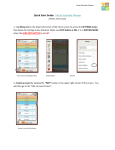
1. Tap gear icon in the lower right corner of the home screen to access the SETTINGS menu (See below for
settings menu features). Make sure EDIT button is ON. It is in EDITING MODE when the HIDE EDIT BUTTON is set
to OFF.
Home Screen & Settings Menu
2. Create an event by tapping the “EDIT” button in the upper right corner of the screen.
Home Screen & Edit Button
3. From the EDIT EVENT screen, you can:
●
●
●
●
●
●
●
●
●
Add a Title for your event
Select start and end time for your event
Add Photo - from multiple image sources
Repeat Event - scroll to choose
Add Sound/TTS - record or select from sound library
Set up event reminder
Link to a Video Clip or Activity Schedule
Access the User Manual - red “Help” button at the bottom of the screen
Return HOME by tapping house icon at the top of the screen
Visual Schedule Planner
Note: Tap “Save” before returning to the home screen to ensure all changes are saved.
Edit Event Screen
4. Additional Features (for expanded info, please refer to individual tutorials):
● Notes
● Activity Schedules
● Libraries
Notes
Activity Schedules
Libraries (Images, Videos, & Sound)
5. From the SETTINGS Menu, you can
● Hide buttons (if needed) - NOTE: To access Activity Schedules and Video Library independent of an event the
you must slide the EDIT BUTTON to HIDE.
● Set Password
● Create & Restore from iCloud backup
● Archive app data using iTunes FILESHARING
● Print out daily calendar (send via email)
● Edit labels for “Now” and “Next”
● Add Multiple Users (Admin is the default user)
Visual Schedule Planner
Home Screen & Settings Menu
6. To place the app in “USER MODE” , please make sure that the HIDE EDIT BUTTON is turned to ON. That way,
all videos and activity schedules will be able to be viewed and used independently of an event.
For detailed information about these features and step-by-step walkthroughs, please refer to the individual
tutorials for this app, which are available on our website. If you need further assistance, please email us at
[email protected].