1
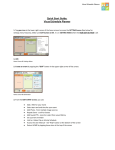
SMS Export Plus – User Guide 1 This user guide is for Windows PC users. If you are using this desktop version, you don’t need to use SMS Export Plus App in your iPhone. This software works independently in your Windows Computer. Before using this software on your Windows computer, make sure that you have the following 1) iPhone/iPod/iPad from where you want to backup SMS or iMessages 2) USB or Lightning cable to connect your iPhone to your Windows PC 3) iTunes Software in your Windows PC 4) Microsoft Office – to view excel file 5) SMS Export Plus software (Desktop version)– www.smsexportplus.com download here for free Step 1: Take Manual Backup to Windows PC using iTunes a) Connect your iPhone/iPod/iPad to your Windows PC using cable and open iTunes Software in your Windows PC You should be able to see below screen. SMS Export Plus – User Manual 2 b) Take Backup to your computer without encryption. Make sure that • UNCHECK “iCloud” • CHECK “This Computer” • UNCHECK “Encrypt local backup” SMS Export Plus – User Manual SMS Export Plus – User Guide 3 STEP -‐ 2: Save SMS/iMessages using SMS Export Plus software a) Launch SMS Export Plus software from your Windows PC. If you don’t have SMS Export Plus software, please download from www.smsexportplus.com and Install in your Windows PC Select the device and Click on “Backup” button SMS Export Plus – User Manual 4 b) Click on “Download” to save messages to your Windows PC You can also search for messages or contacts and you can save the results to excel file. SMS Export Plus – User Manual