1
S100 USB Skype Phone
manual
S 100 USB Skype Phone Manual
Contents
Contents ______________________________________________________________ 1
1
Package Contents___________________________________________________ 2
2
The Crypto USB Skype Phone_________________________________________ 2
3
4
2.1
Product Features _____________________________________________________ 2
2.2
System Requirements _________________________________________________ 3
2.3
Keypad _____________________________________________________________ 3
Installation Procedure _______________________________________________ 5
3.1
Skype Installation ____________________________________________________ 5
3.2
USB Phone Connection________________________________________________ 6
3.3
Skype Mate Installation _______________________________________________ 6
Making Calls ______________________________________________________ 7
4.1
Call a Skype user from contacts_________________________________________ 7
4.2
Call a Skype user from PC contacts _____________________________________ 7
4.3
Call a Skype user from call list _________________________________________ 7
4.4
Call a Skype user by Speed - Dial _______________________________________ 8
4.5
Call a regular phone __________________________________________________ 8
5
Answering Calls ____________________________________________________ 9
6
Phone State________________________________________________________ 9
7
FAQ - Technical Support _____________________________________________ 9
8
Technical Specifications ____________________________________________ 12
________________________________________________________________________
1
S 100 USB Skype Phone Manual
1 Package Contents
1
2
4
3
1.
2.
3.
4.
S100 USB Skype Phone
User’s manual
Installation CD
Warranty Card
2 The Crypto USB Skype Phone
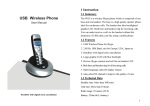
Congratulations on purchasing your USB Skype Phone. Just plug it into your computer’s
USB port and you can make and receive Skype calls. Phone rings for all incoming calls and
you can dial Skype contacts and SkypeOut numbers from the phone. With the dot-matrix
LCD, ear-phone socket, keypad and ringer, the device is as easy to use as a mobile phone.
2.1 Product Features
● Dot-matrix graphic LCD, backlight
● Dial skype contacts (speed dial number) and SkypeOut number by phone keypads
● With ear-phone socket, easy to free your hands
● Phone rings for all incoming calls, ring style selectable by phone keys
● Caller ID function for skype calls, support multi-language display.
● Easy to review skype contacts and call list on LCD
● Echo cancellation, noise reduction, full dulplex communication
________________________________________________________________________
2
S 100 USB Skype Phone Manual
2.2 System Requirements
● Windows 2000 or XP
● 400MHz processor and free USB1.1 or USB2.0 port
● 128MB RAM and 15MB free disk space
● Any broadband connection or minimum 33.6 Kbps dialup
2.3 Keypad
1
3
5
4
2
9
6
8
7
1.
: Contacts
(1) Press
to display the contact list, press
/
to scroll the contact list.
(2) Press
to call out the friend displayed on the LCD.
(3) Press
to go back to idle.
(4) The contacts are sorted by name. Press e.g. 5 and you will see all contacts starting with
“J” press the 5 a second time and you see all contacts starting with “K”
________________________________________________________________________
3
S 100 USB Skype Phone Manual
2.
: Call List
(1) Press
to display the call list, press
/
to scroll the call list.
(2) Press
to call out the friend displayed on the LCD.
(3) Press
to go back to idle.
(4) The list is sorted by latest call on the top.
3.
/
Press
4.
: Up/Down
/
to scroll call/contact list and to adjust volume when talking.
: Clear
(1) Press to clear any numbers you have entered for a call.
(2) Press to switch between the Tabs of the Skype software.
(3) During a call you can press “C” to enable mute, press “C” again to disable mute
5.
: Dial/Answer
(1) Call out or answer a call.
(2) Press
6.
to put call on hold, release call by pressing
: Hang up
(1) Hang up a call or refuse incoming call.
(2) Press the key to go back to previous menu.
7.
Press
: Ringer
to scroll the ringer style list.
8. 0-9, *, #: Digital keys
(1) Press to input digital numbers.
(2) Press to send DTMF message while talking.
________________________________________________________________________
4
S 100 USB Skype Phone Manual
9.
: Help
(1) Press
to view contact list. Press
to call out the contact. Press
(2) Press
to return to previous menu.
to view call list. Press
call out the contact. Press
to see detailed list of the contact. Press
to see detailed list of the contact. Press
to
to return to previous menu.
3 Installation Procedure
This chapter describes how to connect your USB Skype Phone to your computer.
3.1 Skype Installation
•
Download Skype software and install it (www.skype.com). The version must be
1.0.0.106 or higher.
•
Run Skype and log in with skype account.
You can create a Skype account as shown below:
After software startup, the icon will appear at the system tray as shown below:
________________________________________________________________________
5
S 100 USB Skype Phone Manual
That indicates that Skype is successfully connected to Internet. If the icon is shown as
, you have to check your Internet connection.
3.2 USB Phone Connection
• When the USB Skype Phone is connected to your PC, the LCD shows the following
3.3 Skype Mate Installation
•
Insert SkypeMate installation CD or download SkypeMate software, then install it.
•
Run SkypeMate
Double-click the icon
on the desktop and the Skype program will pop up
the window as shown below:
Select the first option “Allow this program to use Skype”, click “OK” button.
Note: If you have selected the wrong option, you can make another selection. Please see
FAQ /problem 4 for details.
________________________________________________________________________
6
S 100 USB Skype Phone Manual
After running SkypeMate, the icon will appear at the system tray as shown:
That indicates that the device and Skype are connected successfully. If the icon is shown as
(the phone is green and the outside is grey), please run Skype first. If the icon I shown
as
(the phone is red and the outside is green), it means that the USB Skype Phone is
connected incorrectly. Please reconnect the phone to your PC.
4 Making Calls
4.1 Call a Skype user from contacts
•
Press
•
Press
•
Press
to display contacts.
/
to select a contact.
to call out.
4.2 Call a Skype user from PC contacts
•
•
Press “C” to switch Skype to Contacts Tab at idle state.
Press
/
to select a contact.
•
Press
to call out.
4.3 Call a Skype user from call list
•
Press
•
Press
•
Press
to display call list.
/
to select a contact.
to call out.
________________________________________________________________________
7
S 100 USB Skype Phone Manual
4.4 Call a Skype user by Speed - Dial
•
•
Add "Crypto" to Contacts
Assign Speed-Dial for it, example "20"
•
Input number and call out:
Press digital "20" on USB Phone, then press
to call out.
4.5 Call a regular phone
•
Press "00" + "country number "+" phone number", then press
.
Example: call someone in Athens Greece, please press 00302106122513, and then press
.
0030 (country code) – 210 (city code) – 6122513 (number)
Note:
(1) You can input “+” instead of “00”.
(2) If you want to use this function, you should buy SkypeOut Credit from
www.skype.com first.
________________________________________________________________________
8
S 100 USB Skype Phone Manual
5 Answering Calls
When a call comes in, the USB Phone will ring. Press
to answer the call, or press
to refuse it.
6 Phone State
(1) Idle state
a. Skype online
b. Skype offline
c. Missed call
(2) The icons display in call list
a. Incoming call b. Outgoing call c. Missed call
(3) The icons display in contacts
a. Online
b. Offline
c. SkypeOut
7 FAQ - Technical Support
Problem 1
I am not able to hear any sound through the earphone?
Solution
Please execute the “Control Panel->Sound and Video (
) ->Audio”, set Sound
Playback and Sound Recording’s preference device to your sound card. See below:
________________________________________________________________________
9
S 100 USB Skype Phone Manual
Problem 2
I can’t play music through the USB Phone?
Solution
Please execute the “Control Panel->Sound and Video (
) ->Audio”, set Sound
Playback and Sound Recording’s preference device to “USB Audio Device”.
Problem 3
The voice is played from the PC’s sound card instead of the USB VoIP Phone when I
make/answer a call?
Solution
Execute “Tools->Options->Sound Devices” to open the window as below: Set “Audio In”
and “Audio Out” to “USB Audio Device”.
________________________________________________________________________
10
S 100 USB Skype Phone Manual
Problem 4
Skype is running, but the icon of SkypeMate still shows
(the phone is green and the
outside is grey)?
Solution
You have selected the wrong option, go to Skype, execute choose “Tools-> Options->
Privacy-> “Manage other programs’ access to Skype”, choose the needed option, click the
“Change” button to open the “Manage API Access Control” windows, and make another
selection.
For technical information and support please contact us:
Web Site: www.crypto.gr
E-mail: [email protected]
________________________________________________________________________
11
S 100 USB Skype Phone Manual
8 Technical Specifications
LCD
•
Ringer
Dot-matrix graphic LCD with blue color
•
Electro-magnetic buzzer
back light, able to display any language
•
Sound pressure level: min 85cBa @
character and picture
AUDIO
•
8K 16bits PCM
•
Full duplex
10cmElectrical
Power Supply
format
•
Operating voltage: 4.5V ~ 5.5V
•
Power consumption: suspend mode <
85mA; operating < 200mA
Playback
• Speaker impedance:130Ω ± 15%
OS compatibility
• Speaker maximum output power : 5mv
•
Windows 2000 or XP
• Frequency range: 200-3400Hz
•
400MHz processor and free USB1.1 or
USB2.0 port
Capture (IN)
• Microphone directivity(omni
directional): Omni directional
•
128MB RAM and 15MB free disk space
•
Any broadband connection or minimum
33.6 Kbps dialup
• Microphone sensitivity: -40 ±1 Db
• Frequency range: 200-3400Hz
Environmental Specifications
• Temperature: 0oC - 40oC
• Humidity: 10% - 95%
Technical Specifications are subject to change without prior notice.
________________________________________________________________________
12