1
DeviceAnywhereTMUser Guide
9.5.2
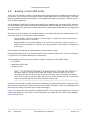
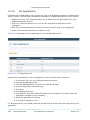
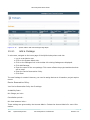
Add a Category Folder
How to Add a Category Folder:
1.
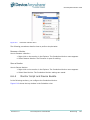
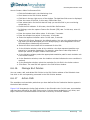
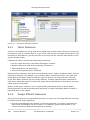
Right click the new Resource library. The drop-down menu is displayed.
2.
Select Add Category. A new category folder is created in the Explorer.
3.
Enter the name of the folder.
9.5.3
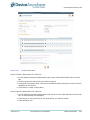
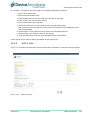
Add a Macro
How to Add a Macro:
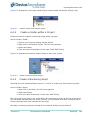
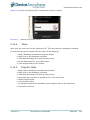
1.
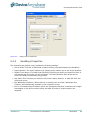
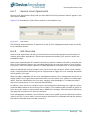
Right click on the category folder. The drop-down menu is displayed.
2.
Select Create a Resource Type.
3.
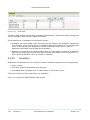
Select Macro. The Macro appears in the Explorer.
9.5.4
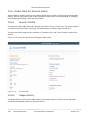
Add a Macro Instance
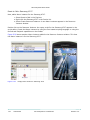
How to Add a Macro Instance:
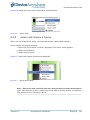
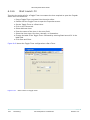
1.
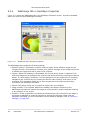
Highlight and select the Macro in the Explorer.
2.
Select a test device in the Device list.
3.
Right click the device. A drop-down menu is displayed.
4.
Select Create Resource Instance.
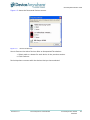
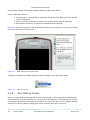
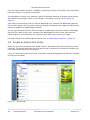
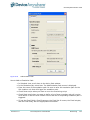
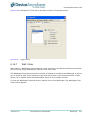
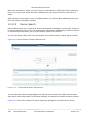
A new Macro instance is created in the Resource Instance window. Notice the icon in front of the
Macro instance.
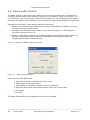
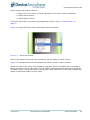
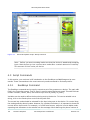
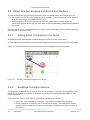
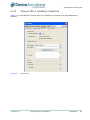
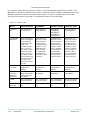
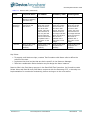
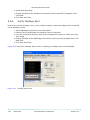
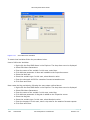
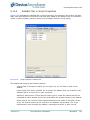
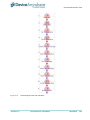
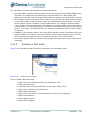
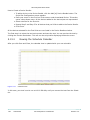
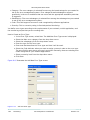
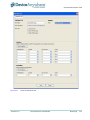
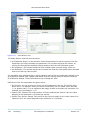
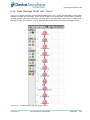
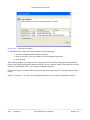
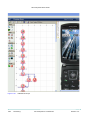
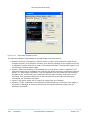
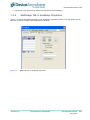
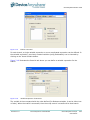
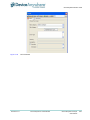
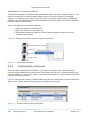
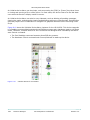
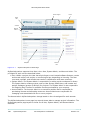
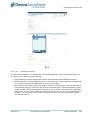
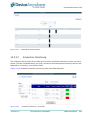
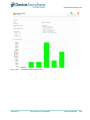
Figure 9-8 shows the empty script editor where you begin to build a new Macro.
Revision 1.0
DeviceAnywhere Confidential
Resource Manager
261