1
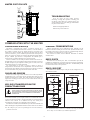
MASTER PORT PIN OUTS
CTS (PIN 1)
Rx
COMM
COMM
Tx
RTS (PIN 6)
1
COMMON
2
24VDC ±10%
3
N/C
POWER
CONNECTOR
RS232
RS232/PG PORT
RS232/PG
STS
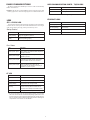
TROUBLESHOOTING
USB/PG
If for any reason you have trouble operating,
connecting, or simply have questions concerning your
new Master, contact Red Lion’s technical support. For
contact information, refer to the back page of this bulletin
for phone and fax numbers.
TxB (PIN 1)
TxA
RxA
RxB
TxEN
COMM
TxB
TxA (PIN 8)
USB/PG
CF
EXPANSION
PORT
RS485
RS485
CTS (PIN 1)
Rx
COMM
COMM
Tx
RTS (PIN 6)
COMMS
PORT
RS232
EMAIL: [email protected]
Web Site: http://www.redlion.net
ETHERNET
RS232
YELLOW
LED
GREEN/
AMBER
LED
COMMS
PORT
ETHERNET
(NIC)
COMMUNICATING WITH THE MASTER
CONFIGURING A MASTER
ETHERNET COMMUNICATIONS
The Master is configured using Crimson® 2.0 software. Crimson 2.0 is
available as a free download from Red Lion’s website, or it can be ordered on
CD. Updates to Crimson 2.0 for new features and drivers are posted on the
website as they become available. By configuring the Master using the latest
version of Crimson 2.0, you are assured that your unit has the most up to date
feature set. Crimson 2.0 software can configure the Master through the RS232/
PG port, USB/PG port, Ethernet or CompactFlash. The USB/PG port is
connected using a standard USB cable with a Type B connector.
The driver needed to use the USB port will be installed with Crimson 2.0.
The RS232/PG port uses a programming cable made by Red Lion to connect to
the DB9 COM port of your computer. If making your own cable, refer to the
“Master Port Pin Outs” for wiring information.
The CompactFlash can be used to program a Master by placing a
configuration file and firmware on the CompactFlash card. The card is then
inserted into the target Master and powered. Refer to the Crimson 2.0 literature
for more information on the proper names and locations of the files.
Ethernet communications can be established at either 10 BASE-T or 100
BASE-TX. The Master’s RJ45 jack is wired as a NIC (Network Interface Card).
For example, when wiring to a hub or switch use a straight-through cable, but
when connecting to another NIC use a crossover cable.
The Crimson 2.0 manual contains additional information on Ethernet
communications.
RS232 PORTS
The Master has two RS232 ports. There is the RS232/PG port and the
COMMS port. Although only one of these ports can be used for programming,
both ports can be used for communications with a PLC. The RS232/PG port can
be used for either master or slave protocols.
RS422/485 PORT
The Master has one RS422/485 port. This port can be configured to act as
either RS422 or RS485.
CABLES AND DRIVERS
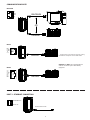
RS422/485 4-WIRE
CONNECTIONS
Red Lion has a wide range of cables and drivers for use with many different
communication types. A list of these drivers and cables along with pin outs is
available from Red Lion’s website. New cables and drivers are added on a
regular basis. If making your own cable, refer to the “Master Port Pin Outs” for
wiring information.
RS485 2-WIRE
CONNECTIONS
5V
5V
130K
130K
7
TX
USB, DATA TRANSFERS FROM THE
COMPACTFLASH CARD
1
TX/RX
8
8
130K
TxA
2
5
WARNING - DO NOT CONNECT OR DISCONNECT CABLES
WHILE POWER IS APPLIED UNLESS AREA IS KNOWN TO BE
NON-HAZARDOUS. USB PORT IS FOR SYSTEM SET-UP AND
DIAGNOSTICS AND IS NOT INTENDED FOR PERMANENT
CONNECTION.
7
TxB
TxB
1
TxEN (OC)
130K
TxA
2
5
TxEN (OC)
6
GND
5V
130K
In order to transfer data from the CompactFlash card via the USB port, a
driver must be installed on your computer. This driver is installed with Crimson
2.0 and is located in the folder C:\Program Files\Red Lion Controls\Crimson
2.0\Device\ after Crimson 2.0 is installed. This may have already been
accomplished if your Master was configured using the USB port.
Once the driver is installed, connect the Master to your PC with a USB cable, and
follow “Mounting the CompactFlash” instructions in the Crimson 2.0 user manual.
4
RxB
3
RxA
6
GND
RX
130K
Note: The USB port is for system set-up and diagnostics and is not intended for
permanent connection.
Note: All Red Lion devices connect A to A and B to B, except for Paradigm
devices. Refer to www.redlion.net for additional information.
6