1
More Security More Convenience BELKIN:
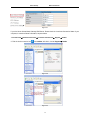
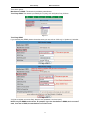
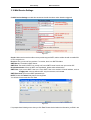
1. Login the router.
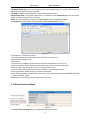
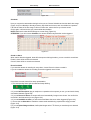
2. Choose “Firewall”, select “Virtual Servers”
3. Input the port (except 80) and IP address, then click save.
NOTE: The port and IP address should be the same as Camera.
Figure 7.6
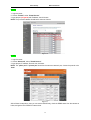
DLINK:
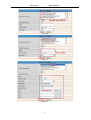
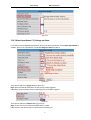
1. Login the router.
2. Choose “Advanced”, select “Virtual Servers”
3. Input the port, IP address, Protocol, then click save.
NOTE: The “public port” & “private port” should be the same as camera’s port, choose the protocol to be
“both”.
Figure 7.7
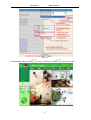
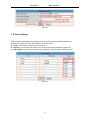
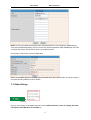
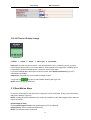
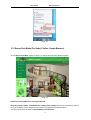
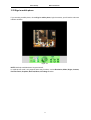
After all these 4 steps done, then you can use the DDNS freely, check the DDNS status from the camera as
below, and get the link of DDNS for internet view.
36