1
The Cable Gateway’s Front Panel LEDs
Chapter 3: Connecting the Cable
Gateway
Overview
Figure 2-4
Power
Green or red. The Green Power LED is solid when the
Cable Gateway is powered on. If the LED lights up red,
there is an error.
Internet - Cable
Green. The Green LED will go through a series of
flashes as the Cable Gateway goes through its startup
and registration process. It will remain solid when
registration is complete and the Cable Gateway is
operational.
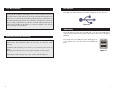
With the Cable Gateway, you can use a standard Ethernet connection or connect via USB. To connect via an Ethernet connection continue with the
Ethernet Cable Connection section. To connect via a USB connection, go to the
next section, USB Cable Connection.
Ethernet Port Connection
Internet -Activity
Green. This LED flashes when data is being sent or
received through the cable Gateway interface.
Ethernet-1-4
Green or red. Ethernet 1-4 LED serves multiple purposes. If the LED is solid green, the Cable Gateway is
successfully connected to a device through the corresponding port (1, 2, 3, or 4). If the LED is flashing
green, the Cable Gateway is actively sending or receiving data over that port. If the LED lights up red, there
is a collision.
USB
Green or red. The LED is solid green when a PC is
connected to the Cable Gateway via USB, and drivers
are installed. If the LED flashes red, the cable is connected, but the driver isn’t loaded.
Wireless
Green or red. The LED flashes green during wireless
activity. If the LED flashes red, there is an error condition.
Proceed to “Chapter 3: Connecting the Cable Gateway.”
8
First, make sure that all the devices that you’ll be working with are powered
down, including your PCs and the Cable Gateway.
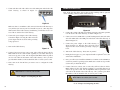
Figure 3-1
1. Connect the coaxial
cable that is provided
by Comcast to the
Cable port that is on
the back of the Cable
Gateway, as shown in
Figure 3-1.
2. Connect one end of
Figure 3-2
an Ethernet cable to
your PC’s Ethernet adapter, as shown in Figure 3-2.
Note: If your PC’s Ethernet adapter is not set up, please refer to your Ethernet
adapter’s user guide for more information.
9