1
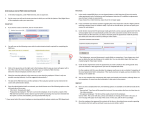
User Manual For Windows User Contents How to register ……............................................................................................................... How to login ……………................................................................................................................ Dashboard content Access................................................................................................... Subject list ......................................................................................................................... Syllabus …………….……………………………………………………………………………………………………….… Quiz Papers ……….……..………………………………………………………………………………………………..…… EBook ………………….………………………………………………………………………………………………………….. Tutorial Sheets ………………….…………………………………………………………………………………………… Mid Sem Papers …………..…………………………………………………………………………………………………. Ask Mentor …………………………………………………………………………………………………………………….. My Notes ……………………………………………………………………………………………………………………….. My schedule ……………………..…………………………………………………………………………………………… Nptel/Mit Video …………….……………………………………………………………………………………………… Steps to register your profile Once your application will be installed you will get a myGuruji app shortcut on your desktop. On clicking on that icon you will able to see the window as shown in the below image. You can see two options there all you need to insert you username that is your email- id and password After filling all the required details when you click on register button you will be able to see the dialog box in that dialogue box message is shown as ”MESSAGE DIALOG” you have to select yes then. Registration window After all this you need to root your folder. When you install your app, automatically one folder named Windows will be created on your desktop you have to choose that folder to root. Once you will do this your application will be ready to start. After this you will able to see your application’s home screen. And it will look like this:- In your home screen you will get so many options like:1. Home 2. About Us 3. Profile 4. Calendar 5. Notification On clicking on home icon you will get the about us details of your desktop application:- My Study Zone: In this section you will get all the relevant content related to your course. Like: EBook Faculty notes Faculty videos NPTEL videos MIT videos In the left side you can see the list of all the contents available on this application. You can access any of the content by choosing them. Likewise we have chosen eBook list of eBook is being shown. All books are having so many options on its top like if you want to see the list of the chapters in that particular book you can select the first option. On clicking on the next icon you can coy content and you can save it as a note too. For creating a note you can click on the next icon. Mid Sem Papers:In this section list of all mid sem papers will be shown. On clicking on the calendar option you can schedule your plans like this. For saving you schedules you need to press ctrl key after writing your schedule. Download Content: In this section all newly added contents will be shown .if any new content will be added it will enlisted here once you will synchronize your app in the presence of internet connection. In notification section you will get the list of all newly added contents. Ask Mentor: With the help of this section you can ask your query to your faculties from anywhere and at any time. All you need an internet connection for asking your queries. Online Test: - Online test feature is available in this ap through which you can evaluate yourself. We hope that it will help you to understand the myGuruji website. In case of any query regarding myGuruji feel free to contact us on [email protected].