1
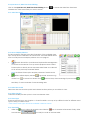
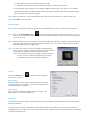
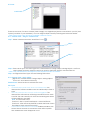
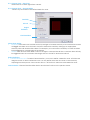
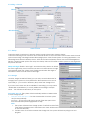
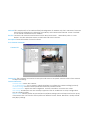
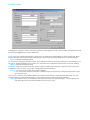
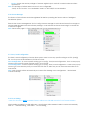
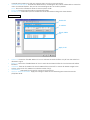
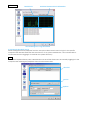
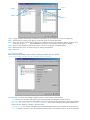
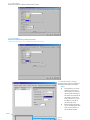
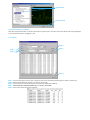
2.9.5 Counting Application (Diagram)
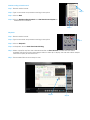
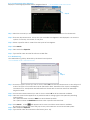
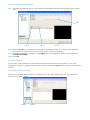
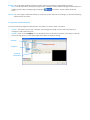
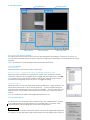
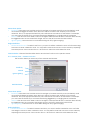
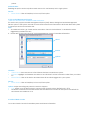
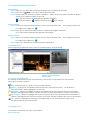
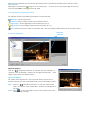
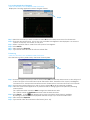
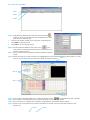
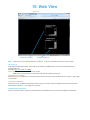
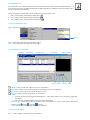
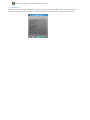
Display the Counting Application data in diagram format.
* not available under Lite License
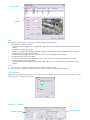
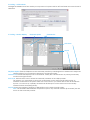
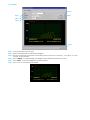
Step 4
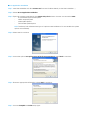
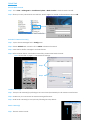
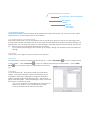
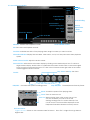
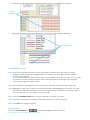
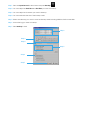
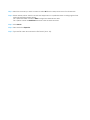
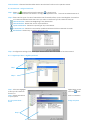
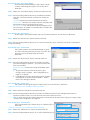
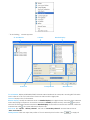
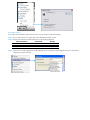
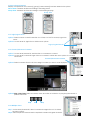
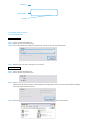
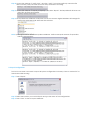
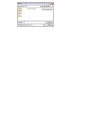
Step1: Select the channel you want to check or select All from the drop-down menu for all channels.
Step 2: From the drop-down menu, set up how you would like the diagram to be displayed. You have the
options of one day, one month, or one year.
Step 3: Select a specific date to make it the start point of the diagram.
Step 4: Click Search.
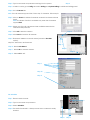
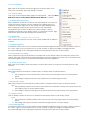
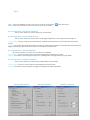
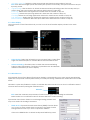
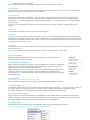
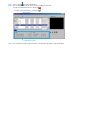
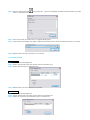
Step 5: Press the button Export to.
Step 6: Type the file name and the file will save as BMP files.
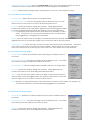
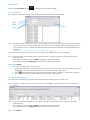
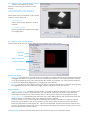
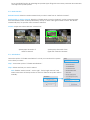
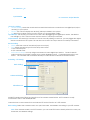
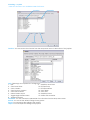
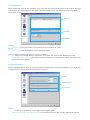
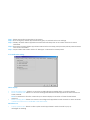
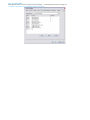
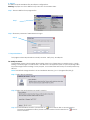
2.9.6 Metadata Log
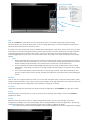
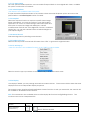
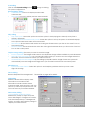
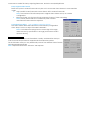
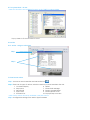
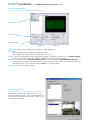
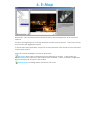
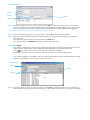
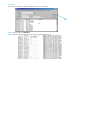
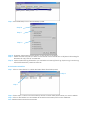
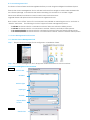
View Metadata Log history detected by the Smart Guard System.
* not available under NVR Lite License
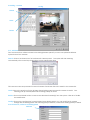
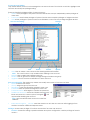
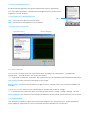
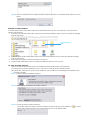
Step 5
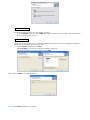
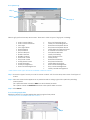
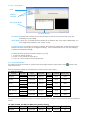
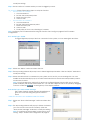
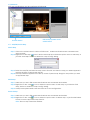
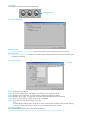
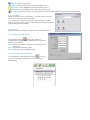
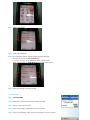
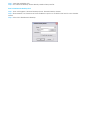
Step1: Choose the type of events you wish to view or select All from the drop-down menu to view all types of
events. The types of Unusual Event include Transaction Start, Transaction End, Open Cash Register,
Connection Lost, and Special User Defined Event. Please refer to the User manual of Metadata
Plugins for detail.
Step 2: Choose the camera channel you wish to view or select All for all the channels available.
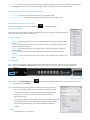
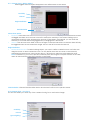
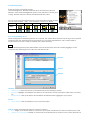
Step 3: View the events that happened on a particular date or during a given time period by selecting
search period.
For a particular date: check the Date box and indicate the date.
For a period: check the DateTime and then enter a specific date and time.
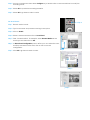
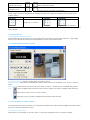
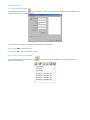
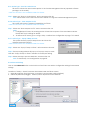
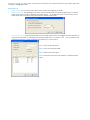
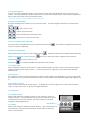
) will appear next to each event time where video is available.
Step 4: Click Search. A link (
By clicking on the link, the video will jump to the point where the unusual event takes place.
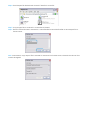
Step 5: Press the button Export to.
Step 6: Type the file name and choose the file format (.xls or .txt).