1
novaPro32 Installation
7
IconMaker
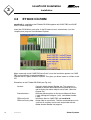
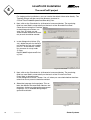
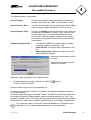
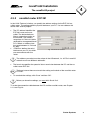
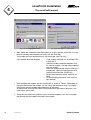
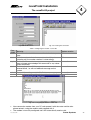
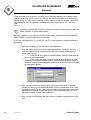
8. Confirm your settings by pressing the ‘Make Icon’ button and state a name for the
icon.
If you are setting up an icon with Workbench light for your project for the first time,
you will be asked by the program to choose a BMTL . The BMTL is an *.mdb file
which can be found in the ...\Private_Data\System\ folder. The file name is identical
to the project name.
9. Exit Icon Maker using the ‘Exit’ command button.
Î An icon with a link to novaPro32 is set up on the PC's desktop.
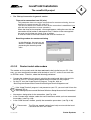
If you have chosen the wrong .mdb file by mistake or want to set up a Workbench light for a new BMTL, you must, before starting IconMaker, delete the
path of the old BMTL automation station (or of the one chosen by mistake)
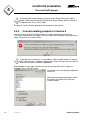
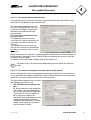
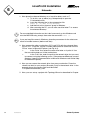
from the Windows registry. To do so, adopt the following procedure:1. Start the Windows registry editor (regedit.exe)
2. Open the following folder:\HKEY_LOCAL_MACHINE\SOFTWARE\Sauter\EY3600\Topology\2.0\“Projektname“
3. Delete the ‘BmtLightPath’ key from the list.
4. Start IconMaker. When creating an icon with Workbench Light, you are
again asked to choose a BMTL.
7.4
Starting up novaPro32 from the icon
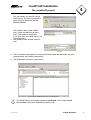
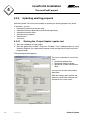
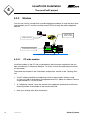
To start novaPro32, double-click with the left-hand mouse button on the icon generated
above.
The start picture is opened automatically. After the prompt, enter your user name and
password.
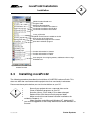
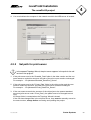
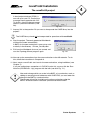
After starting up with an icon linked to the Workbench, you can use the
the
novaPro32 taskbar to start the DPE browser of CASE-FBD.
icon from
After starting up with an icon linked to Workbench light, you cannot start up the DPE
browser. This means that the user has no access to the parameterisation of the automation stations via FBD.
7000915003 Q2
Sauter Systems
67