1
Tutorial
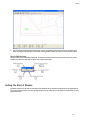
To insert tabs into some of the shapes
1.
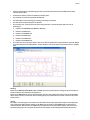
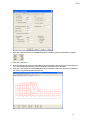
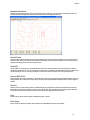
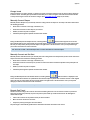
Select Manual Edit > Insert Tabs. This switches the Insert Tab function on until Manual Edit > Insert Tabs is selected
again. See the lower right window for the state of the function.
2.
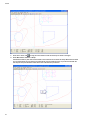
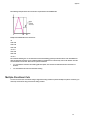
Click on some of the outside cuts and watch how tabs are inserted. Leads are generated automatically and the
shapes are connected by fast travel. The leads are generated at 90° angles. You can undo the last tab you inserted
by clicking the undo button.
3.
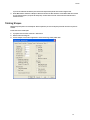
Select Manual Edit > Insert Tabs to switch this function off. Most functions on the Manual Edit menu remain on until
selected again or you press the Escape key. A check mark to the left of the menu item indicates that a function is
active.
Reversing Shapes
Note: This procedure should only be used when you have open shapes or for marking when there is no kerf used. In
the case of open shapes, NC-Pyros cannot detect the proper direction of processing.
1.
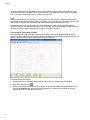
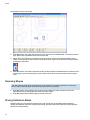
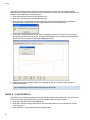
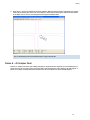
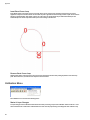
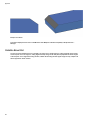
Select Manual Edit > Reverse Shapes. Pick any shape on the marking layer (white color) and see the arrows
indicating the cutting or marking direction and the connectors change.
2.
Select Manual Edit > Reverse Shapes again to turn this function off.
Placing Calibration Marks
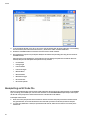
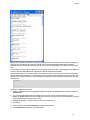
Calibration marks are a very important quality assurance tool. The operator can immediately detect problems by
checking the calibration marks after or during the processing. This feature saves times and money by preventing parts
that do not fit during assembly.
14