Transcript
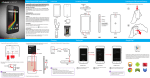
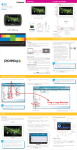
PTV430: User Manual 21.8” Included Location of controls When the TV is first turned ON, the main menu appears. To get back to the main menu at any time, press the [home] button. Use the following buttons to navigate the menus and submenus: 2 3 4.3” LCD Display Portable Digital Television PTV430 4 vol+ 5 9 1 Button [menu] [home] [ch + / ▲] [ch - / ▼] [vol - / ◄] [vol + / ►] [OK] 6 7 8 10 11 Digital TV External Antenna 1. LCD screen 14 15 3. [menu] button 4. [OK] button / Confirm choice 5. [vol-] button / Scroll left 17 8. [ch-] button / Scroll down User Manual 9. [guide] button 18 13. INPUT 5V jack PTV430 15. External antenna jack 16. Mini USB jack User Manual 17. Micro SD card slot 18. 3.5mm headphone jack Mini USB to Female USB Cable Included 19 20. TV kickstand (pull) 20 Before scanning for channels or watching Digital Television, you must pull out the retractable DTV antenna to its fullest length in order to maximize the reception signal. This TV has Mini USB jack which allows you to attach a USB device so you can view music, videos, and pictures. Most USB devices come with a Mini USB to USB cable to connect to a computer. 1. Connect the AC adaptor to the INPUT 5V jack on the TV and plug it into a wall receptacle. 1. Pull the retractable antenna out from the TV and extend it to its fullest length. 2. Charging time depends on whether the TV is ON during charging or powered OFF. 2. The extended antenna can be rotated and set in different directions to maximize the TV reception. • If the TV is ON - the charge time is approximately 7 hours. • If the TV is OFF - the charge time is approximately 5 hours. 3. When not watching television, retract the antenna. 2 To attach your USB device to the TV: 1. Insert the large USB tip of your device’s cable into the large USB tip of the supplied cable. 2. Attach either Mini USB tip to the TV’s Mini USB jack. 4. The TV can now read your device (see Slideshow, Music, Videos, and/or Browse). AC Outlet 5. If reception is weak or you are receiving few channels, then connect the external antenna to the external antenna jack on the side of the TV and rescan for channels (see DTV - Scanning for channels). You can use the TV to watch videos stored on a memory card or USB storage device. You must have a memory card inserted and/or a USB storage device attached (with video files) for the video function to work. • Supported video file types are MPEG, AVI and DAT. • Supported memory card type is Micro SD. 1 The first time the television is turned on you must scan for available channels. You should also scan for available channels whenever you are in a new area or when reception is weak. Each locality broadcasts different channels and channel information so you should scan for new channels any time you have moved to a different area. The TV can store up to 68 channels and each channel has 8 possible sub-channels associated with it. 2. Use the ◄ or ► button to scroll to DTV on the main menu, then press the [OK] button to confirm. When you select DTV for the first time, the following screen will be displayed: Setup Wizard Polaroid and Polaroid & Pixel are trademarks of PLR IP Holdings, LLC, used under license. PLR IP Holdings, LLC does not manufacture this product or provide any Manufacturer’s Warranty or support. www.polaroid.com 4. Select “Yes”, then press the [OK] button to confirm. 31.2” 60 30 A series of devastating torandoes rips through Camden County, causing Earl to lose his list, a wild boat ride leads Randy to believe he is invincible, Mike and Darnell argue over which of them is the smart one in their relationship. 3. Use the ◄ or ► buttons to scroll to “Video”, then press the [OK] button to confirm. The “Select Storage” screen will open. 5. Use the navigation buttons to scroll to the video you would like to play or folder you would like to open and press the [OK] button to confirm. 6. To stop the scanning process at any time, press and HOLD the [OK] button for 3 seconds. 3. Press the [guide] button to display the Electronic Program Guide where you can view information on past, current or future programs and scroll through different channel information as well. 7. When finished scanning for channels, if the signal is weak or reception is poor, adjust the position of the antenna and/or relocate the TV, then repeat the scanning process. Note: Do not move or unplug the TV while scanning for channels as this will interrupt the scanning process and you will not receive all possible channels and sub-channels. Current date and time EPG 9.2 WWOR-TV My Name Is Earl DTV Monday, 26 July - 2010 06:55 PM 04:00AM-04:30AM Monday, 26 2010 TV RATING CC CC TV-14 Air Program time and name Program information guides A series of devastating torandoes rips 4. If necessary, press the ► button on the TV to select “Air”. 5. Press the ▲ or ▼ button to scroll to “Go to next step”, then press the [OK] button to start scanning for channels. The TV will scan through all 68 channels then store all local channels and sub-channels into memory. 2.1 WCBS-HD Resolution CC CC Off Audio mode Audio 1/2 (L | R) CC 1920x1080 Program name Channel type Let’s Make a Deal FTA TV-PG 06:00AM - 07:00AM CC Randy to believe he is invincible,Mike Program description Program time slot is smart one in their relationship. CC 9.1 Previous available channel 11.1 5. Use the ◄ or ► buttons to scroll through different channel information. Picture settings: Channel Settings: 1. Insert a memory card into the card reader slot and/or attach a USB storage device to the mini USB jack on the TV. 2. Press the [home] button, the main menu appears. 4 5 6 7 8 9 10 11 12 4. Use the ◄ and ► navigation buttons to change the settings. Picture mode: Choose between Personal / Standard / Dynamic / Soft. 5. Press the [menu] button to confirm the changes, then press the [menu] button again to exit the settings menu and return to normal viewing. Contrast / Brightness / Sharpness / Tint / Color: You can adjust any of these from 0-100. Color mode: Choose between Personal / Normal / Warm / Cool. Zoom mode: Choose between Normal or Wide viewing modes. Wide Menu Language: Change the language of the menus between English / Spanish / French Auto Scan: Use this option to scan for channels when you are in a new area or when reception is weak. Transparent: Change the transparency of the menus so you can view TV while menus are open. Show / Hide: When you have finished scanning for channels and you would like to hide certain channels so they cannot be viewed, use this option. Scroll to the channel you would like to hide, then press the [OK] button. OSD Time Out: Change the amount of time that the menus will close themselves between 5 / 15 / 30 / 45 / 60 seconds. Channel No.: Use this option to scroll through channels without closing the menu. Audio settings: The sleep timer options are: Channel Label: Use this option to change the label of the channel you are currently tuned to. To browse video files 1. Open “Browse” from the main menu. 2. Use the navigation buttons to select a folder or video file and press the [OK] button to confirm. If you open a folder, then choose a video file within that folder to open. 3. The browser options are displayed on the screen. Use the ◄ or ► buttons to select a browse option, then press the [OK] button to confirm your choice. Play / Pause Stop Volume Rewind Fast Forward 4. During playback, press the [OK] button to bring up the playback options. 5. To return to previous menus, press the [menu] button. OFF / 5 / 10 / 15 / 30 / 45 / 60 / 90 / 120 /180 / 240 minutes Time Zone: Set the time zone you are in DST: Turn daylight savings time On or Off. Time Format: Set the format of the clock. Choose between 12-hour or 24-hour formats. Auto Sync: This synchronizes the time with the broadcasting station. This is not adjustable. Audio Language: Choose between English / Spanish / French (not available for all channels). Clock: This synchronizes the date and time with the broadcasting station. This is not adjustable. Balance: Adjust the audio from left to right. 3. Advanced selection: Choose between the different advanced modes of CC. 2. Use the ◄ and ► buttons to scroll through the label boxes. 4. Option: Choose between different CC fonts and colors. 3. Press the [OK] button to confirm your changes. DTV signal: Shows the signal strength of the current channel’s Digital TV signal. FRONT Restore Default: Reset all settings to factory default. If you have made changes and want to reset the TV to all original settings, select “Yes”. Return to MM: Exit DTV and return to the main menu. 1. Use the ◄ or ► buttons at any time to choose from the music playback options, then press the [OK] button to confirm your choice. 2. To adjust the music volume, you must select the “Adjust Volume” option ( ) from the playback menu, then use the [vol- or vol+] buttons to lower or raise the volume. 3. To stop playback and return to the music menu, press the [menu] button at any time or select “Stop” from the music playback menu. Note: To adjust the volume in Music or Video mode, you must select the “Adjust Volume” option from the playback menu and use the [vol- or vol+] buttons to lower or raise the volume. 5. To adjust the FM radio volume, you must select the “Adjust Volume” option ( ) from the playback menu, then use the [vol- or vol+] buttons to lower or raise the volume. While listening to FM Radio, the following screen appears with the FM Radio function menu along the bottom of the screen: 1. Play or pause the current video 2. Stop the current video 3. Skip to the previous video 4. Skip to the next video 5. Rewind ten seconds 6. Fast forward ten seconds 7. Adjust the volume (select then use the [vol + or vol -] buttons) 8. Adjust the brightness 9. Switch the playback mode 10. Change the subtitle language (if applicable) 11. Audio mode 12. Full screen mode 1. Use the ▲ and ▼ buttons to select a slot in the “Favorite Channels” list. 2. To adjust the video volume, you must select the “Adjust Volume” option ( ) from the playback menu, then use the [vol- or vol+] buttons to lower or raise the volume. 3. To stop playback and return to the video menu, press the [menu] button at any time or select “Stop” from the music playback menu. CD1 --[88.90]-- left window 101.50MHZ CD2 --[92.30]-- right window CD3 --[94.80]-- 2. Use the ◄ or ►buttons to select from one of the 4 search modes along the bottom of the screen, then use the [OK] button to find a station you would like to save. CD5 --[105.90]-- 3. Use the ◄ or ► buttons to scroll to the “Save Station” icon ( ) then press the [OK] button to save the station. The station you saved will now be shown in the “Favorite Channels” list on the left of the screen. CD6 --[107.90]-- To scan for all available channels and store them in the scan list CD4 --[102.50]-- 1 2 3 4 5 6 7 1. Skip backward to the next available radio station 2. Manual search backward on the radio frequency dial 3. Manual search forward on the radio frequency dial 4. Skip forward to the next available radio station 5. Adjust the volume (select then use the [vol+ or vol-] buttons) 6. Save the current station to the “Favorite Channels” list. 7. Scan and save all available stations (the available stations will be listed in the right window where you can use the navigation buttons to select a station) 1. Insert headphones into the headphone jack on the TV. 2. Press the [home] button, the main menu appears. To browse picture files To browse music files 1. Open “Browse” from the main menu. 1. Open “Browse” from the main menu. 2. Use the navigation buttons to select a folder or picture file, then press the [OK] button to confirm. If you open a folder, then choose a picture within that folder to open. 2. Use the navigation buttons to select a folder or music file, then and press the [OK] button to confirm. If you open a folder, then choose a music file within that folder to open. 3. Press the [OK] button again to open the picture’s browse menu: 3. The browser options are displayed on the screen. Use the ◄ or ► navigation buttons to select a browse option, then press the [OK] button to confirm. Set picture to startup screen Picture information Switch storage device Play/pause 1. Use the ◄ or ► buttons to select the scan and save icon ( the [OK] button to confirm. ) then press 2. Wait for the TV to finish scanning for radio stations. When finished scanning, the available radio stations will be stored in the window on the right. 3. Use the ▲ and ▼ buttons to scroll through the available stations. 4. Use the [OK] button to check or uncheck the stations you would like to save to the “Favorite Channels” list. 5. With scanned station(s) selected, press the ◄ button to save the checked station(s) to the “Favorite Channels” list (the window on the left). 6. To exit the scanning window and return to normal listening mode, press the ► button at any time. 7. To exit “FM Radio” and return to the main menu, press the [home] button at any time. No picture Stop a. Select a picture and press the [OK] button to open the picture’s browser menu. b. Use the navigation buttons to select “Set Picture to startup screen”, then press the [OK] button to confirm. RISK OF ELECTRIC SHOCK DO NOT OPEN The lightning flash with arrowhead symbol, within an equilateral triangle, is intended to alert the user to the presence of uninsulated “dangerous voltage” within the product’s enclosure that may be of sufficient magnitude to constitute a risk of electric shock to persons. warning: to reduce the risk of electric shock, do not remove cover (or back). no user serviceable parts inside. refer servicing to qualified service personnel. The exclamation point within the equilateral triangle is intended to alert the user to the presence of important operating and maintenance (servicing) instructions in the literature accompanying the product. The TV reception signal might be weak. Try scanning for channels again or move the TV to a different location and scan for channels. No sound Check that the volume is turned up and that headphones are not plugged into the TV. Also, the signal might be weak, try moving the TV to a new location and scanning for channels again. Adjust volume 4. To adjust the music volume, you must select the “Adjust Volume” option ( ) from the playback menu, then use the [vol- or vol+] buttons to lower or raise the volume. 4. To set a picture as the TV startup screen: 5. To return to previous menus, press the [menu] button. 6. To exit to the main menu, press the [home] button at any time. Poor reception Try adjusting the antenna or scanning for channels again. Dark or blurred picture Try adjusting the brightness and contrast in the picture settings menu, also check that the battery is charged enough. If the TV is not plugged in, use one of the included adaptors to power the TV. Unclear or unstable picture Try adjusting the antenna or scanning for channels again. 5. To return to previous menus, press the [menu] button to open the browser menu, then select “Exit”, then press the [OK] button to confirm. Snow in picture Most likely a power interference issue such as radio frequency, power lines, etc. is interfering with the reception. Try adjusting the antenna or moving the TV to a different location and scanning for channels again. 6. To exit to the main menu, press the [home] button at any time. Limited Warranty FCC Part 15: This equipment has been tested and found to comply with the requirements for a Class B digital device under Part 15 of the Federal Communications Commission (FCC) rules. These requirements are intended to provide reasonable protection against harmful interference in a residential installation. This equipment generates, uses and can radiate radio frequency energy and, if not installed and used in accordance with the instructions, may cause harmful interference to radio communications. However, there is no guarantee that interference will not occur in a particular installation. If this equipment does cause harmful interference to radio or television reception, which can be determined by turning the equipment off and on, the user is encouraged to try to correct the interference by one or more of the following measures: ● Re-orient or relocate the receiving antenna. ● Increase the separation between the equipment and receiver. ● Connect the equipment into an outlet on a circuit different from that to which the receiver is connected. ● Consult the dealer or an experienced radio/TV technician for help. you can appropriately dispose of the product. You may also go to HYPERLINK "http://www.polaroid.com" www.polaroid.com and reference About / Electronic Recycling to learn more about the specific laws in your area and to locate a collection facility near your home. If your electronic device has internal memory on which personal or other confidential data may be stored, you may want to perform a data sanitization process before you dispose of your device to assure another party cannot access your personal data. Data sanitization varies by the type of product and its software, and you may want to research the best sanitization process for your device before disposal. You may also check with your local recycling facility to determine their data sanitization procedures during the recycling process. Do not attempt to repair or modify this equipment. Warning: Changes or modifications to this equipment not expressly approved by the party responsible for compliance could void the user’s authority to operate the equipment. “This device complies with Part 15 of the FCC Rules. Operation is subject to the following two conditions: CAUTION 1. CC Mode: Choose between CC off / CC on / CC on muted (no audio) 1. Use the ▲ and ▼ buttons to scroll through the different letters and symbols. 1. Play or pause the music 2. Stop playing music and return to the play list 3. Play the previous track 4. Play the next track 5. Rewind ten seconds 6. Fast forward ten seconds 7. Adjust the volume (select then use the [vol+ or vol-] buttons) 8. Display the music track information 9. Switch the playback mode FM radio homescreen Legal information to prevent electrical shock, match wide blade plug to wide slot, fully insert. Closed Caption (CC): There are 4 submenus in Closed Caption: 2. Basic Selection: Choose between the different CC types (how CC is displayed) 9 4. Use the ◄ or ► buttons to select an option from the FM Radio menu along the bottom of the screen, then press the [OK] button to confirm your choice. Favorite Channels Exit to previous menu to reduce the risk of fire or electric shock, do not expose this appliance to rain or moisture. Air / Cable: This is used to change the type of television signal. Always have this set to “Air” (Digital Television) 8 To store stations individually in the “Favorite Channels” list: 4. To switch between the memory card and USB storage device at any time, press the [menu] button, then scroll to “Switch Storage Device”, then press the [OK] button to confirm. to prevent fire or shock hazard, do not use the plug with an extension cord, receptacle or other outlet unless the blades can be fully inserted to prevent blade exposure. 3. Use the ▲ or ▼ navigation buttons to scroll to the setting you would like to adjust. Sleep Timer: Choose a set time for the TV to power off. You can use the TV to browse music, video or picture files on your memory card or USB storage device. Setup: 2. Use the ◄ and ► buttons to scroll through the different DTV settings menus, then press the [OK] button to confirm and enter the settings menu of choice. 7 You can use the TV as a FM Digital Radio. You must have headphones plugged into the TV for the FM Radio function to work. 6. To exit to the main menu, press the [home] button at any time. Signal strength 6 Troubleshooting Safety precautions Normal Note: To play music stored in a folder, you must first open that folder, then select a song within that folder and the TV will play all of the music in that folder. If a song is selected that is not in a folder, the TV will play all songs that are not in folders. c. The TV will ask you to confirm to set this picture as a logo. Use the navigation buttons to choose Yes or No, then press the [OK] button to confirm your choice. 4. Use the ▲ or ▼ buttons to scroll through past or future program information of the current channel being viewed. 5 3. Use the ◄ or ► buttons to scroll to “FM Radio”, then press the [OK] button to confirm. Next available channel Good Monday, 26 July - 2010 06:55 PM Current date & time to lose his list, a wild boat ride leads and Darnell argue over which of them 1. While watching TV, press the [info] button to display the information of the current channel and program: Current channel CC CC While watching television, you can access the information guide to display current, past and future programming information. Program information and/or availability may vary by area depending on local service providers. 3. If you would like to scan for channels and this screen does not appear then press the [OK] button while in DTV viewing mode. The “Setup Wizard” screen appears. Current Channel Current program Program time slot TV Rating 1. While in DTV mode, press the [menu] button to enter the DTV settings menus. Time settings: 3 5. As you scroll through the files or folders, the name of the file or folder is displayed along the bottom left corner of the screen. DTV - settings There are 5 different DTV settings menus. You can change the DTV settings by entering the different settings menus and using the following procedure to navigate them: Note: To play videos stored in a folder, you must first open that folder, then select a video within that folder and the TV will play all of the videos in that folder. If a video is selected that is not in a folder, the TV will play all videos that are not in folders. 3. Use the◄ or ► buttons to scroll to “Browse”, then press the [OK] button to confirm. The “Browse” home screen will open where you can view all of your files. through Camden County, causing Earl Select the antenna type then auto scan: Go to next step: 3. Scroll down to “Reset”, then press the [OK] button to confirm. RF CH : Found : WARNING: ATSC Digital tuners are not capable of receiving a signal while in motion. Do not use this TV in a moving vehicle. 1. Make sure that the antenna is fully extended and press the [POWER] button. If the TV is already powered ON, then press the [home] button. 2. Scroll to the “Settings”, then press the [OK] button to confirm. 2. Press the [info] button again to display a description of the current program being viewed: 4 4. To exit “Music” and return to the main menu, press the [menu] button repeatedly until the main menu appears OR press the [home] button. Browsing files Setup Wizard 7. Press the [home] button to return to the main menu at any time. 2 Note: Compatible USB devices are memory sticks and USB mass storage devices (external hard drives). Scanning for channels Cable System folder you would like to open and press the [OK] button to confirm. 1. Insert a memory card into the card reader slot and/or attach a USB storage device to the mini USB jack on the TV(see “Getting started: Connecting to a USB device”). supplied USB cable DTV - digital television 6. Press the ◄ or [menu] button to return to a previous menu. While a video is playing, the video playback menu is displayed at the bottom of the screen: 4. To exit “Video” and return to the main menu, press the [menu] button repeatedly until the main menu appears OR press the [home] button. Note: Before using the TV for the first time, you must charge the battery for 12 hours. As well, if the TV has not been used for more than a month, you should charge the battery for 12 hours. Air/Cable Video playback menu 1. Use the ◄ or ► buttons at any time to choose from the video playback options, then press the [OK] button to confirm your choice. USB storage device 5. Use the ▲ or ▼ buttons to scroll to the song you would like to play or Switch storage device OR AC Adapter 3 FM Radio 4. Use the ▲ or ▼ buttons to select the storage device you would like to open (Micro SD or USB Device), then press the [OK] button to confirm. 2 open (Micro SD or USB Device) then press the [OK] button to confirm. like to play and press the [OK] button to confirm. Picture Information 2 4. Use the navigation buttons to select the storage device you would like to 6. If you opened a folder, use the navigation buttons to select a song you would 2. Press the [home] button, the main menu appears. 3. Attach the other Mini USB tip to your device’s Mini USB Jack. confirm. The “Select Storage” screen will open. Slideshow sub menu 3. To exit the slideshow, select the “Exit” option, then press the [OK] button to confirm. 3. When the battery strength is low, the TV will display the following icon on the lower right portion of the LCD screen: , this means it is time to recharge the battery immediately. 1. Press the [home] button to enter the main menu. 3. Use the ◄ or ► buttons to scroll to “Music”, then press the [OK] button to 6. If there is music on the memory card, it will play in the background. You may adjust the volume at any time during the slideshow. This TV contains a built-in, rechargeable battery. You may charge the TV while in use or while powered OFF by using the included AC adaptor. INPUT 5V The TV will remember the settings until they are changed, even if the player is set to standby mode. To restore the TV settings to factory default: 2. Press the [home] button, the main menu appears. 2. To switch between the memory card and USB storage device, select the “Switch storage device” option, then press the [OK] button to confirm. Connecting to a USB device 5. Use the ▲ or ▼ button to select an option you would like to make changes to, then press the [OK] button to confirm. USB device”). 3. To resume slideshow playback, select the “Play” option from the menu, then press the [OK] button to confirm. Exit While music is playing, the music playback menu is displayed at the bottom of the screen: 1 device to the mini USB jack on the TV (see “Getting started: Connecting to a 5. Use the ▲ or ▼ buttons to switch between different slideshow playback modes, then press the [OK] button to start the slideshow. Using the antenna(s) • Supported music file types are MP3 and WMA. Music playback menu 1. Insert a memory card into the card reader slot and/or attach a USB storage Settings – change the TV settings Charging 4. Use the ► button to open the submenus. 8 1. During the slideshow, press the [OK] button to open the slideshow playback menu. 6. If you opened a folder, use the navigation buttons to select a video you would like to play and press the [OK] button to confirm. 3. Use the ▲ or ▼button to scroll through the main menu settings options. 7 1. During the slideshow, press the [menu] button twice to open the slideshow submenu. USB memory stick 2. Use the ◄ or ► button to scroll to “Settings” then press the [OK] button to confirm. The following screen will be displayed: 6 Videos 1 1. Press the [home] button at any time to enter the main menu. 5 4. Use the navigation buttons to select a starting point for the slideshow, then press the [OK] button to confirm. Note: If there is no memory card in the TV or USB storage device attached to the TV then the Slideshow, Music, Video or Browse functions will not work. 4. If the television signal is weak or reception is poor, adjust the position of the antenna and/or relocate the TV (see “DTV - Scanning for channels”). The main menu has a settings tab where you can make changes to the overall settings of the TV. 4 Browse – browse all files Getting started Settings - main menu 3 1. Skip to the previous picture 2. Skip to the next picture 3. Rotate current picture 90 degrees 4. Play or pause the slideshow 5. Adjust the volume (select then use the [vol+ or vol-] buttons) 6. Adjust the brightness 7. Display picture information 8. Zoom the current picture 3. Use the ◄ or ► buttons to scroll to “Slideshow”, then press the [OK] button to confirm. The Slideshow home screen will open showing your picture thumbnails. 19. Internal Battery compartment User Manual 1. Insert a memory card into the card reader slot and/or attach a USB storage device to the mini USB jack on the TV (see “Getting started: Connecting to a USB device”). 2. Press the [home] button, the main menu appears. Video – watch video files 14. Retractable DTV antenna 2 2. Use the ▲ and ▼ buttons to select from the different playback options, then press the [OK] button to confirm your choice. Music – listen to music files 12. [POWER] on/off button 4.3” LCD Display 1 • Supported memory card type is Micro SD FM radio – listen to FM radio 10. [info] button You can use the TV as a music player. You must have a memory card inserted and/or a USB storage device attached (with music files) for the music function to work. Slideshow playback menu Supported picture file types are JPEG, GIF and BMP. Supported music file types are MP3 and WMA. Supported memory card type is Micro SD. Slideshow – watch a slideshow of pictures with music (optional) 13 11. Speaker Portable Digital Television • • • DTV – watch Digital Television 12 7. [vol+] button / Scroll right Strap You can use the TV as a slideshow picture frame with music playing (music is optional). You must have a memory card inserted and/or a USB storage device attached, with picture and music files (optional), for the slideshow function to work. 2. Use the ◄ or ► buttons to select from the following main menu options, then Press the [OK] button to confirm your choice: 16 6. [ch+] button / Scroll up Headphones Function open current menu / return to previous menu return to TV main menu move the selection up move the selection down move the selection left move the selection right confirm a selection Music 1. While viewing the main menu, use the ▲ or ▼ buttons to change the main menu display style. 2. [home] button AC Adaptor Slideshow Menu navigation (1) this device may not cause harmful interference, and (2) this device must accept any interference received, including interference that may cause undesired operation.” Shielded USB cables must be used with this unit to ensure compliance with the Class B FCC limits. PLR IP Holdings, LLC, its licensees and affiliates, fully support all electronic waste initiatives. As responsible stewards of the environment, and to avoid violating established laws, you should properly dispose of this product in compliance with all applicable regulations, directives or other governances in the area where you reside. Please check with local authorities or the retailer where you purchased this product to determine a location where BACK This Product as supplied and distributed new by AIT, Inc. (“AIT”) to the original consumer purchaser is warranted by AIT against defects in material and workmanship for a period of one year from your date of purchase (“Warranty”). In the unlikely event that this product is defective, or does not perform properly, you may within one year from your original date of purchase return it to the authorized service center for repair or exchange. TO OBTAIN WARRANTY SERVICE: - Provide proof of the date of purchase within the package (Dated bill of sale) - Prepay all shipping costs to the authorized service center, and remember to insure your return. - Include a return shipping address (no P.O. Boxes), a telephone contact number, and the defective unit within the package. - Describe the defect or reason you are returning the product. Your product will be repaired or replaced, at our option, for the same or similar model of equal value if examination by the service center determines this product is defective. Products received damaged as a result of shipping, will require you to file a claim with the carrier. The shipping address of the authorized service center is: AIT, Inc. ATTN: Returns Department 14-C 53rd Street Brooklyn, NY 11232 IN NO EVENT WILL AIT, ITS MANUFACTURERS, DISTRIBUTORS OR PLR IP HOLDINGS, LLC BE LIABLE FOR ANY INCIDENTAL, DIRECT, INDIRECT, SPECIAL, PUNITIVE OR CONSEQUENTIAL DAMAGES (SUCH AS, BUT NOT LIMITED TO, DAMAGES FOR LOSS OF PROFITS, BUSINESS, SAVINGS, DATA OR RECORDS) RELATED TO THIS PRODUCT. EXCEPT AS STATED HEREIN, NO OTHER WARRANTIES SHALL APPLY. Should you have any questions or problems concerning this product, please contact our customer service department at: Customer Support: 1-877-768-8483 (Toll Free) [email protected] Monday - Thursday: 9AM - 5PM (EST) Friday: 9AM - 3PM (EST)