1
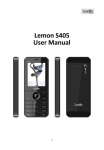
Lemon T149 User Manual 2014. All rights are reserved. No part of this document may be reproduced without permission. All trademarks and brand names mentioned in this publication are property of their respective owners. While all efforts have been made to ensure the accuracy of all contents in this manual, we assume no liability for errors or omissions or statements of any kind in this manual, whether such errors or omissions or statements resulting from negligence, accidents, or any other cause. The contents of this manual are subject to change without notice. 1 Protect our environment! We strive to produce products in compliance with global environmental standards. Please consult your local authorities for proper disposal. Note: User’s Manual is Just to guide the user about the functionality of the phone. This does not seem any certificate of technology. Some functions may very due to modifications and up gradations of software or due to print mistake. SAFETY PRECAUTIONS Before using your phone, please read the following important information to eliminate or reduce any possibility of causing damage and personal injury 2 Improper use will invalidate the warranty! These safety instructions also apply to original accessories. a) Use a wireless hands-free system (headphone, headset) with a low power Blue tooth emitter. b) Make sure the cell phone has a low SAR. c) Keep your calls short or send a text message (SMS) instead. This advice applies especially to children, adolescents and pregnant women. d) Use cell-phone when the signal quality is good. e) People having active medical implants should preferably keep the cell phone at least 15 cm away from the implant. 3 Table of content 1. BASIC INFORMATION.................... 7 1.1. BRIEF INTRODUCTION ...........................................7 2. BEFORE USE ..................................... 7 2.1. APPEARANCE SKETCH MAP...................................7 2.2. INSTALL SIM CARD AND MEMORY CARD..............8 2.2.1. SIM Card ...................................................8 2.2.2. Memory Card.............................................9 2.3. BATTERY ...............................................................9 2.3.1. Install the Battery.......................................9 2.3.2. Charging ....................................................9 2.4. SECURITY PASSWORD ..........................................10 3. QUICK USER GUIDE ..................... 11 3.1. DIAL A CALL .......................................................11 3.2. REJECT A CALL ....................................................11 3.3. RECEIVE A CALL..................................................11 3.4. END A CALL ........................................................11 3.5. EMERGENCY SERVICES ........................................11 3.6. EXTENSION SPEED DIAL ......................................12 3.7. DIALED CALLS/ RECEIVED CALLS/MISSED CALLS/ REJECTED CALLS ...........................................................12 3.8. CALL DIVERT ......................................................12 3.9. CALL BARRING....................................................12 3.10. CALL WAITING ....................................................12 4 3.11. POWER OFF THE PHONE .......................................13 3.12. T-FLASH CARD ....................................................13 4. FUNCTION MENU.......................... 13 4.1. 4.2. 4.3. 4.4. 4.5. 4.6. 4.7. 4.8. 4.9. 4.10. 4.11. 4.12. 4.13. 4.14. 4.15. 4.16. 4.17. 4.18. 4.19. 4.20. 4.21. 4.22. 4.23. 4.24. 4.25. 4.26. DIALPAD ..............................................................13 CONTACTS ...........................................................13 CALL LOGS..........................................................14 SETTINGS ............................................................14 MAIN MENU STYLE ..............................................16 U MENU ...............................................................16 SCREEN LOCK ......................................................16 INTERNET ............................................................16 MESSAGE ............................................................17 CAMERA ..............................................................18 DV ......................................................................18 PROFILES .............................................................18 CALENDAR ..........................................................18 AUDIO .................................................................19 VIDEO .................................................................19 EBOOK ................................................................19 MY FILES .............................................................19 IMAGE .................................................................19 FM RADIO ...........................................................19 CALCULATOR ......................................................20 RECORDER ..........................................................20 CLOCK.................................................................20 LOCAL SEARCH....................................................20 TORCH .................................................................21 STK ....................................................................21 APPLICATION .......................................................21 5 4.27. CAMERA EFFECT.................................................21 4.28. SYSTEM SWITCH ..................................................21 5. CARE AND MAINTENANCE........ 21 6 1. Basic Information 1.1. Brief Introduction Thanks for selecting T149 color screen GSM/GPRS digital mobile phone. Through reading the manual, you can fully know how to use T149 mobile phone, appreciate its complete function and simple operating method. T149 color screen mobile phone is designed aiming at GSM/GPRS network environment; the phone is Two Card Two Standby, but you can`t call another SIM card when one SIM card is under phone call. Besides basic call functions, T149 also provides many kinds of practical functions, such as name card holder, scene mode, message, audio and video player, camera and video, E-book, game, Bluetooth, alarm clock, calculator, STK, time and date, auto power-on and shut-down and etc. so that convenient for your work and leisure activities. In addition, T149 adopts personalized human-computer interface design, its complete function can meet your different requirements. T149 color screen mobile phone accords with GSM/GPRS criterion, has obtained the certification of competent authority. The company reserves the rights to revise the contents of the manual without prior notice. 2. Before Use 2.1. Appearance Sketch Map 7 The picture is only for your reference. 2.2. Install SIM Card and Memory Card 2.2.1. SIM Card Before using the phone, you must insert valid SIM (Subscriber Identity Module) card in the phone. SIM card 1s provided by network supplier. When you subscribe to a cellular network, you will receive a plug-in SIM card complete with your subscription details, such as your PIN, and available optional services. Caution: Do not bend or scratch your SIM card. Avoid exposing your SIM card to static electricity, water, or dirt. Tips˖Face the gold color contact point of SIM card towards the cell phone and push the SIM card into the slot. 8 2.2.2. Memory Card Aim at the T card slot and push the T card gently, and the card will be inserted correctly. Prompt: If the memory card is failed, please check whether it is correctly placed and good contact of metal point. 2.3. Battery 2.3.1. Install the Battery Take off the rear cover, of the mobile. Make one end of battery with metal surface aim at the battery connector. Then gently press the battery downward using the finger, and then press the other end to install the battery. Prompt: Please operate correctly to avoid damaging the battery connector. 2.3.2. Charging Insert the charger on the charging interface at the side end of the phone. Connect the charger to a standard wall outlet and the battery power icon in the up-right corner of the screen will start scrolling. When the battery bar stops scrolling, the battery charge is complete. Press the two sides of the charger plug and disconnect the charger from the phone. Prompt: In order to ensure normal operation of the phone, please make sure to use the designated charger. 9 2.4. Security Password PIN PIN (Personal Identification Number) is used to prevent your SIM card from being used illegally. PIN is usually provided with SIM card together. If you input wrong PIN for continuous three times, please input PUK to unlock it. Please contact with network operations company for more details. PIN 2 You need to input PIN2 when entering some functions (such as call charge); if you input wrong PIN2 for continuous three times, you need to input PUK2 to unlock it. Please contact with network operations company for more details. PUK When changing the locked PIN, you need to input PUK (Personal Unlock Key). PUK is provided with SIM card together. If it is not provided, please contact with your service provider. If you input wrong PUK for continuous ten times, the SIM card can’t be used again. Please contact with your service provider to buy new card. You can’t change PUK. If you lose the code, please contact with your service provider. PUK2 When changing the locked PIN2, you need to input PUK2. If you input wrong PUK2 for continuous ten times, you can’t use the functions that need PIN2. Please contact with your service provider to buy new card. You can’t change PUK 2. If you lose the code, please contact with your service provider. 10 3. Quick User Guide 3.1. Dial a Call In standby mode, Click on the phone in the midst of mobile phone screen icon enters dial-up interface. When you finish inputting phone number, press the dial key to make a call. If you're making a long distance call, add the area code preceding the telephone number. Click on the bottom left corner clues into the options. 3.2. Reject a Call You can press End key to reject an incoming call. 3.3. Receive a Call When an incoming call arrives, the phone will give out the corresponding prompt (such as vibration, ringtone, and etc.); if network support, the phone screen will show the name and telephone number of the caller; at this time, you can press Dial key to receive an incoming call. 3.4. End a Call After finishing a call, you can press End key to end a call. 3.5. Emergency Services You can directly dial an emergency service call without SIM card. Different network uses different emergency numbers, please consult your network operations company for more details. 11 3.6. Extension Speed Dial After inputting telephone number, if you want to input branch number, please press“*” 3 times, input your extension number after the display screen shows “P”. After getting through the call, it will directly dial the extension. 3.7. Dialed Calls/ Received Calls/Missed Calls/ Rejected Calls You can enter call log to check the relevant details of dialed calls, missed calls, received calls and rejected calls. Prompt: The record of incoming call from blacklist number will be saved in Rejected Calls. 3.8. Call Divert After call divert function is started, according to different divert conditions settings (Unconditional transfer, Divert if busy, Divert if no answer, Divert if unreachable, Cancel all diverts), you can select to switch the incoming call to voice inbox or other telephone numbers. 3.9. Call Barring After call barring function is started, according to different restricted conditions settings (all outgoing calls, all incoming calls, incoming calls when roaming, international calling, dial when international roaming, Cancel all barring), you can restrict the call under the corresponding conditions (need to apply to network operator for business). 3.10. Call Waiting After call waiting function is started, when you are calling, the 12 4.3. Call Logs Display your recent call log. In the call history menu, press menu key to access Options: 4.4. Settings Phone settings Time & date: You can set up the date and time on the phone as well as their display mode. Language settings: You can select phone language. Input method settings: Auto Power on/off: You can set the time and repeat mode of power-on and power-off. Power saving mode: You can view the electric quantity of your battery. Restore factory settings: You can restore part of the phone settings as factory settings. The default code of restoring factory settings is: 1234. Display Animation effect: Including Power on display, Power off display. Wallpaper settings: You can set as default wallpaper image as well as more other wallpaper images. Main menu style: Can choose different style of the main menu. Screen lock: Can be set different way of unlocking. Contrast: On the screen backlight interface you can set different lightness of your phone by pressing the left/right direction key. Keypad backlight time: Adjust the keypad backlight time. Auto lock screen: Set the time of mobile phone automatically locked. Security PIN: You can start up, shut down or modify PIN code. The default PIN code is 1234. Modify PIN2: You can review PIN2 code. For details, please contact network operator. 14 4.3. Call Logs Display your recent call log. In the call history menu, press menu key to access Options: 4.4. Settings Phone settings Time & date: You can set up the date and time on the phone as well as their display mode. Language settings: You can select phone language. Input method settings: Auto Power on/off: You can set the time and repeat mode of power-on and power-off. Power saving mode: You can view the electric quantity of your battery. Restore factory settings: You can restore part of the phone settings as factory settings. The default code of restoring factory settings is: 1234. Display Animation effect: Including Power on display, Power off display. Wallpaper settings: You can set as default wallpaper image as well as more other wallpaper images. Main menu style: Can choose different style of the main menu. Screen lock: Can be set different way of unlocking. Contrast: On the screen backlight interface you can set different lightness of your phone by pressing the left/right direction key. Keypad backlight time: Adjust the keypad backlight time. Auto lock screen: Set the time of mobile phone automatically locked. Security PIN: You can start up, shut down or modify PIN code. The default PIN code is 1234. Modify PIN2: You can review PIN2 code. For details, please contact network operator. 14 Phone locked: You can start up or shut down “phone password” or revise it. The default phone password is 1234. Modify the cell phone password: Change the phone and privacy password. Privacy: Set the privacy protection. The default password is “0000”. Guardlock: You can start up or shut down anti-theft function or revise anti-theft function password (the password shall be 6-digit). The default anti-theft password is 000000. Fixed dial number: Start and close of the fixed dialing, and management of the fixed dialing list Blacklist: Set the Settings of the blacklist and management of the list. Call Settings Dual-SIM: including Standby mode, Reply by original SIM, Set SIM name, Set SIM color. Call Divert: When “call divert” function is started up, you can transfer the incoming call to voice inbox or other phone number according to the tasked “call divert” conditions. Call waiting: You can start up or shut down the function. When it is started up, even when you are making a call, you can also receive another income call. Call Barring: All outgoing calls, incoming calls, roaming incoming calls, international outgoing calls, roaming international outgoing calls are available. Select line: There are two lines can be selected: line 1 and line 2. But the function just for the phone which has one SIM card and two numbers Hide ID: Set the display mode of the phone number. Others: The setting options include Magic sound, Call time minute reminder, Auto redial, Dial shock, Vibration when connections, Reply SMS after reject, Auto record voice call. Connections 15 Network account: You can select network count which you want to use. GPRS Service: Choose turn on or off GPRS service. Data connection settings: You can select connect when needed, always connect. Network selection: This function can let you select the network manually or automatically when the phone is in the roaming state. You can use this function only after you have made an effective roaming. Bluetooth This mobile phone support Bluetooth wireless connection. You can establish wireless connection between mobile phone and device to realize voice communication, data exchange and synchronization. 4.5. Main menu style Can choose different style of the main menu 4.6. U menu Users can customize the main menu display style. 4.7. Screen lock User definable style screen lock. 4.8. Internet The device is compatible with WAP service. You can visit various WAP services, for instance, news, weather forecast and airlines etc. The services are specially designed for the device and are maintained by WAP service supplier. 16 WAP service requires network backup. You can consult the network operator or service supplier about the availability, rates and tax of WAP services. 4.9. Message Chat mode This mobile phones provide information chat mode, the user can choose chat mode to chat. Write Message Please have the service center number from the network operator before applying this function. The storage capacity of SIM card depends on its type. Inbox Save the received SMS and MMS. Outbox Save the SMS and MMS not sent out successfully. Drafts Save the unsent messages and MMS. Sent box Save the SMS and MMS you sent successfully. Templates You could edit or delete the templates. Broadcast message The area info services send different kinds of messages. Change the settings of this service and inquire the area info by using this function. Voice mail server This phone supports the function of the voice mail. You could choose either SIM1 or SIM2. When you receive the calls from others, they could give you a message in your voice mailbox. When you phone receives the message notice, you could listen to the messages. Under the 17 voice mail interface you can edit and set the number of line 1, line 2, fax or data. Settings Set relevant parameters for the short messages, multimedia messages, push messages and others. Message capacity You could view the capacity of SMS, MMS, WAP Push and OTA. 4.10. Camera The device is equipped with a webcam with high pixels. You can take photo at any time and save the photo in the device or SIM card. The photo can be used as wallpaper of your device or you can send it to your friends through Bluetooth. 4.11. DV The device is equipped with a video capture so that you can chat with your friends through it. A driver is needed to be installed when the video capture function is used. The details can be found in driver installation guide. 4.12. Profiles You could set different scene modes: Normal, Silent, Meeting, Indoor, Outdoor, by pressing menu key, you could Add, Delete, Settings. 4.13. Calendar You can use this feature to view the year, date and solar term easily. 18 4.14. Audio This phone could play the MP3 stored in the phone memory and support the background play. Press menu key to access Options: 4.15. Video This phone supports the video format of 3GP, AVI and MP4. 4.16. Ebook You can read files (*.TXT) saved in the phone storage or Memory Card. (Memory card have been inserted into the mobile-phone). 4.17. My files You can check the specific content and service condition of the phone memory via this function. Meanwhile, you can format memory, too. 4.18. Image Enter Picture Browser, you can choose photos to preview or return. 4.19. FM radio You can listen to Fm radio freely. In the interface of the Radio playing, press menu key you could enter the options menu and do operations as follows. Prompt: Please connect with the earphone before you listen to the radio, for the device is equal to radio antenna. 19 4.20. Calculator The function will make your device a calculator with which you can carry out simple math calculation. 4.21. Recorder Use this function you can record or listen to your own record. The record file format: WAVǃAMR. 4.22. Clock World clock You can choose the area where you are and then you can set it as your local area. You can set daylight saving system. It will be show on the world map interface. Alarm You can edit alarm, time, ring and repeated ring mode. In “alarm edit” mode, you can scroll up or down direction key, when the cursor goes to the desired option, click “Save”, then you can select desired settings. Stopwatch A timepiece that can be started or stopped for exact timing (as of a race) Timer To carry out the function of record time 4.23. Local search Time according to the input of the menu can search terms from cell phones or T card in the search to the corresponding contents. 20 4.24. Torch Stroke off can open a flashlight, stroke on can close a flashlight. 4.25. STK Enter STK submenu, you can use the additional services that the network service operator provided. 4.26. Application If you open some application, you can choose to close from this menu. Click the “Clean-up memo” icon on the bottom to clean up the memo. 4.27. Camera Effect Choose one picture effect to when photo. 4.28. System switch Can switch over the different main menu display system 5. Care and Maintenance Maintenance of battery ·Your device is powered by a rechargeable battery. It is necessary to have the battery charged when it is going to wear out. The full performance of a new battery is achieved only when it is fully wore out. ·Unplug the charger from the electrical plug and the device when not in use. Do not leave fully a charged battery connected to a charger over a 21 week, since overcharging may shorten its lifetime. ·Temperature tends to affect the limit of battery to be charged. Therefore, it is necessary for the battery to be cooled or warmed before it is charged. If the temperature of batter exceeds 40ºC ,the battery cannot be charged. ·Use the battery only for its intended purpose and avoid short-circuiting. Accidental short-circuiting can occur when a metallic object causes direct connection of the positive (+) and negative (-) terminals of the battery. ·Do not use damaged battery. ·Leave the battery in hot or cold places will reduce the capacity and lifetime of the battery. A device with a hot or cold battery may not work temporarily, even when the battery is fully charged. ·Do not dispose of batteries in a fire as they may explode. Dispose of batteries according to local regulations. Care of maintenance of your device The suggestions below will help you protect your warranty coverage. ·Keep the device and accessories out of the reach of small children. ·Keep the device dry. All types of liquids or moisture will corrode electronic circuits. · Do not store the device in hot areas. High temperatures can shorten the life of electronic devices and warp or melt certain plastics. ·Do not attempt to open the device other than as instructed in this guide. Non-professional handling may damage the device. ·Do not use harsh chemicals or strong detergents to clean the device. ·Use only the supplied or an approved replacement attachments, for the unauthorized ones could invalidate the warranty of maintenance. 22 INFO REGARDING SERVICE CENTERS Service Center No: 09611124269 To know your nearest Lemon service center please send SMS to 09611124269 with below mentioned format. Format to send SMS: LEMON SER <YOUR AREA PIN CODE> In return to it you will receive SMS containing address for LEMON SERIVCE CENTER nearest to you. For example: If you want to know service center for Noida, Sector -2, 201301. Write SMS as: LEMON SER 201301 & Send it to 09611124269. Note : Kindly give one space each between keywords & Area Pin No while sending SMS. 23