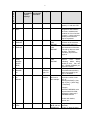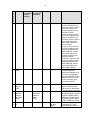
1
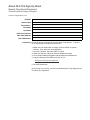
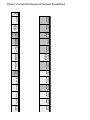
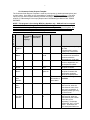
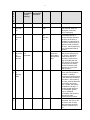
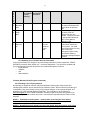
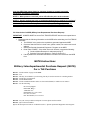
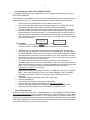
Defense Logistics Agency Tailored Logistics Support Program for Special Operational Equipment Guidelines Call or Email Our Experts 910.944.5800 [email protected] V.1 10/14 ĂƉĂďŝůŝƚŝĞƐ^ƚĂƚĞŵĞŶƚ YƵĂŶƚŝĐŽdĂĐƚŝĐĂůΠŝƐĂůĞĂĚŝŶŐƐƵƉƉůŝĞƌŽĨƐƉĞĐŝĂůŽƉĞƌĂƚŝŽŶĂůĞƋƵŝƉŵĞŶƚ͕ĂƉƉĂƌĞů͕ĂƌŵŽƌ͕ƚĞŶƚƐ͕ŐĞŶĞƌĂƚŽƌƐ͕ ĐŽŵŵŐĞĂƌĂŶĚǁĞĂƉŽŶƐƚŽƚŚĞĞƉĂƌƚŵĞŶƚŽĨĞĨĞŶƐĞ͕&ĞĚĞƌĂůŐĞŶĐŝĞƐĂŶĚƐƚĂƚĞͬůŽĐĂů>ĂǁŶĨŽƌĐĞŵĞŶƚ͘ ŽƌĞŽŵƉĞƚĞŶĐŝĞƐ x x x x x x džƚĞŶƐŝǀĞŽĨĨĞƌŝŶŐŽĨĂůůůĞĂĚŝŶŐŵĂŶƵĨĂĐƚƵƌĞƌƐƚŽĞŶƐƵƌĞƚŚĞǁŝĚĞƐƚƉŽƐƐŝďůĞƐĞůĞĐƚŝŽŶ͘ ŽŶǀĞŶŝĞŶƚĐŽŶƚƌĂĐƚǀĞŚŝĐůĞƐĨŽƌĨĂƐƚ͕ƐŵŽŽƚŚĂĐƋƵŝƐŝƚŝŽŶƐ͘ &ĂƐƚĂŶĚƌĞƐƉŽŶƐŝǀĞůŽŐŝƐƚŝĐƐŝŶĨƌĂƐƚƌƵĐƚƵƌĞƚŽĞŶƐƵƌĞŽŶͲƚŝŵĞǁŽƌůĚͲǁŝĚĞĚĞůŝǀĞƌLJ hŶƉĂƌĂůůĞůĞĚĐƵƐƚŽŵĞƌƐĞƌǀŝĐĞǁŝƚŚŬŶŽǁůĞĚŐĞĂďůĞƉĞƌƐŽŶŶĞůƚŽĂƐƐŝƐƚLJŽƵ͘ ĚĞĚŝĐĂƚĞĚŬŝƚďƵŝůĚŝŶŐĨĂĐŝůŝƚLJƚŽďƵŝůĚĐƵƐƚŽŵŬŝƚƐƚŽLJŽƵƌƐƉĞĐŝĨŝĐĂƚŝŽŶƐ WƌŽĚƵĐƚƐŚŽǁƌŽŽŵƐŶĞĂƌŵĂũŽƌŵŝůŝƚĂƌLJďĂƐĞƐƚŽǀŝĞǁƚŚĞƉƌŽĚƵĐƚƐLJŽƵĂƌĞďƵLJŝŶŐ ŽŶǀĞŶŝĞŶƚŽŶƚƌĂĐƚsĞŚŝĐůĞƐ x x x x x >dĂŝůŽƌĞĚ>ŽŐŝƐƚŝĐƐ^ƵƉƉŽƌƚWƌŽŐƌĂŵĨŽƌ^ƉĞĐŝĂůKƉĞƌĂƚŝŽŶĂůƋƵŝƉŵĞŶƚ '^ŽŶƚƌĂĐƚ sĂƌŝŽƵƐůĂŶŬĞƚWƵƌĐŚĂƐĞŐƌĞĞŵĞŶƚƐ WƵƌĐŚĂƐĞKƌĚĞƌƐΘ'ŽǀĞƌŶŵĞŶƚŽŶƚƌĂĐƚƐ 'ŽǀĞƌŶŵĞŶƚWƵƌĐŚĂƐĞĂƌĚƐ WĂƐƚWĞƌĨŽƌŵĂŶĐĞ x KǀĞƌϭϮ͕ϬϬϬĚĞůŝǀĞƌLJŽƌĚĞƌƐĨƌŽŵŽƵƌ'^ŽŶƚƌĂĐƚƐŝŶĐĞϮϬϬϰ x ŝƌ&ŽƌĐĞK^/ĂƚƚůĞŝƌŵĂŶDĂŶĂŐĞŵĞŶƚ^LJƐƚĞŵ;D^ͿŽǀĞƌϴ͕ϬϬϬĐƵƐƚŽŵŬŝƚƐƐŚŝƉƉĞĚǁŽƌůĚǁŝĚĞ x ϴ͕ϱϬϬŵŝůŝƚĂƌLJ͕ĨĞĚĞƌĂůĂŶĚůĂǁĞŶĨŽƌĐĞŵĞŶƚĐƵƐƚŽŵĞƌƐ ĂŐĞŽĚĞϯϯYϳ hE^ϬϲϯϬϳϵϮϲϴ '^'^ͲϬϳ&ͲϱϴϬϮW ^Kd>^^WDϴ:ͲϭϰͲͲϬϬϬϴ ^ĞƌǀŝĐĞͲŝƐĂďůĞĚ͕sĞƚĞƌĂŶͲKǁŶĞĚ^ŵĂůůƵƐŝŶĞƐƐ ϵϳϱϬďĞƌĚĞĞŶZĚ͕ďĞƌĚĞĞŶ͕EϮϴϯϭϱ 'Žǀƚ^ĂůĞƐΛYƵĂŶƚŝĐŽdĂĐƚŝĐĂů͘ĐŽŵϵϭϬ͘ϵϰϰ͘ϱϴϬϬ ǁǁǁ͘YƵĂŶƚŝĐŽdĂĐƚŝĐĂů͘ĐŽŵ Quantico Tactical is a Total Logistics Support for Special Operational Equipment (TLS-SOE) contract holder for the Defense Logistics Agency. The contract is the official method set up by DoD for military units to buy commercial equipment. This TLS-SOE contract has the following advantages: x x x x x Easy Funding: Can use MIPR or MILSTRIP to purchase Brand/Model Specific: Get the brand and model you want Fast: Generally 4-6 weeks to complete the process Discreet: RFQs and awards are not publicly available Simple: You send DLA a list of the equipment you want and funding, they do the work The scope of the contract, Special Operational Equipment, is very broad. It includes almost anything in support of military operations including, tactical gear, weapon accessories, apparel, tents, generators and communication gear – almost anything in support of your mission. Using TLS is simple. The enclosed manual contains detailed instructions, but the steps are: 1. Register with DLA for the TLS program; this is a one-time registration a. Go to this page: https://www.troopsupport.dla.mil/CE/SpecOps/ b. Click on Customer Registration->Download the Registration Form c. Complete the form and email it to the address on the form 2. Conduct market research to determine the items you want and estimated cost o Quantico Tactical will assist with this step by; Researching products and proposing options. Getting you test and evaluation samples Ensuring the equipment meets Trade Agreement requirements Assist in completion and submission of forms 3. Submit Excel Spreadsheet Order Form and appropriate funding documents to DLA x MIPR or MILSTRIP Our logistics experts are standing by to help facilitate the procurement process. Please call us at 910.944.5800 or email [email protected] or visit a nearby Quantico Tactical store. 9750 Aberdeen Rd Aberdeen, NC 28315 P: 910.944.5800 F: 703.991.1108 [email protected] www.QUANTICOTACTICAL.com DLA TLS Contract # SPM8EJ-14-D-0008 GS-07F-5802P Official Police Equipment Supplier $FWXDO'/$7/66LJQ8S6KHHW Special Operational Equipment Tailored Logistical Support Program Customer Registration Form DoDAAC Name of Unit Rank (Abbrv.) First Name Last Name POC Phone Number POC Email Address POC FAX Number Instructions Fill out the above information and send to DLA Troop Support. To send to DLA Troop Support, follow these instructions: 1. Make sure your email client is running, such as Outlook or Outlook Express. If not, start your email application. 2. From the File Menu, select the 'Send To' option. 3. Within the submenu, select the 'Send as Attachment' option. 4. A new email message will appear with this sheet as an attachment. 5. Copy the following email address into the To box: [email protected] 6. Click the Send button. Upon receipt of your email, you will be contacted by DLA Troop Support staff to finallize your registration. BillTo DODAAC Ordering DODAAC ShipTo DODAAC POC Unit Request Type R/Q POC Name Credit Card Profile ID Signal Code MIPR, MORD, Special Project Internal PO Code Number Delivery Requisition Destination Number POC Phone Item Description Core List Manufacturer Manufacturer Item Name Part Number POC Email Number Allow Alternate Timeframe Item Unit Price Not To Additional Exceed Information Amount Allow Split Order Requested Delivery Date Special Instructions Quantity Unit of Issue 3ULQWRXWRIDFWXDO'/$(TXLSPHQW5HTXHVW6SUHDGVKHHW DLA Troop Support Construction and Equipment Directorate Equipment Division SPECIAL OPERATIONAL EQUIPMENT Tailored Logistic Support Program Customer Guidelines Document July 2014 Version 6.0 2 Table of Contents 1 INTRODUCTION ...................................................................................................................... 3 2 BACKGROUND ....................................................................................................................... 3 3 WHO IS AN AUTHORIZED CUSTOMER? ............................................................................. 3 4 PROGRAM OVERVIEW & SCOPE ......................................................................................... 4 5 GETTING STARTED WITH THE PROGRAM – ...................................................................... 5.1 MINIMUM CUSTOMER SYSTEM REQUIREMENTS ........................................................................ 5.2 THE PRE-ORDER PROCESS ………………………………………………………………….. 5.3 CUSTOMER REGISTRATION...................................................................................................... 6 5.3.1 Obtain the Ordering Template ............................................................................ 5.3.2 Customer Order Request Template.................................................................... 5.3.3 Updating Your Customer Account Information .................................................. 5.4 SUBMITTING A PRICE INQUIRY REQUEST ................................................................................. 1 5.5 SUBMISSION OF A MIPR..………………………………………………………………………12 5.6 THE ORDER PROCESS .......................................................................................................... 1 5.7 REJECTION OF ORDER LINES BY DLA TROOP SUPPORT ..................................................... 1 5.8 SUBMITTING AN ORDER TO DLA TROOP SUPPORT ............................................................. 1 5.9 CANCELING AN ORDER ........................................................................................................... 15 5.10 CHANGING AN ORDER........................................................................................................... 1 5.11 RECEIPT PROCEDURES – SUBMITTING A MATERIAL RELEASE ACKNOWLEDGEMENT (MRA) ...... 1 5.12 SPLITTING ORDERS BETWEEN MULTIPLE VENDORS ............................................................... 1 5.13 RETURNS AND REPLACEMENTS …………………………………………………………..1 6 E-MAIL ADDRESSES AND WEB SITES…………………………………………...…………...1 7 FREQUENTLY ASKED QUESTIONS ................................................................................... 1 3 1 Introduction Welcome to the Special Operational Equipment (SOE) Tailored Logistic Support Program (TLSP). This program has been designed by the Construction and Equipment Directorate of the DLA Troop Support to provide responsive, high quality products at fair and reasonable prices. This is accomplished by promoting competition between qualified vendors for commercial items. This document serves as a guide to walk you through the registering and the ordering process. This document also contains contact information and a Frequently Asked Questions (FAQ) section. 2 Background DLA Troop Support is part of the Defense Logistics Agency (DLA). The primary goal of DLA TROOP SUPPORT is to support our country’s warfighters. Our mission is as follows: In support of the Defense Logistics Agency’s mission, we provide effective and efficient support to our warfighters and other customers with food, clothing, construction, medical and hardware solutions to achieve their global mission. The success of DLA TROOP SUPPORT has been its uncompromising commitment to readiness, customer satisfaction, quality and innovation. This commitment has also fueled the continued innovative integration of commercial practices as DLA TROOP SUPPORT transitions from managing items to managing the supply chain. Each year, DLA TROOP SUPPORT supplies and manages over $12.7 billion worth of food, clothing and textiles, pharmaceuticals, medical supplies, and construction and equipment items in support of America's warfighters worldwide and their eligible dependents. Other customers include America's school children participating in federal school lunch programs, and other nonDefense Department customers. Whether it's in the United States, Europe or the Pacific Rim, this peacetime revenue stream affords DLA TROOP SUPPORT leverage in enhancing and assuring wartime readiness. As a global logistic supply chain integrator, DLA TROOP SUPPORT provides a seamless supply system that can be utilized in both peace and wartime operations. DLA TROOP SUPPORT's success also can be attributed to the partnerships and alliances we have established with stakeholders and customers. Throughout its history, DLA TROOP SUPPORT actively supported nearly every contingency operation, humanitarian relief effort, and every theater of operations where America's sailors, airman, soldiers, guardsmen and Marines have been deployed. DLA TROOP SUPPORT has a long and heralded tradition of providing supplies and services, when and where needed, around the clock, around the world. DLA TROOP SUPPORT, as a single inventory control point, will stay relevant and responsive as we transition to the agile and focused logistics of the 21st Century. Our dedication to America's warfighter and readiness stands as a mark of honor-- second to none. Who is an authorized customer? Many types of activities may wish to use the DLA TROOP SUPPORT Special Operational Equipment TLSP. These activities include but are not limited to military bases, camps-postsstations, other federal activities (i.e. FEMA) and Foreign Military Sales customers. Authorized customers will place their orders with the DLA Troop Support. The DLA Troop Support (DLA TROOP SUPPORT) will then place the order with a contractor. 4 3 Program Overview & Scope 1. Scope: This TLSP program will have multiple vendors compete on price and delivery to fulfill each customer order. The program will service customers worldwide utilizing a combination of commercial support capabilities and Government transportation capabilities. The scope of the work involves the total logistics support required to supply customers and missions related but not limited to: - Survival Gear Tactical Equipment Protective Eyewear Vision Enhancing Equipment Escalation of Force Equipment Visit Board Search and Seizure (VBSS) Scuba and other Diving Equipment Thermal Protection Equipment Surface Supplied Diving Equipment Communication Devices Saturation Equipment Compressors and Air Purification Systems Hyperbaric Instrumentation and Equipment Lifesaving – Search and Rescue Equipment Gas Analysis Equipment Air Crew Support and Flight Deck Safety Items Underwater Tools Clothing & Textiles - Apparel Load Carrying Equipment, i.e., vests, backpack systems, trunk lockers Lethality Support Items, i.e., slings, holsters, mobility pad items, straps and fasteners, reflective belts Survival Kits Mountain climbing equipment Other Special Operations Equipment Items Incidental services and training relating to the operational equipment items shall be considered however please note the Contracting Officer makes the final determination if incidental services and training can be supported on a case by case basis. The primary concept of this contract is to support America’s special operations community by providing all equipment, training, and related incidental services necessary to perform their missions. 2. Items Covered: New Items: All requests for new items will be reviewed by the DLA TROOP SUPPORT Construction & Equipment (C & E) Contracting Officer and approved by DLA TROOP SUPPORT prior to requesting a contractor’s price and delivery for the order. If the Contracting Officer determines that the ordered item is not within the scope of the contract, the customer will be informed. 5 Alternate Items: May be offered by one of our suppliers as a means of decreasing overall costs. Alternate items may be offered under this program and will be forwarded to the customer for review after evaluation by the Contracting Officer. 3. Delivery Requirements: Delivery is based on the manufacturer’s availability of the items covered. 4. Buy American/Trade Agreements/Berry Amendment/ Procurement Restrictions/ Compliance The products/components provided under this contract are in accordance with applicable Buy American Act and Berry Amendment. For this Program (acquisition) products provided are end items that are manufactured or substantially transformed in the United States or a Qualifying or Designated country, as set forth in FAR 25.003. 5 Getting Started with the Program This section of the document will walk you through the process of getting setup to place orders within SOE TLSP. You will need to register with DLA TROOP SUPPORT and setup your Customer Profile before your initial order is processed. 5.1 Minimum Customer System Requirements In order to utilize the order template and interface with DLA TROOP SUPPORT, you must have a personal computer that meets the following requirements: o o o o o Windows Operating System Email Software Authorized Business Email Account that you and only you have access to Access to the Internet Microsoft Excel 2003 or later If you do not meet all of the above requirements, contact DLA TROOP SUPPORT for assistance in getting setup for the program. 5.2 The Pre-Order Process The customer should follow the steps below to the greatest extent possible: a. All customers MUST REGISTER. Proceed to Section 5.3 – “Customer Registration” and follow directions. b. Conduct Market Research with respect to availability and estimated price. If assistance is required to define requirements or identify products and related costs, proceed to Section 5.4 – Submitting a Price Inquiry Request. c. Get approval to purchase material per Installation / Organizational SOPs. d. Funds for Payment - Coordination with Installation Finance Office / Resource Manager to ensure adequate funds are available and discuss payment method to use: MIPR or Interfund Billing (MILSTRIP). If a MIPR will be used – Proceed to Section 5.5 (Submission of a MIPR). MIPRs MUST BE APPROVED and SIGNED by the customers finance office prior to order submission. e. Identify your specific requirements. f. Proceed - Customer fills out the Excel Order Spreadsheet – Section 5.3.2 Customer Order Request Template NOTE: The “preferred” method of payment for this program is MILSTRIP, one requisition number per order line. 6 5.3 Customer Registration A one time registration is required for each individual using the program. Every person from your base who will have the authority to order is required to register. After registration, you will be sent a welcome package including your SOE TLSP Account Number, and your order template file. To register, go to http://www.TroopSupport.dla.mil/CE/SpecOps/ Scroll down to “Customer Registration” o Click “Download the Registration Form” o Open “Registration Form” o Fill out the form with the requested information o Email the form back to DLA TROOP SUPPORT using the instructions on the form. The form may also be faxed back to 215-737-0341 or DSN 444-0341 o If using EXCL 2007 please use the appropriate email method to send the registration form as an attachment to the address shown on the registration form ([email protected]). You will be asked to provide the following information on the registration form: o DoDAAC of the ordering facility o The Unit to which the ordering contact is associated o Full Name of the ordering contact o Phone Number of the ordering contact o Email Address of the ordering contact – Please note that the email address you specify must be the address utilized to submit SOE TLSP orders. Otherwise, orders might be rejected by DLA TROOP SUPPORT. o Customer Fax Number If there are any questions, please contact us at [email protected] or call one of the following: TVLS TVLS TVLS 215-737-4066 215-737-7759 215-737-7833 5.3.1 Obtain the Ordering Template After you have signed up with DLA TROOP SUPPORT as a customer of SOE TLSP, you will receive an e-mail with your ordering template and your unique Account Number. The order template is an Excel spreadsheet containing the necessary fields to support a valid order. For more information on how to use the order form, refer to section 5.6 Submitting an Order to DLA TROOP SUPPORT in this document. For ease of use and organizational purposes, we recommend that you do the following: 1. Create a folder on your hard drive called SOE_TLSP 2. Copy your template file into the SOE_TLSP folder 3. Create a shortcut to your template file and place it on your Desktop 4. Create a shortcut to the SOE_TLSP folder and place it on your Desktop 5. Any new order file that you create from the template should be saved to the SOE_TLSP folder (Please note that the first 5 characters of your Request Order Template is your SOE TLSP Account Number) 7 5.3.2 Customer Order Request Template The Customer Order Request Template is used for price inquires (to obtain estimated prices) and to place orders. Once filled out, the spreadsheet is emailed to [email protected]. Your price inquiry and your order requests will be processed according to the processes defined below in sections "5.4 Submitting a Price Inquiry Request and 5.8 Submitting an Order to DLA TROOP SUPPORT.. NOTE: This program is for ordering MFG Part Numbers only. NSNs will not be accepted and must be submitted through normal MILSTRIP ordering channels. Please follow the examples. Only some of the fields are required for price inquires. If a template submission is incorrect, we will not assume we understand the customer’s intentions. You will be requested to correct your submission. P o s it i o n 1 Field Mandatory for making a price inquiry? Mandatory for Placing an order? Request Type R / Q Yes Yes 2 POC Name * No No John Smith 3 POC Unit * No No ABC Unit 4 POC Phone * POC Email * No No No No 800-5551212 john.smith @zzz.mil 6 Core List Item Number No No 1234 7 Manufact urer Name Yes Yes Ajax Inc 8 Manufact urer Part Number Yes Yes 99-88-7766 5 Example Restrictions Enter a core list number or leave blank. Definition R signifies you are placing an order Q signifies this is a price inquiry only, not an order. Enter the name of the point of contact who can answer questions about the requested item. (end user) Enter the name of the unit, precinct, department, etc... for the point of contact. Enter the phone number for the point of contact. Enter the email address of the point of contact who can answer questions about the requested item. Core list currently not available If the item is not on the SOE core list, enter the manufacturer name of the item you're requesting. If unknown please type “Any” or “Don’t Know” If the item is not on the SOE core list, enter the manufacturer part number of the item you're requesting. If unknown please type “Any” or “Don’t Know”. If unknown, the item description field must 8 P o s it i o n Field Mandatory for making a price inquiry? Mandatory for Placing an order? Example Restrictions Definition be completed. 9 Item Descripti on Yes Yes Weapon Light 1 0 Additiona l Informati on No No see web site www.abc. gov 1 1 Unit Price Not To Exceed Amount N/A not applicable No $75.00 1 2 Requeste d Delivery Date N/A No 7/31/2008 1 3 Quantity No Yes 50 enter a number or leave blank. No narrative text. number only If the item is not on the SOE core list, enter the description of the item you're requesting. . Enter any additional information such as a website link that describes the item, the location of drawings or schematics for the item or anything else to help the vendor to identify the item. Also describe any item customization that is needed. Enter the maximum amount that you are willing to pay for an item. Otherwise, leave blank. NOTE: If quotes are received and they are higher than the NTE amount, the process will stop and you will be notified. Customer must authorize us to proceed with the order. When asking for a price quote, this field should be left blank. Leadtime requirements can be placed in the additional information field above. When placing an order, enter the date that you want to receive the item. If blank, the system will default to 30 days. If multiple partial deliveries are acceptable, please note in “additional information” and show the final delivery date requirement in this field. Enter the number of units requested. Be sure to use the correct unit of issue. 500 loose nails would be quantity = 500 and unit = EA. 9 P o s it i o n Field Mandatory for making a price inquiry? Mandatory for Placing an order? Example Restrictions Definition A box of 500 nails would be quantity = 1 and unit = BX. 1 4 Unit of Issue Yes Yes EA 1 5 Ordering DODAAC No Yes WW9999 1 6 SHIP to DODAAC Yes Yes WW8888 1 7 Supplem entary Address (SUPP ADD) N/A Yes WW7777 1 8 Delivery Destinati on No No bldg 3, Indiantow ngap, PA 1 9 Requisiti on Number N/A Yes WW99995 1520001 Enter the two-letter designation that indicates the count, measurement, container or form of an item of supply. It is the minimum quantity of the item that may be requested. Enter the six character DoDAAC of the customer filling out this order form. Enter the DoDAAC of the final destination of the item. This tells us where to send the item. This field is mandatory as prices are regional. Must be a valid DoDAAC Must be a valid DoDAAC Must be valid DoDAAC a must be in the form in the example. Enter a DODAAC if different from above indicating where billing should be sent. Can use only 1 Billing DODAAC per requisition number. Enter any additional information about delivery that's not covered by the Ship To DoDAAC. Enter the 14 character requisition number in the form of: [ordering DoDAAC] + [last digit of year] + [Julian day] + [sequence] Example: DODAAC=WW9999; order request date=5/31/2008; sequence=1 then req# = WW999951520001 Please omit dashes, spaces, etc... 2 0 Signal Code N/A Yes A Only codes A, B, J, K are available for 1 digit field. Alpha character. 1) Use “A” when the order 10 P o s it i o n Field Mandatory for making a price inquiry? Mandatory for Placing an order? Example 2 1 Fund Code * N/A Yes ZZ 2 2 Special Project Code N/A No 9VV 2 3 MIPR, MORD, Internal Purchase Order N/A Yes, when payment is based on MIPR funds ABC123 2 4 Timefram e N/A No R Restrictions Definition this program. line is to be shipped to the DoDAAC specified in the requisition number, and the line is to be billed to the DoDAAC specified in the requisition number. 2) Use “B” when the order line is to be shipped to the DoDAAC specified in the requisition number, and the line is to be billed to the SUPP ADD DoDAAC in this order sheet. 3) Use “J” when the order line is to be shipped to the DoDAAC specified in the SUPP ADD field, and the line is to be billed to the DoDAAC specified in the requisition number.. 4) Use “K” when the order line is to be shipped to the DoDAAC specified in the SUPP ADD field, and the line is to be billed to the SUPP ADD DoDAAC 2 Digit Field. Alpha or Numeric Characters. Identifies the Military Fund Accounting Classification that should be billed for the material received. If Fund Code is unknown, go to your Financial Office. only R, U, E or leave blank Enter the three character project code associated with the item or leave blank if not applicable or unknown Enter your MIPR Military Interdepartmental Purchase Request), MORD (Military Obligation Reimbursement Document) number NOTE – Only 1 MIPR # per Order Routine (R) / Urgent (U) / Emergency (E). If left blank, defaults to Routine. 11 P o s it i o n 2 5 Field Mandatory for making a price inquiry? Mandatory for Placing an order? Example Allow Alternate Item No No Y 2 6 Allow Order Split N/A No N 2 7 Special Instructio ns No No All items must be delivered at one time Restrictions Definition Enter "Y" if you will accept an approved alternate item. Leave blank to default to NO. Enter "N" if you require that the entire order be delivered by only one vendor. Clarify your reason in the special instructions field. Leave blank to default to YES. Enter any special instructions concerning your request. You must also use this field to convey why an item has emergency status or why you decline splitting a requisition amongst multiple vendors. 5.3.3 Updating Your Customer Account Information In the event that there is a change to any of the below information, please contact DLA TROOP SUPPORT personnel under Section 5.2 – Customer Registration. Your file will be updated with your new information and this will prevent any unwanted disruptions of service: o Email address o DoDAAC o Unit o Street Address 5 Getting Started with the Program (continued) 5.4 Submitting a Price Inquiry Request Occasionally, a registered customer may need assistance defining their requirements and identifying the products, prices and services to meet their needs. When customers need this type of assistance, they are to submit a price inquiry request using the “order request template” and specifying “Q” in the first field (Request Type R/Q). The template is to be E-mailed to to [email protected] DLA TROOP SUPPORT will help you get the answers and guidance you need to put together and to submit your order. Insure that the required fields are filled in on the template. NOTE 1: Timeframe to obtain quotes - from the time of receiving the Price Inquiry Request to actually receiving price quotes, is approximately 13 days. NOTE 2: Quoted Prices from Vendors are only valid for 60 days from receipt of the quote. If an actual order is not submitted in this timeframe, prices may change. Actual prices 12 may also differ from quotes based on customer changes to quantity requested, destination, and delivery timeframes. NOTE 3: When quotes are received, prices will reflect the price to the customer. NOTE 4: Service requirements such as equipment maintenance or training, are reviewed on a case by case basis by the Acquisition Team. Please try to provide as much information as possible. Such requests can take 2-3 weeks or longer for a response because these requests must be reviewed by the DLA TROOP SUPPORT Legal Team. 5.5 Submission of a MIPR (Military Inter-Departmental Purchase Request) IMPORTANT: All MIPRs MUST be sent to DLA TROOP SUPPORT with the order spread sheet. 1. Please provide the following information on the MIPR before submitting it to DLA TROOP SUPPORT: a. The DoDAAC to be used on the requisitions generated against the MIPR b. Customer financial POC to include name, phone number, fax number and e-mail address c. Identify the Special Operational Equipment Program on the MIPR d. Dollar Value of MIPR – If the dollar amount is unknown, suggest the following: 1) Conduct Market Research for estimated pricing or 2) Submit a Price Inquiry Request – Refer to Section 5.4 e. If at all possible this information should be included in the remarks on the MIPR form. MIPR Instructions Military Interdepartmental Purchase Request (MIPR) For a TLS Purchase Block 1 - List the number of pages in the MIPR. Block 2 – N/A Block 3 - This may be left blank at your choosing, but may be used as location for a tracking number. Block 4 - List the date of preparation. Block 5 - List the MIPR number. Block 6 - List the amendment number unless it’s the initial submittal, in which case list "Basic." Block 7 – List the following: DLA Troop Support DSCP-RM, Bldg. 3 700 Robins Ave. Philadelphia, PA 19111-5092 Fax (215) 737-4036 POC Kim Nichols, 215-737-3612 Block 8 - List your activity's address with point of contact, phone and fax number. Block 9 – (a) List the item number. (b) List the description of items or an identifier such as “Special Operational Equipment TLS Program”. 13 Please also include the SHIP to DODAAC with ship to address and point of contact/telephone # if different from block 8; and any other special instructions you may have. Note: All issuers of MIPRS must put the following statement on the MIPR: “This order meets all terms, conditions, and restrictions dictated by the funding source”. (c) Thru (f) are self-explanatory. Block 11 - List the total amount funded by your activity. Block 12 – Generally not applicable (our Prime Vendor contract usually pays for the freight, please verify with your Prime Vendor representative during the quote process). Block 13 - List the billing address. Block 14 - List the appropriation accounting data used to fund the purchase. The same accounting line may be used for equipment and cost recovery. If unfunded, state here with anticipated funding date. NOTE: Do not forward a MILSTRIP requisition with a MIPR requisition. Forward the MIPR only or the MILSTRIP only, but not both. Block 15 Thru 17 - Self-explanatory. Additional Information that may or may not be needed: PLEASE NOTE: The Economy Act does not apply to Defense Working Capital Fund activities. DWCF activities have their own authority - "Unified or Assisted Procurement/DLA Defense Working Capital Fund Integrated Material Management authority iaw 10 U.S.C. Para 2208" 2. Submit DD 448, MIPR to DLA TROOP SUPPORT: a. The preferred method of submission is to scan a copy of the MIPR and submit it via e-mail. E-mail the MIPR to [email protected] b. MIPRs can also be faxed to 215-737-0341/DSN: 444-0341 c. If e-mailing, annotate the information requested in step 1 in the body of the message. If faxing please list the information requested in step 1 on the fax cover sheet. d. Subject Lines in E-mails should state that it is a request for MIPR acceptance at the very least. 3. Upon receipt of the MIPR, DLA TROOP SUPPORT will: a. Review the MIPR for possible acceptance. b. Contact the identified customer POC should there be any questions c. This office will forward the MIPR to the Contracting Officer for Scope Determination. Once approved by the KO, the MIPR will be forwarded to our Finance Office. d. DLA TROOP SUPPORT Finance will create the MIPR acceptance (DD Form 448-2), enter the MIPR data, including total value, into our tracking system and forward a copy of the acceptance to the customer’s financial POC, the vendor, the KO, and the DLA TROOP SUPPORT Tailored Vendor Logistics Specialist (TVLS). 4. MIPR Dollar Value – The dollar amount of the order request form must be the full amount of the corresponding MIPR. Should a difference occur between the order amount and the MIPR amount, you will be notified. If there is a shortage, you will be requested to submit a modification to the original MIPR for the balance of the dollar amount. If there is an overage, our Finance office will issue a reimbursement to your office. DLA TROOP SUPPORT’s system assigns a MIPR control number to all MIPRs. The prime vendors have been instructed to reference the control number on incoming orders which are to be 14 applied against a particular MIPR. When the MIPR acceptances are prepared and sent to you (the customer) and to the vendor, this control number will be annotated. NOTE 1: The entire process, once the MIPR request is submitted by the customer, could take up to 8 days until MIPR acceptance by the DLA TROOP SUPPORT Financial Office. NOTE 2: Orders cannot be processed in the system until the customer is in receipt of the MIPR Acceptance (D 448-2). Orders will violate if there is not a valid MIPR code in our system – which is forwarded once the MIPR is accepted. NOTE 3: Drawdown MIPRs will not be accepted for this program. NOTE 4: Customers who use funded MILSTRIP requisitions will have no need to follow the above MIPR procedures. 5.6 The Order Process a. Customer fills out the spreadsheet, and saves the file. The name of the file includes today’s date. If multiple orders are submitted on the same day, add an incrementing suffix to the end to ensure that the filenames are unique. b. Customer emails the order to DLA TROOP SUPPORT to [email protected]. c. Customer includes the email address for the individual responsible for receipt of order and for forwarding “Goods Receipt” to DLA thru EMALL. d. DLA TROOP SUPPORT Customer personnel loads the customer order e. The order lines are reviewed and approved by Contracting Personnel for: 1. Item Scope 2. Berry Amendment Compliance and the Buy American Act. 3. For MIPR Orders, a check is made by Customer personnel to ensure that DLA TROOP SUPPORT has a MIPR Number and available sufficient MIPR funds. NOTE: Credit Cards are not currently being accepted for this Program. 5.7 Rejection of Order Lines by DLA TROOP SUPPORT Should at any point in the process the order be rejected by DLA TROOP SUPPORT, the customer will be notified. Potential reasons for rejection are: o The item is not in scope of the Special Operational Equipment TLSP o The item is not Berry Compliant o The item is not in compliance with the Buy American Act or not manufactured or substantially transformed in the United States or a Qualifying or Designated country, as set forth in FAR 25.003. o The customer has specified a MIPR Number that is either unknown, or for which there is not sufficient funds to cover the total dollar value on outstanding orders. o Certain State and Local Government customers are using funds from specific federal grants. Should those monies become exhausted, these customers cannot use the program. o Requested items cannot be obtained. o Incomplete or erroneous information on the order request form. o The requested delivery date is over 180 days away, or the requested delivery date has passed. Any RDD within 5 days of the order submission date will be rejected. The customer should call the TVLS directly to place the order. 15 5.8 Submitting an Order to DLA TROOP SUPPORT The following steps will walk you through the process of creating and submitting your order to DLA TROOP SUPPORT: Assuming that you have properly saved your order template file and setup the Desktop Shortcut as specified in section 5.2.1, follow the below steps to create and save a new order request: a. b. c. d. Double click on the Desktop shortcut for the Order Request Form. Excel should start with a blank copy of the Order Request Form. Please note that the default name spreadsheet file includes your SOE TLSP Account Number. After the spreadsheet appears, click on the File Menu and choose the Save As option. A default filename (your SOE TLSP Account Number) should appear in the file name textbox followed by a sequence number. It is recommended that you remove that final sequence number and replaced it with today’s date and possibly a word describing the order. Note that the each file name must be unique. The easiest way to do this is to add the date to the filename. SOESOE TLSP Account Number Excel Assigned Sequence Number For example: - The default file name might be: 1E401_1.xls - Rename the file to something like: 1E401_2008-04-15_Extinguishers.xls e. f. g. h. i. j. k. l. Add today's date or some other order specific value to the end of the filename – BE CAREFUL NOT TO REMOVE YOUR ACCOUNT INFORMATION AT THE BEGINNING OF THE FILENAME. Should you save and submit to DLA TROOP SUPPORT an Order Request that does not contain your account number as the first 5 characters, the order will not process. Remember, the account number is how we verify who you are, and that you are able to place an order in the program. Fill out the necessary information for the order. Should you need assistance in understanding the various fields on the spreadsheet, refer to the sheet named ‘Glossary’ within the Order Request Template. It contains explanation for each field and its possible values. If you are still unsure, contact DLA TROOP SUPPORT Personnel at [email protected] to assist you. NOTE: When entering multiple lines in an order, you must enter values into all required fields. This includes repeating values such as Ordering DoDAAC, Ship To DoDAAC, POC Name, POC Email, POC Unit, Requisition Number, MIPR Number (when applicable). Save the spreadsheet (preferably to your SOE_TLSP folder) Close the spreadsheet If your email client software is not already running, start it. Create a new email message and address it to: [email protected] Enter the appropriate Subject titled “SOE Order” and Message Text in the email. Attach the order spreadsheet file you created above, and send the email 5.9 Canceling an Order Should you need to cancel an order, immediately contact your DLA TROOP SUPPORT POC at [email protected] and inform them of the situation. They will take the necessary action to cancel the order on your behalf or direct you to the appropriate POC. Should the items have already left the vendor’s facilities on way to the end destination, cancellation may not be possible. DLA TROOP SUPPORT will coordinate with the vendor to determine if the ordered goods can be returned and will advise you of the proper procedures. 16 5.10 Changing an Order Should you need to add, remove or change an order line within your order request, contact your DLA TROOP SUPPORT POC at [email protected] immediately so that the appropriate action can take place. If the order has not been sent out for bid as of yet, then your order may be changed to accommodate your needs. However, if the order has been forwarded to vendors for bid or has been awarded, then it is possible that the order cannot be updated, and your customer service representative will walk you through the appropriate process to address your needs. 5.11 Receipt Procedures – Submitting a Material Release Acknowledgement (MRA) It is imperative that once an order is received by the customer, an MRA is posted into DOD EMALL. This is an internet based Electronic Mall which allows military customers and other authorized government customers to search for and order items from government and commercial sources. However, in this case EMALL will be used only for submitting an MRA. DOD EMALL is a Department of Defense program operated by DLIS. All users are required to register, be authenticated, and authorized by a DLIS Access Administrator. All EMALL users will follow the Department of Defense rules for login and passwords. EMALL is available 24 hours a DAY, 7 DAYS A WEEK. If any assistance is needed, you may call the Help Desk at 1-877-3522255 between the hours of 0700-1739 EST. To register, logon to https://dod-emall.dla.mil/acct/. Under “ACCOUNT” click “New Registration” and follow the directions. When submitting an MRA in EMALL, both the MRA date and the MRA quantity must be annotated. The sales order status must be BV (Item procured on contract for direct shipment to consignee). You can submit MRAs for the entire order using your unique requisition / document number. You can also submit an MRA for a partial delivery. As soon as material is received, receipt processing must be done immediately. The system will automatically e-mail the individual that processed the order, until MRAs are posted. EMALL Procedures - General comments a. The Enterprise Business System (EBS) emphasizes the document number (DODAAC+Julian date+call number) instead of the contract number and call number we have used in the past. You are assigning the document number for each line when you place the order in your ordering system. We would recommend that you keep a log handy at ordering, which will contain the document number, call number, and number of CLINs. b. Your staff performs a routine physical inspection on shipments in accordance with your internal directives. c. You should be ready to perform an EMALL acceptance based on: i acceptance of all items on the invoice ii acceptance of some items on the invoice, and non-acceptance of the others iii acceptance of no items on the invoice. 5.11 Receipt Procedures – (continued) General EMALL Instructions: In all cases, perform the following in EMALL: a. At EMALL home page, select Orders on the top row of tabs; then select MRA status Immediately below that: b. Select Lookup: DLA orders c. In the first drop down block, select “summary document number” d. Insert the document number you want to accept. e. This will give you a single match against the document number. 17 f. You will see a summary view of the order. Of importance are a little down arrow on the left hand side and “radio” buttons on the right side. To view all of the lines on the invoice, click on the little down arrow on the left, based on your inspection. During receipt acknowledgement you should know what actions you will be taking. Return to the summary screen by clicking again on the little (now up) arrow on the left. EMALL Actions TO ACCEPT ALL ITEMS ON THE INVOICE a. On the summary screen, check the “complete” button on the right hand side. b. Check on the “update” button in the bottom right of the summary box. TO ACCEPT MOST ITEMS ON THE INVOICE a. On the summary screen, check the “complete” button on the right hand side. (do not yet check the update button) b) Click on the little down arrow on the left. c) View all the lines on the order. ALL the lines should display a “complete” status. d) For those lines you are not accepting, click “No MRA Action” on the right hand side; This will remove the “complete” status for that line. Make as many changes as you wish. e) When you are done this selective review, click on the little up arrow on the left. This will return you to Summary document. f. Check on the “update” button in the bottom right of the summary box TO ACCEPT NONE OF THE ITEMS ON THE INVOICE Since this should be an extremely rare instance, you should resolve any issues about the order with the prime vendor and/or DLA TROOP SUPPORT. Then, accept some or all of the items. TO ACCEPT PARTIAL QUANTITY ON A SINGLE LINE ITEM a. Advise DLA TROOP SUPPORT of the document number and line item number, along with the quantity you originally ordered and the revised quantity you are going to receipt. Do not post any receipt in EMALL until you are told to do so by DLA TROOP SUPPORT. b. DLA TROOP SUPPORT will adjust the sales order and purchase order in SAP to reflect the revised quantity you will be receipting. When this occurs, DLA TROOP SUPPORT will so notify you. c. The customer then can post a receipt in EMALL for the revised quantity. d. All documents (the prime vendor’s invoice, your receipt in EMALL, and the DLA TROOP SUPPORT SAP sales order and purchase order) should match on the revised quantity. e. Proper payment to the prime vendor and proper billing to the customer by DFAS will take place. 5 Getting Started with the Program (continued) 5.11 Receipt Procedures – (continued) TO PROCESS A QUANTITY OF “ZERO” ON A SINGLE LINE ITEM. a. in EMALL, open the line item and changing the quantity to “0” and pressing the “complete” radio button b. Changing the quantity in EMALL to zero will change the sales order and purchase order in DLA TROOP SUPPORT’s internal system to reflect a cancelled line; should the prime vendor erroneously invoice for this line, it will not be paid. No billing of the customer will 18 ever take place. NOTE: Failure to submit timely and accurate MRAs will cause billing problems, vendor payment problems, delay refunds and could hold up the delivery of needed items.. 5.12 Splitting Orders between Multiple Vendors There are occasions when the best overall price can be achieved by splitting the awarded lines of an order across multiple vendors. To provide the best possible prices to DLA TROOP SUPPORT customers, by default, all SOE TLSP orders are typically split across vendors. However, should you not want the award broken up, you may specify within the Order Request Template in Column “Allow Order Split” by entering the letter N in each line of the order however, the Contracting Officer reserves the right to split orders based on the best overall value for the Government.. 5.13 Returns and Replacements 1. Material return and replacement policy will be in accordance with the following:. a. The contractor will accept returns and, if the authorized customer still requires the product(s), replace the product(s) under the following conditions: (1) Incorrect products were shipped; (2) Products were damaged in shipment; (3) Products arrived with concealed shipping damages; (4) Products which are recalled, regardless of level of recall, except when the manufacturer’s policy states otherwise, in which case the manufacturer’s disposition instructions will be followed; (5) Other returns consistent with the Vendor’s normal return policy to include return of excess material ordered by the customer based on a project estimate. b. Discrepant goods will be held for not more than 15 days, pending instructions from the contractor, after which the discrepant material will be returned to the contractor’s address at the contractor’s expense. Expenses incident to the examination and testing of materials or supplies that have been rejected will be charged to the contractor’s account. c. If the authorized customer does not need replacement of the returned products: (1) the contractor shall not invoice DLA TROOP SUPPORT; or (2) the contractor shall reimburse DLA TROOP SUPPORT for all paid invoices. d. The contractor will be paid only for material the authorized customer has received and accepted. Customers must report all discrepancies to their DLA TROOP SUPPORT contact and the contractor. DLA TROOP SUPPORT will coordinate discrepancy resolution. e. Re-stocking Fees: In the event that orders are canceled while deliveries are in route or that ordered quantities returned to contractor are not expected to be resold within 180 days, the contractor may charge a restocking fee as follows: (1) The fee charged to the contractor by its supplier, or (2) The lesser of 10% of the (unburdened) total price of the line item(s) returned, or $25.00 per line item(s) returned. 5 Getting Started with the Program (continued) NOTE: Line item is defined as “(unburdened) unit price x quantity = total price”. f. Restocking fees do not apply for returns covered under paragraph b or for delinquent orders if the customer chooses to cancel the order prior to delivery. 19 NOTE: Customer should send an email request to [email protected], if material needs to be returned or replaced. 6 E-mail Addresses and Web Sites Registration Forms: http://www.TroopSupport.dla.mil/CE/SpecOps/ Email Registration forms: [email protected] CORE List of Items (unavailable at this time): http://www.TroopSupport.dla.mil/CE/SpecOps/ The core items represent only a sampling of the scope of material that may be provided to customers. MIPR Submission: [email protected] Submit Orders to: [email protected] Submit Requests for Information to: [email protected] 7 Frequently Asked Questions 1. Can I enter order lines for multiple requisitions in the same order file? Answer: Yes, this is supported within the program. 2. Can I use this order form to place orders for MILSTRIP based Orders? Answer: Yes. NAVY, USMC and USAF orders, can be funded with a MILSTRIP. However, the Department of the Army has made the decision that for all “off line” purchases using the TLS Programs (the old Prime Vendor programs), a MIPR must be used to fund the order. If an item has an NSN assigned to it, items must be ordered thru the traditional supply system using standard procedures. 3. Can I use this form for placing orders within other DLA TROOP SUPPORT Programs? Answer: No. The order form is distinct to the SOE TLSP. If you are an MRO CENTCOM or FES customer, you will find similarities between the order forms. However, at this time, in order to place orders through SOE TLSP you must use our SOE BidWiser Order Template. 4. What if I have specific requirements for product specifications that need to be communicated to the vendor to ensure what I need? Answer: Within each line of the order template, you have the ability to enter your specific needs, questions or concerns within the following fields: - Additional Information - Special Order Instructions In addition, if you have any documentation that can be sent via email or fax, submit the information to DLA TROOP SUPPORT along with your order, and it can be forwarded to the vendors. 5. How can I submit product documentation that can be included for the vendors to see while bidding? Answer: You can fax, phone or email the details into DLA TROOP SUPPORT, who will make sure that the information is available to the vendors for their offers. 6. Is there a chance that my order will be rejected? Answer: Yes. There are several reasons that an order or order line might be rejected. When this occurs, you will be notified of the problem, at which time you can decide to modify or cancel the order. 20 Reasons for Rejection: - The item might be out of the scope of the contract* - The item is not in compliance with Berry Amendment or Buy American Act - There might be insufficient funds available on the specified MIPR Number or the MIPR has not yet been processed. - The customer is affiliated with a state or local government entity, and their federal grant does not allow for some or all of the products ordered or total order dollar value exceeds the specified grant award. - Incomplete or erroneous information was provided on the order request form. 7. What if I need to consult with a specialist to work through what product(s) and/or services are right for me? Answer: Contact your TVLS (Tailored Vendor Logistics Specialist), and he or she will help you answer any questions you might have. Customers should perform their own market research, to the extent possible, as to what products are suited to their specific needs. If the customer knows the item that they want then the customers may also contact the manufacturer directly with questions regarding proper use or installation, etc. 8. At times there are suitable alternative manufacturers and models that would be acceptable for bid. How do I annotate this when I submit the order? Answer: There are two fields on the order template that you can use to facilitate this. First, place a Y in the “Allow Alternate Item” field toward the end of the row. If you know the alternate manufacturer names and part numbers that would be acceptable, enter that information into the “Special Instruction” field. Repeat this for each and every item within your order request in which you will allow substitutes. 9. If vendors submit various offers with different items and prices, who makes the final decision on what item is selected? Does DLA TROOP SUPPORT bear this responsibility alone, or will DLA TROOP SUPPORT consult with the customer on the options before deciding which offer to accept? Answer: Customers will be consulted in this case since the offers may be quite different, and the customer may have a preference of brand, price, or delivery that may drive the decision. 10. Will I be notified when the order is awarded? Answer: When DLA TROOP SUPPORT makes the award to a vendor, that vendor is sent an email. The customer POC is a CC recipient of that email. 11. What is the “Not To Exceed Price”, and how do I fill it out? Must I fill it out? Answer: The Not To Exceed Price represents the maximum amount that you are willing to pay for an item. This field is not mandatory. However, if all vendor offers for an item exceed this amount, the item will not be awarded. 12. I have questions regarding the Order Form. Who can I call to answer my questions? Answer: First, check the supplemental sheets on your order form. There is a wealth of information there to explain what each field is, how it is used, whether it applies to you and what type of information needs to be entered. However, should you need to speak to someone, please contact any of the Tailored Vendor Logistical Specialists (TVLS) using the phone numbers below: TVLS TVLS TVLS 215-737-4066 215-737-7759 215-737-7833 13. Is there a catalog of items available through the program? Answer: It is the intention of DLA TROOP SUPPORT to provide a SOE TLSP catalog to 21 its customers. However, at this time the Core List is not currently available for publication. Once this information is released, the core lists will be posted on the SPECOPS web site. Please continue to check the SOE web link for more information. http://www.TroopSupport.dla.mil/CE/SpecOps/ 14. Can I place an order and have the product shipped to a different address? Answer: Yes. Specify the appropriate Destination DoDAAC in the order form, and that will direct the vendor to ship the items to that destination. Make sure that the appropriate Signal Code is used on the order form. 15. If my order is based on a legitimate emergency, how do I enter that information into my order? Answer: If you have a legitimate emergency and need immediate support, contact your DLA TROOP SUPPORT POC by phone. By default, all lines are considered to be for Routine Delivery. If your order is not an emergency but is urgent, there is a facility to mark these lines within the order form. Within the order form there is a field named “Timeframe”. Place an R (routine) or U (urgent) or E (emergency) in this field for each line of the order. For an emergency or urgent requirement you will also need to enter a justification of the situation into the “Special Instructions” field at the end of the row. 16. I have a multi-line order. Much of the information does not change from line to line. May I leave the redundant information off the subsequent order lines? Answer: No. You must enter all relevant information on each order line. Otherwise, there is a good chance that the order will not load properly at DLA TROOP SUPPORT, which will cause unwanted delays in processing your order. This order form is created in Microsoft EXCEL and will allow for a cut and paste of data. Remember that each order line must have a unique requisition number. 17. Who will the customers contact when they wish to register for the program? Answer: Use the website www.TroopSupport.dla.mil/CE/SpecOps/. Follow the directions under Section 5.3 – Customer Registration. If there are any problems or questions, please contact one of the POCs listed in this section. 18. What does Berry Compliant mean? How does this affect me? Answer: DLA is a Department of Defense Activity and is therefore subject to the laws and statues created under the Defense Appropriation Act. the Berry Amendment is a statute that restricts the Department of Defense from using funds appropriated or otherwise available to DOD procurement of the following: food, clothing, tents/tarps/covers/cotton and other natural fiber products, woven silk or other woven silk blends, spun silk yarn for cartridge cloth, synthetic fabric or coated synthetic fabric, canvas, wool and any equipment containing any of the restricted fibers or fabrics and or measuring tools that are not grown, reprocessed, reused or produced in the United States IAW DFARS 225.7002, 252.225-7012 and 252.225-7015.