1
Quick Start Guide v2.5
Copyright © Tosibox Oy, 2014
1
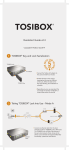
Serializing the Lock and Key
Tosibox Lock
A)
Connect the AC adapter to the Lock and wait
for 2 minutes.
B)
Serialize the Key to the Lock by inserting the
Key into the USB port of the Lock. When the
LED on the Key stops blinking, the serialization is complete.
C)
Go to 2a if deploying into broadband
networks or 2b if deploying into mobile
networks.
A
AC Adapter
B
Tosibox Key
2a
Deploying into Broadband Networks
2G/3G/4G, xDSL
2G/3G/4G, xDSL
Firewall & NAT Friendly
Firewall & NAT Friendly
Tosibox Lock
Remote user
WAN
Internet /xDSL router
A)
Connect an internet-connected ethernet
cable to the Lock’s WAN port.
B)
Plug the devices into the Lock’s LAN ports
(LAN 1-3 or connect wirelessly via WLAN).
If the devices have static IP addresses,
please see “Deploying the Lock” in the user
manual.
2b
Deploying into Mobile Networks
E
C
A)
Disable the SIM card’s PIN code query by inserting the SIM card into your mobile phone and
using the settings menu. Once disabled, remove
the SIM card from the phone and insert it into the
USB Modem.
B)
Plug the USB modem* into the USB port of the
Lock.
C)
Connect the computer to the Lock’s service port
with an ethernet cable.
D)
Type http://172.17.17.17 into your browser’s address field to access the Lock’s user interface. Log
in using “admin”. The password can be found on
the bottom of the Lock. Select “Network” > “3G”
and enter your operator’s APN name into the APN
field. Click Save.
B
USB modem*
*Supported models as of 08.2014 are: Huawei E160,
E169, E173, E176, E180, E353, E367, E372, E392,
E3276, E3131, E1552 and the new Tosibox industrial E)
modem.
HiLink versions are not supported. For more information and latest supported modem models visit:
help.tosibox.com.
Plug network devices into the Lock’s LAN ports
(LAN 1-3) or connect wirelessly via WLAN. See
“Deploying the Lock” in the user manual for static
IP configurations.
Note: Please see “Connecting the Lock to an existing network in client mode” in the Tosibox user manual (p.13) for
information on deploying Locks as a DHCP client into existing networks. For other deployment configurations not
contained within this guide, please see the Tosibox user manual or email us at [email protected].
3
Using the Key
A) Insert a Tosibox Key into the USB port of your computer to install the
Key software.
The Tosibox Key user interface illustrated above shows all Lock devices serialized to the Key
and the network devices connected to them. For more options click
or
icon.
The Lock is connected to the Internet and the Key is connected to the Lock.
The Lock is connected to the Internet, but the Key isn’t connected to the Lock.
The Lock is not connected to the Internet.
Tosibox help
Tosibox Mobile Client
Download this guide
Tosibox® Quick Start Guide v2.5 | www.tosibox.com