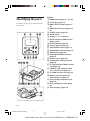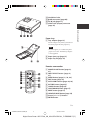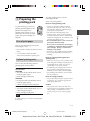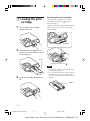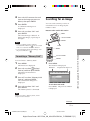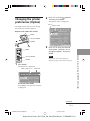
1
2-599-949-11 (1) Before you begin Digital Photo Printer Preparations Making basic printing Printing using the printer's LCD display Making various printing Printing from a PictBridge camera DPP-FP50 Printing from a PC Troubleshooting Additional information Operating Instructions Before operating this printer, please read this manual thoroughly and retain it for future reference. 2005 Sony Corporation 001GBFP5001COV-UC/CED.p65 1 3/11/05, 4:22 PM Digital Photo Printer -DPP-FP50_GB_UC2/CED/CEK/AU_ 2-599-949-11(1) WARNING WARNING To prevent fire or shock hazard, do not expose the unit to rain or moisture. To avoid electrical shock, do not open the cabinet. Refer servicing to qualified personnel only. CAUTION Pictures and/or Sound distortion may occur if this product is positioned in close proximity to equipment emitting electromagnetic radiation. CAUTION Sony shall assume no responsibility for any accidental or consequential damages or loss of the recording contents which may be caused by use or malfunction of the printer or “Memory Stick”. Owner’s Record The model and serial numbers are located on the bottom. Record the serial number in the space provided below. Refer to these numbers whenever you call upon your Sony dealer regarding this product. Model No. DPP-FP50 Serial No. Disposal of Old Electrical & Electronic Equipment (Applicable in the European Union and other European countries with separate collection systems) This symbol on the product or on its packaging indicates that this product shall not be treated as household waste. Instead it shall be handed over to the applicable collection point for the recycling of electrical and electronic equipment. By ensuring this product is disposed of correctly, you will help prevent potential negative consequences for the environment and human health, which could otherwise be caused by inappropriate waste handling of this product. The recycling of materials will help to conserve natural resources. For more detailed information about recycling of this product, please contact your local city office, your household waste disposal service or the shop where you purchased the product. Applicable Accessories: Remote Commander The equipment should be connected to an easily accessible mains outlet socket. (So that it may be disconnected from the mains if required) Attention for the customers in Europe This product has been tested and found compliant with the limits sets out in the EMC Directive for using connection cables shorter than 3 meters (9.8 feet). For the customers in the U.S.A. CAUTION You are cautioned that any changes or modifications not expressly approved in this manual could void your authority to operate this equipment. Note: This equipment has been tested and found to comply with the limits for a Class B digital device, pursuant to Part 15 of the FCC Rules. These limits are designed to provide reasonable protection against harmful interference in a residential installation. This equipment generates, uses, and can radiate radio frequency energy and, if not installed and used in accordance with the instructions, may cause harmful interference to radio communications. However, there is no guarantee that interference will not occur in a particular installation. If this equipment does cause harmful interference to radio or television reception, which can be determined by turning the equipment off and on, the user is encouraged to try to correct the interference by one or more of the following measures: – Reorient or relocate the receiving antenna. – Increase the separation between the equipment and receiver. – Connect the equipment into an outlet on a circuit different from that to which the receiver is connected. – Consult the dealer or an experienced radio/TV technician for help. The shielded interface cable recommended in this manual must be used with this equipment in order to comply with the limits for a digital device pursuant to Subpart B of Part 15 of Fcc Rules. If you have any questions about this product, you may call: Sony Customer Information Services Center 1-800-222-SONY (7669) 2 GB 001GBFP5002TOC-UC/CED.p65 2 3/11/05, 4:22 PM Digital Photo Printer -DPP-FP50_GB_UC2/CED/CEK/AU_ 2-599-949-11(1) The number below is for the FCC related matters only. Backup recommendations Regulatory Information To avoid potential risk of data loss caused by accidental operation or malfunction of the printer, we recommend that you save a backup copy of your data. Declaration of Conformity Trade Name: SONY Model No.: DPP-FP50 Responsible Party: Sony Electronics Inc. Address: 16450 W. Bernardo Dr, San Diego, CA 92127 U.S.A. Telephone No.: 858-942-2230 This device complies with part 15 of the FCC Rules. Operation is subject to the following two conditions: (1) this device may not cause harmful interference, and (2) this device must accept any interference received, including interference that may cause undesired operation. For the Customers in the U.S.A. and Canada Remote Commander RM-DPP10 THIS DEVICE COMPLIES WITH PART 15 OF THE FCC RULES. OPERATION IS SUBJECT TO THE FOLLOWING TWO CONDITIONS: (1) THIS DEVICE MAY NOT CAUSE HARMFUL INTERFERENCE, AND (2) THIS DEVICE MUST ACCEPT ANY INTERFERENCE RECEIVED, INCLUDING INTERFERENCE THAT MAY CAUSE UNDESIRED OPERATION. THIS CLASS B DIGITAL APPARATUS COMPLIES WITH CANADIAN ICES-003. Duplication, edition, or printing of a CD, TV programs, copyrighted materials such as pictures or publications, or any other materials except for your own recording or creation is limited to private or domestic use only. Unless you hold copyright or have permission of copyright holders for the materials to be duplicated, use of those materials beyond this limit may infringe the provisions of the copyright law and be subject to the copyright holder’s claim for damages. When using photo images with this printer, pay special attention not to infringe the provisions of the copyright law. Any unauthorized use or modification of others’ portrait may also infringe their rights. For some demonstrations, performances, or exhibits, photography may be forbidden. Information IN NO EVENT SHALL SELLER BE LIABLE FOR ANY DIRECT, INCIDENTAL OR CONSEQUENTIAL DAMAGES OF ANY NATURE, OR LOSSES OR EXPENSES RESULTING FROM ANY DEFECTIVE PRODUCT OR THE USE OF ANY PRODUCT. On trademarks and copyrights • VAIO is the trademark of Sony Corporation. • Microsoft and Windows® are registered trademarks or trademarks of Microsoft Corporation in the United States and other countries. • IBM and PC/AT are registered trademarks of International Business Machines Corporation. • Pentium is the registered trademark of Intel Corporation. • “Memory Stick“, “ ”, “MagicGate Memory Stick“, “Memory Stick Duo”, “Memory Stick PRO ” and “Memory Stick-ROM”are trademarks of Sony Corporation. • “MagicGate” is the trademark of Sony Corporation. • The raster process of true type fonts is based on the FreeType Team software. •This software is based in part on the work of the independent JPEG Group. • Libtiff Copyright © 1988-1997 Sam Leffler Copyright © 1991-1997 Silicon Graphics, Inc. • Lib png Copyright © 1995, 1996 Guy Eric Schalnat, Group 42, Inc. Copyright © 1996, 1997 Andreas Dilger Copyright © 1998, 1999 Glenn RandersPehrson • Zlib © 1995- 2002 Jean-loup Gailly and Mark Adler • This product uses “Exif Toolkit For Windows Ver.2.4 (Copyright © 1998 FUJI PHOTO FILM CO., LTD. All rights reserved)”. Exif is the exchangeable image file format for digital still cameras specified by the JEITA (Japan Electronics and Information Technology Industries Association). • All other companies and product names mentioned herein may be the trademarks or registered trademarks of their respective companies. Furthermore, “™” and “®” are not mentioned in each case in this manual. GB 3 001GBFP5002TOC-UC/CED.p65 3 3/11/05, 4:22 PM Digital Photo Printer -DPP-FP50_GB_UC2/CED/CEK/AU_ 2-599-949-11(1) Notice for users Program © 2004 Sony Corporation Documentation ©2004 Sony Corporation All rights reserved. This manual or the software described herein, in whole or in part, may not be reproduced, translated or reduced to any machine readable form without prior written approval from Sony Corporation. IN NO EVENT SHALL SONY CORPORATION BE LIABLE FOR ANY INCIDENTAL, CONSEQUENTIAL OR SPECIAL DAMAGES, WHETHER BASED ON TORT, CONTACT, OR OTHERWISE, ARISING OUT OF OR IN CONNECTION WITH THIS MANUAL, THE SOFTWARE OR OTHER INFORMATION CONTAINED HEREIN OR THE USE THEREOF. By breaking the seal of the envelope of the CDROM package, you accept all the terms and conditions of this agreement. If you do not accept these terms and conditions, please return this disk envelope unopened, along with the rest of the package, immediately to the dealer where you obtained it. Sony Corporation reserves the right to make any modification to this manual or the information contained herein at any time without notice. The software described herein may also be governed by the terms of a separate user license agreement. User Registration To receive customer services, complete and return the registration card included in your package. Any design data such as sample pictures provided in this software cannot be modified or duplicated except for the purpose of personal use. Any unauthorized duplication of this software is prohibited under copyright law. Please note that unauthorized duplication or modification of others’ portraits or copyrighted work could infringe the rights reserved by right holders. Table of contents Before you begin What you can do with this printer .......... 6 Identifying the parts ............................... 8 Preparations 1 Checking the contents of the package .................................... 10 2 Preparing the printing pack ............ 11 Sizes of print paper ................................. 11 Optional printing packs ........................... 11 3 Loading the print cartridge ............. 12 4 Inserting the print paper ................. 13 5 Preparing the remote commander .. 16 6 Connecting the AC power source ... 17 Connecting to a TV monitor ................. 18 Inserting a memory card ....................... 18 Inserting a “Memory Stick” ..................... 19 Inserting a CompactFlash card ................. 19 Inserting a SD card .................................. 19 Connecting a camera or other external device ............................................. 20 Making basic printing (MONITOR OUT mode) Displaying the images on a TV monitor ...................................... 21 Printing selected images ....................... 22 Printing an image .................................... 22 Checking the preview image before printing ................................................... 23 Printing multiple images .......................... 24 Making AUTO printing (INDEX/DPOF/ALL) .......................... 25 4 GB 001GBFP5002TOC-UC/CED.p65 4 3/11/05, 4:22 PM Digital Photo Printer -DPP-FP50_GB_UC2/CED/CEK/AU_ 2-599-949-11(1) Printing using the printer‘s LCD display (LCD mode) Printing from a PictBridge camera (PictBridge mode) Printing selected images ....................... 27 Printing images from the digital camera ........................... 57 Making AUTO printing (INDEX/DPOF/ALL) .......................... 29 Changing the print settings .................. 30 Printing from a PC (PC mode) Installing the software .......................... 58 Making various printing (MONITOR OUT mode) Editing an image .................................. 31 System requirements ............................... 58 Installing the printer driver ...................... 59 Installing the PictureGear Studio .............. 62 Displaying the EDIT menu ........................ 31 Enlarging and reducing an image size ...... 32 Moving an image .................................... 32 Rotating an image ................................... 32 Adjusting an image ................................. 33 Adding a special filter to an image .......... 33 Reducing the red-eye phenomenon .......... 34 Superimposing characters ........................ 35 Saving and printing an image .................. 38 Printing photos from the PictureGear Studio ............................................. 64 Making various prints (Creative Print) .. 39 Cleaning the inside of the printer ......... 89 Displaying the Creative Print menu .......... 39 Making a free layout print ....................... 40 Making a calendar .................................. 44 Making a card ......................................... 45 Making split images ................................ 46 Changing the print settings (SET UP) .... 48 Viewing a slideshow ............................. 51 Deleting images .................................... 52 Deleting selected images ......................... 52 Formatting a “Memory Stick” .................. 53 Searching for an image ......................... 53 Changing the printer preferences (OPTION) ........................................ 55 Printing from other application software .. 70 Troubleshooting If trouble occurs .................................... 71 If an error message appears ................. 86 If paper jams ........................................ 89 Additional information Precautions ........................................... 91 About the “Memory Stick” ................... 92 What is “Memory Stick”? ........................ 92 Types of “Memory Stick” ......................... 92 Types of “Memory Stick” that the printer can use ........................................ 93 Notes on use ........................................... 93 About the CompactFlash/SD cards ....... 94 Notes on use ........................................... 94 Specifications ....................................... 95 Printing range ......................................... 97 Glossary ................................................ 98 Index .................................................... 99 5 GB 001GBFP5002TOC-UC/CED.p65 5 3/11/05, 4:22 PM Digital Photo Printer -DPP-FP50_GB_UC2/CED/CEK/AU_ 2-599-949-11(1) Before you begin What you can do with this printer You can print from a memory card or an external device You can print using a TV monitor .pages 18 to 20 You can select and print an image .page 22 Digital Camera or other external device “Memory Stick”, CompactFlash card, or SD card You can print using the printer‘s LCD display You can make a variety of printings .pages 31 to 47 .pages 27 to 30 You can change print and printer settings .pages 48 to 56 You can print from a PictBridge-compliant camera You can print from a PC .page 58 .page 57 6 GB 001GBFP5003WHT-UC/CED.p65 6 3/11/05, 4:22 PM Digital Photo Printer -DPP-FP50_GB_UC2/CED/CEK/AU_ 2-599-949-11(1) A variety of prints you can make Auto print (INDEX/ DPOF/ALL) (.pages 25, 29) Free layout print (.page 40) Calendar print (.page 44) Supreme picture quality functions enabling photo-realistic printing x Professional high-performance printing system eliminates color deterioration that may be caused by heated head and reproduces photo realistic printing. x Super Coat 2 feature enables high durability of a print and resistance against moisture and fingerprint. x Auto Fine Print 3 analyses an image and corrects its pictures to optimum quality. (.page 49) x Exif 2.21 (Exif Print) feature utilises shooting conditions data stored in an image file of an Exif 2.21-compliant camera to adjust and print it with improved quality. (.page 49) x Red-eye phenomenon reduction, brightness, hue, and other corrections or adjustments enable high-quality printing. (.page 34) Enlarged/Reduced/ Moved/Rotated image prints (.page 32) Superimposed image (.page 35) Card print (.page 45) Split images print (.page 46) Convenient printing operations x High-speed CPU allows you to process, preview, and print an image quickly. x Paper tray allows you to print up to 20 sheets of paper at one time. (.page 13) Versatility of printing x You can select print sizes (Post Card size and 3.5 x 5 inch size). xYou can select border or borderless prints (.page 49) x You can view a slide show of the images in a memory card or an external device. (.page 51) x You can print an image easily from your camera or an external mass storage device*. (.page 20) (*Not all types of mass storage devices’ operations are guaranteed.) x Supplied application software allows you to print an image easily from your PC. (.page 58) x You can print an image easily from a PictBridge-compliant digital camera. (.page 57) 7 GB 001GBFP5003WHT-UC/CED.p65 7 3/11/05, 4:22 PM Digital Photo Printer -DPP-FP50_GB_UC2/CED/CEK/AU_ 2-599-949-11(1) Before you begin Basic one-image print (.page 22) Identifying the parts For details, see the pages indicated in the parentheses. Printer 1 MENU button (pages 31, 39, 48) 2 LCD display (page 27) 3 INPUT SELECT button (pages 21, 27) 4 MONITOR OUT button (pages 21, 27) 5 CANCEL button (page 25) 6 ENTER button 7 Arrow (g/G/f/F) buttons 8 AUTO (automatic) PRINT button (pages 26, 29) 9 PICTURE button (page 23) 0 Access indicator (page 19) qa ON/STANDBY button (page 17) qs ON/STANDBY indicator (page 17) qd PRINT button (page 23) qf PictBridge/CAMERA connector page 20) qg Remote sensor (page 16) qh CompactFlash card eject button (page 19) qj CF (CompactFlash) CARD insertion slot (pages 19) qk “Memory Stick”/“Memory Stick Duo” insertion slot (page 19) ql SD CARD insertion slot (page 19) w; Memory card slot/Paper tray compartment lid (page 15) wa Print cartridge compartment lid (page 12) ws Print cartridge eject lever (page 12) wd Print cartridge (pages 12) 8 GB 001GBFP5003WHT-UC/CED.p65 8 3/11/05, 4:22 PM Digital Photo Printer -DPP-FP50_GB_UC2/CED/CEK/AU_ 2-599-949-11(1) wf Ventilation holes wg USB connector (page 60) wh DC IN jack (page 17) wj VIDEO OUT (output) connector (page 18) 1 Tray adaptor (page 13) Use the adaptor only when you feed 3.5 x 5 inch size paper into the paper tray. Note In some regions, 3.5 x 5 inch size print paper is not sold. And the tray adaptor is not supplied. 2 Paper eject tray (page 13) 3 Paper tray lid (page 13) Remote commander 1 MONITOR OUT button (page 21, 27) 2 INPUT SELECT button (page 21, 27) 3 MENU button (pages 31, 39, 48) 4 EDIT button (page 31) 5 AUTO PRINT button (pages 26, 29) 6 PICTURE button (page 23) 7 CANCEL button (page 25) 8 ON/STANDBY button (page 17) 9 PRINT button (page 23) 0 CREATIVE PRINT button (page 39) qa Arrow (g/G/f/F) buttons qs ENTER button 9 GB 001GBFP5003WHT-UC/CED.p65 9 3/11/05, 4:22 PM Digital Photo Printer -DPP-FP50_GB_UC2/CED/CEK/AU_ 2-599-949-11(1) Before you begin Paper tray Preparations 1 Checking the contents of the package Make sure that the following accessories are supplied with your printer. Paper tray (1) Remote commander (1) The button-type lithium battery has been already installed in the commander. AC adapter AC-S24V1 (1) Clamp filter (1) CD-ROM (1) – Sony DPP-FP50 Printer Driver Software for Windows® XP Professional/Windows® XP Home Edition/Windows® XP Media Center Edition/Windows® 2000 Professional/Windows® Millennium Edition/Windows® 98 Second Edition – PictureGear Studio Ver.2.0 • • • • • Sample color printing pack (1) Operating Instructions (this booklet, 1) Quick Start Guide (1) Warranty (1) Sony End User Software License Agreement (1) AC power cord * (1) * The AC power cord illustrated is for 120V only. The plug shape and specifications of the AC power cord differ depending on the region you purchased the printer. Video connecting cable (1) Cleaning cartridge (1) 10 GB 001GBFP5004PRE-UC/CED.p65 10 3/11/05, 4:22 PM Digital Photo Printer -DPP-FP50_GB_UC2/CED/CEK/AU_ 2-599-949-11(1) 2 Preparing the printing pack To order printing packs, visit the following web site: www.sony.com/printers Notes on using printing packs Sizes of print paper You can use the print paper from the following two sizes: • Post card (4 x 6 inch) size (101.6 x 152.4 mm)* • 3.5 x 5 inch size (89 x 127 mm)* (*the maximum borderless printing size) Optional printing packs You can use the following optional printing packs for the printer: Post card size SVM-F40P • Two packs with each 20 sheets of Post Card size photo paper • Print cartridge for 40 prints SVM-F80P • Four packs with each 20 sheets of Post Card size photo paper • 2 Print cartridges each for 40 prints 3.5 x 5 inch sizebSVM-F40L* • Two packs with each 20 sheets of 3.5 x 5 inch size photo paper • Print cartridge for 40 prints • Always use the print cartridge and print paper from the same carton as a set. If you mix cartridges and paper of different types, printing may not be possible. • The side without the imprinting is the printing surface. Inferior print quality may result if the printing surface is contaminated with dust or fingerprints. Be careful to avoid touching the printing surface. • Do not bend the paper or tear it off at the perforations before printing. • Do not print on used sheets of print paper or attempt to rewind the ribbon inside the print cartridge. Doing so could result in damages to the printer. • Please do not disassemble the print cartridge. • Do not pull out the ribbon from the print cartridge. Notes on storing printing packs (for quality prints) • When you are going to store a partially-used pack of the print cartridge and print paper for an extended period of time, store it in its original bag or in a similar container. • Avoid placing the printing pack in locations that are subject to high temperature, high humidity, excessive dust, or direct sunlight. • Use printing pack within two years from the date of production. Note on storing printouts • Do not affix cellophane tape or plastic erasers to printouts. Also avoid leaving printouts under plastic desk mats. Caution • TV program, films, video tapes and other materials may be copyrighted. Unauthorized video printing of such materials may be country to the provisions of the copyright law. *Note In some regions, 3.5 x 5 inch size print paper is not sold. 11 GB 001GBFP5004PRE-UC/CED.p65 11 3/11/05, 4:22 PM Digital Photo Printer -DPP-FP50_GB_UC2/CED/CEK/AU_ 2-599-949-11(1) Preparations To print an image, you need a printing pack designed for the printer. The sample color printing pack contains a set of 10 sheets of Post card size print paper and a print cartridge for 10 prints. 3 Loading the print cartridge 1 Pull and open the cartridge compartment lid. Removing the print cartridge When the print cartridge runs out, the cartridge error indicator ( ) appears on the LCD display. Open the cartridge compartment lid, push up the eject lever, and remove the used print cartridge. Eject lever 2 Insert the print cartridge to the back in the arrow direction until it clicks into place. Arrow Cartridge error indicator ( ) Notes 3 Close the cartridge compartment lid. • Use the print cartridge contained in the same box with the print paper. • Do not touch the ink ribbon or place the print cartridge in a dusty location. Fingerprints or dust on the ink ribbon may result in imperfect printing. Ink ribbon 12 GB 001GBFP5004PRE-UC/CED.p65 12 3/11/05, 4:22 PM Digital Photo Printer -DPP-FP50_GB_UC2/CED/CEK/AU_ 2-599-949-11(1) • Never put your hand into the cartridge compartment. The thermal head reaches high temperatures, especially after repeated printing. 1 Open the eject paper tray. 2 Slide the paper tray lid in the opposite direction to the paper feeding direction (1) and then lift open it (2). 3 Set the tray adaptor according to the print paper size you want to use. • Do not remove the print cartridge while printing. Notes on storing the print cartridge • Avoid placing the print cartridge in a location subject to high temperatures, high humidity, excessive dust or direct sunlight • When you are going to store a partially-used cartridge, store it in its original bag. Note In some regions, 3.5 x 5 inch size print paper is not sold. And the tray adaptor is not supplied. Continued 13 GB 001GBFP5004PRE-UC/CED.p65 13 3/11/05, 4:22 PM Digital Photo Printer -DPP-FP50_GB_UC2/CED/CEK/AU_ 2-599-949-11(1) Preparations • Do not rewind the ink ribbon and use the rewound print cartridge for printing. Otherwise, proper printing result will not be obtained, or even a malfunction may occur. • If the print cartridge does not click into place, remove it and then re-insert it. If the ink ribbon is too slack to be loaded, wind the ink ribbon in the direction of the arrow to remove the slack. 4 Inserting the print paper x To use Post Card (4 x 6 inch) size print paper Press the tray and the back of the tray adaptor to release the locks of the adaptor (1), and remove and lift the tray adaptor from the lock holes (2). 4 Set the print paper into the tray. Riffle the print paper. Then insert the print paper with its printing surface (the side with no imprint) facing up. • To set the Post Card size print paper, face the stamp marker to the paper feeding direction. • To set the 3.5 x 5 inch size print paper, align an arrow imprint to the paper feeding direction. Insert the protective sheet together with paper. You can set up to 20 sheets of print paper. Release the lock. Printing surface Tray adaptor To attach the tray adaptor to the tray Put the projections of the tray adaptor into the lock holes of the front of the tray (1), and then slide down the adaptor until its back lock clicks into place (2). Paper feeding direction Face stamp marker (Post Card size) or arrow imprint (3.5 x 5 inch size) toward feeding direction. Note Do not touch the printing surface. Fingerprints on the printing surface may result in imperfect printing. 5 Remove the protective sheet. x To use 3.5 x 5 inch size print paper Keep the tray adaptor installed. Tray adaptor 14 GB 001GBFP5004PRE-UC/CED.p65 14 3/11/05, 4:22 PM Digital Photo Printer -DPP-FP50_GB_UC2/CED/CEK/AU_ 2-599-949-11(1) 6 Close the paper tray lid (1) and slide it to the paper feeding direction (2). Keep the paper eject tray open. If print paper runs out during printing, the paper error indicator ( ) appears on the LCD display of the printer. Remove the paper tray and feed the print paper. Notes Pull and open the printer’s paper tray compartment lid. Notes on storing the print paper 8 Insert the paper tray into the printer. Insert it firmly until it clicks into place. • Avoid storing the paper with the printed faces touching each other or in contact with rubber or plastic products including vinyl chloride or plasticizer for an extended period of time; color changes or deterioration of the printed image may occur. • Avoid placing the print paper in a location subject to high temperatures, high humidity, excessive dust or direct sunlight. • When you are going to store partially-used print paper, store it in its original bag. 15 GB 001GBFP5004PRE-UC/CED.p65 15 3/11/05, 4:22 PM Digital Photo Printer -DPP-FP50_GB_UC2/CED/CEK/AU_ 2-599-949-11(1) Preparations 7 • Do not remove the paper tray during printing. • To avoid paper jam or malfunctions of the printer, make sure the following before printing: – Do not write or type on the print paper. Use the oil ink pen to write on the paper after printing. You cannot type on the print paper. – Do not attach sticker or stamps on the print paper. – Do not hold or bend the print paper. – When adding print paper to a partially full tray, make sure that the total number of sheets does not exceed 20 for the print paper. – Do not print on the used print paper. Printing an image twice on the same paper will not make the printed image thicker. – Use the print paper for this printer only. – Do not use the print paper ejected without printed. 5 Preparing the remote commander 1 Remove the insulation sheet from the remote commander. With the insulation sheet removed from the lithium battery, the remote commander is ready for use. Replacing batteries When the printer does not respond to the remote commander, the battery may run out. 1 Push in the tab (1) and then slide out the battery compartment lid (2). 2 Remove the used battery and then insert a new lithium battery (CR2025) into the compartment with the + and – properly aligned. Friction seal 2 Point the remote commander to the remote sensor on the printer and then press a button to operate the printer. You can use the buttons on the remote commander in the same way as those identical buttons on the printer. Lithium battery 3 Slide the battery compartment lid back into the commander until it clicks into place. WARNING: Battery may explode if mistreated. Do not recharge, disassemble or dispose of in fire. Remote sensor Notes Note Pressing CANCEL button on a remote commander for more than one second does not function. • The button-type battery CR2025 is used in the remote commander. Do not use a battery other than the CR2025. • Point the remote sensor away from strong light sources such as direct sunlight or overhead lighting. Otherwise, the remote commander may not function properly. 16 GB 001GBFP5004PRE-UC/CED.p65 16 3/11/05, 4:22 PM Digital Photo Printer -DPP-FP50_GB_UC2/CED/CEK/AU_ 2-599-949-11(1) 6Connecting the AC power source Insert one plug of the supplied AC power cord to the supplied AC adapter. 2 Insert the other plug of the AC power cord to the wall outlet. 3 Insert the plug of the AC adapter to the DC IN jack of the printer. The ON/STANDBY indicator lights in red. 4 Press ON/STANDBY. The ON/STANDBY indicator lights in green. To DC IN AC adapter (supplied) Using your printer abroad To the wall outlet AC power cord (supplied) Notes • Connect the AC adapter to an easily accessible wall outlet close by. If some trouble occurs while using the adaptor, immediately shut off the power by disconnecting the plug from the wall outlet. • When you have finished using the AC adapter, disconnect it from the DC IN jack of the printer and the wall outlet. • The set is not disconnected from the AC power source (mains) as long as it is connected to the wall outlet , even if the unit itself has been turned off. • The print paper emerges from the paper outlet a few times during printing. Do not block the paper outlet with the AC adapter or AC power cord. You can use your printer in any country or region with the AC adapter (supplied) within 100 V to 240 V AC, 50/60 Hz. Use a commercially available AC plug adaptor [a], if necessary, depending on the design of the wall outlet (wall socket) [b]/ AC-S24V1 Note Do not use an electronic transformer (travel converter), as this may cause a malfunction. 17 GB 001GBFP5004PRE-UC/CED.p65 17 3/11/05, 4:22 PM Digital Photo Printer -DPP-FP50_GB_UC2/CED/CEK/AU_ 2-599-949-11(1) Preparations 1 • Be sure to use the AC adapter supplied with the printer. Do not use other AC adapter, as this may cause malfunction. • In case the cord of the AC adapter is disconnected or damaged, never use it any longer, as this may cause danger. • Do not short the DC plug of the AC adapter with a metallic object, as this may cause malfunction. • Do not use the AC adapter in a narrow space, such as the one close to the wall. Connecting to a TV monitor Inserting a memory card To view the images on the TV monitor for printing, connect the VIDEO OUT (output) connector of the printer to the video input of a TV monitor. To print an image stored on a “Memory Stick”, CompactFlash card, or SD card, insert it into the relevant card slot. For the types of the memory card that you can use with the printer, see pages 92 through 94. On using a memory card Video connecting cable (supplied) Television Set the VIDEO/TV input selector to VIDEO. Notes • Before making connections, unplug the AC power cord of the printer and turn off a TV monitor. • When you do not use the supplied video connecting cable, use a commercially available video connecting cable shorter than 3 m. • When you use the LCD display or connect the printer to a PictBridge-compliant digital camera or PC to print an image, you do not need to connect your printer to a television. • Avoid connecting the VIDEO OUT (output) connector of the printer to a device other than a television. The unit may not operate properly or make a big noise. • The print paper emerges from the paper outlet a few times during printing. Do not block the paper outlet with the video connecting cable. • Do not attempt to insert a memory card forcibly into or out of the slot. If you do so, the memory card or the printer may be damaged. • Do not remove the memory card while the access indicator is flashing; the memory card or printer may be damaged. • To avoid potential loss of data, make a backup copy of the contents of the memory card. We cannot compensate for any damage to or loss of data. • Check the memory card and insert it in the correct direction. If a memory card is forcibly inserted in the wrong direction, the memory card and its slot may be damaged. • Check the memory card type and make sure to insert it to the slot designed for the particular card type. If you insert a memory card to a different slot, the memory card may be damaged or you may not be able to remove the card from the slot.. 18 GB 001GBFP5004PRE-UC/CED.p65 18 3/11/05, 4:22 PM Digital Photo Printer -DPP-FP50_GB_UC2/CED/CEK/AU_ 2-599-949-11(1) Inserting a “Memory Stick” Insert a “Memory Stick” or “Memory Stick Duo” into the “Memory Stick”/“Memory Stick Duo” slot until it clicks into place. To eject a CompactFlash card Press the eject button. After the card pops back out, remove it slowly. Note If the eject button is projected, you cannot close the tray compartment lid properly. Please make sure that the eject button is not projected and then close the lid. Insert a SD card into the SD CARD slot until it fits into place. Access indicator flashes while the printer is accessing the memory card. Insert it so that the b mark is on the upper left corner. You can also insert a “Memory Stick Duo” with its b mark facing the upper left corner without using an adapter. To eject a “Memory Stick” Push the “Memory Stick” lightly into the insertion slot. After it pops back out, remove it slowly. Inserting a CompactFlash card Insert a CompactFlash card into the CF CARD slot until it fits into place. Access indicator flashes while the printer is accessing the memory card. Insert it in the b mark direction. To eject a CompactFlash card Push the SD card lightly into the insertion slot. After it pops back out, remove it slowly. Note When you use a miniSD card, use the miniSD card adaptor. If you insert a miniSD card without the adaptor into a slot of the printer, you may not be able to remove it. Eject button Access indicator flashes while the printer is accessing the memory card. Insert it with the wider terminal side facing the printer. 19 GB 001GBFP5004PRE-UC/CED.p65 19 3/11/05, 4:22 PM Digital Photo Printer -DPP-FP50_GB_UC2/CED/CEK/AU_ 2-599-949-11(1) Preparations Inserting a SD card Connecting a camera or other external device To print an image from a camera or other external device, connect it to the printer . You can connect an external device that supports mass storage system. For how to connect the PictBridge-compliant digital camera, see page 57. 1 Set your digital camera or other external device ready for printing with the Mass Storage-compliant printer. Notes • The type of USB connecting cable you should use may differ depending on the digital camera. Use a USB connecting cable with an A-TYPE connector for the printer and an appropriate type for your digital camera. • We cannot guarantee connection with all types of mass storage devices. • Use a commercially available USB cable shorter than 3m in length. • While the access indicator of the external device is flashing, never turn off the power nor remove the USB cable. The data inside the external device may be damaged. We cannot guarantee any damages that may be caused by data loss or damage. The settings and operations that are necessary before connection differ depending on the external device you use. For details, see the operating instructions of the external device. (In case of Sony Cyber-shot digital camera, for example, select “Normal” mode for the “USB Connect”. ) 2 Connect a camera or an external device to the PictBridge/CAMERA connector of the printer. Use the USB connecting cable supplied with the digital camera. Open the cover and to the PictBridge/CAMERA connector (USB A-TYPE) To USB connector Camera or other external device 20 GB 001GBFP5004PRE-UC/CED.p65 20 3/11/05, 4:22 PM Digital Photo Printer -DPP-FP50_GB_UC2/CED/CEK/AU_ 2-599-949-11(1) Making basic printing (MONITOR OUT mode) If “LCD display mode is selected” is displayed on the TV monitor Press MONITOR OUT to display the images on the TV monitor (MONITOR OUT mode). Displaying the images on a TV monitor This section explains how to display the images of a memory card or an external device to be printed on a TV monitor. Using the remote commander 1 MONITOR OUT 3 1 Press ON/STANDBY to turn on the printer (page 17). 3 Press INPUT SELECT repeatedly to select the memory card or an external device containing the images that you want to print. Each time you press the button, “Memory Stick”, “SD Card”, “CompactFlash”, or “External Device” will be displayed on the upper left of the TV monitor. (When no external device is connected, “External Device” will not be displayed.) The ON/STANDBY indicator of the printer lights in green. 2 Turn on a TV monitor and set its input selector to “VIDEO”. The images contained in the memory card or external device are displayed on the TV monitor. Access indicator flashes while the printer is accessing the memory card. The list of the images on the selected media are displayed on the TV monitor (image list). Continued 21 GB 001GBFP5005TV1-UC/CED.p65 21 3/11/05, 4:22 PM Digital Photo Printer -DPP-FP50_GB_UC2/CED/CEK/AU_ 2-599-949-11(1) Making basic printing (MONITOR OUT mode) Before you begin You need preparations 1 through 6 (pages 10 to 17), and the following: • “Connecting to a TV monitor” (page 18) • “Inserting a memory card” (page 18) or “Connecting a camera or other external device” (page 20) Image list Selected input media (Memory card or external device) Yellow frame (cursor) Total number Number of the of images in the selected images media Printing selected images Printing an image This section explains how to select an image and print it in full size. Borderless standard print Using the remote commander 2 Image number Associated file/DPOF/ Protect indications* Print cartridge type (P: Postcard/L: 3.5 x 5 inch/C: cleaning cassette) * Associated file/DPOF/Protect indications • Associated file indication: The image, in addition to the displayed image, has an associated file such as a motion file or a miniature e-mail image file. • DPOF indication: The image is DPOF preset with a digital camera. • Protect indication: The image is protected with a digital camera. 1 1 Press g/G/f/F to move the yellow frame (cursor) to the image you want to print. To display another page When multiple pages exist, you can switch pages. To display the next page, move the yellow frame to the bottom line of the image list and press F. To display the previous page, move the yellow frame to the top line and press f. Yellow frame 22 GB 001GBFP5005TV1-UC/CED.p65 22 3/11/05, 4:22 PM Digital Photo Printer -DPP-FP50_GB_UC2/CED/CEK/AU_ 2-599-949-11(1) 2 Press PRINT. Printing of the image selected with the cursor starts. During printing, the printing process is displayed on the TV monitor. When printing is complete and the print paper automatically emerges, remove the printed paper from the paper tray. You can display and check an image in full-screen size before printing. Move the yellow frame to the desired image, then press PICTURE. PICTURE The selected image is displayed in fullscreen size (preview image). Preview image Selected input media (Memory card or external device) Print cartridge type (P: Postcard/ L: 3.5 x 5 inch/C: cleaning cassette) Total number of images in the selected media Number of the selected images Notes • Do not remove or connect a memory card or an external device while the access indicator is flashing or the access indication is displayed on the TV monitor. • Never move or turn off the printer while it is printing; the print cartridge or paper may become stuck. In case you turn off the power, keep the paper tray inserted and then turn on the printer. If paper being printed remains in the printer, remove it and resume printing from the step 1. • The print paper may emerge a few times during printing. Do not touch nor pull the emerged paper. Wait for the print paper to be fully ejected after printing ends. • Make sure to spare enough space behind the printer during printing. Print quantity indication Image number Scroll bar indicating the Associated file/DPOF/ position of the image Protect indications among the total number (page 22) of images. Continued 23 GB 001GBFP5005TV1-UC/CED.p65 23 3/11/05, 4:22 PM Digital Photo Printer -DPP-FP50_GB_UC2/CED/CEK/AU_ 2-599-949-11(1) Making basic printing (MONITOR OUT mode) 3 Checking the preview image before printing To display the preview of another image Press g/G/f/F to display an image positioned left, right, upper, or below of the selected image in the image list. To print the previewed image Press PRINT. The previewed image is printed. Printing multiple images This section explains how to select multiple images, specify print quantity for each of them and print them at a time. Using the remote commander 4 Note Even if there are selected images and print quantity for the images is specified, only the previewed image is printed. To print multiple images at a time, print them in the image list. To display the image list again Press PICTURE. Note The displayed picture on a TV monitor is not identical with the printed picture because phosphor methods or profiles of each TV monitor differ. Please regard the displayed picture as just a reference. 1 1, 2 CANCEL 1 Press g/G/f/F to move the yellow frame to the image you want to print, then press ENTER. CANCEL The print quantity indication becomes “1”. Print quantity indication 24 GB 001GBFP5005TV1-UC/CED.p65 24 3/11/05, 4:22 PM Digital Photo Printer -DPP-FP50_GB_UC2/CED/CEK/AU_ 2-599-949-11(1) 2 Press ENTER or CANCEL to set the print quantity. Making AUTO printing You can set up to 20 copies of print quantity for an image. (INDEX/DPOF/ALL) • To increase the print quantity one by one, press ENTER. • To decrease the print quantity one by one, press CANCEL. • To cancel the selection, press CANCEL for more than two seconds. (You cannot do this operation with the remote commander.) Repeat steps 1 and 2 to select other images and set print quantity for each of them. The selected images are displayed with the orange frame. To cancel the selection Press g/G/f/F to move the yellow frame to the image you want to cancel in the image list and press CANCEL until the orange frame disappears. 4 Press PRINT. • INDEX printing You can print a list (index) of all the images contained in a memory card or an external device, which allows you to check the contents of the selected media easily. The number of split panes on a sheet will be calculated automatically. Images are printed with their corresponding image numbers. Image number Date (If Date Print is on.) The selected images will be printed. During printing, the printing process is displayed on the TV monitor. To stop printing Press CANCEL. When you are printing multiple copies, the next printing after the one currently printing will be cancelled. 5 When printing is complete and the print paper automatically emerges, remove the printed paper from the paper tray. • DPOF preset image printing The images which are DPOF (Digital Print Order Format) preset for printing ) are displayed with the print mark ( in the image list. You can print those images at one time. The images are printed with the preset number of copies in the order they were displayed. • ALL images printing You can print all the images stored in a memory card or an external device at one time. The images are printed one by one in the order of their image numbers. Continued 25 GB 001GBFP5005TV1-UC/CED.p65 25 3/11/05, 4:22 PM Digital Photo Printer -DPP-FP50_GB_UC2/CED/CEK/AU_ 2-599-949-11(1) Making basic printing (MONITOR OUT mode) 3 AUTO (automatic) printing allows you to print multiple images stored on a memory card or an external device at one time. The printer provides the following three AUTO printing methods: To cancel selection (INDEX/ALL only) Press g/G/f/F to move the yellow frame to the image of which you want to cancel selection in the image list and press CANCEL. The orange frame disappears and the selection is canceled. Notes • For how to preset images for printing, see the manual of your digital camera. • Some types of digital camera do not support the DPOF function, or the printer may not support some of the functions of the digital camera. Using the remote commander Note You cannot cancel the selection of the DPOF preset images. 2 2 1 Press PRINT. Printing starts. During printing, the printing process is displayed on the TV monitor. 1 To stop printing Press CANCEL. When you are printing multiple copies, the next printing after the one currently printing will be cancelled. Press AUTO PRINT repeatedly to display “INDEX”, “DPOF”, or “ALL” on the TV monitor. 3 When printing is complete and the print paper automatically emerges, remove the printed paper from the paper tray. To resume the normal printing mode Press AUTO PRINT repeatedly until either INDEX, DPOF, or ALL disappears from the TV monitor. The image to be printed will be displayed with orange frames. AUTO PRINT indication Tips • Even if the print cartridge runs out in the middle of printing, you can proceed with printing. If a message appears, follow the instructions on a TV monitor to replace the printing pack (pages 11 through 15). • When the “Date Print” is set to “ON”, the recorded date (year, month and day) is also printed (page 50). 26 GB 001GBFP5005TV1-UC/CED.p65 26 3/11/05, 4:22 PM Digital Photo Printer -DPP-FP50_GB_UC2/CED/CEK/AU_ 2-599-949-11(1) Printing using the printer‘s LCD display (LCD mode) Printing selected images You can use the printer‘s LCD display to specify the image number and print the image. To specify Image numbers To find the image numbers, make an index print. Or display the image list on a TV monitor or check the image numbers with your digital camera. 2 Press INPUT SELECT repeatedly to select the memory card or an external device containing the images that you want to print. Each time you press the button, “Memory Stick”, “SD”, “CF” or “External Device” will be displayed on the LCD display. (When no external device is connected, “External Device” will not be displayed.) 1 Press ON/STANDBY to turn on the printer (page 17). The ON/STANDBY indicator of the printer lights in green. Access indicator flashes while the printer is accessing the memory card. The main menu appears. If “MONITOR OUT mode is selected” is displayed on the LCD display Press MONITOR OUT to display the main menu on LCD display (LCD mode). Selected input media (Memory card or external device) Print cartridge type (P: Postcard/L: 3.5 x 5 inch) If “Selected” is not selected for the “Print Setting” Select “Selected” as follows: To return to the MONITOR OUT mode 1 Make sure that “Print Setting” is selected and press G. The print setting screen is displayed. Return to the main menu and then press MONITOR OUT. Continued 27 GB 001GBFP5006LCD-UC/CED.p65 27 3/11/05, 4:22 PM Digital Photo Printer -DPP-FP50_GB_UC2/CED/CEK/AU_ 2-599-949-11(1) Printing using the printer‘s LCD display (LCD mode) Before you begin You need preparations 1 through 6 (pages 10 to 17), and the following: • “Inserting a memory card” (page 18) or “Connecting a camera or other external device” (page 20) You can set up to 20 copies of print quantity for an image. CANCEL 2 Press f/F to select “Selected Image” and then press g. The main menu is displayed again. 3 Press PRINT. Image numbers and print quantity for the images stored in the selected memory card or external device are displayed. Image number Repeat step 4 to set the print quantity for the images you want to print. 6 Press PRINT. Printing of the selected images starts. During printing, printing process is displayed on the LCD display. To stop printing Press CANCEL. When you are printing multiple copies, the next printing after the one currently printing will be cancelled. Print quantity 7 Tip You can display the “Select Image” window by pressing G in step 2-2. 4 5 Press f/F to select the image number of the image you want to print and then press ENTER or CANCEL to set the print quantity. When printing is complete and the print paper automatically emerges, remove the printed paper from the paper tray. For the notes during printing, see page 23. • To increase the print quantity one by one, press ENTER. • To decrease the print quantity one by one, press CANCEL. • To cancel the selection, press CANCEL for more than two seconds. (You cannot do this operation with the remote commander.) 28 GB 001GBFP5006LCD-UC/CED.p65 28 3/11/05, 4:22 PM Digital Photo Printer -DPP-FP50_GB_UC2/CED/CEK/AU_ 2-599-949-11(1) Making AUTO printing 2 Printing starts. During printing, “PRINT” is displayed in the LCD display. (INDEX/DPOF/ALL) AUTO (automatic) printing allows you to print multiple images stored on a memory card or an external device at one time. The printer provides the following three AUTO printing methods. For the details, see page 25. 1 Press AUTO PRINT repeatedly to display “INDEX,” “DPOF,” or “ALL” on “Print Setting” on the main menu. To stop printing Press CANCEL. When you are printing multiple copies, the next printing after the one currently printing will be cancelled. 3 When printing is complete and the print paper automatically emerges, remove the printed paper from the paper tray. To resume the normal printing mode Press AUTO PRINT repeatedly until “Selected” is displayed. Tips • You can also follow the steps 1 through 2 on pages 27 and 28 to display the Print Setting screen, and press f/F to select “INDEX,” “DPOF,” or “ALL”. Press g to return to the main menu and press PRINT. • Even if the print cartridge or print paper runs out in the middle of printing, you can continue printing by replacing the print cartridge or inserting print paper. • When the “Date Print” is set to “ON” with the menu, the recorded date (month, day, and year) is also printed (page 50). The selected AUTO printing indication (INDEX, DPOF, or ALL) 29 GB 001GBFP5006LCD-UC/CED.p65 29 3/11/05, 4:22 PM Digital Photo Printer -DPP-FP50_GB_UC2/CED/CEK/AU_ 2-599-949-11(1) Printing using the printer‘s LCD display (LCD mode) • INDEX printing You can print a list (index) of all the images in the selected media. • DPOF preset image printing You can print all the DPOF preset images of a digital camera. • ALL images printing You can print all the images in a media one by one. Press PRINT. Changing the print settings You can display part of the SET UP and OPTION menus on the LCD display and change the print settings. 1 2 5 Repeat steps 3 and 4 to set the remaining items. To return to the main menu Press g. Auto Fine Print 3 You can select or disable automatic picture adjustment for printing. (Photo*/Vivid/Off) Exif Print You can turn on or off the automatic adjustments of the images shot by an Exif Print (Exif 2.21)compliant digital camera to its optimum picture quality. (On*/ Off) Borders You can select border or borderless prints. (Yes/No*) Date Print You can select whether or not you print the shot date with an image. (On/Off*) Color Setting You can adjust the colors (R/G/B) and sharpness of a printed image (page 50). (R: 0/G:0/B:0/ Sharpness:0) Language You can select the language of menu or messages. (English*/ French/Spanish/ German) Press f/F to select “Set Up” on the main menu. Press G. The Set Up screen is displayed. 3 Press f/F to select the desired setting item and press G. The setting screen of the selected item is displayed. 4 Press f/F to select the option and press g. The Set Up screen is displayed again. * Factory settings For the details on each setting, see pages 49, 50, and 56). The selected option is displayed. 30 GB 001GBFP5006LCD-UC/CED.p65 30 3/11/05, 4:22 PM Digital Photo Printer -DPP-FP50_GB_UC2/CED/CEK/AU_ 2-599-949-11(1) Making various printing (MONITOR OUT mode) To exit the menu mode Press MENU again. The previous window is displayed. Editing an image Displaying the Edit menu 3 Press g/G to select then press ENTER. (Edit) and The Edit menu is displayed. You can display the Edit menu on the TV monitor and edit or add an effect to an image. Cursor Edit menu Buttons to be used in the Edit menu MENU g/G/f/F/ENTER CANCEL PRINT EDIT / PRINT 1 Increases or reduces the size of an image or item. g/G/f/F/ENTER Moves an image or item. CANCEL Rotates an image or item. Adjusts the picture quality of an image. Display the image that you want to edit. Adds an filter to an image. Select the image in the image list or press PICTURE to display its preview image. 2 Procedures Corrects the red-eye phenomenon. Superimposes characters on an image. Press MENU on the printer or EDIT on the remote commander. The menu bar is displayed. When you press EDIT, the Edit menu on the step 3 is displayed. Edit menu icon Reset Resets the editing. Save Saves the edited image. Exit Exits the Edit menu. Menu bar Tip You can press MENU while editing an image and set part of the Set Up menu items. 31 GB 001GBFP5007TV2-UC/CED.p65 31 3/11/05, 4:22 PM Digital Photo Printer -DPP-FP50_GB_UC2/CED/CEK/AU_ 2-599-949-11(1) Making various printing (MONITOR OUT mode) Items Enlarging and reducing an image size 1 2 Display the Edit menu (page 31). Press g/G/f/F to select to to reduce enlarge an image or the size of it and then press ENTER. Each time you press ENTER, the image becomes larger or smaller: 4 Press ENTER. The image is fixed to the position. : up to 200% Rotating an image : up to 60% 1 2 Display the Edit menu (page 31). Press g/G/f/F to select (Rotate) and then press ENTER. The Rotate menu is displayed. Rotate menu Rotate tool Note The picture quality of an enlarged image may be deteriorated depending on its size. Moving an image 1 2 Display the Edit menu (page 31). Press g/G/f/F to select (Position) and then press ENTER. The image frames become yellow and you can move an image. 3 Move the image with g/G/f/F. The image moves to the selected direction. 3 Press f/F to select the direction to rotate the image and then press ENTER. • Rotate 90° Clockwise: Each time you press ENTER, the image rotates 90° clockwise. • Rotate 90° Counterclockwise: Each time you press ENTER, the image rotates 90° counterclockwise. 32 GB 001GBFP5007TV2-UC/CED.p65 32 3/11/05, 4:22 PM Digital Photo Printer -DPP-FP50_GB_UC2/CED/CEK/AU_ 2-599-949-11(1) • Sharpness: Press f to sharpen the outlines or F to reset them. Adjusting an image 1 2 Display the Edit menu (page 31). Press g/G/f/F to select (Adjust) and then press ENTER. The Adjust menu is displayed. Adjust menu Adjustment tool 5 Press ENTER. The adjustment takes effect. To reset the adjustment Press g/G/f/F to select “Reset” and then press ENTER. The image resets to the status before the adjustment is added. Adding a special filter to an image 1 2 Display the Edit menu (page 31). Press g/G/f/F to select and then press ENTER. (Filter) The Filter menu is displayed. Filter menu The adjustment slider appears. When “Brightness” is selected. 3 Adjustment slider 4 Move the slider to the desired position to adjust the level. • Brightness: Press f to brighten the picture or F to darken it. • Tint: Press f to make the picture bluish or F to make it reddish. • Saturation: Press f to deepen the colors or F to lighten the colors. Press f/F to select the desired filter you want to add to the image. • Sepia: Changes the image like an old photograph with faded colors. • Monochrome: Changes the image into a monochrome picture. • Paint: Makes the image look like a painted picture. • Fish-eye: Makes the image look like a photo taken with a fish-eye lens. • Clear Filter: Removes the filter from the image. Continued 33 GB 001GBFP5007TV2-UC/CED.p65 33 3/11/05, 4:22 PM Digital Photo Printer -DPP-FP50_GB_UC2/CED/CEK/AU_ 2-599-949-11(1) Making various printing (MONITOR OUT mode) 3 Filter tool Press f/F to select the desired adjustment tool and press ENTER. 4 To move the adjustment frame 1 Press g/G/f/F to select (Position) and press ENTER. 2 Move the frame with g/G/f/F. The frame moves in the selected direction. 3 Press ENTER. The frame is fixed in the current position. Press ENTER. The filter takes effect. Reducing the red-eye phenomenon You can reduce the red-eye phenomenon of a subject shot using a flash. Note To adjust the size of the adjustment frame Press g/G/f/F to select (Enlarge) or (Reduce) and press ENTER. Each time you press ENTER, the frame becomes larger or smaller. If you perform editions such as enlarging, reducing the size of, rotating or moving an image after the red-eye reduction adjustment, the red-eye reduction may not take effect. Perform the red-eye reduction after these editorial operations. 1 2 Display the Edit menu (page 31). Press g/G/f/F to select (Redeye reduction) and then press ENTER. The adjustment frame appears on the image, which indicates the range for red-eye reduction adjustment. Tip Make the size of the adjustment frame two to seven times as large as the eye size. 4 Press g/G/f/F to select “Execute” and press ENTER. The range of red-eye reduction adjustment is enlarged. Adjustment frame 5 Press ENTER to execute the redeye reduction adjustment. The adjustment takes place. To reset the adjustment Press CANCEL in step 5. The red-eye reduction is canceled and the window of step 2 is displayed. 3 Adjust the position and size of the adjustment frame. Make the red-eye reduction adjustment for the right and left eyes separately. 34 GB 001GBFP5007TV2-UC/CED.p65 34 3/11/05, 4:22 PM Digital Photo Printer -DPP-FP50_GB_UC2/CED/CEK/AU_ 2-599-949-11(1) Superimposing characters 4 The characters are input in the color displayed next to “COLOR”. To apply different color, do the following: You can enter up to 5 lines of characters to be superimposed on an image. 1 2 Display the Edit menu (page 31). Press g/G/f/F to select and then press ENTER. Select a color. 1 Press g/G/f/F to select “COLOR” and press ENTER. The color selection window is displayed. (Text) The keyboard is displayed. Current line number Character input box Select color and font, and load/ save the messages. Select a character. 3 Note You cannot apply multiple colors for each line of characters. Select a font. The characters are input in the font displayed in the “FONT” button. To select a different font, do the following: 1 Press g/G/f/F to select “FONT”. 2 Press ENTER repeatedly until the desired font is displayed: 5 Press g/G/f/F to select the desired character, then press ENTER to input a character. The selected characters are input in the character input box. You can enter up to 50 characters for each single line. To change lines Press g/G/f/F to select # and press ENTER. You can enter the maximum of 5 lines. Note You cannot specify multiple fonts and colors for a sequence of characters input. All the lines of characters are input in the identical font and color. You can change font and color in the middle of input procedures; The changed font and color will be applied to all the input characters. To input a capital letter Press g/G/f/F to select “CAPS” and press ENTER. The capital letters keyboard is displayed. To return to the small letters input keyboard, select “CAPS” again. Continued 35 GB 001GBFP5007TV2-UC/CED.p65 35 3/11/05, 4:22 PM Digital Photo Printer -DPP-FP50_GB_UC2/CED/CEK/AU_ 2-599-949-11(1) Making various printing (MONITOR OUT mode) 2 Press g/G/f/F to select the desired color and press ENTER. To correct characters in the input box Items Re-input The keyboard is displayed. Input characters again. • To delete a character before the cursor ( | ) in the input box Each time you press ENTER, the characters become larger. Press g/G/f/F to select “BS” (Back Space) and press ENTER. Each time you press ENTER, a character before the cursor is deleted. Each time you press ENTER, the characters become smaller. • To insert a character among the input characters Press g/G/f/F to select “B” or “b” on the window and then press ENTER repeatedly until the cursor (|) moves to the position where you want to insert a character. 6 Procedures Move the characters with g/ G/f/F, and then press ENTER. Each time you press ENTER, the characters rotate 90° clockwise. After you finish entering the remaining characters, press g/G/ f/F to select “NEXT”, and then press ENTER. Each time you press ENTER, the characters rotate 90° counterclockwise. The keyboard is closed and the input characters are superimposed on the image. Note If a number of input characters is large, you may not be able to rotate, increase or decrease the size of characters. Adjustment tools 8 Press f/F to select “Execute”, then press ENTER. The characters are fixed to the image. 7 Press g/G/f/F to select the desired adjustment tool, then press ENTER to adjust the size and position of the characters. To make multiple adjustments, repeat this step. Note Once you select “Execute”, you cannot move or delete the characters. 36 GB 001GBFP5007TV2-UC/CED.p65 36 3/11/05, 4:22 PM Digital Photo Printer -DPP-FP50_GB_UC2/CED/CEK/AU_ 2-599-949-11(1) Registering commonly-used characters as a message You can register commonly-used characters as a message and can load them later onto the character input box. Up to three messages, each message with the maximum of 80 characters, can be registered. 1 2 Follow steps 1 through 5 in “Superimposing characters” (pages 35 and 36) to enter characters that you want to register as a message in the input box. Press g/G/f/F to select “LOAD/ SAVE” and press ENTER. The dialog box to register and save messages is displayed. Press f/F to select the desired message and press ENTER. The selected message is placed in the character input box. Note The characters having been input in the input box will be overwritten and replaced with the message. Press g/G to select “Save” and then press ENTER. The message selection screen is displayed. 4 Press f/F to select the message box that you want to save the characters in and press ENTER. The input characters are registered as a message. Continued 37 GB 001GBFP5007TV2-UC/CED.p65 37 3/11/05, 4:22 PM Digital Photo Printer -DPP-FP50_GB_UC2/CED/CEK/AU_ 2-599-949-11(1) Making various printing (MONITOR OUT mode) 3 To load a registered message In step 3 above, select “Load” to display the window used for selecting a message. The image is saved. The dialog box to notify the new file number is displayed. Saving and printing an image Saving an image When you finish editing or making creative print or you select “Save” in the window, the dialog box to select the media to save the image in is displayed. You can save the image under a new file number. Tip Note While saving the image, do not turn off the printer or remove a memory card from the printer. The memory card may be damaged. Select the destination to save an image. 1 Press PRINT. The dialog box to specify the print quantity is displayed. Press f/F to select the media (“Memory Stick”, “Compact Flash”, or “SD Cards) and press ENTER. 2 Set the print quantity. • To increase the print quantity one by one, press ENTER repeatedly. • To reduce the print quantity one by one, press CANCEL repeatedly. • To reset the print quantity to one, press CANCEL for more than two seconds. (You cannot do this operation with the remote commander.) The dialog box for setting date is displayed. You can save the date with the image. 2 Press ENTER. Printing an image The selected image will not be overwritten. 1 3 Set date. Press f/F to select the number and press g/G to select the day, month or year. Then press ENTER. 3 Press g/G/f/F to select “OK” to start printing. The image previewed is printed. 38 GB 001GBFP5007TV2-UC/CED.p65 38 3/11/05, 4:22 PM Digital Photo Printer -DPP-FP50_GB_UC2/CED/CEK/AU_ 2-599-949-11(1) To exit the menu mode Press MENU. The previous window is displayed. Making various prints (Creative Print) 2 Press g/G to select (Creative Print) and then press ENTER. The Creative Print menu is displayed. Displaying the Creative Print menu You can display the Creative Print menu on the TV monitor and make a card, calendar, split images prints using the image of a memory card or an external device. Buttons to be used in Creative Print MENU Exiting the Creative Print menu g/G/f/F/ENTER PRINT CREATIVE PRINT PRINT g/G/f/F/ENTER CANCEL 1 Press MENU on the printer or CREATIVE PRINT on the remote commander. The menu bar is displayed. When you press CREATIVE PRINT, the Creative Print menu on the step 3 is displayed. The menu bar is displayed. To undo and redo the operation midway Press CANCEL. The window of the previous step is displayed. Depending on the step, you cannot undo the operation. Tip You can press MENU while making a Creative Print and set part of the Set Up menu items. Creative Print menu icon Menu bar 39 GB 001GBFP5008TV3-UC/CED.p65 39 3/11/05, 4:22 PM Digital Photo Printer -DPP-FP50_GB_UC2/CED/CEK/AU_ 2-599-949-11(1) Making various printing (MONITOR OUT mode) CANCEL • Press MENU in the middle of the operations and select “Creative Print Complete”. • Display the preview image and then press g/G/f/F to select “Exit” and press ENTER. The dialog box for saving an image may be displayed (Page 38). If you do not want to place wallpaper on the image, select “No Wallpaper”. The preview window of the selected wallpaper is displayed. Making a free layout print You can add an image, wallpaper, a message, characters, a calendar, or stamps to make an original free layout print. 1 Display the Creative Print menu (page 39). 2 Press g/G/f/F to select “Free Layout” and then press ENTER. Selected wallpaper The print size selection window is displayed. 5 Press g/G/f/F to select (Image) and press ENTER. The frame selection window is displayed. 3 Press g/G to select the print size, then press ENTER. The wallpaper selection window is displayed. 6 Press g/G/f/F to select the desired frame that you want to shape an image with, then press ENTER. If you do not want to use a frame, select “No Frame”. The image list is displayed. 4 Press g/G/f/F to select the desired wallpaper, then press ENTER. 40 GB 001GBFP5008TV3-UC/CED.p65 40 3/11/05, 4:22 PM Digital Photo Printer -DPP-FP50_GB_UC2/CED/CEK/AU_ 2-599-949-11(1) 9 Press g/G/f/F to select “Execute” and press ENTER. The window used for adjusting the framed image size and position is displayed. 10 Adjust the size and position of the framed image. 7 For information on adjustment, see step 8. Press g/G/f/F to select the desired image, then press ENTER. The window used for adjusting the image size and position is displayed. Adjustment tools 11 Press g/G/f/F to select “Execute” and press ENTER. The framed image is displayed. Using the items in this window, you can add your favorite effects on the print (pages 42 to 43). Items you can add to the print Preview of the created print Press g/G/f/F to select the desired adjustment tool, then press ENTER. Items 12 Check the preview, then save and Procedures Each time you press ENTER, the image becomes larger. print your Creative print. For saving and printing an image, see page 38. Each time you press ENTER, the image becomes smaller. Move the adjustment frame with g/G/f/F, and then press ENTER. Each time you press ENTER, the image rotates 90° clockwise. Each time you press ENTER, the image rotates 90° counterclockwise. 41 GB 001GBFP5008TV3-UC/CED.p65 41 3/11/05, 4:22 PM Digital Photo Printer -DPP-FP50_GB_UC2/CED/CEK/AU_ 2-599-949-11(1) Making various printing (MONITOR OUT mode) 8 Adding your favorite effects to the print x Adding a message 1 x Adding a stamp Press g/G/f/F to select (Message) and press ENTER. 1 The message selection window is displayed. Press g/G/f/F to select (Stamp) and press ENTER. The stamp selection window is displayed. 2 2 Press g/G/f/F to select the desired stamp, then press ENTER. The window used for adjusting the stamp size and position is displayed. 3 4 The character color selection window is displayed. 3 Adjust the size and position of the stamp. For information on adjustment, see step 8 on page 41. x Changing the wallpaper To change the wallpaper, press g/G/f/F (Wallpaper) and press to select ENTER. The wallpaper election window is displayed. Follow the step 4 on page 40. Press g/G/f/F to select the desired color and then press ENTER. The window used for adjusting the message size and position is displayed. 4 Press g/G/f/F to select “Execute” and then press ENTER. The selected stamp is pasted on the image. Press g/G/f/F to select the desired message, then press ENTER. Adjust the size and position of the message. For information on adjustment, see step 8 on page 41. 5 Press g/G/f/F to select “Execute” and then press ENTER. The selected message is pasted on the image. 42 GB 001GBFP5008TV3-UC/CED.p65 42 3/11/05, 4:22 PM Digital Photo Printer -DPP-FP50_GB_UC2/CED/CEK/AU_ 2-599-949-11(1) x Adding a calendar 1 Item Press g/G/f/F to select (Calendar) and press ENTER. Procedures Start Month Set the first month and the year starting the calendar. Press g/G to select the month or year and press f/F to set the number. Press ENTER. The window used for selecting a calendar type is displayed. Start Day Set the day of the week (placed furthest left in the calendar). Press g/G to select “Sunday” or “Monday”. Then press ENTER. 2 Color of Day Set the color of Sunday and Saturday to be displayed in the calendar. Press G and then f/F to select the desired color for Sunday and Saturday. Then press ENTER. Press g/G/f/F to select the desired calendar type and press ENTER. 4 Press g/G/f/F to select “Execute” and then press ENTER. The window used for adjusting the calendar size and position is displayed. 5 Adjust the size and position of the calendar. For information on adjustment, see step 8 on page 41. 3 Set the calendar. Press f/F to select the following items and then press g/G to select an option. 6 Press g/G/f/F to select “Execute” and then press ENTER. The selected calendar is pasted on the image. x Superimposing characters (Text) and Press g/G/f/F to select press ENTER. The keyboard is displayed. For how to enter characters, see “Superimposing characters” on pages 35 to 36. 43 GB 001GBFP5008TV3-UC/CED.p65 43 3/11/05, 4:22 PM Digital Photo Printer -DPP-FP50_GB_UC2/CED/CEK/AU_ 2-599-949-11(1) Making various printing (MONITOR OUT mode) The calendar setting window is displayed. 1 Press g/G/f/F to select an image area, then press ENTER. The image list is displayed (page 41). 2 Press g/G/f/F to select the desired image, then press ENTER. The window used for adjusting the image size and position is displayed. 3 Adjust the size and position of the image. For information on adjustment, see step 8 on page 41. 4Press g/G/f/F to select “Execute” and then press ENTER. The image is selected and displayed in the relevant area. Making a calendar You can add a selected calendar to an image or images to make an original calendar. 1 Display the Creative Print menu (page 39). 2 Press g/G/f/F to select “Calendar”, then press ENTER. The print size selection window is displayed (page 40). 3 Press g/G to select the print size, then press ENTER. The window used for selecting the calendar type is displayed (page 43). 4 Press g/G/f/F to select the desired template, then press ENTER. 6 Press g/G/f/F to select the calendar area and press ENTER to display calendar setting window. Set the calendar in the same way as in step 3 on page 43. The preview of the selected template is displayed. Image area Set the calendar. Calendar area 7 Press g/G/f/F to select “Execute” and then press ENTER. The calendar is displayed in the calendar area. Tip You can select and set an image area or calendar area in any order. 5 8 Select an image. When you select a template with multiple images, repeat the procedures below to select an image for each area. Check the preview, then save and print your Creative print. For saving and printing an image, see page 38. 44 GB 001GBFP5008TV3-UC/CED.p65 44 3/11/05, 4:22 PM Digital Photo Printer -DPP-FP50_GB_UC2/CED/CEK/AU_ 2-599-949-11(1) Image area Message area Making a card You can add a greeting and your own message to images and make an original card like the one shown below. 1 Display the Creative Print menu (page 39). 2 Press g/G/f/F to select “Card”, then press ENTER. Characters input area The print size selection window is displayed (page 40). 3 Press g/G to select the print size, then press ENTER. Tip You can select and set an area in any order. 5 Press g/G to select the desired template and press ENTER. The preview of the selected template is displayed. 6 Enter a message. 1 Press g/G/f/F to select the message area, then press ENTER. The message selection window is displayed (page 42). Continued 45 GB 001GBFP5008TV3-UC/CED.p65 45 3/11/05, 4:22 PM Digital Photo Printer -DPP-FP50_GB_UC2/CED/CEK/AU_ 2-599-949-11(1) Making various printing (MONITOR OUT mode) 1Press g/G/f/F to select the image area, then press ENTER. The image list is displayed (page 41). 2 Press g/G/f/F to select the desired image, then press ENTER. The window used for adjusting the image size and position is displayed. 3 Adjust the size and position of the image. For information on adjustment, see step 8 on page 41. 4Press g/G/f/F to select “Execute” and then press ENTER. The image is selected and displayed in the relevant area. When you select “Postcard size” 4 Select an image. When you select a template with multiple images, repeat the procedures below. The card templates are displayed. 2 Press g/G/f/F to select the desired message, then press ENTER. The color selection window for the message is displayed. 3 Press g/G/f/F to select the desired color, then press ENTER. The selected message is placed in the message area. 7 Enter characters. Press g/G/f/F to select the characters area, then press ENTER. The keyboard is displayed. For how to enter characters, see “Superimposing characters” on pages 35 to 36. 8 After you enter and adjust the characters, press f/F to select “Execute”, then press ENTER. Making split images You can make a print with 2-split, 4-split, 9split, 13-split, or 16split images. (The 13-split and 16-split images are available only with the “Postcard size”.) 1 Display the Creative Print menu (page 39). 2 Press g/G/f/F to select “Split Image”, then press ENTER. The print size selection window is displayed (page 40). 3 Press g/G to select the print size, then press ENTER. The split image templates are displayed. The characters are fixed to the image. 9 Check the preview, then save and print your Creative print. For saving and printing an image, see page 38. 46 GB 001GBFP5008TV3-UC/CED.p65 46 3/11/05, 4:22 PM Digital Photo Printer -DPP-FP50_GB_UC2/CED/CEK/AU_ 2-599-949-11(1) 4 Press g/G/f/F to select the desired template, then press ENTER. 8 Press g/G/f/F to select “Execute” and press ENTER. The preview image is displayed. The preview of the selected template is displayed. Image area 9 Check the preview, then save and print your Creative print. For details, see page 38. Tip 5 Making various printing (MONITOR OUT mode) You can select and set each area in any order. Press g/G/f/F to select the desired area and press ENTER. The window for selecting an image is displayed (page 41). 6 Press g/G/f/F to select the desired image, and then press ENTER. The window used for adjusting the image position is displayed. 7 Adjust the size and position of the image. For information on adjustment, see step 8 on page 41. 47 GB 001GBFP5008TV3-UC/CED.p65 47 3/11/05, 4:22 PM Digital Photo Printer -DPP-FP50_GB_UC2/CED/CEK/AU_ 2-599-949-11(1) Changing the print settings (Set Up) 2 Press g/G to select (Set Up) and then press ENTER. The Set Up menu is displayed. Cursor Set Up menu The Set Up menu allows you to change various print settings listed on pages 49 and 50. Buttons to be used in this section MENU g/G/f/F/ENTER CANCEL Note Setting items which cannot be changed are displayed in gray and cannot be selected. MENU 3 g/G/f/F/ENTER CANCEL 1 Press f/F to select the desired setting item, and press g/G to change the option. Then press ENTER. Press MENU. The menu bar is displayed. Set Up menu icon Menu bar To exit the menu mode Press MENU. The previous window is displayed. 48 GB 001GBFP5009TV4-UC/CED.p65 48 3/11/05, 4:23 PM Digital Photo Printer -DPP-FP50_GB_UC2/CED/CEK/AU_ 2-599-949-11(1) Item Settings Contents Auto Fine Print 3 Photographical*/ •Photographical: Adjusts an image automatically Vivid so that the image is printed with natural and beautiful pictures. •Vivid: Adjusts an image automatically so that the image is printed with stronger sharpness correction and more vivid pictures than the Photographical mode. Notes • The image data is not corrected. • When printing in PC mode, the Auto Fine Print 3 setting with the printer driver has priority over the setting here. In the LCD and PictBridge modes, this setting holds effective. Exif Print Off Prints an image without any corrections. On* Adjusts an image shot by an Exif Print (Exif 2.21)compliant digital camera to its optimum picture quality. Borders Off Prints an image without any adjustments. Yes Prints an image with borders around the image. Note Depending on an image, its top and bottom edges or right and left edges may be trimmed and printed. No* Prints an image without blank space around the image. Note When printing a standard 4:3 picture shot by a digital camera, the top and bottom edges of the image are cut and it is printed as a 3:2 picture. *: Factory settings Continued 49 GB 001GBFP5009TV4-UC/CED.p65 49 3/11/05, 4:23 PM Digital Photo Printer -DPP-FP50_GB_UC2/CED/CEK/AU_ 2-599-949-11(1) Making various printing (MONITOR OUT mode) Note The image data is not corrected. Item Settings Contents Date Print On Prints the date of shooting with an image when the image is a file recorded in the DCF (Design rule for Camera File system) format. To make a print with the date of shooting, shoot an image in the DCF file format. When the image is saved with the printer, the date of saving is printed. OFF* Prints an image without the date. Color Setting Adjusts the colors and sharpness of a print. Press g/G to select a color element ( “R” (red), “G“ (green), or “B” (blue)) or “Sharpness”, and then press f/F to set the level. (*R: 0/G:0/B:0/Sharpness:0) R: Adjusts the red and blue elements. The higher you set the level, the more reddish the picture becomes as if it receives red light. The lower you set the level, the darker the picture becomes as if light blue is added. G: Adjusts the green and purple elements. The higher you set the level, the more greenish the picture becomes as if it receives green light. The lower you set the level, the darker the picture becomes as if red purple is added. B: Adjusts the blue and yellow elements. The higher you set the level, the more bluish the picture becomes as if it receives blue light. The lower you set the level, the darker the picture becomes as if yellow is added. Sharpness: The higher you set the level, the more distinct the outlines become. *: Factory settings To cancel settings Press CANCEL. The settings will be returned to the state they were in before you made changes. 50 GB 001GBFP5009TV4-UC/CED.p65 50 3/11/05, 4:23 PM Digital Photo Printer -DPP-FP50_GB_UC2/CED/CEK/AU_ 2-599-949-11(1) Cursor Slideshow menu Viewing a slideshow You can perform a slideshow of the images saved in a memory card or an external device. You can also manually print an image being displayed. Buttons to be used in this section MENU g/G/f/F/ENTER CANCEL 3 Press f/F to select “Switch”, and press g/G to select “Automatic” to switch images automatically or “Manual” to switch them manually. Then press ENTER. 4 Press g/G/f/F to select “Execute”, and press ENTER. PRINT MENU PRINT CANCEL 1 Press MENU. The menu bar is displayed. Menu bar Slideshow menu icon To stop slideshow Press CANCEL. 2 Press g/G to select (Slideshow) and then press ENTER. The Slideshow menu is displayed. Printing a displayed image While playing the slideshow manually, you can print a displayed image by pressing PRINT. Notes • Depending on the image, it may take time to be displayed. • You cannot display the images that are not displayed as thumbnails because they are damaged or for some other reason. 51 GB 001GBFP5009TV4-UC/CED.p65 51 3/11/05, 4:23 PM Digital Photo Printer -DPP-FP50_GB_UC2/CED/CEK/AU_ 2-599-949-11(1) Making various printing (MONITOR OUT mode) g/G/f/F/ENTER • When “Automatic” is selected: The images in the memory card or an external device are displayed automatically one after another. • When “Manual” is selected: The image with the cursor in the image list is displayed. To switch images, press g/G/f/F. The image to the left, right, above, or below the current image in the image list will be displayed. Menu bar Delete/Format menu icon Deleting images You can delete the selected images or format the “Memory Stick”. Buttons to be used in this section To exit the menu mode Press MENU. The previous window is displayed. MENU g/G/f/F/ENTER CANCEL 2 Press g/G to select (Delete/ Format) and then press ENTER. The Delete/Format menu is displayed. MENU Cursor Delete/Format menu g/G/f/F/ENTER CANCEL Notes • During deleting or formatting, do not turn off the printer or remove the memory card The printer or the memory card or external device may be damaged. Or the image may be damaged. • An image, once deleted, will be lost forever. Before deleting an image, double-check that it is the right one. • When formatting a “Memory Stick”, all the files including the image files will be deleted. • You cannot delete an image of an external device. • You cannot format a memory card other than the “Memory Stick”. 3 Press f/F to select “Delete Image” and press ENTER. The image list is displayed. A trash icon is displayed on the image selected with the cursor before you pressed MENU in step 1. Trash icon Deleting selected images You can select and delete images on a memory card . 1 Press MENU. The menu bar is displayed. 52 GB 001GBFP5009TV4-UC/CED.p65 52 3/11/05, 4:23 PM Digital Photo Printer -DPP-FP50_GB_UC2/CED/CEK/AU_ 2-599-949-11(1) 4 Press g/G/f/F to move the trash icon to the image you want to delete, then press ENTER. 5 Press ENTER. A confirmation dialog box is displayed. 6 Press g/G to select “OK” and press ENTER. Searching for an image You can search a memory card or an external device for an image by file number or date. Buttons to be used in this section MENU The selected image is deleted. To delete other images, repeat steps 4 through 6. g/G/f/F/ENTER CANCEL Notes • When you delete an image with the associated file indication ( ), the associated motion or e-mail file will be also deleted. • You cannot delete the protected image with the protect indication ( ). MENU CANCEL You can format a “Memory Stick”. 1 2 1 Press MENU. Press MENU. The menu bar is displayed. The menu bar is displayed. Press g/G to select (Delete/ Format) and then press ENTER. Menu bar Image Search menu icon The Delete/Format menu is displayed. 3 Press f/F to select “Memory Stick Format” and press ENTER. The confirmation dialog box is displayed. 4 Press g/G to select “OK” and press ENTER. To exit the menu mode Press MENU. The previous window is displayed. The “Memory Stick” is formatted. Note When you format a “Memory Stick”, all the images inside are deleted. Continued 53 GB 001GBFP5009TV4-UC/CED.p65 53 3/11/05, 4:23 PM Digital Photo Printer -DPP-FP50_GB_UC2/CED/CEK/AU_ 2-599-949-11(1) Making various printing (MONITOR OUT mode) g/G/f/F/ENTER Formatting a “Memory Stick” 2 • When you select “By Date”: Specify the starting and ending dates of the files that you want to search for: Press g/G to select (Image Search) and then press ENTER. The Image Search menu is displayed. Cursor Image Search menu Starting date 3 Tip Press f/F to select the search key and press ENTER. To search for images of a specific day, enter the same date in both the boxes. The dialog box used for specifying the criteria for searching is displayed. 4 Ending date • When you select “By Folder NO.”: Specify the folder number of the images you want to search for: Press g/G to select an item and press f/F to specify numbers. • When you select “By File NO.”: Specify the starting and ending numbers of the files that you want to search for: Starting file number Ending file number 5 Press ENTER. Searching starts. When the search is complete, the search results will be displayed. If no images have been found “No images were found” will be displayed. 6 Tip Press ENTER. The image list is displayed. To search for a specific file, enter the same file number in both the boxes. • When you have selected “By File No.” and “By Data”, the images found are selected with an orange frame. • When you have selected “By Folder No.”, the first image in the selected folder is selected with the cursor. 54 GB 001GBFP5009TV4-UC/CED.p65 54 3/11/05, 4:23 PM Digital Photo Printer -DPP-FP50_GB_UC2/CED/CEK/AU_ 2-599-949-11(1) Changing the printer preferences (Option) 2 Press g/G to select (Option) and then press ENTER. The Option menu is displayed. Cursor Option menu The Option menu allows you to change the preferences listed on page 56. Buttons to be used in this section MENU g/G/f/F/ENTER CANCEL 3 MENU CANCEL 1 Note Items which cannot be changed are displayed in gray and cannot be selected. Press MENU. The menu bar is displayed. Option menu icon Menu bar To exit the menu mode Press MENU. The previous window is displayed. Continued 55 GB 001GBFP5009TV4-UC/CED.p65 55 3/11/05, 4:23 PM Digital Photo Printer -DPP-FP50_GB_UC2/CED/CEK/AU_ 2-599-949-11(1) Making various printing (MONITOR OUT mode) g/G/f/F/ENTER Press f/F to select the desired setting item, and press g/G to change the option. Then press ENTER. Item Settings Listing Order Image Without Thumbnail Image data display Language Contents Ascending* In the image list window, the images are displayed in the order of their image numbers, starting from the smallest number. Descending In the image list window, the images are displayed in the order of their image numbers, starting from the largest number. Icon* In the image list window, the images without thumbnail (miniature image used as index) data will be displayed as an icon. Generate In the image list window, the images without thumbnail (miniature image used as index) data will be displayed as its original image. On In the image list window, image information (file type, shooting conditions, etc.) will be displayed. Off* In the image list window, no image information will be displayed. You can select the language of menu or messages. (English*/French/ Spanish/German) *: Factory settings To cancel settings Press CANCEL. The settings will be returned to the state they were in before you made changes. 56 GB 001GBFP5009TV4-UC/CED.p65 56 3/11/05, 4:23 PM Digital Photo Printer -DPP-FP50_GB_UC2/CED/CEK/AU_ 2-599-949-11(1) Printing from a PictBridge camera (PictBridge mode) Printing images from the digital camera You can connect a PictBridge-compliant digital camera and print an image directly from your digital camera. 1 Set your digital camera ready for printing with a PictBridgecompliant printer. The settings and operations that are necessary before connection differ depending on the digital camera. For details, see the operating instructions of the digital camera you use. (In case of Sony Cyber-shot digital camera, for example, select “PictBridge” mode for the “USB Connect”. ) Note When you use a DSC-T1, you need to update software version. Connect the printer to the AC power source (page 17). 3 Press ON/STANDBY to turn on the printer (page 17). Operate the digital camera to print an image. The printer supports the following prints: • Single-image print. • All images print (ALL) • Index print (INDEX) • DPOF print • Border/Borderless print • Date print For notes during printing, see page 23. Notes • If you replace a print cartridge while the printer is connected to a PictBridge-compliant digital camera, an image may not be printed properly. If this occurs, disconnect and then connect the digital camera. • If you print an image from your digital camera without picture quality settings, it will be printed according to the settings of the Set Up menu. Printing from a PictBridge camera (PictBridge mode) 2 5 The ON/STANDBY indicator of the printer lights in green. 4 Connect a PictBridge-compliant digital camera to the PictBridge/ CAMERA connector of the printer (page 20). When you connect a PictBridgecompliant digital camera to the printer, “The printer is being connected to PictBridge camera.” is displayed on the LCD display of the printer. 57 GB 001GBFP5010Pict-UC/CED.p65 57 3/11/05, 4:23 PM Digital Photo Printer -DPP-FP50_GB_UC2/CED/CEK/AU_ 2-599-949-11(1) Printing from a PC (PC mode) To print from a PC connected to the printer, you need to install the supplied software to your PC. This section explains how to install the supplied software on your PC and how to use the supplied PictureGear Studio software to print an image. Please also refer to the operating instructions of your PC. Installation of the software is necessary only when you connect the printer to your PC for the first time. On the supplied CD-ROM The supplied CD-ROM contains the following software: • Printer driver for DPP-FP50: The software describes the printer’s requirements and enables printing from the computer. • PictureGear Studio: Sony’s original software application that allows you to handle still images—capturing, managing, processing, and printing. On trademarks and copyrights of PictureGear Studio • On copyrights of design materials The copyrights of the design materials contained in this software are owned by Sony Corporation or Sony Music Communications Corporation. Any commercial use is prohibited by the copyrights laws. • Duplication of copyrighted materials, such as photographs, is prohibited except for private or domestic use. • All other companies and product names mentioned herein may be the trademarks or registered trademarks of their respective companies. Furthermore, “™” and “®” are not mentioned in each case in this manual. Installing the software System requirements To use the supplied printer driver and PictureGear Studio, your PC must meet the following system requirements: OS: Microsoft Windows® XP Professional/Windows® XP Home Edition/Windows® XP Media Center Edition/Windows® 2000 Professional/Windows® Millennium Edition/Windows ® 98 Second Edition, pre-installed (IBM PC/AT compatible) (Windows 95, Windows 98 Gold Edition, Windows NT, other versions (ex. Server) of Windows 2000 are not supported.) CPU: Pentium III 500MHz or faster (Pentium III 800MHz or faster is recommended.) RAM: 128 MB or more (256 MB or more is recommended.) Hard disk space: 200 MB or more (Depending on the Windows version you use, more space will be required. To handle image data, you will need additional hard disk space.) Display: Screen area: 800 x 600 pixels or more Colors: High Color (16-bit) or more Notes • If a hub is used to connect the printer and your PC, or if two or more USB devices including other printers are connected to your PC, a trouble may occur. If this occurs, simplify the connections between your PC and the printer. • You cannot operate the printer from another USB device being used simultaneously. • Do not remove the USB cable from or connect it to the printer during data communication or printing. The printer may not work properly. 58 GB 001GBFP5011PC-UC/CED.p65 58 3/11/05, 4:23 PM Digital Photo Printer -DPP-FP50_GB_UC2/CED/CEK/AU_ 2-599-949-11(1) • The printer does not support system standby/hibernate mode of the computer. During printing, do not change your PC to system standby/hibernate mode. • We cannot guarantee operations with all personal computers, even though they may meet or exceed the system requirements. Installing the printer driver 1 How to attach the clamp filter Note If the USB cable is not equipped with ferrite cores near the plug to the printer (B-TYPE), be sure to attach the supplied clamp filter for noise prevention as illustrated below before using the unit. To conform to radiation standards, you must attach ferrite cores to the printer’s side end of the USB cable. If no ferrite cores are attached, other devices may be affected by radiation noise. If you connect the printer to your PC in this stage, either of the following dialog boxes are displayed: • When using Windows 98SE/Me: Add New Hardware Wizard • When using Windows 2000/XP: Found New Hardware Wizard If this occurs, disconnect the printer from the PC and then click “Cancel” in the dialog box. 2 2 Wind the cable into the clamp filter one time. Notes • Be sure to close all running programs before installing the software. • The dialog boxes in this section are those in Windows XP Professional, unless otherwise specified. The installation procedures and the dialog boxes shown differ depending on the operating system. 3 Close the clamp filter. Use a commercially available A-B TYPE USBcompatible connecting cable shorter than 3m in length. The type of USB cable you should use may differ depending on the computer. For details, see the instructions manual of your computer. 3 Insert the supplied CD-ROM into the CD-ROM drive of your computer. The setup starts automatically and the installation window is displayed. Continued 59 GB 001GBFP5011PC-UC/CED.p65 59 3/11/05, 4:23 PM Digital Photo Printer -DPP-FP50_GB_UC2/CED/CEK/AU_ 2-599-949-11(1) Printing from a PC (PC mode) 1 Release the lock with a screwdriver or a similar tool. Note Turn on your computer and start Windows. • When installing or uninstalling the software in Windows® 2000 Professional, log on to Windows as “Administrator” or “Power user”. • When installing or uninstalling the software with Windows® XP Professional/Windows® XP Home Edition/Windows® XP Media Center Edition, log on using a “Computer administrator” user account. Within 10 cm (4 inches) Attach the clamp filter as close to the printer’s side plug as possible (within 10 cm (4 inches)). Make sure that the printer is disconnected from the computer. Note In case the installation window is not automatically displayed, double-click the “Setup.exe” of the CD-ROM. 4 Click “Installing Printer Driver”. 8 Connect the printer to the AC power source (page 17). 9 Press ON/STANDBY to turn on the printer (page 17). The ON/STANDBY indicator of the printer lights in green. 10 Click “Next”. The “Sony DPP-FP50 InstallShieldWizard” dialog box appears. 5 11 Connect the USB connectors of Click “Next”. The license agreement dialog box is displayed. 6 Check “I accept the terms of the license agreement” and click “Next”. the printer and your computer. To USB connector (BTYPE) If you check “I do not accept the terms of the license agreement”, you cannot proceed to the next step. To USB connector Windows PC Note The “Ready to install the program” dialog box is displayed. 7 Click “Install”. The “Printer connection” dialog box is displayed. 60 GB 001GBFP5011PC-UC/CED.p65 60 The print paper emerges from the paper outlet a few times during printing. Do not block the paper outlet with the USB connecting cable. The printer automatically enters the PC mode and the printer setup will start automatically. When the printer setup is complete, the “InstallShield Wizard Complete” dialog box is displayed. 3/11/05, 4:23 PM Digital Photo Printer -DPP-FP50_GB_UC2/CED/CEK/AU_ 2-599-949-11(1) 12 Click “Finish”. The installation of the printer driver is complete. When you are prompted to restart your computer, restart the computer. 13• To finish installation, click “Complete” and remove the CD-ROM from your computer and keep it for future use. • To continue to install the PictureGear Studio software, click “Installing the PictureGear Studio” and follow the procedures on pages 62. Notes When the printer driver becomes unnecessary, remove it from your PC hard disk as follows: 1 Disconnect the USB cable from your printer and the computer. 2 Insert the supplied CD-ROM into the CD-ROM drive of your computer. The setup starts automatically and the installation window is displayed. 3 Click “Installing Printer Driver”. The “Sony DPP-FP50 - InstallShield Wizard” dialog box appears. 4 Click “Next”. The license agreement dialog box is displayed. 5 Check “I accept the terms of the license agreement” and click “Next”. The dialog box used for confirming uninstallation is displayed. 6 Click “Yes”. Checking the installation Open the “Printers and Faxes” (Windows® XP Professional/Windows® XP Home Edition/Windows® XP Home Edition only) or “Printers” from the “Control Panel”. When the “Sony DPP-FP50” is displayed in the “Printers and Faxes” or “Printers” window, the printer driver has been successfully installed. 001GBFP5011PC-UC/CED.p65 61 The dialog box used for restarting the computer is displayed. Continued 61 GB 3/11/05, 4:23 PM Digital Photo Printer -DPP-FP50_GB_UC2/CED/CEK/AU_ 2-599-949-11(1) Printing from a PC (PC mode) • If the printer driver CD-ROM is prompted during the installation, specify the following directory: -When using the Windows 98SE/Me: D\Driver\Win98.me -When using the Windows 2000/XP: D\Driver\Win2000.me “D” stands for the CD-ROM drive of your PC and may differ depending on the system. • The supplied CD-ROM will be required when you uninstall or re-install the printer driver. Keep it in good order for possible future use. • If the installation fails, remove the printer from your computer, restart your computer, and then do the installation procedures from the step 3. • After installation, the “Sony DPP-FP50” is not set as the default printer. Set the printer you use for each application. • Before you use the printer, read the Readme file (the Readme folder of the CDROMcEnglish foldercReadme.txt). Uninstalling the printer driver 7 Notes Check “Yes, I want to restart my computer now” and click “OK”. • Be sure to close all running programs before installing the software. • The dialog boxes in this section are those in Windows XP Professional, unless otherwise specified. The installation procedures and the dialog boxes shown differ depending on the operation system. 2 After the computer is restarted, the relevant files will be deleted and uninstallation is complete. The setup starts automatically and the installation window is displayed. To check uninstallation Select “Printers and Faxes” (Windows® XP Professional/Windows® XP Home Edition/Windows® XP Media Center Edition only) or “Printers” from the “Control Panel” to check if the “DPPFP50” is displayed. If not, the printer driver is successfully removed. Notes • In case the installation window is not automatically displayed, double-click the “Setup.exe” of the CD-ROM. • Depending on the PC system environments, the Microsoft Data Access Component 2.7 and Jet 1.0 should be installed during the PictureGear Studio installation. If so, the dialog box used for installing the programs will be displayed automatically; Follow the on-screen instructions proceed with the installation. Installing the PictureGear Studio 1 Turn on your computer and start Windows. • When installing or uninstalling the software in Windows® 2000 Professional, log on Windows as the user name of “Administrator” or “Power user”. • When installing or uninstalling the software in Windows® XP Professional/Windows® XP Home Edition/Windows® XP Media Center Edition, log on as a user name with the “Computer administrator” user account. Insert the supplied CD-ROM into the CD-ROM drive of your computer. 3 Click “Installing PictureGear Studio”. The “PictureGear Studio Setup” dialog box appears. 4 Click “Next”. The dialog box to specify the destination folder is displayed. 5 Check the destination and then click “Next”. To specify a different destination folder, click “Browse”. 62 GB 001GBFP5011PC-UC/CED.p65 62 3/11/05, 4:23 PM Digital Photo Printer -DPP-FP50_GB_UC2/CED/CEK/AU_ 2-599-949-11(1) The PictureGear Studio Media Watcher is started. 2 Click the PictureGear Studio Media Watcher icon on the taskbar with the right mouse button, and click “Settings” from the menu displayed. 3 Add or clear the check mark for “Starts the Media Watcher when you log on Widows”. To do registration, check the option. To cancel registration, clear the check box. The “PictureGear Studio Media Watcher” dialog box is displayed. 6 To register the Media Watcher, check “Register the PictureGear Studio Media Watcher in the startup folder.” and then click “OK”. What is “PictureGear Studio Media Watcher”? The PictureGear Studio Media Watcher detects insertion of a device or medium storing photos when the PictureGear Studio is installed in an operating system other than the Windows XP. To change the settings done during installation, follow the procedures below: 1 After you install the PictureGear Studio software, click “Start”, “Programs”, “PictureGear Studio”, “Tools”, and then “Media Watcher”. To display the Readme file, check “View Readme File” and then click “Finish”. • When you check “View Readme File”, the Readme file is displayed. When you close the Readme file, the PictureGear Studio Setup dialog box is also closed. • When you do not check “View Readme File”, the PictureGear Studio Setup dialog box is closed. 8 Remove the CD-ROM from your computer and keep it for future use. Notes • If the installation fails, do the installation procedures from step 2. • The supplied CD-ROM will be required when you uninstall or re-install the PictureGear Studio. Keep it in good order for possible future use. • The PictureGear Studio supplied with the DPP-FP50 has the following limitations: – In PhotoCollection, you cannot select paper other than “Sony”. – In PrintStudio, you cannot create or print “Label”. – In PrintStudio, you cannot create or print a “Sticker, name card, or card”. – In PrintStudio, you cannot print part of “Postcard” designs. Continued 63 GB 001GBFP5011PC-UC/CED.p65 63 3/11/05, 4:23 PM Digital Photo Printer -DPP-FP50_GB_UC2/CED/CEK/AU_ 2-599-949-11(1) Printing from a PC (PC mode) When the installation is completed, the installation complete dialog box is displayed. 7 To delete the above limitations and upgrade the software to the version supplied with VAIO computer or CLIE handheld, execute the “Setup.exe” in the “pgs.add” folder. Uninstalling the PictureGear Studio When the software becomes unnecessary, remove it from your PC hard disk as follows: 1 Remove the USB cable between the printer and the PC. 2 Insert the supplied CD-ROM into the CD-ROM drive of your computer. The setup starts automatically and the installation window is displayed. 3 PictureGear Studio allows you to carry out a series of procedures for handling a still image—capturing, managing, processing, and outputting. You can use the software to print an image from your PC in the post card or 3.5 x 5 inch size print paper. Note In some regions, 3.5 x 5 inch size print paper is not sold. 1 2 Click “Photo Collection”. Click “Yes”. The relevant files are deleted. The deletion complete dialog box is displayed. 5 Select “Start” from the Windows desktop, and then “PictureGear Studio” from the “Programs”. The PictureGear Studio window is started. Click “Installing PictureGear Studio”. The dialog box used for confirming deletion is displayed. 4 Printing photos from the PictureGear Studio The “Photo Collection” window is displayed. Click “Finish”. 3 Tips You can also remove the software from the Control Panel. Select “Add/Remove Programs” from the “Control Panel.” Then select PictureGear Studio and click “Remove”. Click the desired photo category folder. For explanations, “Sample” folder is selected in the following example. 64 GB 001GBFP5011PC-UC/CED.p65 64 3/11/05, 4:23 PM Digital Photo Printer -DPP-FP50_GB_UC2/CED/CEK/AU_ 2-599-949-11(1) 4 Click “Print.” • DPP-F series 4 x 6“ (Postcard size) SVM-F40P/F80P • DPP-F series 3.5 x 5” SVM-F40L The Print dialog box is displayed. 5 Select the photos that you want to print, set the number of copies to be printed for each photo, and then click “Apply”. Notes • In some regions, 3.5 x 5 inch size print paper (SVM-F40L, DPP-F series) is not sold. • If you select paper other than the DPPF series paper, you cannot obtain proper printing results. • When you use the supplied printing pack, select “DPP-F series 4 x 6” SVMF40P. When you select the paper size, the print dialog box is displayed. 7 Note Make sure to set the print quantity in this dialog box. Even if you set the number of copies in “Paper/Output” tab of the “Sony DPP-FP50 Properties” dialog box, the print quantity will not be reflected. 6 In the “Printer” drop-down list box, select “Sony DPP-FP50” and then click “Properties”. In the “Printer” drop-down list box, select the printer that you actually use. Click “Sony”, and then select the DPP-F series paper size of the paper you use. Continued 65 GB 001GBFP5011PC-UC/CED.p65 65 3/11/05, 4:23 PM Digital Photo Printer -DPP-FP50_GB_UC2/CED/CEK/AU_ 2-599-949-11(1) Printing from a PC (PC mode) The print paper selection dialog box is displayed. Items When you click “Properties”, the document properties dialog box for the selected printer is displayed. Functions Print All All the photos selected in the “Select Photo” window will be printed. Print the selected page only The image being displayed in the “Print Preview” will be printed. Printer 8 In the “Paper/Output” tab, specify the paper size. Select “Sony DPP-FP50”. Border Free Print • When checked, an image will be printed without margins around it. • When unchecked, an image will be printed with margins around it. Exif print • When checked, an image shot with a Exif Print (Exif 2.21)-compliant digital camera will be adjusted and printed with its optimum picture quality. Note The image displayed on the monitor will not be adjusted. • When unchecked, an image will be printed without adjustments. Note Even if you uncheck the item, “Color reproduction/ Picture quality” is still set to “Auto Fine Print 3”. To change the “Color reproduction/Picture quality” settings, follow the Properties steps. Properties Specifies orientation, picture quality and other details. Items Functions Paper size From the drop-down list box, select the paper size you actually use for printing: • Post card • 3.5x5 inch Note In some regions, 3.5 x 5 inch size print paper is not sold. Then check either of the following to specify the margins around the image: • With border: an image is printed with borders around it. • Borderless: an image is printed without borders around it. Orientation Select the orientation of an image when printed: • Portrait • Landscape • Rotates 180 degrees 66 GB 001GBFP5011PC-UC/CED.p65 66 3/11/05, 4:23 PM Digital Photo Printer -DPP-FP50_GB_UC2/CED/CEK/AU_ 2-599-949-11(1) Items Functions Print preview Check this option to display a preview of an image before printed. Note Depending on the application software you use, orientation may not change even if you change portrait or landscape setting. Copies Specify the number of copies to be printed. 9 In the “Graphics” tab, set the color reproduction and picture quality. Note Depending on the application software you use, the print quantity setting of the application has priority over that specified here. Enlarge/ Reduce Items Functions Color reproduction/Picture quality Select the setting from the dropdown list box: •Off: An image will be printed without adjustment. •Auto Fine Print 3:From the “Settings” drop-down list box, select either of the following correction method: – Photographical: An image will be adjusted automatically and printed with natural and beautiful pictures. (Recommended option) –Vivid: An image will be adjusted automatically and printed with more vivid pictures. (In this setting, a stronger sharpness correction is given, making pictures more vivid.) 67 GB 001GBFP5011PC-UC/CED.p65 67 3/11/05, 4:23 PM Digital Photo Printer -DPP-FP50_GB_UC2/CED/CEK/AU_ 2-599-949-11(1) Printing from a PC (PC mode) Specify the percentage to enlarge or reduce the size of an image when printed. You can set the reference point when an image is enlarged or reduced by checking “Upper left reference”. • When unchecked, an image is enlarged or reduced with the center as the reference point. Usually, use this option. • When checked, an image is enlarged or reduced with the upper left corner as the reference point. You need to use this option when using some types of applications. In case printing does not complete satisfactorily with the option unchecked, select this option. Items Functions Items •ICM (system): From the “Settings” drop-down list box, select either of the following correction method: – Graphics: when graphics or vivid colors are used. – Match: when you want to match colors. – Pictures: when a photograph or pictures are printed. Note The ICM setting is valid only when you are using an ICMcompliant application software. When printing from the application software that does not support the ICM system, an image may be printed with incorrect colors. Exif Print Check it to adjust and print an image shot with a Exif Print (Exif 2.21)-compliant digital camera. The printer driver uses the color conversion and Exif shooting data to adjust the image. This option is effective only with PictureGear Studio. Red-eye reduction Check it to automatically reduce the red-eye phenomenon of the subject shot by using a flash light. Notes • When you check this option, make sure to select “Preview” to display the preview image before printing and check that the redeye reduction has been correctly processed to the image. Functions • Red-eye phenomenon will be detected automatically, and it may not be corrected. If red-eye phenomenon is not corrected, use the PictureGear Studio correction function. •Red-eye reduction is enabled only when you have installed the software from “Setup.exe” in the supplied CD-ROM. For the details see the Readme.txt. Print settings Adjusts the color elements and sharpness. R:Adjusts the red and blue elements. The higher you set the level, the more reddish the picture becomes as if it receives red light. The lower you set the level, the darker the picture becomes as if light blue is added. G:Adjusts the green and purple elements. The higher you set the level, the more greenish the picture becomes as if it receives green light. The lower you set the level, the darker the picture becomes as if red purple is added. B:Adjusts the blue and yellow elements. The higher you set the level, the more bluish the picture becomes as if it receives blue light. The lower you set the level, the darker the picture becomes as if yellow is added. Sharp (sharpness): The higher you set the sharpness level, the more distinct the outlines become 68 GB 001GBFP5011PC-UC/CED.p65 68 3/11/05, 4:23 PM Digital Photo Printer -DPP-FP50_GB_UC2/CED/CEK/AU_ 2-599-949-11(1) 10 Click “OK”. Notes The print dialog box is displayed. 11 Click “Print All” or “Print the selected page only”. • Never move or turn off the printer while it is printing; the print cartridge or paper may become stuck. If this happens, turn the printer off and then on, and resume printing from the beginning. • The print paper may emerge a few times during printing. Do not touch nor pull the emerged paper. Wait for the print paper to be fully ejected after printing ends. • Make sure to spare enough space behind the printer during printing. To stop printing 1 Double-click on the printer icon on the taskbar, and open the “Print” dialog box. 2 Click the document name that you want to cancel printing of and then click “Cancel” from the “Document” menu. The confirmation dialog box for printing is displayed. 12Make sure that the specified print paper and print cartridge are loaded and click “OK”. Printing starts. The dialog box used for confirming the deletion is displayed. 3 Click “Yes”. The printing job is canceled. Note Do not cancel the printing job on process, which may cause a paper jam. Printing resumes. 69 GB 001GBFP5011PC-UC/CED.p65 69 3/11/05, 4:23 PM Digital Photo Printer -DPP-FP50_GB_UC2/CED/CEK/AU_ 2-599-949-11(1) Printing from a PC (PC mode) When “Print preview” is checked in step 8 The preview window is displayed. Check the adjustment results and then click “Print”. Printing from other application software You can use a commercially-available application software to print an image from the DPP-FP50. Select “DPP-FP50” in the print dialog box and select the print paper size in the page setup dialog box. For details in print settings, see steps 8 and 9 on pages 66 and 68. On “Borderless” setting in the “Paper size” section When using an application other than the PictureGear Studio, an image might be printed with borders even if you select borderless print in the “Paper size” section of the “Paper/Output” tab in the “Sony DPP-FP50 Properties” dialog box. When you select the borderless print option, the printing rage information for borderless print will be supplied to the application. Some applications, however, may arrange and print the image with borders within the specified range. If this occurs, do either of the following to print an image without borders: Orientation setting Depending on the application software you use, orientation may not change even if you change portrait or landscape setting. With border/borderless setting of the printer driver When the application software you use has border/borderless setting, we suggest you select borderless as the printer driver setting. Print quantity setting in the Properties dialog box Depending on the application software you use, the print quantity setting of the application you use may have priority over the setting specified in the printer driver dialog box. Exif Print Settings in the “Graphics” tab The Exif Print setting in the “Color reproduction/Picture quality” section supports the PictureGear Studio only. If you use other application to print an image with this option checked, the image may be printed with incorrect colors. If this occurs, remove the check. • When you can set print range with an application, set an image to be printed fully in the print range. For example, select “Full page photo print” or a similar option. • Set a larger value in the “Enlarge/ Reduce” text box in the “Paper/Output” tab of the “Sony DPP-FP50 Properties” dialog box. If borders remain on the right and bottom sides of a printed image even after you set a larger value, check “Upper left reference”. In either case, make sure to display and check the preview image before printing. 70 GB 001GBFP5011PC-UC/CED.p65 70 3/11/05, 4:23 PM Digital Photo Printer -DPP-FP50_GB_UC2/CED/CEK/AU_ 2-599-949-11(1) Troubleshooting If trouble occurs If you run into any problems using the printer, use the following guidelines to solve the problem. If the problem persists, consult your Sony dealer. Power Symptom Cause/Solutions Check The ON/ • Is the AC power cord SYANDBY properly connected? button cannot be turned on. c Connect the AC power cord to an AC outlet securely. (.page 17) Displaying images (MONITOR OUT mode only) Symptom Check The TV monitor displays no images. • Is the PictBridge mode or c Press INPUT SELECT repeatedly until the “Memory Stick”, “SD Card”, PC mode is selected? (The “CompactFlash”, or “External message appears on the Device” will be displayed on the TV LCD display?) monitor. (.page 21) Cause/Solutions c Press MONITOR OUT to display the images or the printer status on the TV monitor. (.page 21) • Are any error messages displayed (cause/ remedies) on the TV monitor? c Follow the directions of the messages, if any, and try to solve the problem. (.page 86) • Is the memory card or an external device properly inserted? c Insert a memory card or an external device properly. (.pages 18 to 20) • Does the memory card or c Insert a memory card or an external an external device contain device that contains the recorded images recorded with a images. digital camera or other device? 71 GB 001GBFP5012TRB-UC/CED.p65 71 3/11/05, 4:23 PM Digital Photo Printer -DPP-FP50_GB_UC2/CED/CEK/AU_ 2-599-949-11(1) Troubleshooting • Is the LCD mode selected? (The message appears on the TV monitor?) Symptom Check Cause/Solutions Some images in the image list are not displayed or not printed even if they are displayed. • Are thumbnail images displayed in the image list? c If the image is displayed but cannot be printed, the file used for printing is damaged. c If there are no images stored in the memory card or an external device, the “No image file” message appears. c If an image is not compatible with DCF (Design rule for Camera File system), it may not be printed with the printer even if it is displayed on the PC monitor. • Does the mark displayed below appear in the image list? c If the mark shown on the left is displayed, the image may be a JPEG file created with your computer, or the thumbnail data is not contained. Select the mark and press PICTURE. If a preview image is displayed, you can print the image. If the same mark is displayed again, the image is of incompatible file format and you cannot print it with the printer. • Was the image created on your PC? • Does the mark displayed below appear in the image list? c If the mark shown on the left is displayed, the image is of compatible file format but its thumbnail data or the data itself cannot be opened. Select the mark and press PICTURE. If a preview image is displayed, you can print the image. If the same mark is displayed again, you cannot print it with the printer. 72 GB 001GBFP5012TRB-UC/CED.p65 72 3/16/05, 3:31 AM Digital Photo Printer -DPP-FP50_GB_UC2/CED/CEK/AU_ 2-599-949-11(1) Symptom Some images in the image list are not displayed or not printed even if they are displayed. Check Cause/Solutions • Are there more than 9 999 images saved in the memory card or an external device? c The printer can display, save, delete or handle up to 9 999 image files. If there are more than 9 999 images stored in a memory card or an external device, use the PC or PictBridge mode to display and handle the remaining images. • Did you name or rename an image file with your PC? c When you name or rename an image file on your computer and its file name includes characters other than alphanumeric characters, the file name may not be displayed correctly or the image may not be displayed on the printer (read error). • Did you specify the print quantity in the image list? c Once you have selected images in the “Printing multiple images” procedures, you cannot print an image with which the cursor is just placed. Press ENTER to select it and specify the print quantity for the image. (.page 24) • There are 8 or more c The printer cannot display the images hierarchies in the memory saved in a folder of the 8th or higher card or an external device. hierarchy. The file name is not displayed correctly. • Did you change the file name of the image with your PC? 73 GB 001GBFP5012TRB-UC/CED.p65 73 3/11/05, 4:23 PM Digital Photo Printer -DPP-FP50_GB_UC2/CED/CEK/AU_ 2-599-949-11(1) Troubleshooting c When you name or rename an image file on your computer and its file name includes characters other than alphanumeric characters, the file name may not be displayed correctly . For a file created with a PC application, the first 8 characters of its file name will be displayed as the file name. Symptom Check Cause/Solutions In the Edit menu, there are blank areas at the top and bottom of the previewed image. • Is the previewed image extremely stretched vertically or horizontally? c If an image is extremely stretched vertically or horizontally, blank areas may appear in the Edit menu. c The standard aspect ratio of an image shot with a digital camera is 3:4. When an image is edited or printed in the postcard or 3.5 x 5 inch size, it is saved as a more horizontal print image and its top and bottom edges will be cut and displayed in black. Printing Symptom Check Paper does not feed. • Is the print paper properly c If print paper is not properly loaded, the printer may develop trouble. set in the paper tray? Check the following: • Is the correct set of print paper and print cartridge loaded? (.page 11) • Does the print paper is loaded in the correct direction in the tray? (.page 13) • Did you place print paper exceeding the limit in the paper tray? (.page 13) • Did you use the tray adaptor for the 3.5 x 5 inch print paper? (.page 13) • Did you riffle the print paper thoroughly? • Did you bend or fold the print paper before printing? Cause/Solutions • Are you using print paper c Use print paper designed for the printer. If you use incompatible print that was not designed for paper, the printer may develop the printer? trouble. (.page 11) 74 GB 001GBFP5012TRB-UC/CED.p65 74 3/11/05, 4:23 PM Digital Photo Printer -DPP-FP50_GB_UC2/CED/CEK/AU_ 2-599-949-11(1) Symptom Check Cause/Solutions Paper does not feed. • Is the print paper jammed? c When the printer cannot feed the print paper, the / (paper/cartridge error) indicators flash and an error message is displayed in the MONITOR OUT mode. Remove the paper tray and check paper jam. (.page 89) The print paper emerges partially during printing in process. • Is it in the middle of the printing process? c The print paper may emerge partially during printing. Wait for the print paper to fully emerge before taking it out. Symptom Check Cause/Solutions The printed pictures are inferior in quality. • Did you print preview image data? c Depending on the type of digital camera used, preview images may be displayed along with the primary images in the thumbnail list. The printed quality of the preview images will not be as good as the primary images. Note that if you delete the preview images, the data for the primary images may be damaged. Printed results list? • Did you use the Edit menu to enlarge the image? c An enlarged image, depending on its image size, will be printed with deteriorated picture quality. 75 GB 001GBFP5012TRB-UC/CED.p65 75 3/11/05, 4:23 PM Digital Photo Printer -DPP-FP50_GB_UC2/CED/CEK/AU_ 2-599-949-11(1) Troubleshooting c When the image is displayed as the • Did you print an image mark shown on the left, it is a small whose size (width or image. The printing quality is rough height) is smaller than 480 due to this small image size. dots? c Change the image size setting of the Is the following mark digital camera you are using. displayed in the image Symptom Check The printed pictures are inferior in quality. • Did you allow dust c Wipe the plastic part of the print cartridge and to get on the print remove dust. cartridge? Cause/Solutions • Did you allow dust c Do not touch the printing surface (the or finger prints to shiny-side with no imprint). Fingerprints on the get on the printed printing surface may result in imperfect surface? printing. • Did you use used print paper? c Do not print on used print paper. Printing an image twice on the same paper will not make the printed image thicker. • Did you shoot an image in the RAW file format? c When you shoot an image in the RAW file format, a highly-compressed JPEG file may be also recorded. As the printer does not support the RAW file format, it may use the JPEG file to print an image. A RAW file can be printed from a PC. For details, see the operating instructions of the digital camera you are using. What is a RAW file? A RAW file is an original image file format to save uncompressed, unprocessed still image data captured from a digital camera. For whether or not a digital camera can capture an image in the RAW file format, see the operating instructions of the digital camera. • Did you use an AdobeRGBcompliant digital camera, not compatible with the DCF 2.0, to shoot an image in the AdobeRGB mode? c An AdobeRGB image file that supports the DCF 2.0 will undergo color corrections, but an AdobeRGB image file that does not support the DCF 2.0 will be printed in vague colors without color corrections. What is an AdobeRGB? An AdobeRGB is a color space that the Adobe System Incorporated employs and uses as the default setting for image processing software including the Adobe Photoshop. The AdobeRGB, an optional color space extended with the DCF 2.0, determines the color ranges widely used in printing industry. For whether or not a digital camera supports the AdobeRGB, see the operating instructions of the digital camera. 76 GB 001GBFP5012TRB-UC/CED.p65 76 3/11/05, 4:23 PM Digital Photo Printer -DPP-FP50_GB_UC2/CED/CEK/AU_ 2-599-949-11(1) Symptom Check Cause/Solutions The picture quality and colors of the image previewed on the screen differs from those printed. c Because of differences in the phosphor method or profiles of a TV monitor, please regard the image being displayed on the screen as just a reference. To adjust picture quality, do either of the following: The printed image differs when an image is directly printed from the memory card or an external device inserted into the printer’s slot and when it is printed via a PC. c Because of the differences in the printer’s internal processing and PC software processing, the printed images will be different. The date cannot be printed. • Is “Date Print” set to “On”? c Set “Date Print” in the Set Up menu to “On”. (.page 50) • Does the image support DCF? cThe “Date Print” function of this unit supports an image that is compatible with the DCF standards. • Is “Date Print” set to “Off”? c Set “Date Print” in the Set Up menu to “On”. (.page 50) • Was the date saved with the image when it was shot with the digital camera? c Change the camera settings. 77 GB 001GBFP5012TRB-UC/CED.p65 77 3/11/05, 4:23 PM Digital Photo Printer -DPP-FP50_GB_UC2/CED/CEK/AU_ 2-599-949-11(1) Troubleshooting The date is printed unintentionally. – Menu - Set Up - Color Setting (.page 50) – Menu-Edit-Adjust (.page 33) Symptom Check Cause/Solutions The image cannot be printed fully in the print range. • Did you set “Borders” in the Set Up menu to “Yes”? c Set “Borders” to “No” by selecting Menu - Set Up - Borders. (.page 49) • Is the aspect ratio of the image correct? c Depending on the type of digital camera used, the aspect ratio of the recorded image differs, so the image may not be printed covering the entire printable area. Even if I set “Borders” to “No”, the image is printed with borders on both sides. • Is the image edited and saved with “Borders” set to “Yes”? c When you edit and save an image in the postcard or 3.5 x 5 inch size, it is saved as a print image including the blank areas. Even if you print it with “Borders” set to “No”, you cannot eliminate the borders on both sides of a print. To print without borders, edit and save an image with “Borders” set to “No”. (.page 49) Only part of an image is printed. • Did you set “Borders” in the Set Up menu to “Yes”? c Set “Borders” to “Yes” to print the whole area of an image. (.page 49) The image is stretched horizontally when printed. • Did you rotate the image or add other process? c Depending on the type of digital camera used, the image may be stretched vertically if it has been rotated or processed using your digital camera. This is not because of trouble with the printer, but because the image was rewritten with your digital camera. There are white lines or dots on the printed pictures. c The print head or paper path may be soiled. Use the supplied cleaning cartridge to clean the head and path. (.page 89) 78 GB 001GBFP5012TRB-UC/CED.p65 78 3/11/05, 4:23 PM Digital Photo Printer -DPP-FP50_GB_UC2/CED/CEK/AU_ 2-599-949-11(1) Symptom Check Cause/Solutions The picture is too bright, dark, reddish, yellowish, or greenish. c Adjust an image by selecting Menu Edit - Adjust. (.page 33) The eyes of the subject are red. c Adjust fro the red-eye phenomenon by selecting Menu - Edit - Red-eye reduction. (.page 34) Red-eye reduction does not take effect. c Set the size of the adjustment frame to be two to seven times as large as the eye. (.page 34) • Did you enlarge, reduce the size of, rotate, or move an image after the red-eye reduction? c Red-eye reduction may not work properly if other editorial operations such as enlarging, reducing the size of, rotating, or moving an image. Perform these editorial operations first and then perform red-eye reduction. Symptom Check Cause/Solutions The “Borders” “Yes/No” setting does not take effect. • Are you operating the Creative Print menu? c In the Creative Print menu, templates are used and you cannot select border/borderless prints. Settings Troubleshooting 79 GB 001GBFP5012TRB-UC/CED.p65 79 3/11/05, 4:23 PM Digital Photo Printer -DPP-FP50_GB_UC2/CED/CEK/AU_ 2-599-949-11(1) Saving or deleting an image Symptom Cause/Solutions Check You cannot save • Is the memory card or an an image. external device protected? You cannot delete an image. c Release the protection and try saving again. • Is the write-protect switch of the memory card in the LOCK position? c Slide the write-protect switch to the write enable position. (.page 93) • Is the memory card full? c Delete unnecessary images (.page 52), or replace it with a new memory card with sufficient free memory space. Save the image again. • Is the memory card or an external device protected? c Release the protection and try printing again. • Is the image DPOF-preset? c Release the DPOF preset with your digital camera. • Is the write-protect switch of the memory card in the LOCK position? c Slide the write-protect switch to the write enable position. (.page 93) • Are you using a “Memory Stick-ROM”? c You cannot delete an image from or format a “Memory Stick-ROM”. c You cannot recover an image once it is deleted. An image was deleted accidentally. I cannot format the “Memory Stick”. • Is the write-protect switch of the memory card is in the LOCK position? c Slide the write-protect switch to the write enable position. (.page 93) • Is it a “Memory StickROM”? c You cannot delete an image from or format a “Memory Stick-ROM”. c Once the “Memory Stick” is formatted, all the data is deleted and cannot be recovered. To prevent accidental format, set the write protect switch to the LOCK position. (.page 93) The “Memory Stick” was formatted accidentally. 80 GB 001GBFP5012TRB-UC/CED.p65 80 3/11/05, 4:23 PM Digital Photo Printer -DPP-FP50_GB_UC2/CED/CEK/AU_ 2-599-949-11(1) Others Symptom Cause/Solutions Check I cannot insert the print cartridge smoothly. c If the print cartridge does not click into place, remove it and then re-insert it. Only when the ink ribbon is too slack to be loaded, wind the ink ribbon in the direction of the arrow to remove the slack. (.page 13) The print cartridge cannot be removed. c Turn off the ON/STANDBY button and then turn it on. After the motor sound stops, try to remove the cartridge. If this does not solve the problem, contact Sony service facilities or your Sony dealer. • Are the / (paper/ cartridge error) indicators flashing or is an error message displayed in the TV monitor? c Paper is jammed. See “If paper jams” (.page 89) and remove jammed paper from the printer. If jammed paper cannot be removed, contact the Sony service facilities. Printing stops midway. • Does the access indicator light in green? c The data size of an image is large and it takes longer to process it for printing. As soon as the data processing finishes, the printer starts printing. • Are the / (paper/ cartridge error) indicators flashing? c Paper is jammed. See “If paper jams” (.page 89) and remove jammed paper from the printer. If jammed paper cannot be removed, contact the Sony service facilities. • Is any indicator lit? c If no indicator is lit, the thermal head may be overheated. Leave the printer until the head cools down and the printer resumes printing. 81 GB 001GBFP5012TRB-UC/CED.p65 81 3/11/05, 4:23 PM Digital Photo Printer -DPP-FP50_GB_UC2/CED/CEK/AU_ 2-599-949-11(1) Troubleshooting The print paper jams. Connecting with a digital camera Symptom Check Cause/Solutions The PictBridge mark does not appear on the LCD display of the digital camera. • Is the digital camera connected correctly? c Connect the cable correctly. • Is the ON/STANDBY button turned on? c Turn on the ON/STANDBY button. • Does the firmware of your c See the homepage for the digital camera you are using. digital camera support the printer? • Is “PictBridge mode is c The message is not displayed while the selected ”displayed on the printer is in the Edit, Creative Print, or LCD display? other menu modes. Exit the menu and then connect the cable again. c Disconnect the digital camera and the printer and then connect them again. Or turn off and then on the printer and the digital camera. • Is the USB setting of your camera in PictBridge mode? I connect and disconnect the USB cable, but nothing happens. Set the USB setting of your camera to the PictBridge mode. • Is printing in process? c Connect the cable again after printing is complete. • Is the “External Device” mark on the LCD display flashing quickly? c The printer has developed an overcurrent error. Unplug the AC power cord of the printer, plug it in again, and then press the ON/STANDBY button to recover from the error. I cannot stop printing even if I pressed CANCEL. c The next print from the one currently printed will be canceled. I cannot make • Is the message “There INDEX printing. were images for which printing data could not be created” displayed on the LCD display? c The printer cannot print INDEX print of the DPOF printing. To make INDEX printing, insert the memory card directly (page 19) or use a mass storage external device (page 20). c Depending on the digital camera you use, you cannot cancel printing from the printer. Operate the digital camera to stop printing. Refer to the operating instructions of the digital camera. 82 GB 001GBFP5012TRB-UC/CED.p65 82 3/11/05, 4:23 PM Digital Photo Printer -DPP-FP50_GB_UC2/CED/CEK/AU_ 2-599-949-11(1) Connecting with a computer Symptom Cause/Solutions Check The images of the memory card or an external device inserted in the printer are not displayed on the PC. c The printer does not provide the function for viewing the memory card or an external device images from the printer. I lost the supplied CDROM and want to obtain a new one. c Please download the printer driver from the Customer support home page (.page 96). Or contact your Sony dealer. • Are you sure that you The printer have followed the driver cannot be installation procedures installed. correctly? c Follow the procedures in the operating instructions to install the driver (.page 59). If an error occurs, restart your computer and do the installation procedures again. c Exit all applications and then install the driver again. • Did you specify the CDROM as the installation CD-ROM correctly? c Double-click My Computer, and then the CD-ROM icon in the open window. Follow the procedures in the operating instructions to install the driver. • Is the USB driver installed? c The USB driver may not be installed properly. Follow the operating instructions to install the USB driver again. • Can you read the CDROM with Explorer? c If there is an error with the CD-ROM, you may not be able to read it. If an error message is displayed on your PC, check the contents and remove the source of the problem. Then install the printer driver again. For details on the error contents, see the operating instructions of your PC. 83 GB 001GBFP5012TRB-UC/CED.p65 83 3/11/05, 4:23 PM Digital Photo Printer -DPP-FP50_GB_UC2/CED/CEK/AU_ 2-599-949-11(1) Troubleshooting • Is another application program running? Symptom Check Cause/Solutions The printer • Is there an anti-virus driver cannot be program or other installed. program running on the system? • Did you log onto Windows XP/2000 Professional using an Administrator user account? The printer does not respond to the printing order from the PC. c If there is an anti-virus program or other program running on the system, exit it and then start installing the driver. c To install the driver in Windows XP/ 2000 Professional, log onto Windows using an Administrator user account. c If there is no trouble displayed on the Windows desktop, check the printer’s LCD display. If the printer shows trouble, do the following: – Turn off the ON/STANDBY button and then turn it on again. – Disconnect the power cable, wait for 5 to 10 seconds, and then connect the cable again. – Restart your computer. If these do not solve the problem, consult with your Sony dealer or service facilities. c Remove the USB cable and then connect • Is an error message it again. displayed stating that an error was detected in output of documents via USB? An image is • Are you using an printed with application software borders even if I other than PictureGear set “Borders” to Studio? “No”. c When using an application other than the PictureGear Studio, an image might be printed with borders even if you select borderless print. If this occurs, do either of the following to print an image without borders: – When you can set print range with an application, set an image to be printed fully in the print range even if it is printed over the range. – Set a larger value in the “Enlarge/ Reduce” text box in the “Paper/ Output” tab of the “Sony DPP-FP50 Properties” dialog box. (.page 67) 84 GB 001GBFP5012TRB-UC/CED.p65 84 3/11/05, 4:23 PM Digital Photo Printer -DPP-FP50_GB_UC2/CED/CEK/AU_ 2-599-949-11(1) Symptom Check Cause/Solutions Colors are not reproduced correctly. • Is “Exif Print” checked in the “Graphics” tab of the “Sony DPP-FP50 Properties” dialog box? c The Exif Print setting in the “Color reproduction/Picture quality” section supports the PictureGear Studio only. To print from other application, uncheck “Exif Print”. • Is “ICM” selected in the “Graphics” tab of the “Sony DPP-FP50 Properties” dialog box? c The ICM setting may be valid only when you are using an ICM-compliant application. Check to see if the application software you are using supports ICM. Preview image does not reflect the print settings in the “Graphics” tab of the “Sony DPPFP50 Properties” dialog box. c The print settings adjusts the printer itself and cannot influence the preview image. • Are you using Print quantity PictureGear Studio? specified in the “Paper/Output” tab of the “Sony DPP-FP50 Properties” dialog box does not take effect. c Set the print quantity in the “Print” dialog box of the PictureGear Studio. The print quantity setting in the “Paper/Output” tab of the printer driver does not take effect. 85 GB 001GBFP5012TRB-UC/CED.p65 85 3/11/05, 4:23 PM Digital Photo Printer -DPP-FP50_GB_UC2/CED/CEK/AU_ 2-599-949-11(1) Troubleshooting c Depending on the application you use, the print quantity setting of the application you use may have priority over the setting specified in the printer driver dialog box. If an error message appears If an error occurs, the following error messages may be displayed on the TV monitor or on the LCD display. Follow the solution described here to solve the problem. Printer Error messages Meaning/Solutions Errors occurs with Printer. Turn off and on then retry. c An error has occurred with the printer. Unplug the AC power cord of the printer, connect it again and then try operating again. If this occurs again, consult with your Sony dealer or Sony service facilities. Storage media Error messages Meaning/Solutions No Memory Stick/No CompactFlash card/No SD Card/ No External Device. c The “Memory Stick”, Compact Flash car, or SD card is not inserted into their slot. Or the external device is not connected. Insert the memory card or connect a memory card or external device. (.pages 19, 20) The Memory Stick is protected. c A protected “Memory Stick” is inserted. To save or edit the images with the printer, cancel protection of the “Memory Stick”. An incompatible Memory Stick/ CompactFlash/SD Card/External Device is inserted. c A “Memory Stick”, Compact Flash card, SD card, or an external device that the printer does not support are inserted. Use a compatible media. (.pages 92 to 94) No image file. c There are no image files in the memory card or an external device that the printer can handle. Connect a media that contains images that can be displayed with the printer. No DPOF file. c There are no DPOF-preset image files in the memory card or an external device. Specify the print (DPOF) mark with your camera. Cannot delete a protected image. c To delete a protected image, cancel protection on your camera. Cannot delete a DPOF file. c To delete a DPOF-preset image, cancel the print (DPOF) mark on your camera. 86 GB 001GBFP5012TRB-UC/CED.p65 86 3/11/05, 4:23 PM Digital Photo Printer -DPP-FP50_GB_UC2/CED/CEK/AU_ 2-599-949-11(1) Error messages Meaning/Solutions Protected. Release the protect and retry deleting. c The “Memory Stick” is write-protected. Release the write-protection. (.page 93) Protected. Release the protect and retry formatting. Protected. Cancel protect then try again. The Memory Stick/CompactFlash card is full. c There is no free memory space in the selected media. Delete unnecessary images or replace with a one having sufficient memory space. The Memory Stick/CompactFlash card/SD card/External Device has trouble. c An error may have occurred. If these messages appear frequently, check the memory card or an external device status with another device. Write/read error in Memory Stick/CompactFlash card/SD card/External Device. Cannot open the image. Memory Stick format error Print cartridge Meaning/Solutions No print cartridge. To resume printing, set a new print cartridge and press [PRINT]. c The print cartridge is not inserted in the printer. Set the print cartridge into the printer. (.page 13) If “for ### size” (###: Postcard, 3.5 x 5 inch) appears, set a print cartridge of the specified size. If “cleaning” is displayed, set the cleaning cartridge. (.page 89) No print cartridge. To resume printing, set the print cartridge for the ### Size and press [PRINT]. 87 GB 001GBFP5012TRB-UC/CED.p65 87 3/11/05, 4:23 PM Digital Photo Printer -DPP-FP50_GB_UC2/CED/CEK/AU_ 2-599-949-11(1) Troubleshooting Error messages Error messages Meaning/Solutions Print cartridge runs out. c Replace it with a new print cartridge. If “for ### size” (###: Postcard, 3.5 x 5 inch) appears, set a print cartridge of the specified size. (.page 12) Print cartridge runs out. To resume printing, set a new print cartridge for the ### Size and press [PRINT]. Wrong print cartridge. To resume printing, set the print cartridge for the ### Size and press [PRINT]. c The print size you specified in the Creative Print menu does not match the print cartridge actually loaded in the printer. Set a print cartridge and print paper of the displayed size. (.pages 12 to 15) Print paper Error messages Meaning/Solutions No paper tray. To resume printing, set the print paper for the ### Size and press [PRINT]. c There is no print paper in the printer. No print paper. To resume printing, set the print paper for the ### Size and press [PRINT]. – The paper tray is not set in the printer. – The print paper is not set in the paper tray. – The print paper has run out. In either case, set the print paper in the tray. If “for ### size” (###: Postcard, 3.5 x 5 inch) appears, insert print paper of the specified size into the tray and set the paper tray into the printer. (.page 13) Cleaning sheet is not placed. To proceed with cleaning, set the cleaning sheet and press [PRINT]. c There is no cleaning sheet in the paper tray. Insert cleaning sheet into the paper tray and set the paper tray into the printer. (.page 13) Wrong print paper. To resume printing, set the print paper for the ### Size and press [PRINT]. c The print paper and print cartridge do not match. Check the print cartridge size actually loaded in the printer and set the print paper for the identical size. (.page 15) Paper jam. Remove Print Paper. c Paper jams. See “If paper jams” (.page 89) and remove jammed paper from the printer. If the jammed paper cannot be removed, contact the Sony service facilities. 88 GB 001GBFP5012TRB-UC/CED.p65 88 3/11/05, 4:23 PM Digital Photo Printer -DPP-FP50_GB_UC2/CED/CEK/AU_ 2-599-949-11(1) If paper jams If the print paper jams, the / (paper/ cartridge error) indicators flash and printing stops. Unplug the AC power cord of the printer and remove the jammed paper from the paper outlet or take out the paper tray to remove the jammed paper. Cleaning the inside of the printer If white lines or periodical dots are printed on the pictures, use the cleaning cartridge supplied and the protective sheet of the supplied printing pack to clean inside the printer. Tip You can also use the protective sheet supplied in the optional printing pack. Pull out the jammed paper slowly. 1 Open the cartridge compartment lid and if there is a print cartridge, remove it (page 13). 2 Insert the supplied cleaning cartridge into the printer and close the cartridge compartment lid. 3 Remove the paper tray from the printer. If there is print paper in the tray, remove the print paper from the tray. 4 Attach or remove the tray adaptor depending on the size of the protective sheet you use for cleaning. Take out the paper tray to remove the jammed paper. Note If you cannot remove the jammed paper, contact your Sony dealer. 001GBFP5012TRB-UC/CED.p65 89 3/11/05, 4:23 PM Digital Photo Printer -DPP-FP50_GB_UC2/CED/CEK/AU_ 2-599-949-11(1) Troubleshooting 89 GB When cleaning ends Note We recommend you use the Post card size protective sheet for cleaning. 5 Place the protective sheet into the paper tray. Insert the protective sheet with the noimprint side facing up. surface without imprints 6 Set the print cartridge and print paper into the printer. Notes • Carry out cleaning only when there are white lines or dots on the print. • When you can obtain proper printing performances, cleaning will not improve the printed picture quality. • The maximum cleaning times that you can carry out is approximately 20. As the number of cleaning times increases, the cleaning loses its effect. • Do not place the protective sheet on the print paper and carry out cleaning, which may cause paper jam or other troubles. • If a cleaning does not improve printed picture quality, please carry out cleaning a couple of times. Set the paper tray into the printer and press PRINT. The cleaning cartridge and protective sheet will clean inside the printer. After the cleaning is finished, the protective sheet is automatically ejected. 7 Remove the cleaning cartridge and protective sheet from the printer. Tips • Keep the cleaning cartridge and protective sheet together for future cleaning. • With a protective sheet, you can carry out cleaning for the maximum of about 20 times. 90 GB 001GBFP5012TRB-UC/CED.p65 90 3/11/05, 4:23 PM Digital Photo Printer -DPP-FP50_GB_UC2/CED/CEK/AU_ 2-599-949-11(1) Additional information Precautions On safety • Be careful not to set or drop any heavy objects on the power cord, or to damage the power cord in any way. Never operate this printer with a damaged power cord. • Should any solid object or liquid fall into the cabinet, unplug the printer and have it checked by qualified personnel before operating it any further. • Never disassemble the printer. • To disconnect the power cord, pull it out by the plug. Never pull the power cord itself. • When the printer is not going to be used for an extended period of time, disconnect the power cord from the wall outlet. • Do not handle the printer roughly. • To reduce the risk of electrical shock, always unplug the printer from the electrical outlet before cleaning and servicing the printer. On the AC adapter • Be sure to use the AC adapter supplied with the printer. Do not use other AC adapters, as this may cause a malfunction. On moisture condensation If the printer is brought directly from a cold location to a warm location or placed in an extremely warm or humid room, moisture may condense inside the unit. In such cases the printer will probably not work properly and may even develop a fault if you persist in using it. If moisture condensation occurs, unplug the AC power cord of the printer and do not use the printer for at least one hour. On transport When you transport the printer, remove the print cartridge, paper tray, AC adapter, the memory card, or an external device from the printer and put the printer and its peripherals in the original box with the protective packaging. If you no longer have the original box and packing parts, use similar packing material so that the printer will not be damaged while being transported. On cleaning Clean the cabinet, panel and controls with a soft dry cloth, or a soft cloth lightly moistened with a mild detergent solution. Do not use any type of solvent, such as alcohol or benzine, which may damage the finish. On restrictions on duplication If duplicating documents with the printer, pay special attention to the following: • Duplication of banknotes, coins, or securities is against the law. • Duplication of blank certificates, licenses, passports, private securities, or unused postal stamps is also against the law. • TV program, films, video tapes, others’ portraits or other materials may be copyrighted. Unauthorized video printing of such materials may infringe the provisions of the copyright law. GB 91 001GBFP5013ADD-UC/CED.p65 91 3/11/05, 4:23 PM Digital Photo Printer -DPP-FP50_GB_UC2/CED/CEK/AU_ 2-599-949-11(1) Additional information On installation • Avoid placing the printer in a location subject to: – vibration – high humidity – excessive dust – direct sunlight – extremely high or low temperatures • Do not use electrical equipment near the printer. The printer will not work properly in electromagnetic fields. • Do not place heavy objects on the printer. • Leave enough room around the printer so that the ventilation holes are not blocked. Blocking these holes may cause internal heat build-up. • Do not use the supplied AC adapter to other devices. • Do not use an electrical transformer (travel converter), as this may cause overheat or a malfunction. • In case the cord of the AC adaptor is disconnected or damaged, never use it any longer, as this may cause danger. About the “Memory Stick” What is “Memory Stick”? “Memory Stick” is small, light-weighted, and next-generation IC storage media with a larger capacity than a floppy disc. You can use the “Memory Stick” to exchange data among “Memory Stick” compatible devices. In addition, you can use the “Memory Stick” as a removable external storage device to save your data. Types of “Memory Stick” Following types of “Memory Stick” are available for versatile purposes. • “Memory Stick PRO” : “Memory Stick PRO” employs the “MagicGate” copyright protection technology and can be used only with “Memory Stick PRO” compliant devices. • “Memory Stick”: “Memory Stick” can store all types of data except for the one that requires the “MagicGate” copyright protection technology. • “Memory Stick” (MagicGate/HighSpeed Transfer Compatible): “Memory Stick” (MagicGate/HighSpeed Transfer Compatible) employs “MagicGate” copyright protection technology and supports high-speed data transfer. It can be used with all the “Memory Stick”-compatible devices. (Data transfer speed depends on the “Memory Stick”-compatible device.) • “MagicGate Memory Stick” : “MagicGate Memory Stick ” employs the “MagicGate” copyright protection technology. • “Memory Stick-ROM”: “Memory Stick-ROM” is the read-only “Memory Stick” storing the data. You cannot save or delete its data. • “Memory Stick” (with memory select function): “Memory Stick” (with memory select function) incorporates multiple 128MB memory units, which can be selected by a user via a mechanical switch on the reverse side of the media. Each memory unit can be used to categorize various types of data. You cannot select multiple memory units together or continuously. About “Memory Stick Duo” “Memory Stick Duo” is smaller than the standard-sized “Memory Stick”. When inserted into the Memory Stick Duo adaptor, the “Memory Stick Duo” is the same size as the standard-sized “Memory Stick”, and can be used with “Memory Stick” compliant devices. • Before using the “Memory Stick Duo”, check the correct direction to insert the “Memory Stick Duo”. If you attempt to insert it in a wrong direction, the “Memory Stick Duo” and the printer may be damaged. 92 GB 001GBFP5013ADD-UC/CED.p65 92 3/11/05, 4:23 PM Digital Photo Printer -DPP-FP50_GB_UC2/CED/CEK/AU_ 2-599-949-11(1) Types of “Memory Stick” that the printer can use With the printer, you can do the following operations for each type of “Memory Stick”: Read “Memory Stick”/ “Memory Stick” (with memory select function)/“Memory Stick Duo” “Memory Stick” (MagicGate/High-Speed Transfer Compatible)/ /“Memory Stick Duo” (MagicGate/High-Speed Transfer Compatible) “MagicGate Memory Stick”/“MagicGate Memory Stick Duo”*2 Write/Delete/ Format OK OK The printer does not support the “MagicGate” standards and cannot read or write the data subject to the “MagicGate” copyright protection. Notes on use • When you slide the write protect switch to the write protect position, you cannot record, edit, or delete the data. Connector Write enable position OK*1*2 Write protect position OK*1*2 LOCK LOCK Place the label here. OK*1 OK*1 “Memory Stick PRO” “Memory Stick PRO Duo” 2 OK*1*2 OK*1*2 “Memory Stick-ROM” OK NO *1 The printer cannot read/write the data subject to “MagicGate” copyright protection. *2 It does not support parallel interface high-speed data transfer. We cannot guarantee the operations of all the “Memory Stick” media. What is “MagicGate”? “MagicGate” is the copyright protection technology that works when both the “Memory Stick” and the device employ the technology. The “MagicGate”-compliant device and the “MagicGate Memory Stick” attest that each other supports the “MagicGate” technology and encode the data they exchange. Continued 93 GB 001GBFP5013ADD-UC/CED.p65 93 3/11/05, 4:23 PM Digital Photo Printer -DPP-FP50_GB_UC2/CED/CEK/AU_ 2-599-949-11(1) Additional information On data read/write speed The data read/write speed differs depending on the combination of the “Memory Stick” and the device you use. • When you slide the write protect switch of the “Memory Stick Duo”, use a thinpointed device. • Avoid removing the “Memory Stick” from the printer while the printer is reading or writing data. • Data may be damaged in such occasions: – “Memory Stick” is removed or the ON/STANDBY button is turned off while the printer is reading or writing the “Memory Stick” data. – “Memory Stick” is used in a location subject to electrostatic or electronic noises. • We recommend that you save backup of the important data. • Attach the label designed for the “Memory Stick” only to the place for the label. • When attaching the label, attach it to the place specified for the label. Make sure that the label does not overlap. • When storing and carrying the “Memory Stick”, keep it in its original case to ensure protection of important data. • Avoid touching the connector of the “Memory Stick” or contacting it with a metal object. • Do not drop, bend, or submit the “Memory Stick” to external shock. • Do not disassemble or modify the “Memory Stick”. • Avoid getting liquids on the “Memory Stick” or using it in areas subject to high humidity. • Avoid using or storing the “Memory Stick” in a location subject to: – extremely high temperature such as the hot inside of a car or the outdoors exposed to direct sunlight, or a place near a heater. – direct sunlight – high humidity – corrosive substances • When formatting a “Memory Stick”, use the format function of the printer or your digital camera. If you format a “Memory Stick” with your computer, images may not be displayed properly. About the CompactFlash/SD cards With the CompactFlash card slot of the printer, you can use CompactFlash Storage Card (Type I/Type II) and CF+Card (Type I/Type II)-compatible CompactFlash Storage Card. With the SD card slot, you can use SD memory card and MMC standard memory card. With the CompactFlash card slot, you can also use xD-picture card or smart media by using a commercially available CompactFlash card adaptor. Not all the memory card operations are supported. Notes on use • You cannot use CompactFlash cards with a power specification of 3V (3.3V or less) only. Do not insert other types of CompactFlash card into the printer’s insertion slot. The printer may be damaged. • When using the ComapctFlash card adaptor, the write-protected card may not work properly. • You cannot read or write the data of the SD card subject to the copyright protection. • Do not drop, bend, or submit the CompactFlash/SD card to external shock. • Do not disassemble or modify the card. • Avoid getting liquids on the CompactFlash/SD card or using them in areas subject to high humidity. Otherwise, data may be rendered unreadable. • Avoid using or storing the 94 GB 001GBFP5013ADD-UC/CED.p65 94 3/11/05, 4:23 PM Digital Photo Printer -DPP-FP50_GB_UC2/CED/CEK/AU_ 2-599-949-11(1) Specifications x Printer Printing method Dye sublimation printing (Yellow/ Magenta/Cyan 3 pass) Resolution 300 (H) x 300 (V) dpi Image processing per dot 256 levels (8 bits for each Yellow/ Magenta/Cyan), approx. 16 770 000 colors Printing size Post Card (4 x 6 inch) size: 101.6 x 152.4 mm (maximum, borderless) 3.5 x 5 inch size: 89 x 127 mm (maximum, borderless) Printing time (per sheet) Post Card (4 x 6 inch) size: approx. 67 seconds 3.5 x 5 inch size: approx. 57 seconds (When printing from a memory card inserted in the printer ’s slot, excluding the time for data processing and transferring) Input/Output connectors USB connector (1) PictBridge/CAMERA connector (1) VIDEO OUT (output) connector (phono jack x 1) 1 Vp-p, 75 ohms (unbalanced), sync negative Slot “Memory Stick” insertion slot (1) CompactFlash card insertion slot (1) SD Card insertion slot (1) Continued 95 GB 001GBFP5013ADD-UC/CED.p65 95 3/11/05, 4:23 PM Digital Photo Printer -DPP-FP50_GB_UC2/CED/CEK/AU_ 2-599-949-11(1) Additional information CompactFlash/SD card in a location subject to: – extremely high temperature such as the hot inside of a car or the outdoors exposed to a direct sunlight, or a place near a heater. – direct sunlight – high humidity – corrosive substances – excessive dust – electrostatic or electronic noises – magnetic fields • When storing and carrying the CompactFlash/SD card, keep it in its original case to ensure protection of important data. • Avoid removing the CompactFlash/SD card from the insertion slot or turning off the ON/STANDBY button while the printer is accessing the CompactFlash/ SD card. Otherwise, data may be rendered unreadable. • When using a xD-Picture Card, or Smart Media card, use a commercially available CompactFlash card adaptor that is compatible with the card. Insert the card into the adaptor and then insert it into the printer. For how to install the card and adaptor, refer to the operating instructions of the CompactFlash card adaptor. • Avoid inserting or removing the xDPicture Card, or Smart Media card into or out of the CompactFlash card adaptor while the CompactFlash card adaptor is inserted in the printer. The data may be rendered unreadable or erased. Compatible image file formats*1 JPEG: DCF*2 2.0 compatible, Exif*3 2.21 compatible, JFIF (Baseline JPEG with 4:4:4, 4:2:2, or 4:2:0 format) TIFF: Exif 2.21 compatible (TIFFRGB, non-compressed) BMP: 24bit Windows format Maximum number of pixels to be handled 6 400(H) x 4 800(V) dots (Excluing Index Print and part of Creative Print) Maximum number of files to be handled 9 999 files for a memory card/an external device Print cartridge/Print Paper See “Preparing the printing pack (not supplied)” on page 11 Power requirements DC IN jack, DC 24V (On standby mode, less than 1W) Operating temperature 5 ˚C to 35 ˚C (41 ˚F to 95 ˚F) Dimensions Approx. 182 x 66 x 210 mm (7 1/4 x 2 5/8 x 8 3/8 inches) (w/h/d, excluding protruding parts) (360 mm (14 1/4 inches) of depth when the paper tray is installed.) Mass Approx. 1,200 g (2 lb 10 oz) (excluding the 165 g (6 oz) paper tray) Supplied accessories See “Checking the contents of the package” on page 10. x AC adapter AC-S24V1 Power requirements AC 100 to 240 V, 50/60 Hz, 1.6 to 0.7 A Rated output voltage DC 24 V, 2.5 A Operating temperature 5 ˚C to 35 ˚C (41 ˚F to 95 ˚F) Dimensions Approx. 60 x 30 x 130 mm (2 3/8 x 1 3/16 x 5 1/8 inches) (w/h/d, excluding protruding parts) Mass Approx. 270 g (10 oz) Design and specifications are subject to change without notice. *1: *2: *3: Some special file types are not compatible. “DCF” stands for Design rule for Camera File system. “Exif” is an image file format containing an image data added with its thumbnail data for viewing, shot date data and the shooting conditions data. Customer support home page The latest support information is available at the following homepage addresses: For the customers in the U.S.A.: http://www.sel.sony.com/SEL/ service/conselec/ For the customers in Canada: http://www.sony.ca/service For the customers in Europe: http://www.sonydigitallink.com/ index/index.asp For the customers in Singapore: http://www.css.ap.sony.com 96 GB 001GBFP5013ADD-UC/CED.p65 96 3/11/05, 4:23 PM Digital Photo Printer -DPP-FP50_GB_UC2/CED/CEK/AU_ 2-599-949-11(1) Printing range Postcard size 152.4 mm/6 inch (1 800 dots) 101.6 mm/ 4 inch (1 200 dots) 95.5 mm/ 3 7/8 inch (1 128 dots) 146.3 mm/5 7/8 inch (1 728 dots) 3.5 x 5 inch size 127 mm/5 inch (1 500 dots) 89 mm/3 1/2 inch (1 050 dots) 83.9 mm/ 3 3/8 inch (992 dots) 122 mm/4 7/8 inch (1 450 dots) Additional information Border print range Borderless print range Perforations The above illustrations are those when an image with a 2:3 aspect ratio is printed. The printing range differs for a border or a borderless print. Note In some regions, 3.5 x 5 inch size print paper is not sold. 97 GB 001GBFP5013ADD-UC/CED.p65 97 3/11/05, 4:23 PM Digital Photo Printer -DPP-FP50_GB_UC2/CED/CEK/AU_ 2-599-949-11(1) *1 When the “Auto Fine Print 3” is enabled and an image (JPEG file) is shot by an Exif Print (Exif 2.21)-compliant digital camera, the image is automatically adjusted to its optimum picture quality and printed. Glossary Auto Fine Print 3 The function automatically corrects the picture quality so that an image may be printed in more vivid, clear and beautiful pictures. It is especially effective for a darker image with low contrast. The pictures are corrected to reproduce natural skin colors, vivid tree leaf green, or clear sky blue. DCF (Design rule for Camera File system) The standard specified by JEITA (Japan Electronics and Information Technology Industries Association) to maintain the file exchangeability and compatibilities between digital cameras and related products. DPOF (Digital Print Order Format) The format used to record the information necessary for automatically printing images shot by a digital camera at a printing shop or with a home-use printer. The printer supports DPOF printing and can automatically print the preset number of copies of the DPOF preset images. Exif 2.21 (Exif Print) Mass Storage System Various types devices for storing large amounts of data, including all types of disk drives (floppy disks, hard disks, optical disks) or tape media. Unlike flash memory, mass storage devices retain data even when the PC or unit is turned off. “Memory Stick”/CompactFlash card/SD card Compact, light, removable storage media. For details see pages 92 to 95. PictBridge A standard specified by Camera & Imaging Products Association that allows you to connect PictBridgecomplaint digital camera directly to the printer without a PC, enabling direct printing on the spot. Thumbnails Miniature images for representing the original images that are stored in the image files taken by a digital camera. The printer uses thumbnails in the image list. Exif (Exchangeable image file format for digital cameras) Print is a global standard for digital photo printing. A digital camera supporting Exif Print stores the data relevant to the conditions of shooting as each shot is taken. The printer utilises the Exif Print data stored in each image file to ensure the printed result matches the original shot as closely as possible*1. 98 GB 001GBFP5013ADD-UC/CED.p65 98 3/11/05, 4:23 PM Digital Photo Printer -DPP-FP50_GB_UC2/CED/CEK/AU_ 2-599-949-11(1) Connecting Index Camera/External device 20 Computer 60 To AC outlet 17 TV monitor 18 Creative Print 39 Symbols 3.5 x 5 inch size 11 A AC adapter 10, 17 D Date print 50 DC IN jack 17 AC power cord 10, 17 Adding a special filter to an image 33 DCF (Design rule for Camera File system) 98 Deleting an image 52 Adjusting an image 33 Adjustment tools 41 Displaying Images on the TV monitor 21 Preview image 23 DPOF 22, 25, 29 ALL 25, 29 Associated indication 22 Auto Fine Print 3 49, 98 AUTO PRINT 26, 29 B Basic printing 22 E Edit 31 Eject lever 12 Enlarge/reduce 32, 67 Beep 56 Border/borderless print 49, 66 Error messages 86 Exif Print 49, 66, 68, 98 C Calendar 43, 44 F Features 7 Filter 33 Cartridge error indicator 12, 81, 89 Cleaning Finish 49 Formatting “Memory Stick” 53 Inside the printer 89 Outsides the printer 91 Color Setting 50 Frame 40 Free layout print 40 Image information 56 Image list 22 INDEX 25, 29 INPUT SELECT 21, 27 Installing Picture Gear Studio 62 Printer driver 59 System requirements 58 L LCD mode 27 Listing order 56 M Mass storage 20, 98 “Memory Stick” Note on use 93 Write protect 93 Inserting/Removing 19 Types 92 MENU 31, 39, 48 Messages 42, 45 Registering/loading 37 Moisture condensation 91 MONITOR OUT mode 21 Moving an image 32 O Option 55 Orientation 66 Overview 6 Additional information Card 45 Cartridge compartment lid 12 I ICM 68 CompactFlash card Inserting/removing 19 Notes 94 Types 94 99 GB 001GBFP5013ADD-UC/CED.p65 99 3/11/05, 4:23 PM Digital Photo Printer -DPP-FP50_GB_UC2/CED/CEK/AU_ 2-599-949-11(1) Index (continued) P Paper error indicator 15, 81, 89 Paper jams 89 Printing ALL images 25, 29 Calendar 44 Card 45 DPOF images 25, 29 Free layout print 40 From a PictBridgecompliant camera 57 From your PC 64 Index images 25, 29 Multiple images 24 Selected image 22, 38 Specified image numbers 27 Split image 46 Using the LCD display 27 Printing pack 11 Printing range 97 Paper size 11 Paper tray 13 Paper tray lid 15 Parts and controls of the unit 8 PC mode 58 PictBridge 98 PictBridge mode 57 PICTBRIDGE/CAMERA 20 PICTURE 23 Picture quality 67, 68 Post card size 11 Preview 69 Preview image 23 Printing surface 14, 76 Protect indication 22 Print cartridge 11, 12 Inserting/removing 12 Print paper Inserting/removing 13 Sizes 11 Print quantity 25 R Red-eye reduction 34, 68 Remote commander 9, 16 Replacing batteries 16 Restrictions on duplication 91 Rotating an image 32 Print settings 68 Print settings (Set Up) 30, 48 Printer preferences (Options) 55 S Saving an image 38 SD card Inserting/removing 19 Notes on use 94 Types 94 Searching an image 53 Selecting the paper size 65, 66 Selecting the print paper 40 Set Up 30, 48 Slideshow 51 Specifications 95 Split images 46 Stamp 42 STANDBY indicator 17 Stop printing 69 Superimposing characters 35 Supplied accessories 10 System requirements 58 T Thumbnails 56, 72, 98 Transport 91 Tray adaptor 13 Troubleshooting 71 U Undoing the operations 39 Uninstalling Picture Gear Studio 64 Printer driver 61 USB connector 60 V VIDEO OUT connector 18 W Wallpaper 40 Selecting an image 41 Sony Corporation 001GBFP5013ADD-UC/CED.p65 Printed in China 100 3/11/05, 4:23 PM