1
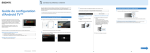
2 3 Signing in to your Google™ account with your TV Skip this step if you already signed in to your Google account with your TV during initial setup. A Google account gives you access to various Google services. If you have already created a Google account using a computer or smartphone, you can use that account to sign in. Signing in to your Google account with your TV 1 Select [Google Play Store] in [Apps] on the Home Menu. The Google account sign-in screen also appears when connecting to the Internet during initial set-up, or when launching some apps. You can download apps and games from the Google Play store to the TV, just like you do with smartphones and tablets. You can only download apps and games that are compatible with TVs. They may differ from apps and games for smartphones/tablets. 1 Creating a Google account To sign out A Google account cannot be created using your TV. Use a computer or smartphone to create one. 1 Downloading apps and games from the Google Play™ store Select [Google Play Store] in [Apps] of the Home Menu. About paid apps There are free apps and paid apps in the Google Play store. To purchase a paid app, a prepaid Google Play gift card code or credit card information is required. You can purchase a Google Play gift card from various retailers. Select [Personal] in [Settings] of the Home Menu, then delete your account from your TV. After the sign-in screen appears, follow the on-screen instructions to sign in. Follow the on-screen instructions to create a Google account. You can also create a Google account during the TV initial setup. Signing in to the TV with your SEN account A SEN account cannot be created using the TV. Use a computer or smartphone to create your account. To delete an app 2 Connect your TV to the Internet during the TV initial setup. On the [Sign in to Google] screen of the TV initial setup, select [Use your phone or laptop]. Use a computer or smartphone to visit the website below, and follow the on-screen instructions to create a Google account. g.co/AndroidTV By connecting to the Internet and signing in to the Sony Internet service, you can use various services such as the online video service and online music service. To use these services, a SEN account is required. These services are scheduled to become available after a software update in the spring of 2015. 1 Visit this website using a computer or smartphone: http://accounts.google.com/signup 2 Using the Sony Internet service Creating a SEN account Select [Google Play Store] in [Apps] of the Home Menu. Select an app to be deleted, then uninstall the app. 2 4 2 1 Visit this website using a computer or smartphone: https://account. sonyentertainmentnetwork.com 2 Select the Sony Internet service icon on the Home Menu. After the sign-in screen appears, follow the on-screen instructions to sign in. Follow the on-screen instructions to create a SEN account. Select an app or game you want to download, then install the app. The app will start downloading. The SEN account sign-in screen also appears when connecting to the Internet during initial set-up. You can sign in from this screen, too. After downloading, the app is automatically installed. Its icon appears in the Home Menu, allowing you to launch it. After signing in and pressing the HOME button of your TV remote, recommendations for you are displayed on the Home Menu. • Google, Google Play, Android TV and other marks are trademarks of Google Inc. • Some functions or services may not be available depending on the region/ country. • The information in this guide is subject to change without notice. • The Wi-Fi Protected Setup Identifier Mark is a certification mark of Wi-Fi Alliance. 5 6 7 8