1
Direct Pen Input
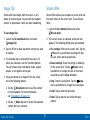
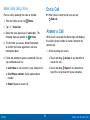
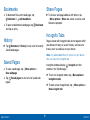
3. When you are finished writing, either tap the
Save icon to save the screen shot or tap the
Share via icon to share the image using another
app. The screen shot is saved in the Gallery app.
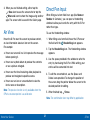
When filling out a form field in an app (like Name or
Number in Contacts), you can open a Handwriting
window to allow you to write the entry with the S Pen
rather than type.
Air View
To use the Handwriting window:
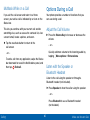
Hover the S Pen over the screen to preview content,
or view information about an item on the screen.
For example:
•
Hover over an email in a list to preview the message
before opening it.
•
Hover over a photo album to preview the contents
or see a picture enlarged.
•
Hover over the time line during video playback to
preview and navigate to specific scenes.
•
Hover over an icon or screen button to view the
item’s name or description.
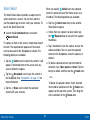
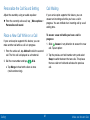
1. When filling out a form field, hover the S Pen over
Handwriting icon appears.
the field until the
2. Tap the Handwriting icon. The Handwriting window
appears.
3. Use the space provided in the window to write the
entry by hand using the S Pen. While writing, your
entries will be converted into text.
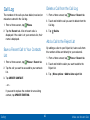
4. To edit the converted text, use the Space and
Delete icons provided. To change the position of
the cursor, drag the pointer below the cursor to the
desired position for editing.
Note: The preview function is only available when the
S Pen’s onscreen pointer is a solid color.
Know Your Device
5. When finished, tap
Done.
Note: The confirmation icon may differ by application.
28
S Pen