1
Turn it back on
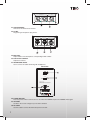
VIRTUAL DJ MIDI FUNCTION
1. SHIFT
When another button is pressed while pressing the [SHIFT] button a
different function is called out.
2. PFL
The sound of channels for which the headphones [CUE] button is
pressed is output to the headphone. [SHIFT]+Press: SAMPLE RECThis function record playback music to sampler.
2
1
3. BACK
Let you back from Folder Structure Panel to File System Panel.
3
4. LOOPPressing the LOOP- button halfs the set loop’s length.
4
5
6
7
9
8
$
$
10
$
5. LOOP+
Pressing the LOOP+ button doubles the set loop’s length.
6. FX SELECT
Press the FX SELECT button to choose which effect to apply to the
engaged track. [SHIFT]+Press : FX
ON-Pressing the FX ON button applies the effect chosen by the FX
SELECT to the currently playing/loaded track.
7. SAMPLER SELECT
This button is used to select a specific sample. [SHIFT]+Press :
SAMPLER ON-Pressing the SAMPLER ON button engages the
sampler function on your unit.
8. HOT CUE
Use the three(1-3) buttons to set cue points. [SHIFT]+Press : CUE
SET-Reset a new corresponding cue point for the hot cue.
9. PARAMETER 1
Adjust the value associated with Parameter 1 of the selected effect.
[SHIFT]+Press : PARAMETER 2-Adjust the value associated with
Parameter 2 of the selected effect.
10. MASTER TEMPO
Pressing the MASTER TEMPO button sets the tempo of the track in the corresponding channels as the
dominant tempo, against which other tracks can be set.
[SHIFT]+Press: SYBC-Pressing the SYNC sponding channel to the tempo of the track in the other channel.
Set the MASTER TEMPO, then press the SYNC button to match the tempos.
After VirtualDJ user enter interface, can see the first tab presented is the sound cord tab, here you will select
your sound card and channel assignments, we will look at the basic options for using your computers internal
sound card.
9