1
the data sent. You can also choose to copy parameters from a card to a single device or group of
devices. Both methods are described in this section.
As part of the recall process, DashBoard opens a DataSafe file, examines the card type and
software revision, and determines what devices on the network in the current Tree View that
match. The user can then select which card(s) to update with the new values.
Note — You must have an MFC-8310-N series or MFC-8320-N series installed in
the frame to recall DataSafe data or files.
Restoring a DataSafe File
This section outlines how to recall a saved DataSafe file on your DashBoard host machine to a
single type of device your network.
Use the following procedure to recall a DataSafe file:
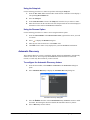
1. From the Tree View, right-click the device to update.
2. Select
to display the Restore Configuration Wizard dialog box.
3. From the Configuration Source list, select Load Parameters from a File.
4. Click Next > to display the Select Device File menu.
5. In the Configuration File field, enter the DataSafe file to download to your card or click
Browse... to navigate to the file location on your DashBoard host machine.
•
Ensure that the select file is a valid *.ogd file.
•
Information, such as the card type, slot and frame names, is displayed in the Device
Info: field. An error message will also display in this field if a card type or software
version mismatch will occur.
6. Click Next > to display the Select Destination menu. The Select Destination menu
provides a list of the compatible cards based on the card selected in step 1.
7. Select the device(s) to recall the file to:
•
From the Select Destination list, select the check box(es) for the devices you wish
to recall the file to.
•
Verify that the device(s) you wish to recall the file to. The Error/Warning fields
indicate any errors, such as incompatible software or card type mismatch.
8. Click Finish.
Restoring Parameters for a Group of Devices
You can recall all configurations for all devices in the Advanced Tree View from a *.tvc file. Card
parameters will only load from the DataSafe file if the card type matches and the software
versions are compatible.
Use the following procedure to recall parameters for a group of devices in the Advanced Tree
View:
1. From the Advanced Tree View, select the Custom Folder to recall the configuration file
for.
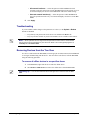
2. Select
Wizard.
from the Custom Folders toolbar to display the Restore Configuration
3. From the Configuration Source field, select Load Parameters from a File to display
the Select Device File menu.
4. To enter a filename in the Configuration File: field:
DashBoard User Manual (Iss. 5.0)
DataSafe™ • 5–5