1
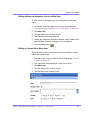
Ektron CMS200/300
User Manual
Version 4.7, Revision 1
Ektron® Inc.
5 Northern Blvd., Suite 6
Amherst, NH 03031
Tel: +1 603-594-0249
Fax: +1 603-594-0258
Email: [email protected]
http://www.ektron.com
Copyright 2004 Ektron®, Inc. All rights reserved.
EKTRON is a registered trademark of Ektron, Inc.
Version 4.7, Revision 1, September 28, 2004
For updated versions of this manual, please visit:
http://www.ektron.com/download_center.cfm
EKTRON, INC. SOFTWARE LICENSE AGREEMENT
** READ THIS BEFORE LOADING SOFTWARE**
YOUR RIGHT TO USE THE PRODUCT DELIVERED IS SUBJECT TO THE TERMS AND CONDITIONS SET OUT IN THIS LICENSE
AGREEMENT. USING THIS PRODUCT SIGNIFIES YOUR AGREEMENT TO THESE TERMS. IF YOU DO NOT AGREE TO THIS SOFTWARE
LICENSE AGREEMENT, DO NOT DOWNLOAD.
CUSTOMER should carefully read the following terms and conditions before using the software program(s) contained herein (the “Software”).
Downloading and/or using the Software or copying the Software onto CUSTOMER’S computer hard drive indicates CUSTOMER’S acceptance of
these terms and conditions. If CUSTOMER does not agree with the terms of this agreement, CUSTOMER should not download.
Ektron, Inc. (“Ektron”) grants, and the CUSTOMER accepts, a nontransferable and nonexclusive License to use the Software on the following
terms and conditions:
1. Right to use: The Software is licensed for use only in delivered code form. Each copy of the Software is licensed for use only on a single
URL. Each license is valid for the number of seats listed below (the “Basic Package”). Any use of the Software beyond the number of authorized
seats contained in the Basic Package without paying additional license fees as provided herein shall cause this license to terminate. Should
CUSTOMER wish to add seats beyond the seats licensed in the Basic Package, the CUSTOMER may add seats on a block basis at the then
current price for additional seats (see product pages for current price). The Basic Packages are as follows:
Ektron eMPower for ColdFusion -- Licensed for ten seats (10 named users) per URL.
Ektron CMS100 -- Licensed for five seats (5 named users) per URL.
Ektron CMS200 -- Licensed for ten seats (10 named users) per URL.
Ektron CMS300 -- Licensed for ten seats (10 named users) per URL.
Ektron eWebEditPro -- Licensed for ten seats (10 named users) per URL.
Ektron eWebEditPro+XML — Licensed for ten seats (10 named users) per URL.
Ektron eWebWP — Licensed for unlimited seats per URL.
For purposes of this section, the term “seat” shall mean an individual user provided access to the capabilities of the Software.
The CUSTOMER may not modify, alter, reverse engineer, disassemble, or decompiler the Software. This software product is licensed, not sold.
2. Duration: This License shall continue so long as CUSTOMER uses the Software in compliance with this License. Should CUSTOMER
breach any of its obligations hereunder, CUSTOMER agrees to return all copies of the Software and this License upon notification and demand by
Ektron.
3. Copyright: The Software (including any images, “applets,” photographs, animations, video, audio, music and text incorporated into the
Software) as well as any accompanying written materials (the “Documentation”) is owned by Ektron or its suppliers, is protected by United States
copyright laws and international treaties, and contains confidential information and trade secrets. CUSTOMER agrees to protect the confidentiality
of the Software and Documentation. CUSTOMER agrees that it will not provide a copy of this Software or Documentation nor divulge any
proprietary information of Ektron to any person, other than its employees, without the prior consent of Ektron; CUSTOMER shall use its best efforts
to see that any user of the Software licensed hereunder complies with this license.
4. Limited Warranty: Ektron warrants solely that the medium upon which the Software is delivered will be free from defects in material and
workmanship under normal, proper and intended usage for a period of three (3) months from the date of receipt. Ektron does not warrant the use
of the Software will be uninterrupted or error free, nor that program errors will be corrected. This limited warranty shall not apply to any error or
failure resulting from (i) machine error, (ii) Customer's failure to follow operating instructions, (iii) negligence or accident, or (iv) modifications to the
Software by any person or entity other than Company. In the event of a breach of warranty, Customer’s sole and exclusive remedy, is repair of all
or any portion of the Software. If such remedy fails of its essential purpose, Customer’s sole remedy and Ektron’s maximum liability shall be a
refund of the paid purchase price for the defective Products only. This limited warranty is only valid if Ektron receives written notice of breach of
warranty within thirty days after the warranty period expires.
5. Limitation of Warranties and Liability: THE SOFTWARE AND DOCUMENTATION ARE SOLD “AS IS” AND WITHOUT ANY
WARRANTIES AS TO THE PERFORMANCE, MERCHANTIBILITY, DESIGN, OR OPERATION OF THE SOFTWARE. NO WARRANTY OF
FITNESS FOR A PARTICULAR PURPOSE IS OFFERED. EXCEPT AS DESCRIBED IN SECTION 4, ALL WARRANTIES EXPRESS AND
IMPLIED ARE HEREBY DISCLAIMED.
NEITHER COMPANY NOR ITS SUPPLIERS SHALL BE LIABLE FOR ANY LOSS OF PROFITS, LOSS OF BUSINESS OR GOODWILL, LOSS
OF DATA OR USE OF DATA, INTERRUPTION OF BUSINESS NOR FOR ANY OTHER INDIRECT, SPECIAL, INCIDENTAL, OR
CONSEQUENTIAL DAMAGES OF ANY KIND UNDER OR ARISING OUT OF, OR IN ANY RELATED TO THIS AGREEMENT, HOWEVER,
CAUSED, WHETHER FOR BREACH OF WARRANTY, BREACH OR REPUDIATION OF CONTRACT, TORT, NEGLIGENCE, OR OTHERWISE,
EVEN IF COMPANY OR ITS REPRESENTATIVES HAVE BEEN ADVISED OF THE POSSIBILITY OF SUCH LOSS.
6. Miscellaneous: This License Agreement, the License granted hereunder, and the Software may not be assigned or in any way transferred
without the prior written consent of Ektron. This Agreement and its performance and all claims arising from the relationship between the parties
contemplated herein shall be governed by, construed and enforced in accordance with the laws of the State of New Hampshire without regard to
conflict of laws principles thereof. The parties agree that any action brought in connection with this Agreement shall be maintained only in a court
of competent subject matter jurisdiction located in the State of New Hampshire or in any court to which appeal therefrom may be taken. The parties
hereby consent to the exclusive personal jurisdiction of such courts in the State of New Hampshire for all such purposes. The United Nations
Convention on Contracts for the International Sale of Goods is specifically excluded from governing this License. If any provision of this License is
to be held unenforceable, such holding will not affect the validity of the other provisions hereof. Failure of a party to enforce any provision of this
Agreement shall not constitute or be construed as a waiver of such provision or of the right to enforce such provision. If you fail to comply with any
term of this License, YOUR LICENSE IS AUTOMATICALLY TERMINATED. This License represents the entire understanding between the parties
with respect to its subject matter.
YOU ACKNOWLEDGE THAT YOU HAVE READ THIS AGREEMENT, THAT YOU UNDERSTAND THIS AGREEMENT, AND UNDERSTAND
THAT BY CONTINUING THE INSTALLATION OF THE SOFTWARE, BY LOADING OR RUNNING THE SOFTWARE, OR BY PLACING OR
COPYING THE SOFTWARE ONTO YOUR COMPUTER HARD DRIVE, YOU AGREE TO BE BOUND BY THIS AGREEMENT’S TERMS AND
CONDITIONS. YOU FURTHER AGREE THAT, EXCEPT FOR WRITTEN SEPARATE AGREEMENTS BETWEEN EKTRON AND YOU, THIS
AGREEMENT IS A COMPLETE AND EXCLUSIVE STATEMENT OF THE RIGHTS AND LIABILITIES OF THE PARTIES.
Copyright 1999 - 2003 Ektron, Inc. All rights reserved.
LA10031, Revision 1.4
Table of Contents
Introduction to Ektron CMS200/300...................................1
What is a Content Block? ........................................................... 1
The Button Menu ............................................................................... 2
Workflow in Ektron CMS200/300 ................................................ 3
Editing a Content Block .............................................................. 3
Finding a Content Block .................................................................... 3
The Editing Process .......................................................................... 4
The Lifecycle of a Content Block ............................................... 5
Logging In and Out .............................................................6
Prerequisites ................................................................................ 6
Logging into the Sample Web Site............................................. 6
Site Preview.................................................................................. 8
Toggling Site Preview ........................................................................ 8
Logging Out of the Sample Site ................................................. 9
The Button Menu ...............................................................11
Meaning of Border Color........................................................... 12
Preview ....................................................................................... 13
The Workarea and Smart Desktop...................................14
Accessing the Workarea ........................................................... 14
Closing the Workarea ...................................................................... 15
Understanding the Smart Desktop ........................................... 15
Navigating Within the Smart Desktop...................................... 18
Modify the Display of Top Level Folders.......................................... 19
Hide the Left Panel of the Workarea ............................................... 21
Workarea Toolbar....................................................................... 23
Working with Folders and Content Blocks .....................27
Viewing a Folder ........................................................................ 29
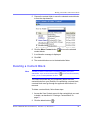
Viewing a Content Block ........................................................... 31
Properties ........................................................................................ 34
Adding a Content Block ............................................................ 34
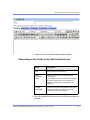
Responding to the Fields on the Add Content Screen .................... 36
Options on the Add Content Screen................................................ 37
Editing a Content Block ............................................................ 38
Editing a Content Block ................................................................... 38
Ektr on CM S2 00/30 0 U se r Man ual, Ver sion 4.7, Re vi sion 1
v
Moving Content.......................................................................... 39
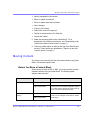
Before You Move a Content Block................................................... 39
Which Content Blocks Can Be Moved?........................................... 40
What is Moved?............................................................................... 40
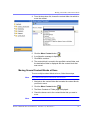
Moving a Content Block................................................................... 40
Moving Several Content Blocks at Once ......................................... 41
Deleting a Content Block .......................................................... 42
Checking for Broken Quicklinks....................................................... 43
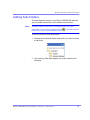
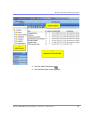
Adding Sub-Folders .................................................................. 44
Deleting Folders......................................................................... 47
Adding a Content Block Summary ..................................48
Creating Summaries .................................................................. 48
Creating a Summary on a New Content Block ................................ 49
Creating a Summary for an Existing Content Block ........................ 50
Editing a Summary .................................................................... 50
Adding or Editing Metadata..............................................52
What is Metadata? ..................................................................... 52
Editing Metadata.............................................................................. 52
Viewing the Source of the Web page .............................................. 54
Editing the Metadata for an Existing Content Block......................... 55
Scheduling Content to Begin and End............................58
How Does It Work? .................................................................... 58
Setting a Start Date.................................................................... 58
What Happens After I Set a Start Date? .......................................... 60
Setting an End Date on a Content Block ................................. 61
What Happens After I Set an End Date? ......................................... 62
Approving/Declining Content Blocks..............................63
Approve/Decline One Content Block ....................................... 65
Approve Multiple Content Blocks ............................................ 68
Selecting Multiple Submitted Content Blocks .................................. 68
Approving Several Content Blocks .................................................. 69
Example of an Approval Chain ................................................. 70
Creating a Content Block................................................................. 70
First Approver .................................................................................. 73
Second Approver............................................................................. 76
Review ........................................................................................ 78
Content Workflow Reports ...............................................79
Accessing Reports Folder ........................................................ 79
Ektr on CM S2 00/30 0 U se r Man ual, Ver sion 4.7, Re vi sion 1
vi
Accessing the Reports Folder .................................................. 79
Information on the Report................................................................ 81
Sorting and Filtering Content Reports..................................... 81
Sorting by Column Heading............................................................. 82
Filter by User ................................................................................... 82
Filter by Content Folder ................................................................... 82
Performing an Action on Several Content Blocks............................ 82
Viewing/Editing Content Blocks on the Report ................................ 83
Approvals Reports..................................................................... 84
Approving/Declining Content Blocks ............................................... 85
Checked In Report ..................................................................... 86
Checked In Report ..................................................................... 86
Submitting Multiple Content Blocks ................................................. 86
Checked Out Report .................................................................. 87
New Content Report .................................................................. 87
Submitted Report....................................................................... 88
Viewing Position in Approval Chain ................................................. 88
Content Pending Start Date Report.......................................... 89
Editing Content with a Pending Start Date ...................................... 89
Expired Content Report ............................................................ 90
Editing Expired Content................................................................... 90
Content to Expire Report .......................................................... 90
Selecting the Report’s Date Range ................................................. 91
Viewing and Restoring Previous Content Blocks ..........92
Accessing Content History ....................................................... 92
Accessing the Content History from a Web page ............................ 93
The Content History Window.................................................... 93
Viewing a Historical Version of a Content Block .................... 94
Restoring a Previous Version ................................................... 96
Comparing Historical Versions................................................. 96
Removing Applied XSLT ........................................................... 97
Comparing Versions of a Content Block.........................99
Introduction................................................................................ 99
When Can I Compare Content? ................................................ 99
The Compare Content Window............................................... 100
Toolbar........................................................................................... 101
Content Area ................................................................................. 104
View Tabs ...................................................................................... 104
First Use of the View Content Difference Feature ................ 105
Inserting Comments within Content................................... 106
Adding Comments to Content ................................................ 107
Viewing a Comment................................................................. 108
Ektr on CM S2 00/30 0 U se r Man ual, Ver sion 4.7, Re vi sion 1
vii
Adding Another Comment ...................................................... 109
Updating a Comment............................................................... 109
Library Folder .................................................................. 111
Terms Used in this Chapter .................................................... 111
Accessing The Library ............................................................ 112
Library Folder Properties ................................................................113
Searching the Library .............................................................. 115
Files........................................................................................... 116
Viewing Files ..................................................................................119
Editing a File’s Title........................................................................ 122
Overwriting Files............................................................................ 123
Adding a File to Your Content........................................................ 124
Hyperlinks ................................................................................ 128
Adding Hyperlinks.......................................................................... 128
Viewing Hyperlinks ........................................................................ 128
Editing Hyperlinks.......................................................................... 128
Adding Hyperlinks to Your Content................................................ 128
Images ...................................................................................... 128
Uploading Images.......................................................................... 128
Viewing Images ............................................................................. 129
Editing Image Titles ....................................................................... 129
Overwriting Images........................................................................ 129
Adding Images to Your Content..................................................... 129
Quicklinks................................................................................. 130
Adding a Quicklink to Content ....................................................... 130
Viewing Quicklinks......................................................................... 130
Modules Folder................................................................132
Accessing Modules Folder ..................................................... 132
Working with Collections ...............................................135
Finding Collections ................................................................. 136
Finding a Collection by Navigating to its Content Folder ............... 136
Finding a Collection Using the Collections Folder ......................... 137
Viewing a Collection ................................................................ 139
Collections Toolbar ........................................................................ 140
Creating a Collection ............................................................... 140
Adding a Collection........................................................................ 141
Assigning Content Blocks to the Collection ................................... 143
Editing Content Blocks in a Collection.................................. 147
Adding Content Blocks to the Collection ....................................... 147
Removing Content Blocks from the Collection .............................. 147
Reordering Collections List .................................................... 148
Editing Collection Information ............................................... 148
Ektr on CM S2 00/30 0 U se r Man ual, Ver sion 4.7, Re vi sion 1
viii
Deleting a Collection ............................................................... 149
Working with Calendars .................................................150
Understanding Calendars ....................................................... 151
Understanding Event Types .......................................................... 152
Organization of this Chapter.......................................................... 153
Accessing the List of Calendars ............................................ 153
Viewing a Calendar .................................................................. 157
Viewing a Calendar Event ....................................................... 159
Adding a Calendar Event ........................................................ 161
Adding a Recurring Event.............................................................. 164
Adding a New Content Block for a Calendar Event.............. 166
Editing Calendar Events.......................................................... 169
Deleting Calendar Events........................................................ 171
Working with Menus .......................................................172
What’s In This Chapter ............................................................ 173
The Structure of Menus and Menu Items............................... 173
Access to the Menus Feature........................................................ 174
Working with Menus ................................................................ 175
Adding a New Menu ...................................................................... 175
Adding a Menu Item ...................................................................... 178
Editing a Menu............................................................................... 183
Editing a Menu Item....................................................................... 185
Viewing a Menu ............................................................................. 190
Deleting a Menu ............................................................................ 195
Deleting a Menu Item .................................................................... 196
Updating Your User Profile.............................................198
Viewing Your Profile ................................................................ 198
Accessing Online Help ...................................................203
Searching for Content.....................................................207
Search Options ........................................................................ 207
All the Words ................................................................................. 208
Any of the Words ........................................................................... 208
Exact Phrase ................................................................................. 208
Match Partial Words ...................................................................... 208
Introduction to eWebEditPro..........................................209
Using eWebEditPro .................................................................................. 210
Organization of this Documentation ...................................... 210
Ektr on CM S2 00/30 0 U se r Man ual, Ver sion 4.7, Re vi sion 1
ix
Creating a Simple Web Page..........................................211
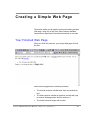
Your Finished Web Page ......................................................... 211
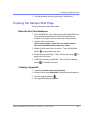
Creating the Sample Web Page .............................................. 212
Toolbar Buttons...............................................................215
Selecting Text........................................................................... 215
Applying Formatting Attributes to Text ................................. 216
Table of Toolbar Buttons and Drop-Down Lists.................... 216
Position Objects Options ............................................................... 222
Text Direction Options ................................................................... 223
Form Elements Toolbar ................................................................. 224
Buttons of the Form Elements Toolbar .......................................... 225
The Context Sensitive Menu ..........................................230
Using eWebEditPro’s Advanced Features ....................233
Copying from Other Applications....................................... 234
Finding and Replacing Text ................................................ 235
Finding Text.............................................................................. 235
Finding and Replacing Text .................................................... 235
Additional Options on the Dialog Box ................................... 236
Specifying a Search Direction........................................................ 236
Considering the Case of a Search Term........................................ 237
Whole Word Match ........................................................................ 238
Checking Spelling ................................................................ 239
Disabling Script Blocking ....................................................... 239
Checking Spelling as You Type .............................................. 239
Checking Spelling Upon Demand .......................................... 240
Spell Checking Selected Text ........................................................ 241
Setting Spell Check Options................................................... 242
Editing in Microsoft Word.................................................... 244
Uploading an Image in a Microsoft Word Document............ 245
Editing XML Documents.......................................................... 245
Inserting Images................................................................... 247
Using the First Picture Properties Dialog Box ...................... 248
Inserting a Picture from the Server................................................ 249
Inserting a Picture from Your Computer ........................................ 250
Using the Second Media Selection Dialog Box..................... 252
Adjusting a Picture......................................................................... 253
Pixels ............................................................................................. 254
Setting a Border............................................................................. 255
Aligning the Picture........................................................................ 256
Resetting Width, Height, Border Thickness, and Alignment .......... 257
Ektr on CM S2 00/30 0 U se r Man ual, Ver sion 4.7, Re vi sion 1
x
Adding Space around the Picture .................................................. 258
Editing the Picture’s Title ............................................................... 259
The Options Button........................................................................ 259
Moving an Image to the Server............................................... 260
Deleting a Picture .................................................................... 261
Editing Images...................................................................... 262
Using WebImageFX ................................................................. 262
Saving the Image........................................................................... 264
Toolbar Buttons and Menu Commands ................................. 264
Blur ................................................................................................ 268
Brightness...................................................................................... 269
Choose Color................................................................................. 270
Choose Font .................................................................................. 271
Color Depth ................................................................................... 272
Contrast ......................................................................................... 273
Copy .............................................................................................. 274
Create New.................................................................................... 274
Crop............................................................................................... 274
Delete ............................................................................................ 275
Dimensions.................................................................................... 275
Exit ................................................................................................ 276
Exit without Save ........................................................................... 277
Freehand ....................................................................................... 277
Horizontal Flip................................................................................ 278
Image Info...................................................................................... 278
Line................................................................................................ 279
Open.............................................................................................. 280
Oval ............................................................................................... 281
Paste as New Image ..................................................................... 282
Pointer Selection ........................................................................... 282
Polygon.......................................................................................... 283
Rectangle ...................................................................................... 284
Redo .............................................................................................. 284
Reset Zoom Ratio.......................................................................... 285
Rotate ............................................................................................ 285
Save .............................................................................................. 286
Save As ......................................................................................... 287
Select............................................................................................. 288
Sharpen ......................................................................................... 288
Text ................................................................................................ 289
Twain Acquire ................................................................................ 291
Twain Source................................................................................. 291
Undo .............................................................................................. 292
Vertical Flip .................................................................................... 292
Zoom In ......................................................................................... 292
Zoom Out....................................................................................... 293
Specifying Color Depth ........................................................... 293
Ektr on CM S2 00/30 0 U se r Man ual, Ver sion 4.7, Re vi sion 1
xi
Introduction to Tables.......................................................... 294
Creating a Table ....................................................................... 295
Deleting a Table ....................................................................... 296
Inserting a Table within a Table .............................................. 296
Table Dialog Boxes and Menus .......................................... 298
The Insert Table Menu ............................................................. 298
The Table Properties Dialog Box............................................ 300
The Cell Properties Dialog Box .............................................. 302
The Table Context Sensitive Menu......................................... 304
Manipulating Your Table’s Format ...................................... 307
Choosing the Number of Rows and Columns....................... 307
Specifying Table Width............................................................ 309
Specifying Table Width by Percentage .......................................... 310
Specifying Table Width by Pixels ................................................... 312
Specifying Horizontal Alignment............................................ 313
Table Backgrounds.................................................................. 315
Specifying a Table’s Background Color ......................................... 315
Specifying a Background Image for a Table .................................. 316
Setting Table Borders.............................................................. 318
Assigning Border Color.................................................................. 318
Assigning Border Size ................................................................... 320
Working with Table Cells ..................................................... 322
Specifying the Width of a Cell ................................................ 322
Inserting a Cell ......................................................................... 324
Deleting a Cell .......................................................................... 325
Setting a Cell’s Border Color .................................................. 326
Specifying a Cell’s Background Color ................................... 328
Specifying a Background Image for a Cell ............................ 329
Using the Color Box....................................................................... 331
Spanning Rows or Columns ................................................... 332
Spanning More than One Row or Column..................................... 333
Aligning Text Within a Cell...................................................... 335
Setting Horizontal Alignment ......................................................... 335
Setting Vertical Alignment.............................................................. 338
Splitting a Cell .......................................................................... 341
Merging Two Cells ................................................................... 342
Word Wrap................................................................................ 343
Setting Cell Padding and Spacing.......................................... 345
Using Bookmarks................................................................. 347
Creating a Bookmark............................................................... 347
Changing the Destination Window......................................... 349
Using Hyperlinks.................................................................. 351
Creating a Hyperlink ................................................................ 351
Using a Quick Link......................................................................... 352
Ektr on CM S2 00/30 0 U se r Man ual, Ver sion 4.7, Re vi sion 1
xii
Entering a Hyperlink Manually....................................................... 353
Testing a Hyperlink .................................................................. 354
Creating a Hyperlink to a Location Within a Web Page ....... 354
Editing a Hyperlink .................................................................. 356
Removing a Hyperlink ............................................................. 356
Preventing a URL from Becoming a Hyperlink ..................... 356
Working with HTML.............................................................. 357
Viewing and Editing HTML...................................................... 357
Editing a Section of a Page .......................................................... 358
Inserting HTML......................................................................... 358
Cleaning HTML......................................................................... 359
Inserting Content from MS Office 2000.................................. 360
Section 508 Compliance .................................................361
Moving the Cursor into eWebEditPro .................................... 361
Using eWebEditPro without a Mouse .................................... 361
Section 508 Tables................................................................... 364
Appendix A: Content Statuses.......................................367
Active Content ......................................................................... 368
Checked-In Content................................................................. 368
Checked Out Content .............................................................. 371
Submitted Content................................................................... 371
Marked for Deletion Content................................................... 373
Pending Start Date Content .................................................... 374
Staged Content ........................................................................ 374
Ektr on CM S2 00/30 0 U se r Man ual, Ver sion 4.7, Re vi sion 1
xiii
Ektr on CM S2 00/30 0 U se r Man ual, Ver sion 4.7, Re vi sion 1
xiv
Introduction to Ektron CMS200/300
Introduction to Ektron CMS200/
300
Using Ektron CMS200/300 to manage Web content is easy once
you know the basics of setting up and maintaining your site. This
manual explains how to maintain an Ektron CMS200/300 site from
a user’s point of view. By reading this manual, you will gain an
understanding of how Ektron CMS200/300 works.
This section introduces basic concepts that you should understand
before beginning to work with Ektron CMS200/300.
What is a Content Block?
Any Web site consists of several pages. Each page is made up of
one or more blocks of content. For example, the home page of the
sample Web site that is installed with Ektron CMS200/300 is below.
After sign in, notice that, as you move the cursor, colored borders
appears around one or more area of the page. Each surrounded
Ektr on CM S2 00/30 0 U se r Man ual, Ver sion 4.7, Re vi sion 1
1
Introduction to Ektron CMS200/300
area is a content block that can be edited independently. The
border disappears when you move the cursor out of the area. Your
system administrator controls the design of each page and
determines which content blocks appear in which location.
NOTE
The colored borders only appear in site preview mode. See Also: ”Site Preview”
on page 8.
The advantage of this feature is that you can see a Web page as it
will appear to visitors to your site. Continue editing until you are
satisfied with its appearance.
The Button Menu
When a content block’s border is visible, you can right click the
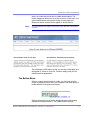
mouse to display a button menu (an example is the small group of
toolbar buttons in the green box below).
Toolbar buttons let you act on the displayed content and display
important information about it. The toolbar buttons change
Ektr on CM S2 00/30 0 U se r Man ual, Ver sion 4.7, Re vi sion 1
2
Introduction to Ektron CMS200/300
depending on the content block’s status or your permissions for the
content block. For example, one toolbar button lets you edit the
content block, while another lets you view previous versions of it.
If granted permission by your administrator, you can create new
content blocks, and edit or delete existing ones. Most of your work
with Ektron CMS200/300 involves working with content blocks.
Workflow in Ektron CMS200/300
Organizations typically want a Web site that is updated frequently
with the latest information. They also want to decentralize the
updating process, so that non-technical users from any department
can make changes. Further, organizations want oversight over
those changes to ensure the accuracy of the information, that the
content adheres to corporate guidelines, etc.
Ektron CMS200/300 manages the lifecycle of a content block, from
creation through approval and publication. It helps your
organization set up a process for overseeing changes to a Web
site, indicate a content block’s status within that lifecycle, and
inform the next approver that it is their turn to review a content
block.
Editing a Content Block
Finding a Content Block
Much of your work involves editing existing content or creating new
content. Ektron CMS200/300 provides three methods for finding
content to be updated. You can use whichever method is easiest.
• Navigate through your Web site to the content block you want
to edit
• Find the content block through the Workarea, which resembles
Windows Explorer and lets you find a content block by
navigating through a folder tree. See Also: ”The Workarea and
Smart Desktop” on page 14
Ektr on CM S2 00/30 0 U se r Man ual, Ver sion 4.7, Re vi sion 1
3
Introduction to Ektron CMS200/300
• Use the Search button (
), which appears on many screens.
When clicked, a screen prompts you to enter keywords and
then finds content blocks containing the keywords. See Also:
”Searching for Content” on page 207
The Editing Process
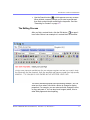
After you find a content block, click the Edit button ( ) to open it
in an editor. Below is an example of a content block in the editor.
The editor resembles popular word processing software. You can
enter text, then select it and click a button to change its display
properties. For example, you can make text bold, change the color,
or copy and paste it. You can also insert images, tables, links to
other Web pages and check spelling,
Ektr on CM S2 00/30 0 U se r Man ual, Ver sion 4.7, Re vi sion 1
4
Introduction to Ektron CMS200/300
The Lifecycle of a Content Block
After you edit the content block, you typically submit it for approval
by one or more individuals who oversee changes to your Web site.
These people can review, edit and approve the change. When the
last approver signs off, the new content becomes available on the
Web site.
In some cases, you are one of the content approvers. In this case,
you receive an email notifying you that a content block needs
approval. You look it over, change it as needed, then pass it on to
the next approver. If you do not agree with the changes, you can
decline the request. In this case, the user who made the edits is
informed that the change is not approved.
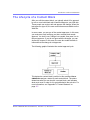
The following graphic illustrates the content approval cycle.
To help track a content block’s position in this workflow, Ektron
CMS200/300 assigns a status to each content block. The status
determines what you can do with a content block, and indicates
what must occur in order for it to get published to the web site. For
more information, see ”Appendix A: Content Statuses” on
page 367.
Ektr on CM S2 00/30 0 U se r Man ual, Ver sion 4.7, Re vi sion 1
5
Logging In and Out
Logging In and Out
This section explains how to log in and out of Ektron CMS200/300,
and to use the site preview feature.
Prerequisites
Once your Webmaster or administrator installs Ektron CMS200/
300, you need the following items before you can use it.
• URL (Web address) of Ektron CMS200/300 Web site
• Username and Password
Once you acquire both, you can log into Ektron CMS200/300 and
begin managing Web site content.
NOTE
This manual uses the Ektron CMS200/300 sample Web site to demonstrate the
product.
Logging into the Sample Web Site
To access the Ektron CMS200/300 sample site:
1. In your Web browser, navigate to the URL of your Ektron
CMS200/300 Web site. Your system administrator provides
this.
2. Click Login at the top right corner of the screen.
Ektr on CM S2 00/30 0 U se r Man ual, Ver sion 4.7, Re vi sion 1
6
Logging In and Out
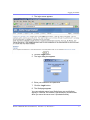
3. The login screen appears.
4. Click the Login button.
5. The login dialog box appears.
6. Enter your username and password.
7. Click the Login button.
8. The Web page appears.
You can navigate around your Web site as you could before
signing in. But now, the content is surrounded by a colored box
when you move the cursor over it (illustrated below).
Ektr on CM S2 00/30 0 U se r Man ual, Ver sion 4.7, Re vi sion 1
7
Logging In and Out
Site Preview
While logged into Ektron CMS200/300, you can preview the Web
site as it would appear to visitors, or view it in Ektron CMS200/300
view.
Button
Name
Description
Preview On
Content blocks appear as last edited.
Preview Off
The most recently published versions of content blocks
appear.
In this mode, colored borders surround content blocks when
you move the cursor over them.
Toggling Site Preview
To toggle site preview on and off, follow these steps.
1. Navigate to your login screen.
2. The Logout, Workarea, and Preview buttons appear.
Ektr on CM S2 00/30 0 U se r Man ual, Ver sion 4.7, Re vi sion 1
8
Logging In and Out
3. Click on the Preview button.
4. The Web site is now in preview mode.
5. To turn preview mode off, click the (
login screen.
) button on the
Logging Out of the Sample Site
To log out of Ektron CMS200/300, follow these steps.
1. Click the Logout button (
or click the Preview button (
Ektr on CM S2 00/30 0 U se r Man ual, Ver sion 4.7, Re vi sion 1
) in a content block’s button menu,
).
9
Logging In and Out
2. The Logout confirmation box appears:
3. Click the Logout button.
4. You return to the Web page from which you logged out.
However, it is in standard view, not Ektron CMS200/300 view.
Ektr on CM S2 00/30 0 U se r Man ual, Ver sion 4.7, Re vi sion 1
10
The Button Menu
The Button Menu
Every block of content in Ektron CMS200/300 has a button menu
(circled in red below).When a content block’s border is visible, you
can right click the mouse to display a button menu (an example is
the small group of toolbar buttons in the green box below).
Use the button menu to perform tasks and display important
information. The menu buttons change depending on the status of
the content block or your permission level for the content block.
See Also: ”Appendix A: Content Statuses” on page 367.
NOTE
Permissions are explained in the Ektron CMS200/300 Administrator manual.
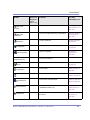
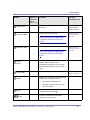
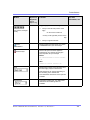
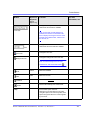
The following table describes each button that may appear.
Button
Name
Description
More Information
Approve
Approve or decline a request to
publish or delete a content block
”Approving/Declining
Content Blocks” on
page 62
Assign Task
Assign a task to a user
”Managing Tasks” on
page 173
Delete
Submit request to delete content
block
”Deleting a Content
Block” on page 42
Ektr on CM S2 00/30 0 U se r Man ual, Ver sion 4.5, Re vi sion 3
11
The Button Menu
Button
Name
Description
More Information
Edit
Check out content block for editing
”Editing a Content Block”
on page 38
Logout
Log out of Ektron CMS200/300 view
of Web site
”Logging Out of the
Sample Site” on page 9
Preview
Preview content block before it is
published
Properties
Open content block’s View Content
page
”Viewing a Content Block”
on page 31
View
Content
Difference
Display differences between a
previous and published version of
content block
”Comparing Versions of a
Content Block” on
page 99
View History
Open View History area, where you
can view previous versions of content
block
”Viewing and Restoring
Previous Content Blocks”
on page 81
Workarea
Opens Workarea, from which you can
perform all Ektron CMS200/300
tasks.
”The Workarea and
Smart Desktop” on
page 14
Meaning of Border Color
Each border color indicates the status of the content block. These
colors are explained in ”Appendix A: Content Statuses” on
page 416.
To see a more detailed status of any Ektron CMS200/300 content
block, hover your cursor over the properties button. If you do, the
content block’s title and current status appear (illustrated below).
Ektr on CM S2 00/30 0 U se r Man ual, Ver sion 4.5, Re vi sion 3
12
The Button Menu
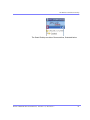
Preview
The Preview button lets you preview the currently checked in
content. When you click the button, a new window opens with the
content block that has been edited but not yet published. You can
see how the content block will appear on the Web site.
You can only preview a content block that you checked in.
Ektr on CM S2 00/30 0 U se r Man ual, Ver sion 4.5, Re vi sion 3
13
The Workarea and Smart Desktop
The Workarea and Smart
Desktop
The Workarea is a central screen from which you can perform all
activities within Ektron CMS200/300. From it, you can
• access the Smart Desktop
• view the system’s top level folders
• navigate through the folder structure
• perform actions on content blocks
Accessing the Workarea
To access your workarea, follow these steps.
1. Click the workarea button at the bottom of the screen
or click the workarea button (
menu.
) in a content block’s button
2. The workarea appears
Ektr on CM S2 00/30 0 U se r Man ual, Ver sion 4.7, Re vi sion 1
14
The Workarea and Smart Desktop
3. The following illustrates one of several screens that may
appear in the Workarea. You system administrator determines
which screen appears for you.
Closing the Workarea
To close the workarea, click
in the upper right corner of the
window. When you close the workarea, you return to the Ektron
CMS200/300 view of your Web site. You do not exit Ektron
CMS200/300.
Understanding the Smart Desktop
The Smart Desktop is one of Ektron CMS200/300’s main screens.
To access it from wherever you are working in Ektron CMS200/300,
click the button in the top left corner (circled below).
Ektr on CM S2 00/30 0 U se r Man ual, Ver sion 4.7, Re vi sion 1
15
The Workarea and Smart Desktop
The Smart Desktop consists of three sections, illustrated below.
Ektr on CM S2 00/30 0 U se r Man ual, Ver sion 4.7, Re vi sion 1
16
The Workarea and Smart Desktop
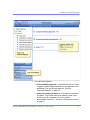
• The right frame displays
- Content awaiting approval - content blocks that you need
to approve before they proceed to the next approver or be
published if you are the final approver. See Also:
”Approvals Reports” on page 84
- Content currently checked out - all content in a checkedout status. This content cannot be edited by other users
until the user who checked it out or the system
administrator checks it in. See Also: ”Checked Out Report”
on page 87
Ektr on CM S2 00/30 0 U se r Man ual, Ver sion 4.7, Re vi sion 1
17
The Workarea and Smart Desktop
- A list of tasks assigned to you See Also: ”Managing Tasks”
on page 173
NOTE
The number to the right of each category lists the quantity of content blocks in that
category for you. When you click an item, up to five content blocks in a category
appear. To perform tasks on those content blocks, and to view additional blocks in
that category, click the category.
If you select a folder from the left frame, the right frame
displays content blocks in that folder. If you select a content
block from the list, information about it fills the right frame.
• The top left frame displays the folder tree for the Smart
Desktop folder, which has two sub-folders
- Tasks (See ”Managing Tasks” on page 173)
- Content Reports (see ”Content Workflow Reports” on
page 79)
• To bottom left frame displays the top-level folders in Ektron
CMS200/300. Your display may be different depending on
whether or not you are an administrator.
- Forms folder
- ”Working with Folders and Content Blocks” on page 27
- ”Library Folder” on page 111
- ”Modules Folder” on page 132
- Administrate folder, which includes ”Updating Your User
Profile” on page 198 and ”Accessing Online Help” on
page 203
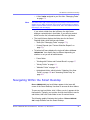
Navigating Within the Smart Desktop
Ektron CMS200/300’s top level folders appear in the lower left
corner of the Smart Desktop. Use them to access all other folders.
To open any top level folder, click it. When you do, it appears in the
frame above. Typically, you would a click top-level folder to see its
sub-folders, then click a sub-folder to see its content blocks.
The following graphic illustrates the location of Ektron CMS200/
300’s major features from the Smart Desktop.
Ektr on CM S2 00/30 0 U se r Man ual, Ver sion 4.7, Re vi sion 1
18
The Workarea and Smart Desktop
From the Smart Desktop, you can also:
• ”Modify the Display of Top Level Folders” on page 19
• ”Hide the Left Panel of the Workarea” on page 21
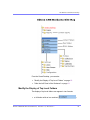
Modify the Display of Top Level Folders
The display of top level folders can appear in two formats:
• a full button with an icon and text (
Ektr on CM S2 00/30 0 U se r Man ual, Ver sion 4.7, Re vi sion 1
)
19
The Workarea and Smart Desktop
• just an icon on the bottom of the left frame
(
The full display is easier to see, but the icon format allows more
space for the folder structure. You can decide which option best
suits your needs.
Switching Between Full Buttons and Icons
By default, top-level folders appear as full buttons. To switch the
display of all folders to icons, double click the down arrow circled
below.
To switch back to full buttons, double click the up arrow circled
above.
You can also switch the display of the folders one at a time by
clicking the up or down arrow.
As an alternative method of switching the display, you can
1. Place the cursor on the bar above the display of top-level
folders. (The bar has several dots in the middle.)
2. When the cursor turns to a double headed arrow, drag it to the
bottom bar.
To return the display to full buttons, drag the same bar above.
Ektr on CM S2 00/30 0 U se r Man ual, Ver sion 4.7, Re vi sion 1
20
The Workarea and Smart Desktop
Hide the Left Panel of the Workarea
You can hide the left frame of the Workarea to provide more space
for working in the right frame. Below is an example of the
Workarea with a minimized left frame. Note that you cannot see
the folder display in the left frame.
To minimize the left frame, click the white X near the top of the left
frame.
Ektr on CM S2 00/30 0 U se r Man ual, Ver sion 4.7, Re vi sion 1
21
The Workarea and Smart Desktop
The left frame remains minimized until you move the cursor to the
left of the bar circled below.
Using Auto Hide
The Workarea screen also provides an autohide feature, which
quickly switches between full right frame view and combination
right-left frame view.
When autohide is turned on, the left frame is minimized unless you
place the cursor to the left of the bar circled above. If you place the
cursor there, the left frame appears. As soon as you move the
cursor back to the right frame, the left frame disappears.
Ektr on CM S2 00/30 0 U se r Man ual, Ver sion 4.7, Re vi sion 1
22
The Workarea and Smart Desktop
To turn on the autohide feature, click the push pin icon near the top
of the left frame.
When you do, the push pin turns 90 degrees to indicate autohide is
on.
To turn off autohide, move the cursor to the left frame and click the
push pin icon. When you do, the push pin returns to its original
position.
Workarea Toolbar
The top of many workarea screens feature a toolbar that contains
buttons for performing actions. This section explains the buttons’
functions to help you become more proficient with Ektron CMS200/
300.
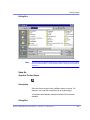
Button
Name
Description
Add
Adds items in several places.
Add Calendar Event
Accesses the add calendar event screen in the workarea.
See Also: ”” on page 134
Add Content Block
In a content folder, opens the editor and allows you to
create a new content block.
See Also: ”Adding a Content Block” on page 34
Add Content Folder
In a content folder, allows you to create a sub-folder to
further organize your content blocks.
See Also: ”Adding Sub-Folders” on page 44
Ektr on CM S2 00/30 0 U se r Man ual, Ver sion 4.7, Re vi sion 1
23
The Workarea and Smart Desktop
Button
Name
Description
Add Library Item
In the library folder, allows you to upload an image or file,
or add a hyperlink or quicklink to use in content.
See Also: ”Library Folder” on page 111
Add Task
Assign task to a user. See Also: ”Managing Tasks” on
page 173
Approvals
View approval chain for folder or content block.
See Also: ”Example of an Approval Chain” on page 70
Approve
Approve content that awaits your approval.
See Also: ”Preview” on page 13
Approve All
In the approvals folder, approves all content awaiting
your approval with one click.
Back
Return to previous screen.
Calendar
Lets you choose when content will go live.
See Also: ”Working with Calendars” on page 150
Cancel
Cancels action you are performing without saving the
information.
Check-in
Saves and checks in content block you are working on.
See Also: ”Checked-In Content” on page 368
Check-out
Checks out a content block to edit; prevents others from
simultaneously working on it.
”Checked Out Content” on page 371
Collection
Accesses the collection area for a content block; lets you
create, edit, and delete collections. See Also: ”The
screen is refreshed, and the content folder is deleted.” on
page 47
Decline
Declines an approval request submitted to you.
Delete
Deletes selected item.
Ektr on CM S2 00/30 0 U se r Man ual, Ver sion 4.7, Re vi sion 1
24
The Workarea and Smart Desktop
Button
Name
Description
Delete Content
Deletes multiple content blocks at once.
Delete Folder
Deletes current content folder.
Do Not Apply XSLT
Removes XSLT applied to XML content viewed in the
content history area.
Edit
Edits content or specific criteria in the workarea.
Insert Library Item
Inserts selected library item into your content block.
See Also: ”Library Folder” on page 111
Link Check
Identifies content blocks or assets with a hyperlink to the
current content block. You would typically use this feature
to remove the links before deleting a content block.
If you do not remove the links, they will be inoperative
after the content block is deleted.
Overwrite
Replaces an image or file with a newer version.
See Also: ”Overwriting Files” on page 123
Preview
Previews item that was or will be added.
See Also: ”Preview” on page 13
Publish
Save and publish the content block.
Remove
Removes items from folders and lists in the Workarea.
Reorder
Changes the sequence of links in a collection.
See Also: ”The screen is refreshed, and the content
folder is deleted.” on page 47
Restore
Restores previously published content block.
See Also: ”Viewing and Restoring Previous Content
Blocks” on page 81
Save
Saves content that was modified.
Ektr on CM S2 00/30 0 U se r Man ual, Ver sion 4.7, Re vi sion 1
25
The Workarea and Smart Desktop
Button
Name
Description
Search
Searches content and library folder screens.
See Also: ”Searching the Library” on page 115;
”Searching for Content” on page 207
Show Calendar
Displays the calendar in the workarea.
See Also: ”” on page 134
Submit
Saves and submits content to next approver in the
approval chain.
See Also: ”Example of an Approval Chain” on page 70
Update
View Date
Changes are saved and content is updated.
View all calendar events for a selected day.
See Also: ”” on page 134
View Difference
Opens the View Content Difference feature.
See Also: ”Comparing Versions of a Content Block” on
page 99
View History
View history of selected content block.
See Also: ”Viewing and Restoring Previous Content
Blocks” on page 81
View Published
Displays currently published version of content block.
View Staged
Displays staged content.
See Also: ”Staged Content” on page 374
Ektr on CM S2 00/30 0 U se r Man ual, Ver sion 4.7, Re vi sion 1
26
Working with Folders and Content Blocks
Work i n g w i t h F o ld e rs a n d
Content Blocks
Every content block resides in the Content folder or one of its subfolders. So, to work with an existing content block or create a new
one, you must first navigate to its folder.
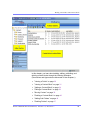
A typical content folder screen appears below. It consists of three
sections:
• The top left frame shows the folder structure. You can click any
folder to display its content blocks in the right frame, while its
sub-folders appear below it.
• The right frame shows content blocks in the currently selected
folder. Above the right frame is a toolbar of buttons that
represent tasks you can perform on a selected content block.
• The lower left frame shows Ektron CMS200/300’s top level
folders
Ektr on CM S2 00/30 0 U se r Man ual, Ver sion 4.7, Re vi sion 1
27
Working with Folders and Content Blocks
In this chapter, you learn about adding, editing, publishing, and
deleting content blocks through the following subtopics.
(Permissions and Approvals are discussed in later chapters.)
• ”Viewing a Folder” on page 29
• ”Viewing a Content Block” on page 31
• ”Adding a Content Block” on page 34
• ”Editing a Content Block” on page 38
• ”Moving Content” on page 39
• ”Deleting a Content Block” on page 42
• ”Adding Sub-Folders” on page 44
• ”Deleting Folders” on page 47
Ektr on CM S2 00/30 0 U se r Man ual, Ver sion 4.7, Re vi sion 1
28
Working with Folders and Content Blocks
Viewing a Folder
To view any folder under the content folder, follow these steps.
1. Access the Workarea, as described in ”Site Preview” on
page 8.
2. Click the content folder from the left lower side of the
Workarea.
3. All content blocks in the folder appear on the right side of the
screen. The folder’s sub-folders appear in the upper left frame.
4. To work with any folder or its content blocks, click the folder.
When you do, its content blocks appear in the right frame.
NOTE
You can only view folders for which your system administrator has granted
permission.
Ektr on CM S2 00/30 0 U se r Man ual, Ver sion 4.7, Re vi sion 1
29
Working with Folders and Content Blocks
Each folder lists the following information about its content blocks.
Field
Description
Title
The name of the content block.
Language
The language of the content block.
ID
The number assigned to the content block by Ektron
CMS200/300. It is used to retrieve the content block
from a database.
Status
The status of the content block. See Also: ”Appendix A:
Content Statuses” on page 367
Ektr on CM S2 00/30 0 U se r Man ual, Ver sion 4.7, Re vi sion 1
30
Working with Folders and Content Blocks
Field
Description
Date
Modified
The most recent date the content block was added,
edited, or published.
Last Editor
The last user who accessed the content block.
Each folder also provides the following toolbar options.
NOTE
Button
Depending on your permissions, you may not see all toolbar buttons.
Name
Description
More Information
Add Content
Opens the editor and creates a new
content block in the current folder
”Adding a Content
Block” on page 34
Add Folder
Adds a sub-folder to the current
folder
”Adding Sub-Folders”
on page 44
Delete Folder
Deletes the current folder
”Deleting Folders” on
page 47
Note: You cannot delete the Content
folder.
Collections
Adds, edits, or deletes a collection
from the current folder
”Working with
Collections” on
page 135
Menus
View and work with menus assigned
to this content block
”Working with Menus”
on page 172
Search
Look for content in the folder
”Searching for
Content” on page 207
View
Properties
View the folder’s properties
Viewing a Content Block
You can view all content blocks in your Ektron CMS200/300 Web
site. Viewing content blocks allows you to view the content,
Ektr on CM S2 00/30 0 U se r Man ual, Ver sion 4.7, Re vi sion 1
31
Working with Folders and Content Blocks
metadata, summaries, and other information. To view a content
block in Ektron CMS200/300, follow these steps.
1. Navigate to the folder that contains the content block, as
explained in ”Viewing a Folder” on page 29.
2. Click a content block.
3. The view content screen appears.
4. After you enter the content, you have the following options.
NOTE
Your options may vary according to your permissions and the status of the content
block.
Button or
Tab
Name
Description
Content
View Content
Block
Displays content block
Summary
Edit Summary
Edit content block’s summary.
”Adding a Content Block
Summary” on page 48
Metadata
Edit Metadata
Edit content block’s metadata
”Adding or Editing Metadata” on
page 52
See Also: ”Example of an
Approval Chain” on page 70
Ektr on CM S2 00/30 0 U se r Man ual, Ver sion 4.7, Re vi sion 1
For more information, see
32
Working with Folders and Content Blocks
Button or
Tab
Name
Description
For more information, see
Properties
Content
Properties
View the content block’s
properties
“Properties” on page 34
Comment
View Comment
View comments on changes
made when editing a content
block.
The history comment also
appears on the View Content
and Content History screens.
Edit Content
Block
Open content block for editing
”Editing a Content Block” on
page 38
View History
View all available older versions
of the content block; restore
older version
”Viewing and Restoring
Previous Content Blocks” on
page 81
View Staged
Displays staged content
”Staged Content” on page 374
View Difference
Compares current version with
earlier version of content
”Comparing Versions of a
Content Block”
Delete
Delete content block
”Deleting a Content Block” on
page 42
Move Content
Move content block to another
folder
”Moving Content” on page 39
Check for
content linked to
this content
Identify all content blocks with
quicklinks to this content block
”Checking for Broken
Quicklinks” on page 43
Add Task
Attach a task to a content block
”Attaching a Task to a Content
Block” on page 183
Properties
View and modify these settings
•
•
•
”Managing XML” on
page 146
•
”Search” on page 465
Return
XML Configuration
Content Searchable
Go back to previous menu
Ektr on CM S2 00/30 0 U se r Man ual, Ver sion 4.7, Re vi sion 1
33
Working with Folders and Content Blocks
Properties
The content properties screen contains information about the
content block, including:
Field
Description
Content Title
The title assigned to the content block
Content ID
The ID number assigned to the content block. The ID number is used to
retrieve content from a database.
Status
The current status of the content block
See Also: ”Appendix A: Content Statuses” on page 367
Last User to Edit
The last user to edit this content block
Last Edit Date
When the content block was last edited
Start Date
When the content block will go live on the Web site
End Date
When the content will be removed from the Web site
Date Created
When the content block was created
Approval Method
Whether all approvers must sign off on content block before it is published;
managed by your system administrator
Approvals
The users in the approval chain for this content block. See Also: ”Approving/
Declining Content Blocks” on page 62
XML Configuration
The XML Configuration applied to the content block. This is typically managed
by your system administrator.
Path
The folder path to the content’s folder. A slash (\) represents the Content
folder.
Content Searchable
Yes appears if the content will be found when someone searches your Web
site. See Also: ”Searching for Content” on page 207
Adding a Content Block
If you have permission to add a content block to a folder, you can
create content blocks for that folder. After you create the content
Ektr on CM S2 00/30 0 U se r Man ual, Ver sion 4.7, Re vi sion 1
34
Working with Folders and Content Blocks
block, your system administrator must insert in onto a page on your
Web site.
The following flowchart illustrates a typical sequence of events
when working with content blocks.
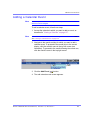
To add a content block, follow these steps.
1. Browse to the folder where you want to create the new content
block.
2. Click the add button (
).
3. The Add Content window opens.
Ektr on CM S2 00/30 0 U se r Man ual, Ver sion 4.7, Re vi sion 1
35
Working with Folders and Content Blocks
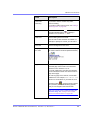
4. Create content in the editor using the following table.
Responding to the Fields on the Add Content Screen
.
Field
Description
Title
Enter a title for the content block.
Add to
Quicklinks
Table
Check if you want to save a Quicklink to this
content block.
Content
Searchable
Check this box if the content should be found when
someone searches your Web site. See Also:
”Searching for Content” on page 207
”A quicklink is a special kind of hyperlink that jumps
to another content block on your Web site. (A
regular hyperlink jumps to a Web page on the
internet.)”
5. After you respond to the above fields, the following options are
available.
Ektr on CM S2 00/30 0 U se r Man ual, Ver sion 4.7, Re vi sion 1
36
Working with Folders and Content Blocks
Options on the Add Content Screen
.
Button or
Tab
Name
Description
Content
Add/edit content
Insert content for the content block. For more information about
using E kt r o n C M S 20 0 / 3 0 0 ’s editor, see ”Using eWebEditPro” on
page 247.
Summary
Edit Summary
Edit the summary for the content block
See Also: ”Adding a Content Block Summary” on page 48
Metadata
Edit Metadata
Edit this content block’s metadata.
Note: All required metadata needs to be added before the content
block can be submitted into the approval chain.
See Also: ”Adding or Editing Metadata” on page 52; ”Example of
an Approval Chain” on page 70
Comment
Add Comment
Briefly describe the content, or comment on changes made when
editing a content block.
The history comment appears on the View Content and Content
History screens.
Schedule
Add Start and
End dates
If you do not want to submit the content block to the approval
chain immediately, enter when it will be submitted.
See Also: ”Scheduling Content to Begin and End” on page 58
If appropriate, enter a date when the content will no longer be
viewable on the Web site.
See Also: ”Setting an End Date on a Content Block” on page 61
Submit
Submit the content block into the approval chain. This action also
returns the changed content to the database and exits the editor.
See Also: ”Approving/Declining Content Blocks” on page 62
Publish
Publish the content to the Web site.
Note: Only the last approver in the approval chain sees this button.
See Also: ”Approving/Declining Content Blocks” on page 62
This action also returns the changed content to the database and
exits the editor.
Ektr on CM S2 00/30 0 U se r Man ual, Ver sion 4.7, Re vi sion 1
37
Working with Folders and Content Blocks
Button or
Tab
Name
Description
Check In
Save and check-in the document. This action returns the changed
content to the database and exits the editor. It does not submit the
content into the approval chain. Rather, it allows you and other
users to continue changing it.
Save
Save the content without leaving the editor. It is a good idea to
save your work frequently.
Cancel
Close the editor without saving changes.
Editing a Content Block
Ektron CMS200/300 content can be in any of several statuses, as
described in ”Appendix A: Content Statuses” on page 367. You can
only edit a content block for which you have permission and in one
of the following statuses:
• published
• checked in
• checked out by you
• submitted for your approval
NOTE
Once you check out a content block, it cannot be checked out by other users until
you check it in.
Editing a Content Block
1. Access the View Content screen for the content block you want
to edit, as described in ”Viewing a Content Block” on page 31.
2. Click the edit button (
).
3. The editor opens with the content block inserted.
4. From the edit content window, you can:
• Edit content
• Create or edit a summary
Ektr on CM S2 00/30 0 U se r Man ual, Ver sion 4.7, Re vi sion 1
38
Working with Folders and Content Blocks
• Specify metadata for the content
• Enter or update a comment
• Enter or update start and end dates
• Save changes
• Check in the content
• Submit the content for approval
• Publish a content block to the Web site
• Access the Library
5. Make the necessary edits to the content block. For a
description of the fields on the screen, see ”Responding to the
Fields on the Add Content Screen” on page 36
6. Choose a toolbar option or tab from the top of the Edit Content
window. These options are described in ”Options on the Add
Content Screen” on page 37.
Moving Content
You can move a content block from any content folder to any other
folder. This section explains how.
Before You Move a Content Block
Since content is either HTML or XML, you may encounter several
scenarios when moving a content block. The following table
explains each scenario.
Content to be moved
Destination Folder
Issues?
HTML
HTML Only
None
XML Content Folder
Content does not use XML configuration applied
to content folder. If desired, this needs to be set
in the content block properties section.
HTML Only
Content inherits properties of the destination
folder. Can be changed on the folder or content
block levels.
XML (inherited from
parent)
XML Content Folder
Ektr on CM S2 00/30 0 U se r Man ual, Ver sion 4.7, Re vi sion 1
39
Working with Folders and Content Blocks
Content to be moved
Destination Folder
Issues?
XML (not inherited from
parent)
HTML Only
Content keeps assigned XML configuration.
Content. can be changed on the folder or
content block levels.
XML Content Folder
Which Content Blocks Can Be Moved?
Only a content block with a status of Approved (Published) can
be moved. This included expired content. If a content block’s
status is not published, you must wait for it to reach that status
before moving it.
What is Moved?
When a content block is moved from one folder to another, the
content inherits permissions and workflows from the destination
folder.
Also, the quicklink for the content block is moved in the library to
the destination folder. However, the quicklink remains the same
(that is, the default template doesn’t change). You can update this
by editing the quicklink. This procedure in described in the Ektron
CMS200/300 Administrator manual section “Updating Default
Template for Multiple Quicklinks.”
Moving a Content Block
To move a content block to another folder, follow these steps.
1. Access the View Content page for the content block you wish
to move, as described in ”Viewing a Content Block” on
page 31.
2. Click the Move Content button (
).
3. The Move Content page is displayed.
Ektr on CM S2 00/30 0 U se r Man ual, Ver sion 4.7, Re vi sion 1
40
Working with Folders and Content Blocks
4. From the drop down list, choose the content folder into which to
move the content.
5. Click the Move Content button (
).
6. A confirmation message is displayed.
7. Click OK to continue.
8. The content block is moved to the specified content folder, and
the destination folder is displayed with the content block that
was moved.
Moving Several Content Blocks at Once
To move multiple content blocks at once, follow these steps.
NOTE
Only published and expired content blocks can be moved.
1. Navigate to the content folder that contains the content blocks
you want to move.
2. Click the Move Content button (
).
3. The Move Contents of Folder page is displayed.
4. Check the boxes next to the content blocks that you want to
move.
NOTE
Check off the box in the header cell to select all or deselect all.
Ektr on CM S2 00/30 0 U se r Man ual, Ver sion 4.7, Re vi sion 1
41
Working with Folders and Content Blocks
5. Choose the content folder to move the selected content blocks
to from the drop down list.
6. Click the Move Content button (
content blocks.
) to move the selected
7. A confirmation message is displayed.
8. Click OK.
9. The content blocks move to the destination folder.
Deleting a Content Block
NOTE
The ability to delete a content block is a privilege granted by the system
administrator. If you do not see a Delete button (
screen, you do not have permission to do so.
) on the View Content History
The Delete command lets you permanently delete obsolete
content blocks from your Web site. Like publishing a content block,
a content block must go through the approval chain before it is
removed.
To delete a content block, follow these steps.
1. Access the View Content screen for the content block you want
to delete, as described in ”Viewing a Content Block” on
page 31.
2. Click the delete button (
).
Ektr on CM S2 00/30 0 U se r Man ual, Ver sion 4.7, Re vi sion 1
42
Working with Folders and Content Blocks
3. The following message appears.
4. Click OK to delete the content block.
When the content block goes through the approval chain, it is
deleted from Ektron CMS200/300. If you are the last approver in the
approval chain, the content block is deleted immediately.
See Also: ”Approving/Declining Content Blocks” on page 62
Checking for Broken Quicklinks
The link checker button (
) locates all content blocks that
include a quicklink to the displayed content block. This feature is
useful when deleting a content block, because it informs you of
every content block that will include a “dead” link after you delete
this content block. You should then edit those content blocks and
remove or change the obsolete quicklinks.
To use the link checker, follow these steps.
1. Access the View Content page for the content block whose
links you want check, as described in ”Viewing a Content
Block” on page 31.
2. Click the Check Links button (
).
3. A page lists each content block that links to the current content
block.
Click the title to access the View Content page for the selected
content block. From there, you can remove or change the
quicklink.
Ektr on CM S2 00/30 0 U se r Man ual, Ver sion 4.7, Re vi sion 1
43
Working with Folders and Content Blocks
Adding Sub-Folders
To further organize content in your Ektron CMS200/300 Web site,
you can create sub-folders to store related content blocks.
NOTE
The ability to delete a content block is a privilege granted by the system
adminstrator. If you do not see a Add Folder button (
Folder screen, you do not have permission to do so.
) on the View Contents of
To add a sub-folder, follow these steps.
1. Navigate to and click the folder under which you want to create
a sub-folder.
2. The contents of the folder appear in the main section of the
Workarea.
Ektr on CM S2 00/30 0 U se r Man ual, Ver sion 4.7, Re vi sion 1
44
Working with Folders and Content Blocks
3. Click the Add Folder button (
).
4. The Add Sub-folder screen appears.
Ektr on CM S2 00/30 0 U se r Man ual, Ver sion 4.7, Re vi sion 1
45
Working with Folders and Content Blocks
5. Enter the required information in the fields. Use the following
table to assist you.
Field
Description
Folder name
Enter a name for the sub-folder.
Description
Enter a full description of the folder
Style Sheet
Specify the style sheet that the content in the folder will
use. If left blank, the folder inherits the style sheet from
the parent folder.
Your system administrator should be able to assist you
in choosing a style sheet.
Ektr on CM S2 00/30 0 U se r Man ual, Ver sion 4.7, Re vi sion 1
46
Working with Folders and Content Blocks
Field
Description
Template
Specify a default template the content blocks in which
the will be displayed. The default template is used when
quicklinks are generated for the content in the content
folder. If left blank, the template from the parent folder is
inherited.
Your system administrator should be able to assist you
in choosing a template.
XML
Configuration
By default, content blocks and folders inherit their XML
configuration settings from their parent folders. To
“break” or restore inheritance, placing or remove a
check in the checkbox next to, “Inherit XML
Configuration.”
For more information ,see the “Managing XML” chapter
of the Ektron CMS200/300 Administrator’s manual.
6. Click the save button (
).
Deleting Folders
You can delete folders that are no longer needed.
NOTE
The ability to delete a folder is a privilege granted by the system adminstrator. If
) on the View Contents of Folder
you do not see a Delete Folder button (
screen, you do not have permission to do so.
CAUTION!
Deleting a content folder permanently deletes its content blocks, quicklinks and
sub-folders.
To delete a content folder, follow these steps.
1. Navigate to the content folder you wish to delete.
2. Click the Delete Folder button (
).
3. A confirmation message appears.
4. If you are sure you want to delete the content folder, click OK.
5. The screen is refreshed, and the content folder is deleted.
Ektr on CM S2 00/30 0 U se r Man ual, Ver sion 4.7, Re vi sion 1
47
Adding a Content Block Summary
Adding a Content Block
Summary
A summary provides a short description of a content block to
supplement the title when displaying a list of content blocks on a
Web page. When you create or edit a content block, you can
create a summary. Then, your Web site developer can create Web
pages that contain just content summaries to attract readers to the
full story.
A good example of using a summary is a news Web site. A page
on that site could list the titles of the top stories followed by a quick
summary of each (illustrated below).
TOP STORIES
Ektron Named a Rising Star (08-15-2003)
August 15, 2003, Amherst, New Hampshire, USA — Ektron,
Inc., an innovator in Web content management and authoring, has
been named a Rising Star as part of the prestigious New England
Technology Fast 50 Program.
Ektron Launches International Distribution Program (08-08-2003)
August 8, 2003, Amherst, New Hampshire, USA — Ektron, Inc.,
an innovator in dynamic Web content authoring and management
with over 350,000 users, today announced the launch of its
international distribution program.
Like content blocks, summaries can include images and files as
well as different font styles and sizes. This chapter explains how to
create summaries and how they can help navigation within your
site. Your system administrator determines how to display the
summaries on your site.
Creating Summaries
There are two ways to create summaries:
Ektr on CM S2 00/30 0 U se r Man ual, Ver sion 4.7, Re vi sion 1
48
Adding a Content Block Summary
• for a new content block (see ”Creating a Summary on a New
Content Block” on page 49)
• for an existing content (see ”Creating a Summary for an
Existing Content Block” on page 50)
Creating a Summary on a New Content Block
1. Navigate through the content folders until you find a folder in
which you want to create the content.
2. Click the Add Content button. The Add Content screen
appears.
3. Insert a title and content. See Also: ”Adding a Content Block”
on page 34
4. Click the Summary tab to enter summary information for the
content block. The summary can be as long as you want, and
can include images, files, and hyperlinks.
5. When done, click the appropriate button.
Ektr on CM S2 00/30 0 U se r Man ual, Ver sion 4.7, Re vi sion 1
49
Adding a Content Block Summary
Creating a Summary for an Existing Content Block
In this example, we create a summary for the home page content
block.
1. From the Workarea, click the Content folder.
2. Navigate to the desired content folder.
3. From the View Contents of Folder screen, click the content
block.
4. The View Content screen appears.
5. Click the Summary tab to enter or edit summary information
for the content block. The summary can be as long as you
want, and can include your favorite features like images, files,
and hyperlinks.
6. When done, click the Save button (
).
7. The View Content page reappears. The status of the content
block changes to “checked out” to you.
NOTE
When you enter or edit an existing content block’s summary, its status changes to
checked out. After you create the summary, click the Check-In button to check the
content block in. From that point, you need to submit or publish it.
Editing a Summary
NOTE
You can only edit the summary of content blocks that are published, checked in,
or checked out by you.
To edit the summary for a content block, follow these steps.
1. Access the View Content page for the content block whose
summary you want to edit, as described in ”Viewing a Content
Block” on page 31.
2. Click the Summary tab.
Ektr on CM S2 00/30 0 U se r Man ual, Ver sion 4.7, Re vi sion 1
50
Adding a Content Block Summary
3. The Edit Summary window opens.
4. Click the Edit button. The summary opens within the editor.
5. Make the necessary changes.
6. Click the Save button (
).
7. The summary is saved, and the View Content page is
displayed with a status of checked out.
Ektr on CM S2 00/30 0 U se r Man ual, Ver sion 4.7, Re vi sion 1
51
Adding or Editing Metadata
Adding or Editing Metadata
What is Metadata?
After you create or update a content block, it is typically published
to the World Wide Web (WWW). Since the Web has millions of
pages, Metadata makes it easier for people to find your content.
Programs that search the Web (such as Google) look at the page’s
title and metadata keywords to determine if it should return your
Web page on its list of results.
To improve search program results, Ektron CMS200/300 provides
two fields within the Metadata feature.
• Metadata Title - appears on the search results screen to
further define your Web page
• Metadata Keywords - are searched by leading search
programs, along with the page’s title
Editing Metadata
NOTE
You must enter required metadata before the content block can be submitted into
the approval chain.
To enter or edit a content block’s metadata, follow these steps.
Ektr on CM S2 00/30 0 U se r Man ual, Ver sion 4.7, Re vi sion 1
52
Adding or Editing Metadata
1. Access the view content screen for the content block whose
metadata you want to edit, as described in ”Viewing a Content
Block” on page 31.
2. Click the Metadata tab.
3. The edit metadata screen opens with the current metadata
displayed.
NOTE
Your screen may differ from the example below. Your system administrator
determines the appearance of the Edit Metadata screen.
4. Edit the metadata. Note that
• Required fields are marked with an asterisk (*). Someone must
place at least one response in these fields before the content
block can be approved.
Ektr on CM S2 00/30 0 U se r Man ual, Ver sion 4.7, Re vi sion 1
53
Adding or Editing Metadata
• Your system administrator may prevent you from editing a
fields. In this case, the field has a gray background and you
cannot place the cursor there.
• Fields may appear in two columns, as illustrated in the
Keywords field on the above screen. In this case, the system
administrator is providing a list of terms that you can apply to
the content block. You can only enter terms from the list -- you
cannot enter free text.
One column is labeled Not Included and the other Included.
Move terms between lists by clicking the arrow (>> and <<). Or,
move all terms from one list to the next by clicking the All >>
arrow.
• In the keywords field, you may see a semi-colon (;) as a
separator character. This character is defined by the
administrator when creating the metadata types. When
separating items in the fields, use the separator character for
that field.
• When the administrator creates and defines the metadata
definitions, he/she has the ability to create default metadata for
each definition. If there is default metadata defined for a
specific metadata type, then clicking on the DEFAULT button at
the bottom of each field will restore the default content.
• When the administrator creates and defines metadata
definitions, he can enter information about the metadata for
each definition. Below each metadata definition field is a field
called “Characters Left”, that counts the number of metadata
characters. You cannot exceed the maximum limit (500
characters) when entering metadata information.
•
5. Click the save button (
).
6. The view content screen reappears.
Viewing the Source of the Web page
After you add content and the content block is published to the
Web site, you can view the source of the page to see what the
metadata for the content looks like.
Ektr on CM S2 00/30 0 U se r Man ual, Ver sion 4.7, Re vi sion 1
54
Adding or Editing Metadata
Below is the source of a sample Web page.
On this Web page, notice the keywords are included in the meta
tag, and the title is in HTML tags. These appear according to how
the administrator sets up the metadata definitions.
Editing the Metadata for an Existing Content Block
In this example, we will edit the metadata for the home page
content block.
NOTE
You may only edit the metadata of content blocks that are published, checked in,
or checked out by you.
Ektr on CM S2 00/30 0 U se r Man ual, Ver sion 4.7, Re vi sion 1
55
Adding or Editing Metadata
1. Access the view content page for the content block you want to
edit the metadata for as described in ”Viewing Content” on
page 60.
2. Click the Metadata tab.
Ektr on CM S2 00/30 0 U se r Man ual, Ver sion 4.7, Re vi sion 1
56
Adding or Editing Metadata
3. The edit metadata page opens with the current metadata for
the content block displayed in the fields.
4. Make the necessary changes to the metadata, then click the
Save button (
).
5. The page is refreshed, and the view content page is displayed.
Notice that the content block is now in a checked out state to you.
For the changes to take effect on the Web site, check in the
content and publish it.
Ektr on CM S2 00/30 0 U se r Man ual, Ver sion 4.7, Re vi sion 1
57
Scheduling Content to Begin and End
Scheduling Content to Begin and
End
Scheduling content lets you control when a content block becomes
visible on the Web site. Similarly, you can remove a content block
on a predetermined date and time.
When used together, a start date and end date can relieve you of
much work by managing how long a content block is viewable on
your Web site.
How Does It Work?
When you create a content block, or modify an existing one, you
can select a “go live” date and time. If you do, Ektron CMS200/300
publishes the content block to the live site then. Below is an
example.
Your company is having a sale of the century in a month, and
everything is ready except the announcement. You decide to
update your Web site to let the public know about it. With this
feature, you can create the Web content now and set it to go live a
week before the sale.
Setting a Start Date
To set a start date:
1. Access the editor by adding a new content block or editing an
existing one.
2. If adding a new content block, enter a title and the content.
3. Click the Schedule tab.
Ektr on CM S2 00/30 0 U se r Man ual, Ver sion 4.7, Re vi sion 1
58
Scheduling Content to Begin and End
4. Click the calendar button next to the start date field.
5. The Ektron CMS200/300 calendar pops up.
6. Select the date and time when the content will become visible
on the Web site.
7. Click the Submit button.
Ektr on CM S2 00/30 0 U se r Man ual, Ver sion 4.7, Re vi sion 1
59
Scheduling Content to Begin and End
8. Notice that the date and time are inserted into the start date
field
You can enter the date and time into the text field without using
the calendar. If you do, use the following format
DD-MMM-YYYY hh:mm:ss tt
NOTE
When you select a time for content to go live, that time depends on the server’s
system clock. If the server’s system clock is incorrect, the content will not go live
at the intended time.
What Happens After I Set a Start Date?
After you set a go live date and the content completes the approval
chain, two scenarios may occur:
• The content block is new
• The content block already exists
Each scenario is now explained.
Setting the Go Live Date on New Content
When you set a go live date on a new content block, the content
becomes viewable on the specified date and time. If you view the
page that contains the content before then, you only see the
template. This occurs both within Ektron CMS200/300 and when
you view the content on the Web site.
Setting the Go Live Date on Existing Content
When you set a go live date on an existing content block, and it
completes the approval chain, the content has a grey border within
Ektron CMS200/300 until the date specified.
When you view the content block on the Web site, you see the
previously published version. When the go live date occurs, the
new content replaces the previously published version, and the
content block‘s status changes to Active.
Ektr on CM S2 00/30 0 U se r Man ual, Ver sion 4.7, Re vi sion 1
60
Scheduling Content to Begin and End
Setting an End Date on a Content Block
To set an end date for a content block, follow these steps.
1. Access the editor by adding a new content block or editing an
existing one.
2. If adding a new content block, enter a title and the content.
3. Click the calendar button next to the End Date field.
4. A calendar pops up.
5. Select the date and time you want the content to be removed
from the Web site.
6. Click the Submit button.
7. Notice that the date and time are inserted into the End Date
field
Ektr on CM S2 00/30 0 U se r Man ual, Ver sion 4.7, Re vi sion 1
61
Scheduling Content to Begin and End
NOTE
You can also enter the date and time without using the calendar. If you do, use the
following format: DD-MMM-YYYY hh:mm:ss tt
NOTE
When you select a time for content to go live, that time depends on the server’s
system clock. If the server’s system clock is incorrect, the content will not be
removed at the intended time.
What Happens After I Set an End Date?
If you set an end date to a content block, and it gets published to
your Web site, the content is visible on the Web site. When the end
date and time occur, the content is hidden on the Web site.
At this point, If a site visitor goes to the page containing the
content, he sees the template without the content block. Because
of this, Ektron recommends having another content block ready to
replace the content block with the end date.
Ektr on CM S2 00/30 0 U se r Man ual, Ver sion 4.7, Re vi sion 1
62
Approving/Declining Content Blocks
Approving/Declining Content
Blocks
Your site administrator establishes an approval chain for each
folder, or even specific content blocks. When a new or edited
content block is submitted to the approval chain, it is reviewed by
users who may
• change it
• approve or decline it
• publish it to the Internet (it is published when the last user
approves it)
The flowchart below illustrates the steps in the approval process.
Ektr on CM S2 00/30 0 U se r Man ual, Ver sion 4.7, Re vi sion 1
63
Approving/Declining Content Blocks
The following flowchart illustrates how an approver can decline a
content block.
You can approve or decline all content blocks that have been
submitted to you from the approval folder. The steps shown below
guide you through the approval or decline of these content blocks.
Ektr on CM S2 00/30 0 U se r Man ual, Ver sion 4.7, Re vi sion 1
64
Approving/Declining Content Blocks
Approve/Decline One Content Block
1. Click the Smart Desktop button (circled in red below).
2. Click Reports.
3. Click Approvals.
4. Click the title of the content block you want to approve or
decline.
Ektr on CM S2 00/30 0 U se r Man ual, Ver sion 4.7, Re vi sion 1
65
Approving/Declining Content Blocks
5. The View Content Awaiting Approval Screen appears.
This screen displays the following information about the
content block.
Field
This is the...
Content Title
Title given to content block.
Content ID
ID number assigned to content block by Ektron CMS200/300.
Status
Current status of content block. See Also: ”Appendix A: Content
Statuses” on page 416
Submitted By
User who submitted content block.
Last Date Edited
Date and time content was last edited.
Start Date
Date and time content will go live on Web site.
End Date
Date and time content will be removed from the Web site.
Date Created
Date and time content block was originally created.
Ektr on CM S2 00/30 0 U se r Man ual, Ver sion 4.7, Re vi sion 1
66
Approving/Declining Content Blocks
Field
This is the...
Approvals
Current approval chain for content block.
History Comment
History comment that has been assigned to content block.
Metadata
Metadata assigned to content block. See Also: ”Adding or Editing
Metadata” on page 53
Summary
Summary created for content block. See Also: ”Adding a Content
Block Summary” on page 48
Content
Body of content that has been submitted.
A toolbar at the top of the screen lists actions you can perform
on the content.
Button
Name
Result of Clicking
Publish
Accept changes to the content block and publish it to the site.
Note: If there is another approver in the approval chain for the
content, this is replaced by a Submit button.
Decline
Reject changes and keep current version of content block live
on the Web site.
Edit
Check out content block and change it if desired.
View Published/
Staged
Toggle between the currently published version of content
block and submitted version. This can help you compare
differences between versions.
See Also: ”Displays staged content.” on page 26
Back
Return to previous screen.
Ektr on CM S2 00/30 0 U se r Man ual, Ver sion 4.7, Re vi sion 1
67
Approving/Declining Content Blocks
Approve Multiple Content Blocks
The approvals table allows you to select some or all of the
submitted content blocks, and submit them all together.
Selecting Multiple Submitted Content Blocks
To select multiple submitted content blocks:
1. Begin by accessing the checked in report table.
2. Check off the check boxes of the content blocks you want to
approve.
To select all the displayed submitted content blocks, click the
“Select All” link at the top of the table.
Ektr on CM S2 00/30 0 U se r Man ual, Ver sion 4.7, Re vi sion 1
68
Approving/Declining Content Blocks
3. If needed, remove the check mark from the check boxes of the
content blocks you do not wish to approve.
To clear all the selections, click the “Clear All” link at the top of
the table.
Approving Several Content Blocks
To approve several submitted content blocks:
1. Select the submitted content blocks you want to approve as
described in ”Selecting Multiple Submitted Content Blocks” on
page 68.
2. Once selected, click the Approve All button (
).
3. The following message appears.
4. To continue with the approval, click OK.
5. Once completed, the approved content blocks will be
• submitted to the next publisher
• published immediately to the Web site
Ektr on CM S2 00/30 0 U se r Man ual, Ver sion 4.7, Re vi sion 1
69
Approving/Declining Content Blocks
• or deleted
depending on the approval chain set for each content block.
Example of an Approval Chain
The approval chain begins when a content contributor submits a
new or edited content block. If e-mail is enabled, an e-mail is sent
to the next approver in the approval chain.
The following example follows a typical content block from creation
to publication. Three users make up this approval chain
• Sports Writer - creates sports content
• Sports Editor - edits and publishes all sports articles
• Editor In Chief - edits and publishes all articles
Each user has different permissions corresponding to their roles.
Creating a Content Block
The first step is to create a content block. To create a new content
block:
1. Log in to Ektron CMS200/300 as a SportsWriter.
2. Navigate through the content folders in the Workarea until you
find a content folder you have permissions for. If you have
permission to add a content block, the Add Content Block
button (
) appears on the View Contents of Folder screen
(illustrated below).
Ektr on CM S2 00/30 0 U se r Man ual, Ver sion 4.7, Re vi sion 1
70
Approving/Declining Content Blocks
If you have permission to edit a content block, the Edit Content
Block button (
) appears on the View Contents of Folder
screen (illustrated below).
3. Click the Add Content or Edit Content button to invoke the
editor.
4. Create or update content in the editor.
Ektr on CM S2 00/30 0 U se r Man ual, Ver sion 4.7, Re vi sion 1
71
Approving/Declining Content Blocks
5. Click the submit button (
) at the top of the window.
6. The content block is now in the approval chain. The first user in
the approval chain receives an email saying the content block
is ready for approval.
Ektr on CM S2 00/30 0 U se r Man ual, Ver sion 4.7, Re vi sion 1
72
Approving/Declining Content Blocks
NOTE
Emails are only sent if your Administrator enables them.
The content contributor, Sports Writer, has completed his role in
the approval chain but continues to receive emails notifying him of
changes in the status of the content block.
First Approver
After the Sports Writer submits the content block, the first user in
the approval chain, Sports Editor, receives an email stating that a
content block needs his approval.
Ektr on CM S2 00/30 0 U se r Man ual, Ver sion 4.7, Re vi sion 1
73
Approving/Declining Content Blocks
The first approver for this content block is Sports Editor. He can
change and approve the content block or decline it.
Sports Editor logs into Ektron CMS200/300, navigates to his
desktop, where he sees a link Content Awaiting Approval.
He clicks the link and sees all content blocks awaiting his approval.
The approvals folder window displays information such as title,
who submitted it, go live date, etc. The Sports editor clicks the
submitted content block.
Ektr on CM S2 00/30 0 U se r Man ual, Ver sion 4.7, Re vi sion 1
74
Approving/Declining Content Blocks
The View Content Awaiting Approvals window appears.The
Properties tab displays all the information necessary to decide
whether to approve or decline the content block, including:
Field
Description
Content Title
Title of the content block.
Content ID
ID number assigned to the content block by Ektron CMS200/300.
Status
Current status of the content block. See Also: ”Appendix A:
Content Statuses” on page 367
Last User to Edit
Name of user who last edited content block
Last Edit Date
When the content block was last edited.
Start Date
When the content block goes live on Web site, if specified by user
when creating or editing content.
End date
When the content block becomes inactive on Web site, if specified
by user when creating or editing content
Date Created
When the content block was originally created.
Approval Method
Set up by system administrator to determine approval chain.
Approvals
The approval chain for the content block. The current approver for
the content block appears in red.
At the approval window, the Sports Editor has several options.
Button or
Tab
Description
Content
Edit the content block
Summary
See “Adding a Content Block Summary” on page 48
Metadata
See “Adding or Editing Metadata” on page 52
Comment
See “Comment” on page 33
Ektr on CM S2 00/30 0 U se r Man ual, Ver sion 4.7, Re vi sion 1
75
Approving/Declining Content Blocks
Button or
Tab
Description
Approve
Sends content to next approver in approval chain.
Decline
1.Sends email to creator, notifying him/her that
content was declined.
2. Removes content from approval chain.
Edit
Invokes the editor. The approver can make changes
to content block.
For demonstration purposes, we‘ll choose Approve.
Second Approver
After the content block is approved, the next approver in the
approval chain receives an email saying that the content block is
ready for approval.
At this point, the following events have taken place:
1. Content was created and submitted by SportsWriter
2. An email was sent to SportsEditor notifying him of the content
awaiting his approval
3. The content block was reviewed and approved by SportsEditor
4. An email was sent to EditorInChief notifying him of the content
awaiting his approval
5. The content was submitted to EditorInChief for final approval
and publication.
EditorInChief logs in to Ektron CMS200/300 and accesses his
workarea. The workarea has an Approval folder with the content
that is awaiting his approval.
EditorInChief navigates through the Approval folder until he finds
the content block.
Ektr on CM S2 00/30 0 U se r Man ual, Ver sion 4.7, Re vi sion 1
76
Approving/Declining Content Blocks
From this window, EditorInChief can view information about the
content block, including title, go live date, user who created it, etc.
Click the content that you want to approve.
This window is similar to the previous approver’s but includes a
Publish button at the top of the screen. The EditorInChief has a
publish button (instead of a submit button) because he is the last
approver in the approval chain. When he approves the content
block, it is published to the Web site.
Just like the previous user, the last user has the following options:
Button
Description
Approve
Sends the content to the next approver in the
approval chain.
Decline
1.Sends an email to the creator, notifying him/her
that the content was declined.
2. Removes the content from the approval chain.
Edit
Invokes the editor. The approver can make changes
to the content block.
After reviewing the content, the EditorInChief decides that the
content is great, and publishes the content block to the Web site.
When the content block is published and becomes live on the Web
site, the approval chain of the content is complete.
Ektr on CM S2 00/30 0 U se r Man ual, Ver sion 4.7, Re vi sion 1
77
Approving/Declining Content Blocks
The user who created the content block receives an email notifying
him that it was published.
Review
Let’s review what happened during the life cycle of the content
block.
1. The user, SportsWriter, created and submitted a new content
block.
2. The first approver, SportsEditor, received an email informing
him a content block was awaiting his approval.
3. SportsEditor reviewed and approved the content block.
4. The final approver, EditorInChief, received an email informing
him of a content block awaiting his approval.
5. EditorInChief reviewed and published the content block to the
Web site.
6. SportsWriter receives an email that the content block was
published on the Web site.
Ektr on CM S2 00/30 0 U se r Man ual, Ver sion 4.7, Re vi sion 1
78
Administrator Workarea
Content Wo rkflow Reports
The reports folder contains several reports to help you manage the
workflow of content blocks through Ektron CMS200/300. In most
cases, you choose a report that corresponds to a content block
status, then view all content blocks in that status. If appropriate,
you can perform tasks on selected content blocks. For example,
you can check in checked out content blocks.
This chapter explains how to access the reports folder in your
Workarea, what information is on the reports, and actions you can
perform on the content blocks that appear on the reports.
Accessing Reports Folder
7. Click any report to view it.
The following sections explain each report and actions you can
perform after viewing them.
Accessing the Reports Folder
To access the Reports folder, follow these steps.
Ektr on CM S2 00/30 0 U se r Man ual, Ver sion 4.7, Re vi sion 1
79
Administrator Workarea
1. Log in to your Ektron CMS200/300 Web site and access the
Workarea.
2. Access the Smart Desktop (see ”Accessing the Workarea” on
page 14). Click the Reports folder.
3. A list of available reports appears.
NOTE
The Approvals and Checked Out Reports are also available from the Workarea.
4. The reports are described below.
Report
Displays content blocks in this
status
For more information, see
Approvals
Requiring your approval.
”Approvals Reports” on page 84
Checked In Content
Checked in
”Checked In Report” on page 86
Checked Out Content
Checked out
”Checked Out Report” on page 87
New Content
New (that is, created and saved but
never published)
”New Content Report” on page 87
Submitted Content
Submitted
”Submitted Report” on page 88
Pending Content
Approved and pending a start date
”Content Pending Start Date Report”
on page 89
Ektr on CM S2 00/30 0 U se r Man ual, Ver sion 4.7, Re vi sion 1
80
Administrator Workarea
Report
Displays content blocks in this
status
For more information, see
Expired Content
Expired date has been reached
”Expired Content Report” on page 90
Content to Expire
Will expire within specified number of
days
”Content to Expire Report” on page 90
Information on the Report
Each report displays the following information about content blocks
in the selected status.
Field
Description
Title
Title of content block.
ID
Internal number assigned to content block by
E kt r o n C M S 20 0 / 3 0 0 .
Date Modified
If a Start Date was assigned to the content
block, it appears here.
Last Editor
The user who last edited the content block.
Path
Folder location of content block.
Sorting and Filtering Content Reports
In each content report, you can sort and filter the data. These
include:
• Sorting by column
• Filtering by user
• Filtering by content folder
The sorting and filtering actions in each content report are
identical. The following section uses the checked-in content report
as an example.
Ektr on CM S2 00/30 0 U se r Man ual, Ver sion 4.7, Re vi sion 1
81
Administrator Workarea
Sorting by Column Heading
You can sort report data by any column heading. By clicking on a
heading, you can sort the report by
• Title
• ID
• Last editor
• Date Modified
Filter by User
To display only content that was checked in by a user, click the
name of the user in the report. When you do, the report redisplays,
showing only content blocks which that user checked in.
Filter by Content Folder
To display only content that was checked in to a selected folder,
click the folder in the report. When you do, the report redisplays,
showing only content blocks in that folder.
Performing an Action on Several Content Blocks
You can perform the following actions on several or all content
blocks in the Approvals, Checked in, and Checked out reports.
Report
Action you can perform
Approvals
Approve
Checked in
Submit for publication
Checked out
Check in
To select several reports, check the relevant checkboxes
(illustrated below). To select all reports, click Select All.
Ektr on CM S2 00/30 0 U se r Man ual, Ver sion 4.7, Re vi sion 1
82
Administrator Workarea
Then, click the button at the top left to perform the action on the
selected content blocks.
Viewing/Editing Content Blocks on the Report
To view (and possibly edit) any content block on a report, click it. It
appears on the View Content screen (illustrated below).
The View Content screen provides several toolbar options that you
can perform on the content block. These options are explained in
”Workarea Toolbar” on page 23.
Ektr on CM S2 00/30 0 U se r Man ual, Ver sion 4.7, Re vi sion 1
83
Administrator Workarea
Approvals Reports
Each content block awaiting your approval appears on this report.
Thus, you can quickly find all such content blocks without
searching through all folders and continue with the proper
workflow.
The View All Content Awaiting Approval page displays the
following information about all content blocks awaiting your
approval.
Field
Description
Title
Title of content block.
Request Type
Request made for the content block. Either
Publish or Delete.
Start Date
Start date, if any, assigned to the content block.
Determines when content will go live on Web
site.
Submitted By
User that submitted content for approval.
Path
Path to content folder where content block
resides.
Below is an example of the View All Content Awaiting Approval
screen.
Ektr on CM S2 00/30 0 U se r Man ual, Ver sion 4.7, Re vi sion 1
84
Administrator Workarea
Approving/Declining Content Blocks
From the approvals report, you can approve or decline content
blocks that were submitted to you. The steps below explain how to
do so.
Approve/Decline One Content Block
1. Access your Approvals report in the Workarea (see ”Approvals
Reports” on page 84).
2. Click the content block that you want to approve or decline.
3. The View Content Awaiting Approval page is displayed.
4. Perform an action using the following table as a reference.
Button
Name
Description
Publish
Accept changes to content block and publish it to site.
Note: If there is a subsequent approver in the content’s
approval chain, this button is replaced by a Submit button.
Decline
Reject changes and keep current version of content block live
on Web site.
Edit
Check-out content block and make changes to it if desired.
View Published/
Staged
Toggle between published and submitted versions of content
block. This can help you compare differences between them.
Back
Go back to previous screen.
Approving Multiple Content Blocks
See ”Performing an Action on Several Content Blocks” on page 82
The selected content blocks are either submitted to the next
publisher, published immediately, or deleted, depending on the
approval chain set for the content block.
Ektr on CM S2 00/30 0 U se r Man ual, Ver sion 4.7, Re vi sion 1
85
Administrator Workarea
Checked In Report
The Checked In Content report displays all the content blocks
currently in a checked in status.
To learn how to access, sort, view, edit and select content blocks
on this report, see ”Accessing the Reports Folder” on page 79.
Checked In Report
The checked in content report displays all content blocks currently
in a checked in state. The report displays the following information
about all checked in blocks.
Column
Description
Title
Title of content block.
ID
ID number assigned to content block by Ektron
CMS200/300.
Last Editor
Last user to edit the content block.
Date
Modified
Date and time content block was last edited.
Path
Folder location of content block in Ektron CMS200/300
Web site.
Submitting Multiple Content Blocks
After selecting content blocks, use the submit toolbar option (
)
to submit them for approval or publication, depending on your
position in the approval chain. See Also: ”Example of an Approval
Chain” on page 70
Ektr on CM S2 00/30 0 U se r Man ual, Ver sion 4.7, Re vi sion 1
86
Administrator Workarea
Checked Out Report
The Checked Out Content report displays all content blocks
currently in a checked out status. The report displays the following
information about all checked in blocks.
Column
Description
Title
Title of content block.
ID
ID number assigned to content block by Ektron
CMS200/300.
Last Editor
Last user to edit the content block.
Date
Modified
Date and time content block was last edited.
Path
Folder location of content block in Ektron CMS200/300
Web site.
After selecting content blocks, check them in using the Checkin
toolbar option (
).
New Content Report
The new content report displays content blocks in a new state, that
is, they were created and saved but never published. The new
content report page contains the following information.
Column
Description
Title
Title of content block.
ID
ID number assigned to content block by Ektron
CMS200/300.
Last Editor
Last user to edit the content block.
Ektr on CM S2 00/30 0 U se r Man ual, Ver sion 4.7, Re vi sion 1
87
Administrator Workarea
Column
Description
Date
Modified
Date and time content block was last edited.
Path
Folder location of content block in Ektron CMS200/300
Web site.
Submitted Report
The Submitted Content report displays all content blocks in a
submitted state. The report contains the following information
Column
Description
Title
Title of content block.
ID
ID number assigned to content block by Ektron
CMS200/300.
Last Editor
Last user to edit the content block.
Date
Modified
Date and time content block was last edited.
Path
Folder location of content block in Ektron CMS200/300
Web site.
Viewing Position in Approval Chain
While viewing the Submitted Content report, you can view a
content block’s position is its approval chain. To do so, follow these
steps.
1. From the Submitted Content Report, click the content block’s
title.
2. The View Content page is displayed.
3. Click the Properties tab.
4. The content block’s position in the approval chain is indicated
by red text on the Approvals line.
Ektr on CM S2 00/30 0 U se r Man ual, Ver sion 4.7, Re vi sion 1
88
Administrator Workarea
Content Pending Start Date Report
The Pending Start Date Report displays all content blocks that
were approved, but whose start dates haven’t occurred. Each
content block on the report contains the following information.
Column
Description
Title
Title of content block.
ID
ID number assigned to content block by Ektron
CMS200/300.
Last Editor
Last user to edit the content block.
Start Date
Date and time content block will go live on Web site.
Path
Folder location of content block in Ektron CMS200/300
Web site.
Editing Content with a Pending Start Date
You may edit any content block on the Pending Start Date Content
report. To do so, follow these steps.
1. Click the content block you want to view.
2. The View Content page is displayed.
3. Using the toolbar at the top of the page, perform any action
available.
Ektr on CM S2 00/30 0 U se r Man ual, Ver sion 4.7, Re vi sion 1
89
Administrator Workarea
Expired Content Report
The expired content report displays all content blocks whose end
date has passed. As such, they are no longer visible on the Web
site. Each item on the list contains the following information.
Column
Description
Title
Title of content block.
ID
ID number assigned to content block by Ektron
CMS200/300.
Last Editor
Last user to edit the content block.
End Date
Date and time the content block expired.
Path
Folder location of content block in Ektron CMS200/300
Web site.
Editing Expired Content
You may edit any content block on the Expired Content report. To
do so, follow these steps.
1. Click the content block you want to view.
2. The View Content page is displayed.
3. Using the toolbar at the top of the page, perform any action
available.
Content to Expire Report
The Content to Expire report lists all content blocks whose end
date will occur within a number of days that you specify. For
example, if today is January 1 and you select 10 days, the report
lists all content blocks whose end date is January 1 through
January 10.
After viewing the report, you can click any content block and
proceed to the View Content screen for it. From there, you can edit
information about the content block, including its end date if
desired.
Ektr on CM S2 00/30 0 U se r Man ual, Ver sion 4.7, Re vi sion 1
90
Administrator Workarea
Selecting the Report’s Date Range
To select the report’s date range, you have two options:
Option
Illustration
Enter the number in the Days field
Select a number from the dropdown
that appears below the Days field
After selecting a number of days, click the view icon ( ) to see all
content blocks that will expire within that number of days from
today.
Ektr on CM S2 00/30 0 U se r Man ual, Ver sion 4.7, Re vi sion 1
91
Viewing and Restoring Previous Content Blocks
Viewing and Restoring Previous
Content Blocks
Past versions of published content blocks are available unless
your system administrator has purged them. Your ability to view a
content block’s history is determined by your user privileges.
NOTE
This section explains how to view and possibly restore older versions of a content
block. To see a change-by-change comparison of two content blocks, use the
View Content Difference feature, explained in ”Comparing Versions of a Content
Block” on page 91.
Accessing Content History
By default, all users can view the history of an Ektron CMS200/300
content block. You can access content history from two places:
• The View Content page in the Workarea
• The icon menu for a content block on a Web page
Once you access the content history, the functionality is identical.
The following sections explains how to access the content history
from both places.
Accessing the Content History from the Workarea
To access the content history from the Workarea, follow these
steps.
1. Navigate to the View Content page for the content block whose
history you want to view.
2. Click the View History button (
Ektr on CM S2 00/30 0 U se r Man ual, Ver sion 4.7, Re vi sion 1
).
92
Viewing and Restoring Previous Content Blocks
Accessing the Content History from a Web page
To access the view history for a content block from a Web page,
follow these steps.
1. Browse to the content block whose history you want to view.
2. Click the View History button (
).
3. The Content History window opens.
The Content History Window
This Content History window has two sides:
Ektr on CM S2 00/30 0 U se r Man ual, Ver sion 4.7, Re vi sion 1
93
Viewing and Restoring Previous Content Blocks
• The left side, the Document History area, displays all versions
of the content block. Each version is identified by the date
when it was published or checked in.
Some versions display a green circle.
A circle indicates a content block version that was published.
On dates without a green circle, the content was checked-in
but not published.
• The right side has information about the selected content
block.
Viewing a Historical Version of a Content Block
1. Click a date from the left frame
2. Information about that version of the content block appears on
the right.
Ektr on CM S2 00/30 0 U se r Man ual, Ver sion 4.7, Re vi sion 1
94
Viewing and Restoring Previous Content Blocks
When viewing a historical version of a content block, you can
perform three actions.
Action
Button
Description
More Information
Restore
Restore historical version of
content block
”Restoring a Previous
Version” on page 96
Compare
Compare historical version of
content block to current version
”” on page 98
Ektr on CM S2 00/30 0 U se r Man ual, Ver sion 4.7, Re vi sion 1
95
Viewing and Restoring Previous Content Blocks
Action
Button
Remove XSLT
XML Content Only
Description
More Information
Remove XSLT applied to XML
content block
”Removing Applied XSLT” on
page 97
Each task is explained below.
Restoring a Previous Version
NOTE
The ability to restore a content block is a privilege granted by the system
administrator. If you do not see a Restore button (
History screen, you do not have permission to do so.
) on the View Content
1. Select an historical version of the content that you want to
restore, as described in ”Viewing a Historical Version of a
Content Block” on page 94.
2. Click the Restore button (
).
3. The content history window closes, and you return to the View
Content page or the Web page, with the content in a checked
in status.
4. If desired, check out the content to make additional changes.
5. Select the workflow to perform on the content block.
6. When the historical version is placed in the approval chain and
approved, it is published to the Web site.
Comparing Historical Versions
After you select an historical version of a content block, you can
view the differences between it and the current version. To
compare a historical version, follow these steps.
Ektr on CM S2 00/30 0 U se r Man ual, Ver sion 4.7, Re vi sion 1
96
Viewing and Restoring Previous Content Blocks
1. Select an historical version of content, as described in ”Viewing
a Historical Version of a Content Block” on page 94.
2. Click the View Differences button (
).
The historical and the current versions are compared. To learn
more about the comparison, see ”Comparing Versions of a
Content Block” on page 91.
Removing Applied XSLT
You can only remove an applied XSLT when viewing historical
versions of an XML content block. If you remove the applied XSLT,
you can view the content without the irrelevant XML tags.
The following table compares the views.
With XSLT
Ektr on CM S2 00/30 0 U se r Man ual, Ver sion 4.7, Re vi sion 1
97
Viewing and Restoring Previous Content Blocks
Without XSLT
Ektr on CM S2 00/30 0 U se r Man ual, Ver sion 4.7, Re vi sion 1
98
Comparing Versions of a Content Block
Comparing Versions of a Content
Block
Introduction
The View Content Difference feature highlights changes that were
made to a selected content block.
Below is an example of the View Content Difference screen,
showing both versions of a content block. The changes are
indicated by redlining the deleted content and highlighting the
added content in yellow.
Within the View Content Difference feature, there are several tasks
that you can perform, as well as view different versions of the
content separately, or compared.
When Can I Compare Content?
The View Content Difference feature is only available when
• you are viewing a historical version of a content block
Ektr on CM S2 00/30 0 U se r Man ual, Ver sion 4.7, Re vi sion 1
99
Comparing Versions of a Content Block
• a staged version of the content is available (See Also: ”Staged
Content” on page 374.)
The following table explains when you can use the feature, and
which versions are compared.
Content Block
Status
Compares current published
version with
Published
Historical version stored in the content
history area
Checked-In
Most recently checked-in version
Submitted
Submitted version
Pending Start Date
Scheduled version pending start date
Checked Out
Not available
Content that is in a state where it can be compared with another
version is denoted by the View Difference button (
) in the
content history area or on the Web page view.
The Compare Content Window
NOTE
The first time the View Content Difference feature is opened, a simple installation
program will be run. See ”First Use of the View Content Difference Feature” on
page 105for additional information.
As you can see, the Compare Content window is comprised of the
following:
• Toolbar
• Content window
Ektr on CM S2 00/30 0 U se r Man ual, Ver sion 4.7, Re vi sion 1
100
Comparing Versions of a Content Block
• View content tabs
Each area is explained in the following sections.
Toolbar
The content comparison toolbar contains five buttons, explained
below.
Button
Name
Description
Print
Sends content to local or network printer.
Note: This option prints the content currently displayed,
whether it is the compared content, published content, or
staged content.
Ektr on CM S2 00/30 0 U se r Man ual, Ver sion 4.7, Re vi sion 1
101
Comparing Versions of a Content Block
Button
Name
Description
Save
Saves a copy in HTML format on your local machine or
network. When saved as a physical file, the HTML may be
edited. However, the changes are not saved to the Web
Server.
The save option saves the version of the content you are
viewing.
Setup
Opens setup dialog box to configure the settings. Typically,
only an administrator would use this.
For more information, see ”Setup” on page 102.
Help
Displays additional information about using the compare
feature.
Exit
Closes the window.
Setup
Click the Setup command (
) to open the setup dialog box.
Typically, only a system administrator would edit these settings.
Ektr on CM S2 00/30 0 U se r Man ual, Ver sion 4.7, Re vi sion 1
102
Comparing Versions of a Content Block
You may configure the setup options to better suit your needs. The
following table explains each option.
Option
Description
Compare Options
Compare Visual
Aspect
Compares content as it would appear on a
Web page.
Compare Source Code
Displays compared content as source HTML.
Whitespace Options
Ignore All
All whitespace characters are ignored.
Smart Detect
One or more consecutive whitespace
characters are treated as a single separation
sequence. That is multiple whitespace
characters are ignored.
Detect All
Blank (whitespace) characters are treated as
any other character.
Other Options
Ignore Case
Determines whether case sensitive or
insensitive comparison is made.
Ignore Format
Attributes
Specifies wether the control should ignore
changes in text-formatting attributes (HTML
Visual Analysis only).
When you have completed updating your setup information, click
OK to save any changes.
Ektr on CM S2 00/30 0 U se r Man ual, Ver sion 4.7, Re vi sion 1
103
Comparing Versions of a Content Block
Content Area
The content area is the section that displays the content
comparison.
The following table describes the change indicators.
Symbol
Example
Content state
Plain Black Text
Unchanged
Yellow Highlighted Text
Added
Red, Struck-through text
Deleted
View Tabs
When viewing content in the View Content Difference feature,
there are three view modes, explained below.
View
Description
Diff
Compares published version of content to staged
version
Published
Displays currently published version
Ektr on CM S2 00/30 0 U se r Man ual, Ver sion 4.7, Re vi sion 1
104
Comparing Versions of a Content Block
View
Description
Staged
Displays the staged version of content. See Also:
”Staged Content” on page 374
To switch between views, click the respective tab.
First Use of the View Content Difference Feature
The first time the View Content Difference screen is used on a
client machine, a simple installation program is performed.
Click YES when the following screen appears.
When the installation program completes, close and reopen the
View Content Difference feature.
Ektr on CM S2 00/30 0 U se r Man ual, Ver sion 4.7, Re vi sion 1
105
Inserting Co mments within
Content
NOTE
This feature is not available with Ektron CMS200. If you are using CMS200
and want to upgrade to CMS300, please contact your Ektron sales
representative at [email protected].
While editing Ektron CMS200/300 content, you can insert
comments to the content. Comments might be an author’s note
to himself or other authors about the content block. For
example, you could insert a comment explaining why you are
using a certain style class.
They are visible only during editing -- comments cannot be
seen when the content is published on your Web site.
E kt ron CM S 200/ 300 U s er Manual, Version 4.7 , R evision 1
106
Inserting Comments within Content
Other users can add comments to your comments. This feature is
know as “Content Collaboration.”
Similar to other word processing programs, comments can be
added, updated, and tracked to audit changes being made.
This section explains the content collaboration feature.
WARNING!
Do not confuse these comments, which are inserted within the content, with
history comments, which are inserted outside the content and used to indicate
what changed during an editing session.
Adding Comments to Content
To add a comment to a content block, follow these steps.
Ektr on CM S2 00/30 0 U se r Man ual, Ver sion 4.7, Re vi sion 1
107
Inserting Comments within Content
1. Create a new content block or edit an existing one. See Also:
”Adding a Content Block” on page 34
2. In the editor, place the cursor where you want to insert the
comment.
3. On the editor toolbar, click the Insert Comment button (
).
4. The Ektron CMS Comment window opens.
5. Insert a comment, using the toolbar to format the text if desired.
6. Click the Insert button.
7. The comment is saved.
8. Click the Close button.
9. The comment window closes, and a comment icon is placed
where the comment was added to the content.
Each comment appears in the table at the top of the window. From
this window, you can add another comment and update an existing
one. See the next section for more details.
Viewing a Comment
After a comment is inserted into a content block, it can be viewed
by any user who can edit the content block. To view a comment,
follow these steps.
1. Edit the content block with the comment that you want to view.
2. Double-click the comment icon within the content.
Ektr on CM S2 00/30 0 U se r Man ual, Ver sion 4.7, Re vi sion 1
108
Inserting Comments within Content
3. The Comments window opens.
Adding Another Comment
To comment on an existing comment, follow these steps.
1. Access the view comment window for the comment, as
described in ”Viewing a Comment” on page 108.
2. Insert the comment.
3. Click the Insert button.
4. The comment is saved and added to the top row of the
comment table.
5. Click the Close button.
Updating a Comment
You can change a comment if needed. To update a comment,
follow these steps.
1. Access the View Comments window for the comment that
needs to be updated.
2. Click the Date/Time link of the comment you want to edit.
Ektr on CM S2 00/30 0 U se r Man ual, Ver sion 4.7, Re vi sion 1
109
Inserting Comments within Content
3. The comments editor opens with the selected comment in it.
4. Update the comment.
5. Click the Update button to save the changes.
Ektr on CM S2 00/30 0 U se r Man ual, Ver sion 4.7, Re vi sion 1
110
Library Folder
Library Folder
The library folder stores images, files, quicklinks and hyperlinks
that can be inserted into editor content. Before you can insert them
into content, you must copy them from your computer to a larger,
file server computer that everyone editing your site can access.
This chapter explains how to copy such files and insert them into
Web content.
Terms Used in this Chapter
• An image is any graphic file, which can include illustrations and
photos. Common image file extensions are .gif., .jpg, .tiff, etc.
• A file is type of computer file that can be launched from a
browser, such as Internet Explorer. Examples include a
Microsoft Word document and a .PDF file.
• A hyperlink is a commonly used or hard to remember Web
address (also known as a URL). After you add hyperlinks to the
library, users can easily apply them to editor content.
So for example, if the editor content is “Contact Ektron,” the
user can select the text, click the library button, select
hyperlinks to find the Ektron hyperlink, and apply that
hyperlink to the text.
Once the page is published, a person reading it can click the
text to “jump” to the web address www.ektron.com.
Ektr on CM S2 00/30 0 U se r Man ual, Ver sion 4.7, Re vi sion 1
111
Library Folder
• A quicklink is a special kind of hyperlink that jumps to another
content block on your Web site. (A regular hyperlink jumps to a
Web page on the internet.)
Whenever a content block is created, a quicklink is created for
it.
Accessing The Library
1. To access the library, click the Workarea button (
) or icon.
2. Click the Library folder in the lower left corner of the Workarea.
3. The Library folder appears.
Ektr on CM S2 00/30 0 U se r Man ual, Ver sion 4.7, Re vi sion 1
112
Library Folder
4. A list of the sub-folders appears. Also, a properties button on
the toolbar lets you view any folder’s properties. (See Also:
”Library Folder Properties” on page 113)
And a search button lets you look for library items. (See Also:
”Searching the Library” on page 115)
Library Folder Properties
To view a library folder’s properties, follow these steps.
1. Click the Properties button (
).
2. The library management screen appears. From here, you can
view all options for a folder.
Ektr on CM S2 00/30 0 U se r Man ual, Ver sion 4.7, Re vi sion 1
113
Library Folder
3. The library properties screen displays the following settings.
Field
Description
Image Extensions
File extensions of images that can be copied to this library
folder. For example, .gif and .jpg.
Image Upload Path
Server location to which images are copied.
Physical Path
The physical path on the file server where uploaded images
are stored.
Verified
A green check notifies you that the physical location exists.
A red X means that the location does not exist, and your
administrator needs to set up that folder on the file server.
File Extensions
Extensions of files that can be copied to this library folder.
For example, .doc and .pdf.
File Upload Path
Server location to which files are copied.
Physical Path
The physical path on the file server where uploaded images
are stored.
Verified
A green check notifies you that the physical location exists.
A red X means that the location does not exist, and your
administrator needs to set up that folder on the file server.
Ektr on CM S2 00/30 0 U se r Man ual, Ver sion 4.7, Re vi sion 1
114
Library Folder
Your system administrator controls these settings.
Searching the Library
You can search the library for items to insert into the content. The
search helps find an item when you only know some information
about it. For example, you know that an image’s name includes
Ektron but don’t know the exact name or its folder.
To search the library, click the binoculars button from the library
workarea (illustrated below).
When you do, a search screen appears with several fields that let
you narrow your search. The fields are described below.
NOTE
Some search field check boxes are circles while others are squares. If the box is a
circle, you can only choose one option. If it is a square, you can select as many as
you wish. Only library assets that satisfy all search criteria appear on the Search
found screen.
.
Field
Description
Keywords
Specify keywords that the search will use. A
keyword can be a complete or partial name.
The search looks for the keywords in the file’s
internal name (for example, airplane.gif) or title
The title is assigned by the user when the image
is inserted into the library.
All Types
The search will include all library asset types.
Images only
The search only includes images.
Ektr on CM S2 00/30 0 U se r Man ual, Ver sion 4.7, Re vi sion 1
115
Library Folder
Field
Description
Quicklinks Only
The search only includes quicklinks.
Files Only
The search only includes files.
Hyperlinks Only
The search only includes hyperlinks.
Filename Search
If you check this box, the search considers only
the file name, not the title assigned by the user
when the item is inserted into the library.
Only search items
last edited by myself
The search only considers library assets that
were last modified by you.
Files
For a definition of the term “files,” see ”Terms Used in this Chapter”
on page 111.
Files must be copied to the Ektron CMS200/300 library before
users can insert them into content. To copy a file to the library,
follow these steps.
1. In the Workarea, browse the library folder and select a subfolder to which you want to copy a file.
NOTE
When you copy a file to a folder, only users with permissions to that folder can
insert the file into their content blocks.
Ektr on CM S2 00/30 0 U se r Man ual, Ver sion 4.7, Re vi sion 1
116
Library Folder
2. Several sub-folders appear in the right frame. Click the files
folder.
3. The main screen of the files folder appears with a table of
copied files.
Ektr on CM S2 00/30 0 U se r Man ual, Ver sion 4.7, Re vi sion 1
117
Library Folder
4. Click the Add Library button (
).
5. The Add File screen appears.
Ektr on CM S2 00/30 0 U se r Man ual, Ver sion 4.7, Re vi sion 1
118
Library Folder
6. Enter the necessary information according to the following
table.
Field
Description
Title
Enter a title for the File to be copied
Filename
Enter the filename (location) of the file to be copied.
Shown below is a description of the buttons on the screen.
Button
Name
Description
Browse
Browse through the computer or network for the
file.
Preview
View the file on your PC to make sure it’s the
correct one before you upload it.
Note: You need the file’s application installed to
preview it.
Save
Add the file to the application.
Back
Return to the previous screen.
After you enter the necessary information and click the Save
button, the file is copied. Now, users with permissions to that folder
can insert the file into their content.
Viewing Files
Once a file is copied to the library, you may preview it. To preview a
copied file, follow these steps.
1. Navigate to the library folder to which the file was copied.
2. A list of files in that folder appears.
Ektr on CM S2 00/30 0 U se r Man ual, Ver sion 4.7, Re vi sion 1
119
Library Folder
3. Click the file you want to preview.
4. The view file screen appears.
Ektr on CM S2 00/30 0 U se r Man ual, Ver sion 4.7, Re vi sion 1
120
Library Folder
The table below describes each field on the screen.
Field
Description
Title
Title assigned by user who copied or edited it.
Filename
Filename and location on the server.
Library ID
ID number assigned by Ektron CMS200/300 when file was originally
copied.
Parent Folder
File’s parent folder. Users need permissions to this folder to insert the file
into content.
Last User to Edit
Last user who changed file.
Last Edit Date
When file was last edited.
Date Created
When file was originally copied to library.
5. To view the file, click the Preview link at the bottom of the
screen.
6. The application used to open the selected file type launches
and displays the file.
Ektr on CM S2 00/30 0 U se r Man ual, Ver sion 4.7, Re vi sion 1
121
Library Folder
NOTE
You may need to download some files before you can be view them (for example,
.mdb, .mp3, .zip, etc.).
7. To close the preview window, click the close button in the top
right corner of the window.
Editing a File’s Title
You can edit the title of a file that has been copied to the library. To
edit a file, follow these steps.
1. Access the view file screen, as described in ”Viewing Files” on
page 119.
2. Click the Edit button (
).
3. The edit file screen appears.
4. Change the title of the file.
5. Click the Update button (
Ektr on CM S2 00/30 0 U se r Man ual, Ver sion 4.7, Re vi sion 1
) to save the changes.
122
Library Folder
Overwriting Files
If a library file becomes out of date, or if the wrong version was
copied, you may replace it with a new version. Overwriting files
allows you to minimize disk space and the number of library files.
NOTE
The ability to overwrite a library file is a privilege granted by the system
administrator. If you do not see an Overwrite button (
) on the View Library
Item in Folder screen, you do not have permission to overwrite.
To overwrite a file, follow these steps
1. Navigate to the view file screen for the file you want to
overwrite, as described in ”Viewing Files” on page 119.
2. Click the Overwrite button (
)
3. The overwrite file screen appears.
4. Click the Browse button (
).
5. A window opens that lets you locate the new file.
6. Click the file, then click the Open button.
Ektr on CM S2 00/30 0 U se r Man ual, Ver sion 4.7, Re vi sion 1
123
Library Folder
7. You return to the overwrite file screen with the path to the new
file in the text field.
8. To preview the file before you copy it, click the Preview button
( ). The file is previewed in a separate window. Click the X
button in the top right corner of the screen to close it and return
to the workarea.
9. If you are sure that you want to overwrite the current version of
the file with this version, click the update button (
).
10. The following message appears.
11. To overwrite the file, click OK.
Adding a File to Your Content
After a file is copied to the library, users can add it to a content
block. To add a file to a content block, follow these steps.
Ektr on CM S2 00/30 0 U se r Man ual, Ver sion 4.7, Re vi sion 1
124
Library Folder
1. Invoke the editor by adding or editing a content block in Ektron
CMS200/300.
2. Click the library button (
).
3. The library opens.
4. Navigate to the folder that contains the file you want to insert.
Ektr on CM S2 00/30 0 U se r Man ual, Ver sion 4.7, Re vi sion 1
125
Library Folder
5. Click a files folder on the right side of the library to display the
files copied to that folder.
Ektr on CM S2 00/30 0 U se r Man ual, Ver sion 4.7, Re vi sion 1
126
Library Folder
NOTE
If the file you want to insert has not been copied, you may copy it by using the
lower left section of the screen.
6. Click the file that you want to insert into the content block.
NOTE
You may preview the file by clicking the preview button.
7. Click the insert button (
) to insert the file.
8. A hyperlink to the file appears in your content.
You can click the link to open the file.
Ektr on CM S2 00/30 0 U se r Man ual, Ver sion 4.7, Re vi sion 1
127
Library Folder
Hyperlinks
For a definition of the term “hyperlinks,” see ”Terms Used in this
Chapter” on page 111.
Adding Hyperlinks
To add a hyperlink to editor content, follow the procedure
described in ”Files” on page 116. The only difference is that you
add a hyperlink instead of a file.
Viewing Hyperlinks
To view a hyperlink, follow the procedure described in ”Viewing
Files” on page 119. The only difference is that you view a hyperlink
instead of a file.
Editing Hyperlinks
To edit a hyperlink, follow the procedure described in ”Editing a
File’s Title” on page 122. The only difference is that you edit a
hyperlink title instead of a file title. You can also edit the URL.
Adding Hyperlinks to Your Content
Once a hyperlink is added to the library, users can add the
hyperlink to their content blocks.
To add a hyperlink to a content block, follow the procedure
described in ”Adding a File to Your Content” on page 124. The only
difference is that you add a hyperlink instead of a file.
Images
For a definition of the term “images,” see ”Terms Used in this
Chapter” on page 111.
Uploading Images
You must copy images to the library before content creators can
insert them into content blocks. To copy an image to the library,
follow the procedure described in ”Files” on page 116. The only
difference is that you add an image instead of a file.
Ektr on CM S2 00/30 0 U se r Man ual, Ver sion 4.7, Re vi sion 1
128
Library Folder
Viewing Images
To view an image, follow the procedure described in ”Viewing
Files” on page 119. The only difference is that you view an image
instead of a file.
Editing Image Titles
To edit an image’s title, follow the procedure described in ”Editing a
File’s Title” on page 122. The only difference is that you edit an
image’s title instead of a file title.
Overwriting Images
When an image in the library becomes out of date, or if the wrong
version of an image was copied, you may overwrite that image with
a new or correct version. Overwriting images minimizes disk space
and the number of copied library images.
NOTE
Overwriting images is an advanced permission that you may or may not have.
To overwrite an image, follow the procedure described in
”Overwriting Files” on page 123. The only difference is that you
overwrite an image instead of a file.
NOTE
You can only overwrite an image with another image of the same extension. (that
is, .gif > .gif, not .jpg > .gif)
Adding Images to Your Content
Once an image is added to the library, users can add it to a content
block.
To add an image to a content block, follow the procedure described
in ”Adding a File to Your Content” on page 124. The only difference
is that you add an image instead of a file.
The image is placed into the picture properties dialog box, where
you can change it before inserting it. For information about the
picture properties dialog box, see ”The Picture Properties Dialog
Box” on page 271.
Ektr on CM S2 00/30 0 U se r Man ual, Ver sion 4.7, Re vi sion 1
129
Library Folder
Quicklinks
For a definition of the term “quicklinks,” see ”Terms Used in this
Chapter” on page 111.
Adding a Quicklink to Content
After a new content block is created, users can insert a quicklink to
it into any other content block. To do so, follow the procedure
described in ”Adding a File to Your Content” on page 124. The only
difference is that you add a quicklink instead of a file.
Be sure to place the cursor where you want the quicklink to appear
before inserting it. When the quicklink is inserted, the title of the
“jumped to” content block appears in the content. You can double
click the link to test it.
When the page is published, a reader can click the link to jump to
the quicklink page.
Viewing Quicklinks
To view a quicklink, follow the procedure described in ”Viewing
Files” on page 119. The only difference is that you view a quicklink
instead of a file.
The table below describes each field on the quicklinks display.
Field
Description
Title
Title given to the hyperlink by the user who added it, or last edited it.
URL Link
URL link for the quicklink.
Library ID
ID number assigned automatically by Ektron CMS200/300 when the
quicklink was originally added.
Parent Folder
Parent folder that the quicklink belongs to. Users need permissions to this
folder to be able to access the quicklink.
Last User to Edit
Last user that made changes to the quicklink.
Ektr on CM S2 00/30 0 U se r Man ual, Ver sion 4.7, Re vi sion 1
130
Library Folder
Field
Description
Last Edit Date
The date the quicklink was last edited.
Date Created
The date and time the quicklink was originally added to the Ektron CMS200/
300 library.
To preview a quicklink, click the link at the bottom of the view
quicklink page.
Ektr on CM S2 00/30 0 U se r Man ual, Ver sion 4.7, Re vi sion 1
131
Administrator Workarea
Modules Folder
The modules folder contains these sub-folders:
• Collections - see ”Working with Collections” on page 135
• Calendars - see ”Working with Calendars” on page 150
• Menus - see ”Working with Menus” on page 172
Accessing Modules Folder
To access the modules folder, follow these steps.
Ektr on CM S2 00/30 0 U se r Man ual, Ver sion 4.7, Re vi sion 1
132
Administrator Workarea
1. Log in to your Ektron CMS200/300 Web site and access your
Workarea.
Ektr on CM S2 00/30 0 U se r Man ual, Ver sion 4.7, Re vi sion 1
133
Administrator Workarea
2. From the lower left side of the Workarea, click the Modules
folder.
- Click collections to work with collections
- Click calendar to work with calendars
- Click menu to work with menus
Ektr on CM S2 00/30 0 U se r Man ual, Ver sion 4.7, Re vi sion 1
134
Administrator Workarea
Working with Collecti ons
A collection provides a list of content blocks that can be placed on
a Web page to offer readers a list of links to relevant content
blocks. In the following illustration, the circled content is an
example of how a collection appears on a Web page.
This section explains how to create collections. Your system
administrator would then set up content blocks to display the
collections on your Web site.
This section explains how to find, create, and manage collections
through the following subtopics.
• ”Finding Collections” on page 136
• ”Viewing a Collection” on page 139
Ektr on CM S2 00/30 0 U se r Man ual, Ver sion 4.7, Re vi sion 1
135
Administrator Workarea
• ”Creating a Collection” on page 140
• ”Editing Content Blocks in a Collection” on page 147
• ”Reordering Collections List” on page 148
• ”Editing Collection Information” on page 148
• ”Deleting a Collection” on page 149
Finding Collections
Every collection is assigned to a folder. If you want to find the
collections assigned to any folder, navigate to it and click the
Collection button ( ). For more information, see ”Finding a
Collection by Navigating to its Content Folder” on page 136.
Since collections can be assigned to several content folders, the
Modules folder provides a central Collections folder, which displays
all collections on one screen, regardless of their content folder. You
can perform all collection tasks from the Collections folder except
creating a new collection. To create a new collection, you must first
access its content folder. For more information, see ”Finding a
Collection Using the Collections Folder” on page 137.
Finding a Collection by Navigating to its Content Folder
To access collections for a content folder, follow these steps.
1. Click the content folder that contains the collection.
2. The content blocks in the folder appear in the right frame.
3. Click the Collections button (
).
4. The View Collections screen appears.
Ektr on CM S2 00/30 0 U se r Man ual, Ver sion 4.7, Re vi sion 1
136
Administrator Workarea
The screen displays each collection created for the folder. The
following table explains each column.
Column
Description
Title
The title assigned to the collection by the creator.
ID
The ID assigned to the collection by Ektron CMS200/
300. This number is used to store and retrieve the data
to/from the database.
Date
Modified
When the collection was last edited.
URL
The default template used to display the content.
To learn more about a collection and perform tasks on it, proceed
to ”Viewing a Collection” on page 139.
Finding a Collection Using the Collections Folder
To access the Collections screen that displays all collections in all
content folders, follow these steps.
Ektr on CM S2 00/30 0 U se r Man ual, Ver sion 4.7, Re vi sion 1
137
Administrator Workarea
1. From the top-level folders in the lower left frame of your
Workarea, click Modules.
2. Click the Collections folder.
3. The Collection Report screen appears.
The screen has four columns. The following table describes
each column.
Column Title
Description
Title
Title given to collection by user who created, or last edited, it.
ID
ID number assigned by Ektron CMS200/300. (Developers use this number to
reference the collection in ecmCollection custom function.)
Description
Description given to collection by user who created, or last edited, it.
Path
Folder location of the collection.
To learn more about the collection and perform tasks on it, proceed
to ”Viewing a Collection” on page 139.
Ektr on CM S2 00/30 0 U se r Man ual, Ver sion 4.7, Re vi sion 1
138
Administrator Workarea
Viewing a Collection
To view a collection, follow these steps.
1. Select a collection using the procedure described in ”Finding a
Collection by Navigating to its Content Folder” on page 136 or
”Finding a Collection Using the Collections Folder” on
page 137
2. Click the collection.
3. The view collection screen
appears.
The screen displays the name of each collection in your Ektron
CMS200/300 system. To learn more about any collection, click
More Info. When you do, the lower section of the screen displays
the following information about the collection.
• title
• description
• ID number
• template
• last user who edited it
• last date when it was edited
• date it was created
• whether or not the content folder’s sub-folders can be included
• for each content block in the collection
- a link to the block (click this to view and edit the block)
Ektr on CM S2 00/30 0 U se r Man ual, Ver sion 4.7, Re vi sion 1
139
Administrator Workarea
- ID number
- internal URL link to the block
Collections Toolbar
The following table describes the Collections toolbar buttons.
Button
Name
Description
More Information
Add
Add items to a collection.
”Creating a Collection”
on page 140
Remove
Remove items from a collection.
”Removing Content
Blocks from the
Collection” on page 147
Reorder
Reorder items in a collection.
”Reordering Collections
List” on page 148
Edit
Edit collection information.
”Editing Collection
Information” on page 148
Delete
Delete a collection.
”Deleting a Collection” on
page 149
Back
Return to previous screen.
Creating a Collection
Creating a collection involves two steps:
• ”Adding a Collection” on page 141
• ”Assigning Content Blocks to the Collection” on page 143
Ektr on CM S2 00/30 0 U se r Man ual, Ver sion 4.7, Re vi sion 1
140
Administrator Workarea
The following sections explain each step.
Adding a Collection
NOTE
You cannot add a collection from the Modules > Collections folder. You must
access the content block then click the Collections button to add a collection.
To add a new collection, follow these steps.
1. Access the View Collection Screen, as described in ”Viewing a
Collection” on page 139.
2. Click the Add button (
).
3. The Add Collection screen appears.
4. Complete the screen using the following table.
Field
Description
Title
Assign a unique title to the collection.
Ektr on CM S2 00/30 0 U se r Man ual, Ver sion 4.7, Re vi sion 1
141
Administrator Workarea
Field
Description
Template
Enter the default template for the collection. This template is used to
display the content of the links generated if no template is assigned in the
custom function.
If left blank, the links use their respective quicklinks.
See Also: ”Default Template vs. Quicklinks” on page 142
Description
Add a more detailed description for the collection.
Include Sub-folders
Check if you want to add to the collection content blocks in sub-folders of
the content folder.
5. Click the Save button (
).
You can now assign content blocks to the collection. See
”Assigning Content Blocks to the Collection” on page 143.
Default Template vs. Quicklinks
You can specify a template that determines the screen display for a
collection when it is published on a Web page. (See your system
administrator for more information about Ektron CMS200/300
templates.)
Or, you can disable the template and, instead, cause the collection
to use quicklinks to determine the display when the collection is
published. (See Also: ”Quicklinks” on page 130)
Here is an example of links using a template.
Ektr on CM S2 00/30 0 U se r Man ual, Ver sion 4.7, Re vi sion 1
142
Administrator Workarea
Here is an example of links using quicklinks.
To toggle between a default template and quicklinks, follow these
steps.
1. Access the Edit Collection screen for the collection you wish to
edit.
2. Remove the template from the Template field.
3. Click the save (
) button.
Assigning Content Blocks to the Collection
After a collection is created, your next step is to assign content
blocks to it. To do so, follow these steps.
1. Access the collections screen for the content folder in which
you want to add the collection, as described in ”Finding a
Collection by Navigating to its Content Folder” on page 136.
2. Access the View Collection Screen, as described in ”Viewing a
Collection” on page 139.
3. Click the collection to which you want to assign content blocks.
4. The View Collection screen appears.
Ektr on CM S2 00/30 0 U se r Man ual, Ver sion 4.7, Re vi sion 1
143
Administrator Workarea
5. Click the add button (
).
6. The Add Items to Collection screen appears, displaying content
blocks in the selected folder that are not part of the collection.
7. Check boxes next to content blocks that you want to link to
from the collection. You can only add content blocks that exist
in the selected folder or possibly its sub-folders. (sub-folders
are available if the Include subfolders field was checked
when the collection was created or last edited.)
If a collection includes sub-folders, you can add content blocks
from the sub-folders. On the View Collection screen, click a
sub-folder to view its content blocks.
(To return to the parent folder, click the folder with the up arrow
(
)).
8. Check off boxes next to the content blocks whose links you
want to add to the collection.
Ektr on CM S2 00/30 0 U se r Man ual, Ver sion 4.7, Re vi sion 1
144
Administrator Workarea
NOTE
If you select a content block from a sub-folder, click the add button to add the
selected content to the collection. Navigating between sub-folders deselects
content blocks.
9. Click the add button (
).
Creating a New Content Block for a Collection
You can create a new content block while adding content block
links to a collection. To add a content block, follow these steps.
1. Access the collections screen for the content folder in which
you want to add the collection, as described in ”Finding a
Collection by Navigating to its Content Folder” on page 136.
2. Access the View Collection Screen, as described in ”Viewing a
Collection” on page 139.
3. Click the add button (
).
4. The Add Items to Collection screen appears.
5. If your collection includes sub-folders and you want to add the
content block to one of them, navigate to that sub-folder.
Otherwise, proceed to the next step.
6. Click the Add Content button (
).
7. The add content screen appears.
Ektr on CM S2 00/30 0 U se r Man ual, Ver sion 4.7, Re vi sion 1
145
Administrator Workarea
8. Create the content block.
NOTE
Refer to ”Adding a Content Block” on page 34 for additional information for
creating new content blocks.
9. Click a workflow option in the Add Content screen.
10. The Add Content screen closes, and the new content block link
appears in the list of links available to the collection.
11. Check off the content block link you created as well as any
other content blocks.
12. Click the add button (
collection.
) to add the content block links to the
Ektr on CM S2 00/30 0 U se r Man ual, Ver sion 4.7, Re vi sion 1
146
Administrator Workarea
Editing Content Blocks in a Collection
After a collection is created, you can add or remove content block
links to and from it.
Adding Content Blocks to the Collection
For information about adding content block links to a collection,
see ”Assigning Content Blocks to the Collection” on page 143.
Removing Content Blocks from the Collection
To remove a content block link from a collection, follow these
steps.
1. Access the collections screen for the content folder in which
you want to add the collection, as described in ”Finding a
Collection by Navigating to its Content Folder” on page 136.
2. Access the View Collection Screen, as described in ”Viewing a
Collection” on page 139
3. Click the Remove button (
).
4. The Delete Items from Collection screen appears.
5. Click boxes next to links that you want to delete.
Click Select All to select all boxes.
Click Clear All to remove all check marks.
6. Click the delete button (
).
Ektr on CM S2 00/30 0 U se r Man ual, Ver sion 4.7, Re vi sion 1
147
Administrator Workarea
Reordering Collections List
After a collection is created, and more than one content block is
assigned to it, you can reorder the collections list. To do so, follow
these steps.
1. Access the collections screen for the content folder in which
you want to add the collection, as described in ”Finding a
Collection by Navigating to its Content Folder” on page 136.
2. Access the View Collection Screen, as described in ”Viewing a
Collection” on page 139
3. Click the Reorder button (
).
4. The reorder collection screen appears.
5. Click the content block link whose order you want to change.
6. Click the up or down arrow to move the content block link in
either direction.
7. Repeat steps five and six until you set the desired order.
8. Click the Update button (
).
Editing Collection Information
To edit information about a collection, follow these steps.
1. Access the View Collection Screen, as described in ”Viewing a
Collection” on page 139.
2. Click the collection whose information you want to change.
Ektr on CM S2 00/30 0 U se r Man ual, Ver sion 4.7, Re vi sion 1
148
Administrator Workarea
3. Change any of the field values. For documentation of the fields,
see ”Complete the screen using the following table.” on
page 141.
Deleting a Collection
When you no longer want a collection, you can delete it. To delete
a collection, follow these steps.
1. Access the View Collection Screen, as described in ”Viewing a
Collection” on page 139.
2. Click the Delete button (
).
3. A confirmation message appears.
4. Click OK to proceed.
Ektr on CM S2 00/30 0 U se r Man ual, Ver sion 4.7, Re vi sion 1
149
Administrator Workarea
Working with Calendars
Calendars in Ektron CMS200/300 perform the same function as a
paper calendar: they keep one or more users informed about
upcoming events. However, they can be shared with all visitors to
your Web site, and any authorized user can add events to a
calendar.
Typical calendar events could include
• company meeting
• reserving a conference room for an interview
• company holidays
• deadlines
These are only a few uses of calendar events. Calendars are very
versatile and can easily meet all of your calendar needs.
A sample calendar appears below.
Ektr on CM S2 00/30 0 U se r Man ual, Ver sion 4.7, Re vi sion 1
150
Administrator Workarea
Understanding Calendars
Before you begin working with calendars, you should understand
the following key points.
• Ektron CMS200/300 supports several calendars at one time.
There might be a site-wide calendar, and other calendars for
special interests, such as an athletic events calendar.
• Each calendar displays one month of dates at a time. Each
date can display several events.
• Only system administrators can create a calendar.
• Each calendar is assigned to a content folder (See Also:
”Working with Folders and Content Blocks” on page 27). You
can view and (if granted permission to edit the calendar’s
folder) add, edit and remove calendar events.
• The following illustrates the workflow of calendar tasks.
Ektr on CM S2 00/30 0 U se r Man ual, Ver sion 4.7, Re vi sion 1
151
Administrator Workarea
Understanding Event Types
Your system administrator can set up types of calendar events. For
a personal or workgroup calendar, examples might be staff
meetings, employment interviews, conference calls, etc. For an
educational institution, examples might be academic deadlines,
sporting events, and tuition due dates.
Ektr on CM S2 00/30 0 U se r Man ual, Ver sion 4.7, Re vi sion 1
152
Administrator Workarea
If you assign a type to an event while creating it, you can later
display only events of that type. This feature lets you temporarily
suppress unwanted events. As a result, the display is cleaner, and
it is quicker to find relevant information on the calendar.
Organization of this Chapter
This chapter explains all of the tasks you can perform with
calendars through the following subtopics.
• ”Accessing the List of Calendars” on page 153
• ”Viewing a Calendar” on page 157
• ”Viewing a Calendar Event” on page 159
• ”Adding a Calendar Event” on page 161
• ”Adding a New Content Block for a Calendar Event” on
page 166
• ”Editing Calendar Events” on page 169
• ”Deleting Calendar Events” on page 171
Accessing the List of Calendars
To access the calendar screen, follow these steps.
1. Access the Modules folder, which appears in the lower left
corner of the Workarea.
2. Click the Calendars folder.
3. The Calendar Modules screen appears. It lists all calendars
currently in the system.
Ektr on CM S2 00/30 0 U se r Man ual, Ver sion 4.7, Re vi sion 1
153
Administrator Workarea
NOTE
Only system administrators can create a new calendar.
4. Click any calendar.
Ektr on CM S2 00/30 0 U se r Man ual, Ver sion 4.7, Re vi sion 1
154
Administrator Workarea
5. The View Calendar screen appears, showing information about
the selected calendar.
The following table explains the fields on the View Calendar
screen.
Field
Description
Title
Title given to the calendar.
ID
ID number automatically assigned to
calendar. This is used to display the calendar
on a Web page.
Ektr on CM S2 00/30 0 U se r Man ual, Ver sion 4.7, Re vi sion 1
155
Administrator Workarea
Field
Description
Description
Description given to the calendar.
Location Label
Label for the calendar’s location information.
This label appears on the calendar when a
location is assigned to a calendar event.
Start Time Label
Label for the calendar’s start time. This
appears on the calendar when a start time is
assigned to a calendar event.
End Time Label
Label for the calendar’s end time data. This
appears on the calendar when an end time is
assigned to a calendar event.
Cell Height
Height of cells in the calendar. Helps
determine the size of each calendar date’s
block.
Cell Width
Width of cells in the calendar. Helps
determine the size of each calendar date’s
block.
Display Weekends
A green check (
) means the calendar
displays weekends. A red X (
calendar does not.
Event Types
Event Type
Event Types Available
Event Types Required
Folder Name
) means the
Indicates if event types are assigned to this
calendar.
See Also: ”Understanding Event Types” on
page 152
Name of content folder to which the calendar
is assigned for permission purposes.
You can only add, edit or delete events for
calendars in folders to which you have been
granted permissions.
Ektr on CM S2 00/30 0 U se r Man ual, Ver sion 4.7, Re vi sion 1
156
Administrator Workarea
Field
Description
Folder Path
Complete folder path of content folder to
which calendar is assigned.
The view calendar screen may contain the following toolbar
buttons that let you perform other tasks.
Button
Name
Description
More Information
View
Calendar
Shows calendar in the workarea.
”Viewing a Calendar” on
page 157
Back
Return to previous screen.
Viewing a Calendar
To view a calendar, perform the following steps:
1. Access the view calendar screen for the calendar you want to
see, as described in ”Accessing the List of Calendars” on
page 153.
2. Click the View Calendar (
Ektr on CM S2 00/30 0 U se r Man ual, Ver sion 4.7, Re vi sion 1
) button.
157
Administrator Workarea
3. The calender appears.
4. If you want to view only events of a certain type, click the Filter
by Event Type button (illustrated below). Then, select the type
of events you want to view. See Also: ”Understanding Event
Types” on page 152
The page is refreshed, and the calendar only displays events of
that type.
Ektr on CM S2 00/30 0 U se r Man ual, Ver sion 4.7, Re vi sion 1
158
Administrator Workarea
NOTE
The style sheet applied to the calendar in the workarea is different from the one
applied to the calendar on the sample Web site.
From here, you can perform the following tasks. Note that the
Add and View buttons appear on each calendar day, while the
Return button is on the toolbar at the top of the screen.
Click on
Event title within
calendar (sample
below)
Action
More Information
Add Calendar Event
”Adding a Calendar Event” on page 161
View Calendar Events
”Viewing a Calendar Event” on page 159
Return to Previous Screen
Return to previous screen
Jump to calendar event’s
Web page (if available)
Viewing a Calendar Event
Once events are added to a calendar, you can easily view them. To
view a calendar event, follow these steps.
Ektr on CM S2 00/30 0 U se r Man ual, Ver sion 4.7, Re vi sion 1
159
Administrator Workarea
1. Access the show calendar screen for the calender that
contains the event you want to view, as described in ”Viewing a
Calendar” on page 157.
2. Place the cursor on the event you want to view.
3. Click the View Date (
) button.
4. The view events screen appears listing all calender events for
that date.
From the view calendar events screen, you can perform the
following functions:
- Add a new calendar event
- View, edit, and delete an existing calendar event
Ektr on CM S2 00/30 0 U se r Man ual, Ver sion 4.7, Re vi sion 1
160
Administrator Workarea
Adding a Calendar Event
NOTE
You can only add a calendar event if you have add permission for the folder to
which the event is assigned.
To add a calendar event, follow these steps.
1. Access the calendar to which you want to add an event, as
described in ”Viewing a Calendar” on page 157.
NOTE
You can also add a calendar event after viewing the View Events screen. See
Also: ”Viewing a Calendar Event” on page 159
2. Navigate to the month and day for which you want to add a
calendar event. To proceed to the month prior to the current
display, click the month’s name in the top left corner (see
illustration). To proceed to the month following the current one,
click the month’s name in the top right corner.
3. Click the Add Event (
) button.
4. The add calendar event screen appears.
Ektr on CM S2 00/30 0 U se r Man ual, Ver sion 4.7, Re vi sion 1
161
Administrator Workarea
NOTE
Folder information only appears at the bottom of the screen if the folder has subfolders or content blocks under it.
5. Respond to the fields using the following table as a reference.
Field
Description
Event Title
Enter a title for the calendar event.
Event Location
If desired, enter a location for the event (for
example, Conference Room 1 or Cafeteria).
Ektr on CM S2 00/30 0 U se r Man ual, Ver sion 4.7, Re vi sion 1
162
Administrator Workarea
Field
Description
One Time/
Recurring
If you want to enter a one-time only event,
continue reading.
If you want to add a recurring event, see ”Adding a
Recurring Event” on page 164.
Date
Click the calendar button (
) to display a
calendar. From it, select a start date.
Start Time
Enter a starting time for the event.
You can enter as few characters as needed. For
example, to specify one o’clock, you can enter 1.
End Time
Enter an ending time for the event.
Display times for
the event
Check this box if you want the calendar to display
the event’s start and end times (illustrated below).
Hyperlink
You can link a Web page to this calendar event.
The Web page could contain more information
about the event, directions to it, etc.
If you link a Web page, when this event appears
on the calendar, the reader can click the event to
jump to that page.
To enter any page on the internet, enter its Web
address here. For example, www.ektron.com.
To link to a content block on your Web site, click
the library button (
). (This type of link is known
as a quicklink.) The Quicklinks dialog appears,
and you can navigate to that content block.
Note: You can add a new content block from the
Quicklink dialog. See ”Adding a New Content
Block for a Calendar Event” on page 166
Ektr on CM S2 00/30 0 U se r Man ual, Ver sion 4.7, Re vi sion 1
163
Administrator Workarea
Field
Description
Make the
Hyperlink Active
Check this box to activate the link assigned in the
Hyperlink field. If you do, when a user views the
calendar, he can click the event to “jump” to the
specified Web page.
Launch link in a
new browser
Check this box if you want the Web page specified
in the Hyperlink field to appear in a new browser
window when someone clicks it.
Event Types
Note: This field only appears if your system
administrator has set up one or more event types
for this event.
See Also: ”Understanding Event Types” on
page 152
To apply an event type to this event, click an
available Event Type in the column on the right.
Then, click the Right Arrow (
) to move the
event type to the Selected column.
Repeat for each event type you want to assign to
the event.
NOTE
For information about adding a new content block while adding a calendar event,
see ”Adding a New Content Block for a Calendar Event” on page 166.
6. Click Save (
).
Adding a Recurring Event
You can assign an event to occur multiple times on a calendar. To
do so, follow these steps.
1. Add a calendar event (as described in ”Adding a Calendar
Event” on page 161) or edit one (as described in ”Editing
Calendar Events” on page 169).
2. Click the Recurring tab to assign the event for more than one
day.
Ektr on CM S2 00/30 0 U se r Man ual, Ver sion 4.7, Re vi sion 1
164
Administrator Workarea
3. Refer to the table below to respond to the Recurring fields.
Field
Description
Start Date
Enter the date on which the calendar event first appears.
End Date
Enter the date on which the calendar event stops displaying.
Number of events to
be created
(Display only field) The number of times the event will occur. This value
changes as you modify the Event Will Occur field values, below.
Event will occur
Select the frequency of the event from among the choices.
Event times
Select the start and end times for the events.
Display the times for
the event
Check this box if you want the calendar to display start and end times
(illustrated below).
Ektr on CM S2 00/30 0 U se r Man ual, Ver sion 4.7, Re vi sion 1
165
Administrator Workarea
4. Finish your edits.
For documentation of
See
Hyperlink
”Hyperlink” on page 163
Make Hyperlink Active
”Make the Hyperlink Active” on page 164
Launch Link in New Browser
”Launch link in a new browser” on
page 164
Event Types
”Event Types” on page 164
5. Click the Save button (
).
Adding a New Content Block for a Calendar Event
While adding a new event to a calendar, you can add a new
content block to the Web site. You might use the new content block
to supply additional information about the event.
To do so, follow these steps.
1. Access the Add Calendar event screen, as described in
”Adding a Calendar Event” on page 161.
2. The content folder tree, at the bottom of the Add Calendar
Event screen, defaults to the calendar’s content folder.
Ektr on CM S2 00/30 0 U se r Man ual, Ver sion 4.7, Re vi sion 1
166
Administrator Workarea
3. Navigate through the folder tree to the content folder that will
store the new content block.
4. Click the Add Content (
Ektr on CM S2 00/30 0 U se r Man ual, Ver sion 4.7, Re vi sion 1
) toolbar button.
167
Administrator Workarea
5. The add new content screen appears.
6. Enter information for the new content block and click on a
workflow button from the toolbar at the top of the screen. For
more information about creating a content block, see ”Adding a
Content Block” on page 34.
7. The content is saved, the window closes, and the add calendar
event screen appears with the new content block added to the
content tree.
8. Click the title of the new content block.
Ektr on CM S2 00/30 0 U se r Man ual, Ver sion 4.7, Re vi sion 1
168
Administrator Workarea
9. The title and quicklink fields are populated with information
about the selected content block.
10. Make changes to the displayed fields using the table described
in ”Respond to the fields using the following table as a
reference.” on page 162as a reference.
11. Click Save (
).
Editing Calendar Events
NOTE
You can only edit a calendar event if you have edit permission for the folder to
which the event is assigned.
Ektr on CM S2 00/30 0 U se r Man ual, Ver sion 4.7, Re vi sion 1
169
Administrator Workarea
Once a calendar event has been added for a calender, you may
edit it to change the title, location, times, etc. To edit a calendar
event, perform the following steps:
1. Access the view calender events screen for the date that
contains the event you wish to edit, as described in ”Viewing a
Calendar Event” on page 159.
2. Click the event you wish to edit.
3. The Edit Calendar Event screen appears.
Ektr on CM S2 00/30 0 U se r Man ual, Ver sion 4.7, Re vi sion 1
170
Administrator Workarea
4. Make changes to the displayed fields using the table described
in ”Respond to the fields using the following table as a
reference.” on page 162as a reference.
5. Click Save (
).
Deleting Calendar Events
NOTE
You can only delete a calendar event if you have delete permission for the folder
to which the event is assigned.
You can easily delete calendar events that are no longer needed,
or do not belong to the calendar they were added to.
To delete a calendar event, follow these steps.
1. Access the view calender events screen for the date that
contains the event you wish to delete, as described in ”Viewing
a Calendar Event” on page 159.
2. Click the event you want to delete.
3. The edit calendar event screen appears.
4. Click Delete (
).
5. A confirmation message appears.
6. Click OK.
Ektr on CM S2 00/30 0 U se r Man ual, Ver sion 4.7, Re vi sion 1
171
Working with Menus
Wor k i n g w i t h M e n u s
NOTE
This feature is not available with Ektron CMS200. If you are using CMS200 and
want to upgrade to CMS300, please contact your Ektron sales representative at
[email protected].
Ektron CMS200/300’s Menu feature lets users create and maintain
a dropdown menu system for your Web site. The Menu feature lets
you display menu options that link to content blocks, library assets,
external hyperlink and sub-menus.
Below is a sample menu.
In this example (delivered with Ektron CMS200/300), the menu
appears when the person viewing the Web page hovers the cursor
over Products. The above display illustrates the menu’s
appearance to a visitor to your site.
However, if a content contributor with permission to edit menus
signs in to Ektron CMS200/300 then views the menu, it has
additional options for editing the menu or adding a content block.
Ektr on CM S2 00/30 0 U se r Man ual, Ver sion 4.7, Re vi sion 1
172
Working with Menus
NOTE
For more information on adding content, see ”Adding a Content Block” on
page 34.
This chapter describes the following aspects of managing menus:
• what they are
• how they can be used
• how to the add, edit, view and delete a them
What’s In This Chapter
The following information is included in this chapter:
• ”The Structure of Menus and Menu Items” on page 173
• ”Working with Menus” on page 175
• ”Adding a New Menu” on page 175
• ”Adding a Menu Item” on page 178
• ”Editing a Menu” on page 183
• ”Editing a Menu Item” on page 185
• ”Viewing a Menu” on page 190
• ”Deleting a Menu” on page 195
• ”Deleting a Menu Item” on page 196
The Structure of Menus and Menu Items
Menus have the following structure:
Ektr on CM S2 00/30 0 U se r Man ual, Ver sion 4.7, Re vi sion 1
173
Working with Menus
• menu - top level structure that is a placeholder for menu items
and submenus. It is assigned to a content folder. If a menu item
links to a content block, the block must reside in the assigned
folder or one of its subfolders.
A menu also identifies the page template used to display menu
options that are content blocks.
• menu item - the individual options on a menu; can be any of
the following
- content block
- library asset
- external hyperlink (link to a page outside your Web site)
- submenu (a link to another menu. In the illustration below,
the menu on the right is a submenu. It appears when the
user hovers the cursor over the menu item to the left, RC
Planes. The right pointing arrow ( ) indicates that a
submenu is available.)
Access to the Menus Feature
There are three ways to access the Menus feature:
• via the View Menus button (
) from the associated content
folder
• from the workarea, by choosing Modules > Menus
• from the Edit Menu option on the sample menu displayed
above
All three options bring you to the same View Menus page.
Ektr on CM S2 00/30 0 U se r Man ual, Ver sion 4.7, Re vi sion 1
174
Working with Menus
Working with Menus
Ektron CMS200/300 gives you the flexibility to add, edit, view and
delete a menu. The following section explains how to do just that.
Adding a New Menu
Although there are different ways of viewing a menu, you can only
create a menu via a content folder. To create a new menu, follow
these steps.
1. Navigate to the content folder that contains the content blocks
that you want to display on the menu. The content blocks can
also reside in any of the folder’s subfolders.
2. Click the View Available Menus button (
).
3. The View All Menus page appears.
4. Click the Add button (
).
5. The Add Menu page appears.
6. Using the following table, complete the fields on the Add Menu
page.
Ektr on CM S2 00/30 0 U se r Man ual, Ver sion 4.7, Re vi sion 1
175
Working with Menus
Fields on the Add/Edit Menu Window
Field
Description
Title
The name given to the menu by the creator.
URL Link
After you create a menu, your developer links it to text or an image
on a Web page by modifying a page template. As a result, when a
user reading that Web page moves the cursor over the text or image,
the menu appears. In the illustration below, the menu appears when
the user moves the cursor over Products.
You can also assign a URL link to a menu, using this field. If you do,
and the user clicks the link text or image, he jumps to the specified
page.
For example, in this field you assign the product landing page,
CMS400Sample/products.aspx. In the illustration above, if
the user moves the cursor over Products, the assigned menu
appears. However, if the user clicks Products (as indicated by the
hand), he jumps to CMS400Sample/products.aspx.
Entering the Path to the Landing Page
This path must be relative. For example: /CMS200/300Sample/
index.aspx
This URL path can be a static template path (like the one mentioned
above) or a dynamic path, such as
/CMS200/300Sample/index.aspx?id=25
Ektr on CM S2 00/30 0 U se r Man ual, Ver sion 4.7, Re vi sion 1
176
Working with Menus
Field
Template
Link
Description
Note: This field applies to content blocks only. It has no effect on
other types of menu items (such as images).
If you want to apply a template to this menu, enter the template here.
If you do, all content blocks on this menu use this template when
selected from the menu.
If you do not enter a template here, the content blocks on this menu
use the template specified in their quicklink.
Overriding the Template Link
You can override the menu template for any content block on this
menu and, instead, use the template specified in its quicklink. To do
so, follow these steps.
1.
Add all items to the menu. (See “Adding a Menu Item” on
page 178)
2.
Go to the View Menus option.
3.
Click More Info.
4.
Click the menu item you want to change.
5.
At the Link field, change the value from Menu Template to
Quick Link.
Important! If you created menus prior to upgrading to this version of
E kt r o n C M S 2 00 / 3 0 0 , those menu items are assigned as quicklinks.
You cannot change them to template links simply by entering a
template link here. Instead, you must go to each menu item and
change the Link field value from QuickLink to Menu Template (as
illustrated above).
Description
Add a more detailed description for the menu that will be added.
Include
Subfolder
When creating a menu item that is a content block, if you want to let
the user choose from the selected folder and all of its subfolders,
check this box.
If the box is not checked, the user can choose from the selected
folder only.
This setting has no effect on which library items can be added to
menu.
6. Click the Save button (
).
Ektr on CM S2 00/30 0 U se r Man ual, Ver sion 4.7, Re vi sion 1
177
Working with Menus
With the menu added, you may now assign menu items to it. See
”Adding a Menu Item” on page 178.
Additionally, for each menu folder, you have the following options
Button
Name
Description
More Information
Add Menu
Create a new menu for current folder
or add items to menu
”Adding a New Menu”
on page 175
Edit Menu
Edit existing menu
”Editing a Menu” on
page 183
Delete Menu
Delete menu and its menu items
”Deleting a Menu” on
page 195
View Menu
View all menus for current content
folder
”Viewing a Menu” on
page 190
Back
Go to previous page
Adding a Menu Item
Similar to being able to add, edit, view or delete a Menu, Ektron
CMS200/300 also allows you to add, edit, view and delete a menu
item to a menu. See Also: ”The Structure of Menus and Menu
Items” on page 173
Adding a Menu Item via Content Folder
To add a menu item via the content folder, follow these steps.
1. Navigate to the menu that you want to add a menu item to, as
described in ”Adding a Menu Item via Content Folder” on
page 178.
2. Click the Add Item button (
).
3. The Add Menu page opens, displaying a list of items that can
be added to the menu.
Ektr on CM S2 00/30 0 U se r Man ual, Ver sion 4.7, Re vi sion 1
178
Working with Menus
4. Use the table below to select the type of menu item and follow
the steps to add that menu item.
Assign this type of content to
the menu
For details, see
Content blocks
”Adding a Content Block as a Menu
Item” on page 180
Any library assets: images, files,
quicklinks, hyperlinks to the menu
”Adding a Library Asset as a Menu
Item” on page 181
External hyperlinks
”Adding an External Hyperlink as a
Menu Item” on page 182
Sub-menus to the main menu
”Adding a Sub Menu as a Menu item”
on page 183
Adding a Menu Item via Menus Folder
To add a menu item via the menus folder, follow these steps.
1. Navigate to the menu that you want to add a menu item to.
2. Click the Add Item button (
).
3. The Add Menu page displays a list of items that you can add to
the menu.
4. Refer to the table below for selecting the type of menu item and
follow the steps to add that menu item.
Assign this type of content to
the menu
For details, see
Content blocks
”Adding a Content Block as a Menu
Item” on page 180
Any library assets: images, files,
quicklinks, hyperlinks to the menu
”Adding a Library Asset as a Menu
Item” on page 181
External hyperlinks
”Adding an External Hyperlink as a
Menu Item” on page 182
Sub-menus to the main menu
”Adding a Sub Menu as a Menu item”
on page 183
Ektr on CM S2 00/30 0 U se r Man ual, Ver sion 4.7, Re vi sion 1
179
Working with Menus
Adding a Menu Item via Navigation Link on a Web Page
NOTE
You can only use this feature after your Web developer has modified a page
template to display the menu. This procedure is described in the Ektron
CMS200/300 Developer manual section “Multi-Level Collection.”
To add a menu item via navigation link on a Web Page, follow
these steps.
1. Access the Web page that contains link to display the menu.
2. Place the mouse on the hyperlink that causes the menu to
appear.
3. A DHTML menu displays all menu items under that menu.
4. Click the Add (
NOTE:
) menu option.
The Add button in the DHTML drop down list only lets you to add a content block
to a menu. You cannot add any other kind of menu item using this button.
5. The Collections workarea window displays the menu’s content
folder.
6. Select the content folder in which you want to add the content
block, and click the Next button.
7. The Add Content window opens, allowing you to enter
information in the editor window.
8. Enter all information in the Add Content window and click the
Publish button.
9. The content block gets added to the menu.
Adding a Content Block as a Menu Item
To add a content block as a menu item, follow these steps.
Ektr on CM S2 00/30 0 U se r Man ual, Ver sion 4.7, Re vi sion 1
180
Working with Menus
1. Follow the first three steps of ”Adding a Menu Item via Content
Folder” on page 178 or ”Adding a Menu Item via Menus Folder”
on page 179.
NOTE
You can only add content blocks that reside in the selected content folder or its
subfolders.
2. Click the radio button next to Content Block.
3. Click the Next button.
4. The Add New item window appears, listing all content blocks
under the content folder in which you created the menu.
When creating the menu, if you checked off Include
Subfolders, the folder’s subfolders also appear. You can click
any folder to display its content blocks.
5. Click the Select box next to all content blocks you want to add
as menu items.
6. Click the Add Item button (
).
7. The View Menu page appears, listing newly added content
blocks in the menu items list.
Adding a Library Asset as a Menu Item
To add a library asset as a menu item via a content folder or menus
folder, follow these steps.
1. Follow the first three steps of ”Adding a Menu Item via Content
Folder” on page 178 or ”Adding a Menu Item via Menus Folder”
on page 179.
2. Click the radio button next to Library Asset option.
3. Click the Next button.
4. The Library for Application Administrator window opens.
5. Expand the library folder and navigate to the folder to which
you want to add assets.
NOTE
To insert assets, the content folder in which you created the menu must contain
library assets. However, you can insert library assets from other folders for which
you have permission.
6. Select the library asset you want add and click the insert
button (
).
Ektr on CM S2 00/30 0 U se r Man ual, Ver sion 4.7, Re vi sion 1
181
Working with Menus
7. The Library for Application Administrator window closes, and
the Add New Item window appears in the Workarea. Use the
following table to complete that screen.
:
Name
Description
Title
Title of the Library Asset Menu item.
When you insert a library asset, the title of that
asset gets pre-filled as the title of the menu item.
You can change it as needed.
Default Title
By default, this box is checked when you insert a
library asset as a menu item.
Uncheck this box if you want to enter a different
name for the menu item.
Browse Library
The button to browse through the Library to select
the library asset.
8. Click the Save button (
).
Adding an External Hyperlink as a Menu Item
To add an external hyperlink as a menu item via a content folder or
menus folder, follow these steps.
1. Follow the first three steps of ”Adding a Menu Item via Content
Folder” on page 178 or ”Adding a Menu Item via Menus Folder”
on page 179.
2. Click the radio button next to External Hyperlink.
3. Click the Next button to proceed to the next window.
4. The Add New Item page is displayed.
5. Enter the title and URL link for the external hyperlink.
Name
Description
Title
Title of the External Hyperlink that is being added
as a menu item.
URL Link
The URL link for the external hyperlink. For
example, www.google.com.
Ektr on CM S2 00/30 0 U se r Man ual, Ver sion 4.7, Re vi sion 1
182
Working with Menus
6. Click the Save button (
NOTE
).
When adding an External Hyperlink menu item, the url does not get added to the
library nor is an ID assigned to it. So, when you save the menu item, it is not
added to the CMS database nor can it be retrieved for future use.
Adding a Sub Menu as a Menu item
To add a sub-menu as a menu item via content folder or menus
folder, follow these steps.
1. Follow the first three steps of ”Adding a Menu Item via Content
Folder” on page 178 or ”Adding a Menu Item via Menus Folder”
on page 179.
2. Click the radio button next to the Sub Menu option.
3. Click the Next button.
4. The Select Folder page is displayed.
5. Click the Next button to pick a folder for the sub menu.
6. The Add Menu screen is displayed.
7. Complete the fields using “Fields on the Add/Edit Menu
Window” on page 176 as a reference.
8. Click the Save button (
NOTE:
).
You can add a sub-menu via Navigation link on a Web Page. (See “”View Menus
via Navigation link on a Web Page” on page 195”.) Once there, hover the mouse
over the sub-menu and click the Add button to add the content block.
Editing a Menu
You can edit a menu via:
• its content folder
• menus folder
• navigation link on a Web page
This section describes each option.
Ektr on CM S2 00/30 0 U se r Man ual, Ver sion 4.7, Re vi sion 1
183
Working with Menus
Editing a Menu via its Content Folder
To edit a menu from a content folder, follow these steps.
1. Access the View Menu page, as described in ”View a Menu via
its Content Folder” on page 190.
2. Click the Edit button (
).
3. The Edit Menu page is displayed.
4. As necessary, change the fields in Edit Menu window by
referencing “Fields on the Add/Edit Menu Window” on
page 176.
5. Click the Save button (
).
Editing a Menu via Menus Folder
To edit a menu via the menus folder, follow these steps.
1. Access the View Menu page, as described in ”Viewing a Menu
via Menus Folder” on page 194.
2. Click the Edit button (
).
3. The Edit Menu page is displayed.
4. As necessary, update the fields in Edit Menu window by
referencing “Fields on the Add/Edit Menu Window” on
page 176.
5. Click the Save button (
).
Editing a Menu via Navigation Link on a Web Page
To edit a menu via navigation link on a Web Page, follow these
steps.
1. Navigate to the Web page that contains the link to display the
menu.
2. Click the menu link.
Ektr on CM S2 00/30 0 U se r Man ual, Ver sion 4.7, Re vi sion 1
184
Working with Menus
3. The menu appears.
4. Click the Edit (
) option.
5. The View Menu page for the menu appears.
6. Click the Edit button (
).
7. The Edit Menu window is displayed.
8. As necessary, update the fields by referencing “Fields on the
Add/Edit Menu Window” on page 176.
9. Click the Save button (
).
Editing a Menu Item
You can edit a menu item via:
• its content folder
• menus folder
• navigation link on a Web page
Editing a Menu Item via its Content Folder
To edit a menu item from its content folder, follow these steps.
1. Access the View Menu page, as described in ”View a Menu via
its Content Folder” on page 190.
2. Click the menu you want to edit.
3. The View Menu page for that menu appears, listing all items on
the menu.
4. Click More Info.
Ektr on CM S2 00/30 0 U se r Man ual, Ver sion 4.7, Re vi sion 1
185
Working with Menus
5. The menu items appear, using the following icons to indicate
the type of each menu item.
Icon
Menu item type
Submenu
Web page
External Web page
Library asset
6. Click the menu item you want to edit.
7. The Edit Menu Item page appears.
8. Make necessary changes to the fields in the Edit Menu window,
using “Fields on the Add/Edit Menu Window” on page 176 as a
reference.
9. Click the Save button (
).
Editing a Menu Item via Menus Folder
To edit a menu via the Menus folder, follow these steps.
1. Access the View Menu page, as described in ”Viewing a Menu
via Menus Folder” on page 194.
2. Click More Info.
3. Click the menu item you want to edit.
4. The Edit Menu Item page is displayed.
5. Make necessary changes to the fields in the Edit Menu window,
using “Fields on the Add/Edit Menu Window” on page 176 as a
reference.
6. Click the Save button (
).
Ektr on CM S2 00/30 0 U se r Man ual, Ver sion 4.7, Re vi sion 1
186
Working with Menus
Editing a Menu via Navigation Link on a Web Page
To edit a menu via navigation link on a Web Page, follow these
steps.
1. Access the View Menu page for the menu, as described in
”View Menus via Navigation link on a Web Page” on page 195
2. Click More Info.
3. Click the menu item you want to edit.
4. The Edit Menu Item page appears.
5. Update the fields in the Edit Menu window, using “Fields on the
Add/Edit Menu Window” on page 176 as a reference.
6. Click the Save button (
).
Editing a Content Block Menu Item
To edit a content block menu item via its content folder or menus
folder, follow these steps.
1. Navigate to the menu you want to edit by referencing ”Viewing
a Menu” on page 190.
2. The View Menu screen displays a list of menu items.
3. Click More Info.
4. Click the menu item you want to edit.
5. The Edit Menu Item window opens.
Ektr on CM S2 00/30 0 U se r Man ual, Ver sion 4.7, Re vi sion 1
187
Working with Menus
6. Using the table below as a reference, make changes to the
content menu item.
Fields on the Edit Menu Item Screen
Field
Description
Title
The name that was given to the menu item by the
creator.
Default Title
Uncheck the check box if you want to change the title of
the content block to something other than the default.
name.
Leaving this field checked allows you to use the default
content title name.
Note: By default, the Default Title field is checked.
Description
Add a more detailed description for the content menu
item that is being edited.
Target
Select how the library menu item will display.
•
•
•
•
Popup: Opens in a new browser window
Self: Opens in the same window
Parent: Opens in the parent window
Top:
Note: By default, the target option is set to self.
Link
See “Template Link” on page 177
7. Click the Save button (
).
Editing a Library Asset Menu Item
To edit a library menu asset via its content folder or menus folder,
follow these steps.
Ektr on CM S2 00/30 0 U se r Man ual, Ver sion 4.7, Re vi sion 1
188
Working with Menus
1. Navigate to the menu whose items you want to edit by
referencing ”Viewing a Menu” on page 190.
2. The View Menu window screen displays a list of all items on
the main menu.
3. Click More Info.
4. Click library menu item that you want to edit.
5. The Edit Menu Item window opens.
6. Make changes to the library asset menu item. For
documentation of the fields, see ”Fields on the Edit Menu Item
Screen” on page 188.
7. Click the Save button (
).
Editing an External Hyperlink Menu Item
To edit an external hyperlink menu item via its content folder or
menus folder, follow these steps.
1. Navigate to the menu that you want to edit by referencing
”Viewing a Menu” on page 190.
2. The View Menu screen opens, displaying a list of items on the
main menu.
3. Click More Info.
4. Click the menu item that you want to edit.
5. The Edit Menu Item window opens.
6. Update the menu item. For documentation of the fields, see
”Fields on the Edit Menu Item Screen” on page 188.
7. Click the Save button (
).
Editing a Sub- Menu Menu Item
To edit a sub-menu menu item via its content folder or menus
folder, follow these steps.
1. Navigate to the menu for which you want to edit the menu
items for by referencing to ”Viewing a Menu” on page 190.
2. The View Menu window opens, displaying a list of all main
menu items.
3. Click More Info.
Ektr on CM S2 00/30 0 U se r Man ual, Ver sion 4.7, Re vi sion 1
189
Working with Menus
4. Click the sub-menu menu item you want to edit.
5. The View Sub-Menu screen is displayed, listing all menu items
under that sub-menu.
6. Click the Edit button (
).
7. The Edit Menu Item window opens.
8. As necessary, change the fields in Edit Menu window by
referencing “Fields on the Add/Edit Menu Window” on
page 176.
9. Click the Save button (
).
Viewing a Menu
Just like editing an existing menu, you can view a menu via:
• its content folder
• menus folder
• navigation link on a Web page
When viewing a menu via the content or menu folder, you get an
internal view of information entered by menu creator. When
viewing via a navigation link on a Web Page, you get an external
view of the menu, as seen by anyone navigating Web site.
View a Menu via its Content Folder
To access the menu via its content folder, follow these steps.
1. Access the workarea and navigate to the content folder that
contains the menu.
2. The contents of the folder are displayed.
3. Click the View Menu button (
Ektr on CM S2 00/30 0 U se r Man ual, Ver sion 4.7, Re vi sion 1
).
190
Working with Menus
4. The View All Menus page displays a list of menus under that
folder.
5. Click the menu you want to view.
Ektr on CM S2 00/30 0 U se r Man ual, Ver sion 4.7, Re vi sion 1
191
Working with Menus
6. Click More Info to view the details about the menu.
7. The following table explains the information on the View Menus
screen.
Name
Description
Title
Title assigned to the menu folder.
ID
Content ID # that is assigned to the menu by
Ektron CMS200/300.
Note: The ID for the Menu is automatically
generated by the CMS200/300 application when
you create a menu.
Ektr on CM S2 00/30 0 U se r Man ual, Ver sion 4.7, Re vi sion 1
192
Working with Menus
Name
Description
Path
Path for the content folder where the menu resides
in.
Last User to
Edit
Last user to edit this menu.
Last Edit Date
Date and time when this menu was last edited.
Date Created
Date and time when this menu was created.
Description
Description given to the menu folder.
Include
Subfolders
If this box is checked, when creating a menu item
that is a content block, the user can choose from
the selected folder and all of its subfolders.
If the box is not checked, the user can choose
from the selected folder only.
This setting has no effect on which library items
can be added to menu.
Information about menu items
Title
Title assigned to the menu item.
ID
Content ID # assigned to menu item.
Note: The menu item ID is automatically
generated when you create the item.
URL Link
Displays the path for the landing page for the
menu item. This can a quicklink path for the menu
item within Ektron CMS200/300, or an external
link to a web page.
The View menu screen also provides the following buttons.
Button
Name
Description
More Information
Add Menu Item
Add item to menu
”Adding a Menu Item”
on page 178
Ektr on CM S2 00/30 0 U se r Man ual, Ver sion 4.7, Re vi sion 1
193
Working with Menus
Button
Name
Description
More Information
Remove Menu
Item
Remove item from the menu
”Deleting a Menu Item”
on page 196
Reorder Menu
Item
Adjust order in which menu items
appear
•
•
Ascending: Example: A-Z
Descending: Example: Z-A
Edit Menu
Edit existing menu
”Editing a Menu” on
page 183
Delete Menu
Delete menu and its menu items
”Deleting a Menu” on
page 195
Back
Return to previous page
Viewing a Menu via Menus Folder
To access the menu via the Modules folder, follow these steps.
1. Access the workarea.
2. Click the Modules folder from the left frame of the workarea
window.
3. Click the Modules folder to expand its hierarchy.
4. Click the Menus folder from the folder hierarchy to view its
content.
5. The Menus Report page displays all available menus.
6. Continue from the section ”Click the menu you want to view.”
on page 191
Ektr on CM S2 00/30 0 U se r Man ual, Ver sion 4.7, Re vi sion 1
194
Working with Menus
View Menus via Navigation link on a Web Page
To access the menu via navigation link on a web page, follow these
steps.
1. Access the template where you inserted the link to display the
menu.
2. Click the Menu Navigation link title on the Web page.
3. A DHTML menu is displayed along with all menu items on the
menu.
For information on how to display the menu on a Web Page, refer
to the section on “Multi-Level Collection” of the Developers
Manual.
Deleting a Menu
Similar to editing and viewing a menu, you can delete a menu via
• its content folder
• menus folder
You cannot delete a menu from the navigation link on a web page
Deleting a Menu via Content Folder
To delete a menu via its content folder, follow these steps.
1. Access the View Menu page, as described in ”View a Menu via
its Content Folder” on page 190.
2. Click the Delete button (
).
3. A confirmation message is displayed.
Ektr on CM S2 00/30 0 U se r Man ual, Ver sion 4.7, Re vi sion 1
195
Working with Menus
4. Click OK to delete the menu.
NOTE
Deleting a menu automatically deletes all menu items associated with it.
Deleting a Menu via Menus Folder
To delete a menu via its menus folder, follow these steps.
1. Access the View Menu page, as described in ”Viewing a Menu
via Menus Folder” on page 194.
2. Click the Delete button (
).
3. A confirmation message is displayed.
4. Click OK.
NOTE:
Deleting a menu automatically deletes all menu items associated with it.
Deleting a Menu Item
Similar to editing and viewing a menu, one can remove a menu
item from a menu via
• its content folder
• its menu folder
Removing a Menu Item via its Content Folder
To delete a menu item via its content folder, follow these steps.
1. Access the View Menu page, as described in ”View a Menu via
its Content Folder” on page 190.
2. Click the menu you want to delete.
3. The View Menu page for that menu is displayed.
4. Click the Remove button (
).
5. The Delete Menu Item window opens.
6. Click the check box next to the menu item you want to delete.
You can click Select All to choose all menu items. Click Clear
All to unselect all menu items.
Ektr on CM S2 00/30 0 U se r Man ual, Ver sion 4.7, Re vi sion 1
196
Working with Menus
7. Click the Delete button (
).
Removing a Menu Item via Menus Folder
To delete a menu item via its menus folder, follow these steps.
1. Access the View Menu page, as described in ”Viewing a Menu
via Menus Folder” on page 194.
2. Click the Remove button (
).
3. The Delete Menu Item window opens.
4. Click the check-box next to the menu item you want to delete.
You can click Select All to Choose all menu items delete. Click
Clear All to unselect all menu items.
5. Click the Delete button (
Ektr on CM S2 00/30 0 U se r Man ual, Ver sion 4.7, Re vi sion 1
).
197
Updating Your User Profile
Updating Yo ur User Profile
When a new user is added to an Ektron CMS200/300 Web site, the
administrator sets up a personal profile for him. It contains
information such as password and e-mail address. You can update
some personal profile information when needed. This section
explains how to modify your personal profile.
Viewing Your Profile
Before changing your personal profile, you must view it. To do so,
follow these steps.
1. Access your Smart Desktop. See Also: ”Understanding the
Smart Desktop” on page 15
2. From the lower left frame, click Settings.
3. From the top left frame, click User Profile.
4. Your user profile appears.
Ektr on CM S2 00/30 0 U se r Man ual, Ver sion 4.7, Re vi sion 1
198
Updating Your User Profile
5. Click the edit button (
) in the top left corner.
Ektr on CM S2 00/30 0 U se r Man ual, Ver sion 4.7, Re vi sion 1
199
Updating Your User Profile
6. The Edit User Information screen appears. The following table
explains fields you can edit.
Field
Description
Password
If desired, enter a new password into this field.
If you change your password, you do not need to log out
then log back in. However, the next time you log in, you
must use the new password.
Confirm Pwd
Confirm your new password by retyping it into this field.
User Language
Select a language in which to view Ektron CMS200/300.
Click the black down arrow on the right (circled below) to
see a list of choices.
E-mail Address
Enter a new valid e-mail address. Notification e-mails
are sent to this e-mail address unless the Disable Email Notification field is checked.
To understand how email notification operates within the
content workflow, see”Example of an Approval Chain”
on page 70.
Disable E-mail
Notification
Check this box if you do not want to receive notification
e-mails.
Work Page Size
Your system administrator may let you change the work page values. If he does, the
following fields are editable. Otherwise, you can only view the fields.
Width
If desired, change the width of the screen in which
E k t ro n C M S 2 0 0/ 3 0 0 appears. The width in pixels must
be between 400 and 2400.
This field accommodates users who have larger
monitors and/or prefer a smaller resolution, such as
1280 x 1024.
Ektr on CM S2 00/30 0 U se r Man ual, Ver sion 4.7, Re vi sion 1
200
Updating Your User Profile
Field
Description
Height
If desired, you can change the height of the screen in
which E k t ro n C M S 2 0 0 / 3 00 appears. The height in
pixels must be between 300 and 1800.
This field accommodates users who have larger
monitors and/or prefer a smaller resolution, such as
1280 x 1024.
Display button text in
the title bar
Check this box if you want any button’s caption text to
appear in the screen title’s bar whenever a user moves
the mouse over the button. Note the word Update,
describing the button, in the illustration below
If you do not check this box, the screen’s title remains in
the title bar when the user moves the mouse over the
button, as illustrated below.
Landing Page after
login
If you want one page in your Web site to appear after
sign in, enter the URL to that page. You might select a
page that leads to a group of pages that you maintain.
If you don’t know the URL, navigate to the page, go to
the browser address bar and select the text following the
directory in which E k t r o n C M S 20 0 / 3 00 resides. For
example, if the browser address bar says http://
www.ektron.com/customers.aspx?id=945,
you would enter customers.aspx?id=945 here.
Ektr on CM S2 00/30 0 U se r Man ual, Ver sion 4.7, Re vi sion 1
201
Updating Your User Profile
Field
Description
Set smart desktop as
the start location in the
Workarea
If you want the Smart Desktop to appear as soon as you
enter the Workarea, click inside this check box.
See Also: ”Understanding the Smart Desktop” on
page 15
If you leave this check box blank, when you enter the
Workarea, you go to the folder of the content block
specified at the Landing Page after login field.
7. Click the update button (
Ektr on CM S2 00/30 0 U se r Man ual, Ver sion 4.7, Re vi sion 1
).
202
Administrator Workarea
Accessin g Online Help
The help folder provides access to important and useful
information about using Ektron CMS200/300. It gives you a library
of all manuals plus links to relevant pages on Ektron’s Web site.
We provide this information to make it easier to learn about our
Content Management system.
To access the help folder, follow these steps.
Ektr on CM S2 00/30 0 U se r Man ual, Ver sion 4.7, Re vi sion 1
203
Administrator Workarea
1. Access your Smart Desktop. See Also: ”Understanding the
Smart Desktop” on page 15
2. From the lower left frame, click Settings.
Ektr on CM S2 00/30 0 U se r Man ual, Ver sion 4.7, Re vi sion 1
204
Administrator Workarea
3. From the top left frame, click Help.
4. The help screen appears in the right frame.
5. Click on a link to open the manual or Web page.
Ektr on CM S2 00/30 0 U se r Man ual, Ver sion 4.7, Re vi sion 1
205
Administrator Workarea
NOTE
Your computer requires an internet connection to access the online resource
links.
Ektr on CM S2 00/30 0 U se r Man ual, Ver sion 4.7, Re vi sion 1
206
Searching for Content
Searching fo r Content
Some Ektron CMS200/300 Web pages include a search window.
To use this window, enter one or more words into the text box
provided, select search options, then click the Search button.
Ektron CMS200/300 then searches all searchable content blocks
on the Web site and displays a list of blocks that contain those
words. You can click a content block to view its content.
NOTE
When a content block is being created or edited, the Content Searchable field
lets the user decide to include or exclude that content block from the search. The
search ignores content blocks that are not searchable.
Search Options
Before you select a search option, it is helpful to understand each
one. To explain how each works, assume you enter these words
into the search text field:
• Partners
• Content
• Monday
• Employee
• Green
Now let’s look at the results of each option.
Ektr on CM S2 00/30 0 U se r Man ual, Ver sion 4.7, Re vi sion 1
207
Searching for Content
All the Words
If you select All the Words, your search only finds content blocks
that include all words entered in the search text field.
NOTE
This works like an AND function. It returns all content blocks that have the words
Partners AND Content AND Monday AND Employee AND Green.
Any of the Words
The Any of the Words option is almost the opposite. This option
returns all content blocks that include at least one of the words
entered in the search text field.
NOTE
This works like an OR function. It returns content blocks that include the words
Partners OR Content OR Monday OR Employee OR Green.
Exact Phrase
If you select Exact Phrase, the search only finds content blocks
that have all five words in the order specified in the search text
field.
A better example would be the phrase, “Content Management
Solution.” The search would yield only content blocks that include
that phrase.
Match Partial Words
Although you cannot search for wild cards, the “Match Partial
Words” option does almost the same. For example, enter “at” into
the search text field, then check the “Match Partial Words” box.
When you run the search, it returns all content blocks with the
letters “at”. This search could find words such as At, Bat, Chatter,
Atoll, ATM, etc.
Note that, unlike the other search options, you can include or
exclude the partial word option in addition to the other three
options (All the Words, Any of the Words, Exact Phrase).
Ektr on CM S2 00/30 0 U se r Man ual, Ver sion 4.7, Re vi sion 1
208
Introduction to eWebEditPro
eWebEditPro is a browser-based, Web content editor
designed for dynamic Web sites. It lets you create and publish
your own Web content in any language supported by the
operating system and your Web site.
More specifically, eWebEditPro lets you perform Web page
editing functions, such as
• copy content from any Windows-based application
• use Microsoft Word to edit Web content
• cut, copy, and paste
• find and replace text
• check spelling
• edit an image
• change font style, size, attributes (bold, italics, underline),
and color
• begin lines with bullets or numbers
• adjust indentation
• right, center, or left justify text and images
• add a bookmark, hyperlink, image, or table
• view your text as WYSIWYG or HTML code
• insert or clean HTML code
You gain access to these functions either from the toolbar at
the top of the editor window or from a menu that appears when
you right click the mouse inside the editor.
E kt ron CM S 200/ 300 U s er Manual, Version 4.7 , R evision 1
209
Introduction to eWebEditPro
Using eWebEditPro
eWebEditPro is like many other word processing applications. You
type text and then use toolbar buttons (illustrated below) and menu
options to change the text’s appearance or perform functions on it,
such as spell checking.
Organization of this Documentation
The next section, “Creating a Simple Web Page” on page 211,
walks you through the steps required to create a simple Web page.
The following section, “Toolbar Buttons” on page 215, explains
• each toolbar button
• functions that appear when you right click the mouse
Many of these functions are simple and require only a brief
explanation.
The last section, “Using eWebEditPro’s Advanced Features” on
page 233, explains how to use the more advanced features.
Ektr on CM S2 00/30 0 U se r Man ual, Ver sion 4.7, Re vi sion 1
210
Creating a Simple Web Page
This section walks you through the process of creating a simple
Web page, using only a few of the many features available.
Later sections explain all of the features and how to use them.
Your Finished Web Page
When you finish this exercise, your simple Web page will look
like this.
Notice that this page has the following elements.
• The second sentence includes bold, italic and underlined
text.
• The third sentence includes a hyperlink, text that will jump
to another Web page when the user clicks on it.
• The fourth sentence begins with a bullet.
E kt ron CM S 200/ 300 U s er Manual, Version 4.7 , R evision 1
211
Creating a Simple Web Page
• The last sentence has some very large (18 point) text.
Creating the Sample Web Page
To create this page, follow these steps.
Enter the First Two Sentences
1. Open eWebEditPro. (Your Webmaster installs eWebEditPro on
your computer and determines which fonts and sizes are
available. Your system may not match the example below.)
2. Type the first two sentences.
This is some sample content. You can make text bold,
italic and underlined with the push of a button.
3. Double click the word “bold” to select it. Then, click the Bold
button (
) to apply bold to the word.
4. Double click the word “italic.” Then, click the Italic button (
apply italic to the word.
) to
5. Double click the word “underlined.” Then, click the underline
button (
) to underline the word.
Creating a Hyperlink
1. Type You can also easily add hyperlinks.
2. Double click the word hyperlinks so that it becomes selected.
3. Click the Hyperlink button (
).
4. The hyperlink dialog box appears.
Ektr on CM S2 00/30 0 U se r Man ual, Ver sion 4.7, Re vi sion 1
212
Creating a Simple Web Page
5. In the Link field, after http://, enter www.ektron.com.
6. Click OK.
Notice that the word hyperlink now appears in a different color.
When you save this Web page and a user views it, if the user clicks
hyperlink, a new Web page will display Ektron’s home page.
NOTE
If your computer has an internet connection, you can double click the hyperlink to
test it.
Applying a Bullet to a Line of Text
1. Press <Enter> to move the cursor down to the next line.
2. Type You can begin a line with bullets.
3. Click the bullet button (
).
4. Notice that the line is indented and now begins with a bullet.
Changing the Size of Text
1. Press <Enter> to move the cursor down to the next line.
2. Type Finally, you can change the font to a large size.
3. Select the words large size.
Ektr on CM S2 00/30 0 U se r Man ual, Ver sion 4.7, Re vi sion 1
213
Creating a Simple Web Page
4. Click the down arrow to the right of the font size list. When you
do, the list of available fonts appears.
5. Click 5 (18 pt).
6. Notice that large size is now much larger than the other text.
Congratulations! You have just created your first Web page with
eWebEditPro. You have learned how to apply bold, italic, and
underlining, create a hyperlink, add a bullet to a line, and change
the size of the text.
This sample used only a few of the many features available. The
following sections explain the rest of the details about using the
product.
Ektr on CM S2 00/30 0 U se r Man ual, Ver sion 4.7, Re vi sion 1
214
Toolbar Buttons
This section explains how to use the buttons and drop-down
lists on the toolbar. (The toolbar is the row of buttons across the
top of the editor window, illustrated below.)
The buttons let you perform functions such as cutting and
pasting text, inserting images, and creating tables.
All buttons may not appear. Your Webmaster determines which
buttons appear on your toolbar. Also, you can customize your
toolbar so that it contains only the buttons you use (See
“Customizing Your Toolbar” on page 207).
This section explains
• Selecting Text
• Applying Formatting Attributes to Text
• Table of Toolbar Buttons and Drop-Down Lists
Selecting Text
You select text before performing an action on it, such as
copying it.
• To select all information on a page, press Ctrl+A.
• To select a portion of the information on a page, you have
two choices.
- Hold down the left mouse button and drag the cursor
across the data you want to select.
- Hold down the Shift key and the right arrow key (
)
until the desired data is selected.
E kt ron CM S 200/ 300 U s er Manual, Version 4.7 , R evision 1
215
Toolbar Buttons
• To select a single word, place the cursor on the word and
double click the mouse.
Selected text has different background and foreground colors, as
illustrated below.
Applying Formatting Attributes to Text
Several buttons apply formatting attributes to text, such as bold
and italics. There are two ways to apply these attributes.
• Enter the text. Then, select the text and press the toolbar
button. The button is now in a “pressed in” condition, and the
text has the formatting attribute.
• Press the toolbar button. Then, begin typing the text. As you
type, the formatting is applied.
To stop applying the formatting, press the button again. This action
changes the button to a “pressed out” condition and terminates the
formatting.
Table of Toolbar Buttons and Drop-Down Lists
The following table explains each toolbar button and drop-down
list.
Ektr on CM S2 00/30 0 U se r Man ual, Ver sion 4.7, Re vi sion 1
216
Toolbar Buttons
Button
Equivalent
Keystroke
Function
For more
information, see
(Internet
Explorer only)
Cut
Ctrl+X
Remove selected text and graphics. Place
that data into temporary memory, also known
as the “clipboard.”
(If you later cut or copy more information onto
the clipboard, the new information overwrites
the original information.)
Copy
Ctrl+C
Copy selected text and graphics into
temporary memory. Leave selected data
where it is.
“Copying from Other
Applications” on
page 234
(If you later cut or copy more information into
memory, the original information is lost.)
Paste
Ctrl+V
Insert the most recently cut or copied text and
graphics at the current cursor location.
Paste the contents of the clipboard as plain
text. That is, all HTML tags (including images)
are not pasted.
Paste Text
This button is helpful when you want to
eliminate the HTML formatting of the text
being copied.
Replace
Find Next
Print
Undo
Redo
Launches the Search and Replace dialog
box. The dialog searches for (and lets you
optionally replace) text that you specify.
“Finding and
Replacing Text” on
page 235
Find next occurrence of the string entered into
the Find What field of the Search and Replace
dialog box.
“Finding and
Replacing Text” on
page 235
Ctrl+P
Print the editor content.
Ctrl+Z
Reverse the most recent action, as if it never
occurred. You can undo as many actions as
you wish.
Ctrl+Y
Reverse the undo action.
Ektr on CM S2 00/30 0 U se r Man ual, Ver sion 4.7, Re vi sion 1
217
Toolbar Buttons
Button
Equivalent
Keystroke
Function
For more
information, see
Begin spell checker.
“Checking Spelling
Upon Demand” on
page 240
Turn on or off spell check as-you-type feature.
“Checking Spelling
as You Type” on
page 239
Create a bookmark.
“Using Bookmarks”
on page 347
Change information about a hyperlink.
“Using Hyperlinks”
on page 351
Remove a hyperlink.
“Removing a
Hyperlink” on
page 356
(Internet
Explorer only)
Spell Check
(manual)
Spell Check
(automatic)
Bookmark
Edit Hyperlink
Remove Hyperlink
Horizontal Line
Insert a horizontal line.
Insert a picture.
“Inserting Images”
on page 247
Edit an image.
”Editing Images” on
page 262
Insert or edit a table.
“Introduction to
Tables” on page 294
Edit content in Microsoft Word.
”Editing in Microsoft
Word” on page 244
Insert Comment
Insert a comment into the content
(eWebEditPro+XML only)
”Inserting Comments
within Content” on
page 106
Upload Files
Upload any external files (such as images) to
the server.
”Moving an Image to
the Server” on
page 260
Picture
Image Editor
Table
Edit in Microsoft
Word
Ektr on CM S2 00/30 0 U se r Man ual, Ver sion 4.7, Re vi sion 1
218
Toolbar Buttons
Button
Equivalent
Keystroke
Function
For more
information, see
Upload the content currently in the editor to
the server.
"Content Upload" n
the Developer’s
Reference Guide
Switches to Data Design Mode.
”Design Mode vs.
Data Entry Mode” on
page 366
(Internet
Explorer only)
Upload Content
Data Design Mode
Button only appears when e We b E d i t P r o
configuration enables the Data Designer
feature.
Data Design Mode
Switches to Data Entry Mode.
”Design Mode vs.
Data Entry Mode” on
page 366
Button only appears when e We b E d i t P r o
configuration enables the Data Designer
feature.
View as
WYSIWYG
View as HTML
Number
Display the page content as WYSIWYG
(What You See Is What You Get).
WYSIWYG is the ability to see in the editor
what will appear when user views the Web
page.
Display the page content as HTML.
Begin the line on which the cursor rests with a
number. If the line above this line is
•
•
Bullet
Indent
“Viewing and Editing
HTML” on page 357
not numbered, assign this line 1
numbered, assign a number one more
than the line above
Begin the line on which the cursor rests (or all
selected lines) with a bullet ( ).
Increase or decrease the current line’s
distance from the left margin.
Ektr on CM S2 00/30 0 U se r Man ual, Ver sion 4.7, Re vi sion 1
219
Toolbar Buttons
Button
Equivalent
Keystroke
Function
For more
information, see
(Internet
Explorer only)
Align paragraph so that it is arranged
•
Left, Center, and Right
Justify
evenly on the left side (uneven on the
right)
•in the center of each line
•evenly on the right side (uneven on the
left)
•
About
e We b E d i t P r o
Remove Style
evenly on right and left side
Display a dialog box that shows your version
of eWebEditPro and your license keys.
Remove all style information applied to
selected text. (You apply styles using the
Style dropdown list.) For example
Before
<P class=note>This is initial content.
</P>
After
<P>This is initial content.</P>
Style
Display a list of styles. Users can select from
the list to apply a style to selected text.
Note that the list can change depending on
the formatting of the selected line.
Your Webmaster determines which styles are
available.
Heading Size
Change the heading size. Your Webmaster
determines which heading sizes are
available.
Ektr on CM S2 00/30 0 U se r Man ual, Ver sion 4.7, Re vi sion 1
220
Toolbar Buttons
Button
Equivalent
Keystroke
Function
For more
information, see
(Internet
Explorer only)
Change the font style. Your Webmaster
determines which fonts are available.
Font Style
Note: If more than one font appears in a
selection, the browser on the reader’s PC
tries to display text using the first font. If the
browser cannot find that font, it tries to use
the second, etc.
Change the font size. Your Webmaster
determines which font sizes are available.
Font
Size
Change the font color.
Font Color
Change the background color of the text.
Background Color
Note: To remove background color from
selected text, click the Normal button (
Bold
Italic
Underline
Normal
nbsp
Ctrl+B
Make the text bold.
Ctrl+I
Make the text italic.
Ctrl+U
Make the text underlined.
).
Remove all formatting from selected text.
Insert a blank space character.
Although you can add spaces in the editor
using the <space> bar on the keyboard, those
spaces are ignored when the content appears
by a browser.
Ektr on CM S2 00/30 0 U se r Man ual, Ver sion 4.7, Re vi sion 1
221
Toolbar Buttons
Button
Equivalent
Keystroke
Function
For more
information, see
(Internet
Explorer only)
Insert copyright symbol.
Copyright
Insert registered trademark symbol.
Registered
Trademark
TM
Insert trademark symbol.
Insert special characters (such as
from a drop down list.
and
Special Characters
)
To view the list, click the black down arrow.
The Data Designer feature also has a toolbar. For information, see
”Using the Data Designer” on page 363.
Position Objects Options
These buttons let you absolutely position elements (pictures,
tables, etc.) anywhere on a page.
WARNING!
Button
Some older browsers (for example, Netscape 4) do not display absolutely
positioned elements. Absolute position uses the style attribute. If you use this
feature, the content is not compatible with all browsers.
Function
Position
Lets you move selected table or image anywhere on the screen.
Lock
“Locks” selected table or image at its current screen position. Nothing can move
a locked object.
To move the object, unlock it by clicking this button again.
Move to Front
If two or more images overlay each other, moves the selected image in front of
the others.
Ektr on CM S2 00/30 0 U se r Man ual, Ver sion 4.7, Re vi sion 1
222
Toolbar Buttons
Button
Function
Move to Back
If two or more images overlay each other, moves the selected image behind the
others.
Move Forward
If two or more images overlay each other, moves the selected image one level
closer to the front.
Move Backward
If two or more images overlay each other, moves the selected image one level
closer to the back.
Above Text
Below Text
If text overlays an image, move the image in front of the text.
If an image overlays text, move the text in front of the image.
Text Direction Options
The text direction menu options (
) allow bidirectional editing of text, which is useful for Arabic, Farsi and
Hebrew. The client computer must also support the language.
The text buttons determine the editing direction, while the edit
buttons determine the side of the editor that displays the scroll bar.
For right-to left languages, such as Arabic, Farsi and Hebrew, the
text editing would be “right to left”, and the scroll bar would be on
the left side.
For western European languages, the text editing would be “left to
right”, and the scroll bar would be on the right side.
Button
Left-Right Text
Right-Left Text
Function
Text is entered left to right.
Text is entered right to left.
Ektr on CM S2 00/30 0 U se r Man ual, Ver sion 4.7, Re vi sion 1
223
Toolbar Buttons
Button
Function
Left-Right Edit
The vertical scroll bar appears on the
right side of the window.
Right-Left Edit
The vertical scroll bar appears on the left
side of the window.
Form Elements Toolbar
This toolbar lets you insert the elements of an HTML form into the
editor. You begin by clicking the Forms button ( ). Next, add the
fields and buttons that make up your form. The buttons are
described in ”Buttons of the Form Elements Toolbar” on page 225.
NOTE
This documentation does not explain how to create HTML forms. Many books and
Web sites are dedicated to this subject, such as http://www.w3schools.com/html/
html_forms.asp.
Updating Form or Element Information
If you want change a form or an element, click the form or element
within the editor then click the element’s toolbar button. For
example, to update the textarea field in the illustration below, click
the field then click the text area button (circled in red below).
Ektr on CM S2 00/30 0 U se r Man ual, Ver sion 4.7, Re vi sion 1
224
Toolbar Buttons
When you do, a dialog appears with the element’s information.
Update as needed.
Replacing Form or Element Information
To replace a form element with another, follow these steps.
1. Click the element to be replaced.
2. Click the new element’s toolbar button.
3. Complete the dialog that appears.
When you close the dialog, the new element and its information
replace the old element.
Buttons of the Form Elements Toolbar
Button
Form
Function
Inserts opening and closing form tags. For example:
<form name="Test" action="http://localhost/ewebeditpro4/
formtest.htm" method="post">
</form>
When you click this button, a dialog box prompts you to enter the following
information for the form:
•
•
•
•
Name
Action page
Method
Encode Type
Inserts a button. For example:
Button
<input type="button" value="Test Button" name="Test" />
When you click this button, a dialog box prompts you to enter the following
information for the button:
•
•
Name
Button caption
Ektr on CM S2 00/30 0 U se r Man ual, Ver sion 4.7, Re vi sion 1
225
Toolbar Buttons
Button
Function
Inserts a submit button. For example:
Submit button
<input type="submit" value="Submit" />
When you click this button, a dialog box prompts you to enter the following
information for the submit button:
•
Button caption
Inserts a reset button. For example:
Reset button
<input type="reset" value="Reset Page" />
When you click this button, a dialog box prompts you to enter the following
information for the reset button:
•
Button caption
Inserts a hidden text field. For example:
Hidden text field
<input type="hidden" value="This is initial content"
name="mycontent" />
When you click this button, a dialog box prompts you to enter the following
information for the hidden text field:
•
•
Name
Value
Inserts a text field. For example:
Text field
<input size="15" value="This is initial content" name="mycontent"
/>
When you click this button, a dialog box prompts you to enter the following
information for the text field:
•
•
•
Name
Value
Size (the number of characters in the field. If a user’s entry exceeds the
size, the field scrolls to the right.)
Ektr on CM S2 00/30 0 U se r Man ual, Ver sion 4.7, Re vi sion 1
226
Toolbar Buttons
Button
Function
Inserts a password field. For example:
Password
<input type="password" value="" name="mypassword" />
A password differs from a free text field in that the user entry appears as
asterisks (*), not to the actual characters. This is done to prevent an onlooker
from seeing the password.
When you click this button, a dialog box prompts you to enter the following
information for the password field:
•
•
•
Name
Value
Size (the number of characters in the field. If a user’s entry exceeds the
size, the field scrolls to the right.)
Inserts a textarea field. For example:
Textarea field
<textarea name="mycontent" rows="5" cols="40">This is initial
content</textarea>
When you click this button, a dialog box prompts you to enter the following
information for the textarea field:
•
•
•
•
Name
Value
Columns
Rows
Inserts a radio button. For example:
Radio button
<input type="radio" checked="checked" name="mybutton" />
When you click this button, a dialog box prompts you to enter the following
information for the textarea field:
•
•
•
Name
Value
Default is Checked
Ektr on CM S2 00/30 0 U se r Man ual, Ver sion 4.7, Re vi sion 1
227
Toolbar Buttons
Button
Function
Inserts a check box. For example:
Check box
<input type="checkbox" checked="checked" name="mycheckbox" />
When you click this button, a dialog box prompts you to enter the following
information for the check box:
•
•
•
Name
Value
Default is Checked
Inserts a selection box. For example:
Select box
<select multiple="multiple" size="25" name="myselectbox">
<option value="option1">option1</option>
<option value="option2">option2</option>
</select>
When you click this button, a dialog box prompts you to enter the following
information for the select box:
•
•
Name
•
Allow multiple (determines if a user responding to this selection box can
choose more than one option)
•
•
Option name (the internal value assigned to this option)
Size (the number of characters in the field. If a user’s entry exceeds the
size, the field scrolls to the right.)
Display name (the user sees this text in the selection box)
This dialog also has three buttons, described below.
Add - lets you add a new option to the selection box
Change -lets you change the selected option’s option name or display name
Delete - removes option from selection list
Note that you can place a check mark next to an option to specify that option as
a default value on the form.
If you place a check mark next to an option, the user only needs to press <Tab>
to select the option, as opposed to placing the cursor next to the option and
clicking the mouse.
Ektr on CM S2 00/30 0 U se r Man ual, Ver sion 4.7, Re vi sion 1
228
Toolbar Buttons
Button
Function
Inserts a File Upload field and a Browse button. For example:
File Upload
<input type="file" size="10" name="Save" />
When you click this button, a dialog box prompts you to enter the following
information for the File Upload:
•
•
Name
Size (the number of characters in the field. If a user’s entry exceeds the
size, the field scrolls to the right.)
Ektr on CM S2 00/30 0 U se r Man ual, Ver sion 4.7, Re vi sion 1
229
T he Context Sen sitive Menu
This section explains the functions available on the menu that
appears when you right click the mouse within the
eWebEditPro editor. You can also access this menu by
pressing the application key (
).
Because this menu can change depending on what you are
doing, it is called a context-sensitive menu.
NOTE
A different context-sensitive menu is available when your cursor is within a
table. That menu is described in “The Table Context Sensitive Menu” on
page 304.
The following table lists the menu options and where to get
more information on each.
E kt ron CM S 200/ 300 U s er Manual, Version 4.7 , R evision 1
230
The Context Sensitive Menu
Menu Option
Lets you
For more information,
see
Menus
View all toolbar menus.
“Using eWebEditPro
without a Mouse” on
page 361
Cut
Remove selected text and graphics.
Place that data into temporary memory.
If you later cut or copy more information
into memory, the information in memory
is lost.
Copy
Copy selected text and graphics into
temporary memory. Leave selected data
where it is. (If you later cut or copy more
information into memory, the original
information is lost.)
Paste
Insert the most recently cut or copied text
and graphics at the current cursor
location.
Paste Text
Paste the contents of the clipboard as
plain text. That is, all HTML tags
(including images) are not pasted.
“Copying from Other
Applications” on page 234
This button is helpful when you want to
eliminate the HTML formatting of the text
being copied.
Select All
Select all information on your page. After
you select it, you can cut it, copy it, etc.
Clean HTML
Remove unnecessary HTML tags
“Cleaning HTML” on
page 359
Hyperlink
Create a link to another Web page or a
spot within the current page
“Using Hyperlinks” on
page 351
Edit HTML
Edit your page’s HTML
“Editing a Section of a
Page” on page 358
Insert HTML
Insert HTML onto the page at the cursor
location.
“Inserting HTML” on
page 358
Ektr on CM S2 00/30 0 U se r Man ual, Ver sion 4.7, Re vi sion 1
231
The Context Sensitive Menu
Menu Option
Lets you
For more information,
see
Check Spelling
Compare words in the editor to Microsoft
WORD spelling list.
“Checking Spelling” on
page 239
View as WYSIWYG/HTML
View and edit your page’s HTML
“Viewing and Editing HTML”
on page 357
Picture
Insert a picture
“Inserting Images” on
page 247
These options only appear if
your site is using
eWebEditPro+XML:
Work with XML tags
”Editing XML Web Pages”
on page 354 only available
in the eWebEditPro+XML
User Guide
Insert Custom tag, tag name tag
Attributes, tag name tag
Properties
Ektr on CM S2 00/30 0 U se r Man ual, Ver sion 4.7, Re vi sion 1
232
Usin g eWebEditPro’s Advanced
F eatu res
Most of eWebEditPro’s features are easy to learn. For example,
to make your text bold, you select the text, and click the bold
button (
).
However, some of eWebEditPro’s features are more complex.
For example, when creating a table, you must make several
decisions: the number of rows and columns, the size of the
border, the spacing between cells, etc.
E kt ron CM S 200/ 300 U s er Manual, Version 4.7 , R evision 1
233
Copying from Other
Applications
You can copy information from most other Windows
applications into eWebEditPro and retain the formatting from
the original application. In general, copying from another
application involves these steps.
1. Sign on to the application in which the information resides.
2. Select the information to be copied.
3. Press <Ctrl>+<C>.
4. Go to eWebEditPro.
5. Press <Ctrl>+<V> to paste the selected information.
Note that you can only copy content, not background
information that generates content.
So, for example, you can copy the values in a spreadsheet but
not the formulas used to generate those values. Also, copying
dynamic fields from Microsoft WORD would retrieve the current
value of the fields but not the variables that generate those
values.
It’s a good idea to experiment with copying from different
sources to test the results.
Ektr on CM S2 00/30 0 U se r Man ual, Ver sion 4.7, Re vi sion 1
234
Finding and Replacing Text
To find (and optionally replace) text on your Web page, click
the Replace button (
dialog box appears.
). When you do, the Find and Replace
You can use this dialog box to simply find text, or to find text
and replace it with other text. Each option is explained below.
NOTE
You can also use this dialog to delete text that appears repeatedly. To do so,
follow the directions in ”Finding and Replacing Text” on page 235 and enter
nothing in the Replace With field.
Finding Text
1. In the Find What field, type the text that you want to find in
the content.
2. Set dialog box options (see ”Additional Options on the
Dialog Box” on page 236).
3. Click Find Next to find the next occurrence of the “find”
text.
Finding and Replacing Text
1. In the Find What field, type the text that you want to find.
Ektr on CM S2 00/30 0 U se r Man ual, Ver sion 4.7, Re vi sion 1
235
Finding and Replacing Text
2. In the Replace With field, type the text to replace the “find”
text.
3. Set dialog box options (see ”Additional Options on the Dialog
Box” on page 236).
4. If you want to
- replace all occurrences of the “find” text with the “replace”
text, click Replace All.
NOTE
You can undo replacements one at a time using the Undo button (
).
- replace only the highlighted term with the “replace” text, click
Replace.
- find the next occurrence of the “find” text (and optionally
replace it with the “replace” text), click Find Next.
- change the highlighted term using the editor, exit the Find
and Replace dialog, move to the term and edit as needed.
To restart the search, press the Find Next button (
).
5. Continue to find and optionally replace or edit until you reach
the end of the text.
Additional Options on the Dialog Box
The dialog box also lets you specify
• a search direction
• if the search considers the case (upper or lower) of the search
term
• whole word match
Specifying a Search Direction
The search begins where the cursor is when you click Find Next.
To make sure you locate every occurrence of a term, place the
cursor at the top of the content before beginning the search.
If you begin the search from somewhere other than the top of the
page, use the Direction field to search from the current location to
the top or bottom of the file.
Ektr on CM S2 00/30 0 U se r Man ual, Ver sion 4.7, Re vi sion 1
236
Finding and Replacing Text
To search from the
cursor location to the
Click this option in the
Direction field
end of the page
Down
top of the page
Up
Considering the Case of a Search Term
By default, the search ignores the case (upper or lower) of a
search term. In other words, if you enter Bob in the Find What
field, the search finds bob, Bob, BOB, etc.
If you want the search to be case sensitive, use the Match case
check box on the Find window. If you enter Bob in the Find What
field and place a check in the Match case box, the search only
stops at Bob, not bob or BOB.
Ektr on CM S2 00/30 0 U se r Man ual, Ver sion 4.7, Re vi sion 1
237
Finding and Replacing Text
Whole Word Match
By default, the search finds any occurrence of the text that you
type into the Find what field. For example, if you enter the, the
search finds the word the, as well as those letters embedded in
other words, such as others and theater.
If you want the search to find only whole word occurrences of the
text you type into the Find what field, click the Match whole
words only box in the Find dialog box.
Ektr on CM S2 00/30 0 U se r Man ual, Ver sion 4.7, Re vi sion 1
238
Checking Spelling
The eWebEditPro editor can check your spelling as you type
or whenever you want to check it. The rest of this section
explains
• Disabling Script Blocking
• Check Spelling as You Type
• Checking Spelling Upon Demand
• Spell Checking Selected Text
• Setting Spell Check Options
Disabling Script Blocking
If Norton Antivirus TM 2001 is installed on your computer, you
need to disable script blocking in order to use the spell checker.
If you do not disable script blocking, an error message will
appear whenever you check spelling.
To do this, follow these steps.
1. Launch Norton Antivirus TM 2001.
2. From the first window, click Options.
3. On the next window, click Script Blocking.
4. On the script blocking window, uncheck Enable Script
Blocking.
5. Press OK.
Checking Spelling as You Type
You can have the editor check spelling as you type. To turn on
the spell-check-as-you-type feature, click the automatic spell
check button (
).
E kt ron CM S 200/ 300 U s er Manual, Version 4.7 , R evision 1
239
Checking Spelling
When you click the button, the spell checker reviews every word in
the file. A wavy red line (
) appears under any word whose
spelling is not found in the system’s dictionary.
The spell checker continues to review each word as you type it,
marking any words not in the dictionary.
NOTE
Depending on the speed of your computer, there may be a short delay between
the time you type an incorrect word and when the wavy red line appears. Also, the
spell check does not check a word until you enter a space character after the
word.
Fixing Spelling Errors
There are two ways to fix a spelling error (indicated by a wavy red
line).
• Click the misspelled word and then right click. A menu displays
words that are similar to the misspelled word. Click the correct
word.
• If you know the correct spelling, type the correction.
Checking Spelling Upon Demand
If you do not want to use the spell-check-as-you-type feature, you
can begin spell checking whenever you wish. To do this, click the
spell check button (
).
When you do, the system checks each word in the file. If the spell
check finds a word in none of the dictionaries, it displays the
Spelling dialog box.
Ektr on CM S2 00/30 0 U se r Man ual, Ver sion 4.7, Re vi sion 1
240
Checking Spelling
The Spelling Dialog Box
The Spelling dialog box displays
• the word not in the dictionary (in the Not in Dictionary field).
• suggested spellings for the word (in the Suggestions field).
The most likely replacement is selected at the top of the list.
• buttons that let you ignore the word, change the word, or exit.
If you want to
Do this
Replace the word with one of the suggestions and continue
spell checking the page.
1.
Click the suggested word.
2.
Click Change.
Replace every occurrence of the word with one of the
suggestions and continue spell checking the page.
1.
Click the suggested word.
2.
Click Change All.
Correct the spelling of the word by typing it and continue
spell checking the page.
1.
Click in the Not In Dictionary
field.
2.
Correct the spelling.
3.
Click Change.
Leave the word as is; continue spell checking the page.
Click Ignore.
You would normally do this if a word (such as a company
name) is spelled correctly even though it is not in the
dictionary.
Leave the word as is; continue spell checking the page,
ignoring all other occurrences of the word.
Click Ignore All.
Stop spell checking.
Click Cancel.
Spell Checking Selected Text
To check the spelling for a single word or a group of words, follow
these steps.
1. Select the text that you want to spell check.
2. Press the manual spell check button (
Ektr on CM S2 00/30 0 U se r Man ual, Ver sion 4.7, Re vi sion 1
).
241
Checking Spelling
3. The spell checker reviews the words in the selected text and
stops at any word not in the dictionary. For documentation of
options when a misspelled word is found, see “The Spelling
Dialog Box” on page 241.
4. When the spell checker finishes reviewing the words in the
selected text, it displays the following message
Finished checking selection. Do you want to check the rest of the
document?
Click Yes to spell check the rest of the document (including text
above the selected text).
Click No to stop the spell checker.
Setting Spell Check Options
eWebEditPro can use Microsoft Word’s spell checking feature
(your Webmaster makes this decision).
If your installation uses Word, Word’s Spelling & Grammar window
(available from the Tools - > Options menu) has settings that
affect the operation of the spell check.
Ektr on CM S2 00/30 0 U se r Man ual, Ver sion 4.7, Re vi sion 1
242
Checking Spelling
Specifically, you can set the spell check feature to check or ignore
• words in UPPERCASE (for example, XYLOGIC)
• words with numbers (for example, mp3)
• Internet and file addresses (for example,
http://www.ektron.com/
)
As an example, if you check the box to the left of Ignore Words in
UPPERCASE, eWebEditPro’s spell check does not consider
words in all uppercase characters.
You also use the custom dictionary section of the screen to identify
custom dictionaries for the spell check to reference.
The spell check feature does not use the other fields on this
screen.
Ektr on CM S2 00/30 0 U se r Man ual, Ver sion 4.7, Re vi sion 1
243
E d i t i n g i n M i c r o s o ft Wor d
If your computer has Microsoft Word 2000 or greater, you can
edit content within Word. You may prefer to do this because of
familiarity with Word’s user interface, and to use additional
functionality available in Word.
NOTE
Some Word formatting may not be compatible with HTML and, as a result, not
be transferred to eWebEditPro.
To edit with Word, follow these steps.
1. Open eWebEditPro.
2. Press the Word toolbar button (
).
3. The following dialog may appear, warning you that some
Word formatting may not be transferred back to
eWebEditPro. Press Yes if you still want to edit in Word.
4. Microsoft Word opens. Any content that was in
eWebEditPro when you pressed the Word button is copied
to Word.
5. Edit content as desired.
6. Press File -> Close.
7. Another warning like the one in Step 3 may appear. Press
Yes to copy the edited content back to eWebEditPro.
8. When done, return to eWebEditPro and press the Word
toolbar button again.
E kt ron CM S 200/ 300 U s er Manual, Version 4.7 , R evision 1
244
Editing in Microsoft Word
9. If you change your mind and decide to restore the content to
the way it was before you edited it in Word, press the undo
button (
).
If you want to restore the Word changes after pressing Undo,
press the redo button (
).
Uploading an Image in a Microsoft Word Document
If you insert an image into the Word content and then paste that
content or save it, the following dialog box appears. The box lists
all images in the content and asks if you want to copy them from
your computer to your organization’s Web server.
If you are ready to publish your Web content and want to display
the image, click Update Now. If you plan to add more content
later, you can click Upload Later and upload all images at that
time.
Editing XML Documents
If your organization has implemented eWebEditPro+XML, you
cannot edit XML documents using Microsoft Word. This is because
Word does not support XML editing. If a full XML document is
loaded, the Word button (
) is disabled.
Ektr on CM S2 00/30 0 U se r Man ual, Ver sion 4.7, Re vi sion 1
245
Editing in Microsoft Word
If a Word document includes some custom/XML tags, the following
dialog appears, warning you about the problem.
You can proceed and edit using Word or decide not to edit using
Word.
Ektr on CM S2 00/30 0 U se r Man ual, Ver sion 4.7, Re vi sion 1
246
Inserting Images
To insert a picture into the editor, place the cursor where you
want the image to appear and click the Insert Picture button
( ). When you click the button, one of the two Picture
Properties dialog boxes illustrated below appears, depending
on how your Webmaster has set up your system.
The dialog boxes are very similar, with the only difference
being that the Select Server File button only appears on the
second dialog box.
E kt ron CM S 200/ 300 U s er Manual, Version 4.7 , R evision 1
247
Inserting Images
You can also access this dialog box to modify a picture after you
insert it. To do this, follow these steps.
1. Click the picture.
2. Right click the mouse.
3. Click Picture from the menu.
If you see the first dialog box, proceed to “Using the First Picture
Properties Dialog Box” on page 248. If you see the second dialog
box, proceed to “Using the Second Media Selection Dialog Box” on
page 252.
Using the First Picture Properties Dialog Box
When the first Picture Properties dialog box appears, click the
Select New File button. When you do, the Insert Media Item dialog
box appears.
This box and lets you insert a picture from your computer (and any
network folder available to your computer), or from the Web server
Ektr on CM S2 00/30 0 U se r Man ual, Ver sion 4.7, Re vi sion 1
248
Inserting Images
to which your computer is connected. Both choices are described
below.
Inserting a Picture from the Server
The top left corner of the dialog box (Illustrated below) lists the
pictures on the Web server.
Ektr on CM S2 00/30 0 U se r Man ual, Ver sion 4.7, Re vi sion 1
249
Inserting Images
Pictures that you previously inserted appear on this list, as do
pictures inserted by other users connected to that server.
To insert a picture from the server, follow these steps.
1. Click the picture from the To Select an Existing File field that
you want to insert.
2. Information about the picture’s file size, width and height
appears in the upper right corner of the dialog box.
3. If you want to view a picture before inserting it, click Preview
(on the right side of the dialog box).
4. Click OK.
5. The Picture Properties dialog box reappears. Here, you can
change the properties of the picture. For more information, see
•“Adjusting a Picture” on page 253
•“Setting a Border” on page 255
•“Aligning the Picture” on page 256
•“Adding Space around the Picture” on page 258
6. Click OK to insert the picture into the editor.
Deleting a Picture from the Server
To delete a picture from the server, select the picture and click the
Delete button.
Inserting a Picture from Your Computer
Use the lower left corner of the dialog box to insert pictures from
your computer (and any network folder available to your computer)
into the editor.
Ektr on CM S2 00/30 0 U se r Man ual, Ver sion 4.7, Re vi sion 1
250
Inserting Images
NOTE
You can only select files in the To Select a Local File: field if your computer has
permission to upload files to the server.
To insert a picture from your computer, follow these steps.
1. Click the Browse button.
2. Navigate to the file that you want to insert and press Open to
insert it.
Your Webmaster can set a maximum size (in kilobytes) for
images. If you select an image that exceeds the maximum, an
error message appears and you cannot insert it.
Your Webmaster can also restrict the type of image file you can
insert. For example, if your Webmaster does not authorize you
to insert bitmap (.bmp) files and you try to do so, an error
message lists valid file extensions, and you cannot insert the
image.
3. Click in the Enter a description for the file field. Enter a title
to describe the file.
4. After you insert the picture, the title appears in the dialog box’s
top left corner to identify the picture to you and all users
connected to the same Web server.
Ektr on CM S2 00/30 0 U se r Man ual, Ver sion 4.7, Re vi sion 1
251
Inserting Images
NOTE
The title is also the alt text for the image. The alt text appears in place of the
image on the Web page if the image itself cannot display for any reason.
5. Information about the picture’s file size, width and height
appears in the upper right corner of the dialog box.
6. If you want to view a picture before inserting it, click Preview
(on the right side of the dialog box).
7. Click OK.
8. The Picture Properties dialog box reappears. Here, you can
change the picture’s properties. For more information, see
•“Adjusting a Picture” on page 253
•“Setting a Border” on page 255
•“Aligning the Picture” on page 256
•“Adding Space around the Picture” on page 258
•“Editing the Picture’s Title” on page 259
9. Click OK to insert the picture into the editor.
Using the Second Media Selection Dialog Box
When using the second Media Selection dialog box, you can insert
a picture from any folder available to your computer (whether the
folder is on your computer or a remote computer) or from the Web
server. Your Webmaster determines which pictures are available
on the Web server.
To insert a picture from
• a folder available to your computer, click Select New File,
navigate to the file of interest, and click OK.
• the Web server, click the Select Server File button.You are
prompted to enter a User Name and Password. Your
Webmaster assigns these codes to you, which are needed to
copy the file to the Web server.
Next, the Image Explorer dialog appears (illustrated below).
Navigate through the folder structure until you find the image.
Then click OK to insert the image into eWebEditPro.
Ektr on CM S2 00/30 0 U se r Man ual, Ver sion 4.7, Re vi sion 1
252
Inserting Images
The Picture Properties Dialog Box
You can also use the Picture Properties dialog box to
• adjust the picture’s width, height, border thickness, and
alignment
• reset the image’s properties width, height, border thickness,
and alignment to their original specifications
• set spacing between the picture and surrounding information
on the page
• enter or edit the picture’s title
• view technical information about your connection
Adjusting a Picture
The layout area of the Picture Properties dialog box lets you adjust
a picture’s width, height, border thickness, and alignment.
Ektr on CM S2 00/30 0 U se r Man ual, Ver sion 4.7, Re vi sion 1
253
Inserting Images
You can use the following fields to adjust the picture before
inserting it into the editor.
To make this change
Use this field
The width of the picture, in pixels
Width
The height of the picture, in pixels
Height
Add a border around the picture
Border Thickness
For more information, see “Setting a Border” on
page 255
Adjust the alignment of the picture
Alignment
For more information, see “Aligning the Picture” on
page 256
WARNING!
If you substantially adjust the picture’s height and/or width, the picture may be
distorted when users view your Web page.
Pixels
A pixel is a single point in a graphic image.
Computer monitors display pictures by dividing the screen into
thousands of pixels, arranged in rows and columns. The pixels are
so close together that they appear connected.
Below is an image shown at regular size and then enlarged so you
can see the pixels that make up the picture.
Ektr on CM S2 00/30 0 U se r Man ual, Ver sion 4.7, Re vi sion 1
254
Inserting Images
regular size
enlarged to show pixels
Setting a Border
To add a border around a picture, enter the border’s thickness in
pixels in the Border Thickness field on the Picture Properties
dialog box.
Here is a picture with a 1 pixel border.
Here is the same picture with a 10 pixel border.
If the picture is not a hyperlink, its border is black. If the picture is
also a hyperlink, the border is the same color as a hyperlink (for
example, blue or purple if visited).
Ektr on CM S2 00/30 0 U se r Man ual, Ver sion 4.7, Re vi sion 1
255
Inserting Images
Aligning the Picture
To align a picture, use the Alignment field on the Picture
Properties dialog box.
When deciding how to align a picture, you need to become familiar
with these terms.
• baseline of text - the imaginary line on which the text lies.
Some letters (such as g, p and y) have descenders, segments
of letters that extend below the baseline
• bottom of text - the lowest section of a line to which a
descender extends
• top of text - the highest spot of a line to which any segment of a
letter extends
• vertical center - the midpoint between the top and bottom of the
line
The following table lists your alignment choices.
Ektr on CM S2 00/30 0 U se r Man ual, Ver sion 4.7, Re vi sion 1
256
Inserting Images
To align
Click this in the
Alignment field
The picture on the left margin, allowing
subsequent text to wrap around it
Left
The picture on the right margin, allowing
subsequent text to wrap around it
Right
The top of the picture with the top of the
text
Text Top, Top
The vertical center of the picture with the
baseline of the text
Middle
The vertical center of the picture with the
vertical center of the text
AbsMiddle
The bottom of the picture with the
baseline of the text (This is the default
alignment)
Bottom, Baseline
The bottom of the picture with the bottom
of the text
AbsBottom
Illustration
Resetting Width, Height, Border Thickness, and Alignment
If you adjust the picture’s width, height, border thickness, and/or
alignment and later want to restore all of those settings to their
original values, click the Reset button.
Ektr on CM S2 00/30 0 U se r Man ual, Ver sion 4.7, Re vi sion 1
257
Inserting Images
Note that you cannot selectively restore some settings -- the Reset
button automatically restores all of them.
Adding Space around the Picture
On the Picture Properties dialog box, you can use the Spacing
fields (Horizontal and Vertical) to add space around the picture.
You enter a number of pixels to determine spacing value.
Ektr on CM S2 00/30 0 U se r Man ual, Ver sion 4.7, Re vi sion 1
258
Inserting Images
The following graphic illustrates the effect of adding spacing to a
picture.
Editing the Picture’s Title
The title that you entered in the Insert Media Item dialog box
defaults into the Title field of the Media Selection dialog box. You
can edit the title in this field if desired.
NOTE
The title is also the alt text for the image. The alt text appears in place of the
image on the Web page if the image itself cannot display for any reason.
The Options Button
When you click the Options button on the File Properties dialog
box, the options dialog box appears. The box displays information
about your connection to the Web server.
Ektr on CM S2 00/30 0 U se r Man ual, Ver sion 4.7, Re vi sion 1
259
Inserting Images
For information about these settings, see “Uploading Images” in
the eWebEditPro Developer’s Reference Guide.
Moving an Image to the Server
If you insert an image from your computer into eWebEditPro
content, that image must be moved to the server when you save
the content. The image can only appear on Web pages that display
it after you move it to the server.
When you save content that incudes an image you inserted, the
following dialog appears.
All inserted files appear in the dialog, which also estimates how
long it will take to move the files to your server. If you do not want
to wait that long to upload the files, click Upload Later. If you do
this, the images will not appear on the published Web content until
you move them to the server.
You can also enter a Title for the image near the bottom of the
screen. If you do, this text appears when the user reading the Web
pages moves the cursor over the image.
Ektr on CM S2 00/30 0 U se r Man ual, Ver sion 4.7, Re vi sion 1
260
Inserting Images
Deleting a Picture
If you want to delete a picture, follow these steps.
1. Move the cursor over the picture.
2. Click the mouse to select the picture.
3. Click the Cut button (
).
Ektr on CM S2 00/30 0 U se r Man ual, Ver sion 4.7, Re vi sion 1
261
E d i t i n g I ma g es
WebImageFX lets you select an image from the content, edit
that image, and then insert the updated image into the content.
Editing consists of several functions available on the toolbar,
such as
• brightening
• rotating
• changing the color depth
• inserting text
This section explains WebImageFX.
Important!
WebImageFX is an external, add-on product available from Ektron.
Using WebImageFX
Choosing the Image
If you double click an image, it appears within WebImageFX.
You can also right click the mouse and choose Image Editor
from the menu that appears.
E kt ron CM S 200/ 300 U s er Manual, Version 4.7 , R evision 1
262
Editing Images
WebImageFX looks similar to eWebEditPro but has different
menu and toolbar buttons.
Ektr on CM S2 00/30 0 U se r Man ual, Ver sion 4.7, Re vi sion 1
263
Editing Images
If the Image Edit button ( ) appears on your toolbar, you can click
it to open WebImageFX. If no image is selected when you press
the button or click the menu command, a blank editor appears, and
you can use the File -> Open command to choose an image.
Once the image is in WebImageFX, you can use the buttons and
menu options to edit it. The rest of this chapter describes those
buttons and menu options.
Saving the Image
When you finish editing the image, you can insert it into the content
by pressing the Exit button (
). Alternatively, you can save the
image to a local or network folder using the Save button (
).
When you insert the image into the content, WebImageFX checks
the file extension. If the image is a .gif file, it is saved as a .png file
in your temporary directory. For example test.gif is saved as
C:\Documents and Settings\your user name\Local
Settings\Temp\test.png.
Any other file type is saved in your temporary directory without
changing the file extension, unless you use the Save As option.
For example, you save test.jpg as test.png.
Assigning a Name to a New Image
If you create an image in WebImageFX, and then exit
WebImageFX and return to eWebEditPro, the system assigns the
image a random name, such as WIF50A.jpg.
If you want to assign a different name and/or folder to the image,
use the Save as command.
See Also: ”Save As” on page 287
Toolbar Buttons and Menu Commands
The following tables list each toolbar button and menu command.
They are followed by a more detailed description of each function.
Ektr on CM S2 00/30 0 U se r Man ual, Ver sion 4.7, Re vi sion 1
264
Editing Images
File Menu Options
Toolbar
Button
Command
Brief Description
For more
information, see
Create New
Creates a new image.
”Create New” on
page 274
Open
Selects an image to edit.
”Open” on page 280
Save
Saves changes to an image.
”Save” on page 286
Save As
Saves the current image under a
different name or format.
”Save As” on page 287
Performs a single page scan.
”Twain Acquire” on
page 291
Twain Acquire
Before scanning, you must select a
source using the Twain Source
command.
Twain Source
Allows the user to select a source for
acquiring an image, such as a
scanner or digital camera.
”Twain Source” on
page 291
Exit
Save changes and return to
e W eb E d i t P r o .
”Exit” on page 276
Exit without save
Ignore changes; return to
e W eb E d i t P r o .
”Exit without Save” on
page 277
Edit Menu Options
Toolbar
Button
Command
Brief Description
For more
information, see
copy
Copies a selected area of an image.
”Copy” on page 274
Ektr on CM S2 00/30 0 U se r Man ual, Ver sion 4.7, Re vi sion 1
265
Editing Images
Toolbar
Button
Command
Brief Description
For more
information, see
paste as new
image
Inserts copied image or area into a
new file.
”Paste as New Image”
on page 282
undo
Reverses the most recent action.
”Undo” on page 292
redo
Reapplies the changes from the
command that occurred before you
pressed Undo.
”Redo” on page 284
select
Selects an area of an image. You
can then perform actions on the
area, such as blur and delete.
”Select” on page 288
crop
Removes everything outside of
selected area of an image.
”Crop” on page 274
delete
Deletes selected area of an image.
”Delete” on page 275
Command
Brief Description
For more
information, see
reset zoom ratio
Displays image at full size.
”Reset Zoom Ratio” on
page 285
zoom in
Increases an image’s magnification.
”Zoom In” on page 292
zoom out
Decreases an image’s
magnification.
”Zoom Out” on
page 293
View Menu Options
Toolbar
Button
Ektr on CM S2 00/30 0 U se r Man ual, Ver sion 4.7, Re vi sion 1
266
Editing Images
Image Menu Options
Toolbar
Button
Command
Brief Description
For more
information, see
image info
Displays information about an
image.
”Image Info” on
page 278
dimensions
Modifies an image’s width and
height.
”Dimensions” on
page 275
color depth
Changes the number of colors
available to an image.
”Color Depth” on
page 272
blur
Blurs or softens an image.
”Blur” on page 268
sharpen
Sharpens edges within an image.
”Sharpen” on page 288
brightness
Changes an image’s brightness.
”Brightness” on
page 269
contrast
Changes the difference between
light and dark areas of an image.
”Contrast” on page 273
horizontal flip
Reverses an image horizontally left
to right.
”Horizontal Flip” on
page 278
vertical flip
Flips an image vertically top to
bottom.
”Vertical Flip” on
page 292
rotate
Turns an image a specified number
of degrees.
”Rotate” on page 285
Ektr on CM S2 00/30 0 U se r Man ual, Ver sion 4.7, Re vi sion 1
267
Editing Images
Annotation Menu Options
Toolbar
Button
Command
Brief Description
For more
information, see
pointer selection
Click an annotation to select it.
”Pointer Selection” on
page 282
choose color
Sets the color for an annotation
before you insert it.
”Choose Color” on
page 270
choose font
Sets the color of text before you
insert it.
”Choose Font” on
page 271
freehand
Draws a line in any shape that you
want.
”Freehand” on
page 277
line
Draws a straight line.
”Line” on page 279
oval
Draws an oval.
”Oval” on page 281
polygon
Draws a polygon (a closed figure
surrounded by straight lines).
”Polygon” on page 283
rectangle
Draws a rectangle.
”Rectangle” on
page 284
text
Inserts text.
”Text” on page 289
Blur
Standard Toolbar Button
Description
Blurs or softens an image. You can select a level of blur, from 0
through 4.
Ektr on CM S2 00/30 0 U se r Man ual, Ver sion 4.7, Re vi sion 1
268
Editing Images
If you select an area of the image, the command only changes that
area.
Dialog Box
Brightness
Standard Toolbar Button
Description
Increases or decreases an image’s brightness. You can select a
brightness level from 32 (brightest) through -32 (darkest).
If you select an area of the image, the command only changes that
area.
NOTE
You cannot adjust brightness if the image’s bit depth is 8 or fewer. See Also:
”Specifying Color Depth” on page 293
Dialog Box
Ektr on CM S2 00/30 0 U se r Man ual, Ver sion 4.7, Re vi sion 1
269
Editing Images
Choose Color
Standard Toolbar Button
Description
Lets you choose the color of an annotation before you insert it.
To change an annotation’s color after inserting it, place the cursor
on the annotation and press the right mouse button to display the
Attributes menu.
Ektr on CM S2 00/30 0 U se r Man ual, Ver sion 4.7, Re vi sion 1
270
Editing Images
Dialog Box
Choose Font
Standard Toolbar Button
Description
Lets you choose the color of annotation text before you insert it.
To change an annotation’s color after inserting it, place the cursor
on the annotation and press the right mouse button to display the
Attributes menu.
Dialog Box
Ektr on CM S2 00/30 0 U se r Man ual, Ver sion 4.7, Re vi sion 1
271
Editing Images
Color Depth
Standard Toolbar Button
Description
Changes an image’s color depth.
See Also: “Specifying Color Depth” on page 293
Dialog Box
Ektr on CM S2 00/30 0 U se r Man ual, Ver sion 4.7, Re vi sion 1
272
Editing Images
Contrast
Standard Toolbar Button
Description
Increases or decreases an image’s contrast (that is, the difference
between light and dark areas of an image). You can select a
contrast level, from 10 through -10.
If you select an area of the image, the command only changes that
area.
Dialog Box
Ektr on CM S2 00/30 0 U se r Man ual, Ver sion 4.7, Re vi sion 1
273
Editing Images
Copy
Standard Toolbar Button
Description
Copies a selected area of an image. After you copy an image, you
can paste it using the paste command. See Also: ”Paste as New
Image” on page 282
To select an area of an image, use the Select command. See Also:
”Select” on page 288
If you do not select an area, the entire image is copied.
Create New
Standard Toolbar Button
Description
Lets you create a new image. If you are editing an image when you
press this command, you are asked if you want to save changes to
it first.
By default, a new image’s bit depth is 24, but you can change it if
desired using the color depth command.
See Also: ”Color Depth” on page 272
Crop
Standard Toolbar Button
Description
Ektr on CM S2 00/30 0 U se r Man ual, Ver sion 4.7, Re vi sion 1
274
Editing Images
Keeps selected area of an image; removes everything outside that
area.
To use the Crop command, follow these steps.
1. Select an area of an image that you want to keep.
2. Press the Crop button (
).
3. Everything outside the selected area is removed.
Delete
Standard Toolbar Button
Description
Removes a selected area of an image. You must select an area
before you delete it.
The deleted area is not saved for later pasting. In contrast, if you
use the Cut command, you can later paste the cut area.
Dimensions
Standard Toolbar Button
Description
Lest you change an image’s width and/or height, which are defined
in pixels.
Maintaining Aspect Ratio
Use this check box to change an image’s size while maintaining its
aspect ratio.
Ektr on CM S2 00/30 0 U se r Man ual, Ver sion 4.7, Re vi sion 1
275
Editing Images
Aspect ratio is the ratio of an image’s width to height. For example,
if a graphic has an aspect ratio of 2:1, its width is twice as large as
its height.
If you check the Maintain Aspect Ratio box, just specify a new
width -- the height is calculated automatically.
Dialog Box
Exit
Standard Toolbar Button
Description
Save the change in the WebImageFX and return to eWebEditPro,
where the updated image appears.
Ektr on CM S2 00/30 0 U se r Man ual, Ver sion 4.7, Re vi sion 1
276
Editing Images
Exit without Save
Standard Toolbar Button
Description
Ignore changes made to the image in WebImageFX. Return to
eWebEditPro+XML.
Freehand
Standard Toolbar Button
Description
Lets you draw a line in any shape that you want, similar to using a
pen on paper.
To use this command, click the freehand command, drag the line,
and release the mouse. To change the line’s size or color, place
the cursor on the line and press the right mouse button to display
the Attributes menu.
Dialog Box
Ektr on CM S2 00/30 0 U se r Man ual, Ver sion 4.7, Re vi sion 1
277
Editing Images
Horizontal Flip
Standard Toolbar Button
Description
Reverses an image horizontally left to right.
Click this command again to reverse the image horizontally right to
left.
Image before horizontal flip
Image after horizontal flip
Image Info
Standard Toolbar Button
Ektr on CM S2 00/30 0 U se r Man ual, Ver sion 4.7, Re vi sion 1
278
Editing Images
Description
Displays information about an image:
• image name
• height and width in pixels
• bit depth (See Also: ”Specifying Color Depth” on page 293)
• file format
Line
Standard Toolbar Button
Description
Draw a straight line. To change a line’s size or color, right click it
after drawing it.
To use this command, click the line command, drag the line, and
release the mouse. To change the line’s size or color, place the
cursor on the line and press the right mouse button to display the
Attributes menu.
Dialog Box
Ektr on CM S2 00/30 0 U se r Man ual, Ver sion 4.7, Re vi sion 1
279
Editing Images
Open
Standard Toolbar Button
Description
Select an image for editing. The image can be on your computer or
a local area network.
Dialog Box
Ektr on CM S2 00/30 0 U se r Man ual, Ver sion 4.7, Re vi sion 1
280
Editing Images
To change the type of file that appears in the window, click the
down arrow (circled above) to the right of the Files of type field.
Your system administrator determines which types of files you can
edit.
Oval
Standard Toolbar Button
Description
Draws an oval.
To use this command, click the oval command, drag the line, and
release the mouse. To change the oval’s line size or color, place
the cursor on the line and press the right mouse button to display
the Attributes menu.
Dialog Box
Ektr on CM S2 00/30 0 U se r Man ual, Ver sion 4.7, Re vi sion 1
281
Editing Images
Paste as New Image
Standard Toolbar Button
Description
After you copy or cut an image or an area of an image, use paste
as new image to insert it into a new file.
Before creating a new file, WebImageFX asks if you want to save
changes to current file.
Pointer Selection
Standard Toolbar Button
Description
Click an annotation to select it. After you select an annotation, you
can perform functions on it, such as delete it.
This command is a toggle, which means the the first time you click
it, it is on, and the next time you click it, it is off.
Ektr on CM S2 00/30 0 U se r Man ual, Ver sion 4.7, Re vi sion 1
282
Editing Images
Polygon
Standard Toolbar Button
Description
Draws a polygon (that is, a closed figure surrounded by straight
lines).
To use this command, follow these steps.
1. Click the polygon command.
2. Drag the line in one direction as far as you want.
3. Drag the line in the other directions to complete the polygon.
4. Double click the mouse to terminate the polygon.
5. To change the polygon’s line size or color, place the cursor on
the line and press the right mouse button to display the
Attributes menu.
Dialog Box
Ektr on CM S2 00/30 0 U se r Man ual, Ver sion 4.7, Re vi sion 1
283
Editing Images
Rectangle
Standard Toolbar Button
Description
Draws a rectangle.
To use this command, click the rectangle command, drag a
rectangle, and release the mouse. To change the rectangle’s line
size or color, place the cursor on the line and press the right mouse
button to display the Attributes menu.
Dialog Box
Redo
Standard Toolbar Button
Description
Ektr on CM S2 00/30 0 U se r Man ual, Ver sion 4.7, Re vi sion 1
284
Editing Images
If you use the Undo command and then decide that it was a
mistake, use this command. It re-applies the changes from the
command that occurred before you pressed Undo.
See Also: ”Undo” on page 292
Reset Zoom Ratio
Standard Toolbar Button
Description
Displays image at full size.
See Also: ”Zoom In” on page 292; ”Zoom Out” on page 293
Rotate
Standard Toolbar Button
Description
Turns an image a specified number of degrees. Note that the
dialog box lets you rotate the image
• left or right
• 90, 180, or 270 degrees
• any number of degrees between 1 and 359
Dialog Box
Ektr on CM S2 00/30 0 U se r Man ual, Ver sion 4.7, Re vi sion 1
285
Editing Images
Save
Standard Toolbar Button
Description
Save changes to an image. If required information is missing, such
as the image name, you are prompted for this information.
Ektr on CM S2 00/30 0 U se r Man ual, Ver sion 4.7, Re vi sion 1
286
Editing Images
Dialog Box
NOTE
The dialog box only appears the first time you save the image. If you later want to
save it to a different folder, or under a different name or file type, use the Save As
command.
Save As
Standard Toolbar Button
Description
Save the current image under a different name or format. For
example, you might save mypicture.gif as mypicture.jpg.
Your system administrator determines which file formats are
available.
Dialog Box
Ektr on CM S2 00/30 0 U se r Man ual, Ver sion 4.7, Re vi sion 1
287
Editing Images
See ”Save” on page 286
Select
Standard Toolbar Button
Description
Selects an area of an image. You can then execute other
commands on the selected area, such as blur, sharpen, cut, and
delete.
NOTE
Once you press the Select command, it remains selected and continues to be
active until you press it a second time.
Sharpen
Standard Toolbar Button
Description
Sharpens edges within an image. You can select a level of
sharpness, from 1 through 5.
Sharpening brings an image into better focus and increases the
detail.
If you select an area of the image, the command only changes that
area.
Dialog Box
Ektr on CM S2 00/30 0 U se r Man ual, Ver sion 4.7, Re vi sion 1
288
Editing Images
Text
Standard Toolbar Button
Description
Places text on an image. You can also change the text’s size, font,
color, and attributes (bold, italic, etc.).
To use the Text command, follow these steps.
1. Click the Text button (
).
2. Move the cursor to where you want to place the text.
3. Click the mouse button and drag a rectangle in which to insert
the text.
NOTE
Make sure the rectangle is large enough to accommodate your text. The rectangle
disappears after you enter text.
4. Type the text.
5. Click outside the rectangle to close it.
6. To change the text or its font, size, style, color, etc., place the
cursor over the text and right click the mouse. The text
attributes dialog appears.
Ektr on CM S2 00/30 0 U se r Man ual, Ver sion 4.7, Re vi sion 1
289
Editing Images
Dialog Box
The following table lists functions you can perform with this dialog.
To change this
Use this tab/field
font
Font Attributes/Font
font size
Font Attributes/Size
font style (bold, italic, etc.)
Font Attributes/Style
underlining
Font Attributes/Underline
strikeout (for example, sample)
Font Attributes/Strikethrough
font color
Color Attributes/Primary
Color
text
Text Attributes/white box
if text wraps when it reaches the
end of a line
Text Attributes/ Wrap
Ektr on CM S2 00/30 0 U se r Man ual, Ver sion 4.7, Re vi sion 1
290
Editing Images
Twain Acquire
Standard Toolbar Button
Description
Perform a single page scan from a previously selected source.
See Also: ”Twain Source” on page 291
Importing Scanned Images
WebImageFX lets you acquire images from a scanner or digital
camera that supports the Twain standard. You select the source
(using Twain Source) and do a quick acquire from that source
(using Twain Acquire).
Limitations
• You can only acquire one page at a time
• Few digital cameras support twain. Usually, digital cameras
resemble a hard drive or use proprietary software to extract
images. Ektron does not support an interface to proprietary
software.
• Not all scanners support the twain standard
Twain Source
Standard Toolbar Button
Description
Lest you select a source for acquiring an image, such as a scanner
or digital camera.
See Also: ”Twain Acquire” on page 291
Ektr on CM S2 00/30 0 U se r Man ual, Ver sion 4.7, Re vi sion 1
291
Editing Images
Undo
Standard Toolbar Button
Description
Reverses the most recent commands within the current editing
session.
You can undo several commands at once by pressing the undo
command repeatedly. The first time you press the command, the
most recently completed command is “undone.” The next time, the
second most recently completed command is “undone”, etc.
See Also: ”Redo” on page 284
Vertical Flip
Standard Toolbar Button
Description
Flips an image vertically top to bottom.
Click this command again to reverse the image vertically bottom to
top.
Image before vertical flip
Image after vertical flip
Zoom In
Standard Toolbar Button
Ektr on CM S2 00/30 0 U se r Man ual, Ver sion 4.7, Re vi sion 1
292
Editing Images
Description
Increases an image’s magnification.
You can press this command several times to continue to increase
magnification.
See Also: ”Zoom Out” on page 293; ”Reset Zoom Ratio” on
page 285
Zoom Out
Standard Toolbar Button
Decrease an image’s magnification.
You can press this command several times to continue to decrease
magnification.
See Also: ”Zoom In” on page 292; ”Reset Zoom Ratio” on
page 285
Specifying Color Depth
To specify an image’s color depth (that is, the number of colors
available to an image), specify a bit depth. The color depth is
derived from the bit depth. Here are the bit depth values.
Bit depth
Color depth
1
2 colors
4
16 colors
8
256 colors
24
16M colors
Ektr on CM S2 00/30 0 U se r Man ual, Ver sion 4.7, Re vi sion 1
293
I n t ro d u c t i on to Tab le s
Sometimes, the information on your Web page looks better
when displayed on a table. Here is an example.
City
Baseball Team
Hockey Team
Boston
Red Sox
Bruins
New York
Yankees / Mets
Rangers
Chicago
White Sox / Cubs
Black Hawks
This section explains
• Creating a Table
• Deleting a Table
• Inserting a Table within a Table
See Also: “Table Dialog Boxes and Menus” on page 298,
“Manipulating Your Table’s Format” on page 307, “Working with
Table Cells” on page 322 and ”Section 508 Tables” on
page 364
E kt ron CM S 200/ 300 U s er Manual, Version 4.7 , R evision 1
294
Introduction to Tables
Creating a Table
To create a table, click the table button ( ) then click Insert Table
from the menu. When you do, the Insert Table dialog box appears.
You can also access this dialog box after you insert it. You would
do this if you wanted to edit any of the information entered in the
dialog.
To access this dialog after insertion, follow these steps.
1. Click the table.
2. Right click the mouse.
3. Click Table Properties from the menu.
When creating a table, you can specify the
• number of rows and columns
Ektr on CM S2 00/30 0 U se r Man ual, Ver sion 4.7, Re vi sion 1
295
Introduction to Tables
• width
• horizontal alignment on the page
• background color or background picture
• border size and color
For more information about managing tables, see “Manipulating
Your Table’s Format” on page 307.
For more information about managing individual cells within a
table, see “Working with Table Cells” on page 322.
Deleting a Table
To delete a table, follow these steps
1. Move the cursor over the table until the cursor becomes a fourheaded arrow (
).
2. Click the mouse button. The table becomes selected (small
squares appear around it).
3. Press <Delete>.
Inserting a Table within a Table
You can insert a table within a table. You might want to do this to
arrange text in columns.
Ektr on CM S2 00/30 0 U se r Man ual, Ver sion 4.7, Re vi sion 1
296
Introduction to Tables
NOTE
HTML does not let you use tabs or spaces to align text in columns. You must use
a table to align columns. You can remove the table’s border, so that no lines
appear between the columns and rows.
To insert a table within a table, follow these steps.
1. Place the cursor in the cell into which you want to insert a table.
2. Click the Insert Table button (
).
3. Click Insert Table from the menu.
4. The Insert Table dialog box appears.
5. Edit the fields in the dialog box as needed. Then, click OK.
Ektr on CM S2 00/30 0 U se r Man ual, Ver sion 4.7, Re vi sion 1
297
Table Dialog Boxes an d Menus
This section explains the menu options and dialog boxes you
use to manipulate tables and cells. In most cases, you are
referred to another section that describes the feature in more
detail.
This section explains
• The Insert Table Menu
• The Table Properties Dialog Box
• The Cell Properties Dialog Box
• The Table Context Sensitive Menu
The Insert Table Menu
You access the Insert Table menu by clicking on the Insert
Table button (
NOTE
) while the cursor is inside a table.
Before you click the button, make sure the table is not selected (that is, the
table is not surrounded by small boxes).
When you do, the following menu appears.
E kt ron CM S 200/ 300 U s er Manual, Version 4.7 , R evision 1
298
Table Dialog Boxes and Menus
The following table lists the menu options and where to get more
information on each.
Menu Option
Description
For more information, see
Insert Table
Inserts a new table where the
cursor is currently resting
“Creating a Table” on page 295
Insert Row
Creates a new table row above the
row in which the cursor is currently
resting
“Adding or Removing Rows and
Columns” on page 308
Insert Column
Creates a new table column next to
the column in which the cursor is
currently resting
“Adding or Removing Rows and
Columns” on page 308
Insert Cell
Inserts a cell to the left of the cursor
in a table
Delete Rows
Deletes table row in which the
cursor is currently resting
“Adding or Removing Rows and
Columns” on page 308
Delete Column
Deletes table column in which the
cursor is currently resting
“Adding or Removing Rows and
Columns” on page 308
Delete Cells
Deletes the selected cells
Merge Cells
Combines the contents of two or
more selected cells into one
Ektr on CM S2 00/30 0 U se r Man ual, Ver sion 4.7, Re vi sion 1
“Merging Two Cells” on page 342
299
Table Dialog Boxes and Menus
Menu Option
Description
For more information, see
Split Cell
Divides a cell into two. Each cell
occupies one half the size of the
original cell.
“Splitting a Cell” on page 341
Table Properties
Displays and lets you edit table
properties, such as the number of
rows and columns, cell padding,
and borders.
“The Table Properties Dialog Box” on
page 300
Cell Properties
Displays and lets you edit cell
properties, such as width and
alignment
“The Cell Properties Dialog Box” on
page 302
The Table Properties Dialog Box
The Insert Table dialog box lets you manipulate most elements of
a table‘s appearance.
Ektr on CM S2 00/30 0 U se r Man ual, Ver sion 4.7, Re vi sion 1
300
Table Dialog Boxes and Menus
The following table lists the fields on this dialog box and refers you
to the section that explains each field.
Field(s)
Lets you specify
For more
information, see
Size: Rows, Columns
The number of rows and
columns in the table
“Choosing the Number
of Rows and Columns”
on page 307
Layout: Width
Table width
“Specifying Table Width”
on page 309
Layout: Horizontal
Alignment
The table’s alignment
across the Web page
“Setting Horizontal
Alignment” on page 335
Background Color
The background color of
the table
“Specifying a Table’s
Background Color” on
page 315
Background Image
A background image for
the table
“Specifying a
Background Image
for a Table” on
page 316
Borders: Use Default
Color
Whether or not to use
the default color (gray)
for table borders
Border Color
If you do not use the
default, the color of the
table border
“Assigning Border
Color” on page 318
Border Size
The size of the table
border
“Assigning Border Size”
on page 320
Cell Padding
The space (in pixels)
between the cell text
and a cell’s border
“Assigning Cell
Padding” on page 345
Cell Spacing
The space (in pixels)
between a cell and
surrounding cells
“Assigning Cell
Spacing” on page 346
Ektr on CM S2 00/30 0 U se r Man ual, Ver sion 4.7, Re vi sion 1
301
Table Dialog Boxes and Menus
The Cell Properties Dialog Box
The Cell Properties dialog box lets you manipulate most elements
of a cell‘s appearance.
The following table lists the fields on this dialog box and refers you
to the section that explains each field.
Field(s)
Lets you specify
For more
information, see
Rows Spanned
If the cell spans two or
more rows
“Spanning Rows or
Columns” on page 332
Columns Spanned
If the cell spans two or
more columns
“Spanning Rows or
Columns” on page 332
Width
The minimum cell width
“Specifying the Width of
a Cell” on page 322
Ektr on CM S2 00/30 0 U se r Man ual, Ver sion 4.7, Re vi sion 1
302
Table Dialog Boxes and Menus
Field(s)
Lets you specify
For more
information, see
Word Wrap
Whether text moves
down to the next line
when it reaches the
specified width of a cell
“Word Wrap” on
page 343
Horizontal Alignment
The alignment of data
across a cell
“Setting Horizontal
Alignment” on page 335
Vertical Alignment
The alignment of data
up and down within a
cell
“Setting Vertical
Alignment” on page 338
Background Color
The cell’s background
color, if you want it to be
different from the table’s
background color
“Specifying a Cell’s
Background Color” on
page 328
Background Image
A background image for
the cell
“Specifying a
Background Image for a
Cell” on page 329
Use Default Color
Apply the table border
color to this cell border
Border Color
Apply a color other than
the table border color to
this cell border
Ektr on CM S2 00/30 0 U se r Man ual, Ver sion 4.7, Re vi sion 1
“Setting a Cell’s Border
Color” on page 326
303
Table Dialog Boxes and Menus
The Table Context Sensitive Menu
The following menu appears when you right click the mouse while
the cursor is in a table.
The following table lists the menu options and where to get more
information on each.
Menu Option
Description
For more information, see
Menus
Displays toolbar menus. Click a menu to
display it options. Then, click a menu option
to perform its function, such a copying text.
“Using eWebEditPro without a
Mouse” on page 361
Ektr on CM S2 00/30 0 U se r Man ual, Ver sion 4.7, Re vi sion 1
304
Table Dialog Boxes and Menus
Menu Option
Description
Cut
Removes selected text and graphics. Places
that data into temporary memory, also known
as the “clipboard.”
For more information, see
(If you later cut or copy more information
onto the clipboard, the new information
overwrites the original information.)
Copy
Copies selected text and graphics into
temporary memory. Leaves selected data
where it is.
(If you later cut or copy more information into
memory, the original information is lost.)
Paste
Inserts the most recently cut or copied text
and graphics at the current cursor location.
Select All
Selects all information on your page. After
you select it, you can cut it, copy it, etc.
Clean HTML
Removes unnecessary HTML tags
“Cleaning HTML” on page 359
Hyperlink
Creates a link to another Web page or a spot
within the current page
“Using Hyperlinks” on page 351
Insert HTML
Inserts HTML onto the page at the cursor
location.
“Inserting HTML” on page 358
Edit HTML
Edits your page’s HTML
“Editing a Section of a Page” on
page 358
Insert Table
Inserts a new table where the cursor is
currently resting
“Creating a Table” on page 295
Insert Row
Creates a new table row above the row in
which the cursor is currently resting
“Adding or Removing Rows and
Columns” on page 308
Insert Column
Creates a new table column next to the
column in which the cursor is currently
resting
“Adding or Removing Rows and
Columns” on page 308
Insert Cell
Inserts a cell to the left of the cursor in a
table
“Inserting a Cell” on page 324
Ektr on CM S2 00/30 0 U se r Man ual, Ver sion 4.7, Re vi sion 1
305
Table Dialog Boxes and Menus
Menu Option
Description
For more information, see
Delete Row
Deletes table row in which the cursor is
currently resting
“Adding or Removing Rows and
Columns” on page 308
Delete Column
Deletes table column in which the cursor is
currently resting
“Adding or Removing Rows and
Columns” on page 308
Delete Cell
Deletes the selected cells
“Deleting a Cell” on page 325
Merge Cells
Combines the contents of two or more
selected cells into one
“Merging Two Cells” on
page 342
Split Cell
Divides a cell into two. Each cell occupies
one half the size of the original cell.
“Splitting a Cell” on page 341
Table Properties
Displays and lets you edit table properties,
such as the number of rows and columns,
and their width
“The Table Properties Dialog
Box” on page 300
Ektr on CM S2 00/30 0 U se r Man ual, Ver sion 4.7, Re vi sion 1
306
M a n i p u l a t i n g You r Tab l e ’s
F o rm at
This section explains how to manipulate your table’s format by
specifying
• a number of rows and columns
• a width
• horizontal alignment
• a background color or image
• border color and size
NOTE
You can also apply most of these properties to individual cells within a table.
See “Working with Table Cells” on page 322 for details.
Choosing the Number of Rows and Columns
Use the Size section of the Insert Table dialog box to specify
the number of rows and columns in the table.
E kt ron CM S 200/ 300 U s er Manual, Version 4.7 , R evision 1
307
Manipulating Your Table’s Format
A row is a horizontal series of cells, while a column is a vertical
series.
If you know how many rows and columns the table will be, enter
those numbers. If you don’t know the number of rows and columns
you need when you create the table, estimate how many you need.
You can add or remove rows and columns later.
Placement of Inserted Row or Column
If you add a row, it appears above the row in which the cursor was
resting when you pressed Insert Row.
If you add a column, it appears on the left side of the table.
Adding or Removing Rows and Columns
To add or remove rows and columns after you create the table,
follow these steps.
1. Place the cursor in the cell from which you want to add or
delete.
Ektr on CM S2 00/30 0 U se r Man ual, Ver sion 4.7, Re vi sion 1
308
Manipulating Your Table’s Format
2. Right click the mouse. A menu appears.
3. Click the appropriate action from the menu. For example to add
a row, click Insert Row.
NOTE
If you are working with nested tables, and you add or remove a column then undo
that action and redo it, you must press the redo button once for each cell in the
row or column.
Specifying Table Width
When you create a table, you can set its width by specifying one of
the following:
• percentage of the window: the table’s width varies as a user
adjusts the browser size
• fixed number of pixels, the table’s width stays the same as a
user adjusts the browser size
You can also not set a width but instead let information you enter
into the table’s cells determine its width.
Ektr on CM S2 00/30 0 U se r Man ual, Ver sion 4.7, Re vi sion 1
309
Manipulating Your Table’s Format
NOTE
To set the width of a table column, adjust the width of one of the cells within the
column (as described in “Specifying the Width of a Cell” on page 322). Usually,
this change affects all other cells in the column.
Specifying Table Width by Percentage
Specify table width by percentage if you want the table to be
resized as the user resizes the browser.
NOTE
In order for the table to resize with the browser, the Word Wrap attribute must be
turned on in all of a table’s cells. For details, see “Word Wrap” on page 343.
For example, if you specify that a table is 100% wide, and your
browser displays 14 inches across when it is maximized, the table
fills the screen (except for the browser border).
If you resize the browser to half the screen, the table will be about
7” wide. You still see both columns, but some of the data is moved
Ektr on CM S2 00/30 0 U se r Man ual, Ver sion 4.7, Re vi sion 1
310
Manipulating Your Table’s Format
down.
Setting Table Width by Percentage
To specify table width by percentage, choose Percent in the layout
section of the Insert Table dialog box. Then, specify the
percentage at the Width field.
Ektr on CM S2 00/30 0 U se r Man ual, Ver sion 4.7, Re vi sion 1
311
Manipulating Your Table’s Format
Specifying Table Width by Pixels
Specify table width by pixels if you want the table to remain the
same size if a user resizes the browser.
For example, if you specify that a table is 610 pixels wide, and the
user’s browser is set to low resolution (640 x 480 pixels), the table
occupies the full width of the browser when it is maximized.
If the user resizes the browser so that it only occupies the left half
of the screen, only the left half of the table appears. A scroll bar
appears at the bottom of the browser. The user must move the
scroll bar to see the rest of the table.
If you set table width by pixels, do not set it to more than 610
pixels. Otherwise, the table will not fully display on a monitor set to
low resolution (640 x 480).
Setting Table Width by Pixels
Ektr on CM S2 00/30 0 U se r Man ual, Ver sion 4.7, Re vi sion 1
312
Manipulating Your Table’s Format
To specify table width by pixels, choose Pixels in the layout
section of the Insert Table dialog box. Then, specify the number of
pixels at the Width field.
Specifying Horizontal Alignment
You can specify your table’s horizontal alignment (left, right, or
center) within the browser.
Alignment
Example
left
right
Ektr on CM S2 00/30 0 U se r Man ual, Ver sion 4.7, Re vi sion 1
313
Manipulating Your Table’s Format
Alignment
Example
center
If you specify right or left justify, you can wrap text around the
table. To do this, move the cursor to the right or left of the table and
begin typing.
Specify the table alignment at the Horizontal Alignment field on
the Layout area of the Insert Table dialog box.
Ektr on CM S2 00/30 0 U se r Man ual, Ver sion 4.7, Re vi sion 1
314
Manipulating Your Table’s Format
Table Backgrounds
You can specify a background color or image for your table.
Specifying a Table’s Background Color
You can assign a background color to a table to make it more
pleasing to the eye. Here is an example.
NOTE
If you apply a dark background color to a table, you may want to apply a light
foreground color to the text. Use the font color button (
color.
) to change the text
To assign a background color to your table, click the Background
Color field on the Insert Table dialog box.
When you click that field, a color dialog box appears. Click the
color that you want to apply to the background of the table.
Follow these steps to get help on how to use the color box.
1. Click the question mark in the top right corner.
Ektr on CM S2 00/30 0 U se r Man ual, Ver sion 4.7, Re vi sion 1
315
Manipulating Your Table’s Format
2. A large question mark appears next to your cursor.
3. Drag the question mark to the area of the dialog box that you
want to learn about.
4. Click the mouse button. A box appears with instructions for that
area.
Deleting a Table’s Background Color
To delete a table’s background color, click the Unassigned box in
the Custom Background area of the Insert Table dialog box.
Specifying a Background Image for a Table
If you want a background image to appear in all table cells, use the
Background Image field of the Insert Table dialog box.
Ektr on CM S2 00/30 0 U se r Man ual, Ver sion 4.7, Re vi sion 1
316
Manipulating Your Table’s Format
Your Webmaster determines which images are available to you.
To insert a background image
1. Click the down arrow to the right of (Select Image). A list of
background images appears.
2. Click the image of your choice.
3. Click OK.
Note that when you apply a background image to a table
• it applies to the entire table, including the borders.
• if the table is larger than the image, the image repeats until it
fills the table.
• if the image is larger than the table, the top left corner of the
image aligns with the top left corner of the table. The rest of the
image fills as much of the table as possible.
• you can also apply an image to individual cells (see “Specifying
a Background Image for a Cell” on page 329).
• make sure that the image does not obscure user’s ability to
read the table text.
Deleting a Background Image
1. Move the cursor to any cell on the table and right click the
mouse.
Ektr on CM S2 00/30 0 U se r Man ual, Ver sion 4.7, Re vi sion 1
317
Manipulating Your Table’s Format
2. Click Table Properties from the menu.
3. Select the value in the Background Image field and press
<Backspace>.
4. Click OK.
Setting Table Borders
You can specify a border color or size for your table.
Assigning Border Color
A table border is the line that separates the table from the rest of
your Web page. By default, table borders are gray. You can
change the color of table borders.
Ektr on CM S2 00/30 0 U se r Man ual, Ver sion 4.7, Re vi sion 1
318
Manipulating Your Table’s Format
If you want a table’s border to “disappear,” set it to the same color
as the page’s background color. This technique is often used to
format text on a Web page.
Assigning a Cell Border Color
Each cell also has a border that separates it from the other cells
and the table border. By default, a cell’s border color matches the
table border. However, you can individually change a cell border
color (see “Setting a Cell’s Border Color” on page 326).
To assign a color to your table’s border, click the Border Color
field on the Insert Table dialog box.
When you click that field, a color selection box appears. Click the
color that you want to apply to the table’s border. Follow these
steps to get help on how to use the color box.
1. Click the question mark in the top right corner.
Ektr on CM S2 00/30 0 U se r Man ual, Ver sion 4.7, Re vi sion 1
319
Manipulating Your Table’s Format
2. A large question mark appears next to your cursor.
3. Drag the question mark to the area of the dialog box that you
want to learn about.
4. Click the mouse button. A box appears with instructions for that
area.
Assigning Border Size
You can also adjust the size of a table border. Size is measured in
pixels.
To assign a border size to your table, enter a number of pixels into
the Border Size field on the Insert Table dialog box.
Ektr on CM S2 00/30 0 U se r Man ual, Ver sion 4.7, Re vi sion 1
320
Manipulating Your Table’s Format
If you set a table’s border size to zero (0) but wish to view the
table’s boundary lines while you are editing it, select the table and
click the border button ( ). Boundary lines will appear while you
are editing but disappear when a user views the page.
Ektr on CM S2 00/30 0 U se r Man ual, Ver sion 4.7, Re vi sion 1
321
Work ing with Table C ells
Along with functions for managing tables (described in
“Introduction to Tables” on page 294 and “Manipulating Your
Table’s Format” on page 307), eWebEditPro also lets you
perform actions on individual cells within a table.
You can perform the following actions on individual table cells.
• Specify a width.
• Insert or delete cells.
• Specify a border color.
• Specify a background color or image.
• Have a cell span two or more columns or rows.
• Specify horizontal and vertical alignment of the data within
the cell.
• Split a cell into two cells.
• Merge two cells into one.
• Turn word wrap on or off.
• Set cell padding and spacing.
NOTE
HTML does not allow you to adjust the width of a cell’s border.
You can also select several cells or a row of cells and change
them as described above. However, you cannot select and
change a column of cells.
Specifying the Width of a Cell
As described in “Specifying Table Width” on page 309, there
are several ways to set the width of a table. Within a table, you
can also specify the width of an individual cell.
E kt ron CM S 200/ 300 U s er Manual, Version 4.7 , R evision 1
322
Working with Table Cells
When you set a cell width, there is no guarantee that the cell will
occupy that width when displayed in a browser. This is because
the cell is part of a column, and changes to other cells in the
column can affect the cell whose width you set. Setting cell width
only guarantees that the cell will not be less than the width you
specify.
If you want to ensure that a cell’s size does not change, set all cells
in a column to that width.
To specify a cell’s width, follow these steps.
1. Place the cursor in the cell whose width you want to set.
2. Right click the mouse.
3. Click Cell Properties from the menu.
Ektr on CM S2 00/30 0 U se r Man ual, Ver sion 4.7, Re vi sion 1
323
Working with Table Cells
4. The Cell Properties dialog box appears.
5. In the layout section of the dialog box, enter the cell width at
the Width field. You can enter the width in pixels or
percentage. These choices are explained in “Specifying Table
Width” on page 309.
6. Click OK.
Inserting a Cell
To insert a cell, follow these steps.
1. Move the cursor to the right of where you want the new cell to
appear.
2. Right click the mouse.
3. Click Insert Cell from the menu.
The new cell appears to the left of the cell in which the cursor
resides when you click Insert Cell. The cursor cell and all cells to
its right shift right to make room for the new cell.
In this example, the cursor was in cell “b” when the user clicked
Insert Cell.
Ektr on CM S2 00/30 0 U se r Man ual, Ver sion 4.7, Re vi sion 1
324
Working with Table Cells
Before
After
Deleting a Cell
To delete one or more cells, follow these steps.
1. Move the cursor to the first cell you want to delete.
2. To delete only that cell, proceed to the next step. To delete
several contiguous cells, select them. Contiguous cells can
cross rows.
3. Right click the mouse.
4. Click Delete Cells from the menu.
Any cells to the right of the deleted cells shift left to occupy the
vacant space.
In this example, the cursor was in cell “b” when the user clicked on
Delete Cells.
Before
Ektr on CM S2 00/30 0 U se r Man ual, Ver sion 4.7, Re vi sion 1
325
Working with Table Cells
After
Setting a Cell’s Border Color
A cell border is the line that separates it from other cells.
By default, the color of a cell’s border matches the color of the
table border. However, you can change the color of any cell border
individually.
NOTE
When viewed in Netscape Navigator, cell borders are gray, regardless of any
change you make on the Cell Properties dialog box.
This example illustrates the effect of different cell border colors
within a table.
If you want a cell’s border to “disappear,” set it to the same color as
the table’s background color.
To change the color of a cell’s border, follow these steps.
1. Move the cursor to the cell and right click the mouse.
2. Click Cell Properties from the menu.
Ektr on CM S2 00/30 0 U se r Man ual, Ver sion 4.7, Re vi sion 1
326
Working with Table Cells
3. Click the Border Color field on the Cell Properties dialog box.
4. When you click that field, a Windows Color selection box
appears. Click the color that you want to apply to the cell
border.
See Also: “Using the Color Box” on page 331
Ektr on CM S2 00/30 0 U se r Man ual, Ver sion 4.7, Re vi sion 1
327
Working with Table Cells
Specifying a Cell’s Background Color
“Specifying a Table’s Background Color” on page 315 explains how
to apply a background color to a table. You can also apply a
background color to a cell.
To apply a background color to a cell, follow these steps.
1. Move the cursor to the cell and right click the mouse.
2. Click Cell Properties from the menu.
3. Click the Background Color field on the Cell Properties dialog
box.
4. When you click that field, a Windows Color selection box
appears.
See Also: “Using the Color Box” on page 331
Ektr on CM S2 00/30 0 U se r Man ual, Ver sion 4.7, Re vi sion 1
328
Working with Table Cells
5. Click a color to apply to the background of the cell.
Deleting a Cell’s Background Color
To delete a cell’s background color, click the Unassigned box in
the Custom Background area of the Cell Properties dialog box.
Specifying a Background Image for a Cell
“Specifying a Background Image for a Table” on page 316 explains
how to apply a background image to a table. You can also apply a
background image to a cell.
Your Webmaster determines which images are available.
Ektr on CM S2 00/30 0 U se r Man ual, Ver sion 4.7, Re vi sion 1
329
Working with Table Cells
To insert an image into a cell, follow these steps.
1. Move the cursor to the cell and right click the mouse.
2. Click Cell Properties from the menu.
3. Move the cursor to the Background Image field of the Cell
Properties dialog box.
4. Click the down arrow to the right of (Select Image). A list of
background images appears.
5. Click the image of your choice.
6. Click OK.
Note that when you apply a background image to a cell
• If the cell is larger than the image, the image repeats until it fills
the cell.
• If the cell is smaller than the image, the top left corner of the
image appears in the top left corner of the cell. The rest of the
image fills as much of the cell as possible.
• Make sure the image does not obscure a user’s ability to read
the cell text (if any exists).
Deleting a Background Image
1. Move the cursor to the cell and right click the mouse.
2. Click Cell Properties from the menu.
Ektr on CM S2 00/30 0 U se r Man ual, Ver sion 4.7, Re vi sion 1
330
Working with Table Cells
3. Select the value in the Background Image field and press
<Backspace>.
Using the Color Box
Follow these steps to get help on how to use the color box.
1. Click the question mark in the top right corner.
Ektr on CM S2 00/30 0 U se r Man ual, Ver sion 4.7, Re vi sion 1
331
Working with Table Cells
2. A large question mark appears next to your cursor.
3. Drag the question mark to the area of the dialog box that you
want to learn about.
4. Click the mouse button. A box appears with instructions for that
area.
Spanning Rows or Columns
You can create a table cell that stretches across more than one
row or column. In the following table, notice how the row that
contains “Sports Teams” spans three columns.
Sports Teams
City
Baseball Team
Hockey Team
Boston
Red Sox
Bruins
Ektr on CM S2 00/30 0 U se r Man ual, Ver sion 4.7, Re vi sion 1
332
Working with Table Cells
Sports Teams
City
Baseball Team
Hockey Team
New York
Yankees
Rangers
Chicago
White Sox
Black Hawks
You can also create a column that spans several rows, as
illustrated below. Notice that Boston spans three rows.
Colleges
City
Name
Boston
Boston College
Northeastern University
Boston University
New York
Columbia University
Spanning More than One Row or Column
To have a table cell span more than one row or column, follow
these steps.
1. Place the cursor in the cell that will span rows or columns.
2. Right click the mouse.
3. Click Cell Properties from the menu.
Ektr on CM S2 00/30 0 U se r Man ual, Ver sion 4.7, Re vi sion 1
333
Working with Table Cells
4. The Cell Properties dialog box appears. In the Rows Spanned
or Columns Spanned field, enter the number of rows or
columns that you want this cell to span.
5. Click OK.
Ektr on CM S2 00/30 0 U se r Man ual, Ver sion 4.7, Re vi sion 1
334
Working with Table Cells
Effect of Spanning a Cell
When you set a cell to span rows or columns, the editor does not
remove the cells that are in the way. Instead, it moves those cells
across or down to the next available position.
For example, the following table has two rows and two columns.
If you set cell A to span two rows, note that cell C moves across to
make room for cell A. This action pushes cell D to the next column.
Aligning Text Within a Cell
Within a cell, you can specify how your text aligns horizontally and
vertically.
Setting Horizontal Alignment
In the Cell Properties dialog box, you can specify the horizontal
alignment of a cell. You have set the alignment to left, center, or
right, or
• left
• center
• right
Ektr on CM S2 00/30 0 U se r Man ual, Ver sion 4.7, Re vi sion 1
335
Working with Table Cells
• justify - the text is justified down both left and right edges. Many
books use this alignment style. (This alignment is not
supported by all browsers.)
This example illustrates these choices.
To set horizontal justification of a table cell, follow these steps.
1. Place the cursor in the cell that you want to edit.
2. Right click the mouse.
3. Click Cell Properties from the menu
Ektr on CM S2 00/30 0 U se r Man ual, Ver sion 4.7, Re vi sion 1
336
Working with Table Cells
4. The Cell Properties dialog box appears. Click the down arrow
to the right of the Horizontal Alignment field.
Ektr on CM S2 00/30 0 U se r Man ual, Ver sion 4.7, Re vi sion 1
337
Working with Table Cells
5. Click your choice from the list and click OK.
Setting Vertical Alignment
In the Cell Properties dialog box, you can specify the vertical
alignment of a cell. You have four choices.
• top
• middle
• bottom
• along the baseline of the first line of text (the term “baseline” is
defined in “Aligning the Picture” on page 256)
Ektr on CM S2 00/30 0 U se r Man ual, Ver sion 4.7, Re vi sion 1
338
Working with Table Cells
This example illustrates the choices.
To set vertical justification for a table cell, follow these steps.
1. Place the cursor in the cell that you want to edit.
2. Right click the mouse.
3. Click Cell Properties from the menu.
Ektr on CM S2 00/30 0 U se r Man ual, Ver sion 4.7, Re vi sion 1
339
Working with Table Cells
4. The Cell Properties dialog box appears. Click the down arrow
to the right of the Vertical Alignment field.
Ektr on CM S2 00/30 0 U se r Man ual, Ver sion 4.7, Re vi sion 1
340
Working with Table Cells
5. Click your choice from the list and click OK.
Splitting a Cell
You can divide a cell into two. If you split a cell, each cell occupies
one half the size of the original cell.
Row before split
Row after split
To split a table cell into two cells, follow these steps.
1. Place the cursor in the cell that you want to split.
Ektr on CM S2 00/30 0 U se r Man ual, Ver sion 4.7, Re vi sion 1
341
Working with Table Cells
2. Right click the mouse.
3. Click Split Cell from the menu.
4. Two cells now appear where only one appeared before.
Merging Two Cells
You can merge two cells into one. If you merge two cells, the new
cell contains all of the information from both. The new cell’s width
equals the sum of the two cells that were merged.
Cells Before Merge
Ektr on CM S2 00/30 0 U se r Man ual, Ver sion 4.7, Re vi sion 1
342
Working with Table Cells
Cell After Merge
To merge two or more cells, follow these steps.
1. Select the cells that you want to merge.
2. Click the Insert Table button (
).
3. Click Merge Cells from the menu.
Word Wrap
Word Wrap is a text formatting feature of tables. It causes text to
move down to the next line when the width of the characters on a
line equals the column width. For example, if you set column width
to 50%, with word wrap turned on, a table looks like this.
If you turn Word Wrap off for the same table, you get this result.
If Word Wrap is turned off, text stays on one line until the user
entering table text presses <Enter>. That keystroke causes text to
move down to the next line.
By default, all cells have the Word Wrap feature turned on.
Ektr on CM S2 00/30 0 U se r Man ual, Ver sion 4.7, Re vi sion 1
343
Working with Table Cells
To turn Word Wrap on or off for a cell, follow these steps.
1. Place the cursor in the cell that you want to edit.
2. Right click the mouse.
3. Click Cell Properties from the menu.
4. The Cell Properties dialog box appears. Click or off the Word
Wrap checkbox and click OK.
Ektr on CM S2 00/30 0 U se r Man ual, Ver sion 4.7, Re vi sion 1
344
Working with Table Cells
Setting Cell Padding and Spacing
Cell padding is the space between a cell’s data and its border.
Cell spacing is the space between a cell and surrounding cells.
Assigning Cell Padding
To assign cell padding to your table, click the Cell Padding field on
the Insert Table dialog box. Enter the number of pixels.
Ektr on CM S2 00/30 0 U se r Man ual, Ver sion 4.7, Re vi sion 1
345
Working with Table Cells
Assigning Cell Spacing
To assign cell spacing to your table, click the Cell Spacing field on
the Insert Table dialog box. Enter the number of pixels.
Ektr on CM S2 00/30 0 U se r Man ual, Ver sion 4.7, Re vi sion 1
346
U s i n g B o o kma rk s
Use a bookmark to let a user “jump” from any word, phrase, or
image to another place in a file. On your Web page, text
appears in a different color to indicate that additional
information is available at the bookmark’s location.
For example, if your Web page includes meeting minutes, the
top of the page could list the meeting dates. You could then
assign a hyperlink to each date and a bookmark to each set of
minutes.
The user sees that a date is in a different color, so clicks the
date to “jump” to the bookmark that marks the location of the
meeting minutes.
“Creating a Bookmark” on page 347 describes how to set up a
hyperlink to a bookmark within a file. You can also set up
hyperlink to
• another Web page. This procedure is described in “Using
Hyperlinks” on page 351.
• a bookmark within another Web page. This procedure is
described in “Creating a Hyperlink to a Location Within a
Web Page” on page 354.
This section explains
• Creating a Bookmark
• Changing the Destination Window
Creating a Bookmark
When creating a bookmark, you must specify a
• source, the text or image that the user clicks to move to the
bookmark
E kt ron CM S 200/ 300 U s er Manual, Version 4.7 , R evision 1
347
Using Bookmarks
• bookmark, the place to which the cursor jumps when the user
clicks the source
To continue with the above example, a meeting date is the source,
and the meeting minutes are the bookmark.
To create a bookmark, follow these steps.
1. Select the bookmark text or image.
2. Click the Bookmark button (
).
3. The Bookmark dialog box appears. Enter the name of the
bookmark. The bookmark can include the following nonalphabetic characters: ; / ? : @ & = + $ , - _ . ! ~ * ' ( ).
4. Click Add.
5. The editor screen returns. (The bookmark does not appear on
the page.) Select the source text or image.
6. Click the Hyperlink button (
).
7. The Hyperlink dialog box appears.
8. Click the down arrow to the right of the Quick Link field and
click the bookmark you created in Step 3.
Ektr on CM S2 00/30 0 U se r Man ual, Ver sion 4.7, Re vi sion 1
348
Using Bookmarks
9. If desired, you can use the Target Frame field to change the
window in which the destination text appears. For details, see
“Changing the Destination Window” on page 349.
If you leave the Target Frame field blank, the new window
replaces the current window.
10. Click OK.
Changing the Destination Window
While defining hypertext, you can use the Target Frame field on
the Hyperlink dialog box to change the window in which the
destination page appears.
Ektr on CM S2 00/30 0 U se r Man ual, Ver sion 4.7, Re vi sion 1
349
Using Bookmarks
The possible values that you can enter into the Target Frame field
are explained below.
If you want the destination page to appear
Click this in the Target Frame
field
In a new browser window, on top of the current
browser.
New Window(_blank)
In the same position within the browser window.
The new window replaces the current one.
Same Window(_self)
If your page contains frames, in the frame that
contains the frame with the hyperlink.
Parent Window(_parent)
If your page contains frames, in the full display
area, replacing the frames.
Browser Window(_top)
If your page contains frames, in the frame with the
specified name.
Enter the name of the frame.
Ektr on CM S2 00/30 0 U se r Man ual, Ver sion 4.7, Re vi sion 1
Note: this is the default.
350
U s in g H y p e rlin k s
Use hyperlinks to let a user “jump” from any word, phrase or
image to another Web page. The page can be within your
network (that is, on an intranet) or anywhere on the internet.
NOTE
If you want to create jumps within a file, see “Using Bookmarks” on page 347.
For example, if your Web page includes a jump to the Ektron
Web site, you would enter the text to indicate the jump (for
example Ektron Web Site), then create a hyperlink to
www.ektron.com. When users see Ektron Web Site in a different
color, they can click the text to “jump” to the site.
Although most jumps go to the top of another Web page, you
can also jump to a bookmark within a Web page.
This section explains
• Creating a Hyperlink
• Testing a Hyperlink
• Creating a Hyperlink to a Location within a Web Page
• Editing a Hyperlink
• Removing a Hyperlink
• Preventing a URL from Becoming a Hyperlink
Creating a Hyperlink
When creating a hyperlink, you must specify a
• source, the text or image the user clicks to move to the
destination
• destination, the Web page to which the display moves
when the user clicks the source
E kt ron CM S 200/ 300 U s er Manual, Version 4.7 , R evision 1
351
Using Hyperlinks
To continue with the above example, Ektron Web Site is the
source, and the Web page available at www.ektron.com is the
destination.
To create a hyperlink, click the Hyperlink button ( ). When you
do, the Hyperlink dialog box appears. From there, you can select
from a list of Web pages (also known as Quick Links). Or, if the
page you are jumping to is not on the list, enter the url address of
the destination Web page. Each choice is described below.
Using a Quick Link
Your Web master can add to the Hyperlink dialog box any number
of Quick Links, that is, Web addresses that you can link to simply
by selecting an item from a drop down menu.
Quick links are “quick” because you do not need to enter or know
the url of the destination Web page -- your Web master has
already stored that information for you.
To apply a Quick Link, follow these steps.
1. Select the source text or image.
Ektr on CM S2 00/30 0 U se r Man ual, Ver sion 4.7, Re vi sion 1
352
Using Hyperlinks
2. Click the Hyperlink button (
appears.
). The Hyperlink dialog box
3. Click the down arrow to the right of the Quick Links field. A list
of Web pages that your Web master has pre-loaded appears.
4. Click an item from the list to select it.
5. If desired, you can use the Target Frame field to change the
window in which the destination text appears. For details, see
“Changing the Destination Window” on page 349.
If you leave the Target Frame field blank, the new window
replaces the current window
6. Click OK.
Entering a Hyperlink Manually
To create a hyperlink, follow these steps.
1. Select the source text or image.
Ektr on CM S2 00/30 0 U se r Man ual, Ver sion 4.7, Re vi sion 1
353
Using Hyperlinks
2. Click the New Hyperlink button (
appears.
). The Hyperlink dialog box
3. Click in the Link field after http://. Then, enter the address of
the destination Web page. For example, to enter a hyperlink to
the ektron Web site, enter www.ektron.com.
4. If desired, you can use the Target Frame field to change the
window in which the destination text appears. For details, see
“Changing the Destination Window” on page 349.
If you leave the Target Frame field blank, the new window
replaces the current window
5. Click OK.
Testing a Hyperlink
Within the eWebEditPro editor, you can test a hyperlink. To do this,
double click it. That action launches the Web page assigned to the
hyperlink.
Creating a Hyperlink to a Location Within a Web
Page
Sometimes, the destination Web page contains bookmarks, and
you want to jump from your page to a bookmark on another page.
(Bookmarks are described in “Using Bookmarks” on page 347.)
Ektr on CM S2 00/30 0 U se r Man ual, Ver sion 4.7, Re vi sion 1
354
Using Hyperlinks
To create a hyperlink that jumps to another page’s bookmark,
follow these steps.
1. Go to the destination Web page.
2. Click the bookmark that you want to jump to. For example, on
the illustration below, the text Benefits to Partners jumps to a
bookmark further down on the page.
3. When you click the bookmark, its full address appears in your
browser’s address bar. This bookmark’s address looks like this.
http://www.ektron.com/single.cfm?doc_id=35#Benefits2
4. Click the address bar. The address is selected. Press
<Ctrl>+<C> to copy the address into the Windows clipboard.
5. Go to eWebEditPro.
6. Select the text or image from which you want to jump to the
bookmark.
7. Click the Hyperlink button (
appears.
). The hyperlink dialog box
8. Move the cursor to the Link field.
9. Press <Ctrl>+<V> to paste the address you copied in Step 4
into the Link field.
10. Click OK.
Ektr on CM S2 00/30 0 U se r Man ual, Ver sion 4.7, Re vi sion 1
355
Using Hyperlinks
Editing a Hyperlink
If you need to change a hyperlink’s destination Web page or target
frame, follow these steps.
1. Click the Hyperlink button (
appears.
). The hyperlink dialog box
2. Edit the Link or Target Frame field as needed.
3. Press OK.
Removing a Hyperlink
If you want to remove the hyperlink from text or an image, select
the text or image and press the Remove Hyperlink button (
).
Preventing a URL from Becoming a Hyperlink
If you enter a URL or an email address into eWebEditPro, it
automatically becomes a hyperlink. To prevent this, enter an extra
space in the URL or address.
For example, instead of entering [email protected], enter
sales<blank>@ektron.com.
Ektr on CM S2 00/30 0 U se r Man ual, Ver sion 4.7, Re vi sion 1
356
Work ing with H TML
eWebEditPro creates pages for display on the World Wide Web
or an intranet. These pages use HTML (hypertext markup
language) to format text and images for display in a browser.
You do not need to know HTML to use eWebEditPro.
However, if you know HTML, you can view, insert or edit your
Web page’s HTML code.
Viewing and Editing HTML
When you choose to view your page as HTML, the editor
cleans the content using a method determined by your
Webmaster. (For more information, see “Cleaning HTML” in the
eWebEditPro Developer’s Reference Guide.)
To view your page’s HTML, follow these steps.
1. Click the View as HTML button ( ), or right click the mouse
and click View as HTML from the menu.
2. The HTML code appears. While viewing the code, you can
edit it using editor functions such as Cut, Copy, Paste and
Replace. To select all content, press <Ctrl>+<A>.
You can also set default values for the style, size and color
in which the HTML appears. To do this, right click the
mouse and click Preferences. When you do, a dialog box
E kt ron CM S 200/ 300 U s er Manual, Version 4.7 , R evision 1
357
Working with HTML
appears in which you can enter formatting information about
the HTML code.
These settings will be used whenever you view as HTML.
The settings are ignored when you view the page in WYSIWYG
mode and when the user views the page.
3. To return to normal view, click the View as WYSIWYG button
(
) or right
click the mouse and click View WYSIWYG.
Editing a Section of a Page
If you want to edit only a section of the HTML on your Web page,
follow these steps.
1. Select the portion of your Web page that you want to edit.
2. Right click the mouse.
3. Click Edit HTML from the menu. The HTML code appears.
4. Edit the HTML code as desired.
5. Click OK.
Inserting HTML
If you want to insert HTML code into your Web page, follow these
steps.
1. Place the cursor at the spot on the page where you want to
insert the HTML.
2. Right click the mouse.
Ektr on CM S2 00/30 0 U se r Man ual, Ver sion 4.7, Re vi sion 1
358
Working with HTML
3. Click Insert HTML from the menu.
4. The Insert HTML dialog box appears. Paste or type your HTML
code.
5. Click OK.
Cleaning HTML
eWebEditPro lets you “clean” the HTML code for your Web page.
You would typically use this feature after entering HTML text or
pasting HTML code into eWebEditPro from another application.
The Clean HTML option removes unnecessary HTML tags,
ensures that all tags begin and end properly, and maximizes the
page for efficiency. As a result, the page should be error-free and
load more quickly in a browser. Also, the appearance of clean
HTML is more consistent when viewed in different browsers.
To clean your HTML, follow these steps.
1. Right click the mouse.
Ektr on CM S2 00/30 0 U se r Man ual, Ver sion 4.7, Re vi sion 1
359
Working with HTML
2. Click Clean HTML code from the menu.
3. eWebEditPro cleans your Web page’s HTML content.
Inserting Content from MS Office 2000
If you paste text into eWebEditPro from a Microsoft Office 2000
application, such as Microsoft Word, the following window appears.
For best results, click Yes.
Ektr on CM S2 00/30 0 U se r Man ual, Ver sion 4.7, Re vi sion 1
360
Section 508 Compliance
This section explains how eWebEditPro complies with Section
508 of the Rehabilitation Act (a law enacted by the United
States government that requires Federal agencies to make
their electronic and information technology accessible to
people with disabilities).
Specifically, this section explains how to
• move the cursor into the eWebEditPro editor
• use eWebEditPro without a mouse
• work with Section 508 tables
Moving the Cursor into eWebEditPro
Using Internet Explorer
If the eWebEditPro editor is one of several fields on a page,
and your browser is Internet Explorer, move to eWebEditPro by
pressing <Tab> until the cursor lands in the editor.
To move from the editor to the next field, press <Ctrl>+<Tab>.
Using Netscape
If the eWebEditPro editor is one of several fields on a page,
and your browser is Netscape, your Webmaster needs to
create custom toolbar buttons that let you move into and out of
the editor. (This procedure is described in the eWebEditPro
Developer’s Reference Guide.)
Using eWebEditPro without a Mouse
As explained in ”Customizing Your Toolbar” on page 207, the
eWebEditPro toolbar consists of one or more toolbar menus.
E kt ron CM S 200/ 300 U s er Manual, Version 4.7 , R evision 1
361
Section 508 Compliance
Menus have buttons that you click with the mouse to perform
actions, such as copying text.
This section explains how to perform those actions without using
the mouse.
1. With the cursor in the eWebEditPro editor, press the
application key (
).
2. A menu appears.
3. Press the down arrow key ( )to select Menus. Menus
becomes highlighted.
4. Press <Enter>. A new menu lists all toolbar menus available to
you.
If your Webmaster has given you access to all standard toolbar
menus, the menu looks like this.
Ektr on CM S2 00/30 0 U se r Man ual, Ver sion 4.7, Re vi sion 1
362
Section 508 Compliance
5. Press the down arrow key ( )to select the toolbar menu that
has a button that you want to use.
6. A new menu appears, listing all options on the selected menu.
The following menu displays what might appear if you select
the Edit Menu. (Your Webmaster determines which menu
options are available to you).
Ektr on CM S2 00/30 0 U se r Man ual, Ver sion 4.7, Re vi sion 1
363
Section 508 Compliance
7. Press the down arrow key ( ) until the desired option is
highlighted. Then, click the option to perform the action.
Section 508 Tables
You cannot create Section 508 compliant tables using the
standard Table Properties dialog box. Specifically, the dialog does
not let you define a caption, summary, and table heading. To
define these elements (needed for Section 508 compliant data
tables), use the Section 508 Table option of the Table menu
(illustrated below).
WARNING!
The Section 508 Table Properties dialog only works with Internet Explorer version
5.0 or higher. It does not work with Netscape.
WARNING!
Even if you change no values on the screen, you must open this dialog box
whenever you modify a table (for example, add a new row). The table’s
properties, required for Section 508, are generated when you click OK to close
the dialog box.
To create a 508 compliant table, follow these steps.
1. Create a table, as explained in ”Introduction to Tables” on
page 294.
Ektr on CM S2 00/30 0 U se r Man ual, Ver sion 4.7, Re vi sion 1
364
Section 508 Compliance
2. Select the table by moving the cursor to a table border until you
see a four headed arrow (illustrated below). When a table is
selected, small squares surround it.
3. Click the Tables button (
) then select Section 508 Table.
4. The Section 508 Table Properties dialog box appears
(illustrated below).
Respond to the fields in the dialog. They are described below.
Ektr on CM S2 00/30 0 U se r Man ual, Ver sion 4.7, Re vi sion 1
365
Section 508 Compliance
Field
Description
Heading
Rows
If you want your table to have a horizontal header, enter
the number of rows that it should occupy.
Beginning with the top, all cells in the specified number
of rows are designated as table headers.
Heading
Columns
If you want your table to have a header, enter the
number of columns that it should occupy.
Beginning with the left column, all cells in the specified
number of columns are designated as table headers.
Summary
If desired, enter the table summary. Non-visual
browsers can use the summary to explain the contents
of the table.
Caption
If desired, enter the table caption. The caption appears
centered below the table when viewed.
Horizontal
Caption
Alignment
If desired, enter the caption’s horizontal alignment:
Vertical
Caption
Alignment
•
•
•
center
left
right
If desired, enter the caption’s vertical alignment:
•
•
bottom
top
After you complete the Table Properties dialog, click OK to make
the table comply with Section 508.
Ektr on CM S2 00/30 0 U se r Man ual, Ver sion 4.7, Re vi sion 1
366
Appendix A: Content Statuses
Appendix A: Content Statuses
The table below describes all possible content statuses. The rest
of this appendix explains each status in more detail.
Letter
Border
Color
Meaning
Content state
More Information
A
green
Approved
Through the workflow and
published on the Web site.
”Active Content” on
page 368
O
red
Checked Out
Currently being edited. Has not
been checked in.
”Checked Out
Content” on
page 371
I
green
Checked In
Checked in for other users to edit.
”Checked-In
Content” on
page 368
S
yellow
Submitted
for Approval
Saved and submitted into the
approval chain.
”Submitted Content”
on page 371
See Also: ”Approving/Declining
Content Blocks” on page 62
M
yellow
Marked For
Deletion
Requested for deletion
”Marked for Deletion
Content” on
page 373
P
grey
Pending Go
Live Date
Approved but the Go Live date
hasn’t occurred yet
”Pending Start Date
Content” on
page 374
Ektr on CM S2 00/30 0 U se r Man ual, Ver sion 4.7, Re vi sion 1
367
Appendix A: Content Statuses
Active Content
If a content block has a green border, it is live on the Web site.
When content is active, you can perform the following actions on it,
depending on your permissions.
The content block’s status remains active until it is checked out
and changes are made to it.
Button
Name
Description
For more information,
see
Edit
Check-out the content block to
change it.
”Editing a Content Block”
on page 38
Edit Summary
Edit the brief summary used to
describe the content.
”Adding a Content Block
Summary” on page 48
Edit Metadata
Change the content block’s
metadata.
”Adding or Editing
Metadata” on page 52
Delete
Submit a request to delete the
content. If you are the last or
only approver, the content is
immediately deleted.
”Deleting a Content Block”
on page 42
See Also: ”Example of an
Approval Chain” on page 70
Back
Go to the previous window.
Checked-In Content
If a content block has a green border, it could mean that the
content block is checked in. A checked-in content block is one to
Ektr on CM S2 00/30 0 U se r Man ual, Ver sion 4.7, Re vi sion 1
368
Appendix A: Content Statuses
which changes were made, after which it was checked in instead of
being submitted or published. When a content block is checked in,
it is accessible to all users who have permissions to edit it. They
can check it out and change it.
Keep in mind that the content seen on the template is not the same
as the content in the editor view.
See Also: ”Example of an Approval Chain” on page 70
Listed below is a description of each option that you may perform
on a checked in content block.
Button
Name
Description
For more information, see
Edit
Check-out the content block to
change it.
”Editing a Content Block” on
page 38
Edit Summary
Edit the brief summary used to
describe the content.
”Adding a Content Block
Summary” on page 48
Edit Metadata
Change the content block’s
metadata. See Also: ”Adding or
Editing Metadata” on page 52
”Adding or Editing Metadata” on
page 52
Ektr on CM S2 00/30 0 U se r Man ual, Ver sion 4.7, Re vi sion 1
369
Appendix A: Content Statuses
Button
Name
Description
Submit/Publish
Submit the content block into
the approval chain.
For more information, see
If you are the last approver in
the approval chain, the publish
button appears. If you click it,
the content is immediately
posted to the Web site.
View Staged/
Published
Click the View Staged button to
view the content that has not yet
been published.
See Also: See Also: ”Staged
Content” on page 374
Click the View Published
button to view the content that is
live on the Web site.
See Also: ”Displays staged
content.” on page 26
Delete
Submit a request to delete the
content into the approval chain.
If you are the last or only
approver, the content is
immediately deleted.
See Also: ”Example of an
Approval Chain” on page 70
Back
Go to the previous window.
Ektr on CM S2 00/30 0 U se r Man ual, Ver sion 4.7, Re vi sion 1
370
Appendix A: Content Statuses
Checked Out Content
If a content block has a red border, its status is checked out, which
means another user is editing it. While in this status, no other users
may edit the content.
The content block remains checked out until it is checked back in
by the checking out user or your system administrator. Each option
you may perform on a checked out content block is listed below.
Button
Name
Description
Check In
Check in the content block.
View Staged/
Published
Click the View Staged button to view the content that has not
yet been published.
Click the View Published button to view the content that is live
on the Web site.
See Also: ”Displays staged content.” on page 26
Back
Go to the previous window.
Submitted Content
A yellow border shows that a user has submitted the content block
into the approval chain. The content border remains yellow until
Ektr on CM S2 00/30 0 U se r Man ual, Ver sion 4.7, Re vi sion 1
371
Appendix A: Content Statuses
the content is published or declined. While the content is in the
approval chain, no user can check it out to make changes.
See Also: ”Example of an Approval Chain” on page 70
Listed below are descriptions of each toolbar button.
Button
Name
Description
Submit
Submit the content block into the approval chain.
See Also: ”Example of an Approval Chain” on page 70
Publish
Approve and publish the content block to the Web site.
NOTE: You have this option only if you are the last approver in
the chain.
See Also: ”Example of an Approval Chain” on page 70
Decline
Refuse to publish the submitted content block, and place the
content into a checked-in status.
Ektr on CM S2 00/30 0 U se r Man ual, Ver sion 4.7, Re vi sion 1
372
Appendix A: Content Statuses
Button
Name
Description
Edit
Check-out the content block and make changes to it.
NOTE: If you edit the content block, you need to re-submit it to
the approval chain.
View Staged/
Published
Click the View Staged button to view the content that has not
yet been published.
Click the View Published to view the content that is live on the
Web site.
See Also: ”Displays staged content.” on page 26
Back
Go to the previous window.
Marked for Deletion Content
Content that is Marked for Deletion has been requested to be
removed from the Web site by a user. When a content block is
marked for deletion, it goes through the same approval chain that a
content block that is submitted to be published goes through. If the
content makes it through the entire approval chain, the content is
deleted from the Web site.
See Also: ”Example of an Approval Chain” on page 70
The table below describes each of the toolbar buttons.
Button
Name
Description
Delete
Approve the deletion request.
NOTE: If you are the last user in the approval chain, the content is
deleted when you click this.
Ektr on CM S2 00/30 0 U se r Man ual, Ver sion 4.7, Re vi sion 1
373
Appendix A: Content Statuses
Button
Name
Description
Decline
Refuse the deletion request. This sends the content block back into
a checked-in status.
Back
Go to the previous window.
Pending Start Date Content
Content that is pending a Go Live date has been approved, but the
date and time when it is scheduled to go live has not occurred yet.
You cannot perform any action on a content block that is pending a
start date.
Staged Content
A staged version is a version of a content block that is not
published. It can be a content block that is checked in, or one that
is approved but has a pending a start date.
Staging lets you make changes to an existing (or new) content
block, but keep it private from the web site until you are ready to
publish it.
Ektr on CM S2 00/30 0 U se r Man ual, Ver sion 4.7, Re vi sion 1
374