1
Batch Signing Off
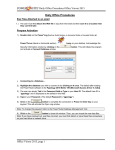
1. If the results for the patients in the New Results pane have been reviewed and are ready to be
signed off, click the Print/Sign All Results button.
Result: The Print/Sign All Results window is displayed with the following confirmation message
displayed, "You can print and sign of all New Results for all patients at once, or sign all new
results without printing. Please select one of the options below. Note: All patients will be
removed from New Results list after sign off."
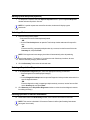
2. Click the Cancel button if you want the patients to remain on the patients list.
Result: The Print/Sign All Results window is closed.
3. Click the Print and Sign Off button if you want to print and signs off all new results for all
patients at once.
Result: Unsigned results for all patients in the patient list are printed and signed off. The New
Results pane is empty.
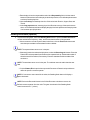
NOTE: Sign Comment, "Printed and Signed by : User name, ID on : MM/DD/YYYY
HH:MM" will be displayed for the results signed off with this option.
4. Click the Sign off button if you have previously viewed new results for all patients and want to
sign off results at once, without printing.
Result: Unsigned results for all patients in the patient list are signed off without printing. The
New Results pane is empty.
NOTE: Sign Comment, "Signed by : User name, ID on : MM/DD/YYYY HH:MM" will be
displayed for the results signed off with this option.