1
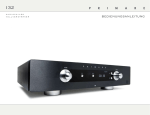
I32 audiophile integrated amplifier user guide I 3 2 USER GUIDE Welcome! Welcome to the Primare I32! Your I32 is a high-quality integrated amplifier, designed as the ideal centrepiece of a home hi-fi system. Trigger Not out available IR in/out RS232 Optional media module; see Media module, opposite page. XLR 1 XLR 2 Analogue inputs On/off RCA 3-5 Record Preamp Speaker (R) Speaker (L) Power Analogue outputs I 3 2 USER GUIDE Getting Started Set up your I32 in four simple steps: 1 Unpack the I32 2 Connect speakers 3 C o n n e c t INPUTS 4 Connect power Your I32 is supplied with the following components: The I32 is designed to be connected directly to a pair of loudspeakers. • • • • • • • You can connect up to two balanced sources and up to three unbalanced sources to the analogue inputs on the back panel. Mains cable. IR cable. Trigger cable. C23 remote control. Two batteries for the remote control. If any of these items are missing please contact your supplier. We recommend you retain the packaging in case you need to transport the unit at a later date. Connect the red wire from each speaker to the red terminal marked + and the black wire from each speaker to the black terminal marked –. The terminals can accept speaker cables terminated with spade terminals, banana plugs, or bare wires. To connect bare wires unscrew the terminal, pass the bare wire through the hole in the terminal bolt, and clamp the wire in place by screwing the terminal back down hand tight. Balanced inputs • Connect the balanced inputs IN1 and IN2 to balanced sources, such as a Primare CD32 CD player, using high quality XLR cables. Unbalanced inputs • Connect the unbalanced inputs IN3, IN4, and IN5 to unbalanced sources, using high quality RCA cables. Media module Additional inputs are provided by the optional media module. This offers streaming of files from the Internet, NAS, or PCs; Internet radio content; and digital audio input from devices including CD players, smart phones, personal players, and satellite boxes. For more information see the documentation supplied with the upgrade. Plug one end of the mains cable supplied with the I32 into the power connector on the back panel, and connect the other end to a wall socket. If this cable is not suitable for your power outlets please contact your supplier for an alternative cable. Note: See Phase, page 8, for information about getting the best sound from your I32. • WARNING: Always disconnect the I32 from the mains power before connecting or disconnecting any cables. Switch on the I32, using the switch on the back panel. The standby indicator will light up on the front panel. To switch on from standby • Press O on the front panel or remote control. The display shows: PRIMARE followed by the currently selected source and volume setting. Press O again to switch to standby. I 3 2 USER GUIDE Using the I32 This page explains how to operate your I32, using the functions available from the front panel or C23 remote control. Front panel controls Volume Changes the volume. Standby O Switches the I32 to standby, or switches it on from standby. Selecting a source The I32 provides a choice of five inputs. Initially these are labelled IN1 to IN5, but you can give them your own aliases to suit the sources in your system; see To give an alias to a source, page 6. To select a source • Menu @ Press and hold to display the settings menu. Select R In the settings menu: Edits a setting. Cancel In the settings menu: Cancels editing a setting, or saves an alias. Selector Selects an input. In general settings: Selects a setting. Turn the SELECTOR until the source is indicated on the front panel display; for example: IN2 • Alternatively, press the A or V buttons on the remote control to step between sources, or press one of the buttons 1 to 5 on the remote control to select the corresponding source directly. Changing the volume Changing the balance The I32 allows you to vary the volume from 0 (silence) to 79 (maximum). You can change the balance of the sound between the left and right channels to shift the position of the stereo image. To change the volume • Rotate the VOLUME control on the front panel, or press the + or – buttons (or the < or > buttons) on the remote control. The current volume setting is shown on the front panel; for example: 28 VOL Changing the d i s p l ay b r i g h t n e s s To change the front panel display brightness • Press the DIM button on the remote control to step through the three levels of illumination and blank. The display auto-dims after a few seconds and returns to the selected brightness when you operate any control. To change the balance • Press the BAL/ST button on the remote control. The front panel display shows the current balance setting, where 00LR-9 corresponds to the leftmost position, 00LR00 corresponds to centre, and -9LR00 corresponds to the rightmost position. • Rotate the VOLUME control on the front panel, or press the < or > buttons on the remote control. The current balance setting is shown on the front panel; for example: -7LR00 I 3 2 USER GUIDE Using the remote control Mute the sound This page explains how to use the C24 remote control to operate the I32, and how to fit the batteries into the remote control. Switch on/off Select an input F i t t i n g t h e b at t e r i e s Before using the remote control you need to insert the two button cells supplied with the C24. • Open the cover on the back of the remote control by pressing the tab gently: Select I32 mode Select next input or move up on settings menu Move balance left Edit item on settings menu • Insert the two batteries, positive side uppermost: Move balance right Select previous input or move down on settings menu Increase the volume Decrease the volume + CR2 02 M BATT5 ERY 3V + Display the settings menu 5 Y 202 TER CR BAT M HIU 3V LITHIU LIT Control the CD player • Replace the cover and push until it clips into place. Note: Replace only with 3V button cells type CR2025 or equivalent. When disposing of old batteries please be considerate to the environment. Change the balance Change the display brightness I 3 2 USER GUIDE Configuring the settings The I32 includes a General settings menu that allows you to customise the inputs to suit the sources in your system. It also allows you to configure general aspects of the I32’s operation. Using the settings menu To display the settings menu • Hold down the @ button on the front panel, or press the MENU button on the remote control. To change a setting • The current value is shown highlighted: General settings Input Status VOL 10 1 Enabled To step between settings • Turn the SELECTOR control on the front panel, or press the A or V buttons on the remote control. • General settings VOL 10 Turn the SELECTOR control on the front panel, or press the A or V buttons on the remote control, to change the value of the setting. As you change it the new value is shown in the menu: General settings The current setting is shown highlighted: VOL 10 Master bal 00 LR 00 Volume default 12 Volume max 79 10 Master bal 00 LR 00 Volume default 10 Volume max 79 VOL Master bal 00 LR 00 Volume default 10 Volume max 79 The settings menu is displayed: General settings Press the R button on the front panel, or the SELECT button on the remote control. • Press the R button on the front panel, or the SELECT button on the remote control to save the value you have set. To exit from the settings menu • Hold down the @ button on the front panel, or press the MENU button on the remote control. Customising inputs The first four items on the settings menu allow you to customise the five inputs to suit the sources in your system. To select a source To give an alias to a source • Highlight the Alias item, then press the R button on the front panel, or press the SELECT button on the remote control. The alias editor is displayed: Set the Input setting to the number of the input you want to customise: General settings Input Status VOL General settings VOL 10 56789ABCDEF 10 2 Enabled The following items then allow you to customise the settings for that source: • Turn the SELECTOR control on the front panel, or the < or > buttons on the remote control, to select the first letter. • Press the R button on the front panel, or the SELECT button on the remote control, to select it: Status can be changed to Disabled to remove the source from the sources you can select. General settings Alias allows you to give a name of up to six letters or digits to each source; see next section. Source bal allows you to customise the balance for the source, from 0 to -9 in either direction. Source offset allows you the adjust the relative volume of the source, between +10 and -10. VOL 10 789ABCDEFGH C • • Repeat for the remaining letters. Press the button on the front panel. The source will be displayed with your alias: General settings VOL 10 Status Enabled Alias CD Source bal 00 LR 00 I 3 2 USER GUIDE Customising the volume and balance The settings menu also allows you to customise the start-up volume and balance, set when you turn the I32 on from standby, and the maximum volume. To set the start-up volume Set the Volume default setting to the volume you want to use: General settings VOL 10 Master bal 00 LR 00 Volume default 25 Volume max 79 To set the maximum volume Set the Volume max setting to the highest volume you want to allow: General settings VOL 10 Volume default 10 Volume max 60 Input5 Normal Setting input 5 to fixed level Input 5 can be configured to provide high-quality amplification of the main channels of a surroundsound processor, with volume control provided by the processor. To set the start-up balance Note: This will give full-volume output. Set the Master bal setting to the balance you want to use: • Configure the Input5 option on the settings menu to SSP. General settings VOL 10 Source offset 0 Master 00 LR 00 Volume default 10 General settings Volume max Input5 IR input VOL 10 79 SSP Front S e t t i n g t h e IR i n p u t Resetting the I32 • You can reset the I32 to the factory default settings. Set the IR input to Front to control the I32 using a remote control pointed at the front panel, or Back to control it via the IR-input on the back panel: General settings Input5 IR input Factory DF VOL 10 Normal Front Reset After setting it to Back you can reset it to Front by operating the settings menu from the front panel controls. Warning: this will reset any source settings and aliases you have defined. To reset to the factory default settings • Highlight the Factory DF item and press the R button on the front panel, or the SELECT button on the remote control, to select it. You will be prompted: General settings VOL 10 Confirm factory DF Yes No • Turn the SELECTOR control on the front panel, or press the V button on the remote control, to highlight Yes. • Press the R button on the front panel, or the SELECT button on the remote control, to proceed and reset the I32. Alternatively, if you choose not to reset, highlight No and press the R button on the front panel, or the SELECT button on the remote control, to select it. I 3 2 USER GUIDE Technical specification Additional information The I32 uses proprietary UFPD power technology to provide high power output with very low distortion, with an ecologically-friendly low standby power. These instructions help you get the best possible sound from your I32, and give information about using it with a CD32. F e at u r e s Performance Phase Ultra Fast Power Device (UFPD) Class-D Amplifier Gain The phase of the AC supply can make a significant difference to the sound. 26dB constant loop gain in the entire audio range Frequency response Power Factor Control (PFC) power supply Speaker Outputs Power 2 x 120W / 8Ω, 2 x 230W / 4Ω Analogue outputs Preamplifier output RCA, 94Ω impedance. Record output RCA, 94Ω impedance. 26dB 10Hz – 20kHz, -0.5dB THD Ensure that the live pin of the AC power cable is connected to the left-hand pin of the power connector, viewed from the back panel: Live -100 dBv General Control Burn-in • Connect the Trigger cable from the I32 TRIG OUT to the CD32 TRIG IN. Configure the CD32 to TRIG ON. Your Primare will start to sound best after an initial burn-in of approximately 24 hours. • Power supply The IR cable ensures that the remote control DIM and O buttons operate both units in synchrony. Inputs 90V -5% to 240V +5% Balanced inputs Power consumption RS 2 3 2 a n d t r i g g e r 2 XLR, 36kΩ impedance. Standby: 0.2W Operating: 31W The RS232 input allows you to connect the I32 to a controller system. For more information please contact Primare or visit www.primare.net. 3 RCA, 36kΩ impedance. The Trigger cable ensures that the CD32 switches on, or to standby, when you operate the O button on the front panel of the I32. 1 x 12V trigger output 1 x RS232 You will notice a further smaller improvement in sound quality for at least another 3 days’ playing. Unbalanced inputs Your I32 is an ideal companion to the Primare CD32 CD Player. For best results link the two products together as follows using the two cables supplied with the I32: To connect the trigger cable <0.05%, 20Hz – 20kHz, 10W at 8Ω Signal to noise ratio Using the I32 with a CD 3 2 Size 430 x 420 x 106mm (WxDxH) Weight 11kg Colour Black or titanium The Trigger output allows the I32 to switch on other devices, such as a CD32. To connect the IR cable • Set the I32 and CD32 to the same display brightness setting. • Connect the IR cable from the I32 IR OUT to the CD32 IR IN. • Configure the CD32 to IR BACK. Refer to the CD32 User Guide for details of how to configure the TRIG ON and IR BACK settings. I 3 2 USER GUIDE Copyright and acknowledgments Copyright © 2010-2013 Primare AB. All rights reserved. Primare AB Limstensgatan 7 21616 Limhamn Sweden http://www.primare.net Issue: I32/3 The information in this guide is believed to be correct as of the date of publication. However, our policy is one of continuous development and so the information is subject to change without notice, and does not represent a commitment on the part of Primare AB. Primare is a trademark of Primare AB. This guide was produced by Human-Computer Interface Ltd. http://www.interface.co.uk Safety compliance This product has been designed to meet the IEC 60065 international electrical safety standard. CAUTION RISK OF ELECTRIC SHOCK DO NOT OPEN ATTENTION RISQUE DE CHOC ELECTRIQUE NE PAS OUVRIR CAUTION: To reduce the risk of electrical shock do not remove cover (or back). No user serviceable parts inside. Refer servicing to qualified service personnel. WARNING: To reduce the risk of fire or electrical shock, do not expose this apparatus to rain or moisture. CAUTION: In Canada and the USA, to prevent electric shock, match the wide blade of the plug to the wide slot in the socket and insert the plug fully into the socket. This product is designed and manufactured to meet strict quality and safety standards. However, you should be aware of the following installation and operation precautions. 1. Take heed of warnings & instructions You should read all the safety and operating instructions before operating this appliance. Retain this handbook for future reference and adhere to all warnings in the handbook or on the appliance. 2. Water and moisture The presence of electricity near water can be dangerous. Do not use the appliance near water – for example next to a bathtub, washbowl, kitchen sink, in a wet basement or near a swimming pool, etc. 3. Object or liquid entry Take care that objects do not fall and liquids are not spilled into the enclosure through any openings. Liquid-filled objects such as vases should not be placed on the equipment. 4.Ventilation Do not place the equipment on a bed, sofa, rug or similar soft surface, or in an enclosed bookcase or cabinet, since ventilation may be impeded. We recommend a minimum distance of 50mm around the sides and top of the appliance to provide adequate ventilation. The lightning flash with an arrowhead symbol within an equilateral triangle, is intended to alert the user to the presence of uninsulated 'dangerous voltage' within the product's enclosure that may be of sufficient magnitude to constitute a risk of electric shock to persons. The exclamation point within an equilateral triangle is intended to alert the user to the presence of important operating and maintenance (servicing) instructions in the literature accompanying the product. 5. Heat Locate the appliance away from naked flames or heat producing equipment such as radiators, stoves or other appliances (including other amplifiers) that produce heat. 6. Climate The appliance has been designed for use in moderate climates. 7. Racks and stands Only use a rack or stand that is recommended for use with audio equipment. If the equipment is on a portable rack it should be moved with great care, to avoid overturning the combination. 8. Cleaning Unplug the unit from the mains supply before cleaning. The case should normally only require a wipe with a soft, damp, lint-free cloth. Do not use paint thinners or other chemical solvents for cleaning. We do not advise the use of furniture cleaning sprays or polishes as they can cause indelible white marks if the unit is subsequently wiped with a damp cloth. 9. Power sources This appliance must be connected to a mains socket outlet using the supplied power cord. To disconnect this apparatus from power, you must disconnect the power cord. Make sure the power cord is always easily accessible. Only connect the appliance to a power supply of the type described in the operating instructions or as marked on the appliance. This is a Class 1 device and must be earthed. The power switch is a single-pole switch. When the switch is in the “Off ” position, the appliance is not completely disconnected from the main power. 10. Power-cord protection Power supply cords should be routed so that they are not likely to be walked on or pinched by items placed upon or against them, paying particular attention to cords and plugs, and the point where they exit from the appliance. 11. Grounding Ensure that the grounding means of the appliance is not defeated. 12. Power lines Locate any outdoor antenna/aerial away from power lines. 13. Non-use periods If the unit has a stand-by function, a small amount of current will continue to flow into the equipment in this mode. Unplug the power cord of the appliance from the outlet if left unused for a long period of time. 14. Abnormal smell If an abnormal smell or smoke is detected from the appliance, turn the power off immediately and unplug the unit from the wall outlet. Contact your dealer immediately. 15. Servicing You should not attempt to service the appliance beyond that described in this handbook. All other servicing should be referred to qualified service personnel. 16. Damage requiring service The appliance should be serviced by qualified service personnel when: A. the power-supply cord or the plug has been damaged, or B. objects have fallen, or liquid has spilled into the appliance, or C. the appliance has been exposed to rain, or D. the appliance does not appear to operate normally or exhibits a marked change in performance, or E. the appliance has been dropped or the enclosure damaged. the sound and vision of scandinavia p l e a s e v i s i t primare.net f o r m o r e information about our products p r i m a r e ab limstensgatan 7 21616 limhamn sweden primare.net