1
Computer Input
Image Adjustment
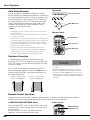
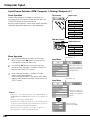
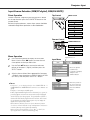
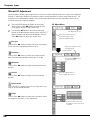
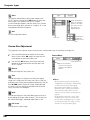
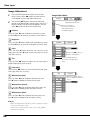
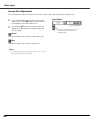
1
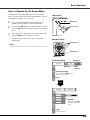
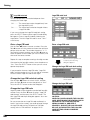
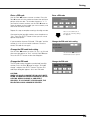
Press the MENU button to display the On-Screen
Menu. Use the Point 7 8 buttons to move the red
frame pointer to the Image Adjust Menu icon.
2
Use the Point ed buttons to move the red frame
pointer to the desired item and then press the SELECT
button to display the adjustment dialog box. Use the
Point 7 8 buttons to adjust the setting value.
Image Adjust Menu
Image Adjust Menu icon
Move the red frame
pointer to the desired
item and then press
the SELECT button.
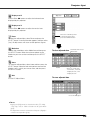
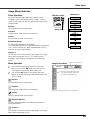
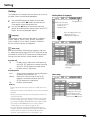
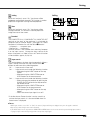
Contrast
Press the Point 7 button to decrease the contrast; press
the Point 8 button to increase the contrast (from 0 to 63).
Brightness
Press the Point 7 button to decrease the brightness; press
the Point 8 button to increase the brightness (from 0 to 63).
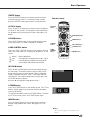
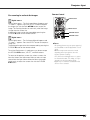
Selected Image mode
Color temp.
Use the Point 7 8 buttons to select the desired Color temp.
level (High, Mid, Low, or XLow).
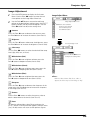
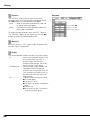
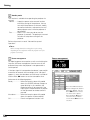
Use the Point 7 8 buttons
to adjust the setting value.
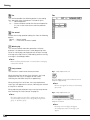
White balance (Red)
Press the Point 7 button to lighten red tone; press the
Point 8 button to deepen red tone (from 0 to 63).
White balance (Green)
Press the Point 7 button to lighten green tone; press the
Point 8 button to deepen green tone (from 0 to 63).
White balance (Blue)
Press the Point 7 button to lighten blue tone; press the
Point 8 button to deepen blue tone (from 0 to 63).
✔Note:
•When the White balance Red, Green, or Blue is
adjusted, the Color temp. level will change to “Adj.”.
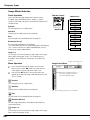
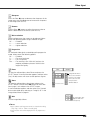
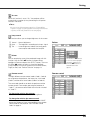
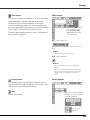
Sharpness
Press the Point 7 button to decrease the sharpness of the
image; press the Point 8 button to increase the sharpness
of the image (from 0 to 15).
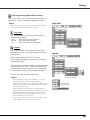
Gamma
Use the Point 7 8 buttons to adjust the gamma value to
obtain a better balance of contrast (from 0 to 15).
Reset
To reset the adjusted data, select Reset and press the
SELECT button. A confirmation box appears and then select
[Yes]. All adjustments will return to their previous figures.
35