1
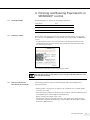
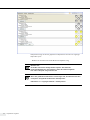
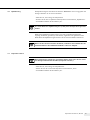
-- As an alternative, whenever there is no barcode scanner available for identifying
the flasks, you can also manually enter the data contained on the box label (for lot
data, see Chapter 4.2) in the input screen,
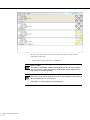
-- When manually entering data, use the “Tab key” to move around from field to field
within the input screen.
Confirm entry of last value by pressing “Tab key”.
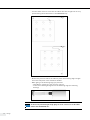
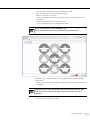
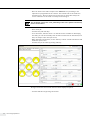
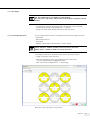
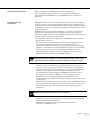
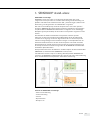
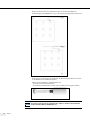
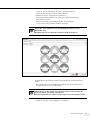
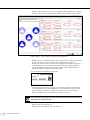
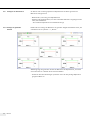
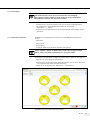
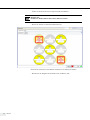
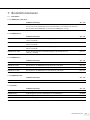
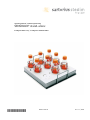
The figure shows the flasks calibrated in a lot displayed in yellow.
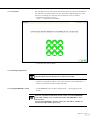
-- Activate the remaining flasks with a click to scan or enter their lot data.
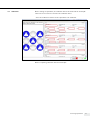
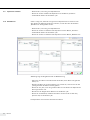
-- Take a pre-filled flask after you have already scanned in its lot data (see Chapter
4.2), and scan the barcode affixed to the flask.
These data will be compared with the lot data of the already stored lots, thereby
enabling an unequivocal assignment of the flasks to the respective lot and its
calibration data. The lot data will be transferred to the input screens of the
selected flasks of the calibration menu.
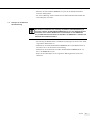
Lot No. Label (affixed to the flask)
Processing Experiments
23