1
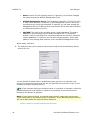
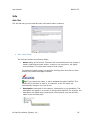
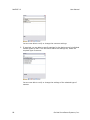
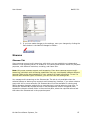
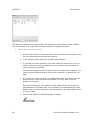
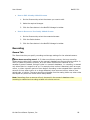
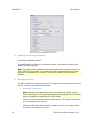
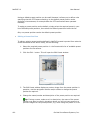
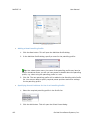
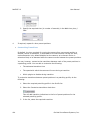
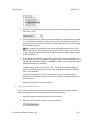
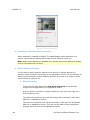
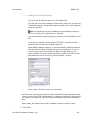
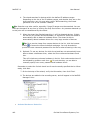
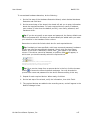
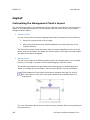
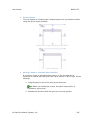
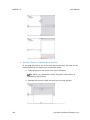
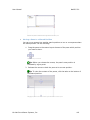
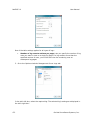
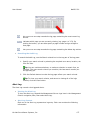
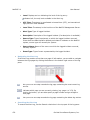
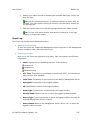
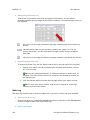
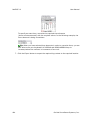
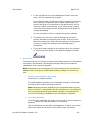
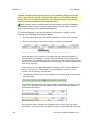
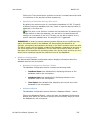
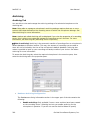
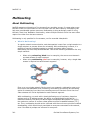
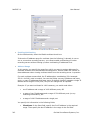
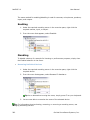
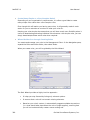
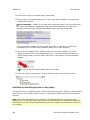
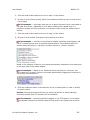
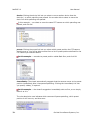
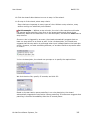
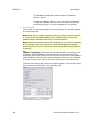
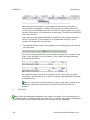
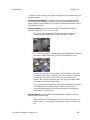
User Manual NetEVS 2.0 3. If you have made changes to the settings, save your changes by clicking the Save button in the NetEVS-Manager's toolbar: Record Tab The Record tab lets you specify recording and storage settings for the selected speaker. Speakers' recording and storage settings are completely independent of cameras and microphones. Note: Recordings of what is being said through a speaker will only be saved in the speaker's database when recording is enabled and recording-related rule criteria are met. IMPORTANT: Although what is being said through a speaker can be recorded and archived, there is currently no way of playing back or exporting such recorded outgoing audio. Features for playing back and exporting recorded outgoing audio will be available in subsequent releases as soon as possible. Enabling and Disabling Recording Recording is by default enabled. To enable/disable recording for the selected speaker, select/clear the Record tab's Enable recording check box. Note: Recording must be enabled for the speaker before you are able to record (i.e. save) audio from the speaker. A rule specifying that outgoing audio from the speaker should be recorded under particular circumstances will not work if recording is disabled for the speaker in question. Recording Settings Prebuffering is essentially the ability to save audio in the speaker's database before the initial boundaries of a recording. Use of prebuffering in this context can occasionally be advantageous: It allows you to save audio from before the events or times used to start recordings. Note: Unlike video and incoming audio, which NetEVS continuously receives from connected cameras and microphones, outgoing audio is only transmitted when Ocularis Client Lite users press a button to talk through speakers. This can, depending on which events or times are used to start recordings, mean that there will be very little or no outgoing audio available for prebuffering. The following example illustrates how prebuffered audio is added to a recording: This is the stream received by NetEVS: On-Net Surveillance Systems, Inc. 361