1
User Manual
NetEVS 2.0
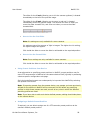
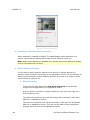
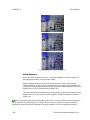
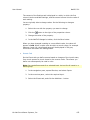
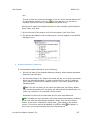
Note that other settings on the Motion tab, such as Sensitivity, will determine what
will be interpreted as motion. Merely enabling motion detection may thus not be
sufficient to meet your requirements. Time spent on finding the best possible balance
of motion detection settings under different conditions (day/night, calm/windy
weather, etc.) will help you later avoid unnecessary recordings, etc.
Note: Motion is typically detected by NetEVS when video received from cameras is
analyzed. This is the type of motion detection dealt with in this example. However,
some cameras are—depending on configuration of the camera hardware—themselves
able to detect motion. Such hardware-configurable motion detection can also be used
in NetEVS rules, although that is beyond the scope of this example.
Creating the Rule
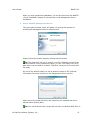
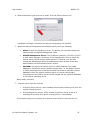
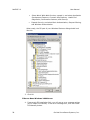
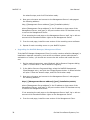
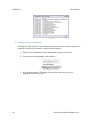
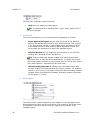
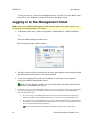
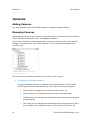
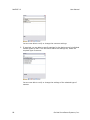
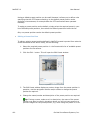
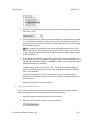
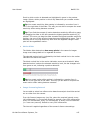
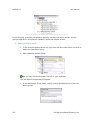
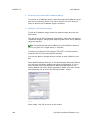
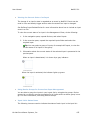
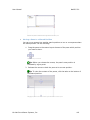
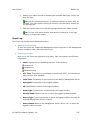
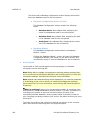
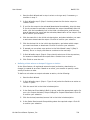
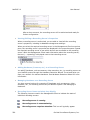
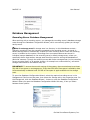
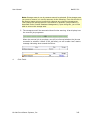
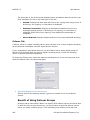
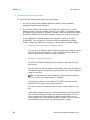
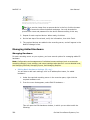
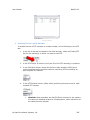
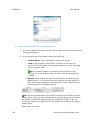
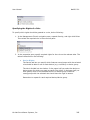
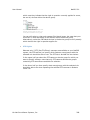
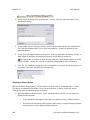
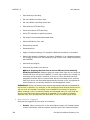
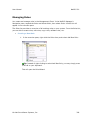
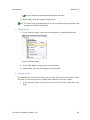
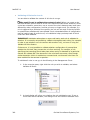
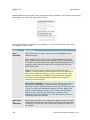
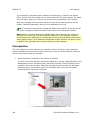
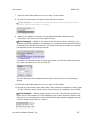
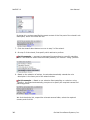
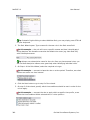
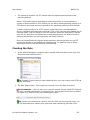
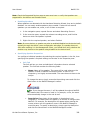
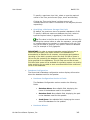
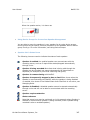
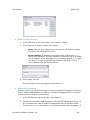
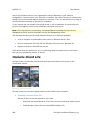
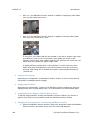
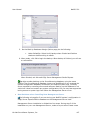
1. In the NetEVS-Manager's navigation pane, expand Rules and Alerts, then right-click
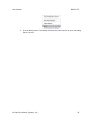
Rules and select Add New Rule...:
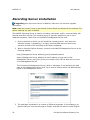
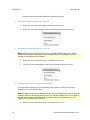
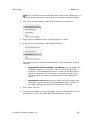
Tip: Instead of right-clicking to select Add New Rule, you may simply press CTRL+N
on your keyboard.
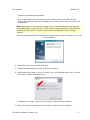
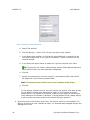
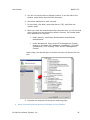
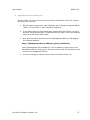
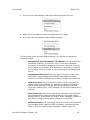
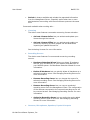
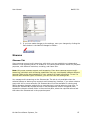
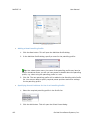
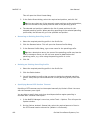
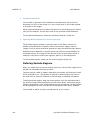
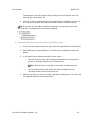
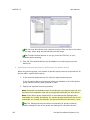
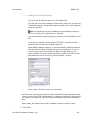
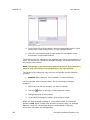
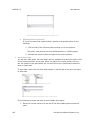
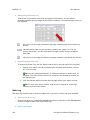
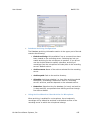
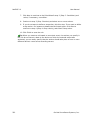
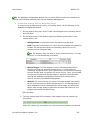
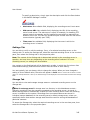
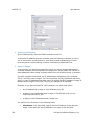
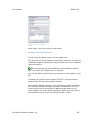
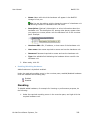
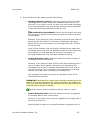
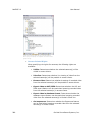
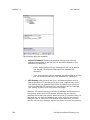
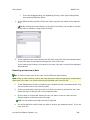
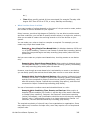
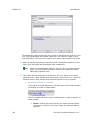
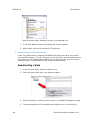
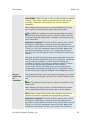
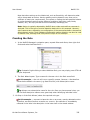
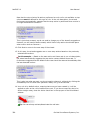
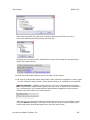
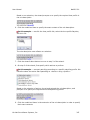
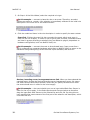
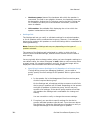
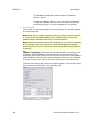
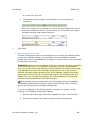
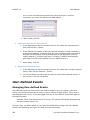
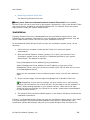
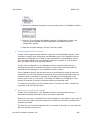
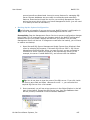
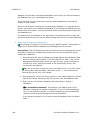
2. The Rule Wizard opens. Type a name for the new rule in the Rule name field.
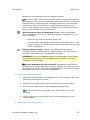
In this example ... the rule will cover a specific camera, Camera 1. We therefore
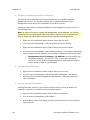
overwrite the default rule name (e.g. New Rule 001) with a descriptive name:
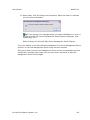
Tip: Always use a descriptive name for the rule. Once you have several rules, you
will find that descriptive names are a great help when identifying individual rules.
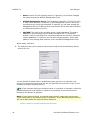
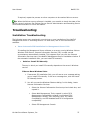
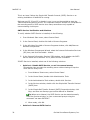
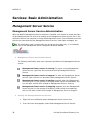
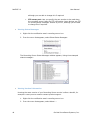
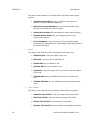
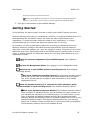
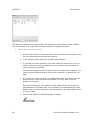
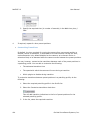
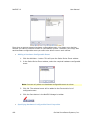
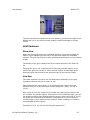
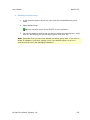
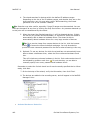
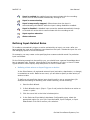
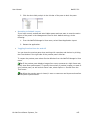
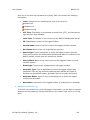
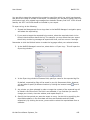
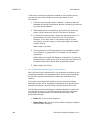
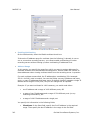
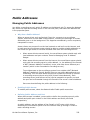
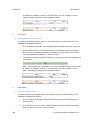
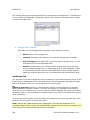
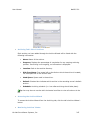
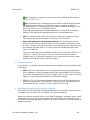
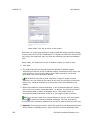
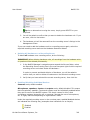
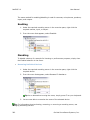
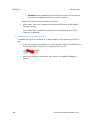
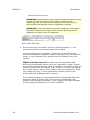
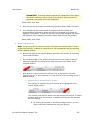
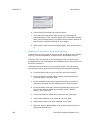
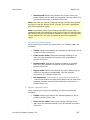
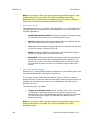
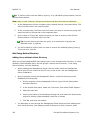
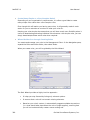
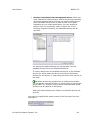
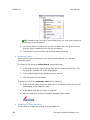
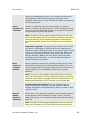
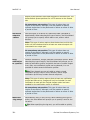
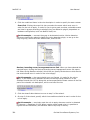
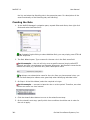
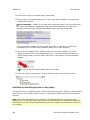
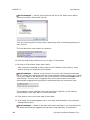
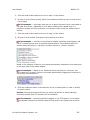
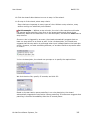
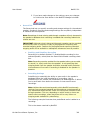
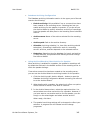
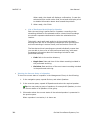
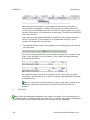
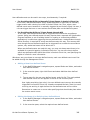
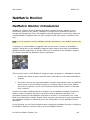
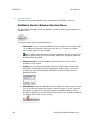
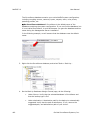
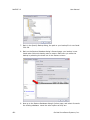
3. On Step 1 of the Rule Wizard, select the required rule type.
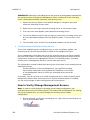
In this example ... we want to base the rule on an event, namely detected motion.
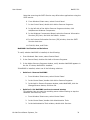
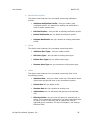
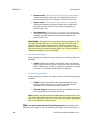
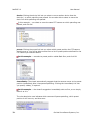
Therefore, we select Perform an action on <event>. Our selection is immediately
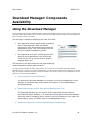
reflected in the initial rule description in the lower half or the wizard window:
On-Net Surveillance Systems, Inc.
335