1
System Setting 25
[LANGUAGE] Menu
[AUDIO] Menu
Display Menu
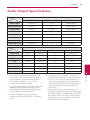
Each disc has a variety of audio output options. Set
the player’s Audio options according to the type of
audio system you use.
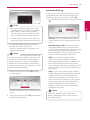
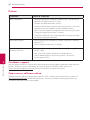
Select a language for the [Settings] menu and onscreen display.
Disc Menu/Disc Audio/
Disc Subtitle
Select the language you prefer for the audio track
(disc audio), subtitles, and the disc menu.
[Original]
Refers to the original language in which the
disc was recorded.
Press ENTER (b) to select another language.
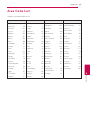
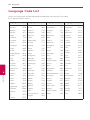
Use number buttons then press ENTER (b)
to enter the corresponding 4-digit number
according to the language code list on page
64.
[Off] (Disc Subtitle only)
Turn off Subtitle.
,,Note
Depending on the disc, your language setting
may not work.
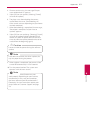
Digital Output
[PCM Stereo] (HDMI, OPTICAL)
Select if you connect this unit’s HDMI OUT or
DIGITAL AUDIO OUT jack to a device with twochannel digital stereo decoder.
[PCM Multi-Ch] (HDMI only)
Select if you connect this unit’s HDMI OUT jack
to a device with multi-channel digital decoder.
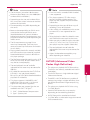
[DTS Re-Encode] (HDMI, OPTICAL)
Select if you connect this unit’s HDMI OUT or
DIGITAL AUDIO OUT jack to a device with DTS
decoder.
[BitStream] (HDMI, OPTICAL)
Select if you connect this unit’s DIGITAL AUDIO
OUT and HDMI OUT jack to a device with
LPCM, Dolby Digital, Dolby Digital Plus, Dolby
TrueHD, DTS and DTS-HD decoder.
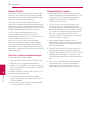
,,Note
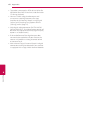
yy When [Digital Output] option is set to [PCM
Multi-Ch], the audio may output as PCM
Stereo if the PCM Multi-Ch information is
not detected from HDMI device with EDID.
yy If the [Digital Output] option is set to [DTS
Re-Encode], the DTS Re-Encode audio is
outputted for BD-ROM discs with secondary
audio and the original audio is outputted
for the other discs (like [BitStream]).
3
System Setting
[Other]
,,Note
Since many factors affect the type of audio
output, see “Audio Output Specifications” on
page 61 for details.