1
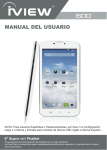
SupraPad i800QW
Quick Start Guide
NOTE: For Spanish users, please go to “Control Panel", then go to “Clock,
Language, and Region", then go to “Language” to change from English to
Spanish Language OSD.
8" SupraPad
To assure the product to work in best status
please read the guide carefully before operation and keep it well for future use
iVIEW SupraPad i785Q
(7.85 Intel Quad Core, Dual Cam, BT, GMS)
iVIEW SupraPad i700
(7 Intel Dual Core, Dual Cam, BT, GMS)
iVIEW-1010TPC
(10.1 Dual Core, BT, Dual Cam)
iVIEW SupraPad M-1000Q
(10.1 Quad Core with Phone, BT, Dual Cam)
iVIEW-920TPC
(9 Dual Core, BT, GMS Certified)
iVIEW-910TP (Color)
(9 Dual Core, Cam, HDMI )
iVIEW-785TPC
(7.85 Quad Core, BT, Dual Cam)
iVIEW-782TPC
(7.85 Dual Core, Dual Cam)
iVIEW-797TPC (Color)
(7 Dual Core with Phone, Dual Cam)
iVIEW-794TPC
(7 Dual Core with Phone, Dual Cam)
iVIEW-788TPC
(7 Quad Core, Dual Cam)
iVIEW-774TPC (Color)
(7 Dual Core, Dual Cam)
iVIEW-600
(6 Dual Core with Phone, Dual Cam)
iVIEW-420TPC
(4.3 Tablet, Cam )
Mira Dongle
(Miracast / WIFI Display on TV)
iVIEW-3500STBII
(Converter Box)
iVIEW's new 8'' SupraPad i800QW is the next-generation tablet PC with Windows 8.1
and Office 365 Personal. It features with 8'' IPS High Resolution Screen (1280 x 800)
®
and strong processors of Intel Atom Processor Z3735G-CR (Quad Core, 1.33GHz)
TM
CPU providing access to the web for news, weather, or local business info;
downloading thousands of Apps from the Windows Store to tap your need, such as
games, favorite movie clips, music, and videos. With built-in bluetooth funtion you are
able to connect to your bluetooth speaker system / bluetooth earphone to listen to
music, or connect to a bluetooth keyboard for easy typing, and send files to another
tablet or mobile phone with bluetooth function. For your convenience, i800QW now
comes with a Bluetooth Keyboard Case for easy typing and additional protection to
the tablet. Equipped with memory of 16GB, you may store plenty of pictures, movies,
and documents. Expansion storage is available via Micro Card Reader slot, up to
32GB. SupraPad i800QW is your all-in-one tablet that you can't live without.
NOTE: Office 365 is free of use for 1 year subscription only.
Notes
* This is a high-density electronic product; please do not dismantle it by yourself.
* Avoid strong beat and collision.
* Avoid using this product in the following environments: High and low temperature, humidity.
dusty. with strong magnetic and long-term exposure to the sun.
* Wipe the product shell by using dry wet cotton cloth gently; the use of other chemical
cleaning is prohibited. This product should keep away from water drop and water splash, so
cups filled with liquids should not be placed near the product.
* Use the headset long time, high volume may cause permanent damage to hearing.
* Do not use headphones when going across a road, driving a motorcycle or bicycle, in order
to avoid traffic accidents.
* Please use permitted battery, charger and accessories only, the use of any other type of
product would be a breach of warranty regulations, and may be dangerous.
* Please deal with waste machinery and accessories according to local environmental
regulations.
* If you have any questions in the process of using of the product. please contact the local
dealer or contact Wiltronics customer service center directly.
* For any file loss caused by product damage, repair or other causes of product damage,
Wiltronic shall not be responsible for it. Please follow the user's guide and timely backup
your files.
Content
1. Appearance and Button................................................................. 2
2. Descriptions of Keyboard............................................................... 3
3. Introduction to Desktop...................................................................4
3.1 Windows 8.1 start image...........................................................4
3.2 Image slide applications............................................................4
3.3 Introduction to app Interface .....................................................6
3.4 Charm menu column.................................................................7
3.5 Dual-Screen application............................................................9
4. Basic Operations.........................................................................10
4.1 Dormancy, restart and power off.............................................10
4.2 Security management.......................................................... ...10
5. Features.......................................................................................11
6. Accessories..................................................................................11
1
1. Appearance and Button
All view ID:
8
4
9
7
5
2
1
1
6
3
Micro SD Card Slot: The built-in storage card reader slot supports Micro SD and
MicroSDHC format.
2
MIC:Microphone
3
Power Button: Press it down to start or close the touch screen panel. You can
also let the computer enter dormancy through this button or wake from the
dormancy mode.
4
Earphone Jack: 3.5mm standard earphone jack can transmit the audio signals of
Tablet PC to earphone.
5
Micro USB Jack: You can use it to connect the computer for data transmission,
charging and external USB flash drive.
6
Volume-/Volume+: Lower/raise volume.
7
Front Camera: Take photos, and record pictures.
8
Back Camera: Take photos, and record pictures.
9
Loudspeaker: The built-in loudspeaker enables you to hear the sound
without having to link additional device.
2
2. Descriptions of Keyboard
● How to connect the Bluetooth Keyboard?
1. Turn on the Bluetooth Keyboard via the Power button.
2. Press the connect button on the keyboard till the indicator of Bluetooth is
twinkling.
3. Click “Control Panel” on the Tablet, then go to “All Control Panel Items”, then
go to “Devices and Printers”, then go to “Add a device”.
4. Choose the Bluetooth Keyboard from the device list, and input the PIN code.
After typing the code, you might need to press Enter, Return, OK, or a similar
button on your tablet.
1
Connect Button: To turn on Bluetooth of
keyboard.
2
1
2
Use of tablet and keyboard:
3
Power button: To turn on/off the keyboard.
3. Introduction to Desktop
3.1 Windows 8.1 start image: On the start screen, you can see
many programs fixed in the image. These application programs
are displayed in the form of “magnet”. As long as you click
them, you can easily visit them.
You need to log on your Microsoft account before the application program completely
runs.
3.2 Image slide applications
Slide to right
Slide to left
Slide to the right from the left
Slide to the left from the right side
side of the screen to start the
of the screen to start Charm menu
application program in running.
column.
4
Reduce
Enlarge
On the touch screen, narrow two
On the touch screen, widen two
fingers to reduce the image.
fingers to enlarge the image.
Slide downward
Slide with finger
In start screen, slide from
In start screen, slide finger right
the top of the screen to view
and left to move the image.
all application programs.
Slide upward
In the start screen, slide upward from the
bottom of thescreen to visit all application
program (APPS) interfaces.
5
3.3 Introduction to app Interface
Besides the application programs already fixed on the start screen, you can also
start other application programs in all application programs, such as other software
application programs attached to the Tablet PC.
If you want to fix more application programs on the start interface, see the operation
in the figure below, (1) press and hold the application program magnet for about one
second, and release the magnet till the Customize column shows at the buttom, and
select (2) to fix to the start screen.
6
Conversely, if you want to cancel or delete a certain application in the start screen,
(1) press and hold the application program magnet for about one second, and
release the magnet till the Customize column shows at the buttom, and select the
attributes to customize the magnet you want.
3.4 Charm menu column
Slide it to the left from the right side of the screen to start Charm menu
column, including: Start, Device, Setup, Share, and Search Program.
7
Search the files and application programs in the Tablet PC.
Share the program through social exchange website or e-mail.
Return to the start screen. From the start screen, you can also use
this function to return the application program opened in the latest.
Read, write and share files, and connect external screen or printer
with the device connected to the Tablet PC.
Set up the Tablet PC.
Search Menu
Share Menu
8
Device Menu
Set up Menu
3.5 Dual-Screen application
On My Computer in (Figure 1), slide it inward from the left side of the screen,
drag it and hold. Let go when seeing double interfaces appear. In (Figure 2),
press the partition button on the middle partition line and drag right and left to
partition the display proportion of the double screens.
(Figure 1)
(Figure 2)
9
4. Basic Operations
4.1 Dormancy, restart and power off
4.2 Security management
Picture 3.1
Method for quick setup:
Click the “Setup” button in “Charm” setup, and select “Change computer setup”.
Select “User” on the left and click “Create local account” in “Your account” on the
right side. After inputting the password of Complete Windows Live Id Account,
input username, password, confirm password and password prompt.
10
5. Features
* Screen: 8" CapacitiveTouch Screen, 1280*800 IPS High Resolution
®
* Processor: Intel Atom Processor Z3735G-CR, Quad Core, 1.33GHz
TM
* OS: Windows 8.1
* RAM: 1GB
* Memory: 16GB
* Wireless Connection: WIFI 802.11 b/g/n
* Build in Bluetooth
* Support Dual Camera: Front 2.0MP, Rear 5.0MP
* Support Skype Video Call
* Support 1080P Full HD Video
* I/O Port : Micro USB
* Card Slot: Micro SD Card (Max:32GB)
* Audio Output: Stereo Speaker (8Ω 1.0w)/3.5MM Stereo Headphone Jack
* Windows Store, Internet Browser, Office 365, Calendar, Calculator, E-mail
* Picture Viewing, Music / Video Playback, Games
* Supports Multi Languages
* Battery: Built in 3800 mAh / 3.7V Li-ion, Rechargeable
* Power Source: 5V
2A
6. Accessories
Below items are included in your tablet package:
* SupraPad Complete Device
* Power Adapter
* OTG Cable
* Earphone
* User Manual
* Leather Case with Bluetooth Keyboard
11
6.