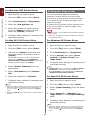
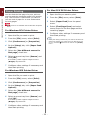
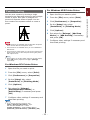
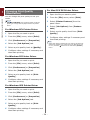
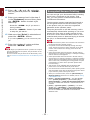
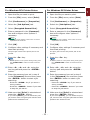
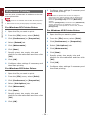
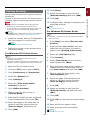
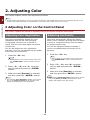
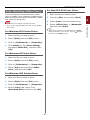
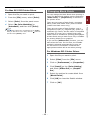
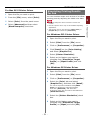
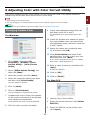
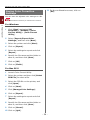
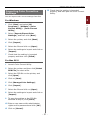
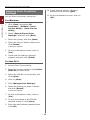
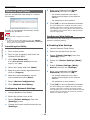
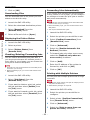
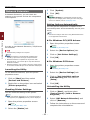
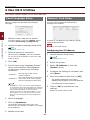
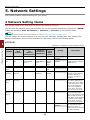
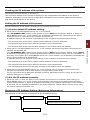
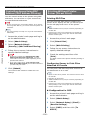
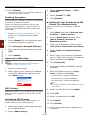
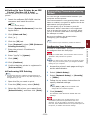
1
-1- About This Manual Terms in this document The following terms are used in this manual. Note ●● Indicates important information on operations. Make sure to read sections with this mark. Memo ●● Indicates additional information on operations. You should read sections with this mark. Reference ●● Indicates where to look when you want to know more detailed or related information. WARNING ●● A warning provides additional information which, if ignored, may result in a risk of personal injury. CAUTION ●● A caution provides additional information which, if ignored, may result in equipment malfunction or damage. Symbols in this document The following symbols are used in this manual. Symbols [ ] " " < > button/key > Your Printer Description ●● Indicates menu names on the display screen. ●● Indicates menu, window, and dialog names on the computer. ●● Indicates messages and input text on the display screen. ●● Indicates file names on the computer. ●● Indicates reference titles. Indicates a hardware button on the operator panel or a key on the keyboard of the computer. Indicates how to get to the item you want in the menu of this printer or the computer. Indicates a printer you want to use or select. -2- Notation used in this manual The following notations may be used in this manual. ●● PostScript3 Emulation → PSE, POSTSCRIPT3 Emulation, POSTSCRIPT3 EMULATION ●● Microsoft® Windows® 7 64-bit Edition operating system → Windows 7 (64bit version) ●● Microsoft® Windows Vista® 64-bit Edition operating system → Windows Vista (64bit version)* ●● Microsoft® Windows Server® 2008 R2 64-bit Edition operating system → Windows Server 2008 R2* ●● Microsoft® Windows Server® 2008 64-bit Edition operating system → Windows Server 2008 (64bit version)* ●● Microsoft® Windows® XP x64 Edition operating system → Windows XP (x64 version)* ●● Microsoft® Windows Server® 2003 x64 Edition operating system → Windows Server 2003 (x64 version)* ●● Microsoft® Windows® 7 operating system → Windows 7 * ●● Microsoft® Windows Vista® operating system → Windows Vista * ●● Microsoft® Windows Server® 2008 operating system → Windows Server 2008 * ●● Microsoft® Windows® XP operating system → Windows XP * ●● Microsoft® Windows Server® 2003 operating system → Windows Server 2003 * ●● Microsoft® Windows® 2000 operating system → Windows 2000 ●● Generic name for Windows 7, Windows Vista, Windows Server 2008, Windows XP, Windows Server 2003, and Windows 2000 → Windows * I f there is no special description, 64bit version is included in Windows 7, Windows Vista, Windows Server 2008, Windows XP, and Windows Server 2003. (64bit version and Windows Server 2008 R2 is included in Windows Server 2008.) If there is no special description, Windows 7 is used as Windows, Mac OS X 10.6 is used as Mac OS X, and C831dn is used as the printer for examples in this document. Depending on your OS or model, the description on this document may be different. -3- Contents About This Manual....................................................................................2 Terms in this document.............................................................................................. 2 Symbols in this document........................................................................................... 2 Notation used in this manual....................................................................................... 3 1. Convenient Print Functions................................................... 8 Printing on Envelopes................................................................................................. 8 Printing on Labels.................................................................................................... 10 Printing on Custom Size Paper................................................................................... 11 Manual Printing....................................................................................................... 14 Combining Multiple Pages Onto One Sheet of Paper (Multiple page printing).................... 16 Duplex Printing........................................................................................................ 17 Scaling to Pages...................................................................................................... 18 Collating Pages........................................................................................................ 19 Setting the Page Order............................................................................................. 20 Booklet Printing....................................................................................................... 21 Cover Printing......................................................................................................... 22 Poster Printing......................................................................................................... 23 Changing Print Quality (Resolution)............................................................................ 24 Enhancing Photos.................................................................................................... 25 Printing Color Data in Grayscale................................................................................. 25 Emphasizing Fine Lines............................................................................................. 26 Auto Tray Selection.................................................................................................. 27 Auto Tray Switching................................................................................................. 28 Saving Toner........................................................................................................... 30 Secure Printing........................................................................................................ 31 Encrypted Secure Printing......................................................................................... 32 Watermark Printing.................................................................................................. 34 Overlay Printing....................................................................................................... 35 Storing Print Data.................................................................................................... 36 Saving the Driver Settings........................................................................................ 37 Changing the Driver's Default Settings........................................................................ 38 Using Printer Fonts................................................................................................... 39 Using Computer Fonts.............................................................................................. 40 Using a Print Buffer.................................................................................................. 40 Changing the Mono-Print Mode.................................................................................. 41 Printing to File......................................................................................................... 41 Downloading PS Files............................................................................................... 42 -4- Contents Printing Out PS Errors.............................................................................................. 42 Changing Emulation Mode......................................................................................... 43 2. Adjusting Color................................................................... 44 Adjusting Color on the Control Panel......................................................... 44 Adjusting Color Registration...................................................................................... 44 Adjusting the Density............................................................................................... 44 Adjusting the Color Balance (Density)......................................................................... 45 Adjusting Color on the Computer............................................................. 46 Color Matching (Automatic)....................................................................................... 46 Color Matching (Office Color)..................................................................................... 47 Color Matching (Graphic Pro)..................................................................................... 48 Color Matching (No Color Matching)........................................................................... 48 Changing Black Finish............................................................................................... 49 Eliminating White Gap Between Text and Background (Overprinting black)...................... 50 Simulating Printing Results for Ink ............................................................................ 51 Color Separation...................................................................................................... 52 Adjusting Color with Color Correct Utility................................................... 53 Changing Palette Color............................................................................................. 53 Changing Gamma Value or Hue................................................................................. 54 Printing in Adjusted Color Settings............................................................................. 55 Saving Color Correction Settings................................................................................ 56 Importing Color Correction Settings........................................................................... 57 Deleting Color Correction Settings.............................................................................. 58 Setting Color with Color Swatch Utility...................................................... 59 Printing Color Swatch............................................................................................... 59 Printing a File With the Color You Want....................................................................... 60 Adjusting Color with PS Gamma Adjuster Utility......................................... 61 Registering Half-tone................................................................................................ 61 Printing a File with the Adjusted Gamma Curve............................................................ 62 3. Changing Printer Settings................................................... 63 Checking the Current Settings................................................................. 63 Printing Out Print Information.................................................................................... 63 Changing the Equipment Settings............................................................. 64 Admin Setup........................................................................................................... 64 Other Settings......................................................................................................... 64 List of Each Setup Menu........................................................................................... 65 -5- Contents 4. Using Utility Software......................................................... 78 Overview of Utilities............................................................................... 78 Installing Utilities................................................................................... 80 Utilities common to Windows/Mac OS X.................................................... 81 Web page............................................................................................................... 81 Windows Utilities................................................................................... 83 Configuration Tool.................................................................................................... 83 PDF Print Direct....................................................................................................... 86 Operator Panel Language Setup................................................................................. 87 Network Card Setup................................................................................................. 88 OKI LPR Utility........................................................................................................ 89 Network Extension................................................................................................... 92 TELNET.................................................................................................................. 93 Mac OS X Utilities................................................................................... 94 Panel Language Setup.............................................................................................. 94 Network Card Setup................................................................................................. 94 5. Network Settings................................................................ 96 Network Setting Items............................................................................ 96 Setting IP Address............................................................................... 121 Changing Network Settings From the Web Page....................................... 124 Informing the End of Consumable Life and Errors by E-mail (E-mail Alert)......................124 Controlling Access Using IP Address (IP Filtering)........................................................125 Controlling Access Using MAC Address (MAC Address Filtering).....................................126 Printing Without Printer Driver (Direct Print)...............................................................126 Encrypting Communication by SSL/TLS......................................................................127 Encrypting Communication by IPSec..........................................................................129 Using SNMPv3........................................................................................................132 Using IPv6.............................................................................................................132 Using IEEE802.1X...................................................................................................133 Changing EtherTalk Settings (for Mac OS X only).........................................................134 Other Operations................................................................................. 135 Initializing Network Settings.....................................................................................135 Using DHCP...........................................................................................................135 -6- Contents 6.Troubleshooting................................................................ 137 Initializing........................................................................................... 137 Initializing an SD memory card.................................................................................137 Initializing Flash Memory.........................................................................................138 Resetting the Printer Settings...................................................................................139 Deleting or Updating the Printer Drivers.................................................. 140 Deleting a Printer Driver..........................................................................................140 Updating a Printer Driver.........................................................................................141 Index..................................................................................... 143 -7- 1 1.Convenient Print Functions 1. Convenient Print Functions This chapter explains advanced printing operations. Memo ●● The display and procedure may differ according to the operating system, the applications, and the version of the printer driver you are using. This section uses Notepad and TextEdit in Windows and Mac OS X as examples. Reference ●● For additional information on the setting items on the printer driver, refer to its online help. Printing on Envelopes 4 Press the <9>, <0> keys and then press the <ENTER> button. You can print on envelopes by changing the paper size setting and using the MP tray and the face up stacker. 5 Press the scroll button Set the paper size of MP tray on the operator panel, and then make print settings including paper size and paper tray with the printer driver. *Select a type of envelope. to select [Envelope*] and then press the <ENTER> button. 6 Press the <ON LINE> button to exit the Note menu mode. ●● Warping or creasing may appear after printing. Make sure that there is no problem by test printing. 7 Open the file you want to print on the ●● Envelopes should be loaded with the address side up. computer. --Com-10, DL, and C5 envelopes should be loaded so that the flap is on the top side in the feeding direction. 8 Configure the paper size, paper source --C4 envelope should be loaded so that the flap is on the right side in the feeding direction. and orientation in the printer driver and then start printing. For Windows PCL Printer Driver 1 From the [File] menu, select [Print]. 2 Click [Preferences] or [Properties]. Com-10, DL, C5 3 On the [Setup] tab, select [Envelope*] C4 from [Size]. Memo * Select a type of envelope. ●● Do not select duplex printing on envelopes. Reference 4 Select [Multipurpose Tray] from ●● For envelopes that can be used, refer to the User’s Manual (Setup). [Source]. ●● Manual printing is also available for printing on envelopes. For details on manual printing, refer to “Manual Printing” P.14. 5 Select orientation at [Orientation]. -- Select [Portrait] for side-opening envelopes. 1 Load paper on the MP tray. -- Select [Landscape] for top-opening envelopes. Reference ●● Refer to “Loading Paper” in the User’s Manual (Setup). 6 Configure other settings if necessary and then start printing. 2 Open the face up stacker at the rear of the printer. 3 Press the <Fn> key on the operator panel. -8- For Windows PS Printer Driver For Mac OS X PS Printer Driver 1 From the [File] menu, select [Print]. 1 From the [File] menu, select [Page 2 Select [Envelope*] from [Paper Size]. 3 On the [Layout] tab, select orientation * Select a type of envelope. from [Orientation]. 3 Select orientation from [Orientation] -- Select [Portrait] for side-opening envelopes. and then click [OK]. -- Select [Portrait] for side-opening envelopes, and the check box of [180°] in the [Job Options] function set on the [Printer Features] panel. -- Select [Landscape] for top-opening envelopes. Click [Advanced] and select [Rotate] for [Page Rotate] on the advanced option screen. -- Select [Landscape] for top-opening envelopes. 4 Select the [Paper/Quality] tab. 5 Select [Multi-Purpose Tray] from 4 From the [File] menu, select [Print]. [Source]. 5 Select [Paper Feed] from the panel 6 Click [Advanced]. menu. 7 Click [Paper Size] and select 6 Select [All] and then select [Multi [Envelope*] from the drop-down list. Purpose Tray]. * Select a type of envelope. 7 Configure other settings if necessary and 8 Click [OK]. then start printing. Memo 9 Configure other settings if necessary and ●● If the print dialog contains only two menus and does not contain the options you expect to see on Mac OS X 10.5 or 10.6, click the button on the side of the [Printer] menu. then start printing. For Windows XPS Printer Driver 1 From the [File] menu, select [Print]. 2 Click [Preferences] or [Properties]. 3 On the [Setup] tab, select [Envelope*] from [Size]. *Select a type of envelope. 4 Select [Multipurpose Tray] from [Source]. 5 Select orientation at [Orientation]. -- Select [Portrait] for side-opening envelopes. -- Select [Landscape] for top-opening envelopes. 6 Configure other settings if necessary and then start printing. -9- 1. Convenient Print Functions Setup]. 2 Click [Preferences] or [Properties]. 1 1 11 Configure the paper size and tray on the Printing on Labels printer driver. 1. Convenient Print Functions You can print on labels by changing the media type setting and using the MP tray and the faceup stacker. For Windows PCL Printer Driver Set the paper size and type for MP tray on the operator panel. Then, make print settings including paper size and paper tray with the printer driver. 2 Click [Preferences] or [Properties]. 1 From the [File] menu, select [Print]. 3 On the [Setup] tab, select [A4] or [Letter] from [Size]. Memo ●● Do not select duplex printing for labels. 4 Select [Multipurpose Tray] from Reference [Source]. ●● For available labels, refer to the User’s Manual (Setup). ●● Manual printing is also available for printing on labels. For details on manual printing, refer to “Manual Printing” P.14. 5 Configure other settings if necessary and 1 Load paper on the MP tray. For Windows PS Printer Driver then start printing. Reference ●● Refer to “Loading Paper” in the User’s Manual 1 From the [File] menu, select [Print]. (Setup). 2 Click [Preferences] or [Properties]. 2 Open the faceup stacker at the rear of the printer. 3 Select [Paper/Quality] tab. Memo ●● If always printing on labels from the MP tray, register the paper on the operator panel. If printing once, proceed to the printing procedures through the printer driver. 3 Press the <Fn> key. 4 Select [Multi-Purpose Tray] from [Paper Feed Source]. 5 Click [Advanced]. 6 Click [Paper Size] and then select [A4] or [Letter] from the drop-down list. 4 Enter <9> and <0> using the ten-key pad and press the <ENTER> button. 7 Click [OK]. 5 Press the scroll button to select [A4] or [Letter] and then press the <ENTER> button. 8 Configure other settings if necessary and then start printing. For Windows XPS Printer Driver 6 Press the <BACK> button and make sure that [MPTray Config] is displayed. 1 From the [File] menu, select [Print]. 7 Press the scroll button to select [Media Type] and then press the <ENTER> button. 2 Click [Preferences] or [Properties]. 3 On the [Setup] tab, select [A4] or [Letter] from [Size]. 8 Press the scroll button to select the [Labels] and then press the <ENTER> button. 4 Select [Multipurpose Tray] from [Source]. 9 Press the <ON LINE> button to exit the menu mode. 5 Configure other settings if necessary and then start printing. 10 Open the file you want to print on the computer. - 10 - For Mac OS X PS Printer Driver Printing on Custom Size Paper 1 From the [File] menu, select [Page 2 Select [A4] or [Letter] from [Paper ●● Settable custom size range Size]. Width: 64 to 297 mm 3 Select [Print] from [File] menu. Length: 90 to 1320.8 mm 4 Select [Feed Paper] from the panel Paper sizes that can be fed differ depending on the tray. menu. Note 5 Select [All] and then select [Multi ●● Register the paper size as portrait, and load paper in portrait orientation. Purpose Tray]. 6 Configure other settings if necessary and then start printing. Memo ●● If the print dialog contains only two menus and does not contain the options you expect to see on Mac OS X 10.5 or 10.6, click the button on the side of the [Printer] menu. ●● For banner media that is over 432 mm long, use the faceup stacker. ●● This function may not be available in some applications. ●● If paper length exceeds 432 mm, we do not guarantee print quality. ●● If paper is so long that it exceeds the paper supports of the MP tray, support it by hand. ●● When using tray 1 or tray 2/3/4, select the <ENTER> button on the operator panel>[Menus]>[Tray Configuration]>[Using Tray Config]> [Paper Size]>[Custom] before doing the following procedure. ●● If images are not correctly printed on large size paper, selecting [Standard (600x600dpi)] for [Print Quality], image in the PS printer driver may allow for correct printing. ●● Use of paper with a width of less than 100 mm is not recommended. Doing so may cause paper jams. Reference ●● For details on the paper sizes that can be fed on each tray or used for duplex printing, refer to the User’s Manual (Setup). ●● The [Auto Tray Change] is enabled by default. When the tray runs out of paper during printing, the printer automatically begins feeding paper from that tray. If you want to feed custom paper only from a particular tray, disable auto tray switching. For auto tray change, refer to “Auto Tray Switching” P.28. Specifying Custom Sizes To load custom size paper, you need to register the width and length of the paper before printing. The range of the sizes you can set differs according to the paper tray. Tray Tray1 Tray2/3/4 (Option) - 11 - Available size range Width: 105 to 297 Length: 148 to 431 Width: 148 to 297 Length: 182 to 431 mm (4.1 to 11.7 inches) mm (5.8 to 17.0 inches) mm (5.8 to 11.7 inches) mm (7.2 to 17.0 inches) 1. Convenient Print Functions You can register a customized paper size on the printer driver so you can print on nonstandard paper such as banners. Setup]. 1 1 Tray MP tray For Windows PCL Printer Driver Available size range 1. Convenient Print Functions Width: 64 to 297 mm (2.5 to 11.7 inches) Length: 90 to 1321 mm (3.5 to 52.0 inches) 1 Click [Start] and select [Devices and Printers]. 2 Right-click the Your Printer icon and Note select the type of driver you want to specify from [Printing preferences]. ●● You can configure the [Custom] setting only when [Paper Size] is set to [Custom]. ●● The available size range for duplex printing is the same as that for tray 2. 1 Press the <ENTER> button on the 3 On the [Setup] tab, click [Paper Feed Options]. 4 Click [Custom Size]. operator panel. 5 Enter a name and the dimensions. 2 Press the scroll button several times to select [Menus] and press the <ENTER> button. a Enter a name for the new size in the [Name] box. 3 Check that [Tray Configuration] b Enter its dimensions in the [Width] is selected and press the <ENTER> button. and [Length] boxes. 6 Click [Add] to save the custom paper 4 Press the scroll button several times to select [Tray Config] of the paper tray in which you loaded paper and then press the <ENTER> button. size to the list and then click [OK]. You can save up to 32 custom sizes. 7 Press [OK] until the [Printing preferences] dialog box is closed. 5 Check that [Paper Size] is selected and press the <ENTER> button. 8 Open the file you want to print. 6 Press the scroll button several times to select [Custom] and then press the <ENTER> button. 9 Select the registered paper size in the printer driver, and start printing on the print dialog. 7 Press the <BACK> button. Reference ●● For how to specify paper in the printer driver, refer to the User’s Manual (Setup). 8 Press the scroll button to select [X Dimension] and then press the <ENTER> button. 9 Enter the paper width value using the ten-key pad and then press the <ENTER> button. 10 Press the <BACK> button. 11 Press the scroll button to select [Y Dimension] and then press the <ENTER> button. 12 Enter the paper length value using the ten-key pad and then press the <ENTER> button. 13 Press the <ON LINE> button to exit the menu mode. - 12 - For Windows XPS Printer Driver 1 Click [Start] and select [Devices and 1 Click [Start] and select [Devices and 2 Right-click the Your Printer icon and 2 Right-click the Your Printer icon and 3 On the [Layout] tab, click [Advanced]. 3 On the [Setup] tab, click [Paper Feed Printers]. Printers]. select the type of driver you want to specify from [Printing preferences]. select the type of driver you want to specify from [Printing preferences]. Options]. 4 Click [Paper Size] and select 4 Click [Custom Size]. [PostScript Custom Page Size] from the drop-down list. 5 Enter the dimensions in the [Width] and 5 Enter a name and the dimensions. a Enter a name for the new size in the [Height] boxes, and press [OK]. [Name] box. Note ●● [Offset for Paper Feeder Size] is not available. b Enter its dimensions in the [Width] and [Length] boxes. 6 Press [OK] until the [Printing preferences] dialog box is closed. 6 Click [Add] to save the custom paper size to the list and then click [OK]. 7 Open the file you want to print from the You can save up to 32 custom sizes. application. 8 In the printer driver, select [PostScript Custom Page Size] for the paper size and start printing. Reference ●● For how to specify paper in the printer driver, refer to the User’s Manual (Setup). 7 Press [OK] until the [Printing preferences] dialog box is closed. 8 Open the file you want to print. 9 Select the registered paper size and start printing on the print dialog. Reference ●● For how to specify paper in the printer driver, refer to the User’s Manual (Setup). - 13 - 1 1. Convenient Print Functions For Windows PS Printer Driver 1 For Mac OS X PS Printer Driver Manual Printing Note 1. Convenient Print Functions ●● In the Mac OS X PS printer driver, paper size out of the available range can be set. However, the image will not be printed correctly, so set paper size within available range. 1 Open the file you want to print. 2 From the [File] menu, select [Page Setup]. You can print a document feeding paper manually on the MP tray. The printer prints on a sheet of paper at a time. Every time a page is printed, the message “Install Paper MPTray %MEDIA_SIZE% Press ONLINE Button” appears. Press the [ON LINE] button to continue to print. 1 Load paper on the MP tray. 3 Select [Manage Custom Sizes] from Reference [Paper Size] ●● Refer to “Loading Paper” in the User’s Manual (Setup). 4 Click [+] to add an item to the list of custom paper sizes. 2 Open the file you want to print. 5 Double-click [Untitled] and enter a 3 Configure the manual printing settings in 6 Enter the dimensions in the [Width] and For Windows PCL Printer Driver 7 Click [OK]. 1 From the [File] menu, select [Print]. 8 Click [OK]. 2 Click [Preferences] or [Properties]. 9 From the [File] menu, select [Print]. 3 On the [Setup] tab, select name for the custom paper size. the printer driver, and start printing. [Height] boxes. [Multipurpose Tray] from [Source]. 10 Configure other settings if necessary and then start printing. Memo ●● If the print dialog contains only two menus and does not contain the options you expect to see on Mac OS X 10.5 button on the side of the [Printer] or 10.6, click the menu. 4 Click [Paper Feed Options]. 5 Select the [Use MP tray as manual feed] check box and then click [OK]. 6 Configure other settings if necessary and then start printing. 7 When a request message appears on the operator panel for loading paper on the MP tray, press the <ON LINE> button. If you print a multi-page document, the same message appears every time a page is printed. - 14 - For Mac OS X PS Printer Driver 1 From the [File] menu, select [Print]. 1 From the [File] menu, select [Print]. 2 Click [Preferences] or [Properties]. 2 Select [Paper Feed] from the panel menu. 3 Select the [Paper/Quality] tab. 3 Select [All] and then select [Multi 4 Select [Multi-Purpose Tray] from Purpose Tray]. [Paper Source]. 4 Select [Printer Features] from the 5 Click [Advanced]. panel menu. 6 Click [Multipurpose tray is handled 5 Select [Paper Feeding Option] from as manual feed] and select [Yes] from the drop-down list. [Feature sets]. 6 Select [Multipurpose tray is treated 7 Click [OK]. as manual feed] check box. 8 Configure other settings if necessary and 7 Configure other settings if necessary and 9 If a request message appears on the 8 When a request message appears on the then start printing on the print dialog. operator panel for loading paper on the MP tray, press the <ON LINE> button. then start printing. operator panel for loading paper on the MP tray, press the <ON LINE> button. If you print a multi-page document, the same message appears every time a page is printed. If you print a multi-page document, the same message appears every time a page is printed. Memo For Windows XPS Printer Driver ●● If the print dialog contains only two menus and does not contain the options you expect to see on Mac OS X 10.5 and 10.6, click the button on the side of the [Printer] menu. 1 From the [File] menu, select [Print]. 2 Click [Preferences] or [Properties]. 3 On the [Setup] tab, select [Multipurpose Tray] from [Source]. 4 Click [Paper Feed Options]. 5 Select the [Use MP tray as manual feed] check box and then click [OK]. 6 Configure other settings if necessary and then start printing. 7 When a request message appears on the operator panel for loading paper on the MP tray, press the <ON LINE> button. If you print a multi-page document, the same message appears every time a page is printed. - 15 - 1 1. Convenient Print Functions For Windows PS Printer Driver 1 Combining Multiple Pages Onto One Sheet of Paper (Multiple page printing) 1. Convenient Print Functions You can print multiple pages of a document onto a single side of a sheet of paper. For Windows PS Printer Driver 1 Open the file you want to print. 2 From the [File] menu, select [Print]. 3 Click [Preferences] or [Properties]. 1 2 4 On the [Layout] tab, select the number 3 4 5 Specify the following settings. of pages to print on each sheet from [Pages per Sheet]. -- Select the [Draw Borders] check box to draw borders between pages on each sheet. Note ●● This function scales down the page size of your document for printing. The center of the printed image may not be in the center of the paper. -- Select [Advanced]>[Page per Sheet Layout] to set the layout of pages on each sheet. ●● This function may not be available in some applications. Note For Windows PCL Printer Driver ●● [Draw Borders] and [Page per Sheet Layout] are not available with Windows Server 2003, Windows XP, and Windows 2000. 1 Open the file you want to print. 6 Configure other settings if necessary and 2 From the [File] menu, select [Print]. then start printing. 3 Click [Preferences] or [Properties]. For Windows XPS Printer Driver 4 On the [Setup] tab, select the number 1 Open the file you want to print. of pages to print on each sheet at [Finishing Mode]. 2 From the [File] menu, select [Print]. 5 Click [Options]. 3 Click [Preferences] or [Properties]. 6 Specify the settings for [Page per 4 On the [Setup] tab, select the number sheet], [Page Borders], [Page layout] and [Bind Margin], and then click [OK]. of pages to print on each sheet at [Finishing Mode]. 7 Configure other settings if necessary and then start printing. 5 Click [Options]. 6 Specify the settings for [Page per sheet], [Page Borders], [Page layout] and [Bind Margin], and then click [OK]. 7 Configure other settings if necessary and then start printing. - 16 - For Mac OS X PS Printer Driver Duplex Printing You can print on both sides of a sheet of paper. 2 From the [File] menu, select [Print]. ●● Paper size that can be used for duplex printing A3, A4, A5, B4, B5, Letter, Legal 13, Legal 13.5, Legal 14, Executive, Tabloid, 8K (260x368 mm, 270x390 mm, 273x394 mm), 16K (197x273 mm, 195x270 mm, 184x260 mm), Custom size 3 Select [Layout] from the panel menu. 4 Select the number of pages to print on A6 can not be used for duplex printing. each sheet from [Pages per Sheet] ●● Media weight that can be used for duplex printing 5 Specify the settings for [Border] and [Layout Direction]. 64 to 220 g/m2 6 Configure other settings if necessary and Do not use media weight other than the above. Doing so causes paper jams. then start printing. Memo ●● If the print dialog contains only two menus and does not contain the options you expect to see on Mac OS X 10.5 button on the side of the [Printer] or 10.6, click the menu. Note ●● This function may not be available in some applications. Memo ●● The width and length of custom sizes that can be used for duplex printing are as follows. --Width: 148 to 297 mm (5.8 to 11.7 inch) --Length: 182 to 431.8 mm (7.2 to 17.0 inch) For Windows PCL Printer Driver 1 Open the file you want to print. 2 From the [File] menu, select [Print]. 3 Click [Preferences] or [Properties]. 4 On the [Setup] tab, select [Long Edge] or [Short Edge] from [2-Sided Printing]. 5 Configure other settings if necessary and then start printing. - 17 - 1. Convenient Print Functions 1 Open the file you want to print. 1 1 For Windows PS Printer Driver Scaling to Pages 1 Open the file you want to print. 1. Convenient Print Functions You can print data formatted for one size page onto a different size page without modifying the print data. 2 From the [File] menu, select [Print]. " 3 Click [Preferences] or [Properties]. " 4 On the [Layout] tab, select [Flip on Long Edge] or [Flip on Short Edge] from [Print on Both Sides]. 5 Configure other settings if necessary and then start printing. Note ●● This function may not be available in some applications. For Windows XPS Printer Driver ●● This function is not available with the Windows PS printer driver. 1 Open the file you want to print. For Windows PCL Printer Driver 2 From the [File] menu, select [Print]. 1 Open the file you want to print. 3 Click [Preferences] or [Properties]. 2 From the [File] menu, select [Print]. 4 On the [Setup] tab, select [Long 3 Click [Preferences] or [Properties]. Edge] or [Short Edge] from [2-Sided Printing (Duplex)]. 4 On the [Setup] tab, select the [Resize document to fit printer page] check box. 5 Configure other settings if necessary and then start printing. For Mac OS X PS Printer Driver 5 Select a scaling value from the drop- 1 Open the file you want to print. 6 Configure other settings if necessary and down list. then start printing. 2 From the [File] menu, select [Print]. For Windows XPS Printer Driver 3 Select [Layout] from the panel menu. 4 Select [Long-Edge binding] or [Short- 1 Open the file you want to print. Edge binding] from [Two-Sided] on the [Layout] panel. 2 From the [File] menu, select [Print]. 5 Configure other settings if necessary and 3 Click [Preferences] or [Properties]. then start printing. Memo ●● If the print dialog contains only two menus and does not contain the options you expect to see on Mac OS X 10.5 or 10.6, click the button on the side of the [Printer] menu. 4 On the [Setup] tab, click [Paper Feed Options]. 5 Select the [Resize document to fit printer page] check box in [Fit to Page]. 6 Select a scaling value from [Conversion] and click [OK]. 7 Configure other settings if necessary and then start printing. - 18 - For Mac OS X PS Printer Driver Collating Pages 1 Open the file you want to print. 2 From the [File] menu, select [Print]. Note 3 Select [Paper Handling] from the panel menu. ●● This function may not be available in some applications. ●● Turn off the page collating mode in the application when you use this function with the Windows PS printer driver. 4 Select the [Scale to fit paper size] For Windows PCL Printer Driver 5 Select the paper size you want to use 1 Open the file you want to print. check box. from [Output Paper Size]. 6 Configure other settings if necessary and then start printing. Memo ●● If the print dialog contains only two menus and does not contain the options you expect to see on Mac OS X 10.5 button on the side of the [Printer] or 10.6, click the menu. 2 From the [File] menu, select [Print]. 3 Click [Preferences] or [Properties]. 4 Select the [Job Options] tab. 5 Select the number of copies to print from the [Copies] scrolling list and select the [Collate] check box. 6 Configure other settings if necessary and then start printing. For Windows PS Printer Driver 1 Open the file you want to print. 2 From the [File] menu, select [Print]. 3 Click [Preferences] or [Properties]. 4 Select the [Job Options] tab. 5 Select the number of copies to print from the [Copies] scrolling list and select the [Collate] check box. 6 Configure other settings if necessary and then start printing. - 19 - 1. Convenient Print Functions You can print copies of multiple sets of a multipage document. 1 1 For Windows XPS Printer Driver Setting the Page Order 1 Open the file you want to print. 1. Convenient Print Functions You can set whether pages are printed in forward or reverse order to suit your needs. 2 From the [File] menu, select [Print]. If using a face down stacker, set the printing to run in forward order to stack the paper in the order of the pages. 3 Click [Preferences] or [Properties]. 4 Select the [Job Options] tab. If using a face up stacker, set the printing to run in the reverse order to stack the paper in the order of the pages. 5 Select the number of copies to print from the [Copies] scrolling list and select the [Collate] check box. Note 6 Configure other settings if necessary and then start printing. ●● Reverse order is not available with the Windows PCL/XPS printer driver. ●● If the face up stacker is not opened, pages are output on the face down stacker. For Mac OS X PS Printer Driver For Windows PS Printer Driver 1 Open the file you want to print. 1 Open the file you want to print. 2 From the [File] menu, select [Print]. 2 From the [File] menu, select [Print]. 3 Uncheck the [Collate] check box and 3 Click [Preferences] or [Properties]. enter the number of copies to print in [Copies]. 4 On the [Layout] tab, select [Front For Mac OS X 10.3.9 to 10.4.11, deselect the check box of [Collate] on the [Number of printed copies and printed pages] and enter a number of printed copies in [Copies]. to Back] or [Back to Front] from [Page Order]. 5 Configure other settings if necessary and then start printing. 4 Select [Printer Features] from the Memo panel menu. ●● If [Page Order] does not appear, click [Start]>[Devices and Printers]> right-click the Your Printer icon > select [Properties]>[Your Printer(PS) ]>[Advanced] >[Enable advanced printing features]. 5 Select [Job Options] from [Feature Set]. 6 Select the check box of [Collate]. For Mac OS X PS Printer Driver 7 Configure other settings if necessary and 1 Open the file you want to print. then start printing. 2 From the [File] menu, select [Print]. Memo ●● If the print dialog contains only two menus and does not contain the options you expect to see on Mac OS X 10.5 or 10.6, click the button on the side of the [Printer] menu. 3 Select [Paper Handling] from the panel menu. ●● Select the [Collate] box to print without using the printer memory. 4 Select [Normal] or [Reverse] from [Page Order] on the [Paper Handling] panel. 5 Configure other settings if necessary and then start printing. Memo ●● If the print dialog contains only two menus and does not contain the options you expect to see on Mac OS X 10.5 or 10.6, click the button on the side of the [Printer] menu. - 20 - For Windows PS Printer Driver Booklet Printing 1 Open the file you want to print. 12 11 9 2 From the [File] menu, select [Print]. 3 Click [Preferences] or [Properties]. 7 4 On the [Layout] tab, select [Booklet] at [Page Format]. 1 3 If you want to print boarder lines, select the [Draw Borders] check box to draw borders. 5 5 Configure other settings if necessary and then start printing. Note Memo ●● This function may not be available in some applications. ●● This function is not available with Mac OS X printer driver. ●● Watermarks are not printed properly with this function. ●● This function is invalid when you use the encrypted secure printing mode from a client computer sharing the printer with a print server. For Windows PCL Printer Driver ●● When you want to make an A5 booklet using A4 sheets, select [A4] for the paper size. ●● When making a booklet whose right side is bound (The right side is bound when the first page is the front), click [Advanced] on the [Layout] tab and select [Right edge] for [Booklet binding]. [Booklet binding] can not be used in Windows XP/ Windows Server 2003/ Windows 2000. ●● If you cannot use this function, click [Start]>[Devices and Printers]> right-click the Your Printer icon > select [Properties]>[Your Printer(PS) ]>[Advanced]> select the [Enable advanced printing features] check box. 1 Open the file you want to print. 2 From the [File] menu, select [Print]. For Windows XPS Printer Driver 3 Click [Preferences] or [Properties]. 1 Open the file you want to print. 4 On the [Setup] tab, select [Booklet] at 2 From the [File] menu, select [Print]. [Finishing Mode]. 5 Click [Options] and then set the booklet printing options if necessary. -- [Signature]: Specify the number of pages per side of each sheet of paper. 3 Click [Preferences] or [Properties]. 4 On the [Setup] tab, select [Booklet] at [Finishing Mode]. 5 Click [Options] and then set the booklet -- [Right to Left] Print the booklet for binding on the right. print options if necessary. 6 Click [OK]. -- [Signature]: Specify the number of pages per side of each sheet of paper. 7 Configure other settings if necessary and -- [Right to Left] Print the booklet to be opened toward the right hand. then start printing. Memo ●● When you want to make an A5 booklet using A4 sheets, select [A4] for the paper size. ●● When you cannot select this function, click [Start]> [Devices and Printers]> right-click the Your Printer icon > select [Properties]>[Your Printer (PCL) ]> [Advanced]>[Print Processor]>[OPLAPP3]>[OK]. 6 Click [OK]. 7 Configure other settings if necessary and then start printing. Memo ●● When you want to make an A5 booklet using A4 sheets, select [A4] for the paper size. ●● When you cannot select this function, click [Start]> [Devices and Printers]> right-click the Your Printer icon > select [Properties]>[Your Printer (XPS) ]> [Advanced]>[Print Processor]>[OPLAPP3]>[OK]. - 21 - 1. Convenient Print Functions You can print multipage documents with their pages ordered and arranged so that the final printed output can be folded into a booklet. 1 1 For Mac OS X PS Printer Driver Cover Printing 1 Open the file you want to print. 1. Convenient Print Functions You can feed the first page of a print job from one tray and the remaining pages from another tray. This function is useful when you want to use one kind of paper for a cover and another for body pages. 2 From the [File] menu, select [Print]. 3 Select [Paper Feed] from the panel menu. Note ●● This function is not available with the Windows PS printer driver. 4 Select [First Page From] and select source trays for the first page and the remaining pages. For Windows PCL Printer Driver 5 Configure other settings if necessary and 1 Open the file you want to print. then start printing. 2 From the [File] menu, select [Print]. Memo ●● If the print dialog contains only two menus and does not contain the options you expect to see on Mac OS X 10.5 button on the side of the [Printer] or 10.6, click the menu. 3 Click [Preferences] or [Properties]. 4 On the [Setup] tab, click [Paper Feed Options]. 5 Select the [Use different source for first page] check box. 6 Select a source tray from [Source] and click [OK]. If necessary, select a paper weight from the [Weight] drop-down list. 7 Configure other settings if necessary and then start printing. For Windows XPS Printer Driver 1 Open the file you want to print. 2 From the [File] menu, select [Print]. 3 Click [Preferences] or [Properties]. 4 On the [Setup] tab, click [Paper Feed Options]. 5 Select the [Use different source for first page] check box. 6 Select a source tray from [Source] and click [OK]. If necessary, select a paper weight from the [Weight] drop-down list. 7 Configure other settings if necessary and then start printing. - 22 - For Windows XPS Printer Driver Poster Printing 1 2 1 Open the file you want to print. 2 From the [File] menu, select [Print]. 3 Click [Preferences] or [Properties]. 4 On the [Setup] tab, select [PosterPrint] at [Finishing Mode]. 5 Click [Options]. 6 Set values for [Enlarge], [Add Crop 3 Marks], or [Add Overlap] if necessary and press [OK]. 4 7 Configure other settings if necessary and then start printing. Note ●● This function is not available with the Windows PS printer driver and the Mac OS X PS printer driver. ●● This function is not available when you use a NetBEUI or IPP network. ●● This function is invalid when you use the encrypted secure printing mode from a client computer sharing the printer with a print server. Memo ●● When making an A3 size poster using two A4 size papers, select [A4] for the paper size and [2] in [Enlarge] respectively. For Windows PCL Printer Driver 1 Open the file you want to print. 2 From the [File] menu, select [Print]. 3 Click [Preferences] or [Properties]. 4 On the [Setup] tab, select [PosterPrint] at [Finishing Mode]. 5 Click [Options]. 6 Set values for [Enlarge], [Add Registration Marks], or [Add Overlap] if necessary and press [OK]. 7 Configure other settings if necessary and then start printing. Memo ●● If you cannot select this function, click [Start]>[Devices and Printers]> rightclick the Your Printer icon > select [Printer properties] > [Your Printer (PCL) ]> [Advanced]>[Print Processor]>[OPLAPP3]>[OK]. - 23 - 1. Convenient Print Functions You can print a poster by dividing a single document into parts and printing it onto multiple sheets of paper. Each part is enlarged and printed on separate sheets of paper. You can then combine the separate sheets to create a poster. 1 1 For Mac OS X PS Printer Driver Changing Print Quality (Resolution) 1 Open the file you want to print. 1. Convenient Print Functions You can change the print quality to suit your needs. 2 From the [File] menu, select [Print]. 3 Select [Printer Features] from the Memo ●● [Normal (600x600)] may produce better results for printing on a larger size of paper with the PS printer driver. panel menu. 4 Select [Job Options] from [Feature sets]. For Windows PCL Printer Driver 5 Select a print quality level from [Print 1 Open the file you want to print. Quality]. 2 From the [File] menu, select [Print]. 6 Configure other settings if necessary and then start printing. 3 Click [Preferences] or [Properties]. Memo ●● If the print dialog contains only two menus and does not contain the options you expect to see on Mac OS X 10.5 button on the side of the [Printer] or 10.6, click the menu. 4 Select the [Job Options] tab. 5 Select a print quality level at [Quality]. 6 Configure other settings if necessary and then start printing. For Windows PS Printer Driver 1 Open the file you want to print. 2 From the [File] menu, select [Print]. 3 Click [Preferences] or [Properties]. 4 Select the [Job Options] tab. 5 Select a print quality level at [Print Quality]. 6 Configure other settings if necessary and then start printing. For Windows XPS Printer Driver 1 Open the file you want to print. 2 From the [File] menu, select [Print]. 3 Click [Preferences] or [Properties]. 4 Select the [Job Options] tab. 5 Select a print quality level at [Print Quality]. 6 Configure other settings if necessary and then start printing. - 24 - Enhancing Photos Printing Color Data in Grayscale You can print photographs more vividly. ●● This function is not available with the Windows XPS/PS printer driver and the Mac OS X PS printer driver. For Windows PCL Printer Driver For Windows PCL Printer Driver 1 Open the file you want to print. 1 Open the file you want to print. 2 Select [Print] from the [File] menu. 2 From the [File] menu, select [Print]. 3 Click on [Preferences] or [Properties]. 3 Click [Preferences] or [Properties]. 4 On the [Setup] tab, select [Monochrome]. 4 Select the [Job Options] tab. 5 Click on [OK]. 5 Select the [Photo Enhance] check box. Memo 6 Configure other settings if necessary and then start printing. ●● Selecting [Monochrome] on the printer driver enables you to print a color document in grayscale even when the cyan, magenta, and yellow toners are empty. For Windows PS Printer Driver 1 Open the file you want to print. 2 Select [Print] from the [File] menu. 3 Click on [Preferences] or [Properties]. 4 Select the [Color] tab and select [Monochrome]. 5 Click on [OK]. Memo ●● Set grayscale printing on the [Job Options] tab when you use the PS printer driver. ●● Selecting [Monochrome] on the printer driver enables you to print a color document in grayscale even when the cyan, magenta, and yellow toners are empty. - 25 - 1. Convenient Print Functions You can print color documents in grayscale. Note 1 1 For Windows XPS Printer Driver Emphasizing Fine Lines 1 Open the file you want to print. 1. Convenient Print Functions You can print fine lines and small characters clearer. 2 Select [Print] from the [File] menu. Note 3 Click on [Preferences] or [Properties]. 4 Select the [Color] tab and select [Grayscale]. 5 Click on [OK]. ●● This function is not available with the Windows XPS printer driver. Memo ●● This function is turned on by default. ●● With some applications, if this function is turned on, the spaces in bar codes may become too narrow. If this happens, turn off this function. Memo ●● Selecting [Grayscale] on the printer driver enables you to print a color document in grayscale even when the cyan, magenta, and yellow toners are empty. For Mac OS X PS Printer Driver For Windows PCL Printer Driver 1 Open the file you want to print. 2 From the [File] menu, select [Print]. 1 Open the file you want to print. 3 Click [Preferences] or [Properties]. 2 From the [File] menu, select [Print]. 4 Select the [Job Options] tab. 3 Select [Color] from the panel menu. 5 Click the [Advanced]. 4 Select [Grayscale Print]. 6 Set the [Adjust ultra fine lines] to [On] and then click [OK]. 5 Click on [Print]. Memo ●● Selecting [Grayscale Print] on the printer driver enables you to print a color document in grayscale even when the cyan, magenta, and yellow toners are empty. 7 Configure other settings if necessary and then start printing. For Windows PS Printer Driver 1 Open the file you want to print. 2 From the [File] menu, select [Print]. 3 Click [Preferences] or [Properties]. 4 Select the [Job Options] tab. 5 Click the [Advanced]. 6 Select the [Adjust ultra fine lines] check box and then click [OK]. 7 Configure other settings if necessary and then start printing. - 26 - For Mac OS X PS Printer Driver Auto Tray Selection 1 Open the file you want to print. 2 From the [File] menu, select [Print]. First, set on the operator panel for the MP tray to be available for auto selection. Then, set the auto selection of the tray with the printer driver. 3 Select [Printer Features] from the panel menu. 4 Select [Image Option] from [Feature Note sets]. ●● Make sure to set a paper size for Tray1, Tray2/3/4 (option) and MP tray. Available paper size differs depending on each tray. For details, refer to the User’s Manual (Setup). 5 Select the [Adjust ultra fine lines] check box. Memo 6 Configure other settings if necessary and then start printing. Memo ●● If the print dialog contains only two menus and does not contain the options you expect to see on the Mac button on the side of the OS X 10.5 or 10.6, click the [Printer] menu. ●● In the default settings, the [Tray Usage] is [Do Not Use]. When at default settings, the MP tray is not supported by the auto tray switching function. 1 Press the <Fn> key. Memo ●● When a printer is in the power saving mode, press the <POWER SAVE> button to restore from the mode. 2 Enter <9> and <5> using the ten-key pad and press the <ENTER> button. 3 Press the scroll button to select [When Mismatching] and then press the <ENTER> button. 4 Press the <ON LINE> button to exit the menu mode. 5 Specify a paper tray in the printer driver and start printing. For Windows PCL Printer Driver 1 Open the file you want to print. 2 From the [File] menu, select [Print]. 3 Click [Preferences] or [Properties]. 4 On the [Setup] tab, select [Auto] from [Source]. 5 Configure other settings if necessary and then start printing. - 27 - 1. Convenient Print Functions You can set in the printer driver to automatically switch paper feed trays with the same size of paper loaded. 1 1 For Windows PS Printer Driver Auto Tray Switching 1. Convenient Print Functions 1 Open the file you want to print. You can switch paper feed trays automatically. 2 From the [File] menu, select [Print]. When a tray runs out of paper while printing, the printer locates another tray with the same size of paper on the printer driver and begins feeding paper from that tray. 3 Click [Preferences] or [Properties]. 4 Select the [Paper/Quality] tab. This function is effective for large print jobs of the same paper size. 5 Select [Automatically Select] from [Paper Source]. 6 Configure other settings if necessary and then start printing. First, set on the operator panel for the MP tray to be available for auto selection. Then, set the auto switching of the tray with the printer driver. Note ●● Make sure to set the same values (paper size, media type, media weight) for each tray used for auto tray switching. Available paper size differs depending on each tray. For details, refer to the User’s Manual (Setup). For Windows XPS Printer Driver 1 Open the file you want to print. Memo ●● In the default settings, the [Tray Usage] is [Do Not Use]. When at default settings, the MP tray is not supported by the auto tray switching function. 2 From the [File] menu, select [Print]. 3 Click [Preferences] or [Properties]. 1 Press the <Fn> key. 4 On the [Setup] tab, select [Auto] from Memo [Source]. ●● When a printer is in the power saving mode, press the <POWER SAVE> button to restore from the mode. 5 Configure other settings if necessary and then start printing. 2 Enter <9> and <5> using the ten-key pad and press the <ENTER> button. For Mac OS X PS Printer Driver 3 Press the scroll button to select [When Mismatching] and then press the <ENTER> button. 1 Open the file you want to print. 2 From the [File] menu, select [Print]. 4 Press the <ON LINE> button to exit the 3 Select [Paper Feed] from the panel menu mode. menu. 5 Configure the paper source setting on 4 Select [All pages] and select the print dialog. [Auto Select]. 5 Configure other settings if necessary and then start printing. Memo ●● If the print dialog contains only two menus and does not contain the options you expect to see on Mac OS X 10.5 or 10.6, click the button on the side of the [Printer] menu. - 28 - For Mac OS X PS Printer Driver 1 Open the file you want to print. For Mac OS X 10.5 to 10.6 2 From the [File] menu, select [Print]. 1 Open the file you want to print. 3 Click [Preferences] or [Properties]. 2 From the [File] menu, select [Print]. 4 On the [Setup] tab, click [Paper Feed 3 Select [Printer Functions] from the 5 Select the [Auto Tray Change] check 4 Select [Paper Feed Options] from Options]. panel menu. box in [Paper Feed Options] and then click [OK]. [Function sets]. 6 Configure other settings if necessary and then start printing. 5 Select the [Auto Tray Switching] box. 6 Configure other settings if necessary and then start printing. For Windows PS Printer Driver For Mac OS X 10.3.9 to 10.4.11 1 Open the file you want to print. 1 Open the file you want to print. 2 From the [File] menu, select [Print]. 2 From the [File] menu, select [Print]. 3 Click [Preferences] or [Properties]. 3 Select [Error handling] from the panel menu. 4 Click [Advanced] on the [Layout] tab. 4 Select [Switch to another cassette 5 Click [Tray Switch] under with the same paper size]. [Printer Features] and select [On] from the drop-down list. 5 Configure other settings if necessary and then start printing. 6 Click [OK]. 7 Configure other settings if necessary and then start printing. For Windows XPS Printer Driver 1 Open the file you want to print. 2 From the [File] menu, select [Print]. 3 Click [Preferences] or [Properties]. 4 On the [Setup] tab, click [Paper Feed Options]. 5 Select the [Auto] check box in [Tray Change] and then click [OK]. 6 Configure other settings if necessary and then start printing. - 29 - 1 1. Convenient Print Functions For Windows PCL Printer Driver 1 For Mac OS X PS Printer Driver Saving Toner 1. Convenient Print Functions You can print your documents using less toner. For Mac OS X 10.5 to 10.6 This function controls the amount of toner by brightening up the whole page image. 1 Open the file you want to print. 2 From the [File] menu, select [Print]. Memo ●● The density of the printed images with this function may vary depending on the document being printed. 3 Select [Color] from the panel menu. For Windows PCL Printer Driver 4 Select an appropriate value in [Toner Saving]. 1 Open the file you want to print. 5 Configure other settings if necessary and then start printing. 2 From the [File] menu, select [Print]. Memo 3 Click [Preferences] or [Properties]. ●● If the print dialog contains only two menus and does not contain the options you expect to see on Mac OS X 10.5 or 10.6, click the button on the side of the [Printer] menu. 4 On the [Setup] tab, select an appropriate value from the drop-down list in [Toner Saving]. For Mac OS X 10.3.9 to 10.4.11 5 Configure other settings if necessary and then start printing. 1 Open the file you want to print. 2 From the [File] menu, select [Print]. For Windows PS Printer Driver 3 Select [Printer Features] from the 1 Open the file you want to print. panel menu. 4 Select [Job Options] in [Feature 2 From the [File] menu, select [Print]. sets]. 3 Click [Preferences] or [Properties]. 5 Select an appropriate value in 4 Select the [Color] tab. [Toner Saving]. 5 Select an appropriate value in 6 Configure other settings if necessary and [Toner Save]. then start printing. 6 Configure other settings if necessary and then start printing. For Windows XPS Printer Driver 1 Open the file you want to print. 2 From the [File] menu, select [Print]. 3 Click [Preferences] or [Properties]. 4 Select the [Job Options] tab. 5 Select an appropriate value in [Toner Save]. 6 Configure other settings if necessary and then start printing. - 30 - 11 Enter your password set in the step 6 Secure Printing You can assign a password to a print job so it can only be printed if the password is input at the operator panel. -- Press the <CLEAR> key if you enter a wrong number. In order to use this function, the printer must be equipped with the optional SD memory card kit. -- Press the <CANCEL> button if you want to stop the job search. Note ●● If the spooled data cannot be stored in the SD memory card because of a memory shortage, a message indicating that the data is invalid appears. 12 Make sure that [Print] is selected and press the <ENTER> button. ●● This function is not available with the Windows XPS printer driver and the Mac OS X PS printer driver. If you select [Delete], you can cancel the print job. For Windows PCL Printer Driver 13 Enter the number of copies and then press the <ENTER> button. 1 Open the file you want to print. Note ●● If you forget your password set for a job and do not print the job transmitted to the printer, the job remains in the SD memory card. For how to delete the job stored in the SD memory card, refer to “Delete Unwanted Jobs From an SD Memory Card” P.86 2 From the [File] menu, select [Print]. 3 Click [Preferences] or [Properties]. 4 Select the [Job Options] tab. For Windows PS Printer Driver 5 Select [Secure Print] at [Job Type]. 1 Open the file you want to print. 6 Enter a job name in the [Job Name] box and a password in the [Job Password] box. 2 From the [File] menu, select [Print]. If you select the [Request Job Name for each print job] check box, a prompt for the job name appears when you send the print job to the printer. 3 Click [Preferences] or [Properties]. 4 Select the [Job Options] tab. 7 Click [OK]. 5 Select [Secure Print] at [Job Type]. 8 Configure other settings if necessary and 6 Enter a job name in the [Job Name] box and a password in the [Job Password] box. then start printing. The print job is sent to the printer, but is not printed. If you select the [Request Job Name for each print job] check box, a prompt for the job name appears when you send the print job to the printer. 9 Press the <Fn> key. Memo ●● When a printer is in the power saving mode, press the <POWER SAVE> button to restore from the mode. 7 Click [OK]. 8 Configure other settings if necessary and then start printing. 10 Enter <0>, <0> and <2> using the The print job is sent to the printer, but is not printed. ten-key pad and press the <ENTER> button. 9 Press the <Fn> key. Memo ●● When a printer is in the power saving mode, press the <POWER SAVE> button to restore from the mode. - 31 - 1 1. Convenient Print Functions in the [Password] box and then press the <ENTER> button to start a job searching. 1 10 Enter <0>, <0> and <2> using the Encrypted Secure Printing ten-key pad and press the <ENTER> button. 1. Convenient Print Functions You can encrypt your documents before sending them from a computer to the printer. That way, you can prevent unauthorized access to confidential information. 11 Enter your password set in the step 6 in the [Password] box and then press the <ENTER> button to start a job searching. The document remains unprinted and stored in an encrypted format on the SD memory card in the printer until you enter the registered password at the operator panel. -- Press the <CLEAR> key if you enter a wrong number. -- Press the <CANCEL> button if you want to stop the job search. The print job stored on the SD memory card is automatically deleted after printing or if it is not printed for more than a certain period of time. If an error occurs when the data is sent or if an unauthorized person is detected trying to access the job, it is automatically deleted. 12 Make sure that [Print] is selected and press the <ENTER> button. If you select [Delete], you can cancel the print job. Note ●● The period of time a printer is turned off is not included in the storage period of the SD memory. 13 Enter the number of copies and then press the <ENTER> button. Note ●● If you forget your password set for a job and do not print the job transmitted to the printer, the job remains in the SD memory card. For how to delete the job stored in the SD memory card, refer to “Delete Unwanted Jobs From an SD Memory Card” P.86. ●● If a printer turned off automatically through the sleep mode, the period of time a printer had been in the sleep mode is not included in the storage period of the SD memory card. ●● If the spooled data cannot be stored in the SD memory card because of a memory shortage, a message indicating that the data is invalid appears. ●● If the spooled data cannot be stored in the SD memory card because of a memory shortage, a message indicating that the data is invalid appears and the print job does not start. In this case, shortening the storing period of a print job specified in a printer driver prevents spooled data from increasing. ●● This function is not available with the Windows XPS printer driver and the Mac OS X PS printer driver. ●● You cannot use this function with the poster printing mode and the booklet mode with the Windows PCL printer driver if you share the printer with a print server. ●● When you use this function, clear the [Give Priority to the host release] check box. For details, refer to “Using a Print Buffer” P.40. ●● [Start] > [Devices and Printers] > the Your Printer icon > [Printer properties] > [Your Printer(PS) ] > [Device Settings] > [Print only Encrypted print data] can not be enabled with Windows 7 and Windows Server 2008 R2. ●● [Start] > [Operator panel] > [Printers] > the Your Printer icon > [Properties] > [Your Printer(PS) ] > [Device Settings] > [Print only Encrypted print data] can not be enabled with Windows Server 2008 and Windows Vista. - 32 - For Windows PS Printer Driver 1 Open the file you want to print. 1 Open the file you want to print. 2 From the [File] menu, select [Print]. 2 From the [File] menu, select [Print]. 3 Click [Preferences] or [Properties]. 3 Click [Preferences] or [Properties]. 4 Select the [Job Options] tab. 4 Select the [Job Options] tab. 5 Select [Encrypted Secure Print]. 5 Select [Encrypted Secure Print]. 6 Enter a password in the [Password] 6 Enter a password in the [Password] box and configure other options if necessary. box and configure other options if necessary. Reference Reference ●● For details on the options, refer to the on-screen explanations of the driver. ●● For details on the options, refer to the on-screen explanations of the driver. 7 Click [OK]. 7 Click [OK]. 8 Configure other settings if necessary and 8 Configure other settings if necessary and The print job is sent to the printer, but is not printed. The print job is sent to the printer, but is not printed. then start printing. 9 Press the <Fn> key. then start printing. 9 Press the <Fn> key. Memo Memo ●● When a printer is in the power saving mode, press the <POWER SAVE> button to restore from the mode. ●● When a printer is in the power saving mode, press the <POWER SAVE> button to restore from the mode. 10 Enter <0>, <0> and <1> using the 10 Enter <0>, <0> and <1> using the 11 Enter the password you set in step 6 11 Enter the password you set in step 6 -- Press the <CLEAR> key if you enter a wrong number. -- Press the <CLEAR> key if you enter a wrong number. -- Press the <CANCEL> button if you want to stop the job search. -- Press the <CANCEL> button if you want to stop the job search. ten-key pad and press the <ENTER> button. in the [Password] box and then press the <ENTER> button to start a job searching. 12 Make sure that [Print] is selected and press the <ENTER> button. ten-key pad and press the <ENTER> button. in the [Password] box and then press the <ENTER> button to start a job searching. 12 Make sure that [Print] is selected and press the <ENTER> button. If you select [Delete], you can delete the print job, and all of the encrypted jobs with the same password are deleted as well. If you select [Delete], you can delete the print job, and all of the encrypted jobs with the same password are deleted as well. - 33 - 1 1. Convenient Print Functions For Windows PCL Printer Driver 1 9 Configure other settings if necessary and Watermark Printing then start printing. 1. Convenient Print Functions You can print a watermark in addition to the text of the printed file. Note ●● This function is not available with the Mac OS X PS printer driver. ●● Watermarks are not printed properly for booklet printing. For Windows PCL Printer Driver Note ●● Watermarks are printed over the text or images of documents in the default settings with the Windows PS. printer driver. To print in the background of documents, check the [In Background] box in the [Watermark] window. When the [Background] is checked on the [Watermark] window, depending on an application you use, the watermark may not be printed. In such a case, uncheck [Background]. For Windows XPS Printer Driver 1 Open the file you want to print. 2 From the [File] menu, select [Print]. 1 Open the file you want to print. 3 Click [Preferences] or [Properties]. 2 From the [File] menu, select [Print]. 4 Select [Extend] tab. 3 Click [Preferences] or [Properties]. 5 Click [Watermarks]. 4 Select [Job Options] tab. 6 Click [New]. 5 Click [Watermarks]. 7 Specify a text, size, angle, trim and 6 Click [New]. position for the watermark and then click [OK]. 7 Specify a text, size, angle, trim and position for the watermark and then click [OK]. 8 Click [OK]. 9 Configure other settings if necessary and then start printing. 8 Click [OK]. 9 Configure other settings if necessary and then start printing. For Windows PS Printer Driver 1 Open the file you want to print. 2 From the [File] menu, select [Print]. 3 Click [Preferences] or [Properties]. 4 Select [Job Options] tab. 5 Click [Watermark]. 6 Click [New]. 7 Specify a text, size, angle, trim and position for the watermark and then click [OK]. 8 Click [OK]. - 34 - 12 Click [Close]. Overlay Printing 13 Select the overlay to use from the You can print overlays such as logos or forms on documents. [Defined Overlays] and click [Add]. Note 14 Click [OK]. 15 Configure other settings if necessary and then start printing. ●● This function is not available with the Windows XPS printer driver and the Mac OS X PS printer driver. Reference ●● To use this function on a Windows PS printer driver, you need to log into your computer as an administrator. ●● “Configuration Tool” P.83. For Windows PS Printer Driver Reference ●● For details of the Configuration Tool and how to install the Configuration Tool, refer to “Configuration Tool” P.83. Memo ●● An overlay is a form group. You can register three forms with one overlay. 1 Create an overlay with the Configuration Tool and register it on the printer. 1 Click [Start] and select [Devices and Reference Printers]. ●● “Printing Out Print Information” P.63. 2 Right-click the Your Printer icon and 2 Define the overlay on the printer driver select the type of driver you want to specify from [Printing preferences]. and start printing. For Windows PCL Printer Driver 3 Select the [Job Options] tab. Memo ●● Overlay is a group of forms. Three forms can be registered in an overlay. The forms are printed overlaid in the order that they were registered. The form registered last is printed at the top. 4 Click [Overlay]. 5 Select [Use Overlay] from the dropdown list and click [New]. 6 Enter the exact name of the overlay you registered in the Configuration Tool in the [Form Name] box and click [Add]. 2 From the [File] menu, select [Print]. 3 Click [Preferences] or [Properties]. 4 Select the [Extend] tab. 5 Click [Overlays]. 6 Select the [Print Using Active Overlays] check box. 7 Click [Define Overlays]. 7 Enter a name for the overlay in the [Overlay Name] box 8 Select the page of the document on which to print the overlay from the [Print on Pages] drop-down list. 9 Click [OK]. 10 Select the overlay to use from the [Defined Overlay] list and then click [Add]. 8 Enter a name for the overlay in [Overlay Name]. 9 Enter the ID of the form you registered in the Configuration Tool in the [ID]. 10 Select the pages of the document on which to print the overlay from the [Print on Pages] drop-down list. 11 Click [Add]. 11 Click [OK]. 12 Click [OK] to close the print setup dialog box. 13 Open the file you want to print. 14 Start printing on the print dialog. Reference ●● “Configuration Tool” P.83. - 35 - 1. Convenient Print Functions In order to use this function, the printer must be equipped with the optional SD memory card kit. 1 Open the file you want to print. 1 1 11 Enter the password you set in step 6 Storing Print Data 1. Convenient Print Functions in the [Password] box and then press the <ENTER> button to start a job searching. You can store print data on the SD memory card installed on the printer and print it as needed from the operator panel by entering a password. -- Press the <CLEAR> key if you enter a wrong number. Note -- Press the <CANCEL> button if you want to stop the job search. ●● If the spooled data cannot be stored in the SD memory card because of a memory shortage, a message indicating that the data is invalid appears ●● This function is not available with the Windows XPS printer driver and the Mac OS X PS printer driver 12 Make sure that [Print] is selected and then press the <ENTER> button. If you select [Delete], you can delete the print job. For Windows PCL Printer Driver 1 Open the file you want to print. 13 Enter the number of copies and then press the <ENTER> button. 2 From the [File] menu, select [Print]. Reference ●● You can delete stored print data with the Configuration Tool. For details, refer to “Delete Unwanted Jobs From an SD Memory Card” P.86. 3 Click [Preferences] or [Properties]. 4 Select the [Job Options] tab. For Windows PS Printer Driver 5 Check [Store to SD]. 1 Open the file you want to print. 6 Enter a job name in the [Job Name] box and a password in the [Job Password] box. 2 From the [File] menu, select [Print]. If you check the [Request Job Name for each print job] box, a prompt for the job name appears when you send the job to the printer. 3 Click [Preferences] or [Properties]. 4 Select the [Job Options] tab. 7 Click [OK]. 5 Check [Store to SD]. 8 Configure other settings if necessary and then start printing. 6 Enter a job name in the [Job Name] box and a password in the [Job Password] box. The print job is sent to the printer, but is not printed. If you check the [Request Job Name for each print job] box, a prompt for the job name appears when you send the job to the printer. 9 Press the <Fn> key. Memo ●● When a printer is in the power saving mode, press the <POWER SAVE> button to restore from the mode. 7 Click [OK]. 8 Configure other settings if necessary and then start printing. 10 Enter <0>, <0> and <2> using the The print job is sent to the printer, but is not printed. ten-key pad and press the <ENTER> button. 9 Press the <Fn> key. Memo ●● When a printer is in the power saving mode, press the <POWER SAVE> button to restore from the mode. 10 Enter <0>, <0> and <2> using the ten-key pad and press the <ENTER> button. - 36 - 11 Enter the password you set in step 6 Saving the Driver Settings You can save the printer driver settings. Note -- Press the <CLEAR> key if you enter a wrong number. ●● This function is not available with the Windows PS printer driver and the Mac OS X PS printer driver. -- Press the <CANCEL> button if you want to stop the job search. For Windows PCL Printer Driver 12 Make sure that [Print] is selected and then press the <ENTER> button. Saving the Settings If you select [Delete], you can delete the print job. 1 Click [Start] and select [Devices and 13 Enter the number of copies and then press the <ENTER> button. Printers]. 2 Right-click the Your Printer icon and then select the type of driver you want to specify from [Printing preferences]. Reference ●● You can delete stored print data with the Configuration Tool. For details, refer to “Delete Unwanted Jobs From an SD Memory Card” P.86. 1 3 Configure the print settings to save. 4 On the [Setup] tab, select [Current setting] from the drop-down list in [Driver Setting] and then click [Save]. 5 Specify a name for the setting to save and then click [OK]. If you select the [Form information is kept.] check box, the paper configuration on the [Setup] tab is also saved. 6 Click [OK] to close the print setup dialog box. Memo ●● Up to 14 forms can be stored. Using the Saved Settings 1 Open the file you want to print. 2 From the [File] menu, select [Print]. 3 Click [Preferences] or [Properties]. 4 On the [Setup] tab, select a setting you want to use from [Driver Setting]. 5 Start printing. - 37 - 1. Convenient Print Functions in the [Password] box and then press the <ENTER> button to start a job searching. 1 For Windows XPS Printer Driver Changing the Driver's Default Settings Saving the Settings 1. Convenient Print Functions You can use as the printer driver’s default settings print settings that you often use. 1 Click [Start] and select [Devices and Printers]. For Windows Printer Driver 2 Right-click the Your Printer icon and then select the type of driver you want to specify from [Printing preferences]. 3 Configure the print settings to save. 1 Click [Start] and select [Devices and Printers]. 2 Right-click the Your Printer icon and then select the type of driver you want to change from [Printing preferences]. 4 On the [Setup] tab, click [Save] at [Driver Settings]. 3 Configure the print settings to use as the 5 Specify a name for the setting to save driver’s default setting. and then click [OK]. If you select the [Keep form information.] check box, the paper configuration on the [Setup] tab is also saved. 4 6 Click [OK] to close the print setup dialog box. Memo ●● Up to 14 forms can be stored. Using the Saved Settings 1 Open the file you want to print. 2 From the [File] menu, select [Print]. 3 Click [Preferences] or [Properties]. 4 On the [Setup] tab, select a setting you want to use from [Driver Settings]. 5 Start printing. Click [OK]. For Mac OS X PS Printer Driver 1 Open a file. 2 From the [File] menu, select [Print]. 3 Configure the print settings to use as the driver’s default settings. 4 Select [Save As] from [Presets]. 5 Enter a name for the settings and click [OK]. 6 Click [Cancel]. Note ●● To use the saved settings, select the name from [Presets] in the print dialog. - 38 - For Windows PS Printer Driver Using Printer Fonts Note 1 Click [Start] and select [Devices and Printers]. 2 Right-click the Your Printer icon and then select [Printer properties] >[Your Printer(PS) ]. ●● The printer fonts do not exactly duplicate the appearance of the TrueType fonts seen on screen. ●● This function is not available with the Windows XPS printer driver and the Mac OS X PS printer driver. 3 Select the [Device Settings] tab. ●● To use this function with the Windows PS printer driver you must be logged on your computer as an administrator. 4 Specify which printer fonts to use instead of TrueType fonts in the [Font Substitution Table]. ●● This function is not available in some applications. For Windows PCL Printer Driver To specify the font substitution, click each TrueType font and select a printer font to substitute that with from the pull-down menu. 1 Open the file you want to print. 2 From the [File] menu, select [Print]. 5 Click [OK]. 3 Click [Preferences] or [Properties]. 6 Open the file you want to print. 4 Select the [Extend] tab. 7 From the [File] menu, select [Print]. 5 Click [Fonts]. 8 Click [Preferences] or [Properties]. 6 Select the [Font Substitution] check 9 On the [Layout] tab, click [Advanced]. box. 10 Select [Substitute with Device Font] at [TrueType Font] and then click [OK]. 7 Specify which printer fonts to use instead of TrueType fonts in the [Font Substitution Table]. 11 Configure other settings if necessary and then start printing. 8 Click [OK]. 9 Configure other settings if necessary and then start printing. - 39 - 1. Convenient Print Functions You can print your documents using pre-installed printer fonts by substituting them for TrueType fonts in the computer. 1 1 Using Computer Fonts Using a Print Buffer 1. Convenient Print Functions You can print your documents using TrueType fonts in the computer to retain the same font appearance as on the computer screen. You can spool a print job in the SD memory card installed in the printer. This function frees memory on your computer so it can handle other tasks faster while the printer is running in the background. Note ●● This function is not available with the Windows XPS printer driver and the Mac OS X PS printer driver. Note ●● If the spooled data cannot be stored in the SD memory card because of a memory shortage, a message indicating that the data is invalid appears. For Windows PCL Printer Driver 1 Open the file you want to print. ●● This function is not available with the Windows XPS printer driver and the Mac OS X PS printer driver. 2 From the [File] menu, select [Print]. For Windows PCL Printer Driver 3 Click [Preferences] or [Properties]. 1 Open the file you want to print. 4 Select the [Extend] tab. 2 From the [File] menu, select [Print]. 5 Click [Fonts]. 3 Click [Preferences] or [Properties]. 6 Deselect the [Font Substitution] check 4 Select the [Job Options] tab. box, select either of the following fonts and then click [OK]. 5 Click [Advanced]. -- [Download as Outline Font] 6 Scroll the screen downward, the [Give Font images are created by the printer. application priority when collating] to [On] and click [OK]. -- [Download as Bitmap Font] Font images are created by the printer driver 7 Configure other settings if necessary and then start printing. 7 Start printing on the print dialog. For Windows PS Printer Driver For Windows PS Printer Driver 1 Open the file you want to print. 1 Open the file you want to print. 2 From the [File] menu, select [Print]. 2 From the [File] menu, select [Print]. 3 Click [Preferences] or [Properties]. 3 Click [Preferences] or [Properties]. 4 Select the [Job Options] tab. 4 On the [Layout] tab, click [Advanced]. 5 Click [Advanced]. 5 Click [TrueType Font] and select 6 Select the [Priority is given to AP collation] check box and click [OK]. [Download as Softfont] from the drop-down list. 7 Start printing on the print dialog. 6 Click [OK]. 7 Configure other settings if necessary and then start printing. - 40 - Changing the Mono-Print Mode Printing to File Note ●● You must be logged on your computer as an administrator. Memo ●● To enter the [Admin Setup] menu, an administrator password is necessary. The default password is “aaaaaa”. For Windows Printer Driver 1 Press the <ENTER> button on the 1 Click [Start] and select [Devices and operator panel. Printers]. 2 Press the scroll button to select [Admin Setup] and then press the <ENTER> button. 2 Right-click the Your Printer icon and then select the type of driver you want to use from [Printer properties]. 3 Enter the administrator password using 3 Select the [Ports] tab. the ten-key pad. 4 Select [FILE:] from the port list and 4 Press the <ENTER> button. click [OK]. 5 Press the scroll button to select [Print Setup] and then press the <ENTER> button. 5 Start printing on the print dialog. 6 Enter the name of a file and then click [OK]. 6 Press the scroll button to select [Mono-Print Mode] and then press the <ENTER> button. For Mac OS X PS Printer Driver 1 Open the file you want to print. 7 Select a speed mode and then press the <ENTER> button. -- [Auto]: When the first page is a monochrome page, it is printed only with a black image drum, and when a color page appears, it is printed with four color image drums. After that, even a monochrome page is printed using four color image drums. 2 From the [File] menu, select [Print]. 3 Click [PDF] on the print dialog and select a file format. 4 Enter the name of a file and select -- [Color Mode]: Always printed with four color image drums. -- [Normal Mode]: For a monochrome page, it is printed with a black image drum, and for a color page, it is printed with four color image drums. 8 Press the <ON LINE> button to exit the menu mode. - 41 - where to save it in and click [Save]. 1. Convenient Print Functions You can print a document to a file, without printing it out on paper. You can adjust the print mode for monochrome pages. 1 1 Downloading PS Files 1. Convenient Print Functions You can download PostScript files to the printer and print them. Printing Out PS Errors You can print out the details of PostScript errors when they occur. Note Note ●● This function is available only when you are using a TCP/ IP network. ●● This function is not available with the Windows PCL printer driver and the Windows XPS printer driver. For OKI LPR Utility For Windows PS Printer Driver 1 Launch the OKI LPR Utility. 1 Open the file you want to print. 2 Select [Download] from the 2 From the [File] menu, select [Print]. [Remote Print] menu. 3 Select the file to download and click 3 Click [Preferences] or [Properties]. [Open]. 4 On the [Layout] tab, click [Advanced]. After finishing the download, the PostScript file is printed. 5 Click [Send PostScript Error Handler] under [PostScript Options] and select [Yes] from the drop-down list. 6 Click [OK] until the print setup dialog box is closed. For Mac OS X PS Printer Driver Note ●● This function is not available with the Mac OS X 10.5 or 10.6. 1 Open the file you want to print. 2 From the [File] menu, select [Print]. 3 Select [Error Handling] from the panel menu. 4 Select [Print detailed report] at [PostScript Errors]. 5 Click [Print]. - 42 - Changing Emulation Mode 1 You can select the emulation mode. 1. Convenient Print Functions Memo ●● To enter the [Admin Setup] menu, an administrator password is necessary. The default password is “aaaaaa”. 1 Press the <ENTER> button on the operator panel. 2 Press the scroll button to select [Admin Setup] and then press the <ENTER> button. 3 Enter the administrator password using the ten-key pad. 4 Press the <ENTER> button. 5 Press the scroll button to select [Print Setup] and then press the <ENTER> button. 6 Make sure that [Personality] is selected and then press the <ENTER> button. 7 Press the scroll button to select an emulation mode and then press the <ENTER> button. 8 Press the <ON LINE> button to exit the menu mode. - 43 - 2.Adjusting Color This chapter explains various color adjustment methods. 2 Memo ●● In this chapter, Notepad will be used as an example of Windows, and TextEdit will be used as an example for Mac OS X. The operation may differ depending on the application or the version of the printer driver you are using. 2. Adjusting Color Adjusting Color on the Control Panel This section explains the method of adjusting color for the printer using the control panel. Adjusting Color Registration The printer automatically adjusts the color registration when the AC cord is plugged or unplugged, the top cover is opened or closed, and every time 400 pages are printed continuously. You can also adjust the color registration manually if you are not satisfied with the quality of the color on the printouts. 1 Press the <Fn> key. Adjusting the Density The printer automatically adjusts the density when a toner cartridge, an image drum cartridge or a belt is changed and every time 500 pages are printed continuously. You can also adjust the density manually if you are not satisfied with the density of the printouts. 1 Press the <Fn> key. Memo ●● When a printer is in the power saving mode, press the <POWER SAVE> button to restore from the mode. Memo ●● When a printer is in the power saving mode, press the <POWER SAVE> button to restore from the mode. 2 Enter <3>, <0> and <1> using the ten-key pad and press the <ENTER> button. 3 Make sure that [Execute] is selected 2 Enter <3>, <0> and <0> using the ten-key pad and press the <ENTER> button. 3 Make sure that [Execute] is selected and then press the <ENTER> button. and then press the <ENTER> button. Memo ●● The message [Color Adjusting] appears in the second line (under [Ready To Print]) of the operator panel display while adjusting the color registration. Memo ●● The message [Density Adjusting] appears in the second line (under [Ready To Print]) of the operator panel display while adjusting the color density. - 44 - Adjusting Color on the Control Panel Adjusting the Color Balance (Density) You can adjust the density of each color. You can select a light, medium, or dark density for each color. 2. Adjusting Color Printing Color Swatch 2 1 Press the <Fn> key. Memo ●● When a printer is in the power saving mode, press the <POWER SAVE> button to restore from the mode. 2 Enter <3>, <0> and <2> using the ten-key pad and press the <ENTER> button. 3 Make sure that [Execute] is selected and then press the <ENTER> button. A color swatch is printed. Memo ●● On the color tuning pattern, 44 squares are printed. The present setting of the light, medium, and dark colors are indicated with dashed lines. You can check the color to be adjusted. Adjusting the Color 1 Press the <ENTER> button. 2 Press the scroll button to select [Calibration] and then press the <ENTER> button. 3 Press the scroll button to select [Cyan Darkness], [Magenta Darkness], [Yellow Darkness] or [Black Darkness], and then press the <ENTER> button. 4 Press the scroll button to select [Highlight], [Mid-Tone] or [Dark], and then press the <ENTER> button. 5 Press the scroll button or , select the value you want and then press the <ENTER> button. 6 Press the <ON LINE> button to exit the menu mode. - 45 - Adjusting Color on the Computer Adjusting Color on the Computer This section explains how to adjust color when printing. You can adjust the color using a printer driver to print out more satisfactory documents. 2 Color Matching means managing and adjusting documents color to keep it consistent between input and output devices. 2. Adjusting Color There are two color matching functions: [Office Color] and [Graphic Pro] ([Color (User Settings)] if you use a XPS driver). If you use Mac OS X, you can also use [ColorSync] function to do color matching. Color Matching (Automatic) For Windows XPS Printer Driver If you use business documents mainly, Automatic is suitable. Color matching is applied when RGB color space print data is converted to CMYK color space for the printer. 1 Open the file you want to print. 2 Select [Print] from the [File] menu. 3 Click on [Preferences] or [Properties]. Note ●● This function can support only RGB color data. 4 On the [Color] tab, select [Auto Color] ●● If you want to manage CMYK color data, use the Graphic Pro function. and then click [OK]. For Windows PCL Printer Driver For Mac OS X PS Printer Driver 1 Open the file you want to print. 1 Open the file you want to print. 2 Select [Print] from the [File] menu. 2 From the [File] menu, select [Print] . 3 Click on [Preferences] or [Properties]. 3 Select [Color] from the panel menu. 4 Click [Detail] on the [Color Setting] 4 Select [Automatic] and then click For Windows PS Printer Driver ●● If the printer options are not displayed in the [Print] dialog on Mac OS X 10.5 or later, click the button on the side of the [Printer] menu. and select [Automatic], and then click [OK]. [Print]. Memo 1 Open the file you want to print. 2 Select [Print] from the [File] menu. 3 Click on [Preferences] or [Properties]. 4 Select [Color] tab and select [Automatic], and then click [OK]. - 46 - Adjusting Color on the Computer For Mac OS X PS Printer Driver Color Matching (Office Color) If you use business documents mainly, Office Color is suitable. Color matching is applied when RGB color space print data is converted to CMYK color space for the printer. Note 2 From the [File] menu, select [Print] . 3 Select [Color] from the panel menu. 4 Select [Office Color] or [Automatic] ●● If you want to manage CMYK color data, use the Graphic Pro function. and then click [Print]. Memo For Windows PCL Printer Driver ●● If the printer options are not displayed in the [Print] button on dialog on Mac OS X 10.5 or later, click the the side of the [Printer] menu. 1 Open the file you want to print. 2 Select [Print] from the [File] menu. 3 Click on [Preferences] or [Properties]. 4 Click [Detail] on the [Color Setting] and select [Office Pro], and then click [OK]. For Windows PS Printer Driver 1 Open the file you want to print. 2 Select [Print] from the [File] menu. 3 Click on [Preferences] or [Properties]. 4 Select [Color] tab and select [Office Color], and then click [OK]. For Windows XPS Printer Driver 1 Open the file you want to print. 2 Select [Print] from the [File] menu. 3 Click on [Preferences] or [Properties]. 4 On the [Color] tab, select Color [Advanced Color] and then click [OK]. - 47 - 2 2. Adjusting Color ●● This function can support only RGB color data. 1 Open the file you want to print. Adjusting Color on the Computer Color Matching (Graphic Pro) 2 The Graphic Pro function is suitable for using the DTP software. You can specify the simulation of printing with the CMYK output devices. 2. Adjusting Color If using ICC profiles for an input/output device in a color matching, registering an ICC profiles in a printer is required in advance. For registering ICC profiles, refer to “Registering an ICC Profile” P.84. Color Matching (No Color Matching) You can print in the specified color without colors being adjusted by a printer or a printer driver. This function is suitable for colors matched with an application. For Windows PCL Printer Driver 1 Open the file you want to print. Note ●● Link profiles for CMYK cannot be specified with the Windows PCL printer driver. 2 Select [Print] from the [File] menu. ●● When installing ICC profiles with the Windows PC printer driver, on the [Layout] tab, click [Advanced] and select [ICM Method] in [ICM Disabled]. 3 Click on [Preferences] or [Properties]. ●● This function is not available with the Windows XPS printer driver 4 Click [Detail] on the [Color Setting] and select [No Color Matching], and then click [OK]. For Windows PCL Printer Driver For Windows PS Printer Driver 1 Open the file you want to print. 2 Select [Print] from the [File] menu. 1 Open the file you want to print. 3 Click on [Preferences] or [Properties]. 2 Select [Print] from the [File] menu. 4 Click [Detail] on the [Color Setting] 3 Click on [Preferences] or [Properties]. and select [Graphic Pro], and then click [OK]. For Windows PS Printer Driver 1 Open the file you want to print. 2 Select [Print] from the [File] menu. 2 Select [Print] from the [File] menu. 3 Click on [Preferences] or [Properties]. Pro], and then click [OK]. For Mac OS X PS Printer Driver Matching], and then click [OK]. For Windows XPS Printer Driver 1 Open the file you want to print. 4 Select [Color] tab and select [Graphic 4 Select [Color] tab and select [No Color 3 Click on [Preferences] or [Properties]. 4 Select the [Color] tab and select [Advanced Color]. 5 Select [Disabled] in [Color Matching] and then click [OK]. 1 Open the file you want to print. 2 From the [File] menu, select [Print] . 3 Select [Color] from the panel menu. 4 Select [Graphic Pro] or [Automatic] and then click [Print]. Memo ●● If the printer options are not displayed in the [Print] dialog on Mac OS X 10.5 or later, click the button on the side of the [Printer] menu. - 48 - Adjusting Color on the Computer For Mac OS X PS Printer Driver 1 Open the file you want to print. 2 From the [File] menu, select [Print]. 3 Select [Color] from the panel menu. [Automatic] and then click [Print]. Memo ●● If the printer options are not displayed in the [Print] dialog on Mac OS X 10.5 or later, click the button on the side of the [Printer] menu. You can change the black finish when printing in color. The black finish setting can be used when [Office Color] or [Graphic Pro] is selected in the printer driver. There are two types of black finish: composite black (made from CMYK toner) and true black (made from black toner only). There are two types of black finishes; one is composed of cyan (C), magenta (M), yellow (Y) and black (K) toners, and the other is composed of a black (K) toner only. A black finish using CMYK toners is suitable for printing photographs. A black finish using a black toner only is suitable for printing black text or graphics. If you use the [Office Color] function, you can also select the auto. For the auto, the suitable method is selected automatically to print out the document. If Automatic is selected the appropriate method will be set when printing. For Windows PCL Printer Driver 1 Open the file you want to print. 2 Select [Print] from the [File] menu. 3 Click on [Preferences] or [Properties]. 4 Click [Detail] on the [Color Setting] and select [Office Pro] or [Graphic Pro]. 5 Select the method to create black from [Black Finish]. 6 Click [OK] to close the Details window. 7 Click on [OK]. - 49 - 2 2. Adjusting Color 4 Select [No Color Matching] or Changing Black Finish Adjusting Color on the Computer For Windows PS Printer Driver Eliminating White Gap Between Text and Background (Overprinting black) 1 Open the file you want to print. 2 2 Select [Print] from the [File] menu. 3 Click on [Preferences] or [Properties]. 2. Adjusting Color 4 Select [Color] tab and select [Office Depending on the conditions of use, you can set black to overprint and reduce the white gap between black letters and colored background. Note Color] or [Graphic Pro] and then click [Detail]. ●● This function cannot be used with some applications. ●● This function can be used when printing only text over a background color. 5 Select the method to create black from ●● If the toner layer is thick, the toner may not be fixed firmly. 6 Click [OK] to close the Details window. For Windows PCL Printer Driver 7 Click on [OK]. 1 Open the file you want to print. For Windows XPS Printer Driver 2 Select [Print] from the [File] menu. 1 Open the file you want to print. 3 Click on [Preferences] or [Properties]. 2 Select [Print] from the [File] menu. 4 On the [Job Options] tab, Select [Black Finish]. [Advanced]. 3 Click on [Preferences] or [Properties]. 4 Select the [Color] tab. 5 Select the [Advanced Color], then select a method to create black from [Black Finish]. 5 Set [Overprint Black] to [On] and then click [OK]. For Windows PS Printer Driver 1 Open the file you want to print. 6 Click on [OK]. 2 Select [Print] from the [File] menu. For Mac OS X PS Printer Driver 3 Click on [Preferences] or [Properties]. 1 Open the file you want to print. 4 Select the [Color] tab and select 2 From the [File] menu, select [Print] . 3 Select [Color] from the panel menu. 4 Select [Office Color] or [Graphic Pro] and then click [Details]. 5 Select the method to create black from [Black Finish]. 6 Click on [OK]. [Advanced]. 5 Select the [Black Overprint] check box. For Windows XPS Printer Driver 1 Open the file you want to print. 2 Select [Print] from the [File] menu. 3 Click on [Preferences] or [Properties]. Memo ●● If the printer options are not displayed in the [Print] dialog on Mac OS X 10.5 or later, click the button on the side of the [Printer] menu. 4 Select the [Job Options] tab and select [Advanced]. 5 Select the [Overprint Black] check box. - 50 - Adjusting Color on the Computer For Mac OS X Printer Driver Simulating Printing Results for Ink 1 Open the file you want to print. 2 From the [File] menu, select [Print]. 3 Select [Color] from the panel menu. [Black Overprint] check box. Note ●● Windows XPS printer driver cannot be used for this function. ●● Mac OS X printer driver may not be available depending applications. ●● This function can be used when the [Office Color] or [Graphic Pro] is selected for [Color Mode]. For Windows PCL Printer Driver 1 Open the file you want to print. 2 Select [Print] from the [File] menu. 3 Click on [Preferences] or [Properties]. 4 Click [Detail] on the [Color Setting] and select [Graphic Pro]. 5 Select [Printer Simulation]. 6 Select an ink feature you want to simulate from [Simulation Target Profile] on [Input Profile] and click [OK]. For Windows PS Printer Driver 1 Open the file you want to print. 2 Select [Print] from the [File] menu. 3 Click on [Preferences] or [Properties]. 4 Select the [Color] tab and select [Graphic Pro], and then click [Detail]. You can do a printer simulation with [Office Color], for business or other documents, then click [Advanced], and select the properties of the ink you want to simulate from [CMYK Simulation]. 5 Select the [Printer Simulation] check box. 6 Select an ink feature you want to simulate from [Simulation Target Profile] on [Input] and click [OK]. - 51 - 2 2. Adjusting Color 4 Select [Advanced]and then select You can simulate output such as that of an offset printing press by adjusting the CMYK color data. Adjusting Color on the Computer For Mac OS X PS Printer Driver 1 Open the file you want to print. 2 2 From the [File] menu, select [Print]. Color Separation You can print by separating each color without using any applications. Note 2. Adjusting Color 3 Select [Color] from the panel menu. ●● Windows PCL/XPS printer driver cannot be used for this function. 4 Select [Graphic Pro]. ●● If you are using Adobe Illustrator, use the color separation function of the application. Turn off the color matching function of the printer driver. 5 Click [Details] to select [Printer Simulation]. 6 Select an ink feature you want to simulate from [Simulation Target Profile]. For Windows PS Drivers 1 Open the file you want to print. 2 Select [Print] from the [File] menu. 3 Click on [Preferences] or [Properties]. 4 Select the [Color] tab and select [Advanced]. 5 Select the color you want to separate from [Print Color Separations] and then click [OK]. For Mac OS X PS Printer Driver 1 Open the file you want to print. 2 From the [File] menu, select [Print]. 3 Select [Color] from the panel menu. 4 Select [Advanced]. 5 Select the color you want to separate from [Print Color Separations] and then click [OK]. - 52 - Adjusting Color with Color Correct Utility Adjusting Color with Color Correct Utility This section explains the Color Correct Utility. You can specify the colors on the palette selected in software such as Microsoft Excel with the Color Correct Utility. 2 Note ●● Apply settings for each printer driver. ●● You must be logged in as an administrator to perform color matching using the Color Correct Utility. ●● For details on how to install the Color Correct Utility, refer to “Installing Utilities” P.80. Changing Palette Color 9 Check each adjustable range from the pull-down menu for X and Y. The adjustable value varies depending on the color. For Windows 10 Check the printed color swatch to select the most suitable color you want within the adjustable range, and then check the X and Y values. 11 Select the values you checked at step 10, and then click [OK]. 12 Click [Print Palette]and check if the adjusted color is closer to the color you want and then click [Next]. If you want to change the color more or change other colors, repeat steps 8 to 11. 1 Click [Start] and select [All Programs]> [Okidata]>[Color Correct Utility]> [Color Correct Utility]. 13 Enter a name to save as, and then click [Save]. A dialog box appears. 2 Select [Office Palette Tuning] and then click [Next]. 3 Select the printer and click [Next]. 4 Select the name the setting you want and then click [Print Sample]. 14 Click on [OK]. 15 Click on [Finish]. For Mac OS X The color sample is printed. 5 Click on [Next]. 6 Click on [Print Palette]. The color sample for adjustment is printed. 7 Compare the colors of the color palette on the screen with those of the printed color sample for adjustment. 1 Launch Color Correct Utility. Colors marked with cross cannot be adjusted. 2 Select the printer and then click [Select 8 Click the color you want to adjust. PPD File]. 3 Select the PPD file on the printer, and click [Open]. - 53 - 2. Adjusting Color Reference Adjusting Color with Color Correct Utility 4 Click on [Next]. Changing Gamma Value or Hue 5 Click on [Office Palette Tuning]. 2 6 Select the name of the setting you want, and then click [Print Swatches]. A color swatch is printed. You can adjust tone by adjusting the gamma value and output color by adjusting the hue. For Windows 2. Adjusting Color 7 Click on [Next]. 1 Click [Start] and select [All 8 Click on [Print Palette]. Programs]> [Okidata]>[Color Correct Utility]> [Color Correct Utility]. The color sample for adjustment is printed. 9 Compare the colors of the color palette 2 Select [Hue & Saturation Tuning.] and on the screen with those of the printed color sample for adjustment. then click [Next]. Colors marked with cross cannot be adjusted. 3 Select the printer and click [Next]. 10 Click the color you want to adjust. 4 Select the standard mode and click [Next]. 11 Check each adjustable range from the pull-down menu for X and Y. 5 Apply settings as necessary by adjusting The adjustable value varies depending on the color. the slide bar. If you select the [Use printer’s unadjusted color] check box, 100 percent of each color is used for printing, and the slide bar of hue is fixed. 12 Check the printed color swatch to select the most suitable color you want within the adjustable range, and then check the X and Y values. 13 Select the values you checked at step 6 Click on [Test Print]. 7 Check the print result. If you are not satisfied with the result, repeat steps 5 to 6. 12, and then click [OK]. 14 Click [Print Palette] and check that the adjusted color is closer to the color you want. If you want to change the color more or change other colors, repeat steps 10 to 14. 15 Enter a name and then click [Save]. 16 To save the setting on the PPD file 8 Click on [Next]. 9 Enter a name and then click [Save]. A dialog box appears. 10 Click on [OK]. 11 Click on [Finish]. selected at step 2, click [Save]. Enter the administrator’s name and password. 17 Click on [Quit]. 18 On the confirmation screen, click on [OK]. 19 Select [Print & Fax] from [System Preferences] to delete and reregister all printers for which adjustments were made. - 54 - Adjusting Color with Color Correct Utility For Mac OS X Printing in Adjusted Color Settings 1 Launch Color Correct Utility. 2 Select the printer and then click [Select For Windows PCL Printer Driver 3 Select the PPD file on the printer, and 1 Open the file you want to print. PPD File] to select a file. 2 Select [Print] from the [File] menu. 4 Click on [Next]. 3 Click on [Preferences] or [Properties]. 5 Click [Gamma/Hue/Saturation 4 Click [Detail] on the [Color Setting] Tuning]. and select [Office Pro]. 6 Select the standard mode and click 5 Select the [User Setting] and select [Next]. the setting you created with the Color Correct Utility and then click [OK]. 7 Apply settings as necessary by adjusting the slide bar. If you select the [Use default printer hue] check box, 100 percent of each color is used for printing, and the slide bar of hue is fixed. For Windows PS Printer Driver 1 Open the file you want to print. 8 Click on [Print Test]. 2 Select [Print] from the [File] menu. 9 Check the print result. 3 Click on [Preferences] or [Properties]. If you are not satisfied with the result, repeat steps 7 to 9. 10 Enter a name and then click [Save]. 11 To save the setting to the PPD file 4 Select the [Color] tab and select [Office Color] and then click [Detail]. 5 Select the [User Settings] and select the setting you created with the Color Correct Utility and then click [OK]. selected at step 2, click [Save]. Enter the administrators name and password. 12 Click on [Quit]. 13 On the confirmation screen, click on [OK]. 14 Select [Print & Fax] from [System Preferences] to delete and reregister all printers for which adjustments were made. For Mac OS X PS Printer Driver 1 Open the file you want to print. 2 From the [File] menu, select [Print]. 3 Click [Office Color] on the [Color] panel. 4 Click [Options] to select the setting you created with the Color Correct Utility from [Color Correct settings] and then click [OK]. - 55 - 2. Adjusting Color click [Open]. 2 Adjusting Color with Color Correct Utility 11 On the confirmation screen, click on Saving Color Correction Settings [OK]. You can save the adjusted color settings to a file. 2 Note ●● The administrator’s authority is needed for this function. 2. Adjusting Color For Windows 1 Click [Start] and select [All Programs]> [Okidata]>[Color Correct Utility]> [Color Correct Utility]. 2 Select [Import/Export Color Settings.] and then click [Next]. 3 Select the printer and click [Next]. 4 Click on [Export]. 5 Select the settings to export and click [Export]. 6 Specify the file name and the folder to save to, and then click [Save]. 7 Click on [OK]. 8 Click on [Finish]. For Mac OS X 1 Launch Color Correct Utility. 2 Select the printer and then click [Select PPD File] to select a file. 3 Select the PPD file on the printer, and click [Open]. 4 Click on [Next]. 5 Click [Manage Color Settings]. 6 Click on [Export]. 7 Select the settings to export and click [Export]. 8 Specify the file name and the folder to save to, and then click [Save]. 9 Click on [Cancel]. 10 Click on [Quit]. - 56 - Adjusting Color with Color Correct Utility 12 Check that the setting is imported Importing Color Correction Settings properly, and then quit the Color Correct Utility. You can import color correct settings from files. 2 For Windows 2. Adjusting Color 1 Click [Start] and select [All Programs]> [Okidata]>[Color Correct Utility]> [Color Correct Utility]. 2 Select [Import/Export Color Settings.] and then click [Next]. 3 Select the printer, and click [Next]. 4 Click [Import]. 5 Select the file and click on [Open]. 6 Select the settings to import and click on [Import]. 7 Check that the setting is imported properly and then click [Finish]. For Mac OS X 1 Launch Color Correct Utility. 2 Select the printer and then click [Select PPD File] to select a file. 3 Select the PPD file on the printer, and click [Open]. 4 Click on [Next]. 5 Click [Manage Color Settings]. 6 Click [Import]. 7 Select the file and click on [Open]. 8 Select the settings to import and click on [Import]. 9 To save the setting to the PPD file selected at step 2, click [Save]. 10 Enter a user name with administrator rights and its password and click [OK]. 11 Click on [Cancel]. - 57 - Adjusting Color with Color Correct Utility Deleting Color Correction Settings You can delete unnecessary setting files. 2 10 Check that the setting is deleted properly and then click [Quit]. 11 On the confirmation screen, click on [OK]. For Windows 2. Adjusting Color 1 Click [Start] and select [All Programs]> [Okidata]>[Color Correct Utility]> [Color Correct Utility]. 2 Select [Import/Export Color Settings.] and then click [Next]. 3 Select the printer, and click [Next]. 4 Select the file you want to delete and click [Delete]. A dialog box appears. 5 On the confirmation screen, click on [Yes]. 6 Check that the setting is deleted properly and then click [Finish]. For Mac OS X 1 Launch Color Correct Utility. 2 Select the printer and then click [Select PPD File] to select a file. 3 Select the PPD file on the printer, and click [Open]. 4 Click on [Next]. 5 Click [Manage Color Settings]. 6 Select the setting you want to delete and click [Delete]. A dialog box appears. 7 On the confirmation screen, click on [Yes]. 8 To save the setting to the PPD file selected at step 2, click [Save]. 9 Enter the administrator password and click [OK]. - 58 - Setting Color with Color Swatch Utility Setting Color with Color Swatch Utility This section explains the Color Swatch Utility. You can print the RGB color swatch built in to the printer using the Color Swatch Utility. You can check the RGB values with the RGB color swatch and print out the colors as needed. 2 2. Adjusting Color Note ●● This utility cannot be used on Mac OS X. Memo ●● When the printer driver is installed, the color swatch utility software is installed at the same time. Printing Color Swatch 6 Select the printer from [Name]. 7 Click on [OK]. 1 Click on [start], and select 8 Check that the color is adjusted as you [All Programs]> [Okidata]>[Color Swatch Utility]> [Color Swatch Utility]. want. Memo ●● If you are not satisfied with the printing result, repeat from step 1 to 8. 2 Click [Print]. 3 Select the printer from [Name]. 4 Click on [OK]. A color swatch is printed. 5 Check the color swatch for the colors you want to print, and then write down the RGB values. Customizing the Color Swatch If you cannot find the color you want in “Printing Color Swatch” step 5, follow the procedures below to customize the color. 1 Click on [Switch]. 2 Click on [Detail]. 3 Adjust the three slide bars until the color you want appears. 4 Click [Close]. 5 Click [Print]. - 59 - Setting Color with Color Swatch Utility Printing a File With the Color You Want 2 1 Open the file you want to print. 2 Select the text or graphic to adjust the RGB values in an application. 2. Adjusting Color 3 Print out the file. Memo ●● For details on how to specify the color in the application, refer to the application’s manual. ●● When printing color swatches and the file you want, use the same printer driver settings. - 60 - Adjusting Color with PS Gamma Adjuster Utility Adjusting Color with PS Gamma Adjuster Utility This section explains the PS Gamma Adjuster Utility. You can adjust the half-tone density of CMYK colors printed by the printer. Use this function if the color in a photograph or graphic is too dark. 2 Note ●● The Windows XPS printer driver cannot be used. ●● Printing speed may be slow if this function is used. If you want to prioritize the speed, select [Not Specified] from [Half-tone adjustment]. ●● If you are using Windows, [Half-tone adjustment] menu or the contents may not be displayed on the [Color] tab of the printer driver. In this case, restart your computer. ●● If you are using an application before registering the half-tone adjustment name, restart the application before printing. ●● The registered half-tone adjustment name is effective for all printers of the same type if multiple printers are saved in the [Printers and FAX] folder. Reference ●● For details on how to install the PS Gamma Adjuster Utility, refer to “Installing Utilities” P.80. Registering Half-tone 9 Click on [Exit] to quit the PS Gamma Adjuster Utility. For Windows PS Drivers For Mac OS X PS Printer Driver 1 Launch the PS Gamma Adjuster Utility. 2 Click on [New]. 1 Click [Start] and select [All 3 Adjust the half-tone. Programs]> [Okidata]>[PS Gamma Adjuster]> [PS Gamma Adjuster]. You can select a method to adjust the half-tone from operating the graph line, entering the gamma value, or entering the density value into the text box. 2 Select the printer from [Select Printer]. 3 Click on [New]. 4 Adjust the half-tone. You can select a method to adjust the half-tone from operating the graph line, entering the gamma value, or entering the density value into the text box. 5 Enter setting name in [Gamma Curve Name] and then click [OK]. 4 Enter a setting name in [Gamma Curve Name] and then click [Save]. 5 Click on [Select PPD]. 6 Select the PPD file to register the halftone adjustment and click [Open]. 7 Select the half-tone adjustment and click [Add]. 6 Click on [Add]. 8 Click on [Save]. 7 Click on [Apply]. 9 Enter the administrator’s name and A dialog box appears. 8 Click on [OK]. password and click [OK]. 10 Exit the PS Gamma Adjuster. - 61 - 2. Adjusting Color ●● Some applications can specify the half-tone settings. If you use these functions, select [Not Specified] from [Half-Tone]. Adjusting Color with PS Gamma Adjuster Utility 11 Select [Print & Fax] from [System Printing a File with the Adjusted Gamma Curve Preferences] to delete and reregister all printers for which adjustments were made. 2 For Windows PS Drivers 1 Open the file you want to print. 2. Adjusting Color 2 Select [Print] from the [File] menu. 3 Click on [Preferences] or [Properties]. 4 Select the [Color] tab, [Custom Calibration] and select the halftone adjustment settings and then click [OK]. For Mac OS X PS Printer Driver 1 Open the file you want to print. 2 From the [File] menu, select [Print]. 3 Select [Printer Features] from the panel menu. 4 Select the half-tone adjustment setting from Halftone Adjustment on [Job Options] on the [Custom gamma] panel. - 62 - 3.Changing Printer Settings This chapter explains how to configure the equipment settings from the <ENTER> button on the operator panel. Checking the Current Settings This section explains the basic procedure to print out print information. By printing out the print information, you can check the current settings of the printer. 3. Changing Printer Settings Printing Out Print Information 3 You can print and check the printer configurations and a usage report. Reference ●● For details on the print information you can print and the structure of the [Print Information] menu, refer to “Print Information” P.66. 1 Press the <Fn> key. Memo ●● When a printer is in the power saving mode, press the <POWER SAVE> button to restore from the mode. 2 Enter <1>, <0> and <0> using the ten-key pad and press the <ENTER> button. 3 Make sure that [Execute] is selected and then press the <ENTER> button. - 63 - Changing the Equipment Settings Changing the Equipment Settings This section explains the basic procedure to change the equipment settings. Reference ●● For details on the menu structure of the equipment settings, refer to “List of Each Setup Menu” P.65. Admin Setup 3 Other Settings To enter the [Admin Setup] menu, an administrator password is necessary. 1 Press the <ENTER> button to open the equipment setting menu. Memo 3. Changing Printer Settings ●● The default password is “aaaaaa”. 2 Press the scroll button to select the setup menu on which you want to change a setting and then press the <ENTER> button. 1 Press the <ENTER> button to open the equipment setting menu. 2 Press the scroll button to select [Admin Setup] and then press the <ENTER> button. 3 Change the setting and then press the <ENTER> button. 4 Press the <ON LINE> button to exit the 3 Enter the administrator password using menu mode. the ten-key pad. 4 Press the <ENTER> button. 5 Press the scroll button to select the setup menu on which you want to change a setting and then press the <ENTER> button. 6 Change the setting and then press the <ENTER> button. 7 Press the <ON LINE> button to exit the menu mode. - 64 - Changing the Equipment Settings List of Each Setup Menu Device Setting Menu Item Description Configuration Print Information Print Secure Job Menus Admin Setup Calibration Boot Menu Print Statistics Configuration Item Tray Count Tray1 Tray2 Tray3 Tray4 MPTray Supplies Life Cyan Drum Magenta Drum Yellow Drum Black Drum Belt Fuser Cyan Toner (n.nK)* Magenta Toner (n.nK)* Yellow Toner (n.nK)* Black Toner (n.nK)* Description Indicates the total number of pages printed from Tray 1. The number of pages fed from Tray 1 is indicated. Indicates the total number of pages printed from Tray 2. The number of pages fed from Tray 2 is indicated. Indicates the total number of pages printed from Tray 3. The number of pages fed from Tray 3 is indicated. Indicates the total number of pages printed from Tray 4. The number of pages fed from Tray 4 is indicated. Indicates the total number of pages printed from MP Tray (Multi-Purpose Tray). The number of pages fed from MP Tray is indicated. Indicates the remaining life of the CYAN drum in %. Indicates the remaining life of the MAGENTA drum in %. Indicates the remaining life of the YELLOW drum in %. Indicates the remaining life of the BLACK drum in %. Indicates the remaining life of the BELT unit in %. Indicates the remaining life of the FUSER unit in %. Indicates the remaining amount of toner in %. * Differs depending on the type of the toner cartridge : - 65 - 3 3. Changing Printer Settings Indicates information about the printer, such as Tray Count, Supplies Life, Network, and System. Prints various information about the printer. Prints an encrypted authentication print job (Encrypted Job) or an authentication print job (Secure Job) stored in SD memory card. This menu is displayed when an SD memory card is installed in the printer. Menus for general users. Menus for the administrator. Adjusts the settings for color and density of the printer. Boot menu. This menu is displayed only in English. Menu for print statistics. Changing the Equipment Settings Item Network 3 3. Changing Printer Settings System Printer Name Short Printer Name IPv4 Address Subnet Mask Gateway Address MAC Address Network FW Version Web Remote Version IPv6 Address (Local) IPv6 Address (Global) Serial Number Asset Number Lot Number CU Version PU Version Total Memory Flash Memory SD Card Description Indicates the printer name. Indicates the short printer name. Indicates Indicates Indicates Indicates Indicates the the the the the IPv4 address of the printer. subnet mask of the printer. gateway address of the printer. MAC address of the printer. version of the network firmware. Indicates the version of web page. Indicates the IPv6 address (local) of the printer. Indicates the IPv6 address (global) of the printer. Indicates Indicates Indicates Indicates Indicates Indicates Indicates Indicates the the the the the the the the serial number of the printer. asset number of the printer. production lot number of the printer. version number of the control unit firmware. version number of the print unit firmware. total capacity of all RAM installed. total capacity of all flash memory installed. capacity of the SD memory card. Print Information Item Print Information Configuration Network Demo Page File List PS Font List PCL Font List HP-GL2 Palette Usage Report Error Log Color Profile List ID Check Pattern Engine Status Description Prints Prints Prints Prints Prints Prints Prints Prints Prints Prints Prints Prints information about the configuration of the printer. information about the network settings. a demo page. a job file list. the list of PostScript font samples. the list of PCL font samples. the color samples of the pens set on the menu. the total of the job logs. an error log. the list of color profiles. a built-in ID check pattern used for detection of a defective ID. information about the printer engine. Print Secure Job Item Encrypted Job Enter Password Encrypted Job Stored Job Enter Password Stored Job Description Enter the password to execute the encrypted authentication print job. Select this to print an encrypted authentication print job (Encrypted Job) stored in SD memory card. Enter the password to execute the authentication print job. Select this to print an authentication print job (Secure Job) stored in SD memory card. - 66 - Changing the Equipment Settings Menus Note ●● Factory default setting values are different according to the region where the machine is used. Item Tray MPTray Configuration Config Factory Default Paper Size X Dimension Y Dimension Y Dimension Media Type Media Weight Legal Paper Other Size Tray2 Config * Displayed when an optional tray is installed. Paper Size X Dimension Y Dimension Media Type Media Weight Legal Paper Other Size Tray3 Config * Displayed when an optional tray is installed. Paper Size X Dimension Y Dimension Media Type Media Weight Legal Paper Other Size - 67 - Description Selects a paper size for MP tray. Sets a width of a custom paper for MP tray. Sets a length of a custom paper for MP tray. Selects a paper type for MP tray. Selects a paper weight for MP tray. Sets an MP tray usage. Selects a paper size for Tray 1. Sets a width of a custom paper for Tray 1. Sets a length of a custom paper for Tray 1. Select a paper type for Tray 1. Selects a paper weight for Tray 1. Sets a legal paper size for Tray 1. Sets other standard paper size for Tray 1. Selects a paper size for Tray 2. Sets a width of a custom paper for Tray 2. Sets a length of a custom paper for Tray 2. Select a paper type for Tray 2. Selects a paper weight for Tray 2. Sets a legal paper size for Tray 2. Sets other standard paper size for Tray 2. Selects a paper size for Tray 3. Sets a width of a custom paper for Tray 3. Sets a length of a custom paper for Tray 3. Select a paper type for Tray 3. Selects a paper weight for Tray 3. Sets a legal paper size for Tray 3. Sets other standard paper size for Tray 3. 3 3. Changing Printer Settings Tray1 Config Media Type Media Weight Tray Usage Paper Size X Dimension A4 [LEF] or Letter [LEF] 210millimeters or 8.5inches 297millimeters or 11inches Plain Light Do Not Use Cassette Size 210millimeters or 8.5inches 297millimeters or 11inches Plain Light Legal14 16K(184x260mm) [SEF] Cassette Size 210millimeters or 8.5inches 297millimeters or 11inches Plain Light Legal14 16K(184x260mm) [SEF] Cassette Size 210millimeters or 8.5inches 297millimeters or 11inches Plain Light Legal14 16K(184x260mm) [SEF] Changing the Equipment Settings Item Tray Tray4 Config Configuration * Displayed when an optional tray is installed. Factory Default Paper Size X Dimension Paper Feed Auto Tray Switch Cassette Size 210millimeters or 8.5inches 297millimeters or 11inches Plain Light Legal14 16K(184x260mm) [SEF] Tray1 On Tray Sequence Down Unit of Measurement millimeter Duplex Last Page Skip Blank Page Y Dimension Media Type Media Weight Legal Paper Other Size 3 3. Changing Printer Settings - 68 - Description Selects a paper size for Tray 4. Sets a width of a custom paper for Tray 4. Sets a length of a custom paper for Tray 4. Selects a paper type for Tray 4. Selects a paper weight for Tray 4. Sets a legal paper size for Tray 4. Sets other standard paper size for Tray 4. Selects a paper tray. Sets whether to enable the auto tray switching function. Sets the priority of tray order for auto tray selection/auto tray switching. Sets the unit of measurement used for the custom paper size. When [Skip Blank Page] is selected, the last page of an odd-numbered duplex print job is printed in simplex. When [Always Print] is selected, the printer always prints a document in the duplex mode if the duplex mode is selected. Some applications may not work properly. Changing the Equipment Settings Item System Adjust Factory Default 1 minute Sleep Time 15 minutes Auto Power Off Time 4 hours Clearable Warning ONLINE Auto Continue Off Manual Timeout 60 seconds Wait Timeout 40 seconds Low Toner Continue Jam Recovery On Error Report Off Print Position Adjust X Adjust 0.00millimeter Y Adjust 0.00millimeter Duplex X Adjust 0.00millimeter Duplex Y Adjust 0.00millimeter Paper Black Setting 0 Paper Color Setting 0 - 69 - Sets how many minutes the printer waits before activating the power save mode. Sets the time to switch from the power save mode to the sleep mode. Sets the time to switch from the standby mode to the power off mode. Sets the timing for deletion of clearable warnings. Sets whether to recover the printer automatically when a memory overflow or tray requesting occurs. Sets how many seconds the printer waits for the paper to be fed from the manual paper tray. Sets how many seconds the printer will wait before force printing a job after the data stops coming. Sets whether to continue or stop printing when a low on toner error occurs. Sets whether the printer will attempt to reprint any pages lost due to a paper jam once the jam has been cleared. Sets whether to print out the error details when an internal error occurs. Adjusts the position of the whole printing image perpendicular (landscape orientation) to the direction of paper movement (at 0.25 mm intervals). Adjusts the position of the whole printing image parallel (portrait orientation) to the direction of paper movement (at 0.25 mm intervals). Adjusts the position of the whole printing image on the reverse side of duplex printing perpendicular (landscape orientation) to the direction of paper movement (at 0.25 mm intervals). Adjusts the position of the whole printing image on the reverse side of duplex printing parallel (portrait orientation) to the direction of paper movement (at 0.25 mm intervals). Sets values to make a fine adjustment if the printing result is faded or there are dust specks on the print when printing in the plain paper and black mode. Decrease the value when there are dust specks in the area printed with high density. Increase the value when the printing result is faded. Sets values to make a fine adjustment if the printing result is faded or there are dust specks on the print when printing in the plain paper and color mode. Decrease the value when there are dust specks in the area printed with high density. Increase the value when the printing result is faded. 3 3. Changing Printer Settings Power Save time Description Changing the Equipment Settings Item System Adjust Factory Default Trans. Black Setting 0 Trans. Color Setting 0 SMR Setting 0 BG Setting 0 Drum Cleaning Off Hex Dump (NULL) 3 3. Changing Printer Settings - 70 - Description Sets values to make a fine adjustment if the printing result is faded or there are dust specks on the print when printing in OHP and black mode. Decrease the value when there are dust specks in the area printed with high density. Increase the value when the printing result is faded. Sets values to make a fine adjustment if the printing result is faded or there are dust specks on the print when printing in OHP and color mode. Decrease the value when there are dust specks in the area printed with high density. Increase the value when the printing result is faded. Corrects variations in print results caused by temperature and humidity conditions and differences in print density and frequency. Change the setting if the print quality is uneven. Corrects variations in print results caused by temperature and humidity conditions and difference in print density and frequency. Change the setting if the background is dark. Sets whether to perform drum rotating before printing to reduce lateral white lines on the print. Note that drum rotating shortens the ID life. Prints out the data received from the host computer in hexadecimal dump format. Turning off the power switches the printer to the normal print mode from the HEX Dump mode. Changing the Equipment Settings Admin Setup Item Admin Setup Network Setup Enable IP v4 Disable Enable NetWare EtherTalk IP Address Set IPv4 Address Subnet Mask Gateway Address Disable Disable Auto xxx.xxx.xxx.xxx xxx.xxx.xxx.xxx xxx.xxx.xxx.xxx Web Telnet FTP IPSec Enable Disable Disable Disable SNMP Network Scale Enable Normal Hub Link Setting TCP ACK Factory Defaults? Personality Copies Duplex Binding Auto Negotiate Type1 (NULL) Auto 1 Off Long Edge Media Check Enable Resolution 600dpi Toner Toner Save Off Save Level Color All Mono-Print Mode Auto Default Orientation Portrait Form Length 64lines Edit Size Cassette Size - 71 - Description Sets whether to enable TCP/IP. Selects the version of IP. Sets whether to enable NetBEUI. Sets whether to enable NetBIOS over TCP. Sets whether to enable NetWare. Sets whether to enable EtherTalk. Sets the setting method of IP address. Sets the IP address. Sets the subnet mask. Sets the gateway (default router) address. Sets whether to enable Web. Sets whether to enable Telnet. Sets whether to enable FTP. Displayed only when [IPSec] is enabled and only the change to disable is available. Sets whether to enable SNMP. When [Normal] is selected, the printer works effectively even if connected to a hub that has the spanning tree feature. However, the start-up time of printer becomes longer when the printer is connected to a small LAN that consists of two or three computers. Sets the method for linking to a hub. Sets the type of TCP acknowledgment. Resets the Network Setup menu. Selects the printer language. Sets the number of copies. Sets the duplex printing. Sets the binding position for duplex printing. Sets whether to check if the paper size of the tray and the page size of the document do not match. Sets the resolution. Sets the toner save level. [Off] disables the toner save mode. 15% of the toner is saved in [Low], 35% in [Middle], and 50% in [High]. Sets whether to apply the toner save mode to the 100% black color. Sets the print mode for black-and-white pages. Sets the print orientation. Not available for PS data. Sets the number of lines of text per page. Sets the size of the printable page area when no command to specify the paper edit size is sent from the computer. 3 3. Changing Printer Settings Print Setup Factory Default TCP/IP IP Version NetBEUI NetBIOS over TCP Changing the Equipment Settings Item Admin Setup Print Setup Factory Default X Dimension Network Protocol 210millimeters or 8.5inches 297millimeters or 11inches RAW USB Protocol RAW Font Source Font Number Font Height Resident2 C1 12.00 point Symbol Set A4 Print Width WIN3.1J 78 column White Page Skip Off CR Function CR LF Function LF Print Margin True Black Normal Off Pen Width Adjust On Tray ID# Tray 2 5 Tray 3 20 Tray 4 21 MP Trays 4 Y Dimension PS Setup 3 PCL Setup 3. Changing Printer Settings - 72 - Description Sets the default width of the custom paper. Sets the default length of the custom paper. Sets the PS communication protocol mode for JCI-NIC. Sets the PS communication protocol mode for USB. Sets the location of the PCL default font. Sets the PCL font number. Sets the height of the PCL default font. The height is displayed to two decimal points (at 0.25 point intervals). Selects a PCL symbol set. Sets the number of columns for automatic line feed on A4 paper for PCL. The number of columns is based on when the font pitch is 10CPI and the Auto CR/LF mode is set to off. Sets whether to eject a blank page when an FF command (0CH) is received in PCL. Sets the printer operation when a CR code is received in PCL. Sets the printer operation when a LF code is received in PCL. Sets the non-printable area of page. PCL: Sets whether to use composite black (CMYK mixed) or true black (K only) for the 100% black area of an image. Adjusts the width of thin lines so that the lines become visible. Sets a number of tray 2 for the paper feed destination command (ESC&l#H) in PCL5 emulation. This menu is displayed only when the tray 2 is installed. Sets a number of tray 3 for the paper feed destination command (ESC&l#H) in PCL5 emulation. This menu is displayed only when the tray 3 is installed. Sets a number of tray 4 for the paper feed destination command (ESC&l#H) in PCL5 emulation. This menu is displayed only when the tray 4 is installed. Sets a number of MP tray for the paper feed destination command (ESC&l#H) in PCL5 emulation. Changing the Equipment Settings Item Admin Setup XPS Setup IBM 5577 Setup Factory Default DigitalSignature DiscardControl MC Mode Unzip Mode White Page Skip Left Margin Right Margin Top Margin Image Wrap Mode Landscape Direction CAN Function Japanese Font Auto Scale Scale Adjustment Japanese Font Size Default Edit Size X Dimension Y Dimension Color Setup Ink Simulation UCR CMY 100% Density CMYK Conversion Memory Setup Receive Buffer Size Resource Save Off Auto On Speed Off Sets the DigitalSignature function. Sets the DiscardControl function. Sets the MarkupComaptibility function. Set the extraction method for XPS files. Sets whether to eject a blank page in XPS. 6millimeter Sets the left margin for IBM5577 emulation. 6millimeter Sets the right margin for IBM5577 emulation. 6millimeter Sets the top margin for IBM5577 emulation. 6millimeter Sets the bottom margin for IBM5577 emulation. On Sets whether to use the function to wrap lines according to the page width automatically for IBM5577 emulation. Reverse Landscape Sets the landscape orientation for IBM5577 emulation. On Sets the printer operation for the CAN command of IBM5577 emulation. Mincho Sets the Japanese font for IBM5577 emulation. On Automatically enlarges/reduces the edit size area of IBM5577 to fit into the edit size of the print setup. 0% Sets the adjustment ratio for scaling in IBM5577. 9.5Point Sets the Japanese character size in IBM5577. Auto Sets the edit size in IBM5577. 210millimeters Sets the width of the custom paper in or IBM5577. 8.5inches 297millimeters Sets the length of the custom paper in or IBM5577. 11inches Off The built-in unique process simulation engine enables the printer to simulate the standard printing colors. Low Selects the limit value of toner layer thickness. When paper curl occurs in dark color printing, selecting [Medium] or [High] may reduce the volume of curl. Disable Selects whether to enable 100% output for the CMY100% tone value. On When [OFF] is selected, the printer simplifies the conversion process of CMYK data in PostScript printing, which reduces processing time. Auto Sets the reception buffer size. Off Sets the resource save area. - 73 - 3 3. Changing Printer Settings Bottom Margin Description Changing the Equipment Settings Item 3 Factory Default Admin Setup Flash Memory Initialize Setup SD Card Initialize Setup Resize PCL nn% Partition Common mm% PS ll% <Apply> Format Partition System Setup Near Life Status 3. Changing Printer Settings Change Password Settings (NULL) Initializes the resident flash memory. (NULL) 20% 50% Sets the partition size. 30% (NULL) PCL Enable Near Life LED Enable Idle Display Toner Gauge Panel Contrast 0 Buzzer Setup Invalid Operation Volume Error Volume Power Setup Power Save Description Off Off Enable Sleep Auto Power Off New Password Enable Auto Config (NULL) Verify Password (NULL) Reset Settings (NULL) Save Settings Restore Settings (NULL) (NULL) - 74 - Sets whether to display the warning that informs the drum, fuser, or belt is near the end of life on the LCD display. Sets the LED lamp control of the warning that informs the toner, drum, fuser, or belt is near the end of life. Selects the information shown on the display during idling. Adjust the contrast of the LCD of operation panel. Sets the volume of the buzzer for the invalid operations. Sets the volume of the buzzer for errors. Sets whether to enable the power save mode. Sets whether to enable the sleep mode. Sets the auto power off function. Sets a new password to enter the [Admin Setup] menu and [Boot Menu]. Enter the new password set in [New Password] to verify. Enter the password consisting of 6 to 12 digits with alphanumeric characters (lower case). Resets EEPROM of CU to initialize the user menu settings. Saves the current menu settings. Restores the stored menu settings. Changing the Equipment Settings Calibration Item Calibration Factory Default Auto Density Mode Adjust Density Adjust Registration Print Tuning Pattern Cyan Tuning Highlight Yellow Tuning Mid-Tone 0 Dark 0 Highlight 0 Mid-Tone 0 Dark 0 Highlight 0 Mid-Tone 0 Dark 0 Black Tuning Highlight 0 Mid-Tone 0 Dark 0 Cyan Darkness Magenta Darkness Yellow Darkness Black Darkness Description Adjusts the highlight tone (light color) of cyan. The tone becomes darker in plus direction and becomes lighter in minus direction. Adjusts the mid tone of cyan. The tone becomes darker in plus direction and becomes lighter in minus direction. Adjusts the dark tone (dark color) of cyan. The tone becomes darker in plus direction and becomes lighter in minus direction. Adjusts the highlight tone (light color) of magenta. The tone becomes darker in plus direction and becomes lighter in minus direction. Adjusts the mid tone of magenta. The tone becomes darker in plus direction and becomes lighter in minus direction. Adjusts the dark tone (dark color) of magenta. The tone becomes darker in plus direction and becomes lighter in minus direction. Adjusts the highlight tone (light color) of yellow. The tone becomes darker in plus direction and becomes lighter in minus direction. Adjusts the mid tone of yellow. The tone becomes darker in plus direction and becomes lighter in minus direction. Adjusts the dark tone (dark color) of yellow. The tone becomes darker in plus direction and becomes lighter in minus direction. Adjusts the highlight tone (light color) of black. The tone becomes darker in plus direction and becomes lighter in minus direction. Adjusts the mid tone of black. The tone becomes darker in plus direction and becomes lighter in minus direction. Adjusts the dark tone (dark color) of black. The tone becomes darker in plus direction and becomes lighter in minus direction. 0 0 0 0 - 75 - 3 3. Changing Printer Settings Magenta Tuning On (NULL) (NULL) (NULL) 0 Changing the Equipment Settings Boot Menu Item Boot Menu USB Setup 3 3. Changing Printer Settings Security Setup Storage Setup Factory Default USB Speed Soft Reset Enable 480Mbps Disable Offline Receive Disable Serial Number Enable Job Limitation Off Make Secure SD Card Make Normal SD Card Reset Cipher Key (NULL) Check File System (NULL) Check All Sectors (NULL) (NULL) (NULL) Enable SD Card Yes Language Setup System Setup Erase SD Card (NULL) Enable Initialization No Language Initialize High Humid Mode Moisture Control Narrow Paper Speed Menu Lockout (NULL) Off Off Description Sets whether to enable USB I/F. Sets the maximum transfer speed of USB I/F. Sets whether to enable the Soft Reset command. Sets whether to enable the function that keeps the data receivable state with no change of the I/F signal in case an error occurs. Sets whether to enable the USB serial number. Sets the limited job mode. When the mode is set to [Encrypted Job], printing data other than specified (only an encrypted authentication print job can be specified) is restricted. This item is displayed only when the optional SD memory card is installed to the printer. Enables encryption of data saved on an SD memory card. Disables encryption of data saved on an SD memory card. Resets the cipher key used on an encrypted SD memory card. After this operation has been completed, all data stored on the SD memory card cannot be restored. Resolves mismatch between the actual (available) memory and the available memory displayed and performs recovery of the administration data (FAT information) for a file system. This operation is applied to each file system. Performs recovery of the defective sector information on SD memory card and resolves mismatch between the actual (available) memory and the available memory displayed. If the printer is not able to turn on due to a damaged SD memory card, selecting [No] enables the printer to turn on as if there is no SD memory card installed even if an SD memory card is installed to the printer. This item is displayed only when an SD memory card is installed. This function erases all data on the SD memory card. Disables any changes that involve initialization of the block device (SD memory card, flash memory). Initializes the message file loaded on the flash memory. Turns on/off the curl reduction mode. Slow Sets whether to enable the condensation control. Sets the printing speed of narrow paper. Off Turns on/off the menu lockout function. - 76 - Changing the Equipment Settings Print Statistics Item Print Statistics Factory Default Usage Report Supplies Report Enable Disable Reset Main Counter Reset Supplies Counter (NULL) (NULL) Change Password New Password (NULL) Verify Password (NULL) Description Sets whether to enable the usage report. Sets whether to display or hide the number of times consumables are replaced. Resets the main counter. Resets the count of the number of times consumables are replaced. Sets a new password to enter the [Print Statistics] menu. Enter the new password set in [New Password] to verify. 3 3. Changing Printer Settings - 77 - 4.Using Utility Software This chapter explains useful software functions for using your printer. Overview of Utilities The following is a list of utilities that you can use for your printer. For details on how to use these utilities, refer to their respective sections. Utilities common to Windows/Mac OS X 4 Item Function Scope 4. Using Utility Software Color Correct Utility Printing PS Gamma Adjuster Utility Printing Network Card Setup Printer settings Printer settings Print display language setup/ Panel language setup Details System Requirements Adjusts color matching. It ●● Windows 7/ can adjust the tone of palette Windows Vista/ color output. Also, you can Windows Server 2008 adjust the hue and change R2/ the overall shade of the color Windows Server 2008/ output. Windows XP/ Windows Server 2003/ You can adjust the density Windows 2000 of pictures by adjusting the ● ● Mac OS X 10.3.9-10.6 CMYK color and halftone density of each color. You can configure settings for the network. You can change the operator panel or menu display language. Refer to page. 53 page. 61 page. page. page. page. 88 94 87 94 Windows Utilities Item Configuration Tool Function Scope Printer settings Color Swatch Utility Printing PDF Print Direct Printing Details Registers the network settings of the printer or an ICC profile in the SD memory card of this printer, and manages the settings or profile. The registered ICC profile can be used for the color matching function in the [Graphic Pro] mode of the printer driver. Registering and deleting form data and managing stored jobs are also available. Prints a color swatch. You can use this utility to check printed colors. This utility is automatically installed when installing a print driver. Prints out PDF files without launching the application. - 78 - System Requirements Windows Windows Windows Windows Windows Windows Windows Refer to 7/ page. 83 Vista/ Server 2008 R2/ Server 2008/ XP/ Server 2003/ 2000 Windows 2000 requires the following to be installed ●● Service Pack 4 ●● Internet Explorer 5.5 SP1 or a higher version ●● KB891861 (http:// support.microsoft.com/ ?kbid=891861) Windows 7/ page. 45 Windows Vista/ Windows Server 2008 R2/ Windows Server 2008/ Windows XP/ Windows Server 2003/ page. 86 Windows 2000 Overview of Utilities Item OKI LPR Utility Network Extension Function Scope Details Printing You can print a document via the network connection, manage print jobs, and check the printer status. And, when an IP address of a printer is changed, the setting is changed automatically. Managing You can check the printer the printer settings from the print driver, and can set options. This utility is automatically installed when installing a print driver through a network connection. System Requirements Refer to Windows 7/ page. 89 Windows Vista/ Windows Server 2008 R2/ Windows Server 2008/ Windows XP/ Windows Server 2003/ Windows 2000 page. 92 Windows 7/ Windows Vista/ Windows Server 2008 R2/ Windows Server 2008/ Windows XP/ Windows Server 2003/ Windows 2000 A computer operating with TCP/IP. 4 4. Using Utility Software - 79 - Installing Utilities Installing Utilities If there is a utility that you would like to use, follow the procedure below for Windows. For Mac OS X, you can copy it by dragging and dropping to the place you want. You can also run this directly from the Software DVD-ROM For Windows 1 Insert the Software DVD-ROM into your computer 4 2 Click [Run Setup.exe]. 4. Using Utility Software 3 Select a language and click [Next]. If the [User Account Control] dialog box appears, click [Yes]. 4 Select a device and click [Next]. 5 Read the user license agreement and select [I Agree]. 6 Read the [Environmental advice for Users] and then click [Next]. 7 Select the utility you would like to install and click the button to install collectively. 8 Click [Finish]. For Mac OS X 1 Insert the Software DVD-ROM into the computer 2 Double click on the [OKI]>[Utilities] folder. 3 Copy the folder you want to install by dragging and dropping to the folder you want. Memo ●● To launch, double click on the utility icon within the folder. - 80 - Utilities common to Windows/Mac OS X Utilities common to Windows/Mac OS X This section explains web pages that can be used by both Windows and Mac OS X. When using web pages, the following conditions must be met. ●● TCP/IP must be enabled. ●● One of the following must be installed: Microsoft Internet Explorer 6.0 or later, Safari 3.0 or later, or Firefox 3.0 or later. Memo ●● Either set your web page security settings to a medium level, or enable cookies. ●● In order to access the [Admin Setup] menu, the administrator password is required. The default password is “aaaaaa”. Web page Logging In as the Administrator You can carry out the following operations from the web page. Note 4 ●● You must be authorized as the administrator. ●● The default administrator password of the printer is “aaaaaa”. ●● Create profiles. ●● Configure tray, network, function default, and printer settings. 1 Click on [Administrator Login] on the main page. ●● Display the job list. ●● Print out a PDF without a printer driver. ●● Configure the auto delivery and transmission data save functions. ●● Link to frequently used web pages. Memo ●● In order to change the printer settings on the web page, you need to be logged in as the administrator. Reference ●● For details on how to configure the network settings, refer to “Changing Network Settings From the Web Page” P.124. Accessing the Printer Web page 2 Enter “root” in [Username] and enter the administrator password in [Password], and then click [OK]. 1 Launch your web browser. 2 Type in “http:// (printer’s IP address)” For Mac OS X, type in “root” for [Name] and enter the printer administrator’s password in [Password], and then click [Login]. in the address bar and press the <Enter> key. Reference ●● For the printer's IP address, please refer to the User's Manual (Setup). - 81 - 4. Using Utility Software Memo ●● Display the printer status. Utilities common to Windows/Mac OS X 3 Click [SKIP]. Checking Printer Status If you have made changes to the settings on this screen, click [OK]. You can check the status of your printer from the web page. 1 Launch your web browser and enter the printer’s IP address. The status of the printer is displayed. Memo ●● When logging in as the administrator, you can also click on [Status Window] in order to view the simplified display of the printer status. Changing Printer Settings 4 You can change the main unit’s settings from the web page. 4. Using Utility Software 1 Launch your web browser and log in as the administrator. The menus available only for the administrator will be displayed. 2 Change the settings and click [Submit]. Changing the Administrator’s password Getting the Date and Time Automatically You can change the printer administrator’s password from the web page. The administrator’s password set on the web page can be used when logging into the printer through the operator panel or through the web page. You can get date and time information automatically from an internet time server, and reflect this on your printer. 1 Launch your web browser and log in as the administrator. Memo ●● The password should be 6-12 characters long, and should be in one-byte (alphanumeric) characters. 2 Select [Admin Setup]. ●● The password is case sensitive. 3 Select [Network Setup]> [SNTP]. 1 Launch your web browser and log in as 4 Specify your time zone. the administrator. 2 Select [Admin Setup]. 5 Select [Enable] from [SNTP]. 3 Select [Management]> [Change 6 Enter the SNTP server in [SNTP Server 4 Enter a new password in [New Admin 7 If required, enter another SNTP server in 5 Reenter the password in [Verify Admin 8 Click on [Submit]. (Primary)]. Password]. [SNTP Server (Secondary)]. Password]. Password]. The entered password will not be displayed. Write down your password and store it in a safe place. 6 Click on [Submit]. The network system reboots to enable the new settings. Memo ●● You do not need to restart the printer. Next time when you log in as the administrator, use the new password. - 82 - The network system reboots to enable the new settings. Windows Utilities Windows Utilities This section explains utilities you can use in Windows. Configuration Tool In the Configuration Tool, you can manage multiple units and change settings. Registering the Printer When using the Configuration Tool or introducing a new printer, register the printer in the Configuration Tool. 1 Select [Start], [All Programs]> [Okidata]>[Configuration Tool]> [Configuration Tool]. 2 Select [Register Device] from the [Tools] menu. 3 Select the printer and click on [Register]. 4 On the confirmation screen, click on [Yes]. The Configuration Tool functions are as follows. ●● Display device information Removing a Printer ●● Registering and managing an ICC profile You can remove a registered printer ●● Registering and deleting form data ●● Managing stored jobs ●● Network settings To use the Configuration Tool in Windows 2000, you need to have the following installed. ●● Service Pack 4 ●● Internet Explorer 5.5 SP1 or a higher version ●● KB891861 (http://support.microsoft. com/?kbid=891861) Setup Plugins can be installed if necessary. The following 2 types of plugin are available. ●● Network Setting Plugin ●● Storage Manager Plugin Memo ●● You can install additional plugins later. Reference 1 Right-click on the printer from [Registered device Table]. 2 Select [Remove device]. 3 On the confirmation screen, click on [Yes]. Checking the Status of the Printer You can check the status and information of the printer. 1 Select the printer from the [Registered Device Table]. 2 Select the [Device Info] tab. Memo ●● When the printer is connected to the network, [Device Status] will be displayed. ●● If you want to update information, click on [Update Device Information]. ●● For how to install Configuration Tool, please refer to “Installing Utilities” P.80. - 83 - 4. Using Utility Software Search results are displayed. 4 Windows Utilities Network Setting Plugin Storage Manager Plugin You can set the network with the Configuration Tool. Prior to setting, please install the Network Setting plugin. Using Storage Manager Plug-in makes it possible to manage jobs to be stored in devices and store forms, fonts, and ICC profiles used for printing. Reference Icon ●● For how to install Configuration Tool, please refer to “Installing Utilities” P.80. The meaning of each icon is as shown below. Icon Icon The meaning of each icon is as shown below. Icon Opens an existing project. Details Overwrites and saves the file with the currently selected project. Assigns a new name to the currently selected project and stores it to a file. Adds a file to a project. Searches again for the printer. 4 Changes search conditions for the printer. Changes IP address for the printer. 4. Using Utility Software Restarts the printer. Deletes the selected file from the project. Changes network password. Displays the Filter Macro File dialog box. Displays the printer web page. Converts the currently selected project into a format that is downloadable directly into a device, and creates a new file. Sends an existing download file to the device selected in the device selection area. Sends the currently selected project to the device selected in the device selection area. Sends the file selected from the project window to the device selected in the device selection area. Displays a Job Management window for the device selected in the device selection area. Displays an Administrator Functions window for the device selected in the device selection area. Searches for the machine on the network Searches for the printer. 1 Select [Network Setting] from the [Plug-ins] menu. 2 Select [Discovery Devices]. Search results are displayed. Change the IP Address Changes IP address for the printer. 1 Select the printer from the device list. 2 Click icon. Registering an ICC Profile You can register and edit printer profiles. 3 Change the settings as required. The following explains some of the functions. 4 Click on [OK]. Note 5 Enter the network password and click ●● When using the profile manager, please install the User Setting plugin. [OK]. The default password is the last 6 alphanumerical digits of the MAC address. 6 Click on [OK] to restart the printer. Details Creates a new project. Reference ●● For how to install the plugin, please refer to “Setup” P.83. Registering an ICC Profile 1 Select [Storage Manager] from the [Plug-ins] menu. 2 Click - 84 - icon and create a new project. Windows Utilities 4 Create a form you want to register on 3 Click icon and select [Color matching file (.ICC, .ICM)] from [Files of type] the printer. When using the Windows PCL printer driver, go to step 9. 4 Select a profile you want to register and 5 Select [Print] from the [File] menu. then click [Open]. 5 Select the type of the profile you want to register from [Profile Type]. 7 Select the [Job Options] tab, and click 6 Click [Component] of the registered on [Overlay]. profile, and [Storage Manager] dialog is displayed. 8 Select [Create Form]. 7 Select a number you want to register for the profile. 9 Start a print job. 10 Enter the file name you would like to save as. 8 Enter comments in [Comment] field, if 11 Return to [Printer Port] from the 9 Click on [OK]. 10 Select the printer from the device list. Registering a Form on the Printer Using the Storage Manager Plugin 11 Click 1 Click icon. 2 Click icon, and select the created [Ports] tab. necessary. icon and send the registered profile to the printer. 12 Check that the completion message is displayed and click [OK]. Registering Forms (Form Overlay) You can create and register overlays such as logos or forms for printing. This explains how to register forms. form. 3 Click on the form file. 4 Enter the [ID], and click [OK]. Note ●● Do not change [Target Volume] and [Path]. Memo Reference ●● When using the Windows PS printer driver, enter [Component]. ●● For how to print overlays, please refer to “Overlay Printing” P.35. Memo ●● When using a Windows PS printer driver, administrator privileges are required. 5 Select the device in the device selection area at the bottom of the Storage Manager Plug-in window. ●● The Windows XPS printer driver cannot be used. Create a Form 1 Click on [Start] and then select [Devices and Printers]. 2 Right click on the Your Printer icon, 6 Select [Send Project Files to Printer] from the [Projects] menu. 7 Click icon. 8 Click on [OK]. and select the type of driver you need from [Properties]. 3 Select the [Ports] tab, check [FILE:] from [Print Port], and click on [OK]. - 85 - 4 4. Using Utility Software The registered numbers are displayed in yellow back ground. 6 Click on [Preferences]. Windows Utilities Check the Free Space in SD Memory Cards or Flash Memory PDF Print Direct You can send a PDF file to the printer and print it directly. With PDF Print Direct, the procedure for opening PDF files with applications such as Adobe Reader has been omitted. You can check the free space in SD memory cards and flash memory. 1 Clicking a device name in the device selection area at the bottom of the Storage Manager Plug-in window opens a device resource window of the selected device. 2 The dialog box shows storage, partitions, 4 directories and files by communicating with the device. 4. Using Utility Software Delete Unwanted Jobs From an SD Memory Card You can delete print jobs in an SD memory card’s [COMMON] partition. Reference ●● For how to install PDF Print Direct, please refer to “Installing Utilities” P.80. Printing a PDF file 1 Check that the [Your Printer(*) ] icon is in the [Devices and Printers] folder. 2 Right-click on the PDF you would like to print, and select [PDF Print Direct]. A window is displayed. 3 Select the printer driver from [Select Printer]. Memo When setting the user verification function on the selected printer driver, select [User Auth] from the [Printer Settings] menu. ●● Even after a confirmatory printing or saving of print data, as the job remains in the [COMMON] partition, if it is not deleted the capacity of the SD card will decrease. Note ●● Encrypted authorized prints cannot be deleted on the Storage Manager Plug-in. 4 If you want to print an encrypted file, put a check in [Set Password] and enter the password. 1 Clicking icon, opens the Job Management dialog. 2 To view a specific user’s print jobs, enter the password and click on [Apply job password]. To view all print jobs, enter the administrator password and click on [Apply administrator password]. “Administrator password” is the password for administration of the device. In order to use the same password after this, click on [Save Password]. 5 Change the setting if necessary, and click on [Print]. 3 Select the job you want to delete and click icon. 4 Click on [OK]. - 86 - Windows Utilities 14 Check whether the menu language Operator Panel Language Setup format value printed in step 12 is in the value range displayed on the screen. You can change the operator panel display language. 15 Click on [Next]. 16 Check the content to be set and, click on [Setup]. 17 Click [Finish]. 18 Check that the language you want is displayed is on the screen of the printer. 19 Restart the printer. Note ●● This program uses the print driver. Please install the printer driver on the computer beforehand. a Click on [Start] and select [Search for Programs and Files]. Starting Up b Enter “D:/Utilities/PanelDwn/ 1 Turn on the printer. oppnlngs.exe” and press the <Enter> key. (This example uses the DVD-ROM drive (D:)) 2 Plug in the computer, and insert the Software DVD-ROM. 3 Click [Run Setup.exe]. c Go to step 8. If the [User Account Control] dialog box appears, click [Yes]. 4 Select the model and click [Next]. 5 Read the user license agreement and click [I Agree]. 6 Read the recommendation on the environment and click [Next]. 7 Select [Device Configuration]. 8 Click [Operator Panel Language Setup]. 9 Click on [Next]. 10 Select the printer and click [Next]. 11 Select the model name of the printer and click on [Next]. 12 Select the language and click on [Next]. 13 Click on [Menu Print] and click on [Next]. - 87 - 4. Using Utility Software ●● If the language selection screen is not selected, carry out the following procedure. Note 4 Windows Utilities 5 Enter your password into [Enter Network Card Setup Password] and click on [OK]. You can use Network Card Setup to configure the network. -- The default password is the last 6 alphanumerical digits of the Ethernet address. -- The password is case sensitive. 6 Click [OK] on the confirmation window. The new settings are enabled when the printer restarts. During the restart, the printer status icon changes to red. The printer will restart, the new settings will become active, and the status icon will turn green. In order to use Network Card Setup, TCP/IP needs to be activated. 4 Note Configuring Web Settings ●● Administrator privileges are required. Memo 4. Using Utility Software ●● To check the printer MAC address, press the <ENTER> button, and then select [View Information]>[Network] on the printer operator panel. Launching the Utility You can launch the web page to configure the printer’s network setting. Enabling Web Settings 1 Launch Network Card Setup. 1 Turn on the printer. 2 Select the printer from the list. 2 Turn on you computer, and insert the 3 Select [Printer Settings] from the Software DVD-ROM. 3 Click [Run Setup.exe]. If the [User Account Control] dialog box appears, click [Yes]. 4 Select the model and click [Next]. 5 Read the user license agreement and click on [I Agree]. [Settings] menu. 4 Select the [Printer Settings (Web)] tab. 5 Select [Printer Settings (Web) Active] and click on [Settings]. 6 Enter your password into [Enter Password] and click on [OK]. 6 Read the recommendation on the -- The default password is the last 6 alphanumerical digits of the ethernet address. 7 Select [Device Configuration]. -- The password is case sensitive. environment and click [Next]. 8 Click [Network Card Setup]. 7 Click [OK] on the confirmation window. The new settings are enabled when the printer restarts. During the restart, the printer status icon changes to red. The printer network card will restart, the new settings will be active, and the status icon will turn green. Configuring Network Settings 1 Launch Network Card Setup. 2 Select the printer from a list. 3 Select [Printer Settings] from the [Settings] menu. 4 Change the items required and click on [Settings]. - 88 - Windows Utilities Opening the Web Page 1 Launch Network Card Setup. 2 Select your printer from the list. OKI LPR Utility You can use the OKI LPR utility to perform a print job via network, manage print jobs, and check the printer status. 3 Select [View Web Page] from the [Setting] menu. The web page will start, and the printer status page will be displayed. Reference ●● For how to install OKI LPR utility, please refer to “Installing Utilities” P.80. Changing the Password 1 Launch Network Card Setup. 2 Select your printer from the list. [Setting] menu. 4 Enter the current password. -- The default password is the last 6 alphanumerical digits of the ethernet address. -- The password is case sensitive. Note ●● The OKI LPR utility cannot be used for shared printers. ●● Please use the standard TCP/IP port. Launching the Utility 1 Click on [Start], and select [All Programs] ([Program] in windows 2000)>[Okidata]>[OKI LPR Utility]> [OKI LPR Utility]. 5 Enter the new password, and reenter it for confirmation. The password is case sensitive. 6 Click [OK] on the confirmation window. Changing the Environment You can configure the printer search conditions, time-out value for each setting, and items to be displayed on the list. 1 Launch Network Card Setup. 2 Select your printer from the list. 3 Select [Environment Settings] from the [Option] menu. 4 Configure the settings required and click [OK]. Adding a Printer You can add a printer to the OKI LPR utility. Note ●● Administrator privileges are required. ●● If you cannot add a printer in Windows 7/Windows Vista/Windows Server 2008 R2/Windows Server 2008, shut down the OKI LPR utility, right-click on [Start] > [All Programs] > [Okidata] > [OKI LPR Utility] > [OKI LPR Utility], and then select [Run as administrator] to launch. Memo ●● You cannot add the printer already registered in the OKI LPR utility. If you want to change the port, select [Confirm Connections] in [Remote Print] menu. 1 Launch the OKI LPR utility. 2 Select [Add Printer] from the [Remote Print] menu. 3 Select [Printer Name] and enter the IP address. Network printers and printers connected to the LPR port are not displayed. 4 When selecting a network printer, select [Discover]. - 89 - 4 4. Using Utility Software 3 Select [Change Password] from the In order to use OKI LPR Utility, TCP/IP must be activated. Windows Utilities 5 Click on [OK]. Forwarding Jobs Automatically Downloading Files If you cannot print because the selected printer is busy, offline or out of paper, you can configure the settings to forward the print jobs to another OKI printer automatically. You can download a file to the printer you have added to the OKI LPR utility. Note 1 Launch the OKI LPR utility. ●● Print jobs can only be forwarded to the same OKI model printer as the one you are using. 2 Select the download destination printer. ●● Before forwarding a job, you need to add another same OKI printer. 3 Select [Download] from the ●● This requires administrator rights. [Remote Print] menu. 4 1 Launch the OKI LPR utility. 4 Select a file and click on [Open]. 2 Select the printer you would like to set. Displaying the Printer Status 4. Using Utility Software 3 Select [Confirm Connections] from [Remote Print] menu. 1 Launch the OKI LPR utility. 2 Select a printer. 4 Click on [Advanced]. 3 Select [Printer Status] from 5 Select the [Enable Automatic Job Checking/Deleting/Forwarding Jobs 6 To forward jobs only when errors occur, Redirect] checkbox. [Remote Print]. You can confirm and delete print jobs. Also, if you cannot print because the selected printer is busy, offline or out of paper, you can forward the print jobs to another OKI printer. Note select the [Redirect only when an error occurs] checkbox. 7 Click on [Add]. 8 Enter the IP address of the printer to forward to, and click on [OK]. ●● Print jobs can only be forwarded to the same OKI printer as the one you are using. 9 Click on [OK]. ●● Before forwarding a job, you need to add another same OKI printer. Printing with Multiple Printers 1 Launch the OKI LPR utility. You can print with multiple printers with a single command. 2 Select [Job Status] from the [Remote Print] menu. Note ●● This function sends remote print jobs to multiple printers and prints simultaneously. 3 If you want to delete a print job, select the job and then select [Delete] from the [Job] menu. ●● Administrator privileges are required. 4 If you want to forward a print job, select the job and then select [Forward] from the [Job] menu. 1 Launch the OKI LPR utility. 2 Select the printer you would like to configure. 3 Select printer [Confirm Connections] from [Remote Print] menu. 4 Click on [Advanced]. 5 Select the [Print to more than one printer at a time] checkbox. - 90 - Windows Utilities 6 Click on [Options]. Automatically Configuring the IP Address 7 Click on [Add]. 8 Enter the IP address of the printer for You can set it to ensure that the connection with the original printer is maintained even if the printer’s IP address is changed. 9 Click on [OK]. ●● The IP address may change if DHCP is being used to dynamically assign IP addresses or the network administrator manually changes the printer’s IP address. simultaneously printing and click on [OK]. Memo Opening a Webpage Note You can open the printer web page from the OKI LPR utility. 1 Launch the OKI LPR utility. ●● Administrator privileges are required. 1 Launch the OKI LPR utility. 2 Select [Setup] from the [Option] menu. 3 Select the [Auto Reconnect] checkbox 3 Select [Web Setting] from the and click on [OK]. [Remote Print] menu. Uninstalling the OKI LPR Utility Memo ●● You cannot open the web page when the web port number has been changed. Carry out the following procedure, and reconfigure the OKI LPR utility port number. Note ●● Administrator privileges are required. 1 Confirm that the OKI LPR utility is a Select a printer. closed. b Select [Confirm Connections] from [Remote Print]. 2 Click on [Start], and then select [All c Click on [Advanced]. Programs] ([Program] in Windows 2000)>[Okidata]>[OKI LPR Utility]> [Uninstall OKI LPR Utility]. d Enter the port number into If the [User Account Control] dialog box appears, click [Yes]. [Port Number]. 3 On the confirmation screen, click on e Click on [OK]. [Yes]. Adding Comments to Printers You can add comments to the printers added into the OKI LPR utility in order to identify them. 1 Launch the OKI LPR utility. 2 Select a printer. 3 Select [Confirm Connections] from [Remote Print]. 4 Enter a comment and click on [OK]. 5 Select [Show comments] from the [Option] menu. - 91 - 4. Using Utility Software 2 Select a printer. 4 Windows Utilities Network Extension In Network Extension, you can check the settings on the printer and set the composition of the options. 3 Click [Update]. 4 Click [OK]. Reference ●● Click [Web Setting] to automatically launch the web page. You can change printer settings on this web page screen. For details, refer to “Web page” P.81. Setting Options Automatically You can get the composition of options of the connected printer and automatically set the print driver. Memo ●● You cannot configure this when using Network Extension in unsupported environments. 4 4. Using Utility Software For Windows PCL/XPS drivers. 1 Open the printer properties screen. Reference In order to use Network Extension, TCP/IP must be activated. Note ●● Administrator privileges are required. ●● “Launching the Utility” P.92 2 Select the [Device Options] tab. 3 Click on [Get Printer Settings]. Memo ●● Network Extension is automatically installed when installing a print driver through a TCP/IP network. 4 Click [OK]. ●● Network Extension is operated in conjunction with the print driver. You cannot opt to only have Network Extension installed. For Windows PS Drivers ●● Network Extension only functions when the printer driver is connected to OKI LPR port or the standard TCP/IP port. 1 Open the printer properties screen. Reference ●● “Launching the Utility” P.92 Launching the Utility To use Network Extension, open the printer properties screen. 1 Click on [Start] and then select 2 Select the [Device Settings] tab. 3 Click on [Get installable options automatically] and then click on [Setup]. [Devices and Printers]. 2 Right click on the printer icon and select [Printer properties]. 4 Click [OK]. Uninstalling the Utility Checking Printer Settings You can check the settings of the printer. 1 Click on [Start], and then select [Control Panel]>[Add or Remove Programs]. Memo ●● If you use Network Extension in an environment that is not supported, the [Option] tab may not be displayed. 2 Select [OKI Network Extension] and click on [Remove]. 1 Open the printer properties screen. Reference ●● “Launching the Utility” P.92 3 Follow the instructions on the screen and complete the uninstallation. 2 Select the [Status] tab. - 92 - Windows Utilities 7 Change the settings if necessary. TELNET 8 Save settings and log out of the printer. You can configure settings with Telnet commands. Note ●● Telnet access to the printer settings is turned off in the initial settings. In order to use Telnet commands, set [Telnet] to [Active], either on the webpage or on the printer control panel. ●● For Windows 7/Windows Vista/Windows Server 2008 R2/ Windows Server 2008, Telnet commands are inactive in the initial settings. In order to use Telnet commands, select [Start] > [Control Panel] > [Programs] > [Programs & Functions] > [Activate or Deactivate Windows Functions]. Set [Telnet Client] to active in the displayed dialog box. 4 Memo 4. Using Utility Software ●● For the next procedure, the following environment will be used as an example. The details may differ depending on the OS you are using. -- OS: Windows 7 -- IP Address: 192.168.0.2 -- MAC Address: 00:80:87:84:9C:9B 1 Click on [Start] and select [All Programs]>[Accessories]> [Command Prompt]. 2 Following “(Driver Password): /Users/ Username>” enter “ping (Space) printer IP Address”. Press the <Enter> key and check that access is enabled. E.g.: “C:/Users/WINDOWS > ping 192.168.0.2” 3 Following “telnet (Space)”, enter the IP address of the printer and press the <Enter> key in order to access the printer through Telnet. E.g.: “C:/Users/WINDOWS>telnet 192.168.0.2” 4 After “login:”, enter “root” and press the <Enter>. 5 If a prompt is displayed, enter your password following “Password” and press the <Enter> key. Enter E.g: “password: 849C9B”. Memo ●● The default "root" password is the last 6 alphanumerical digits of the printer's MAC address. 6 If a menu command is displayed, enter the menu number you would like to change, and press the <Enter> key. - 93 - Mac OS X Utilities Mac OS X Utilities This section explains utilities you can use in Mac OS X. Panel Language Setup Network Card Setup You can change the operator panel display language. 4 You can use the Network Card Setup to configure the network. 1 Output a menu map for the printer. 4. Using Utility Software To output settings, press the <ENTER> button, and select [Print Setup]>[Configuration]. In order to use Network Card Setup, TCP/IP needs to be activated. 2 Launch the panel language setup utility. Note ●● Configure the TCP/IP settings. Reference ●● “Installing Utilities” P.80 Configuring the IP Address 3 Select a method of connection. 1 Launch Network Card Setup. When selecting [TCP/IP], enter an IP address. You can check the IP address on the menu map output in step 1. Reference ●● “Installing Utilities” P.80 4 Click [OK]. 2 Select the printer. 5 For the menu map “Language Format” 3 Select [IP Address...] from the value, check that the value displayed on the screen matches the following conditions. Condition 1: Condition 2: [Printer] menu. 4 Configure the settings if necessary and click [Save]. The first digit of the version number matches. The value displayed on the screen is the same as or newer (higher) than the Language Format value. 5 Enter the password and click on [OK]. -- The default password is the last 6 alphanumerical digits of the Mac address. -- The password is case sensitive. Memo ●● If Condition 1 is not met, an error will be displayed in the operator panel when downloading. If Condition 1 is not met, an error will be displayed in the control panel when downloading. In order to restore, restart the printer. In case that Condition 1 is met but Condition 2 is not met, though the printer can be used, some setting names may be displayed in English. 6 Click on [OK] to activate the new 6 Select a language. 7 Click on [Download]. The language setting file will be sent to the printer, and when sending is complete, a message will be displayed. 8 Restart the printer. - 94 - settings. Restart the printer network card. Mac OS X Utilities Configuring Web Settings You can launch the web page, and configure the printer network settings. Enabling Web Settings 1 Select [Web Page Settings...] from the [Printer] menu. 2 Select [Enable] and click on [Set]. 3 Enter your password into [Enter Password] and click on [OK]. 4 -- The default password is the last 6 alphanumerical digits of the MAC address. -- The password is case sensitive. Opening a Web page 1 Launch Network Card Setup. 2 Select the printer. 3 Select [View Printer Web Pages] from the [Printer] menu . The web page will start, and the printer status page will be displayed. Quitting Network Card Setup 1 Select [Quit] from the [File] menu. - 95 - 4. Using Utility Software 4 Click [OK] on the confirmation window. Network Setting Items 5.Network Settings This chapter explains network settings for your printer. Network Setting Items This section explains the items that can be set with network functions. You can print the network setting list and check the current network settings by pressing the <ENTER> button and selecting [Print Information] > [Network] > [Execute] on the operator panel. Reference ●● For details on how to print the network settings list, refer to “Printing Out Print Information” P.63. You can change the network settings from your printer’s web page, Configuration Tool, TELNET, and Network Card Setup. For the menus available for each utility, refer to the following tables. 5 TCP/IP Shaded text indicates the factory default setting. Item 5. Network Settings TELNET TCP/IP Web browser Configuration Tool (Network Setting Plug-in) Network Card Setup (Windows) Network Card Setup (Mac) - - - - Setting ENABLE DISABLE Description Set whether to use TCP/ IP. IP Address IP Address Set Set Obtain from a DHCP/BOOTP sever Obtain from a DHCP/BOOTP sever Obtain from AUTO a DHCP/ MANUAL BOOTP sever IP Address IP Address IP Address IP Address IP Address 192.168.100.100 Specify an IP address. Subnet Mask Subnet Mask Subnet Mask Subnet Mask Subnet Mask 255.255.255.0 Specify a subnet mask. Default Gateway Gateway Address Default Gateway Default Gateway Default Gateway 0.0.0.0 Specify the gateway (default router) address. When the setting is ˝0.0.0.0”, no router is specified. DNS Server (Pri.) DNS Server (Primary) - - - 0.0.0.0 Specify the IP address of the primary DNS server. Set this item when SMTP (E-Mail protocol) is used. When an IP address is used to set the SMTP server name, this item does not need to be set. DNS Server (Sec.) DNS Server (Secondary) - - - 0.0.0.0 Specify the IP address of the secondary DNS server. Set this item when SMTP (E-Mail protocol) is used. When an IP address is used to set the SMTP server name, this item does not need to be set. Dynamic DNS Dynamic DNS - - - ENABLE Set whether to register the information to the DNS server when a setting such as IP address has been changed. DISABLE - 96 - Set whether to obtain an IP address from a DHCP/ BOOTP server. Network Setting Items Shaded text indicates the factory default setting. Item Web browser Configuration Tool (Network Setting Plug-in) Network Card Setup (Windows) Network Card Setup (Mac) Domain Name Domain Name - - - (NULL) Set the name of the domain to which the printer belongs. WINS Server (Pri.) WINS Server (Primary) - - - 0.0.0.0 Specify the IP address or name of name server (a server that translates computer names into IP addresses) when an name sever is used in a Windows environment. WINS Server (Sec.) WINS Server (Secondary) - - - 0.0.0.0 Specify the IP address or name of name server (a server that translates computer names into IP addresses) when an name sever is used in a Windows environment. TELNET Setting Description Scope ID - - - (NULL) Specify the scope ID for WINS. From 1 to 223 alphanumeric characters can be used. Windows Windows - - - ENABLE Set whether to use the auto-detection function for Windows. DISABLE Macintosh Macintosh Printer Name Printer Name IP Version IPv6 - - - ENABLE DISABLE Set whether to use the auto-detection function for Macintosh. - - - [OKI] + [-] + [printer name] + [-] + [last six digits of MAC address] Specify the rule of displaying the printer name when the autodetection function is enabled. - - - ENABLE Set whether to use IPv6. DISABLE ([IPv4 Only], [IPv4+v6], and [IPv6 Only] for TELNET ) WSD Print WSD Print - - - ENABLE DISABLE Set whether to use WSD Print. LLTD - - - ENABLE Set whether to use LLTD. LLTD DISABLE - 97 - 5. Network Settings Scope ID 5 Network Setting Items SNMP Shaded text indicates the factory default setting. Item Configuration Tool (Network Setting Plug-in) Network Card Setup (Windows) Network Card Setup (Mac) Contact to Contact to Admin Admin - - - (NULL) Enter the contact information of the system administrator. Up to 255 one-byte characters can be entered. Printer Name Printer Name - - - [OKI] + [-] + [printer name] + [-] + [last six digits of MAC address] Enter the printer name. Up to 31 onebyte characters can be entered. Printer Location Printer Location - - - (NULL) Enter the printer location. Up to 255 onebyte characters can be entered. Printer Asset Number Printer Asset Number - - - (NULL) Enter the number for asset management of the printer. Up to 32 onebyte characters can be entered. SNMP Version Use SNMP Settings - - - SNMPv1 SNMPv3 Set the version of SNMP. TELNET 5 Web browser Setting Description 5. Network Settings SNMPv3+SNMPv1 User Name User Name - - - root Specify the user name in SNMPv3. From 1 to 32 alphanumeric characters can be used. Auth Authentication Passphrase Settings Passphrase - - - (NULL) Set the password to create an authentication key for SNMPv3 packet authentication. From 8 to 32 alphanumeric characters can be used. Auth Key - - - - (NULL) Set the authentication key for SNMPv3 packet authentication in HEX code. For MD5: Sixteen octets (32 characters of HEX code), for SHA: twenty octets (40 characters of HEX code). Auth Algorithm Authentication Settings Algorithm - - - MD5 Set the algorithm for SNMPv3 packet authentication. SHA Privacy Encryption Passphrase Settings Passphrase - - - (NULL) Set the password to create a privacy key for SNMPv3 packet encryption. From 8 to 32 alphanumeric characters can be used. Privacy Key - - - (NULL) Set the password for SNMPv3 packet encryption in HEX code. For MD5: Sixteen octets (32 characters of HEX code). - - 98 - Network Setting Items Shaded text indicates the factory default setting. Item Configuration Tool (Network Setting Plug-in) Network Card Setup (Windows) Network Card Setup (Mac) - - - DES Set the algorithm for SNMPv3 packet encryption. This setting is fixed to [DES]. Read Read Community Community - - - public Set the Read Community for SNMPv1. Up to 15 alphanumeric characters can be used. Write Write Community Community - - - public Set the Write Community for SNMPv1. Up to 15 alphanumeric characters can be used. TELNET Privacy Algorithm Web browser Encryption Settings Algorithm Setting Description 5 NetWare Shaded text indicates the factory default setting. TELNET NetWare Web browser NetWare Configuration Tool (Network Setting Plug-in) Network Card Setup (Windows) Network Card Setup (Mac) - - - Setting ENABLE DISABLE Description Set whether to use NetWare. TCP or IPX Communication protocol - Frame Type Frame Type - Printer Name Printer Name - - - [OKI] + [-] + [printer name] + [-] + [last six digits of Ethernet address (alphanumeric)] + [-] + [PR] Enter the printer name for using a remote printer. The setting needs to be identical to the one specified in the file server. Print Mode - - - RPRINTER (Remote Printer) Select the print server mode or remote printer mode as the operating mode of the printer. - - - IPX TCP/IP - - AUTO ETHER- II (ETHERNET-II) 802.2 (IEEE802.2) 803.3 (IEEE802.3) SNAP (SNAP) PSERVER (Print Server) NetWare Mode - - - - NDS NDS+BIN RPINTER - 99 - Select IPX or TCP/IP for the protocol used on NetWare. Set the frame type that the printer uses on NetWare. Normally, use the factory default setting. Set the NetWare priority mode. 5. Network Settings Item Network Setting Items Print Server Shaded text indicates the factory default setting. Item TELNET 5 Web browser Configuration Network Tool Card Setup (Network (Windows) Setting Plug-in) Network Card Setup (Mac) Setting Description 5. Network Settings NDS Tree Tree - - - (NULL) Specify a NDS tree name. Specify the name of a tree to which a file server that has a print server registered belongs, using up to 31 alphanumeric characters. NDS Context Context - - - (NULL) Specify a NDS context name. Specify the name of context to which a print server belongs, using up to 77 alphanumeric characters. Print Server Name Print Server Name - - - [OKI] + [-] + [printer name] + [-] + [last six digits of Ethernet address (alphanumeric)] + [-] + [PR] Specify a print server name. Specify the same print server name as that specified on a file server, using up to 31 alphanumeric characters. Password File Server Login Password - - - (NULL) Specify a password to log in to a file server, using up to 31 alphanumeric characters. This setting is necessary when specifying a printer password on a file server. Job Polling Job Polling Time Interval (Sec.) - - - 2 seconds Specify a interval time for finding a job in a queue. If you shorten the interval, printing will start soon but a network congestion will occur. - Bindery Mode 4 seconds 255 seconds - - - Checked Not checked File Server Name #1-8 File Server Name - - - - 100 - (NULL) Set whether to use a bindery mode. For NetWare is 6.0, 5.0 or 4.1 on a bindery network, or when connecting to 3.12, set to [ENABLE]. For NetWare version 6.0, 5.0 or 4.1 using NDS, set to [DISABLE]. Specify file server names, using up to 47 alphanumeric characters. Up to 8 file servers can be specified. Network Setting Items Remote Server Shaded text indicates the factory default setting. Item TELNET Web browser Configuration Tool (Network Setting Plug-in) Network Card Setup (Windows) Network Card Setup (Mac) Setting Description Print Server Name #1-8 Print Server Name - - - (NULL) Specify the names of print servers to be connected, using up to 47 alphanumeric characters. Up to 8 print servers can be specified. Job Timeout (Sec.) Job Timeout - - - 4 seconds Specify the time that elapses before releasing a port after receiving a last job packet. Normally, a default setting is used. If this value is too small, printing is not performed correctly; if the value is too large, a print job sent using other protocols does not start smoothly. 10 seconds 255 seconds Shaded text indicates the factory default setting. Item TELNET EtherTalk Web browser EtherTalk Configuration Tool (Network Setting Plug-in) Network Card Setup (Windows) Network Card Setup (Mac) - - - Setting ENABLE DISABLE Description Set whether to use EtherTalk. Printer Name EtherTalk Printer Name - - - Printer name Specify a printer name for EtherTalk, using up to 31 alphanumeric characters. If the specified name is not unique on the network, a number is automatically added to the end of the name. Zone Name EtherTalk Zone Name - - - * Specify an EtherTalk zone name, using up to 32 alphanumeric characters. - 101 - 5. Network Settings EtherTalk 5 Network Setting Items NBT/NetBEUI Shaded text indicates the factory default setting. Item TELNET NetBEUI Web browser NetBEUI Configuration Tool (Network Setting Plug-in) Network Card Setup (Windows) Network Card Setup (Mac) - - - Setting ENABLE DISABLE 5 - - ENABLE Description Set whether to use NetBEUI. 5. Network Settings NetBIOS over TCP NetBIOS over TCP - Short Printer Name Short Printer Name - - - [printer name] + [last six digits of Ethernet address (alphanumeric)] Specify a computer name, using up to 15 alphanumeric characters. The specified name is identified in NetBIOS over TCP/NetBEUI. The specified name is displayed in the Windows network computers. Work group Name Work group Name - - - PrintServer Specify a work group name, using up to 15 alphanumeric characters. The specified name is displayed in the Windows network computers. Comment Comment - - - Ethernet Board OkiLAN 8450e Specify a comment, using up to 48 alphanumeric characters. The specified comment is displayed when detailed display format is selected in Windows network computers. Master Browser Setting Master Browser - - - ENABLE Set whether to use a master browser function. DISABLE DISABLE Set whether to use NetBIOS over TCP. Printer Trap Shaded text indicates the factory default setting. Item Configuration Tool (Network Setting Plug-in) Network Card Setup (Windows) Network Card Setup (Mac) Prn-Trap Printer Trap Community Community Name Set - - - public Specify a printer trap community name, using up to 31 alphanumeric characters. TCP #1-5 Trap Enable Trap Enable 1-5 - - - ENABLE Set whether to use a printer trap in TCP #1-5. TCP #1-5 Printer Reboot Trap Printer Reboot 1-5 - TELNET Web browser Setting DISABLE - - ENABLE DISABLE - 102 - Description Set whether to send an SNMP message when a printer is restarted. Network Setting Items Shaded text indicates the factory default setting. Item TELNET Web browser Configuration Tool (Network Setting Plug-in) Network Card Setup (Windows) Network Card Setup (Mac) - - TCP #1-5 Receive Illegal Trap Receive Illegal Trap 1-5 - TCP #1-5 Online Trap Online 1-5 - TCP #1-5 Offline Trap Offline 1-5 TCP #1-5 Paper Out Trap Paper Out 1-5 Setting ENABLE DISABLE - - ENABLE DISABLE - - - ENABLE DISABLE - - - ENABLE DISABLE - ENABLE Set whether to use a trap when accessing a printer with a community name other than that specified in [Printer Trap Community Name Set]. Set whether to send an SNMP message every time a printer changes to online. Set whether to send an SNMP message every time a printer changes to offline. Set whether to send an SNMP message when paper runs out. TCP #1-5 Paper Jam 1-5 Paper Jam Trap - TCP #1-5 Cover Open Cover 1-5 Open Trap - TCP #1-5 Printer Error Printer 1-5 Error Trap - TCP #1-5 Trap Address Address 1-5 - - - 0.0.0.0 Specify a trap destination address for TCP/IP. Enter the value in a decimal number format “000.000.000.000”. If an IP address is 0.0.0.0, a trap will not be sent. Up to 5 trap destination addresses can be specified. IPX Trap Enable IPX Trap Enable - - - ENABLE Set whether to use a printer trap for IPX. DISABLE - - ENABLE DISABLE - - ENABLE DISABLE Set whether to send an SNMP message when a paper jam has occurred. Set whether to send an SNMP message every time a printer cover is opened. Set whether to send an SNMP message when a printer error has occurred. DISABLE IPX Online IPX Online Trap - IPX Offline IPX Offline Trap - IPX Paper Out Trap - IPX Paper Out - - ENABLE DISABLE - - ENABLE DISABLE - - ENABLE DISABLE - 103 - Set whether to send an SNMP message every time a printer changes to online. Set whether to send an SNMP message every time a printer changes to offline. Set whether to send an SNMP message when paper runs out. 5 5. Network Settings - Description Network Setting Items Shaded text indicates the factory default setting. Item TELNET IPX Paper Jam Trap 5 Web browser Configuration Tool (Network Setting Plug-in) Network Card Setup (Windows) Network Card Setup (Mac) IPX Paper Jam - - - Setting ENABLE DISABLE IPX Cover IPX Cover Open Trap Open - IPX IPX Printer Printer Error Error Trap - IPX Trap Net/ Address - IPX - - ENABLE DISABLE - - ENABLE DISABLE - - 00000000: 000000000000 Description Set whether to send an SNMP message when a paper jam has occurred. Set whether to send an SNMP message every time a printer cover is opened. Set whether to send an SNMP message when a printer error has occurred. 5. Network Settings Specify a trap destination address for IPX. Enter a network address (8 digits) and a node address (12 digits). If a specified address is 00000000:000000000000, a trap will not be issued. Only one trap destination address can be specified. E-mail reception Shaded text indicates the factory default setting. Item TELNET POP or SMTP Web browser Using Protocol Configuration Network Tool Card Setup (Network (Windows) Setting Plug-in) - Network Card Setup (Mac) - - Setting POP SMTP DISABLE Description Set whether to use the E-mail Receive function. Specify a protocol (POP/ SMTP) to be used. POP3 Server POP Server Name - - - (NULL) Specify a POP server name. Specify a domain name or an IP address. POP port number POP Port Number - - - 110 Specify a port number to access a POP server. POP3 POP User ID Server User ID - - - (NULL) Specify a user ID to access a POP server. POP3 Server Password POP Password - - - (NULL) Specify a password to access a POP server. Use APOP APOP Support - - - NO Set whether to use APOP. YES - 104 - Network Setting Items Shaded text indicates the factory default setting. Item TELNET Mail Polling Time (min) Web browser POP Receive Interval Configuration Network Tool Card Setup (Network (Windows) Setting Plug-in) - Network Card Setup (Mac) - - Setting OFF 1 5 Description Specify an interval time for accessing a POP server to obtain incoming mails. 10 30 60 Domain filter Domain Filter - - - ENABLE Set whether to use the domain filter function. Filter Policy Email with Domains specified in the followings - - - DENY Domain 1-5 Domain 1-5 - - - (NULL) Specify a domain name that the domain filter function applies to. SMTP Send SMTP Sending - - - ENABLE Set whether to use an SMTP (E-mail) sending protocol. SMTP Server Name SMTP Server Name - - - (NULL) Specify an SMTP server name. Specify a domain name or IP address. When specifying a domain name, DNS (Pri) (sec) settings are necessary. SMTP Port Number SMTP Port Number - - - 25 Specify an SMTP port number. Normally, set to a default setting. Printer Email Address Printer Email Address - - - (NULL) Specify a printer E-mail address. Reply-To Address Return Email Address - - - (NULL) Specify a return E-mail address. Normally, specify a network administrator’s email address. Email Address 1-5 Email Address 1-5 - - - (NULL) Specify a recipient address. Up to 5 addresses can be specified. - - - EVENT (Notification when an error occurs) Specify an error notification method. DISABLE ACCEPT Notify Mode Error 1-5 Notification Method PERIOD (Periodic notification) Email Alert Mail Sending Interval Interval (Hours) 1-5 - - - 1 24 - 105 - Specify a notification interval. This setting is available only when selecting [PERIOD]. 5 5. Network Settings DISABLE Set whether to accept E-mail from specified domain. Network Setting Items Shaded text indicates the factory default setting. Item TELNET Web browser Consumable Consumables Warning Warning Event 1-5 Configuration Network Tool Card Setup (Network (Windows) Setting Plug-in) - Network Card Setup (Mac) - - Setting DISABLE Immediate 48H 45M ENABLE 5 Consumable Consumables Warning Warning Period 1-5 - Consumable Consumables Error Event Error 1-5 - - - ENABLE DISABLE - - DISABLE Immediate 5. Network Settings 48H 45M ENABLE Consumable Consumables Error Period Error 1-5 - Maintenance Maintenance Warning Unit Warning Event 1-5 - - - ENABLE DISABLE - - DISABLE Immediate 2H 0M - Description Set whether to notify of warnings concerning printer consumables (Toner cartridge, Image drum unit, etc.). This setting is available only when selecting [EVENT]. Set whether to notify of warnings concerning printer consumables (Toner cartridge, Image drum unit, etc.). This setting is available only when selecting [PERIOD]. Set whether to notify of errors concerning printer consumables (Toner cartridge, Image drum unit, etc.). This setting is available only when selecting [EVENT]. Set whether to notify of errors concerning printer consumables (Toner cartridge, Image drum unit, etc.). This setting is available only when selecting [PERIOD]. Set whether to notify of a warnings concerning maintenance units (fuser unit, belt unit etc.). This setting is available only when selecting [EVENT]. 48H 45M ENABLE Maintenance Maintenance Warning Unit Warning Period 1-5 - Maintenance Maintenance Error Event Unite Error 1-5 - - - ENABLE DISABLE - - DISABLE Immediate 48H 45M ENABLE - 106 - Set whether to notify of a warnings concerning maintenance units (fuser unit, belt unit etc.). This setting is available only when selecting [PERIOD]. Set whether to notify of errors concerning maintenance units (fuser unit, belt unit etc.). This setting is available only when selecting [EVENT]. Network Setting Items Shaded text indicates the factory default setting. Item TELNET Web browser Configuration Network Tool Card Setup (Network (Windows) Setting Plug-in) Maintenance Maintenance Error Period Unite Error 1-5 - Paper Supply Warning Event 1-5 - Paper Loading Warning Network Card Setup (Mac) - - Setting ENABLE DISABLE - - DISABLE Immediate 0H 15M Description Set whether to notify of errors concerning maintenance units (fuser unit, belt unit etc.). This setting is available only when selecting [PERIOD]. Set whether to notify of warnings concerning paper. This setting is available only when selecting [EVENT]. 48H 45M ENABLE Paper Loading Warning - Paper Paper Loading Error Supply Error Event 1-5 - - - ENABLE DISABLE - - DISABLE Immediate 48H 45M Set whether to notify of warnings concerning paper. This setting is available only when selecting [PERIOD]. Set whether to notify of errors concerning paper. This setting is available only when selecting [EVENT]. ENABLE Paper Paper Loading Supply Error Error Period 1-5 - Printing Paper Warning Event 1-5 - Printing Paper Warning - - ENABLE DISABLE - - DISABLE Immediate 48H 45M Set whether to notify of errors concerning paper. This setting is available only when selecting [PERIOD]. Set whether to notify of warnings concerning paper feed. This setting is available only when selecting [EVENT]. ENABLE Printing Paper Warning Period 1-5 Printing Paper Warning - - - ENABLE DISABLE Printing Printing Paper Paper Error Error Event 1-5 - - - DISABLE Immediate 2H 0M 48H 45M ENABLE - 107 - Set whether to notify of warnings concerning paper feed. This setting is available only when selecting [PERIOD]. Set whether to notify of errors concerning paper feed. This setting is available only when selecting [EVENT]. 5. Network Settings Paper Supply Warning Period 1-5 5 Network Setting Items Shaded text indicates the factory default setting. Item TELNET Web browser Configuration Network Tool Card Setup (Network (Windows) Setting Plug-in) Printing Printing Paper Paper Error Error Period 1-5 - Storage Device Event 1-5 - Storage Device Network Card Setup (Mac) - - Setting ENABLE DISABLE - - DISABLE Immediate 48H 45M Description Set whether to notify of errors concerning paper feed. This setting is available only when selecting [PERIOD]. Set whether to notify of errors concerning storage devices. This setting is available only when selecting [EVENT]. ENABLE 5 Storage Device Period 1-5 Storage Device 5. Network Settings Print Result Print Result Warning Warning Event 1-5 - - - ENABLE DISABLE - - - DISABLE Immediate 48H 45M ENABLE Print Result Print Result Warning Warning Period 1-5 - Printing Printing Paper Paper Error Error Event 1-5 - - - ENABLE DISABLE - - DISABLE Immediate 2H 0M - Set whether to notify of errors concerning storage devices. This setting is available only when selecting [PERIOD]. Set whether to notify of warnings concerning troubles affecting print results. This setting is available only when selecting [EVENT]. Set whether to notify of errors concerning troubles affecting print results. This setting is available only when selecting [PERIOD]. Set whether to notify of errors concerning troubles affecting print results. This setting is available only when selecting [EVENT]. 48H 45M ENABLE Print Result Printing Paper Error Period Error 1-5 - Interface Warning Event 1-5 - Interface Warning - - ENABLE DISABLE - - DISABLE Immediate 48H 45M ENABLE Interface Warning Period 1-5 Interface Warning - - - ENABLE DISABLE - 108 - Set whether to notify an error relating a trouble affecting a print result. This setting is available only when selecting [PERIOD]. Set whether to notify of warnings concerning interfaces (network, etc.). This setting is available only when selecting [EVENT]. Set whether to notify of warnings concerning interfaces (network, etc.). This setting is available only when selecting [PERIOD]. Network Setting Items Shaded text indicates the factory default setting. Item TELNET Web browser Interface Interface Error Event Error 1-5 Configuration Network Tool Card Setup (Network (Windows) Setting Plug-in) - Network Card Setup (Mac) - - Setting DISABLE Immediate 2H 0M - Description Set whether to notify of errors concerning interfaces (network, etc.). This setting is available only when selecting [EVENT]. 48H 45M ENABLE - Security Warning Event 1-5 - Security - - ENABLE DISABLE - - DISABLE Immediate 2H 0M Set whether to notify of errors concerning interfaces (network, etc.). This setting is available only when selecting [PERIOD]. Set whether to notify of warnings occurring in the security functions. This setting is available only when selecting [EVENT]. 48H 45M ENABLE Security Warning Period 1-5 Security - - - ENABLE DISABLE Other Error Others Event 1-5 - - - DISABLE Immediate - Set whether to notify of warnings occurring in the security functions. This setting is available only when selecting [PERIOD]. Set whether to notify of other critical errors. This setting is available only when selecting [EVENT]. 2H 0M 48H 45M ENABLE Other Error Others Period 1-5 - Attached Attached Info Printer Information Model Printer Mode - Attached Info Network Model - Attached Information Network Interface - - ENABLE DISABLE - - ENABLE DISABLE - - ENABLE DISABLE - 109 - Set whether to notify of other critical errors. This setting is available only when selecting [PERIOD]. Set whether to include the printer name in printer information described in outgoing E-mail. Set whether to include the network interface name in printer information described in outgoing E-mail. 5 5. Network Settings Interface Interface Error Period Error 1-5 Network Setting Items Shaded text indicates the factory default setting. Item TELNET 5 Web browser Configuration Network Tool Card Setup (Network (Windows) Setting Plug-in) 5. Network Settings Attached Info Printer Serial Number Attached Information Printer Serial Number - Attached Info Printer Asset Number Attached Information Printer Asset Number - Attached Attached Info Printer Information Printer Name Name - Attached Attached Info Printer Information Location Printer Location - Attached Info IP Address Attached Information IP Address - Attached Info MAC Address Attached Information MAC Address - Network Card Setup (Mac) - - Setting ENABLE DISABLE - - ENABLE DISABLE - - ENABLE DISABLE - - ENABLE DISABLE - - ENABLE DISABLE - - ENABLE DISABLE Attached Info Short Printer Name Attached Information Short Printer Number - - - ENABLE DISABLE Description Set whether to include the printer serial number in printer information described in outgoing E-mail. Set whether to include the printer asset number in printer information described in outgoing E-mail. Set whether to include the system name in printer information described in outgoing E-mail. Set whether to include the system location in printer information described in outgoing E-mail. Set whether to include the IP address in printer information described in outgoing E-mail. Set whether to include the MAC address in printer information described in outgoing E-mail. Set whether to include the short printer name in printer information described in outgoing E-mail. Attached Attached Info Printer Information URL Printer URL - Comment Line 1-4 Comment - - - (NULL) Specify a comment that is added to the end of the sentence in an outgoing E-mail. 4 lines can be specified. Up to 63 characters per line can be entered. If characters exceeds the limit per line, a new line is inserted automatically. SMTP Auth SMTP Authentication Setting - - - ENABLE Set whether to enable SMTP authentication. User ID User ID - - - (NULL) Specify a user ID for SMTP authentication. User Password Password - - - (NULL) Specify a password for SMTP authentication. - - ENABLE DISABLE DISABLE - 110 - Set whether to include the printer URL in printer information described in outgoing E-mail. Network Setting Items Maintenance Shaded text indicates the factory default setting. Item TELNET LAN Scale Setting Web browser LAN Scale Setting HEX Dump HUB Link Setting HUB Link Setting - Network Card Setup (Mac) - - Setting NORMAL SMALL - - - NO YES - - - AUTO NEGOTIATION 100BASE-TX FULL 100BASE-TX HALF 10BASE-T FULL 10BASE-T HALF - TCP ACK - - - Type1 Type2 - 111 - Description [NORMAL]: Normally, use this setting. Even if connecting to a hub with a spanning tree function, the printer works efficiently. If connecting to a small LAN only for few computers, it will take a long time to start up the printer. [SMALL]: This setting supports from a small LAN for few computers to a large LAN. If connecting to a hub with a spanning tree function, the printer may not work efficiently. All received print data is displayed in hexadecimal. Restart the printer to exit this mode. Specify the communication speed and communication method between the printer and a hub. Normally, set to [AUTO NEGOTIATION]. Select the type of TCP Acknowledgement. When [Type1] is selected, the printer returns the response for each packet. When [Type2] is selected, the printer returns the response for multiple packets at a time. Selecting [Type2] may improve the printing time in case the printing time has become longer due to the setting of the hub. Normally, select [Type1]. 5 5. Network Settings HEX Dump Mode Configuration Network Tool Card Setup (Network (Windows) Setting Plug-in) Network Setting Items Security Shaded text indicates the factory default setting. Item Web browser TELNET Configuration Network Tool Card Setup (Network (Windows) Setting Plug-in) Network Card Setup (Mac) Setting FTP FTP - - - ENABLE Telnet Telnet - - - ENABLE Description Set whether to access the printer using FTP. DISABLE DISABLE 5 Web (Default Port 80) Web (Port No.: 80) Web (IPP) Web Web Settings - Web Settings Web Page Settings - - ENABLE DISABLE 1 - 5. Network Settings 80 Set whether to access the printer using the telnet protocol. Set whether to access the printer through a web browser. Specify a port number to access the web page for the printer. 65535 IPP (Default Port 631) IPP (Port No.: 631) SNMP SNMP - - - ENABLE Set whether to use the IPP protocol. DISABLE - - - ENABLE DISABLE SMTP (E-mail) - SMTP SMTP - - - ENABLE DISABLE - - - 1 - Set whether to access the printer using the SNMP protocol. Normally, set to [ENABLE]. Set whether to use SMTP sending. Specify a port number for the SMTP protocol. 25 65535 POP (E-mail) POP - - - ENABLE POP POP - - - 1 Set whether to use the POP3 protocol. DISABLE - Specify a port number for the POP3 protocol. 110 65535 SNTP SNTP - - - ENABLE DISABLE Local Ports Local Ports - - - ENABLE TCP/IP - - - - ENABLE DISABLE DISABLE - 112 - Set whether to use the SNTP protocol. Set whether to use a unique protocol. Set whether to use the TCP/IP protocol. Network Setting Items Shaded text indicates the factory default setting. Item TELNET Web browser Configuration Network Tool Card Setup (Network (Windows) Setting Plug-in) Network Card Setup (Mac) Setting NetBEUI NetBEUI - - - ENABLE NetBIOS over TCP NetBIOS over TCP - - - ENABLE NetWare NetWare - Description Set whether to use the NetBEUI protocol. DISABLE DISABLE - - ENABLE Set whether to use the NetBIOS over TCP protocol. Set whether to use the NetWare protocol. DISABLE EtherTalk EtherTalk - - - ENABLE Set whether to use the EtherTalk protocol. DISABLE Password Network Password Password Change Password Change Change Password (last six digits of MAC address) IP Filtering Shaded text indicates the factory default setting. Item TELNET IP Filtering Web browser IP Filtering Configuration Network Tool Card Setup (Network (Windows) Setting Plug-in) - Network Card Setup (Mac) - - Setting ENABLE DISABLE Start Address Start Address #1- 1-10 10 - - - 0.0.0.0 End Address End Address #1-10 1-10 - - - 0.0.0.0 - 113 - Description Set whether to use IP filtering, the function to restrict access by IP address. This function requires thorough knowledge of IP addresses. Normally, select [DISABLE]. Set the items below properly when selecting [ENABLE]; otherwise, no access using TCP/IP is allowed. Specify the IP addresses that are allowed to access the printer. You can specify an individual address or an address range. Specify the start address and end address when setting the address range. Entering “0.0.0.0” disables the setting. 5 5. Network Settings Change the network administrator’s password, using up to 15 alphanumeric characters. The password is case sensitive. If you forget the password you specified, the password cannot be changed. Network Setting Items Shaded text indicates the factory default setting. Item TELNET IP Address Range #110 Printing Web browser Configuration Network Tool Card Setup (Network (Windows) Setting Plug-in) Printing 1-10 - - - Setting ENABLE DISABLE IP Address Configuration Range #1-10 1-10 Configuration - Administrator’s IP Address to Register - Admin IP Address Network Card Setup (Mac) - - ENABLE DISABLE - - 0.0.0.0 5 Description Set whether to allow to changes to the configuration from the IP addresses specified in IP Address Range #1-10. Set whether to allow to change configuration from the IP addresses specified in IP Address Range #110. 5. Network Settings Set the IP address of the administrator. Only this address can always access the printer. Remember that when the administrator accesses the printer via a proxy server, this item is set to the address of the proxy server and all access via the proxy server is allowed. It is recommended that the administrator accesses the printer without using a proxy server. MAC Address Filtering Shaded text indicates the factory default setting. Item TELNET Web browser Configuration Network Tool Card Setup (Network (Windows) Setting Plug-in) MAC Address Filtering MAC Address Filtering - MAC Address Access MAC Address Access - Network Card Setup (Mac) - - Setting ENABLE DISABLE - - ACCEPT DENY - 114 - Description Set whether to use MAC address filtering, the function to allow access only from MAC addresses specified. This function requires thorough knowledge of MAC addresses. Normally, select [DISABLE]. Set the items below properly when selecting [ENABLE]; otherwise, no access is allowed from the network. Set whether to allow or deny access from the MAC addresses specified in MAC Address #1-50. Network Setting Items Shaded text indicates the factory default setting. Item TELNET MAC Address #1-50 Web browser MAC Address #1-50 Admin MAC Administrator’s Address MAC Address to Register Configuration Network Tool Card Setup (Network (Windows) Setting Plug-in) Network Card Setup (Mac) Setting Description - - 00:00:00: 00:00:00 Specify the MAC addresses that are allowed to access the printer. Entering “00:00:00:00:00:00” disables the setting. - - - 00:00:00: 00:00:00 Set the MAC address of the administrator. Only this address can always access the printer. Remember that when the administrator accesses the printer via a proxy server, this item is set to the address of the proxy server and all access via the proxy server is allowed. It is recommended that the administrator accesses the printer without using a proxy server. SSL/TLS Shaded text indicates the factory default setting. Item TELNET Web browser Cipher (SSL/TLS) SSL/TLS Cipher Strength Cipher Strength Configuration Network Tool Card Setup (Network (Windows) Setting Plug-in) - Network Card Setup (Mac) - - Setting ON OFF - - - Weak Description Set whether to use SSL/ TLS. Set the cypher strength. Standard Strong - Certificate Generation - - - Use a Self-signed Generate a self-signed certificate (Self- certificate. Or, generate signed certificate) a CSR to send to a certificate authority and Use a certificate install a certificate issued signed by a by a certificate authority. certificate authority (Certificateauthority-signed certificate) - Common Name - - - (IP address of printer) This item is fixed to the IP address of the printer when generating a selfsigned certificate. - Organization - - - (NULL) Organization name: Specify the official name of your organization. Up to 64 characters can be entered. - 115 - 5 5. Network Settings - Network Setting Items Shaded text indicates the factory default setting. Item TELNET Web browser Configuration Network Tool Card Setup (Network (Windows) Setting Plug-in) Network Card Setup (Mac) Setting Description - Organization Unit - - - (NULL) Organization unit: Specify a subgroup such as department or division within the organization. Up to 64 characters can be entered. - Locality - - - (NULL) Name of city: Specify the name of the city or place where your organization is located. Up to 128 characters can be entered. - State/Province - - - (NULL) State/Province: Specify the name of the state or province where your organization is located. Up to 128 characters can be entered. - Country/ Region - - - (NULL) Country code: Enter the two-letter ISO code of the country or region where your organization is located. (Example: JP (Japan), US (United States of America)). Up to 2 characters can be entered. - Key Type - - - RSA Set the type of key for encrypted communication. - Key Size - - - 2048 bit Set the size of key for encrypted communication. 5 5. Network Settings 1024 bit 512 bit SNTP Shaded text indicates the factory default setting. Item TELNET SNTP Web browser SNTP Configuration Network Tool Card Setup (Network (Windows) Setting Plug-in) - Network Card Setup (Mac) - - Setting ENABLE DISABLE Description Set whether to use the SNTP protocol. NTP Server (Pri.) NTP Server (Pri.) - - - (NULL) Set the IP address of the primary NTP server from which the time information is obtained. NTP Server (Sec.) NTP Server (Sec.) - - - (NULL) Set the IP address of the secondary NTP server from which the time information is obtained. - 116 - Network Setting Items Shaded text indicates the factory default setting. Item Web browser TELNET Adjust Interval Adjust Interval Configuration Network Tool Card Setup (Network (Windows) Setting Plug-in) - Network Card Setup (Mac) - - Setting 1 hour 12 hours 24 hours Description Set the interval to obtain the time information from the primary or secondary NTP server. Local Time Zone Time Zone - - - 00:00 Set the time difference from GMT. Daylight Saving Daylight Saving - - - ON Set whether to use daylight saving time. OFF Job List Shaded text indicates the factory default setting. 5 Item - Job queue display setting Configuration Network Tool Card Setup (Network (Windows) Setting Plug-in) - Network Card Setup (Mac) - - Setting Description Document Name Job Condition Select the items displayed on the list of jobs (print data) waiting Job Type to be printed. When Computer Name no selection has been User Name made for the setting, the Number of sheets items set by default are displayed. printed Transmit Time Transmit Port Web printing Shaded text indicates the factory default setting. Item TELNET - Web browser Paper Tray Configuration Network Tool Card Setup (Network (Windows) Setting Plug-in) - Network Card Setup (Mac) - - Setting Tray 1 MPTray Tray 2 - Copies - - - 1 999 - Collate - - - Checked Not checked - 117 - Description Select the tray used for printing. (Tray 2 will be displayed when the optional tray unit is installed.) Enter the number of copies to print. Up to 999 can be entered. Set whether to collate the output. 5. Network Settings TELNET Web browser Network Setting Items Shaded text indicates the factory default setting. Item TELNET - Web browser Fit to page Configuration Network Tool Card Setup (Network (Windows) Setting Plug-in) - Network Card Setup (Mac) - - Setting Checked Not checked - - 5 Duplex printing - Page Select - - - (NULL) Long edge Short edge - - Checked Not checked - PDF Password - - - Checked Not checked Description Set whether to fit the size of PDF file to the size of the paper in the tray if the paper size of PDF file is different from the paper size of the tray. Select the binding method in duplex printing. Set the pages to print by specifying the start and end pages. 5. Network Settings Select this item and enter the password when printing an encrypted PDF file. IEEE802.1X Shaded text indicates the factory default setting. Item TELNET Web browser Configuration Network Tool Card Setup (Network (Windows) Setting Plug-in) Network Card Setup (Mac) Setting Description 802.1X IEEE802.1X - - - ENABLE EAP Type EAP Type - - - EAP-TLS EAP User EAP User - - - (NULL) Specify the user name used for EAP. This item is valid when EAP-TLS/ PEAP is selected. Up to 64 alphanumeric characters can be entered. EAP Password EAP Password - - - (NULL) Set the password for the EAP user. This item is valid only when PEAP is selected. Up to 64 alphanumeric characters can be entered. Use SSL Certificate Use SSL Certificate - - - ENABLE Set whether to use an SSL/TLS certificate for IEEE802.1X authentication. When no SSL/TLS certificate is installed, “ENABLE” cannot be selected. This item is valid only when EAP-TLS is selected. DISABLE Set whether to use IEEE802.1X. Select the EAP method. PEAP DISABLE - 118 - Network Setting Items Shaded text indicates the factory default setting. Item TELNET Web browser Configuration Network Tool Card Setup (Network (Windows) Setting Plug-in) Authenticate Authenticate Server Server - EAP retry - - Network Card Setup (Mac) - - Setting ENABLE DISABLE - - 1 3 9 - - - - Set whether to authenticate a certificate sent from the RADIUS server by using a CA certificate. Set the number of retries of IEEE802.1X authentication. Up to 9 times can be set. Normally, use the factory default setting. - EAP timeout Description 10 60 IPSec Shaded text indicates the factory default setting. Item TELNET IPSec Web browser IPSec Configuration Network Tool Card Setup (Network (Windows) Setting Plug-in) - Network Card Setup (Mac) - - Setting ENABLE Description Set whether to use IPSec. DISABLE - IP Address 1-50 - - - 0.0.0.0 Specify the host address allowed to communicate by IPSec. ●● Use one-byte characters separated by a dot for an IPv4 address. ●● Use one-byte alphanumeric characters separated by a colon for an IPv6 global address. ●● IPv6 link-local address is not supported. - IKE Encryption Algorithm - - - 3DES-CBC DES-CBC Set the IKE encryption method. IKE Hash Algorithm - SHA-1 Set the IKE hash method. Diffie-Hellman Group - - - - - MD5 - - Group1 Group2 - 119 - Set the Diffie-Hellman group used in Phase1 Proposal. 5 5. Network Settings Set the timeout to wait for the response from the server during IEEE802.1X authentication. Set the value within the range of 10 to 60 seconds. Normally, use the factory default setting. - Network Setting Items Shaded text indicates the factory default setting. Item TELNET - Web browser LifeTime Configuration Network Tool Card Setup (Network (Windows) Setting Plug-in) - Network Card Setup (Mac) - - Setting 600 86400 28800 Set the lifetime of ISAKMP SA. Normally, use the factory default setting. - Pre-shared Key - - - (NULL) Set the pre-shared key. - Key PFS - - - KEYPFS Set whether to use Key PFS (Perfect Forward Secrecy). NOPFS - 5 Description - Diffie-Hellman Group when Key PFS Enable - ESP - - - Group2 Group1 None - - Enable Disable 5. Network Settings - - - ESP Encryption Algorithm - ESP Authentication Algorithm - AH - - - 3DES-CBC DES-CBC - - SHA-1 MD5 OFF - - Enable Disable - - Set the Diffie-Hellman group used for Key PFS. AH Authentication Algorithm - LifeTime - - - SHA-1 MD5 - - 600 3600 86400 - 120 - Set whether to use ESP (Encapsulating Security Payload). Set the encryption algorithm for ESP. Set the authentication algorithm for ESP. Set whether to use AH (Authentication Header). Set the encryption algorithm for AH. Set the lifetime of IPSec SA. Normally, use the factory default setting. Setting IP Address Setting IP Address What is IP address? For connecting a computer and printer through a network by using TCP/IP, IP addresses need to be set up. IP addresses are the addresses of computers and printers on the network. If an IP address is not set correctly, the computer and printer cannot communicate because the address to send data is not specified. Memo ●● For the connection with a Macintosh through a network, EtherTalk protocol is used. In this case, IP address setting is not required. ●● For using a web browser in the Macintosh environment, set the IP address. (Example) Computer IP address :192. 168. 0. Network address 3 Host ID :255. Gateway :192.168. 0. 1 IP address :192. 2 Network address Subnet mask :255. Gateway :192.168. 0. 255. 255. 0 Printer 168. 0. Host ID 255. 255. 0 1 Not any numbers or values can be used for the IP address. There is a rule to specify the IP address. An IP address has 4 segments and each segment consists of 3-digit number. In the example above, “192. 168. 0” is the portion called the “network address”, and the last segment, such as “3” or “2” in the example, is the portion called the “host ID”. In the general network, the network address of the computer and printer needs to be the same to communicate. The host ID needs to be specified by using a unique number for each device within the range from 1 to 254. In addition to the IP address, the subnet mask and gateway also need to be set up. Basically, set the subnet mask to “255. 255. 255. 0”. Use the IP address of the router in the network for the setting of the gateway. For a general network configuration, use the same subnet mask and gateway for the computer and printer. - 121 - 5. Network Settings Subnet mask 5 Setting IP Address IP address of the computer Check the current IP address of your computer. The IP address of the computer differs depending on the network environment to which the computer is connected. When using the Internet, the IP address of the computer is set to the value specified by the provider or the router maker. Ask the provider or the router maker about the setting value of IP address or whether they use a server, such as a DHCP server. If the computer is connected to an office network and there is a network administrator, ask the administrator about the IP address. Generally, the default setting of the IP address on the computer is set to the “automatically obtaining the IP address” setting. Most home routers (ADSL routers or ISDN routers) have the function of a DHCP server, if the computer is connected to one of those home routers, the IP address is automatically obtained from the server when the computer is turned on. In case you are not sure what IP address your computer obtains, follow the procedure below to check the IP address on your computer. The procedure to check the IP address may differ depending on the version of the operating system. Refer also to the instruction manual of the operating system for details. 5 For Windows 1 Start up Windows. 5. Network Settings 2 Select Command Prompt (MS-DOS prompt). (For Windows Vista/Windows Server 2008/Windows XP/Windows Server 2003) Select [Start] > [All Programs] > [Accessories] > [Command Prompt]. (For Windows 2000) Select [Start] > [Programs] > [Accessories] > [Command Prompt]. 3 Enter “ipconfig” using the keyboard, then press the [Enter] key. The current settings of the IP address, subnet mask, and gateway are displayed. (For Windows XP) For Macintosh 1 Start up Macintosh. 2 Select [Apple menu] > [System Preferences] > [Internet & Network] > [Network] > [Show], select [Built-in Ethernet], then select the [TCP/IP] tab. Note ●● Click [Show All] if an item in [System Preferences] is not displayed. - 122 - Setting IP Address Checking the IP address of the printer Check the current IP address of the printer. The current IP address of the printer is displayed in the configuration information of the network (Network Information). Print out the configuration information of the network (Network Information), and check the IP address of the printer. Setting the IP address of the printer Set the IP address of the printer according to the network environment. (1) Use the default IP address setting. ●● When there is a DHCP/BOOTP server, etc. in the network: The [IP ADDRESS SET] setting of the printer is set to [AUTO] as the factory default. If there is a DHCP/BOOTP server, etc. in the network, the IP address is automatically obtained from the server when the printer is connected to the network and turned on. IP address setting is not required if the settings of the computer and printer are as follows: -- The computer and printer have a same network address in their IP addresses. -- The computer and printer have different host IDs in their IP addresses. -- The computer and printer use the same settings for the subnet mask and gateway. -- The computer and printer have a same network address in their IP addresses. -- The computer and printer have different host IDs in their IP addresses. -- The computer and printer use the same settings for the subnet mask and gateway. ●● When there is no DHCP/BOOTP server, etc. in the network, all the computers connected to the network are Macintosh, and no web browser or Setup Utility will be used: For the connection with a Macintosh through a network, EtherTalk protocol is used. In this case, IP address setting is not required. (2) Set the IP address manually. ●● When the case (1) does not apply to your network environment, for example, when there is no DHCP/BOOTP server, etc. in the network and computers connected to the network have different system configurations, or when an IP address specified by the network administrator of the company is required, set the specified IP address to the printer manually. The IP address can be set by using the control panel of the printer, etc. Structure of IP Address Setting (Reference Information) The following is the structure of functions for the IP address setting. IP address Automatically obtaining DHCP/BOOTP Address resolution without using a server Manually setting up - 123 - 5. Network Settings ●● When there is no DHCP/BOOTP server, etc. in the network and all the computers connected to the network are Windows XP: The [IP ADDRESS SET] setting of the printer is set to [AUTO] as the factory default. When [AUTO] is selected to the setting, the function of the address resolution without using a server is available. In this case, even if there is no DHCP/BOOTP server, etc. in the network, the IP address is automatically set by communicating with Windows XP. IP address setting is not required if the settings of the computer and printer are as follows: 5 Changing Network Settings From the Web Page Changing Network Settings From the Web Page This section explains how to change the network settings from the printer’s web page. To access the printer’s web page, your computer must meet the following conditions. ●● TCP/IP must be enabled. ●● Microsoft Internet Explorer 6.0 or later, Safari 3.0 or later, or Firefox 3.0 or later is installed. Memo ●● Ensure that the security setting of the web browser is set to a medium level. ●● To enter the [Admin Setup] menu, it is necessary to log in as the administrator. The factory default administrator password is “aaaaaa”. Reference ●● Some of the following settings can be performed on other utilities. For details, refer to “Network Setting Items” P.96. Informing the End of Consumable Life and Errors by E-mail (E-mail Alert) 7 Click [Submit]. The network card reboots to enable the new settings. 5 You can set the printer to send an error notification e-mail when an error occurs. You can set when to be notified: Periodic Alerts 5. Network Settings ●● On a periodical basis 1 Access the printer’s web page and log in as the administrator. ●● Only when an error occurs 2 Select [Admin Setup]. Configuring Your Printer 3 Select [Network Setup]>[Email]> You can configure the settings for e-mail alert using the web page. [Alert Settings]. 4 Enter an e-mail address to receive the Memo ●● When you specify a domain name in [SMTP Server], configure the DNS server in the [TCP/IP] setting. alerts. ●● You need to set the mail server to allow the printer to send E-mail. For details on the mail server setting, ask to your network administrator. ●● If you use Internet Explorer 7, be sure to configure the settings below before you send a test mail. In the browser, select [Tools] > [Internet Options], then click [Custom Level] on the [Security] tab. Then select [Enable] in [Allow websites to prompt for information using scripted windows]. 5 Click [Setting] for the specified address. [Copy] is useful when you want to apply the alert conditions to another address. 6 Follow the on-screen instructions to specify detailed settings. 1 Access the printer’s web page and log in as the administrator. 7 Click [OK]. 8 Click [View a Summary of Current Configuration] to check the current settings, and then click [X] to close the window. 2 Select [Admin Setup]. 3 Select [Network Setup]>[Email]> You can also check the current settings of up to two addresses on the main window. Select the desired addresses to check from the list box. [Send Settings]. 4 Follow the on-screen instructions to specify detailed settings. 9 Click [Submit]. The network card reboots to enable the new settings. 5 Select [Set detail of the SMTP Protocol]. 6 If necessary, you can configure Memo [Security settings], [Configure attached information], and [Others]. ●● Alert e-mail will not be sent if errors to notify about have not occurred. - 124 - Changing Network Settings From the Web Page Alert When Error Occurs Controlling Access Using IP Address (IP Filtering) 1 Perform steps 1 to 6 in “Periodic Alerts” P.124. When an error or warning requiring notification is selected, a window will display to specify the time between error occurrence and sending the alert. 2 Specify the time before sending error Note alerts and then click [OK]. If you specify a longer time, you are only notified of persisting errors. 3 Click [OK]. 4 Click [View a Summary of Current You can control access to the printer using IP addresses. You can set whether to allow configuration or printing from the IP addresses specified. By factory default, IP filtering is disabled. ●● Be sure to specify the correct IP address. If you specify a wrong IP address, you cannot access the printer using the IP protocol. ●● When you enable IP filtering, access by hosts that are not specified in these steps is rejected. Memo ●● You can use only IPv4 for IP filtering. 1 Access the printer’s web page and log in You can also check the current settings of up to two addresses on the main window. Select the desired addresses to check from the list box. 2 Select [Admin Setup]. 5 Click [Submit]. The network card reboots to enable the new settings. as the administrator. 3 Select [Network Setup]> [Security]>[IP Filter]. 4 Follow the on-screen instructions to specify detailed settings. Note ●● If nothing is registered in [Administrator IP Address that has been registered], you may not be able to access the printer depending on the specified IP address range. ●● If you use a proxy server, [Your Current Local Host/Proxy IP Address] and the IP address of your host may not match. 5 Click [Submit]. The network card reboots to enable the new settings. - 125 - 5 5. Network Settings Configuration] to check the current settings, and then click [X] to close the window. Changing Network Settings From the Web Page Controlling Access Using MAC Address (MAC Address Filtering) Printing Without Printer Driver (Direct Print) You can control access to the printer using MAC addresses. You can allow or reject access from the specified MAC addresses. Printing PDF Files Note ●● Be sure to specify the correct MAC address. If you specify the wrong MAC address, you cannot access the printer via a network. Memo ●● You cannot specify to accept or to reject for each address individually. 1 Access the printer’s web page and log in as the administrator. 5 You can print PDF files without installing the printer driver. Specify the file you want to print on the web page and sent it to the printer. Memo ●● Additional RAM memory may be necessary depending on the PDF file. ●● Printing may not be correct depending on the PDF file. When printing is not correct, open the file with Adobe Reader and then print. 1 Access the printer’s web page. 2 Select [Admin Setup]. 2 Click [Direct Print]. 3 Select [Network Setup]> 3 Select [Web Printing]. [Security]>[MAC Address Filtering]. 5. Network Settings 4 Follow the on-screen instructions to 4 Follow the on-screen instructions to specify detailed settings. specify detailed settings. 5 Check the settings and then click Note [Print]. ●● If nothing is registered in [Administrator MAC Address that has been registered], you may not be able to access the printer depending on the specified MAC address. The data is sent to the printer and the printing is started. ●● If you use a proxy server, [Your Current Local Host/Proxy MAC Address] and the MAC address of your host may not match. 5 Click [Submit]. The network card reboots to enable the new settings. Configuring Server to Print Files Attached to E-mails You can print a file that the printer receives as an attachment to an e-mail. Memo ●● Up to 10 files can be printed. The maximum size for each file is 8 MB. ●● PDF files can be printed. ●● Additional RAM memory may be necessary depending on the PDF file. ●● Printing may not be correct depending on the PDF file. When printing is not correct, open the file with Adobe Reader and then print. Configuration for POP 1 Access the printer’s web page and log in as the administrator. 2 Select [Admin Setup]. 3 Select [Network Setup]>[Email]> [Receive Settings]. 4 Select [POP3] and then click [To STEP2]. - 126 - Changing Network Settings From the Web Page 5 Follow the on-screen instructions to Encrypting Communication by SSL/TLS specify detailed settings. Memo ●● Be sure to specify the correct settings for your mail server. If you enable APOP when your mail server does not support the APOP protocol, e-mails may not be received correctly. You can encrypt communication between your computer and the printer. Communication is encrypted by SSL/TLS in the following cases. ●● When you specify a domain name for the mail server, configure the DNS server in the [TCP/IP] setting. ●● Changing printer settings from the web page ●● IPP printing 6 Click [Submit]. ●● Direct printing Configuration for SMTP Creating a Certificate 1 Access the printer’s web page and log in as the administrator. 2 Select [Admin Setup]. 3 Select [Network Setup]>[Email]> [Receive Settings]. STEP2]. 5 Follow the on-screen instructions to specify detailed settings. 6 Click [Submit]. ●● A self-signed certificate. ●● A certificate created by a certificate authority. Note ●● If you change the printer IP address after you create a certificate, the certificate becomes invalid. Be sure not to change the printer’s IP address after creating a certificate. 1 Access the printer’s web page and log in as the administrator. 2 Select [Admin Setup]. 3 Select [Network Setup] > [Security] > [SSL/TLS]. 4 Select [Enable] for [SSL/TLS]. 5 Enter the required information in [CommonName], [Organization], etc. 6 Click [OK]. The information entered is displayed. 7 Check the information entered and click [OK]. When you are creating a self-signed certificate, the setting procedure is finished. Follow the onscreen instructions and close the web page. When you are obtaining a certificate issued by a certificate authority, go to step 8. 8 Follow the on-screen instructions to send a CSR to a certificate authority. 9 Follow the on-screen instructions to install a certificate from the certificate authority. Copy the text between [----- BEGIN CERTIFICATE -----] and [----- END CERTIFICATE -----], and paste it in the text box. - 127 - 5 5. Network Settings 4 Select [SMTP] and then click [To You can create a certificate on the web page. The following two certificates are available. Changing Network Settings From the Web Page 10 Click [Submit]. 3 Select [Network Setup] > [IPP] > The setting procedure for a certificate issued by a certificate authority is finished. Enabling Encryption After creating a certificate, perform the following procedure to enable encryption. When you change the settings from the web page to enable encryption, communication is encrypted immediately after that change has been made. [Settings]. 4 Select [Enable] in [IPP]. 5 Click [Submit]. Setting Up Your Printer As an IPP Printer (for Windows Only) Add the printer to your computer as an IPP printer. 1 Click [Start] and select [Devices and 1 Perform “Creating a Certificate” P.127 Printers] > [Add a printer]. steps 1 to 3 to enter the encryption screen. 2 On the [Add Printer] wizard, select [Add a network, wireless or Bluetooth printer]. 2 Select [Enable] for the desired protocol 5 on which encryption is applied. 3 Click [Encryption Strength Settings]. 5. Network Settings 4 Select the encryption strength and click 3 In the list of available printers, select [The printer that I want isn’t listed]. 4 Select [Select a shared printer by [OK]. name]. 5 Click [Submit]. 5 Enter “http://your printer’s IP address/ ipp” or “http://your printer’s IP address/ ipp/lp” and then click [Next]. Opening the Web Page Memo 6 Click [Have Disk]. ●● Ensure to enable the protocol on which encryption is applied in “Enabling Encryption” P.128. 7 Insert the software DVD-ROM into the computer. 1 Launch a web browser. 2 Enter “https://your printer’s IP address” 8 Enter the following value in [Copy from], and then click [Use]. in the URL address bar and then press the <Enter> key. -- For PCL driver, “D:\Drivers\EN\PCL”. -- For PS driver, “D:\Drivers\EN\PS”. -- For XPS driver, “D:\Drivers\EN\XPS”. Memo ●● In the above examples, the DVD-ROM drive is setup as the D drive. IPP Printing IPP printing allows you to transmit your print job data from your computer to the printer via the Internet. Enabling IPP Printing 10 Click [OK]. 11 Select a model and click [OK]. 12 Click [Next]. IPP printing is disabled by factory default. To perform IPP printing, enable IPP first. 13 Click [Finish]. 1 Access the printer’s web page and log in as the administrator. 9 Select the NFL file and click [Open]. 14 Print the test page after installation is complete. 2 Select [Admin Setup]. - 128 - Changing Network Settings From the Web Page Setting Up Your Printer As an IPP Printer (for Mac OS X Only) Encrypting Communication by IPSec Add the printer to your computer as an IPP printer. You can encrypt communication between your computer and the printer. 1 Insert the software DVD-ROM into the The communication is encrypted by IPSec. When IPSec is enabled, encryption is applied for all the applications using IP protocols. computer and install the driver. Reference ●● "User's Manual (Setup)" 2 Select [System Preferences] from the Apple menu. 3 Click [Print and Fax]. You can specify up to 50 hosts by their IP addresses. When a host that is not registered tries to access the printer, it is rejected. When you try to access a host that is not registered, the attempt is invalid. 4 Click [ + ]. Be sure to configure the printer before configuring your computer. 5 Click the [IP] tab. ●● You must have a pre-shared key readied in advance. Memo 6 From [Protocol], select [IPP (Internet Printing Protocol)]. Configuring Your Printer [Address]. Note 8 Enter “ipp/Ip” in [Queue]. ●● When you enable IPSec, communication with a host not specified in this procedure is rejected. 9 Click [Add]. Memo ●● Be sure to make a note of the values you specify in these steps. They are necessary when you configure the IPSec settings on your computer. 10 Click [Continue]. 11 Confirm that the printer is registered in 1 Access the printer’s web page and log in [Print and Fax]. as the administrator. Performing IPP Printing 2 Select [Admin Setup]. Memo ●● The following steps are explained using NotePad as an example. The steps and menus may differ depending on the application you use. 3 Select [Network Setup] > [Security] 1 Open the file you want to print. 4 Follow the on-screen instructions to > [IPSec]. specify detailed settings. 2 From the [File] menu, select [Print]. Memo ●● Either [ESP] or [AH] must be enabled in the configuration for "Phase2 Proposal". 3 Select the IPP printer you created from [Select Printer], and then click [Print]. 5 Click [Submit]. The network card reboots to enable the new settings. Note ●● If you were unable to set up IPSec because of an inconsistency between the parameters that were specified, you will be unable to access the web page. In this case, either disable IPSec from the operation panel of the printer, or initialize the network settings. - 129 - 5. Network Settings In order to enable IPSec, your printer must first be configured from the web page. 7 Enter the printer’s IP address in 5 Changing Network Settings From the Web Page 14 Specify [Integrity algorithm], Configuring Your Computer [Encryption algorithm] and [DiffieHellman group]. Memo ●● Be sure to configure the printer before configuring your computer. Note ●● Select the same value that was specified in [IKE Encryption Algorithm], [IKE Hush Algorithm], and [Diffie-Hellman group] at the time of configuration for "Phase1 Proposal" in “Configuring Your Printer” P.129. 1 Click [Start] and select [Control Panel]> [Administrative Tools]. 2 Double-click [Local Security Policy]. 3 On the [Local Security Policy] window, click [IP Security Policies on Local Computer]. 16 On the [Key Exchange Security 4 From the [Action] menu, select [Create 17 On the [Key Exchange Settings] 5 On the [IP Security Policy Wizard], 18 On the IP security policy properties 6 Enter a [Name] and a [Description] 19 Click [Add]. Methods] window, click [OK]. IP Security Policy]. 5 15 Click [OK]. window, click [OK]. window, select the [Rules] tab. click [Next]. 5. Network Settings and then click [Next]. 20 On the [Security Rule Wizard], click [Next]. 7 Deselect the [Activate the default response rule (earlier versions of Windows only)] check box and then click [Next]. 21 On the [Tunnel Endpoint] screen, select [This rule does not specify a tunnel] and then click [Next]. 8 Select [Edit Properties] and then click 22 On the [Network Type] screen, select [Finish]. [All Network Connections] and then click [Next]. 9 On the IP security policy properties window, select the [General] tab. 23 On the [IP Filter List] screen, click [Add]. 10 Click [Settings]. 24 On the [IP Filter List] window, click 11 On the [Key Exchange Settings] [Add]. window, enter a value (minutes) for [Authenticate and generate a new key after every]. 25 On the [IP Filter Wizard], click [Next]. Note ●● Specify the same value as [Lifetime] specified in the configuration for "Phase1 Proposal" in “Configuring Your Printer” P.129. Although [Lifetime] is specified in seconds, enter a value in minutes for this step. 12 Click [Methods]. 13 On the [Key Exchange Security Methods] window, click [Add]. 26 On the [IP Filter Description and Mirrored Property] screen, click [Next]. 27 On the [IP Traffic Source] screen, click [Next]. 28 On the [IP Traffic Destination] screen, click [Next]. 29 On the [IP Protocol Type] screen, click [Next]. 30 Click [Finish]. - 130 - Changing Network Settings From the Web Page 31 On the [IP Filter List] window, click 45 Select [New Filter Action] and then 32 On the [Security Rule Wizard], select 46 On the [Authentication Method] 33 On the [Filter Action] screen, click 47 Click [Finish]. [OK]. click [Next]. the new IP filter from the list and then click [Next]. screen, select the authentication method you want and then click [Next]. [Add]. 48 On the IP security policy properties 34 On the [Filter Action Wizard], click window, click [OK]. [Next]. 49 On the [Local Security Policy] window, 35 On the [Filter Action Name] screen, select the new IP security policy. enter a [Name] and a [Description] and then click [Next]. 50 From the [Action] menu, select [Assign]. 36 On the [Filter Action General 51 Make sure that for the new IP security Options] screen, select [Negotiate security] and then click [Next]. policy, [Policy Assigned] is displayed as [Yes]. 52 Click [X] on the [Local Security Policy] computers that do not support IPsec] screen, select [Do not allow unsecured communication] and then click [Next]. screen. 38 On the [IP Traffic Security] screen, select [Custom] and then click [Settings]. 39 On the [Custom Security Method Settings] window, configure the settings and then click [OK]. Note ●● Configure the AH and ESP settings to the same settings as configured for the "Phase2 Proposal" in “Configuring Your Printer” P.129. 40 On the [IP Traffic Security] screen, click [Next]. 41 Select [Edit Properties] and then click [Finish]. 42 On the filter action properties window, select [Use session key perfect forward secrecy (PFS)] if you want to enable Key PFS. 43 Select [Accept unsecured communication, but always respond using IPsec] if you perform IPSec communication by the IPv6 global address. 44 Click [OK]. - 131 - 5. Network Settings 37 On the [Communicating with 5 Changing Network Settings From the Web Page Using SNMPv3 Using IPv6 When you use an SNMP manager that supports SNMPv3, management of the printer can encrypted by SNMP. Your printer supports IPv6. The printer obtains the IPv6 address automatically. You cannot set the IPv6 address manually. 1 Access the printer’s web page and log in as the administrator. The printer supports the following protocols. ●● For Printing: -- LPR 2 Select [Admin Setup]. -- IPP 3 Select [Network Setup]>[SNMP]> -- RAW (Port9100) [Setting]. 4 Follow the on-screen instructions to specify detailed settings. 5 -- FTP ●● For Configuration: -- HTTP 5 Click [Submit]. The network card reboots to enable the new settings. -- SNMPv1/v3 -- Telnet Operation is confirmed under specific conditions for the following applications. 5. Network Settings Protocol LPD Port9100 FTP HTTP OS ●● Windows 7 ●● Windows Vista ●● Windows XP ●● Windows 7 ●● Windows Vista ●● Windows 7 ●● Windows Vista ●● Windows XP ●● Mac OS X ●● Windows XP ●● Mac OS X Telnet Application Condition LPR (Command Prompt) *1, 2, 3 LPRng *1, 2, 3 FTP (Command Prompt) *1, 2, 3 FTP (Terminal) Internet Explorer 6.0 Safari (2.0v412.2) Telnet (Command Prompt) *1, 2, 3 *1, 2, 3 ●● Windows 7 ●● Windows Vista ●● Windows XP ●● Mac OS X Telnet (Terminal) *1, 2, 3, 4 *1, 2, 3 *1, 2, 3 *1) T o specify a host name, edit the host’s file or access via the DNS server. *2) W ith Telnet, when only IPv6 is enabled you cannot specify a host name by the DNS server. *3) Y ou cannot specify a host name when you use a link local address to access. *4) E nter an IPv6 address enclosed with square brackets. Note ●● To use IPv6 on Windows XP, install IPv6. - 132 - Changing Network Settings From the Web Page Enabling IPv6 Using IEEE802.1X 1 Access the printer’s web page and log in as the administrator. Your printer supports IEEE802.1X authentication. Be sure to configure the printer and your computer before performing the following steps. 2 Select [Admin Setup]. Reference 3 Select [Network Setup]>[TCP/IP]. ●● For details on the initial setup and the IP address, refer to the User’s Manual (Setup). 4 Select [Enable] for [IPv6]. Configuring Your Printer for IEEE802.1X 5 Click [Submit]. The network card reboots to enable the new settings. Using PEAP Checking IPv6 Address 1 Access the printer’s web page and log in as the administrator. The OPv6 address is automatically assigned. 2 Select [Admin Setup]. 1 Select [View Info]. 3 Select [Network Setup]> [IEEE802.1X]. Memo ●● When the global address is displayed only as zeros, it may be an error due to the router being used. Reference ●● You can also check the IPv6 address in the network report from the printer by pressing the <ENTER> button and then selecting [Print Information] > [Network]. For details on the report and how to print it, refer to “Printing Out Print Information” P.63. 4 Select [Enable] for [IEEE802.1X]. 5 Select [PEAP] for [EAP Type]. 6 Enter a user name in [EAP User]. 7 Enter a password in [EAP Password]. 8 Select [Authenticate Server] and then click [Import]. 9 Enter the file name of the CA certificate and then click [OK]. Specify a certificate issued by the certificate authority from which the RADIUS server obtained a certificate. A PEM, DER, and PKCS#7 file can be imported. 10 Click [Submit]. The network card reboots to enable the new settings. 11 When the standby screen appears on the printer, turn off the printer. 12 Go to “Connecting Your Printer to an Authentication Switch” P.134. Using EAP-TLS 1 Access the printer’s web page and log in as the administrator. 2 Select [Admin Setup]. - 133 - 5. Network Settings 2 Select [Network]>[TCP/IP]. 5 Changing Network Settings From the Web Page 3 Select [Network Setup]> Changing EtherTalk Settings (for Mac OS X only) [IEEE802.1X]. 4 Select [Enable] for [IEEE802.1X]. Note 5 Select [EAP-TLS] for [EAP Type]. ●● EtherTalk cannot be used with Mac OS X 10.6. 6 Enter a user name in [EAP User]. Changing EtherTalk Printer Name 7 Select [Do not use SSL/TLS 1 Access the printer’s web page and log in Certificate for EAP authentication] and then click [Import]. as the administrator. 2 Select [Admin Setup]. 8 Enter the file name of the certificate. 3 Select [Network Setup]> [EtherTalk]. Only a PKCS#12 file can be imported. 9 Enter the password of the certificate and 4 Enter a new name in [EtherTalk 5 10 Select [Authenticate Server] and then 5 Click [Submit]. 5. Network Settings 11 Enter the file name of the CA certificate then click [OK]. click [Import]. Printer Name]. Changing EtherTalk Zone and then click [OK]. Specify a certificate issued by the certificate authority from which the RADIUS server obtained a certificate. A PEM, DER, and PKCS#7 file can be imported. 1 Access the printer’s web page and log in as the administrator. 2 Select [Admin Setup]. 3 Select [Network Setup]> [EtherTalk]. 12 Click [Submit]. The network card reboots to enable the new settings. 4 Enter a new zone name in [EtherTalk Zone Name]. 13 When the standby screen appears on the 5 Click [Submit]. 14 Go to “Connecting Your Printer to an ●● Be sure to specify a zone within the same segment. printer, turn off the printer. Note Authentication Switch” P.134. Connecting Your Printer to an Authentication Switch 1 Make sure that the printer is turned off. 2 Connect an Ethernet cable to the network interface port. 3 Connect the Ethernet cable to the authentication port of an authentication switch. 4 Turn on the printer. 5 Set up the printer. Reference ●● For details on the initial setup, refer to the User's Manual (Setup). - 134 - Other Operations Other Operations This section explains how to initialize the network settings and how to set up your printer and computer to use DHCP. Initializing Network Settings Note ●● This procedure initializes all the network settings. 1 Press the <ENTER> button. 2 Press to select [Admin Setup] and then press the <ENTER> button. 3 Enter the administrator password using the ten-key pad. The factory default administrator password is “aaaaaa” Using DHCP You can obtain an IP address from the DHCP server. Note ●● Administrator privileges are required. Memo ●● You can obtain an IP address from the BOOTP server. Configuring DHCP Server DHCP assigns an IP address to each host on the TCP/IP network. Note 4 Press the <ENTER> button. selected and then press the <ENTER> button. 6 Press to select [Factory Defaults?] and then press the <ENTER> button. 7 Make sure that [Execute] is selected and then press the <ENTER> button. The network settings are initialized. Memo ●● The following OSs are supported: --Windows Server 2008 R2, Windows Server 2008, and Windows Server 2003 ●● The following steps are explained using Windows Server 2008 as an example. The steps and menus may differ depending on the OS you use. 1 Click [Start] and select [Administrative Tools]>[Server Manager]. If [DHCP] is already shown in [Administrative Tools] continue to step 8. 2 Select [Add Roles] on the [Roles Summary] area. 3 On the [Add Roles Wizard], click [Next]. 4 Select [DHCP Server] and then click [Next]. 5 Follow the on-screen instructions and configure the settings as necessary. 6 On the [Confirm Installation Selection] screen, check the settings and click [Install]. 7 When the installation finishes, click [Close]. - 135 - 5. Network Settings 5 Make sure that [Network Setup] is ●● The printer must have a static IP address if you want to print via a network. For details on how to assign a static IP address, refer to the manual of your DHCP server. 5 Other Operations 8 Click [Start] and select 6 Read the license agreement and click [Administrative Tools]>[DHCP] to launch the [DHCP] wizard. [I Agree]. 9 On the DHCP list, select a server to use. 7 Read the [Environmental advice for Users] and then click [Next]. 10 From the [Action] menu, select [New 8 Select [Device Configuration]> 11 On the [New Scope Wizard], follow the 9 Select your printer from the list. Scope]. [Network Card Setup Utility]. on-screen instructions and configure the settings as necessary. 10 From the [Setting] menu, select [Setting Printer]. Memo ●● Be sure to configure the default gateway settings. 11 Enter the IP address and then click ●● On the [Activate Scope] screen, select [Yes, I want to activate the scope now]. [OK]. 12 Enter the password at [Enter 12 Click [Finish]. 5 13 Select the new scope from the DHCP list -- The factory default password is the last six digits of the MAC address. 5. Network Settings Password] and then click [OK]. 14 From the [Action] menu, select [New -- The password is case-sensitive. and then select [Reservations]. Reservation]. 13 Click [OK] on the confirmation window. The printer restarts to enable the new settings. The printer status icon changes to red during the restart. The status icon changes to green when the printer has restarted and the new settings have been enabled. 15 Configure the settings. 16 Click [Add]. 17 Click [Close]. 18 From the [File] menu, select [Exit]. 14 From the [File] menu, select [Exit] to close the Network Card Setup. Configuring Your Printer The following explains how to configure your printer to use DHCP/BOOTP. Note that since the DHCP/BOOTP protocol is enabled by factory default, you do not have to perform this procedure. Memo ●● The following steps are explained using Network Card Setup as an example. The steps and menus may differ depending on the software you use. 1 Turn on the printer. 2 Turn on your computer and insert the software DVD-ROM. 3 Click [Run Setup.exe]. If the [User Account Control] dialog box appears, click [Yes]. 4 Read the language, and then click [Next]. 5 Select a model and then click [Next]. - 136 - 6.Troubleshooting This chapter explains initializing, deleting and updating drivers. Initializing This section explains how to initialize an SD memory card and flash memory and how to reset the equipment settings to their defaults. You can delete data or settings stored on the printer to restore the settings to how they were at the time of purchase. Note ●● In the default settings, [Initialize] cannot be selected because [No] is selected for [Enable Initialization] of [Storage Setup] in [Boot Menu]. Set [Enable Initialization] of [Storage Setup] in [Boot Menu] to [Yes]. Memo ●● In order to access the [Admin Setup] menu, an administrator password is required. The default password is “aaaaaa”. Initializing an SD memory card Formatting the Entire Area You can format the entire area of the SD memory card installed in the printer. Note ●● When you initialize the entire area of an SD memory card, the following data is deleted. An SD memory card is used as storage for spooling when making multiple copies, for saving secure print/ encrypted print data, and for form data and macros. Initialization deletes stored data. An SD memory card has three partitions. They are PS, Common, and PCL. When an SD memory card is initialized, each partition is respectively divided into the percentage specified (in the factory default setting, PS: 30%, Common: 50%, PCL: 20%). You can also format particular partitions individually. If an SD memory card that has been installed to another device is installed to the printer, or if the SD memory card installed to the printer cannot be detected anymore, [Initialize Yes/No] may appear on the display when the printer is turned on. In such a case, select [Yes]. (Data stored in the SD memory card is deleted.) If [No] is selected and [Service call 067:Error] appears on the display, turn off the printer and detach the SD memory card, or turn off the printer and turn it back on with the SD memory card left installed, then select [Yes]. --Stored job data subject for [Secure Print], [Encrypted Secure Print] or [Store to SD Card]. --Custom demo data --Form data 1 Press the <ENTER> button 2 Press to select [Admin Setup] and then press the <ENTER> button. 3 Enter the administrator password using the ten-key pad. The default password is “aaaaaa”. 4 Press the <ENTER> button. 5 Press to select [SD Card Setup] and then press the <ENTER> button. 6 Make sure that [Initialize] is selected and then press the <ENTER> button. 7 Make sure that [Execute] is selected - 137 - and then press the <ENTER> button. A message appears notifying you that continuing will automatically restart the system. Select [Yes] to continue. 6 6.Troubleshooting Carry out initialization of an SD card when inserting a card that has been used in other equipment or when the SD Card is not properly recognized. Initializing Formatting a Particular Partition Initializing Flash Memory You can initialize a particular partition within the SD memory card’s 3 partitions (PS, Common, and PCL). Flash memory stores data such as form data, etc. Use the following steps to initialize. Note ●● When you initialize a partition, the following data is deleted. Note ●● When you initialize flash memory, the following data is deleted. --PS: Form data in PS area --Common: Job data and demo data stored with [Secure Print], [Encrypted Secure Print] or [Store to SD Card]. --Custom demo data --Form data --PCL: Form data in the PCL area 1 Press the <ENTER> button 1 Press the <ENTER> button. 2 Press to select [Admin Setup] and then press the <ENTER> button. 2 Press to select [Admin Setup] and then press the <ENTER> button. 3 Enter the administrator password using the ten-key pad. 3 Enter the administrator password using The default password is “aaaaaa”. the ten-key pad. The default password is “aaaaaa”. 6 4 Press the <ENTER> button. 4 Press the <ENTER> button. 5 Press to select [Flash Memory Setup] and then press the <ENTER> button. 5 Press 6.Troubleshooting to select [SD Card Setup] and then press the <ENTER> button. 6 Press 6 Make sure that [Initialize] is selected 7 Press 7 Make sure that [Execute] is selected to select [Format Partition] and then press the <ENTER> button. and then press the <ENTER> button. to select the partition you want to initialize and then press the <ENTER> button. and then press the <ENTER> button. A message appears notifying you that continuing will automatically restart the system. Select [Yes] to continue. - 138 - A message appears notifying you that continuing will automatically restart the system. Select [Yes] to continue. Initializing Resetting the Printer Settings You can return the configured settings to their default. 1 Press the <ENTER> button. 2 Press to select [Admin Setup] and then press the <ENTER> button. 3 Enter the administrator password using the ten-key pad. The default password is “aaaaaa”. 4 Press the <ENTER> button. 5 Press to select [Settings] and then press the <ENTER> button. 6 Press to select [Reset Settings] and then press the <ENTER> button. 7 [Make sure that [Execute] is selected 6 and then press the <ENTER> button. 6.Troubleshooting - 139 - Deleting or Updating the Printer Drivers Deleting or Updating the Printer Drivers This section explains how to delete or update the printer drivers you are using. Note ●● The procedure and display may differ according to the printer driver and version of Windows or Mac OS X you are using. Deleting a Printer Driver 10 If the [Remove Driver and Package] dialog box appears, click [Remove driver only.] or [Remove driver and driver package.]>[OK]. You can uninstall printer drivers. For Windows Note ●● If deletion is rejected, restart the computer, and carry out procedures 4-10 again. Note ●● You must be logged on as an administrator to complete this procedure. 11 Click [Close] in the [Printer Server ●● Restart the computer before you remove a driver. Properties] dialog box. 1 Click on [Start] and then select 12 Restart the computer. [Devices and Printers]. For Mac OS X 2 Right-click the Your Printer icon and select [Remove device]. 6 For Mac OS X 10.5-10.6 If you have specified multiple printer drivers, select the type of driver you want to delete from [Remove device]. 1 From the Apple menu, select [System 6.Troubleshooting Preferences]. 3 If a confirmation message appears, click [Yes]. Note 2 Select [Print & Fax]. 3 Select the device you want to remove ●● If a message appears stating that the device is in use, restart the computer and try again from step 1 to 2. and then click [-]. If a confirmation message appears, click [Delete Printer] (for Mac OS X 10.5, this will be [OK]). 4 Click [Printer server properties] on the top bar with one of any icons selected in [Printers and Faxes]. 4 Close the [Print & Fax] dialog box. 5 Insert the software DVD-ROM into the 5 Select the [Drivers] tab. computer. 6 If [Change Driver Settings] is 6 Double-click [OKI]> displayed, click on it. [Driver]>[Printer]>[Uninstaller]. 7 Select the printer driver you want to 7 Check the device to delete displayed in remove and click [Remove]. the dialog box and click [OK]. 8 If a message appears asking you 8 Enter the administrator password using whether to remove the printer driver only or the printer driver and driver package from your system, select to remove the driver and the driver package and then click [OK]. the ten-key pad and click [OK] twice. 9 Remove the software DVD-ROM from the computer. 9 If a confirmation message appears, click [Yes]. For Mac OS X 10.3.9-10.4.11 1 Select [Utilities] from the [Move] menu. - 140 - Deleting or Updating the Printer Drivers 2 Click on the [Printer Setup Utility] tab. Updating a Printer Driver 3 Select the device you want to remove You can update printer drivers. 4 Close the [Printer List] dialog box. For Windows PCL Printer Driver and click [Delete]. 5 Uninstall the printer driver by using the uninstaller. Reference ●● Refer to “For Mac OS X 10.5-10.6” P.140, follow the procedure in 5-11. Note ●● You must be logged in as an administrator to complete this procedure. ●● Restart the computer before you start removing a driver. 1 Click on [Start] and then select [Devices and Printers]. 2 Right-click the Your Printer icon and select [Printing preferences]. If you have installed multiple printer drivers, select the type of driver you want to update from [Printer Properties]. 3 Click [About] in the [Setup] tab. 4 Check the version information and then click [OK]. 5 Delete the printer driver you want to Note ●● Delete all the printer drivers of the same type (PCL, PS, PCL, and XPS printer drivers) to ensure updating. Reference ●● “Deleting a Printer Driver” P.140 6 Install a new printer driver. Reference ●● For details on how to install a printer driver, refer to the User’s Manual (Setup). For Windows XPS Printer Driver Note ●● You must be logged in as an administrator to complete this procedure. ●● Restart the computer before you start removing a printer driver. 1 Click on [Start] and then select [Devices and Printers]. 2 Right-click the Your Printer icon and select [Printing preferences]. If you have installed multiple printer drivers, select the type of driver you want to update from [Printer Properties]. 3 Click [About] in the [Setup] tab. - 141 - 6.Troubleshooting update. 6 Deleting or Updating the Printer Drivers 4 Check the version information and then For Mac OS X click [OK]. 1 Delete the printer driver you want to 5 Delete the printer driver you want to update. update. Reference Note ●● Delete all the printer drivers of the same type (PCL, PS, PCL, and XPS printer drivers) to ensure updating. Reference ●● “Deleting a Printer Driver” P.140 2 Install a new printer driver. Reference ●● “Deleting a Printer Driver” P.140 ●● For details on how to install a printer driver, refer to the User’s Manual (Setup). 6 Install a new printer driver. Reference ●● For details on how to install a printer driver, refer to the User’s Manual (Setup). For Windows PS Printer Driver Note ●● You must be logged in as an administrator to complete this procedure. ●● Restart the computer before you start removing a printer driver. 6 1 Click on [Start] and then select [Devices and Printers]. 6.Troubleshooting 2 Right-click the Your Printer icon and select [Printing preferences]. If you have installed multiple printer drivers, select the type of driver you want to update from [Printer Properties]. 3 Select the [Print Options] tab, and click on [About]. 4 Check the version information and then click [OK]. 5 Delete the printer driver you want to update. Note ●● Delete all the printer drivers of the same type (PCL, PS, PCL, and XPS printer drivers) to ensure updating. Reference ●● “Deleting a Printer Driver” P.140 6 Install a new printer driver. Reference ●● For details on how to install a printer driver, refer to the User’s Manual (Setup). - 142 - Index A O Automatically set the date..... 82 Office Color......................... 46 B Office Document................... 47 OKI LPR Utility..................... 42 Black Finish......................... 49 C P Paper Size......................11, 18 Color (User Settings)............ 46 Paper Tray........................... 11 Confidential Documents......... 32 PostScript............................ 42 Configuration Tool................. 83 Print with a Password............ 31 Custom Sizes....................... 11 D R Repeated Printing................. 36 Duplex Printing.................... 17 E Elongated Printing................ 11 S Setting Key.......................... 63 Simulations......................... 51 Emphasizing Fine Lines......... 26 T Enlarged Printing.................. 23 F TELNET........................ 96, 132 U Forms................................. 35 FTP................................... 132 G Graphic Pro......................... 46 L Uninstall Printer Driver............. 140 W Web Page..................... 96, 124 LPD.................................. 132 M Maintaining Paper Size.......... 28 Monochrome........................ 41 Multi Purpose Tray................ 15 N Network Card Setup.............. 96 - 143 - - 144 - 44902902EE Rev1