1
Windows Utilities
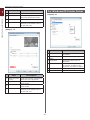
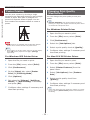
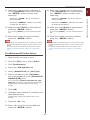
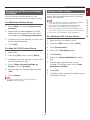
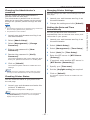
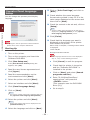
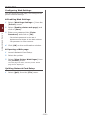
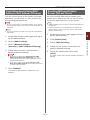
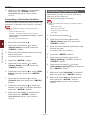
12 Click on [Print Test Page] and click on
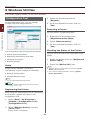
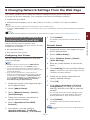
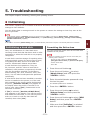
Operator Panel Language
Setup
[Next].
13 Check whether the menu language
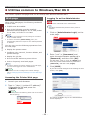
You can change the operator panel display
language.
format value printed in step 12 is in the
value range displayed on the screen and
then click on [Next].
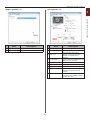
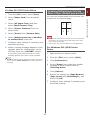
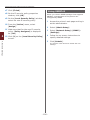
14 Check the content to be set and, click on
[Setup].
3
Memo
3. Using Utility Software
●● Version number of the language file for this tool is
displayed in [Language version] on the [Operator
Panel Language Setup Wizard] screen.
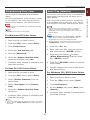
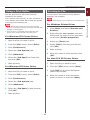
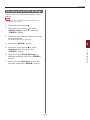
15 Click [Finish].
16 Check that the language you want is
displayed on the screen of the printer
then restart the printer.
Note
●● This program uses the print driver. Please install the
printer driver on the computer beforehand.
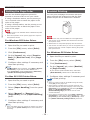
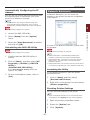
When setup is complete, a message shown below
is displayed.
Starting Up
“Power Off/On
Message Data Received OK”
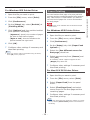
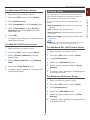
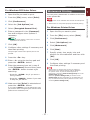
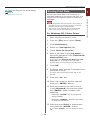
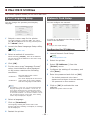
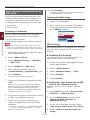
1 Turn on the printer.
Note
2 Turn on the computer, and insert the
Software DVD-ROM.
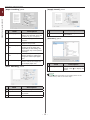
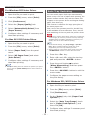
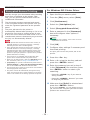
●● If the language selection screen is not displayed in
step 11, carry out the following procedure.
3 Click [Run Setup.exe].
a Click [Cancel] to exit the program.
If the [User Account Control] dialog box
appears, click [Yes].
b Check that the printer is turned on
and the “Software DVD-ROM” is
installed in the printer.
4 Read the user license agreement and
click [Agree].
c Click on [Start] and select [Search
programs and files].
5 Read the recommendation on the
environment and click [Next].
d Enter “D:/Utilities/PanelDwn/
6 Select the printer and click [Next].
oppnlngs.exe” and press the
<ENTER> button.
(This example uses the DVD-ROM
drive (D:))
7 Select an interface and click [Next].
8 Click [Panel Language Setup].
e Go to step 9.
9 Click on [Next].
Memo
●● The version number of this tool is displayed after the
title [Operator Panel Language Setup Wizard].
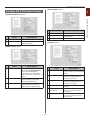
10 Select the printer and click [Next].
Memo
●● Printers that support this tool are displayed on the
[Available Printers] list.
11 Select the language and click on [Next].
- 94 -