1
Sygic Fleet 2D
Navigation
Manual
1 — Last update: 2015/01/20
Sygic
Table of Contents
Prologue ..................................................................................................................................................... 1
Getting started............................................................................................................................................ 2
Compatibility ........................................................................................................................................... 2
Navigation Screen................................................................................................................................... 3
Entering an Address................................................................................................................................ 4
Turn by Turn Navigation.......................................................................................................................... 7
Acquiring GPS Position ........................................................................................................................... 8
Navigation with Truck Attributes ............................................................................................................. 10
Planning the Route ................................................................................................................................... 12
Navigating to a Point of Interest ............................................................................................................ 12
Searching POIs ............................................................................................................................... 12
Managing POIs ................................................................................................................................ 14
Navigating Home .................................................................................................................................. 14
Navigating to Recent Destinations ........................................................................................................ 15
Navigating to favourite destinations....................................................................................................... 15
Defining a new Favourite destination ............................................................................................... 16
Navigating to point on map.................................................................................................................... 17
Navigating to last valid position ............................................................................................................. 17
Navigating to a GPS position ................................................................................................................ 17
Altering the Route .................................................................................................................................... 19
Route Menu .......................................................................................................................................... 19
Modifying the Route .............................................................................................................................. 21
Map Browsing Mode.............................................................................................................................. 22
Multi-stop route planning ....................................................................................................................... 23
Waypoint options ............................................................................................................................. 24
Itinerary options ............................................................................................................................... 25
Settings..................................................................................................................................................... 26
Traffic ........................................................................................................................................................ 30
Logging in ............................................................................................................................................. 30
Traffic Menu .......................................................................................................................................... 30
Re-compute a route .............................................................................................................................. 31
Extras ........................................................................................................................................................ 33
Disclaimer ................................................................................................................................................. 36
Sygic
Sygic Fleet 2D Navigation - 1
Prologue
Dear Customer,
Thank you for choosing Sygic navigation.
Sygic Fleet 2D navigation software is a complete well-established navigation system with high quality and
stability, accurate search and precise route computing. It is an offline turn-by-turn navigation with rich set of
features and easy to use driver friendly user interface.
We wish you a pleasant and safe journey.
Last update: 2015/01/20 10:54:57
Page 1 of 36
Sygic
Sygic Fleet 2D Navigation - 1
Getting started
Sygic Fleet 2D navigation is offline navigation software and does not require online connection to
operate. Online connection is only necessary for optional add-on services such as Traffic information and
crowd-sourced Police trap alerts.
Your safety is of utmost importance that is why you should always plan your route before the beginning of
the journey. For longer trips make sure that you have a compatible charger to avoid draining the device
battery.
While driving always keep your eyes on the road and avoid operating the software. Local roadway signs and
regulations take precedence over indications of this navigation software. Please take reasonable care and
keep your own sound judgment while following instructions.
Compatibility
Minimum requirements are:
Processor frequency:
600 MHz
Device memory (RAM):
128 MB
Supported platforms:
WindowsCE 6.0, Android 2.3.x and higher
Screen resolution:
240×240 px and higher
Please note: Custom ROM is not supported as we cannot guarantee compatibility with other
than stock ROM from the manufacturer.
Some menu items might not be available in your package. Their availability depends on
configuration of the product you purchased.
Last update: 2015/01/20 10:54:57
Page 2 of 36
Sygic
Sygic Fleet 2D Navigation - 1
Navigation Screen
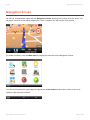
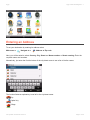
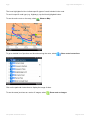
On start-up, the application opens with the Navigation Screen, showing your position as a blue arrow. You
can zoom in and out of the map by tapping the + and – buttons in the top corners of the screen.
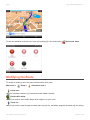
For further functions, enter the Main menu by tapping the map area on the Navigation Screen.
You can scroll between the menu pages by tapping the arrow buttons at the bottom of the screen or by
sliding a finger across the screen.
Last update: 2015/01/20 10:54:57
Page 3 of 36
Sygic
Sygic Fleet 2D Navigation - 1
Entering an Address
To set your destination by entering its address select
Main menu >
Navigate to >
Address or Zip code.
Next, you will be asked to select Country, City, Street and House number or Street crossing. Enter the
required names and numbers.
Alternatively, just enter the first few letters of the city/street name to see a list of similar names.
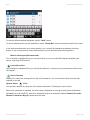
The list also features explanatory icons left to the city/street name:
City
Capital city
Village
Last update: 2015/01/20 10:54:57
Page 4 of 36
Sygic
Sygic Fleet 2D Navigation - 1
City center
Street
Street crossing
Select the desired city/street from the list.
When finished, a Confirmation Screen pops up showing the address entered.
Before routing to your destination, you can display the exact location of the address on map by tapping “On
Map”.
You can also store the location as a favourite destination by tapping on “Add to favourites” (see section
Navigating to Favourite Destinations”).
If you would rather be directed to a parking nearby, tap “Parking” and select from the list shown.
Last update: 2015/01/20 10:54:57
Page 5 of 36
Sygic
Sygic Fleet 2D Navigation - 1
To select a different address altogether, tap the “Back” button.
To set the address shown as your destination, tap the “Route Me!” button at the bottom right of the screen.
If your device can determine your current position, your route will be calculated immediately from that
positon. If your current position cannot be determined, you will be offered the following options:
Wait for valid signal (Recommended)
Your route will be calculated from your current position as soon as a valid GPS signal is available (see
section “Acquiring GPS Position”).
Last valid position
Your route will be calculated from your last known position (i.e. where you were just before the device lost
GPS signal).
Select from map
Allows you to select any starting point for the route calculation. You can choose the point from the map
manually or use the
Options menu >
Find….
You can find a position by using one of the options described in “Planning the route” section.
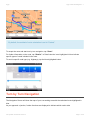
When route calculation is complete, the entire route is displayed on the map (in blue) with total distance,
estimated time of arrival (ETA), time left to destination and route calculation method (Fastest, Economic,
Shortest, Pedestrian, Bicycle) shown below the map.
Last update: 2015/01/20 10:54:57
Page 6 of 36
Sygic
Sygic Fleet 2D Navigation - 1
By default, the method of route calculation is set to “Fastest”.
To accept the route and start turn by turn navigation, tap “Done”.
For further information on the route, tap “Details”. In Detail view the icons highlighted in blue indicate
specific types of roads included in the route.
To avoid a specific road type (e.g. Highways), tap the blue highlighted button.
Turn by Turn Navigation
The Navigation Screen will show the map of your surrounding area with the calculated route highlighted in
blue.
As you approach a junction, further directions are displayed to indicate which road to take
Last update: 2015/01/20 10:54:57
Page 7 of 36
Sygic
Sygic Fleet 2D Navigation - 1
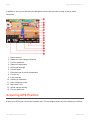
In addition to turn by turn directions, the Navigation Screen also provides a range of further useful
information:
1. Next maneuver
2. Distance to next change of direction
3. Current road/street
4. Distance to destination
5. GPS signal strength
6. Current speed
7. Estimated time of arrival at destination
8. Current city
9. Lane Assistant
10. Heading to destination
11. Next road/street to take
12. Map zoom in/out
13. Speed camera warning
14. Current speed limit
Acquiring GPS Position
If there is no GPS signal, the screen becomes grey. This can happen under any of the following conditions:
Last update: 2015/01/20 10:54:57
Page 8 of 36
Sygic
Sygic Fleet 2D Navigation - 1
• The device is in a tunnel or at a location where signals from the GPS satellites are obstructed by
buildings, trees, electric cables or other objects.
• Device system settings or Product Settings are set incorrectly.
The information below is not available on Android devices.
The signal strength bars at the bottom of the screen provide additional information:
• If the colour of the bars or the GPS port name/number turns red, re-check the GPS settings.
• If the bars are grey, move the device to an outdoor location with good visibility of the sky until the
signal is regained and the bars become green.
Tap the signal bars or select Main menu >
GPS to see more detailed GPS information.
(If not visible in the menu, you can access this setting by tapping Signal Bars)
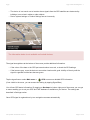
You will see GPS status information. By tapping on Hardware in bottom right part of the screen you can get
to menu enabling you to set your GPS and TMC hardware if available on your device. The settings are
described in Settings section.
Once GPS signal is regained turn by turn navigation resumes automatically.
Last update: 2015/01/20 10:54:57
Page 9 of 36
Sygic
Sygic Fleet 2D Navigation - 1
Navigation with Truck Attributes
Truck navigation is not available on all the devices. It’s presence depends on the purchased
product configuration.
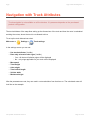
The truck attributes of the map allow setting up the dimensions of the truck and then the route is calculated
avoiding the routes, where the truck is not allowed to drive.
To set up the truck dimensions select:
Main menu >
Settings >
Truck settings
In the settings screen you can set:
• Use truck attributes (Yes/No)
• Draw only relevant trucks signs (Yes/No)
◦ Yes – all the truck limitation signs will be displayed
◦ No – only sings applicable for your truck will be displayed
• Max speed
• Total weight
• Axle weight
• Total vehicle length
• Vehicle width
• Maximum height
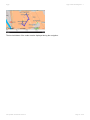
After the parameters are set, they are used in route calculation from that time on. The calculated route will
look like on the example:
Last update: 2015/01/20 10:54:57
Page 10 of 36
Sygic
Sygic Fleet 2D Navigation - 1
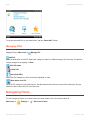
The truck attributes of the roads are also displayed during the navigation.
Last update: 2015/01/20 10:54:57
Page 11 of 36
Sygic
Sygic Fleet 2D Navigation - 1
Planning the Route
This topic describes all the items it is possible to navigate to.
For more information please see the subtopics.
Navigating to a Point of Interest
In addition to the road network, the map also stores the details of thousands of Points of Interest (POIs)
such as gas stations, restaurants, hotels, tourist attractions and other facilities.
To set a POI as your destination, first select
Main menu >
Navigate to… >
Point of Interest
Next, define the area where you want to search for the POI. Select:
Near my position
to search POIs around your current position;
Near address…
to search POIs near a particular address (to be entered in the next step);
Near destination
to search POIs near the current destination (if set);
In City…
to search POIs in a particular city (to be entered in the next step);
Searching POIs
POIs are arranged in groups (such as Food, Hotel or Motel etc.) to help find a facility even when you do not
know its name or address.
Once the search area is selected, a list of the POI groups is displayed.
Last update: 2015/01/20 10:54:57
Page 12 of 36
Sygic
Sygic Fleet 2D Navigation - 1
Tap on the POI group and you will see the list of all POIs that are nearby.
Scroll down the list and select your POI by tapping its name.
The distances shown in the list are relative to the search location.
To refine your search results, tap the keyboard icon at the bottom of the screen and type the name of the
POI you are looking for. You can also enter partial names.
When finished, a Confirmation Screen pops up showing the POI selected.
Last update: 2015/01/20 10:54:57
Page 13 of 36
Sygic
Sygic Fleet 2D Navigation - 1
To set the selected POI as your destination, tap the “Route Me!” button.
Managing POIs
Manage POIs in Main menu >
Manage POI
Add POI
Select a destination of the POI. Select the category to add it to. Default category is Favourites. Create new
custom categories by tapping on New.
Edit POI name
Delete POI
Show/hide POIs
Select the POI categories, which should be displayed on map.
Warn when near POI
Select a POI category to set a warning for. Set the distance and choose a sound for the warning. Choose
whether to warn only if the POI is on the route.
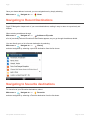
Navigating Home
To start using this feature, you need to set your home location first. Set home location in:
Main menu >
Settings >
Last update: 2015/01/20 10:54:57
Set home location
Page 14 of 36
Sygic
Sygic Fleet 2D Navigation - 1
Once your home address is stored, you can navigate home by simply selecting
Main menu >
Navigate to… >
Home
Navigating to Recent Destinations
Sygic 2D Navigaiton keeps track of your recent destinations, making it easy to return to a previously set
location.
When entering an address through
Main menu >
Navigate to… >
Address or Zip code
a list of previously selected Countries/Cities/Streets appears, as you go through the address details.
You can directly go to a list of recent destination by selecting
Main menu >
Navigate to… >
History
and start navigation by selecting a previous destination from the list shown.
Navigating to favourite destinations
To view a list of your Favourite destinations, select
Main menu >
Navigate to… >
Favourite
and start navigation by selecting a Favorite destination from the list shown.
Last update: 2015/01/20 10:54:57
Page 15 of 36
Sygic
Sygic Fleet 2D Navigation - 1
Select the desired Favorite destination by tapping it and then select your next option from the Confirmation
Screen.
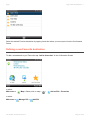
Defining a new Favourite destination
To add a new address to your Favourites tap “Add to favourites” in the Confirmation Screen
or select
Main menu >
Map > Select point on map >
>
Add as POI > Favourites
or select
Main menu >
Manage POI >
Last update: 2015/01/20 10:54:57
Add POI
Page 16 of 36
Sygic
Sygic Fleet 2D Navigation - 1
Navigating to point on map
To navigate to point on map select
Main menu >
Navigate to >
Point on Map > Select point on map > Done
or select
Main menu >
Map > Select point on map >
>
Navigate there
Navigating to last valid position
To navigate to your last valid position, where you have been receiving GPS signal, select
Main menu >
Navigate to >
Last valid position
Navigating to a GPS position
To navigate to a GPS position, select
Main menu >
Navigate to >
Last update: 2015/01/20 10:54:57
Enter GPS position
Page 17 of 36
Sygic
Sygic Fleet 2D Navigation - 1
Enter the values for latitude and longitude and tap on Enter.
Last update: 2015/01/20 10:54:57
Page 18 of 36
Sygic
Sygic Fleet 2D Navigation - 1
Altering the Route
This topic describses how the route can be reviewed and modified, how the itineraries can be created and
waypoints added.
For more information please check the subtoopics.
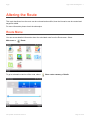
Route Menu
You can access detailed information about the calculated route from the Route menu. Select
Main menu >
Route
To get a schematic overview of the route, select
Last update: 2015/01/20 10:54:57
Show route summary > Details
Page 19 of 36
Sygic
Sygic Fleet 2D Navigation - 1
The icons highlighted in blue indicate specific types of roads included in the route.
To avoid a specific road type (e.g. Highways), tap the blue highlighted button.
To see the entire route on the map, select
Show on Map.
To get a detailed list of junctions and directions along the route, select
Show route instructions
Click on the particular instructions to display the image of them.
To see the same junctions as a series of images, select
Last update: 2015/01/20 10:54:57
Show route as images
Page 20 of 36
Sygic
Sygic Fleet 2D Navigation - 1
To see the calculated route as if you were driving along (fly over mode) select
Show route demo
Modifying the Route
To modify an existing route, first open the Alternative route menu:
Main menu >
Route >
Alternative route >
Avoid next…
select to calculate a detour (e.g. because the road ahead is closed)
Avoid traffic delays
select if you wish to avoid traffic delays which might be on your route
Travel via…
select if you wish to travel through a certain place on your trip, and add a waypoint the same way, as setting
Last update: 2015/01/20 10:54:57
Page 21 of 36
Sygic
Sygic Fleet 2D Navigation - 1
the destination in chapter “Planning the Route”.
Reset to original.
select if you want to cancel your modifications to the route
If you wish to cancel the calculated route entirely, and use the navigation system only as an indicator of your
current position, select
Main menu >
Route >
*Cancel route
You can find additional information about modification of calculated route in chapters “Map
Browsing Mode” and “Multi-stop route planning”.
Map Browsing Mode
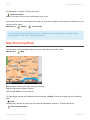
You can easily check and plan/modify your route in Map Browsing Mode. Select
Main menu >
Map
Pan the map by sliding your finger across the screen.
Tap the map to select specific location.
Use the right slider to zoom in and out.
For map display options and additional functions tap the “Options” button and select one of the following
items.
Find…
You can find a position by using one of the options described in chapter IV. Planning the Route.
Show current position
Last update: 2015/01/20 10:54:57
Page 22 of 36
Sygic
Sygic Fleet 2D Navigation - 1
Show entire route
Show city
Shows entire city on map screen.
Show/Hide POIs…
You can select, which types of POI types are displayed when browsing the map.
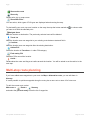
To plan/modify your route, tap on a location on the map, then tap the button marked as
to choose what
you want to do with the selected point.
Navigate there
Sets the location as destination. The previously selected route will be deleted.
Travel via
Adds the location as a new waypoint to your existing route between start and finish.
Continue
Adds the location as a new waypoint after the existing destination.
Add as POI
Stores the location in Favorites or in other POI category.
Find nearby POI
Searches POIs around the location.
Avoid…
Recalculates the route avoiding a set radius around the location. You will be asked to set the radius in the
next step.
Multi-stop route planning
If you have added some waypoints to your route via Map or Alternative route, you can edit them in
Itinerary.
It is also possible to optimize waypoints along the route, plan a new route or store it for future use.
To edit the current route, select
Main menu >
Route >
Itinerary
and select the [Current route] to see the list of waypoints.
Last update: 2015/01/20 10:54:57
Page 23 of 36
Sygic
Sygic Fleet 2D Navigation - 1
The itinerary shows the starting point (marked with
(marked with
), the numbered waypoints and the final destination
).
The waypoints that you have already passed are greyed out.
You can add a waypoint to the itinerary by taping the
button.
Waypoint options
Tapping on any waypoint in the itinerary brings up the following list of options:
Set as visited
Stops navigating to the selected waypoint and recalculates the route to the next waypoint in the itinerary.
Set as finish point
Puts the waypoint to the end and moves others upwards in the itinerary.
Set as via point
Changes the final destination to an intermediate waypoint.
Set as start
Stores the selected waypoint as the starting point of the route.
Add nearby POI
Use this option to search for a POI (e.g. a hotel) near the selected waypoint, and then add it to the itinerary.
Move up
Moves the selected waypoint up in the itinerary.
Move down
Last update: 2015/01/20 10:54:57
Page 24 of 36
Sygic
Sygic Fleet 2D Navigation - 1
Moves the selected waypoint down in the itinerary.
Delete
Deletes the selected waypoint from the itinerary.
Itinerary options
For additional itinerary functions tap the “Options” button at the bottom of the Itinerary Screen and select
one of the following items:
Optimize itinerary
Optimizes the waypoint sequence in the itinerary.
Save itinerary
Saves the itinerary for future use.
Delete itinerary
Deletes the itinerary.
Last update: 2015/01/20 10:54:57
Page 25 of 36
Sygic
Sygic Fleet 2D Navigation - 1
Settings
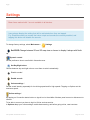
Menu items marked with * are not available in all devices.
Icons always display the setting that will be activated when they are tapped.
E.g. Disable sounds icon means that voice output and sounds are currently enabled, and
tapping this button will disable the sounds.
To change factory settings, select Main menu >
Settings
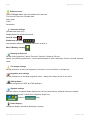
Set 2D/3D Change between 2D and 3D map view or choose to display it always with North
up.
Dynamic control
Set the preference how to scroll within lists and menus.
Set Day/Night colors
Choose between day and night colours or set them to switch autmatically.
Disable sounds*
Enable sounds
Volume settings *
Set the sound intensity separately for low driving speed and for high speeds. Tapping on Options set the
maximum speed.
Online settings *
By tapping on Connection status button or signal icon in the middle of bottom panel connect or disconnect to
internet.
To be able to connect you have to login in Online services section.
In Options adapt your online settings: enable data roaming, ask before going online, reset counters.
Last update: 2015/01/20 10:54:57
Page 26 of 36
Sygic
Sygic Fleet 2D Navigation - 1
Online services *
Tap on Fill login info to login and enable online services.
Tick the online services to enable them:
Police traps
Traffic*
Workmates*
Advanced settings
(for advanced users only)
Enable/disable the advanced features:
Avoid U-Turns
Enable lane assistant
Lane assistant helps you to choose which lane to drive in.
Warn if Railway crossing
Planning preferences
Set the routing algorithm: Fastest, Economic, Shortest, Pedestrian, Bicycle.
Specify your planning preferences – choose what elements to avoid: motorways, ferries, toll roads, unpaved
roads.
Toll charge settings
Set the preference of paid road segments: avoid them, do not avoid them, or always ask.
Congestion zone settings
Set the preferences on avoiding congestion zones – always ask, always avoid, do not avoid.
GPS hardware *
Detailed configuration of GPS and TMC hardware.
Signpost settings
Sets the number of signpost tables displayed at one time (all directions, preffered direction or disable
signposts) and the level of detail (Full, Simplified, Single line).
preffered
other
Rotate display *
Change the display orientation (landscape / portrait).
Last update: 2015/01/20 10:54:57
Page 27 of 36
Sygic
Sygic Fleet 2D Navigation - 1
Keyboard settings
Choose the keyboard layouts to use.
You can switch between preferred keyboard layouts using
button, that is available in every keyboard.
Regional settings
Set preffered format for distances (kilometers, miles/yards, miles/feet), time, lattitude and longitude.
Set language
Set language of user interface.
Set voice
Set language of voice instructions.
Set home location
Gps Hardware *
Settings of GPS and TMC hardware if available on your device.
COM port
Setting of GPS COM port
Baud rate
Setting of GPS Baud rate
Turn GPS module On / Off
Synchronize time
Autodetect
Autodetects your hardware’s COM port and Baud rate values
Wizard
Autodetect or manual setting of GPS and TMC COM ports and baud rates.
Do not change the values unless you know the correct settings for your hardware.
Backlight
Set the backlight intensity for day and night mode.
Last update: 2015/01/20 10:54:57
Page 28 of 36
Sygic
Sygic Fleet 2D Navigation - 1
Restore default settings
About
Information about version, device code and available application memory. Please provide this information in
communication with Sygic support.
Main menu >
Speedcamera
Set speedcamera warnings: enable radar warnings, enable warning sound, show radars on map.
Set the radar limit for inside and outside built-up areas.
Last update: 2015/01/20 10:54:57
Page 29 of 36
Sygic
Sygic Fleet 2D Navigation - 1
Traffic
Traffic is not available on all the devices. It is an online service and requires internet
connection. The availability depends on product you bought. If you wish to buy traffic
aditionally, go to www.sygic.com.
Traffic service is provided via RDS (RDS TMC) or internet (Online TMC).
RDS TMC is preconfigurated in your package and no login is needed.
For Online TMC please follow the login instructions in subtopics.
Logging in
To enable traffic, it is necessary to log in:
Main menu >
Settings >
Online services > Fill in login info
Insert your login data and tap on Fill login info.
Make sure, that Traffic is ticked.
After successful login, traffic icon in Main menu will be enabled and traffic incidents will be displayed on
map.
Traffic Menu
Select Main menu >
Traffic
Last update: 2015/01/20 10:54:57
Page 30 of 36
Sygic
Sygic Fleet 2D Navigation - 1
Show all incidents
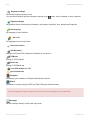
All the incidents around you will be displayed. Click Avoid all to re-compute a route avoiding all the
incidents.
When clicking on an incident, it will be displayed on a map. Click Avoid to avoid this particular incident.
Incidents on route
Only the incidents on computed route are displayed. They can be displayed and avoided the same way as in
Show all incidents menu.
Optimize route
Re-computes a route
Options
Enable/disable automatic route recalculation based on traffic, notifications of incidents on route and
displaying traffic on map.
Re-compute a route
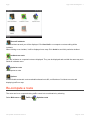
The route can be re-computed taking traffic events into consideration by selecting
Select Main menu >
Traffic >
Last update: 2015/01/20 10:54:57
Optimize route
Page 31 of 36
Sygic
Sygic Fleet 2D Navigation - 1
Or by selecting
*Main menu >
Route >
Last update: 2015/01/20 10:54:57
Alternative route >
Avoid traffic delays
Page 32 of 36
Sygic
Sygic Fleet 2D Navigation - 1
Extras
To go to extras, select
Main menu >
Extras
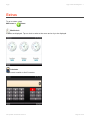
World clock
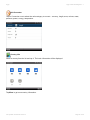
3 clocks are displayed. Tap on clock to select a time-zone and a city to be displayed.
Calculator
Tap Convert to switch to Unit Convertor.
Last update: 2015/01/20 10:54:57
Page 33 of 36
Sygic
Sygic Fleet 2D Navigation - 1
Unit Convertor
Tap on Conversion row to select the units category to convert – currency, length, area, volume, mass,
pressure, power, energy, temperature.
Country info
Select a country from the list and tap it. The basic information will be displayed.
Tap More to get more country information.
Last update: 2015/01/20 10:54:57
Page 34 of 36
Sygic
Last update: 2015/01/20 10:54:57
Sygic Fleet 2D Navigation - 1
Page 35 of 36
Sygic
Sygic Fleet 2D Navigation - 1
Disclaimer
The information contained in this document is the property of Sygic a.s. and may be used only for the
purposes of operating and supporting the relevant software created by Sygic a.s.
Sygic a.s. reserves all rights concerning the information contained herein. This document or any part thereof
may not be reproduced, distributed, or translated into other languages in any way or form except with the
written approval of Sygic a.s.
This document is provided to the user on an ‘as is’ basis. Although maximum care was taken during
preparation of this manual to provide accurate information and to avoid errors, some technical inaccuracies
or editorial errors may occur, for which Sygic a.s. accepts no responsibility.
In the interest of improving the content of the document, Sygic a.s. reserves the right to modify, amend or
delete any part of the document at any time without prior notice.
For more information and updates, visit
www.sygic.com
© 2014 Sygic, a.s. All rights reserved.
Last update: 2015/01/20 10:54:57
Page 36 of 36