Download Chapter 2
Transcript
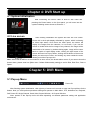
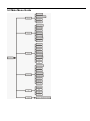
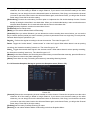
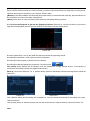
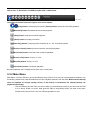
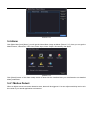
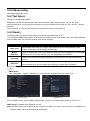
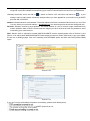
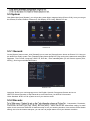
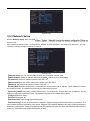
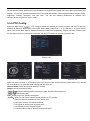
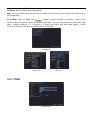
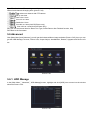
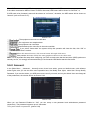
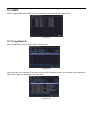
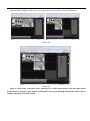
Chapter 4: DVR Start up 4.1 System Initialization After connecting the Power cable of DVR to wall outlet and pressing the Power button on the front panel, you will enter into the system initializing screen shown as Picture 4-1. Picture 4-1 4.2 Live screen After finishing initialization the system will enter into Live screen. Picture 4-2 is the 9-split display defaulted by system, which is showing no video input status. Once there are video inputs, the screen will display live images from the cameras. In Live mode, if you use the mouse to double-click the live image of any channel, the image will be maximized to full screen, by double-clicking again, image will be come back to 4-split or 9-split display mode; clicking the right button of the mouse will enter into Pop-up Menu; clicking the left button of the mouse allows you select menu items; and clicking any area outside the menu allows you exit the Pop-up menu. Picture 4-2 Note: When internal HDD is not connected or an error occurs ,the buzzer alarm comes .If you want to close the buzzer alarm, please enter into [Main menu AlarmAbnormality setting] to set No Disk, Disk Error, Disk no Space . Chapter 5: DVR Menu 5.1 Pop-up Menu Picture 5-1 After finishing system initialization, click right key of mouse on live mode to enter into Pop-up Menu On the bottom. Now you could perform parameter setting and operate on Main Menu, PTZ, borderline set, Playback, Soft Power Off. Single Channel, Quad, Nine Channel Window, 16 Channel Window. Note: options of the Pop-up menu will differ depending on different parameter setting and application environment.