1
VLINK SETUP FOR ANDROID BASED PHONES (cont.)
Step 3
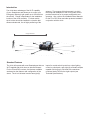
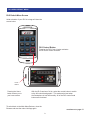
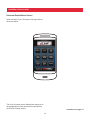
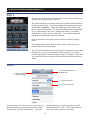
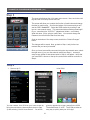
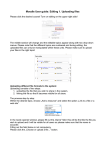
The photo at left shows the vLink main menu screen. Now, touch the vLink
logo and the vLink setup screen will load.
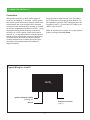
This screen will allow you to select the function of each button and change
the label on each button. Scroll to the bottom of this screen and you will
see the SSID “Code3CTL”. Select the SSID window by touching it and
type in a new network name. This name should be something meaningful
to you - something like “OCPD117” (department initials + car number).
Write this down, you’re going to need it later. You can also change the
Password, but we will leave that for a later step.
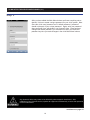
Scroll to the bottom of the setup screen, and hit the “Submit Changes”
button.
The changes will be saved. Now, go back to Step 1 and join the new
network that you have just created.
Once you have successfully connected using the new network name, select
the right arrow (>) on your new network name (see Step 1). A network
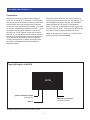
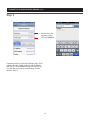
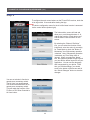
setup screen similar to that shown below in Step 4, will appear. Verify that
your new SSID is shown on the top line, and set the switches as shown in
Step 4.
Step 4
vLink ICON
1. Return to Wi-Fi
Networks Page
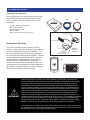
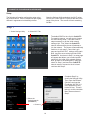
You can create a vLink ICON on your home screen by
hiting the send button (shown bottom-center in Step
3) and selecting “Add to Home Screen”. You will be
given an opportunity to type a name for the ICON.
The default name is “vLink”. The ICON provides an
easy way to quickly start your vLink App.
21