1
AJ-PCD30P_E-VQT3R23.book 1 ページ 2011年6月14日 火曜日 午後6時24分
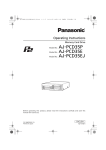
Operating Instructions
Memory Card Drive
AJ-PCD30P
Model No. AJ-PCD30E
Model No.
Before operating this product, please read the instructions carefully, and save this
manual for future use.
SS0611AK0 -FJ
Printed in Japan
ENGLISH
VQT3R23
AJ-PCD30P_E-VQT3R23.book 2 ページ 2011年6月14日 火曜日 午後6時24分
Read this first!
For AJ-PCD30P and AJ-PCD30E
WARNING:
This apparatus must be earthed.
To ensure safe operation the three-pin plug must be inserted only into a standard three-pin
power point which is effectively earthed through the normal house-hold wiring.
Extension cords used with the equipment must be three-core and be correctly wired to provide
connection to earth. Wrongly wired extension cords are a major cause of fatalities.
The fact that the equipment operates satisfactorily does not imply that the power point is
earthed and that the installation is completely safe. For your safety, if in any doubt about the
effective earthing of the power point, consult a qualified electrician.
WARNING:
z To reduce the risk of fire or electric shock, do not expose this equipment to rain or moisture.
z To reduce the risk of fire or electric shock, keep this equipment away from all liquids. Use
and store only in locations which are not exposed to the risk of dripping or splashing liquids,
and do not place any liquid containers on top of the equipment.
WARNING:
Always keep accessories (rubber feet, mounting screws) out of the reach of babies and small
children.
CAUTION:
To reduce the risk of fire or electric shock and annoying interference, use the recommended
accessories only.
CAUTION:
The mains plug of the power supply cord shall remain readily operable.
The AC receptacle (mains socket outlet) shall be installed near the equipment and shall be
easily accessible.
To completely disconnect this equipment from the AC mains, disconnect the mains plug from
the AC receptacle.
indicates safety information.
2
AJ-PCD30P_E-VQT3R23.book 3 ページ 2011年6月14日 火曜日 午後6時24分
Read this first! (continue)
For AJ-PCD30P
indicates safety information.
FCC NOTICE
Declaration of Conformity
Model Number:
Trade Name:
Responsible Party:
AJ-PCD30P
Panasonic
Panasonic Corporation of North America One Panasonic Way, Secaucus,
NJ 07094
Support contact:
1-800-524-1448
This device complies with Part 15 of the FCC Rules. Operation is subject to the following two
conditions:
(1) This device may not cause harmful interference, and (2) this device must accept any
interference received, including interference that may cause undesired operation.
To assure continued compliance, follow the attached installation instructions and do not make
any unauthorized modifications.
CAUTION:
This equipment has been tested and found to comply with the limits for a Class B digital device,
pursuant to Part 15 of the FCC Rules. These limits are designed to provide reasonable
protection against harmful interference in a residential installation. This equipment generates,
uses and can radiate radio frequency energy and, if not installed and used in accordance with
the instructions, may cause harmful interference to radio communications. However, there is
no guarantee that interference will not occur in a particular installation. If this equipment does
cause harmful interference to radio or television reception, which can be determined by turning
the equipment off and on, the user is encouraged to try to correct the interference by one of
the following measures:
z Reorient or relocate the receiving antenna.
z Increase the separation between the equipment and receiver.
z Connect the equipment into an outlet on a circuit different from that to which the receiver is
connected.
z Consult the dealer or an experienced radio/TV technician for help.
The user may find the booklet “Something About Interference” available from FCC local
regional offices helpful.
FCC Warning: To assure continued FCC emission limit compliance, follow the attached
installation instructions and the user must use only shielded interface cables when connecting
to host computer or peripheral devices. Also, any unauthorized changes or modifications to
this equipment could void the user’s authority to operate this device.
NOTIFICATION (Canada)
This class B digital apparatus complies with Canadian ICES-003.
Notice (U.S.A. only):
Disposal may be regulated in your community due to Environmental considerations.
For disposal or recycling information, please visit Panasonic website:
http://www.panasonic.com/environmental or call 1-888-769-0149.
3
AJ-PCD30P_E-VQT3R23.book 4 ページ 2011年6月14日 火曜日 午後6時24分
Read this first! (continue)
For AJ-PCD30E
Caution for AC Mains Lead
FOR YOUR SAFETY PLEASE READ THE FOLLOWING TEXT CAREFULLY.
This product is equipped with 2 types of AC mains cable. One is for continental Europe, etc. and
the other one is only for U.K.
Appropriate mains cable must be used in each local area, since the other type of mains cable is
not suitable.
FOR CONTINENTAL EUROPE, ETC.
Not to be used in the U.K.
FOR U.K. ONLY
FOR U.K. ONLY
This appliance is supplied with a moulded How to replace the fuse
three pin mains plug for your safety and
1 Open the fuse compartment with a
convenience.
screwdriver.
A 13 amp fuse is fitted in this plug.
Should the fuse need to be replaced
please ensure that the replacement fuse
has a rating of 13 amps and that it is
approved by ASTA or BSI to BS1362.
Check for the ASTA mark
or the BSI
mark
on the body of the fuse.
If the plug contains a removable fuse
2 Replace the fuse.
cover you must ensure that it is refitted
when the fuse is replaced.
If you lose the fuse cover the plug must not
be used until a replacement cover is
obtained.
A replacement fuse cover can be
purchased from your local Panasonic
Dealer.
indicates safety information.
EEE Yönetmeliğine Uygundur.
EEE Complies with Directive of Turkey.
4
Fuse
AJ-PCD30P_E-VQT3R23.book 5 ページ 2011年6月14日 火曜日 午後6時24分
Table of Contents
Read this first! . . . . . . . . . . . . . . . . . . 2
Before Use . . . . . . . . . . . . . . . . . . . . . . 6
Overview. . . . . . . . . . . . . . . . . . . . . . . . 6
Features . . . . . . . . . . . . . . . . . . . . . . . . 6
Supplied Accessories
(AJ-PCD30P/AJ-PCD30E) . . . . . . . . . . 7
Operating Environment
Required for Installation . . . . . . . . . . . 7
Parts and their Functions . . . . . . . . . . 8
Front Panel . . . . . . . . . . . . . . . . . . . . 8
Rear Panel . . . . . . . . . . . . . . . . . . . . 8
Inserting a P2 Card . . . . . . . . . . . . . . . 9
Removing a P2 Card . . . . . . . . . . . . . . 9
Write-protection of P2 Card . . . . . . . 10
Power management function
(automatic switch-off function) . . . . 10
Installation . . . . . . . . . . . . . . . . . . . . . 10
To Connect the device to a Personal
Computer for External Use . . . . . . . 11
Disconnect externally connected
devices from your PC . . . . . . . . . . . 13
To Mount the device in a Personal
Computer 5-type Bay . . . . . . . . . . . 14
P2 Driver . . . . . . . . . . . . . . . . . . . . . .
Installing a Windows P2 driver . . . .
Installing a Macintosh P2 driver . . .
Uninstallation . . . . . . . . . . . . . . . . .
Overview of dedicated software . . .
Power management setting
(Windows/Macintosh) . . . . . . . . . . .
Installation . . . . . . . . . . . . . . . . . . .
Uninstallation . . . . . . . . . . . . . . . . .
Starting up and shutting down
the Power Management Setting
Software . . . . . . . . . . . . . . . . . . . . .
Power Management Setting
Software window . . . . . . . . . . . . . .
P2 Drive internal setting
(Windows) . . . . . . . . . . . . . . . . . . . .
P2 Drive internal setting . . . . . . . . .
Canceling P2 drive internal setting .
Troubleshooting . . . . . . . . . . . . . . . .
Specifications . . . . . . . . . . . . . . . . . .
16
16
16
16
17
17
17
17
17
18
19
19
19
20
21
Microsoft, Windows and Windows Vista are trademarks of Microsoft Corporation of the United
States.
Macintosh, Mac and Mac OS are trademarks of Apple Inc. of the United States.
Other names of companies and products are trademarks or registered trademarks of the respective
companies.
z In these instructions, Microsoft® Windows®, Windows® XP Professional, Windows Vista®
Business, Windows Vista® Ultimate, Windows® 7 Professional, and Windows® 7 Ultimate, are
given as “Windows”, “Windows XP Professional”, “Windows Vista Business”, “Windows Vista
Ultimate”, “Windows 7 Professional” and “Windows 7 Ultimate”, respectively.
z Similarly, in these instructions, Macintosh®, Mac® Pro and Mac OS® X are given as “Macintosh”,
“Mac Pro” and “Mac OS X” respectively.
5
AJ-PCD30P_E-VQT3R23.book 6 ページ 2011年6月14日 火曜日 午後6時24分
Before Use
z While AJ-PCD30 (referred to below as “the
device”) is connected to the personal
computer, install the required drivers from the
CD-ROM.
For details, refer to the installation manual and
“P2 Driver” (page 16) in this manual.
z The device may become warm during use, but
this is not a malfunction.
z When the device is used internally, it may be
necessary to connect the device with part of
the USB cable passing outside your PC. In this
case, be sure sufficient space behind the PC
that is to contain the device.
Overview
The device is a P2 card-dedicated data transfer device with a USB 3.0 interface and a 3 slot drive for
writing and reading P2 content to and from P2 cards using the USB 3.0/2.0 connection in a Windows
PC or Macintosh.
The device is capable of making high-speed transfers of clip data shot with a memory card camera
recorder for P2 cards to a personal computer (Windows/Macintosh).
This device supports not only the transferring and copying of clips recorded on P2 cards, but also direct
editing.
Features
z It is capable of high speed data transfer of
over 1.5 Gbps*1.
z It can be used as either an external or an
internal drive. (only Windows)
z Supports both Windows and Macintosh
operating systems.
z The device can also be connected to a
USB 2.0 Windows PC/Macintosh.
z Up to 2 devices may be connected to a single
PC.*2 *3
*1 This is the transfer speed using the multiple P2 card E series over the USB 3.0 connection.This will vary according
to conditions such as the type of file being transferred, the system, the application software, and the version and
the number of the P2 card.
*2 Connect the USB terminal of the device to your computer using the PC USB port. If the USB terminal of the device
is connected to a USB terminal hub then errors may occur, such as the computer not recognizing the device, or not
applying the necessary drivers. (We cannot guarantee proper operation of the device when connected to a USB
hub.)
*3 When using a Macintosh with 2 of the devices connected, or with the device and at least two other P2 drive
connected, avoid duplication among the volume labels of the P2 cards.
Correct operation cannot be guaranteed if the volume labels are duplicated or left without being set (“NO NAME” is
displayed).
6
AJ-PCD30P_E-VQT3R23.book 7 ページ 2011年6月14日 火曜日 午後6時24分
Supplied Accessories
(AJ-PCD30P/AJ-PCD30E)
AC adaptor
Bracket
(page 14)
Power cable for AC adaptor
Rubber
feet (4)
z Operating Instructions (PDF)
z P2 Software
z Power Management Setting Software
For AJ-PCD30P
For AJ-PCD30E
(continental Europe,etc.)
CD-ROM
Mounting
screws
(8)
For AJ-PCD30E
(U.K.)
Operating Environment Required for
Installation
To operate the device, the following environment is required on the host computer.
z USB 3.0 port/USB 2.0 port
The device can be used with a host computer (Windows PC) that does not have a built in USB 3.0 port
by installing a USB 3.0 expansion interface port. Note, however, that Panasonic cannot guarantee
correct operation with all third-party USB 3.0 expansion interface ports.
Recommended USB 3.0 expansion interface ports are listed on the Panasonic website.
http://pro-av.panasonic.net/
The following environment is recommended for the host computer to make full use of the features of the
device.
z A striping configuration using 4 or more hard disk drives is recommended to attain sufficient transfer
speed when transferring data to the hard disk drive.
7
AJ-PCD30P_E-VQT3R23.book 8 ページ 2011年6月14日 火曜日 午後6時24分
Parts and their Functions
Front Panel
Rear Panel
(2)
(1)
(5)
(3)
(4)
(5)
(1) Power button
Use this button to turn the unit ON and OFF.
When the power is OFF, pressing the power
button switches the power ON. When the
power is ON, pressing the power button for
two seconds or more switches the power
OFF.
<Note>
When the device is located internally, the
device power system is linked to the power
system of your PC and the power switches
on without pressing the power button on the
device.
Caution: Do not switch off the power while
the P2 card is being accessed.
(2) Power Indicator
This indicator lights up in green when the
device is running.
(3) Status Indicator
This indicator lights up in green during
access to a P2 card.
<Note>
Do not remove the P2 card during access of
the card, otherwise files may be corrupted, or
the P2 card may fail.
(4) Card Slots
The device is designed for P2 cards and
does not work with other cards.
(5) EJECT button
Press this button to remove a P2 card from
the device.
8
(4)
(3)
(2)
(1)
The picture shows the rear panel with its cover
removed.
(1) USB 3.0 connector (Type B)
This connects a USB cable.
Use a USB cable (shielded) compliant with
USB 3.0/USB 2.0.
<Note>
The device is only compatible with USB 3.0/
USB 2.0. It is not compatible with USB 1.1.
If you have a Macintosh, connect using
USB 2.0.
(2) DC IN 12 V Socket
To use the device mounted in a personal
computer, connect one of the power supply
connectors inside the personal computer to
this socket. (page 15)
Do NOT supply power to both the DC IN
12 V socket and DC IN 16 V socket at the
same time.
(3) DC IN 16 V Socket
For external use of the device, connect an
AC adaptor to this socket.
(4) Cable Clamp
Use this clamp to secure the AC adaptor
cable when connecting the device to a
personal computer for external use of the
Drive.
(5) Antitheft Lock
A commercially available antitheft cable can
be connected to this lock.
AJ-PCD30P_E-VQT3R23.book 9 ページ 2011年6月14日 火曜日 午後6時24分
Inserting a P2 Card
1
Insert the P2 card into one of the card slots.
Press in the card until the EJECT button
pops up.
<Notes>
z Be sure to insert the P2 card horizontally.
Forcing the card in at an angle may
damage it.
z Do not remove a P2 card while it is being
accessed or right after insertion.
Otherwise, the card may be damaged.
2
Fold the EJECT button in the direction of the
arrow.
<Note>
Do not use the device with the EJECT button
fully extended.
This may result in the unintentional ejection
of the P2 card or a fault in the EJECT button.
Removing a P2 Card
1
2
Flip up the EJECT button in the direction of
the arrow.
Press the EJECT button.
The P2 card will slide out far enough to allow
you to remove it.
<Notes>
z To remove a P2 card on a Macintosh, drag the
P2 card icon to the Trash. Then check that the
icon has disappeared and the access indicator
on the device has turned off before physically
removing the P2 card.
z Do not remove a P2 card that is being
accessed. Removing a P2 card during access
may cause the device to malfunction.
9
AJ-PCD30P_E-VQT3R23.book 10 ページ 2011年6月14日 火曜日 午後6時24分
Write-protection of P2 Card
A P2 card has a write-protect switch. Setting this
switch to “PROTECT” can prevent writing and
deleting of data.
Note: The write-protect switch is not effective
when the P2 card is inserted in the device.
Make sure you remove the P2 card from the
device, set the switch, then re-insert the card, in
order to effect the switch setting.
PROTECT
Setting the writeprotect switch to
“PROTECT” can
prevent writing and
deleting of data.
Setting the writeprotect switch to this
side allows writing
and deleting of data.
Power management function
(automatic switch-off function)
z When the device is used externally, the power
will switch off automatically after four hours if
no access is made to the P2 cards for reading,
writing etc. To use, switch the power on again.
z When the device is used internally, the
automatic switch-off function for power
management is disabled.
<Note>
You can use the Power Management Setting
Software to set the time after which the power is
automatically switched off.
Select from among Off/1 hour/2 hours/4 hours/
8 hours. The default setting at shipping is
4 hours. (page 17)
Caution: If the designated amount of time has
passed, the device will automatically power off
even if you have a file open at the time. If that
happens, the file system may be damaged.
Handle your files carefully.
Installation
There are two ways to connect the device to a personal computer (Windows/Macintosh):
1
Using the device as an external drive connected to a personal computer (Windows/Macintosh)
2
Mounting the device in a 5-type bay of a desktop personal computer (Windows)
10
AJ-PCD30P_E-VQT3R23.book 11 ページ 2011年6月14日 火曜日 午後6時24分
Installation (continue)
To Connect the device to a Personal Computer for External Use
1
Attach the rubber feet to the dimples on the
base of the device.
Dimples
2
3
4
<Note>
No USB 3.0 cable is supplied with the device
in the package. Use a commercially available
USB 3.0 cable (shielded).
Take care to use a USB cable that is no
longer than 3 metres. The device may not
operate properly with a cable longer than
3 metres.
Start the personal computer.
Plug the AC adaptor supplied with the device
into the DC IN 16 V socket on the device.
Pressing the power button switches on the
power and starts up the device.
After startup, the power indicator will light up
green.
5
Caution: Even with a USB 3.0 cable, if the
device is connected to a USB 2.0 port it will
operate as a USB 2.0 device.
To be connected by USB 3.0
Plug a USB 3.0 cable B connector into the
USB connector on the device, then plug the
other end (A connector) of the USB 3.0 cable
into the USB 3.0 port on the personal
computer.
To be connected by USB 2.0
Plug a USB 2.0 cable B connector into the
USB connector on the device, then plug the
other end (A connector) of the USB 2.0 cable
into the USB 2.0 port on the personal
computer.
USB 3.0 connector
<Note>
No USB 2.0 cable is supplied with the device
in the package. Use a commercially available
USB 2.0 cable (shielded).
Take care to use a USB cable that is no
longer than 3 metres. The device may not
operate properly with a cable longer than
3 metres.
USB 3.0 connector
11
AJ-PCD30P_E-VQT3R23.book 12 ページ 2011年6月14日 火曜日 午後6時24分
Installation (continue)
6
Verify that the personal computer recognises
the device.
<Notes>
z In Windows XP or Windows Vista, some
card slots of the device may be assigned
drive names that have already been
assigned to existing networks. Reassign
network drive names if your personal
computer does not display all three card
slots.
z Use a USB cable with a flammability rating
of VW-1. For the flammability rating, check
the printed part of the cover of the USB
cable.
Recommended USB 3.0 cables (based on
information as of August 2011)
Elecom U3C-10BK (1.0 m)
StarTech.com USB3SAB3 (0.91 m)
Recommended cables are listed on the
Panasonic website.
http://pro-av.panasonic.net/
12
AJ-PCD30P_E-VQT3R23.book 13 ページ 2011年6月14日 火曜日 午後6時24分
Installation (continue)
Disconnect externally connected devices from your PC
1
Disconnect the USB connection as follows.
For Windows XP and Windows Vista
Select “Safe removal of hardware” from the
task tray and switch off “Panasonic P2 Series
USB Device”.
For Windows 7
When a P2 card has been inserted into the
device, click the up arrow of the task tray and
select “Safely remove hardware and remove
media”. Next, select “Remove Panasonic P2
Series USB Device” if connecting with a
USB 3.0 connector, and “Remove P2 drive” if
connecting with USB 2.0 connector. If neither
“Panasonic P2 Series USB Device” nor “P2
drive” are displayed and the removal of the
P2 cards is enabled, remove all the P2
cards.
For Mac OS X 10.5 and 10.6
When P2 cards have been inserted into the
device, drag the P2 card icons to “Trash” and
check that all targeted P2 card icons have
disappeared.
2
Press and hold down the power button on
the device for 2 seconds to switch off the
power.
The power indicator on the device will go off.
3
Disconnect the USB cable.
13
AJ-PCD30P_E-VQT3R23.book 14 ページ 2011年6月14日 火曜日 午後6時24分
Installation (continue)
To Mount the device in a Personal Computer 5-type Bay
1
2
Switch off your PC.
Undo the six screws and remove the cover.
Cover
3
Mount the device in a 5-type bay on the
personal computer. If attaching with screws,
use the mounting screws (page 7) supplied
with the device.
4
To be connected by USB 3.0
Connect the B connector of the USB 3.0
cable to the USB 3.0 connector of the device
and then connect the other end of the cable
to the USB 3.0 port on the motherboard of
your PC.
<Note>
When there is no internal USB 3.0 connector
in your PC, run part of the USB 3.0 cable
outside your PC once, and connect the USB
3.0 cable to the USB 3.0 connector on the
back panel.
A point on the USB 3.0 cable approximately
20 cm from the A connector passes over the
notch of the supplied bracket.
About 20 cm
Please refer to your computer’s instruction
manual for guidance in mounting to 5-type
bay drives.
Notch
Put the cable in from above.
Holes for securing the screws (the
other side is the same.)
<Notes>
z The device may not be able to be fastened
securely in some types of personal
computers.
z Depending on the type of your PC, there
may not be enough space to fit the device
internally. In this case, use the device
externally.
z If all 5-type bays are occupied, you will
need to remove one of the built-in drives to
make room for the device.
z The device should be used in a personal
computer whose design allows the front
panel of the drive to be manipulated.
14
After passing the USB 3.0 cable through the
slot for attaching the supplied bracket, insert
the bracket and fix to your PC using the
screws supplied with this product.
AJ-PCD30P_E-VQT3R23.book 15 ページ 2011年6月14日 火曜日 午後6時24分
Installation (continue)
Connect the USB 3.0 cable to the USB 3.0
port (A connector) on the back panel of your
PC.
USB cable running outside your PC should
be bent so as to describe a shallow curve.
Sharp bending of the cable may break the
wires.
5
Connect the power connector (4 pin) inside
your PC to the DC IN 12 V terminal of the
device.
power connector
6
To be connected by USB 2.0
Connect the B connector of the USB 2.0
cable to the USB 3.0 connector of the device
and then connect the other end of the cable
to the USB 2.0 port on the motherboard of
your PC.
<Notes>
z When there is no internal USB 2.0
connector in your PC, run part of the
USB 2.0 cable outside your PC once, and
connect the USB 2.0 cable to the USB 2.0
connector on the back panel. For a
detailed procedure for connection using
USB 3.0, refer to “To be connected by
USB 3.0” (page 14).
z The pin arrangement of the USB 2.0
connector differs depending on the
motherboard of your PC. After checking
the user manual of your PC, prepare a
commercially available (shielded) USB 2.0
cable.
Start the personal computer and verify that it
recognises the device.
<Notes>
z Use a USB cable with a flammability rating
of VW-1. For the flammability rating, check
the printed part of the cover of the USB
cable.
Recommended USB 3.0 cables (based on
information as of August 2011)
Elecom U3C-10BK (1.0 m)
StarTech.com USB3SAB3 (0.91 m)
Recommended cables are listed on the
Panasonic website.
http://pro-av.panasonic.net/
z In Windows XP or Windows Vista, some
card slots of the device may be assigned
drive names that have already been
assigned to existing networks. Reassign
network drive names if your personal
computer does not display all three card
slots.
z Arrange the USB cable so that it does not
directly contact the heat sink fan or fins
inside your PC.
15
AJ-PCD30P_E-VQT3R23.book 16 ページ 2011年6月14日 火曜日 午後6時24分
P2 Driver
Installing a Windows P2 driver
Install the P2 driver on the supplied CD-ROM on
your PC.
The dedicated software is installed at the same
time.
For the installation procedure, see the P2 driver
installation manual.
<Note>
When installing two or more devices, be sure to
install the drivers for each device separately.
Installing a Macintosh P2 driver
This driver software enables a Macintosh to
access content on a P2 card inserted in the
device.
Perform the following steps to install the driver.
1
2
3
Insert the supplied CD-ROM.
Double-click the “Macintosh” folder on the
CD-ROM.
For Mac OS X 10.5
Double-click the Leopard folder.
For Mac OS X 10.6
Double-click the SnowLeopard folder.
4
5
6
16
Double-click the P2Drive folder.
Double-click “P2DriveFamilyDriver
Install.dmg” in the P2Drive folder.
The driver software installation process will
now start. Follow the instructions given in the
installation screen.
<Notes>
z Without installing the P2 driver, a sufficiently
high transfer speed cannot be obtained.
z The latest driver information can be viewed at
the following website.
http://pro-av.panasonic.net/
Uninstallation
For Windows:
For the uninstallation procedure, see the
installation manual.
<Notes>
z At installation, be sure to check that the device
is switched on before connecting.
z The P2 driver can be used with either USB 2.0
or USB 3.0.
AJ-PCD30P_E-VQT3R23.book 17 ページ 2011年6月14日 火曜日 午後6時24分
Overview of dedicated software
The dedicated application software is used to perform the power management settings and internal
settings of the device.
Power management setting
(Windows/Macintosh)
When used externally, the device may be set to
switch off automatically.
Installation
For Windows:
Install the P2 driver on your computer from the
included CD-ROM.
The dedicated software is installed at the same
time.
For the installation procedure, see the P2 driver
installation manual.
For Macintosh:
1
2
3
Insert the supplied CD-ROM.
Double-click the Macintosh folder in the CDROM.
For Mac OS X 10.5
Double-click the Leopard folder.
For Mac OS X 10.6
Double-click the SnowLeopard folder.
4
5
6
Double-click the
P2DrivePowerManagement folder.
Uninstallation
For Windows:
For the uninstallation procedure, see the P2
driver installation manual.
For Macintosh:
1
2
Drag “P2DrivePowerManagement” to
“Trash”, and select “Empty trash” from the
“Finder” menu.
Click the “OK” button in the confirmation
window to delete.
Starting up and shutting down the
Power Management Setting
Software
1
2
3
4
Check the supplied AC adaptor is connected
to the DC IN 16 V terminal of the device.
Check that the device and your PC are
connected by the USB cable.
Start up your PC and press the power button
on the device to switch on.
Start up the Power Management Setting
Software.
Double-click
“P2DrivePowerManagement.dmg” to open
a new window.
For Windows:
Select “Start” J “All programs” J “Panasonic
P2” J “P2Drive Settings” J “Power
Management Setting”.
Copy the “P2DrivePowerManagement”
displayed in the opened window to a suitable
location, such as the desktop.
For Macintosh:
Double-click on the application icon.
17
AJ-PCD30P_E-VQT3R23.book 18 ページ 2011年6月14日 火曜日 午後6時24分
Overview of dedicated software (continue)
5
6
Check that “Connection Status: Connected
(DC 16 V)” is displayed at the bottom left of
the Power Management Setting Software
window.
The device can be set to switch off
automatically. (page 10)
Shut down the Power Management Setting
Software.
For Windows:
Click × button at the top right of the window.
For Macintosh:
Click × button at the top left of the window.
Power Management Setting
Software window
Time after which device automatically
switches off
You can set time after which the power is
automatically switched off in an external
device (power is supplied by the AC adaptor)
when the P2 card is not accessed to read or
write. Select from among Off/1 hour/2 hours/
4 hours/8 hours.
The default setting at shipping is “4 hours”.
When the device is connected to your PC
externally, “Connection Status: Connected
(DC 16 V)” is displayed at the bottom left of
the window and the settings can be altered.
When not connected, “Connection Status:
Disconnected” is displayed and the settings
cannot be altered.
18
The current settings of the device are
displayed in the “Current Settings” column.
To alter the settings, select the new settings
and then click the “Set” button. The new
settings will be enabled when you restart the
device. After altering the settings, switch the
device off and then on again.
<Notes>
z If you start up the Power Management
Setting Software while using the device
internally, “Unable to perform setting
changes due to power from DC IN 12 V.”
will be displayed and you cannot alter the
settings. The automatic switch-off function
is disabled.
z The Power Management Setting Software
does not support connection of 2 of the
devices. Perform the settings separately
for each device.
AJ-PCD30P_E-VQT3R23.book 19 ページ 2011年6月14日 火曜日 午後6時24分
Overview of dedicated software (continue)
P2 Drive internal setting (Windows)
When used internally, a setting can be made to
prevent USB disconnection. When the USB
connector is inside your PC, the USB cable
cannot easily be inserted and removed. We
recommend performing this setting to prevent
erroneous disconnection of the USB.
3
A panel of the type shown in the figure will be
displayed. Click “OK” on the panel.
P2 Drive internal setting
When the device is used internally in the 5-type
bay of your PC, the following settings are
performed after connecting the device to your
PC.
1
2
From the “Start” menu, select “All programs”
J “Panasonic P2” J “P2Drive Settings” and
then select “Enable Internal Drive”.
A panel of the type shown in the figure will be
displayed. Click “OK” on the panel.
This setting is only available in Windows.
Canceling P2 drive internal setting
To reconnect the device externally to a computer
that has been set to use the device internally,
perform the following.
1
2
Connect the device to your PC externally.
From the “Start” menu, select “All programs”
J “Panasonic P2” J “P2Drive Settings” and
then select “Disable Internal Drive”.
19
AJ-PCD30P_E-VQT3R23.book 20 ページ 2011年6月14日 火曜日 午後6時24分
Troubleshooting
Symptom
Device has been connected using the USB 3.0
cable, but transfer is not sufficiently fast.
The device is connected using a USB 3.0 cable
but is being recognized as a USB 2.0 device.
What to Check
z If the USB 3.0 cable is not properly connected
to the USB 3.0 connector of the device, the link
will be made using USB 2.0, and it will not
therefore be possible to obtain a sufficiently
high transfer speed.
Disconnect the USB 3.0 cable and then
reconnect, ensuring a firm connection.
P2 cards cannot be accessed after resume from
sleep or hibernation.
z Some personal computers may not be able to
access a P2 card in the device after resuming
from sleep or hibernation. After the
reconnection, switch the device off and then on
again.
Automatic switch-off function is not working.
z The automatic switch-off function may fail to
work due to periodic access to the P2 card by
the OS or a resident application.
In the case of a Macintosh, prevent access
from the OS by removing the P2 cards or
setting the write protect of the P2 cards to the
“PROTECT” side.
The device is connected using USB 3.0 but your
PC is unable to recognize the drive/P2 card.
z When the device is connected to a USB 3.0
expansion interface board, a dedicated driver
must be installed separately.
20
AJ-PCD30P_E-VQT3R23.book 21 ページ 2011年6月14日 火曜日 午後6時24分
Specifications
DC 16 V, 0.6 A
(when used with AC adaptor)
DC 12 V, 0.8 A
(when mounted in a personal computer)
indicates safety information.
External dimensions (W a H a D)
148.4 mm a 42.5 mm a199.5 mm
(5-7/8 inches a 1-11/16 inches a
7-7/8 inches)
(excluding protruding parts)
Weight
1.2 kg (2.6 lb)
[AC adaptor]
Power Source:
AC 100-240 V, 1.20 A, 50-60 Hz
Power Output:
DC 16.0 V, 3.75 A
indicates safety information.
[Environmental conditions]
Operating temperature
0 °C to 40 °C (32 °F to 104 °F)
Operating humidity
10 % to 80 % (w/o condensation)
[Personal Computer System
Requirements]
OS (proper operation guaranteed)
Windows XP Professional (SP3) 32 bit
Windows Vista Business (SP2),
Ultimate (SP2) 32/64 bit
Windows 7 Professional (SP1),
Ultimate (SP1) 32/64 bit
Mac OS X 10.5.8 (Intel processor)
Mac OS X 10.6.7 (Intel processor)
Main Memory
1 GB or more is recommended
Interface
USB Ver. 3.0 compliant
[Card slots]
PC card Type II a 3
(CardBus compliant)
The latest driver information can be viewed at the
following website.
http://pro-av.panasonic.net/
21
AJ-PCD30P_E-VQT3R23.book 22 ページ 2011年6月14日 火曜日 午後6時24分
Memo
22
AJ-PCD30P_E-VQT3R23.book 23 ページ 2011年6月14日 火曜日 午後6時24分
Memo
23
AJ-PCD30P_E-VQT3R23.book 24 ページ 2011年6月14日 火曜日 午後6時24分
Information on Disposal for Users of Waste Electrical & Electronic Equipment (private
households)
This symbol on the products and/or accompanying documents means that used
electrical and electronic products should not be mixed with general household waste.
For proper treatment, recovery and recycling, please take these products to designated
collection points, where they will be accepted on a free of charge basis. Alternatively, in
some countries you may be able to return your products to your local retailer upon the
purchase of an equivalent new product.
Disposing of this product correctly will help to save valuable resources and prevent any
potential negative effects on human health and the environment which could otherwise
arise from inappropriate waste handling. Please contact your local authority for further
details of your nearest designated collection point.
Penalties may be applicable for incorrect disposal of this waste, in accordance with
national legislation.
For business users in the European Union
If you wish to discard electrical and electronic equipment, please contact your dealer or supplier for
further information.
Information on Disposal in other Countries outside the European Union
This symbol is only valid in the European Union.
If you wish to discard this product, please contact your local authorities or dealer and ask for the
correct method of disposal.
Web Site: http://panasonic.net
©
2011