1
Name _____________________________________________ Club assignment:
Pho
toAway
s ho p
Paint
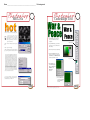
1. Open a color RGB image.
Pho
toinsType
ho p
Image
2. Click on the Brush tool and change the
mode of the brush from normal to color.
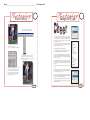
1. After opening the image and making sure the photograph
has enough resolution (follow the Digital Imaging Guidelines
in the 2006 YearTech User Manual), double-click on the
name Background in the Layers palette. This will change the
Background layer into Layer 0.
2. Using the text tool, begin typing the headline. Make sure the
type is the correct point size and font before doing any more
steps. This will create a text layer.
3. From the Brushes palette,
choose a soft-edged, medium-sized brush.
Remember, bold fonts works best for this effect.
3. After typing the headline and formatting the text, drag the text
layer in the layers palette to the bottom of the stack.
4. Start painting. You can adjust your stroke
to whatever works best for you. With every
stroke the color will disappear leaving behind
the grayscale image.
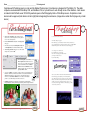
This technique is used in a lot of commercial
ads on television and in popular magazine
layouts. A popular example would be the
Gatorade ads with the Gatorade staying in
color and the rest of the scene in black-nwhite. Have fun with this one.
4. While Layer 0 is selected (highlighted in the Layers palette), go
to the Layer menu (pull down menu listed at top of Photoshop)
to Group with Previous(Photoshop 7) or Create Clipping Mask
(Photoshop CS or CS2).
5. Your layer palette should have two layers. The top layer will
be indented with a crooked arrow pointing down below and the
bottom layer will be underlined showing which layer it is being
clipped to.
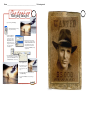
The final results are all the rage in popular magazine layout and
design.
6. After clipping the content, go to Layer/Flatten Image and Save
As a Tiff. Use the crop tool to resize headline if needed. Make
sure the image is RGB or Grayscale .
To remove the white background after placed in PageMaker
or InDesign, follow the Clipping Path Instructions for the final
removal of the white background if needed.
For other cool effects, try a shape layer insead of a text layer.
Or instead of a photograph, try a texture or one of Jostens
Backgrounds. Have Fun!
This tutorial is for Photoshop CS & CS2. If you are using an earlier version of the software contact Jostens Tech Support with questions: 800 328-2435.