1
Name _____________________________________________ Club assignment:
Pho
to Images
s ho p
Merging
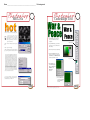
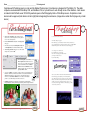
1. Open both images in Photoshop.
2.2.
With
thethe
Move
tooltool
drag
oneone
image
on
With
Move
drag
image
top ofonthe
image.
topother
of the
other image.
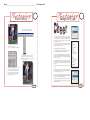
3. In the Layers palette you
will see both images in
separate layers. Double
click on the layer named
Background and rename
it Layer 0. The layer you
dragged over from the other
image is automatically
named Layer 1.
4. If
If the
the images
images are
are not
not the
the right
right size,
size,
each
layer
cancan
be be
resized
by by
going
to the
each
layer
resized
going
to
Edit/Transform/Scale.
SelectionSelection
points
the Edit/Transform/Scale.
willpoints
appear
in appear
each corner;
points
will
in eachthese
corner;
canthese
be resized
points while
can beholding
resizeddown
whilethe
Shift-key
keepthe
it Shift-key
porportional.
holdingtoo
down
too keep
it porportional.
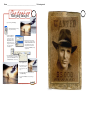
5. Select the Eraser tool. Click the arrow
next to the brush size to open the Eraser
Options and set the Hardness to 0% and
the Master Diameter to around 100px.
6. Set the Opacity to 100%.
7. Now brush away the portion
of the picture you would
like to merge into the other
image.
7. In the Layers palette click on the fly-out menu and
choose Flatten image.
8. Save the file with File/Save as and set the file type
to JPG.
This tutorial is for Photoshop CS & CS2. If you are using an earlier version of the software contact Jostens Tech Support with questions: 800 328-2435.