1
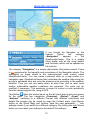
Navigation bar
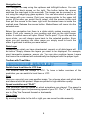
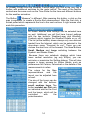
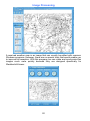
You navigate the map using the up/down and left/right buttons. You can
also use the black arrows on the right. The button below the arrows
switches the map back to the overview. The image can be zoomed in or
out using the magnifying glass symbols. You can also select a portion of
the image with your mouse. Point your mouse pointer to the upper left
corner of the area you would like to select, click the mouse button and
then pull the mouse to the lower right until the desired area is inside the
marked area. Release the mouse button. MeteoViewer will zoom into the
selected area.
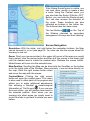
Below the navigation bar there is a slider which makes zooming even
easier. Point your mouse to your position and click on the right mouse
button. A context menu will open. Select “Set fix point”. If you now use the
zoom slider, you will always zoom back to the selected position. Even
when you are zooming into other areas you simply need to touch the
slider to get back to where you were before.
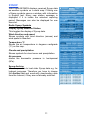
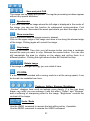
Data Layer
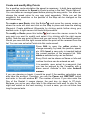
Depending on what you have downloaded, several or all data layers will
be active. Simply choose the layers you want to be displayed. For example,
wind, barometric pressure, waves, etc. You can also combine layers. Layers
that cannot be combined will automatically be displayed with the proper layer.
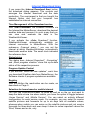
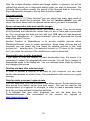
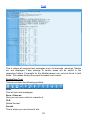
Toolbar with TimeSlider
Switch from local time to UTC time
The weather data are always in UTC. To have a better overview of the
prediction you can switch to local time or UTC.
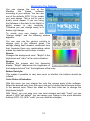
Print
Here you can print your own weather maps. You choose when and which data
and areas should be printed. Maps are printed in high definition quality.
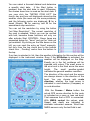
Speed controller and “PLAY”
This controller sets the speed at which animations are played. The speed is
also dependent upon the processing speed of your PC. The “<” and “>” buttons
are to „Play“ the Forecast forward or backwards.
Time slider
By moving this slider to the left or right you can move the data manually.
8